
Chazie Baniquid
Technical Content Marketer
9 minutes to read
How to Limit Form Submissions in WPForms?
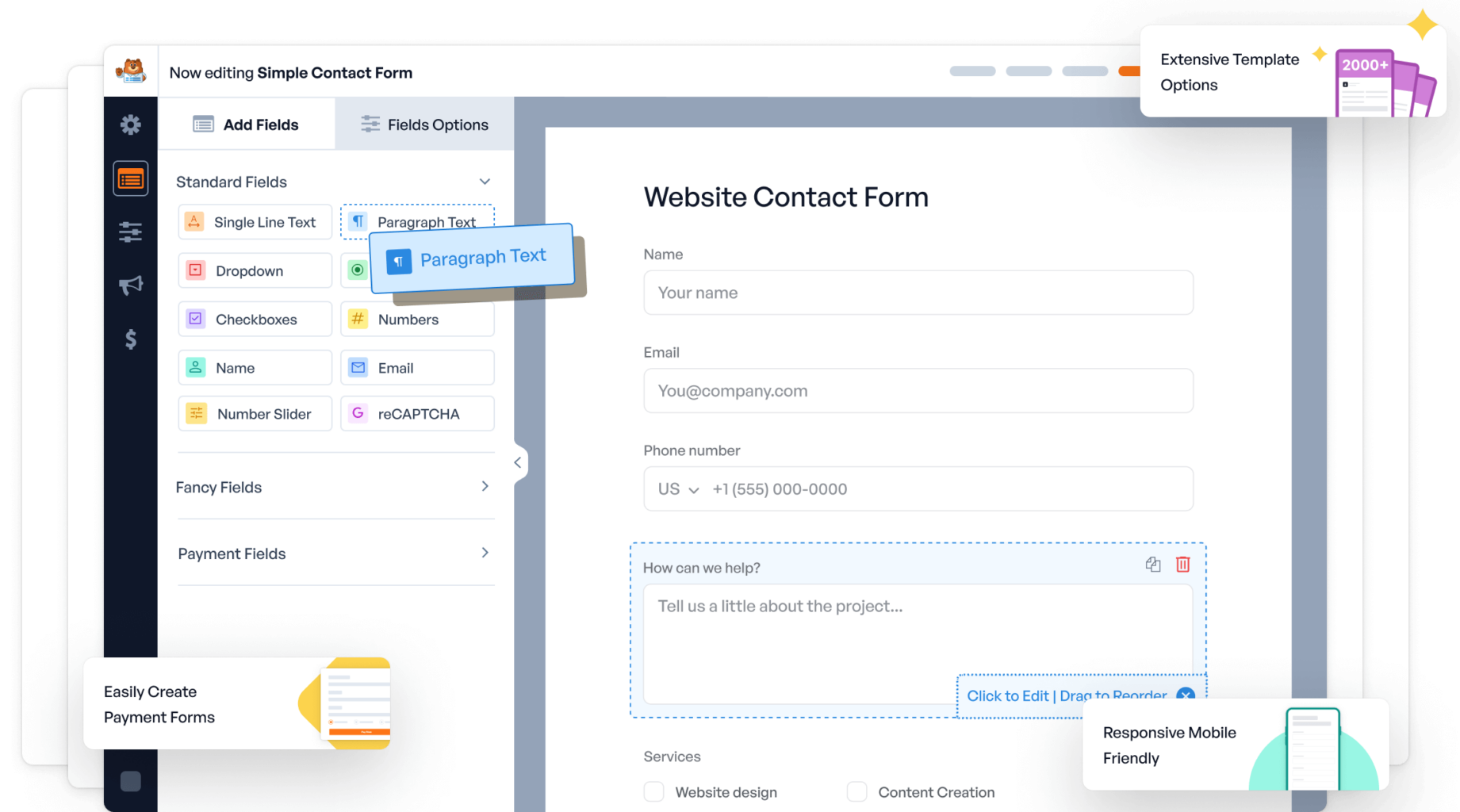
If you want to limit submissions in WPForms, you have two solid options.
Use the Form Locker Addon when you need hard rules like a total entry cap, scheduling, logged-in access, or “one entry per person.” Add OOPSpam (that’s us 👋) rate limiting when your problem is repeated abuse, form floods, or the same IP or email submitting over and over in a short period.
This guide shows both, so you can choose what fits your form.
What “limit form submissions” can mean
People use this phrase in a few different ways. WPForms can handle each one, but the tool you use depends on the goal.
- Limit total entries: Stop accepting submissions after a set number (example: 100 contest entries).
- Limit entries per person: Restrict repeat submissions by email, IP, or logged-in user.
- Limit by time: Open and close the form on specific dates, or run daily or weekly limits.
- Limit floods and repeated abuse: Reduce automated or repeated submissions from the same source.
Form Locker handles the first three. OOPSpam is best for the last one.
Option 1: Limit submissions using WPForms only (Form Locker Addon)
If your goal is to cap entries, control access, or run time-based submission rules, Form Locker is the cleanest built-in approach.
Step 1: Install WPForms Pro and activate Form Locker
Install and activate WPForms Pro (or higher). In WordPress, go to WPForms → Addons. Search for Form Locker, then click Install Addon and activate it.
Step 2: Open the form and go to Form Locker settings
Next, open the form you want to restrict.
Go to WPForms → All Forms, then click Edit on the form you want to limit. This opens the WPForms form builder.
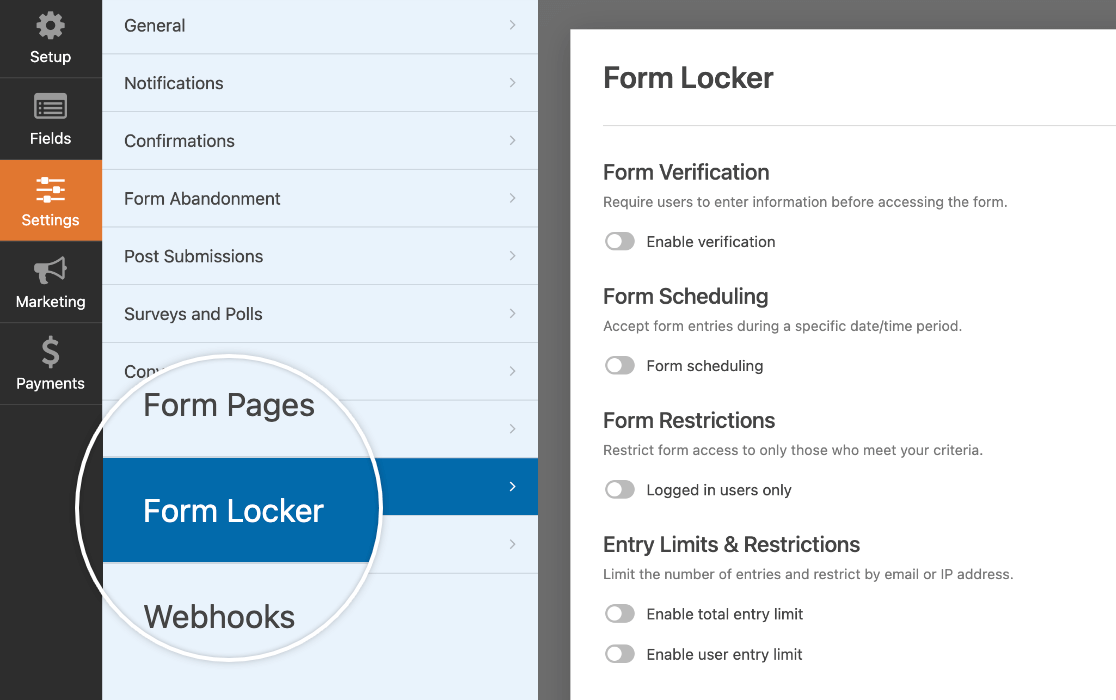
Inside the builder, click Settings, then select Form Locker. You’ll now see all Form Locker controls in one place, including entry limits, user restrictions, and scheduling options.
Limit the total number of entries
Use this when your form should stop after a specific number of submissions.
- Under Entry Limits and Restrictions, toggle Enable total entry limit on.
- Set the Limit (example: 100).
- Add a Closed Message that displays when the form is full.
- Click Save.
This is ideal for contests, registration caps, applications, and limited-time offers.
Limit entries per user (by IP or email)
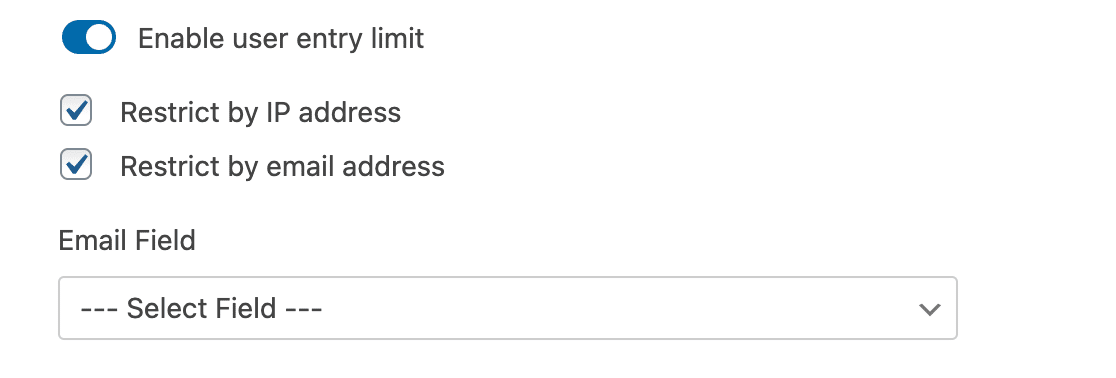
Use this when you want to stop repeat submissions from the same person.
- Toggle Enable user entry limit on.
- Choose your restriction method:
-
-
Restrict by IP address
-
Restrict by email address
-
- If you restrict by email, select the email field from the dropdown.
- Set the maximum number of entries allowed per user.
- Choose a timeframe such as:
-
-
per 24 hours
-
per 7 days
-
per month
-
per year
-
- Add the message users see when they hit the limit.
- Click Save.
This is a great fit for surveys, appointment requests, lead forms, and signups where duplicates cause trouble.
Require unique answers for specific fields
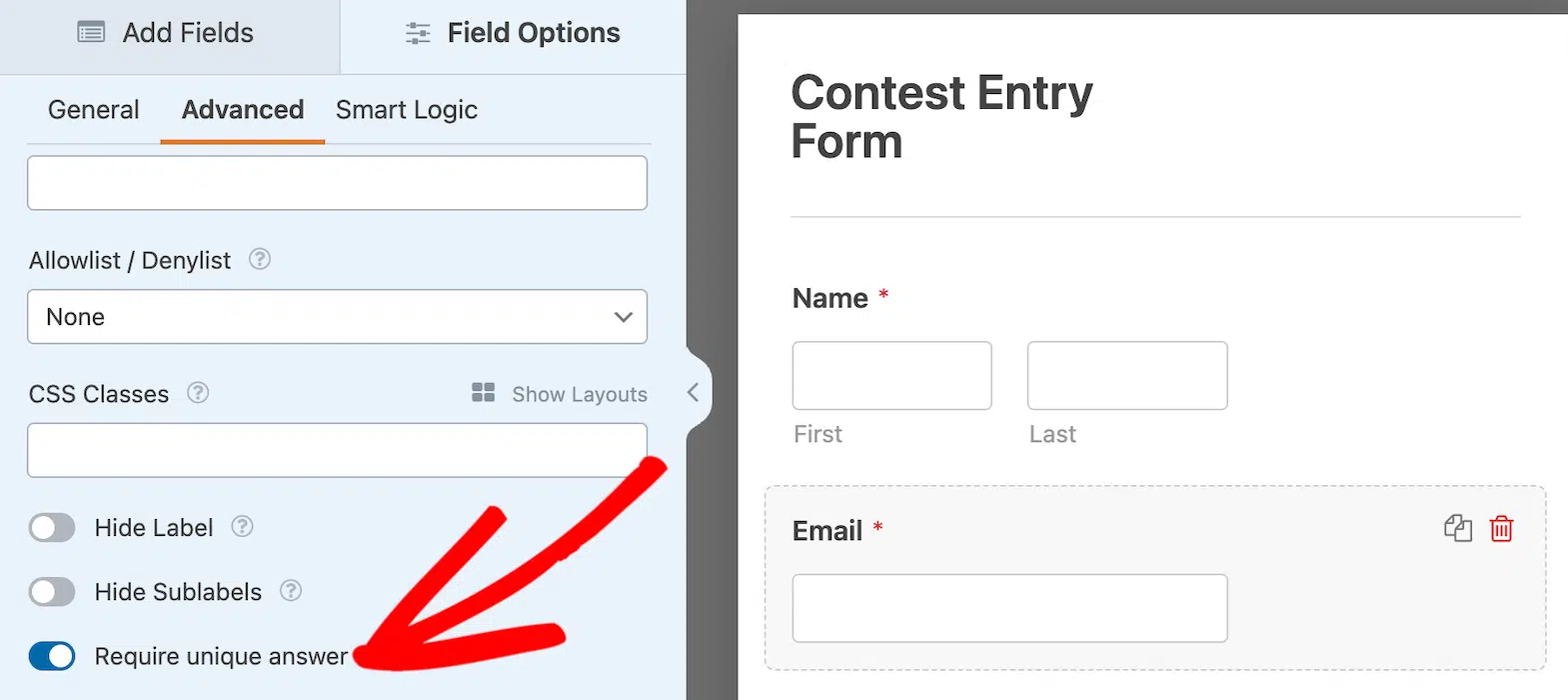
Use this when a user must submit a unique value like an email address, phone number, or name.
- Click the field you want to protect (commonly Email, Phone, Name, or Single Line Text).
- Open the Advanced settings for that field.
- Check Require unique answer.
- Save the form.
If someone tries to submit a duplicate value, WPForms will block it and show an error.
Schedule when your form is open
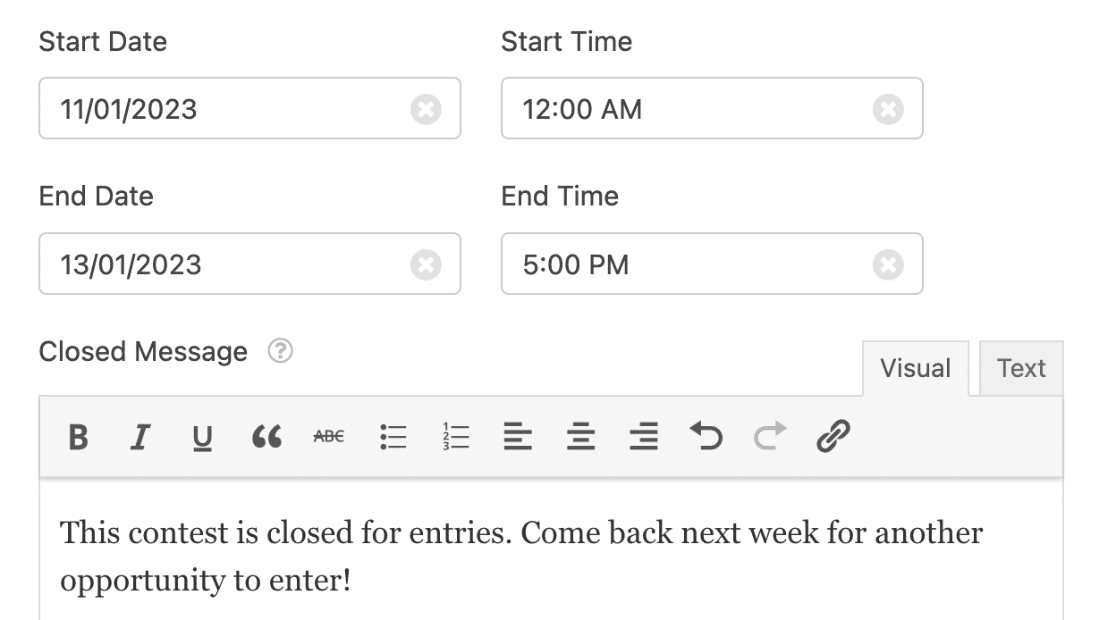
Use this when the form should only accept entries during a certain time window.
- In Settings → Form Locker, find Form Scheduling.
- Set your start date and end date.
- Save.
This is useful for seasonal promotions, limited-time registrations, and application windows.
Restrict your form to logged-in users only
Use this when the form is for members, customers, students, or internal teams.
- In Settings → Form Locker, find Form Restrictions.
- Enable the logged-in restriction option.
- Save.
Option 2: Add OOPSpam for advanced rate limiting and abuse control
Form Locker can limit entries per user, but it is not designed to stop fast, repeated attempts from automated traffic. That’s where rate limiting helps.
Rate limiting sets a “submission speed limit.” For example, you can allow only a few submissions per hour from the same IP or the same email. When the limit is exceeded, the source gets blocked for a defined period.
Step 1: Install and connect OOPSpam
To add rate limiting and advanced spam protection, start by installing OOPSpam Anti-Spam.
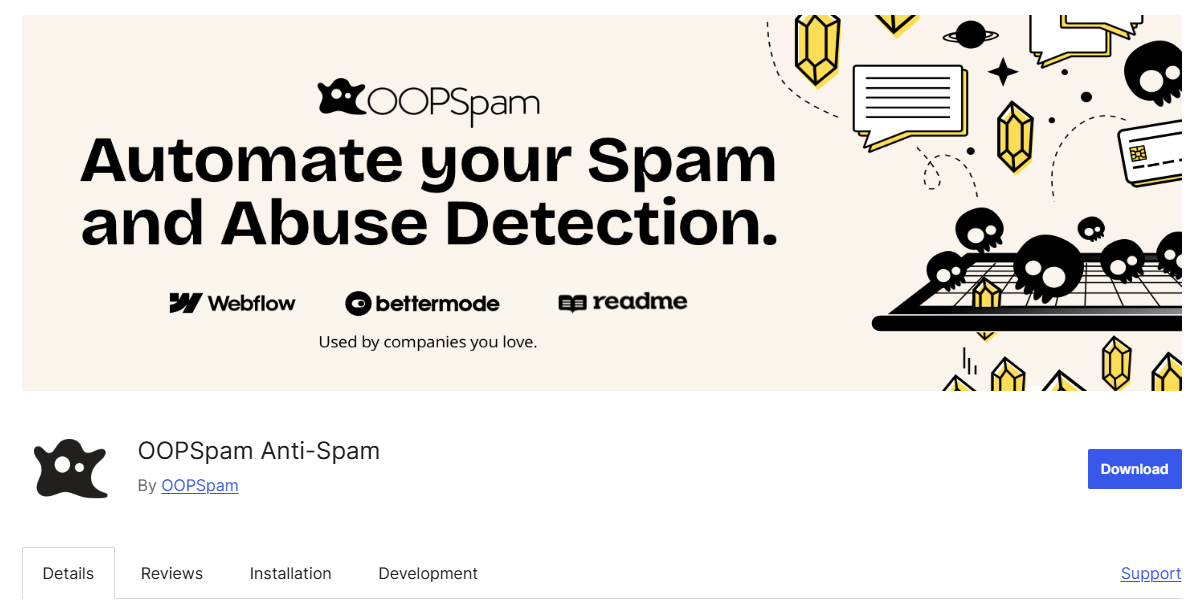
In WordPress, go to Plugins → Add New, search for OOPSpam Anti-Spam, then install and activate the plugin.
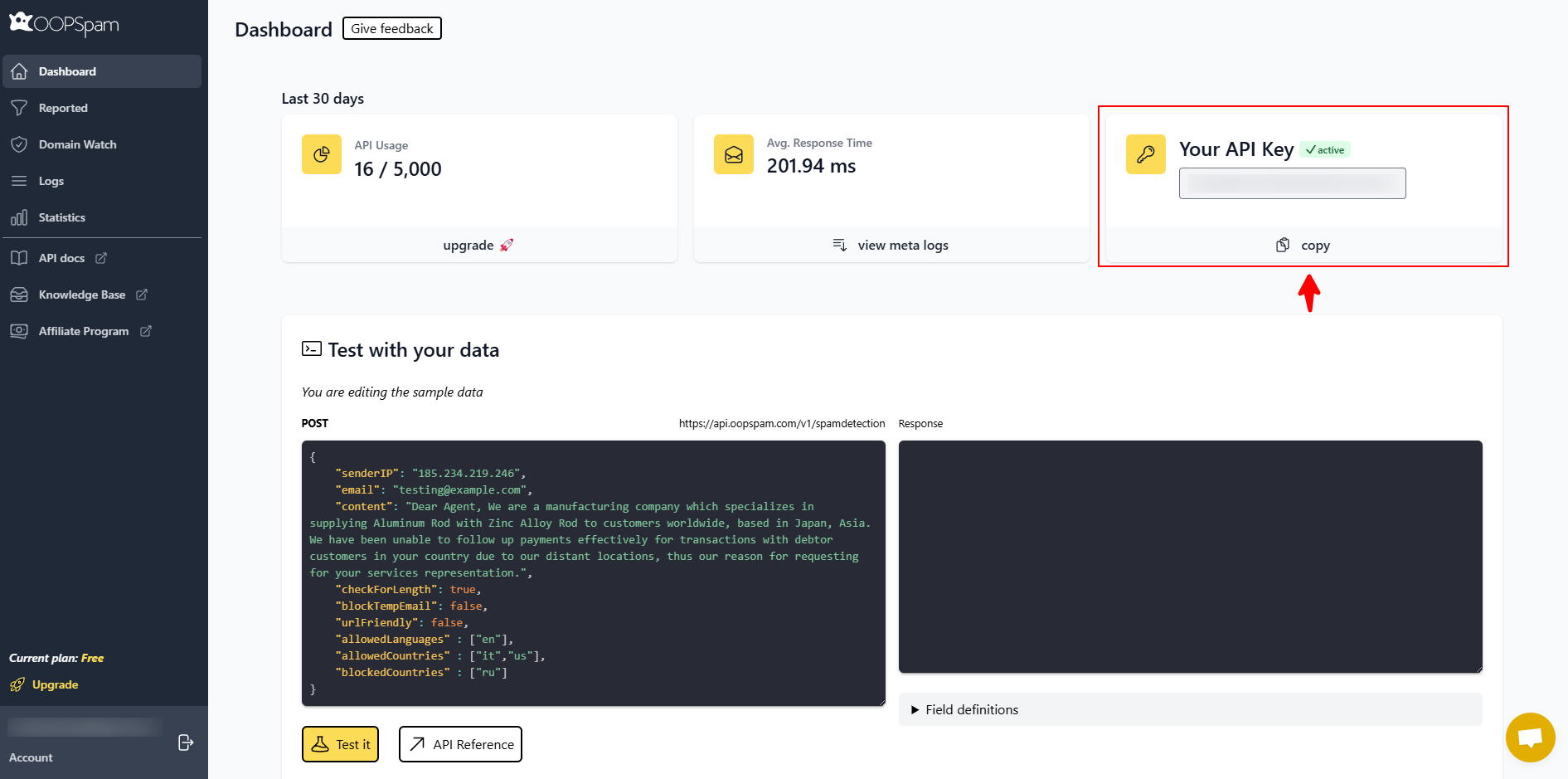
Next, create an account at OOPSpam and copy your API key.
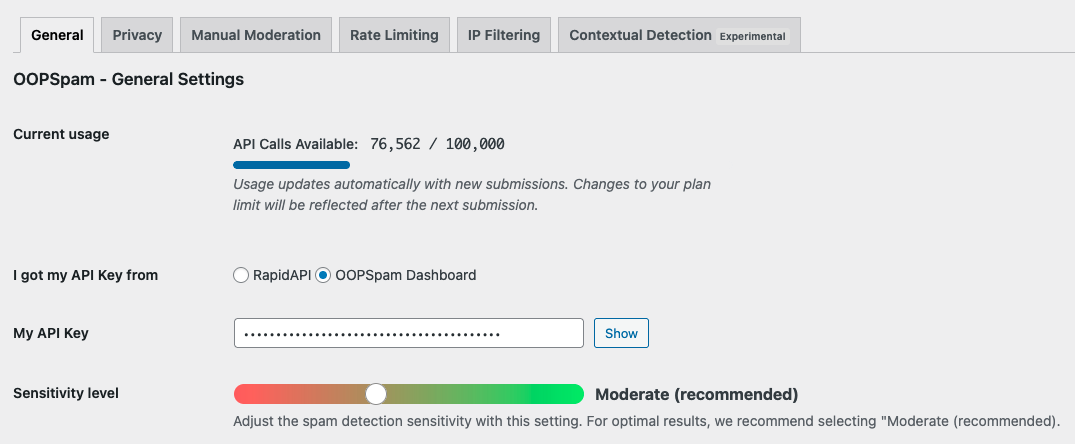
In your WordPress dashboard, go to OOPSpam → General Settings, paste the API key into the field provided, and save your changes.
Step 2: Enable protection for WPForms
Once connected, go to the OOPSpam settings for integrations and turn on spam protection for WPForms.
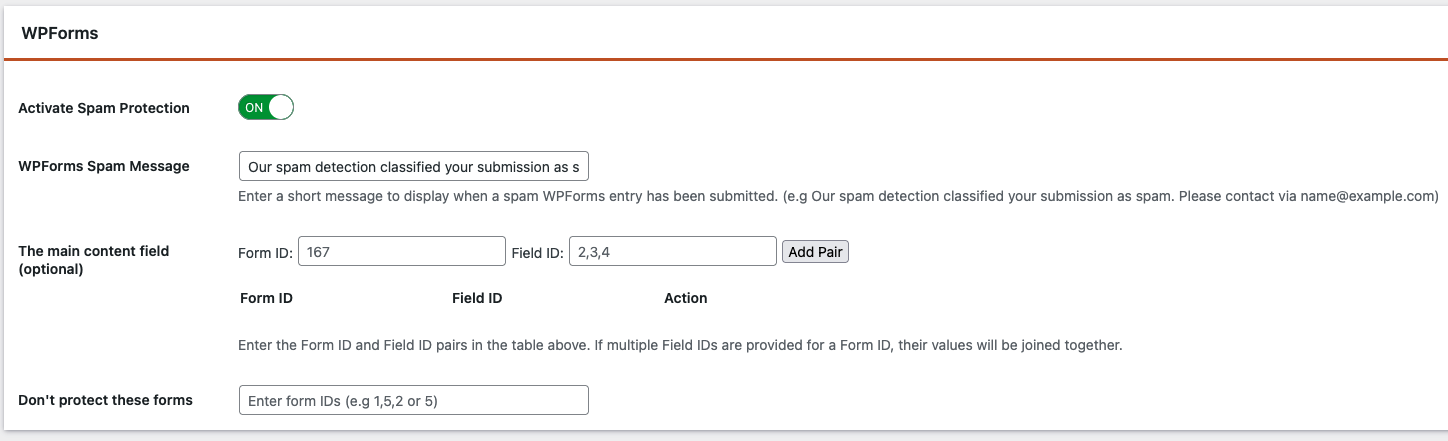
This ensures submissions are checked before they are delivered.
Step 3: Enable rate limiting and set your limits
With WPForms spam protection enabled, open the Rate Limiting tab in OOPSpam.
Toggle Enable Rate Limiting on to activate submission limits. From here, you can control how often a form can be submitted from the same source.
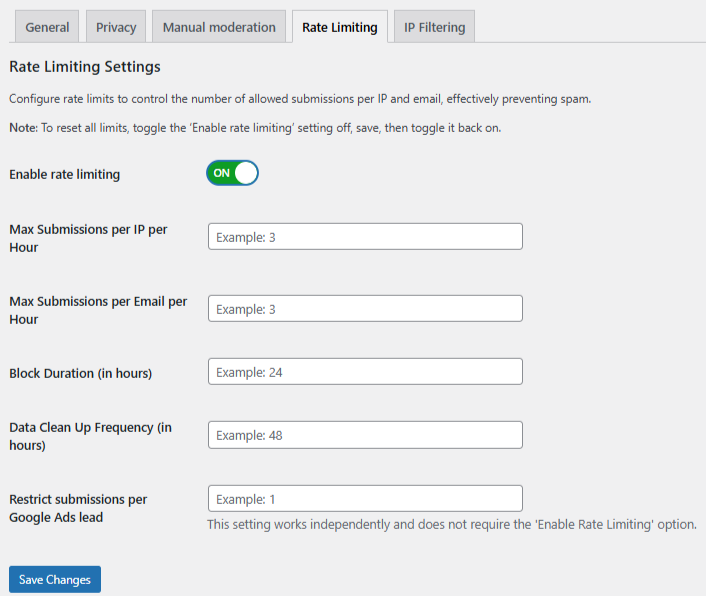
Configure:
- Max submissions per IP per hour - Limits how many times one IP can submit a form in an hour to prevent repeated automated attempts.
- Max submissions per email per hour - Restricts how often the same email can be used to submit a form within an hour.
- Block duration (hours) - Sets how long an IP or email is temporarily blocked after exceeding the limit.
- Data cleanup schedule - Automatically clears old rate-limit logs to keep the database optimized.
Save changes.
A simple starting point for public contact forms is to keep limits reasonable, then tighten them only if you see abuse patterns.
Option 3: Field-level limits (input control, not submission control)
These do not limit how many people can submit the form. They limit what users can type into specific fields, which improves data quality and prevents invalid entries.
Limit words or characters in a field
For text fields, go to the field’s Advanced tab in Field Options and set word or character limits where available. This is useful for message fields, short-answer forms, and any form where you want clean, consistent input.
Limit number ranges in the Numbers field
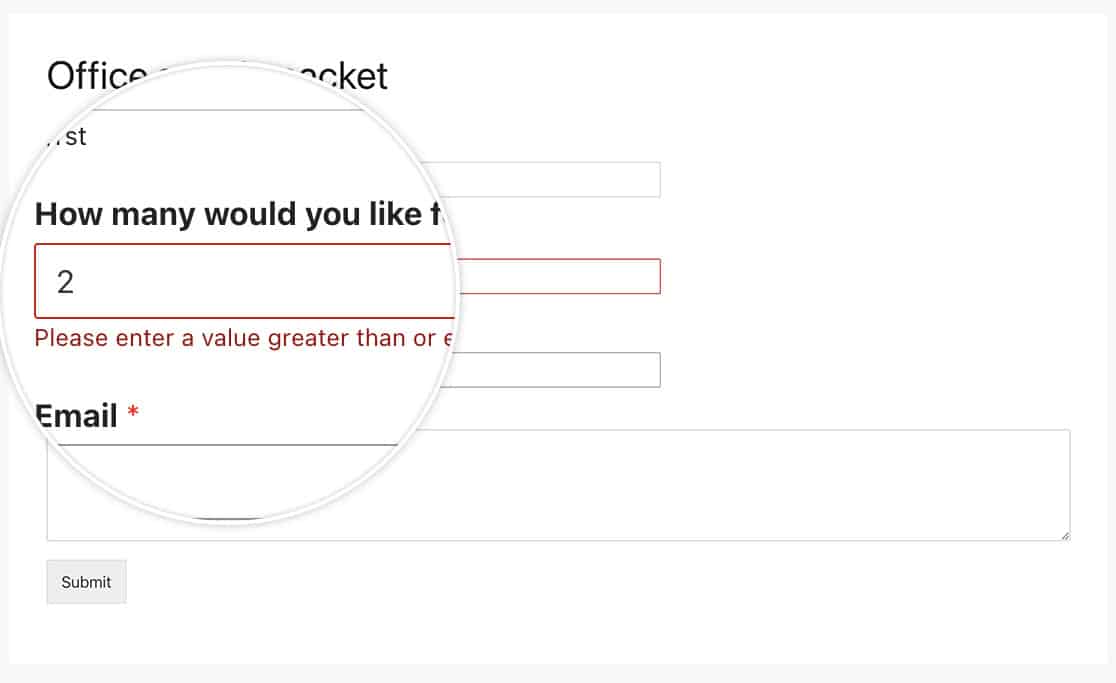
If you use a Numbers field, WPForms supports basic range limits directly in Field Options.
- Click your Numbers field.
- Go to Field Options and find the Range controls.
- Set your minimum and maximum values.
For specialized rules like enforcing even numbers only, you can add a CSS class in the Advanced tab and apply a small JavaScript snippet site-wide, so the rule can be reused across multiple forms.
Which option should you use?
If you only need a submission cap, scheduling, login-only access, or unique entries, Form Locker is usually enough.
If you are dealing with repeated abuse, automated bursts, or the same IP or email hammering your forms, add OOPSpam rate limiting on top of Form Locker.
Many sites run both:
- Form Locker to control how many entries are accepted and who can submit
- OOPSpam to prevent floods from consuming those limited slots
Final thoughts
Limiting WPForms submissions is not one setting, it is a mix of controls depending on what you are trying to stop. Start with Form Locker for hard rules like caps, schedules, and per-user limits. Add OOPSpam when you need true rate limiting and stronger abuse prevention.