How to verify and clean up your EmailOctopus email list?

Technical Content Marketer

Reviewed by Onar Alili
Co-founder & Engineer
Updated Published 5 min read
An unclean email list quietly works against you. Fake signups, disposable addresses, and spam traps all damage your sender reputation over time, leading to lower inbox placement and skewed analytics. If you’re using EmailOctopus, oopspam now connects directly to your account so you can scan and remove risky contacts without leaving the dashboard.
Here’s how to set it up.
Step 1: Open the Integrations Page
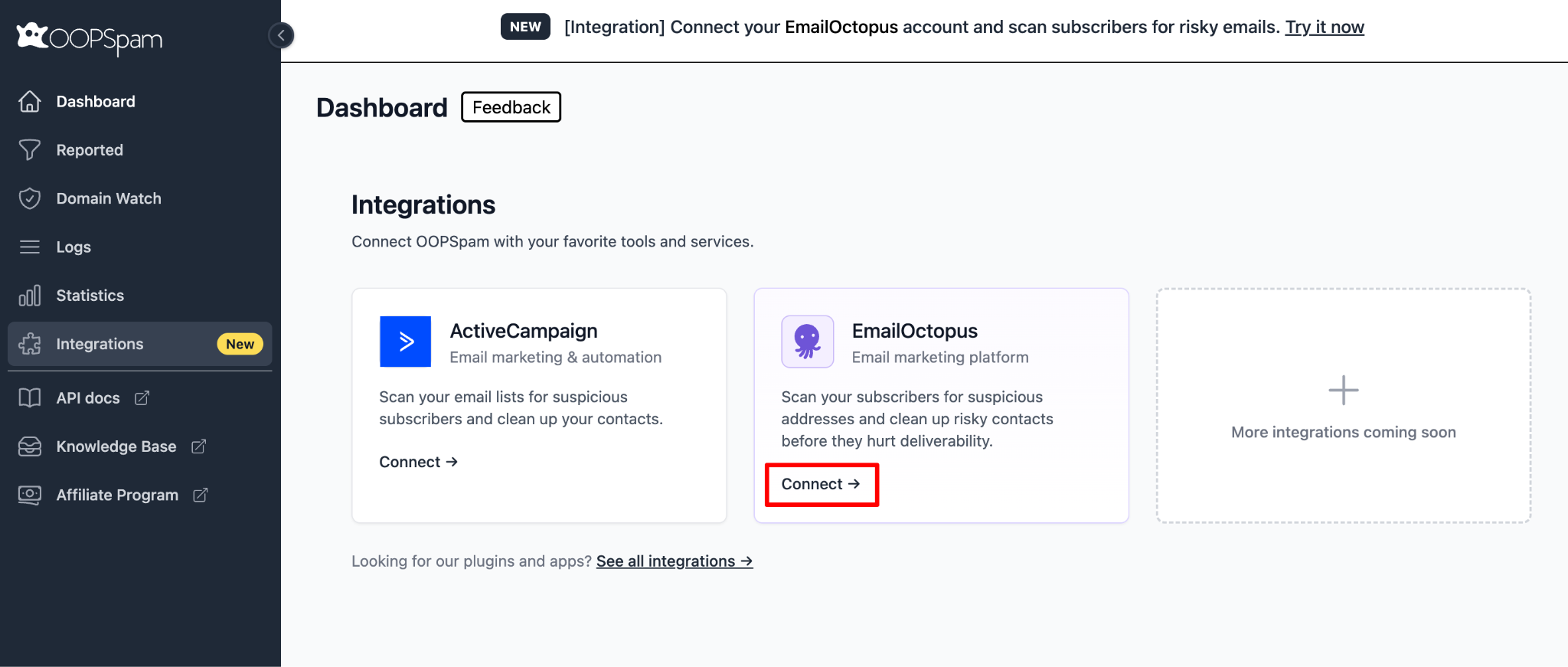
Log in to your oopspam Dashboard and select Integrations from the left menu. You’ll see both ActiveCampaign and EmailOctopus listed. Click Connect on the EmailOctopus card.
Step 2: Enter Your EmailOctopus API Key
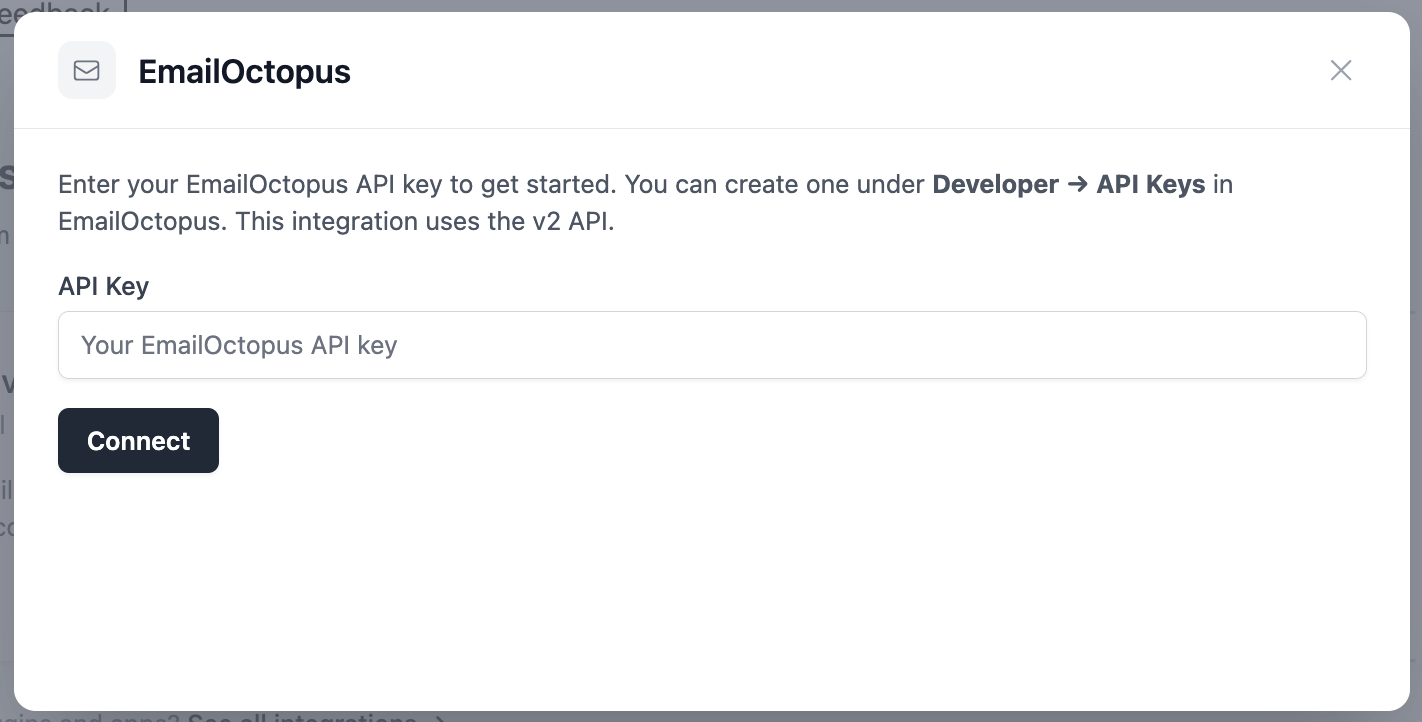
A dialog will appear asking for your API Key. You can find or create one in EmailOctopus under Developer → API Keys. This integration uses the v2 API.
Paste your key into the field and click Connect.
Step 3: Select a List to Scan
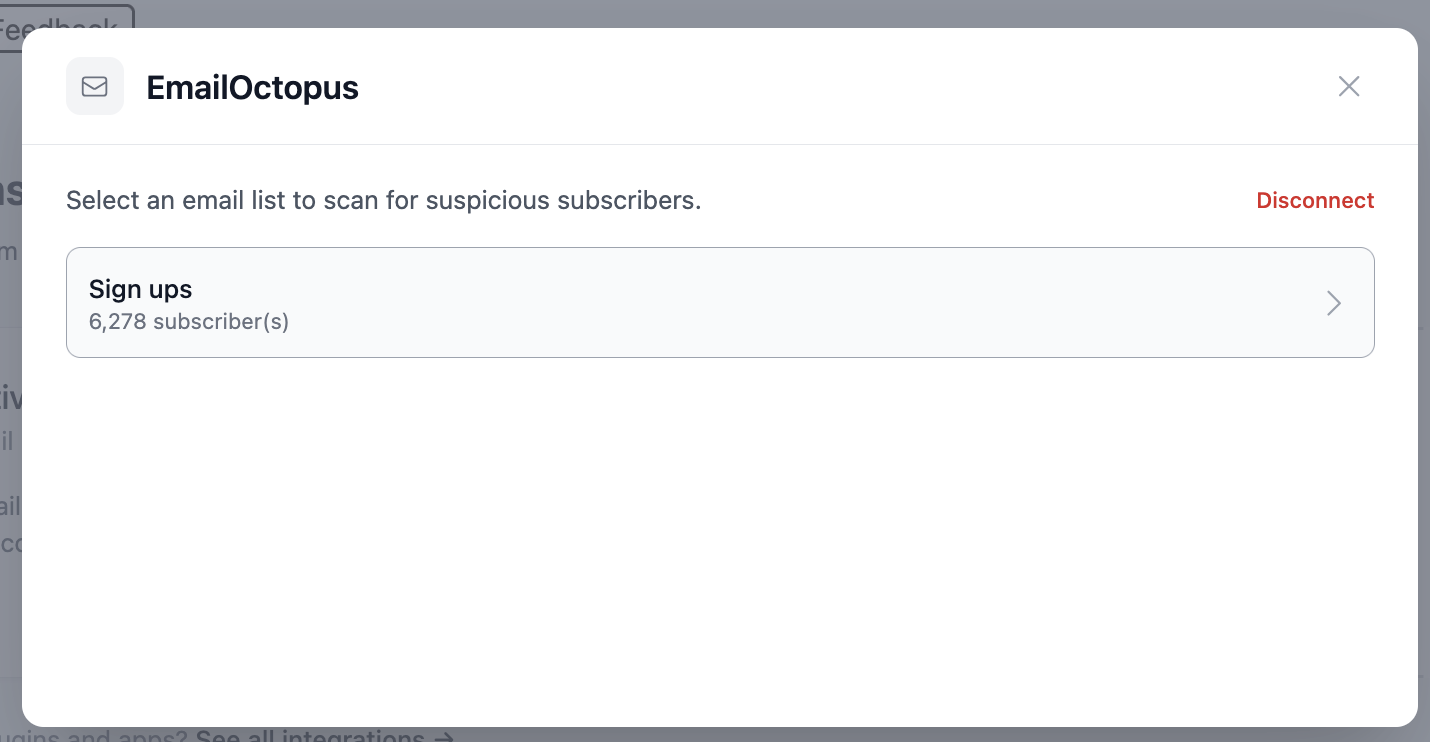
Once connected, oopspam fetches all your EmailOctopus lists along with their subscriber counts. Click on the list you want to scan.
Step 4: Load Contacts and Start Scanning
For larger lists, oopspam runs the process in two steps: you’ll see the progress at the bottom of the screen.
Step 1 of 2 loads all your contacts from EmailOctopus:
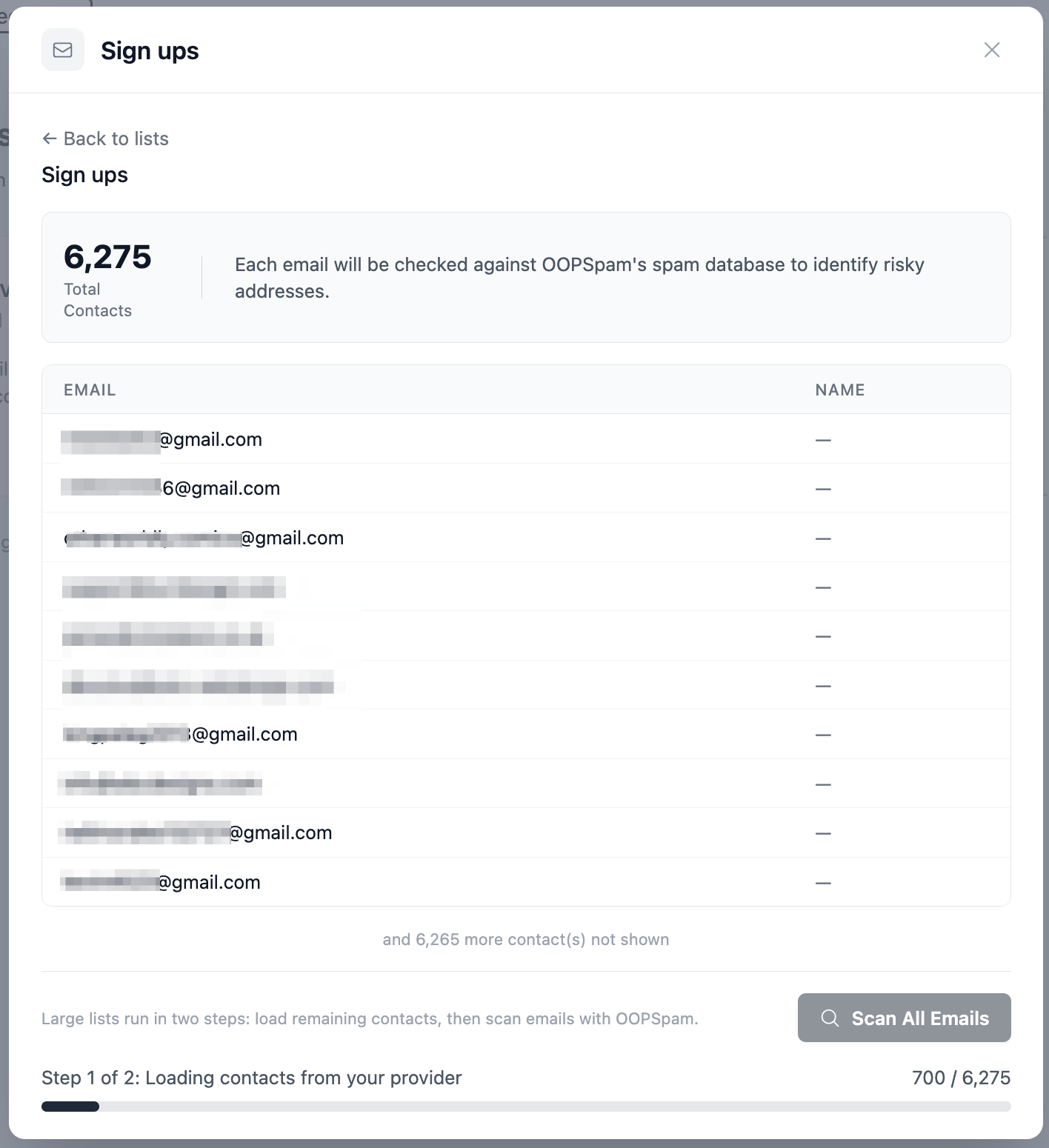
Once all contacts are loaded, Step 2 of 2 begins scanning each email against oopspam’s spam database:
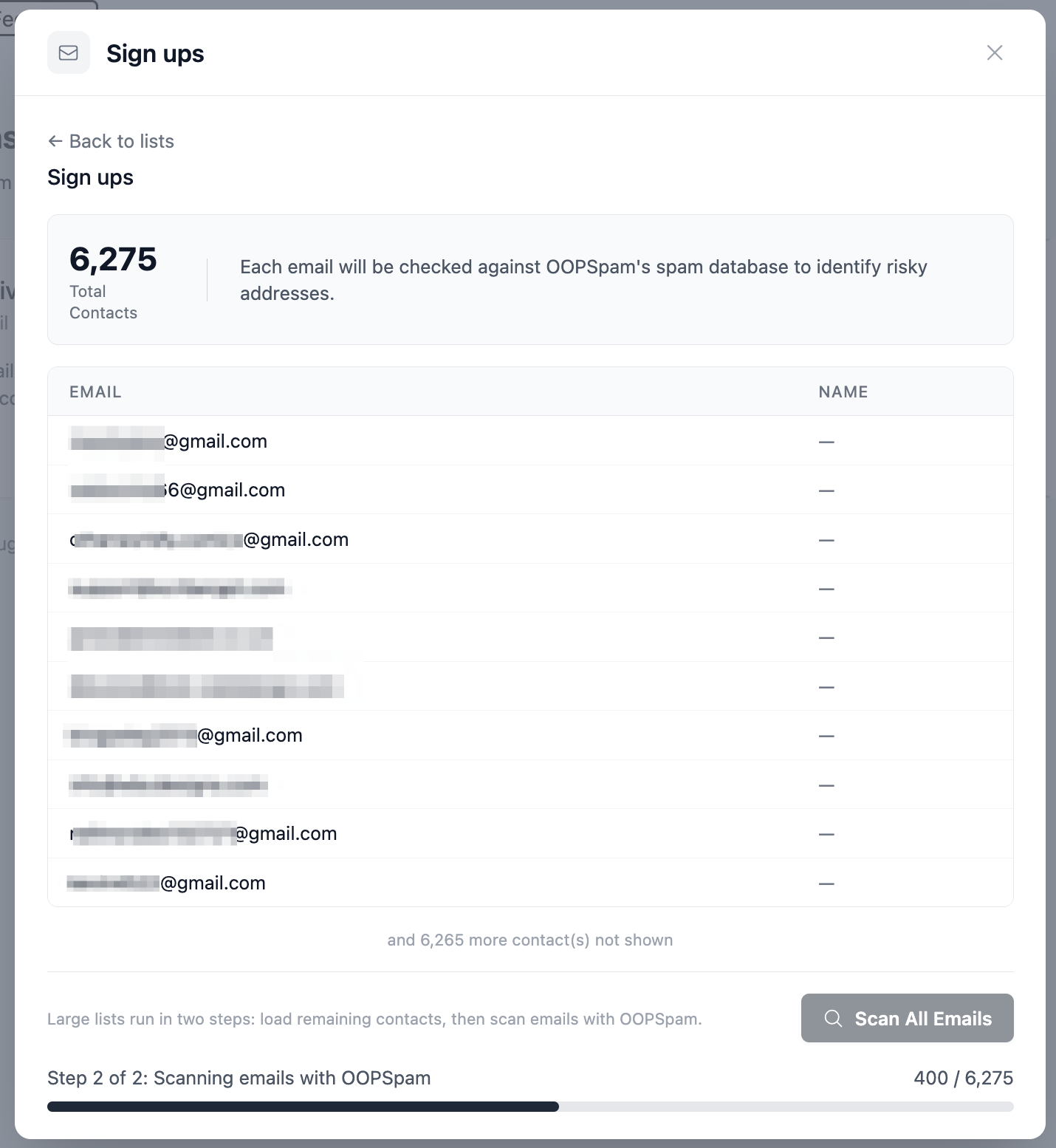
Note: scanning uses your oopspam API credits.
Step 5: Adjust the Additional Risk Criteria
Right on the same screen as the contact preview, an Additional risk criteria panel lets you widen what counts as risky before you commit to a scan. Two checkboxes live here:
- Flag contacts that have soft bounced - catches addresses whose most recent send already struggled to land.
- Flag contacts that never opened the last 3 emails - catches subscribers who’ve stopped engaging. EmailOctopus needs open tracking enabled for this to register anything, and the checkbox itself notes the results may not be accurate without it.
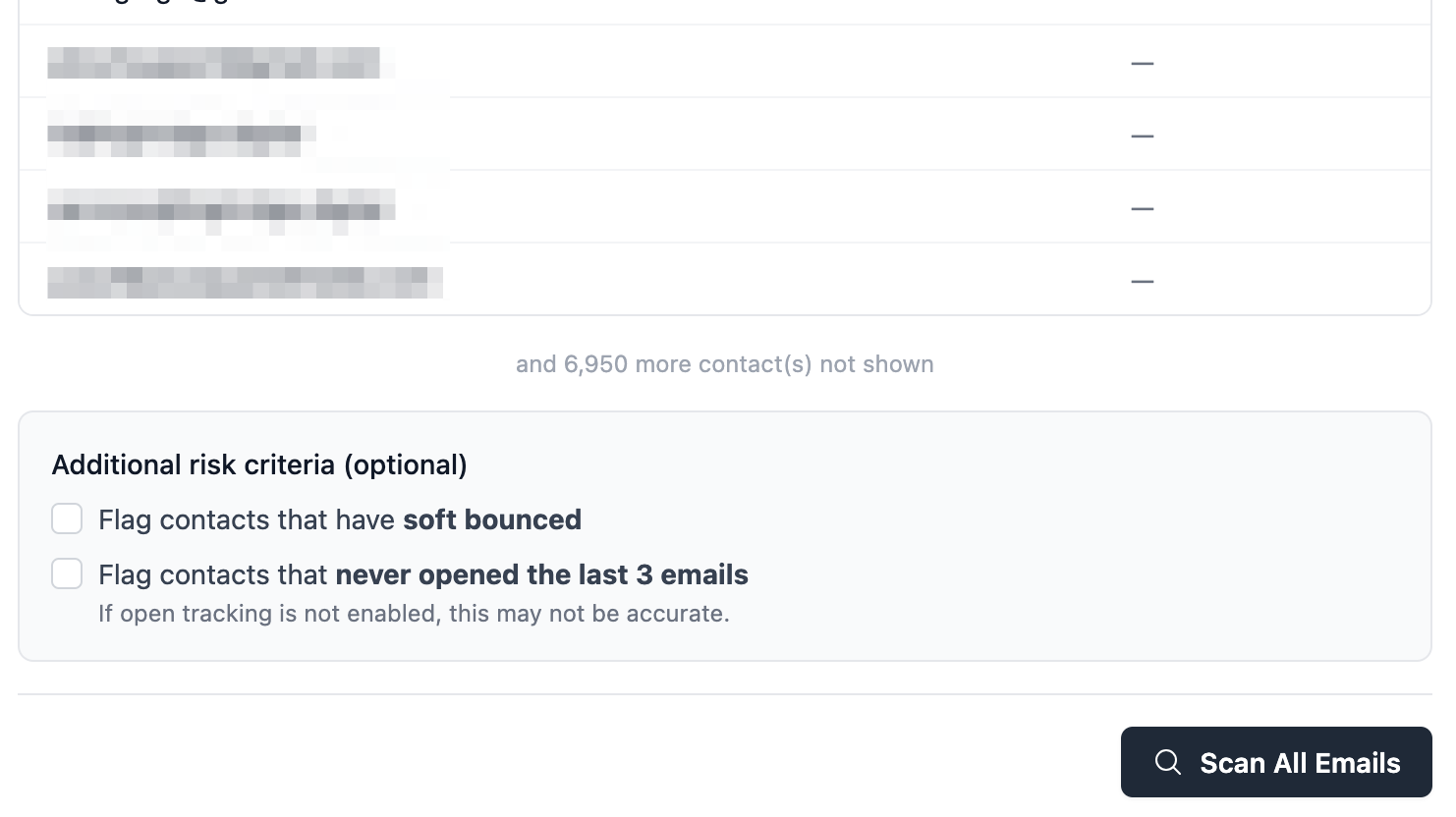
Switching either of these on gives the scan more to check per contact, so expect it to run a little slower than usual.
Step 6: Set IP-Based Filters
Below the risk criteria, an IP-based filters section appears if EmailOctopus exposes subscriber IP addresses to oopspam. From here you can:
- Block VPN / Proxy / Tor IPs
- Block data center IPs
- Set Allowed countries and Blocked countries to limit results to the regions your business actually serves.
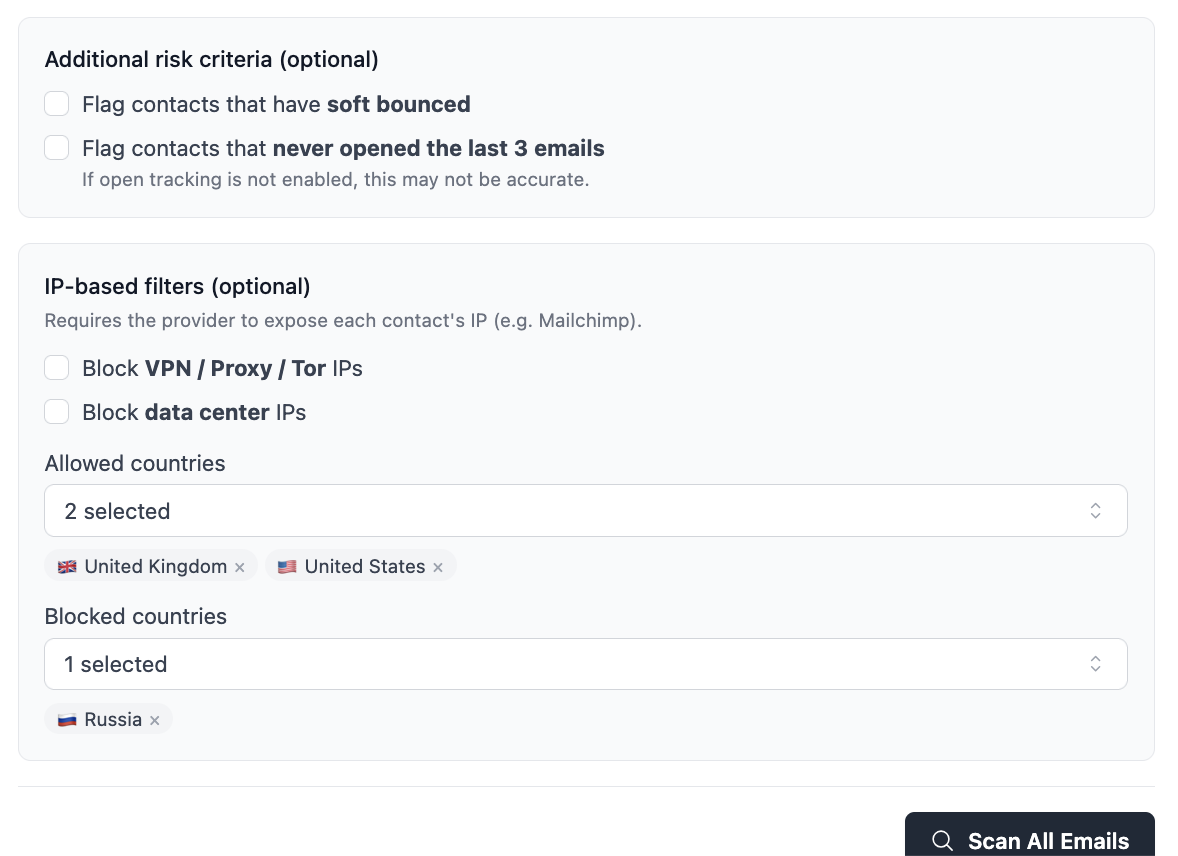
Like the risk criteria above, these filters mean more work per address, which can add to the total scan time.
Step 7: Let It Run in the Background
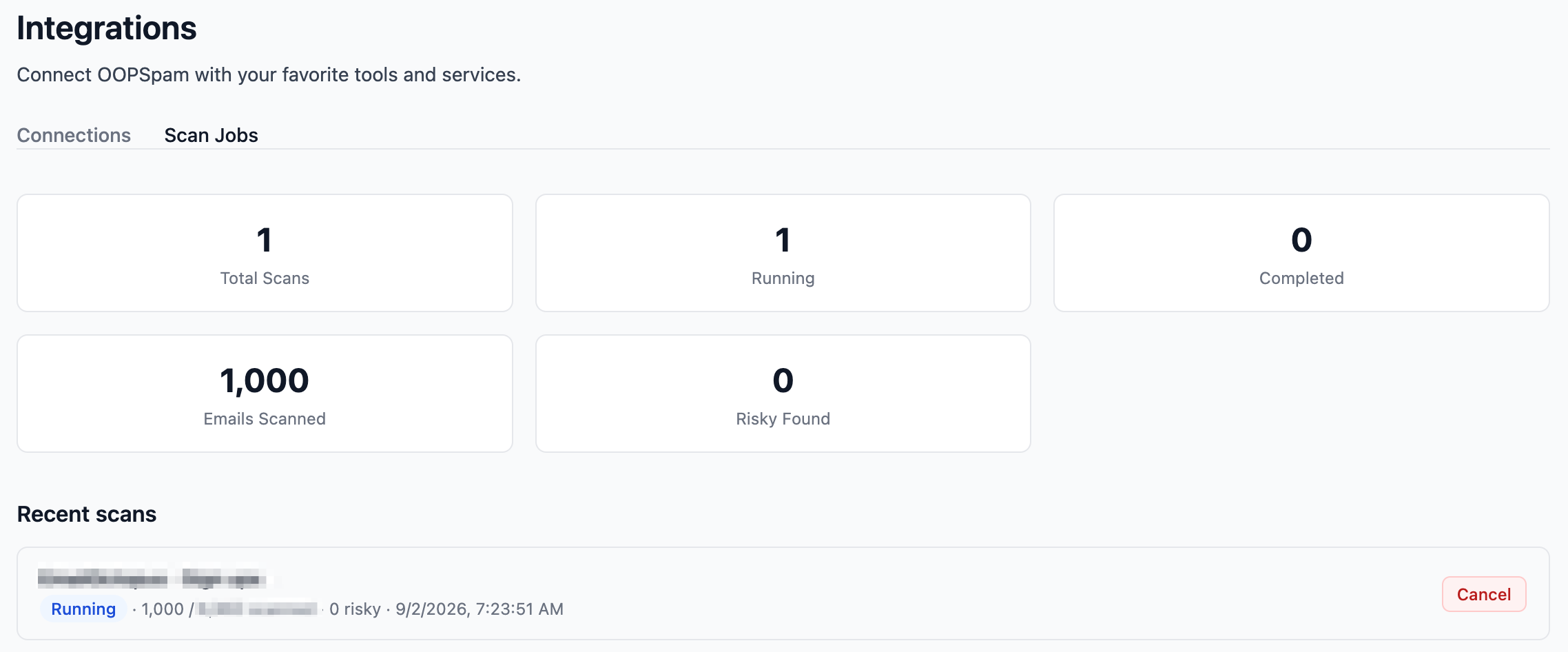
Once you click Scan All Emails, there’s no need to babysit the process. Scans now run in the background from start to finish, so you’re free to close the tab; oopspam sends an email the moment results are ready.

To check in before that email arrives, head to Integrations → Scan Jobs. It lists every scan’s status, whether Running, Completed, or Cancelled, along with a live count of emails scanned and risky contacts found so far.
Step 8: Review Results and Take Action
When the scan completes, you’ll see a summary at the top:
- Total Scanned - every address that was checked
- Clean - addresses that are safe to keep
- Risky - addresses flagged as suspicious or harmful
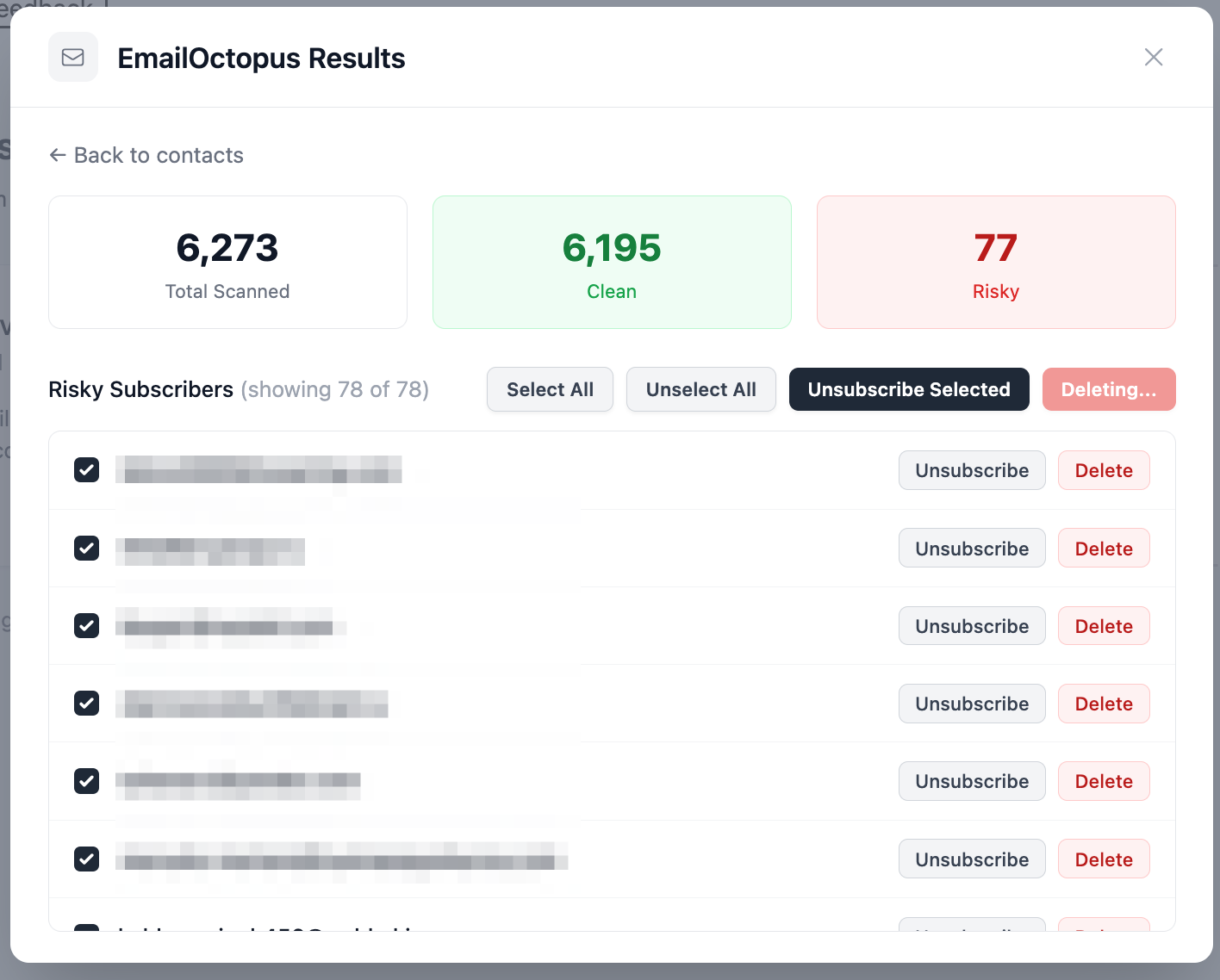
All risky subscribers are listed below with individual action buttons:
- Unsubscribe - removes the contact from this list only; they remain in your EmailOctopus account
- Delete - permanently removes the contact from your entire EmailOctopus account
To act on multiple contacts at once, use the bulk buttons:
- Unsubscribe Selected - unsubscribes all checked contacts from the list
- Delete Selected - permanently deletes all checked contacts from your account
Use Select All to select every risky contact at once, or pick them individually.
Step 9: Done! Your List Is Clean
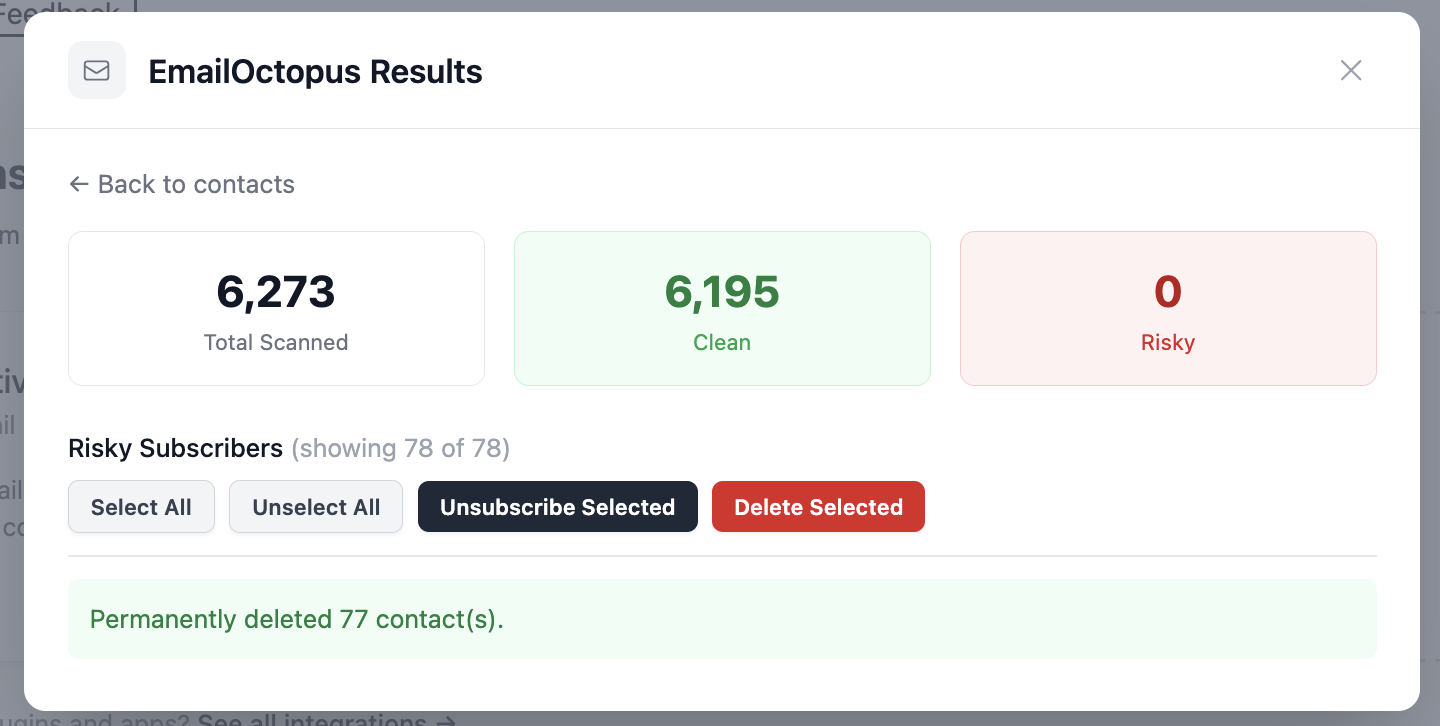
Once you’ve taken action, the risky count drops to 0 and a confirmation message appears. In this example, 77 contacts were permanently deleted from the account.
What Makes an Email “Risky”?
Not every bad address looks obviously fake. oopspam flags several types:
- Disposable emails - temporary inboxes used to bypass sign-up forms
- Known spam addresses - emails tied to spam activity in oopspam’s database
- Invalid domains - addresses where the domain doesn’t exist or can’t receive mail
- Spam traps - addresses used by inbox providers to catch senders with poor list hygiene
Letting these accumulate quietly raises your bounce rate and can get your domain flagged by email providers, even if your campaigns themselves are legitimate.
Scanning regularly keeps your EmailOctopus list healthy and your campaigns performing the way they should. No exports, no third-party tools, no manual cleanup. Just connect and scan.