
Chazie Baniquid
Technical Content Marketer
7 minutes to read
4 ways to stop spam in EmailOctopus
If your EmailOctopus campaigns keep landing in spam folders, it can hurt open rates, damage your sender reputation, and waste your email efforts. The good news is that most spam issues can be fixed. This guide covers four ways to reduce spam in EmailOctopus and improve email deliverability.
1. Scan and Clean Your List with OOPSpam
Before anything else, your email list needs to be clean. Fake signups, disposable addresses, and spam traps quietly destroy your sender reputation over time, causing emails to land in junk folders and skewing your analytics. OOPSpam (that’s us 👋) connects directly to your EmailOctopus account so you can identify and remove risky contacts without switching tools.
How to set it up:
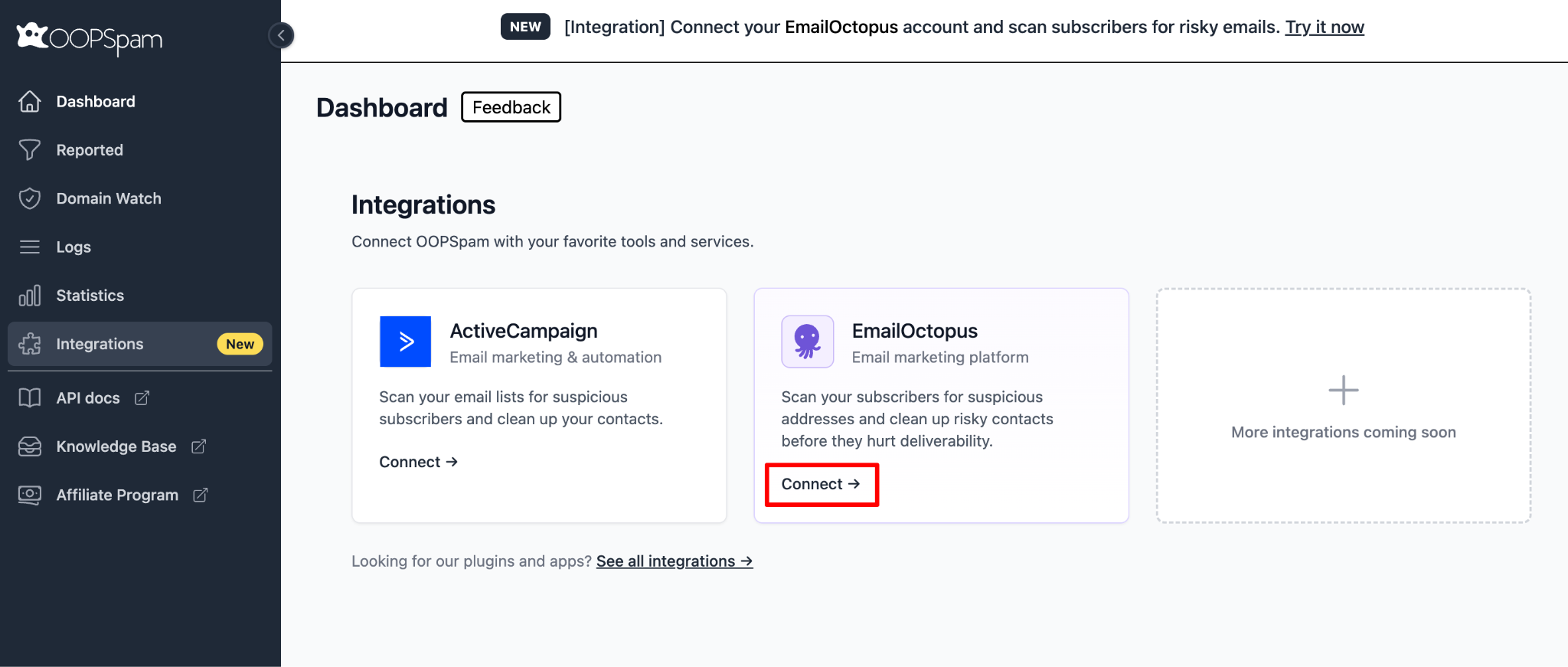
Log in to your OOPSpam Dashboard and go to Integrations in the left menu. Find the EmailOctopus card and click Connect.
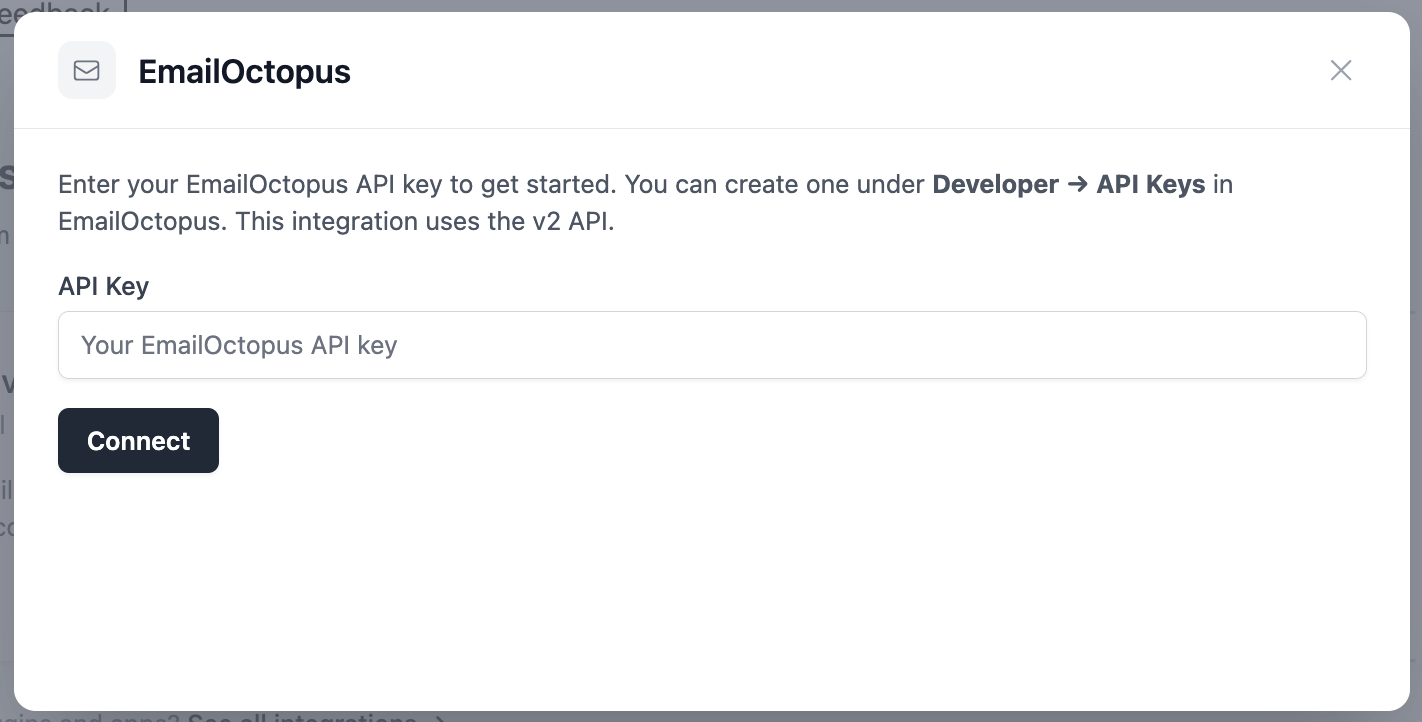
When prompted, enter your EmailOctopus API key. You can create one in EmailOctopus under Developer > API Keys. Paste the key and click Connect.
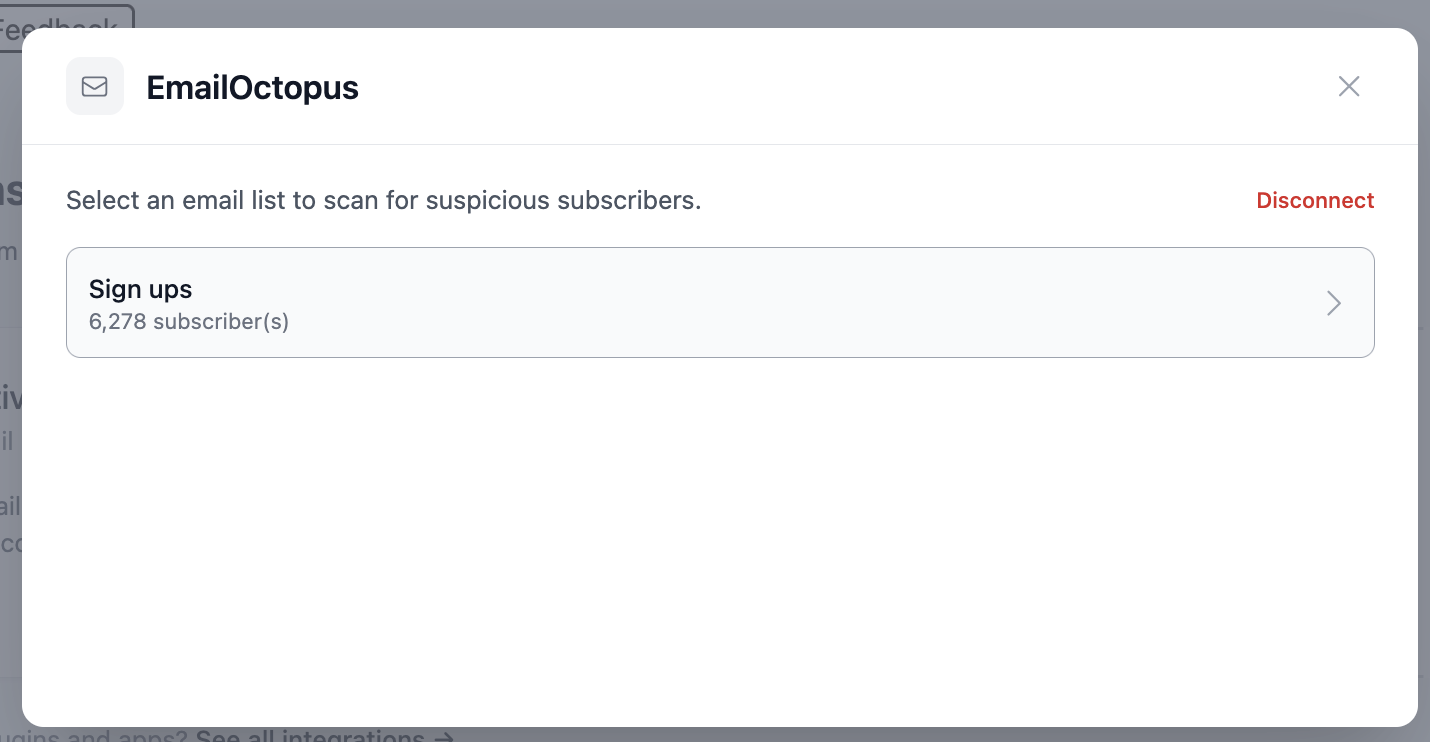
OOPSpam will fetch all your lists with subscriber counts. Click the list you want to scan.
The scan runs in two steps: first it loads all contacts, then it checks each email against OOPSpam’s spam database. Note that scanning uses your OOPSpam API credits.
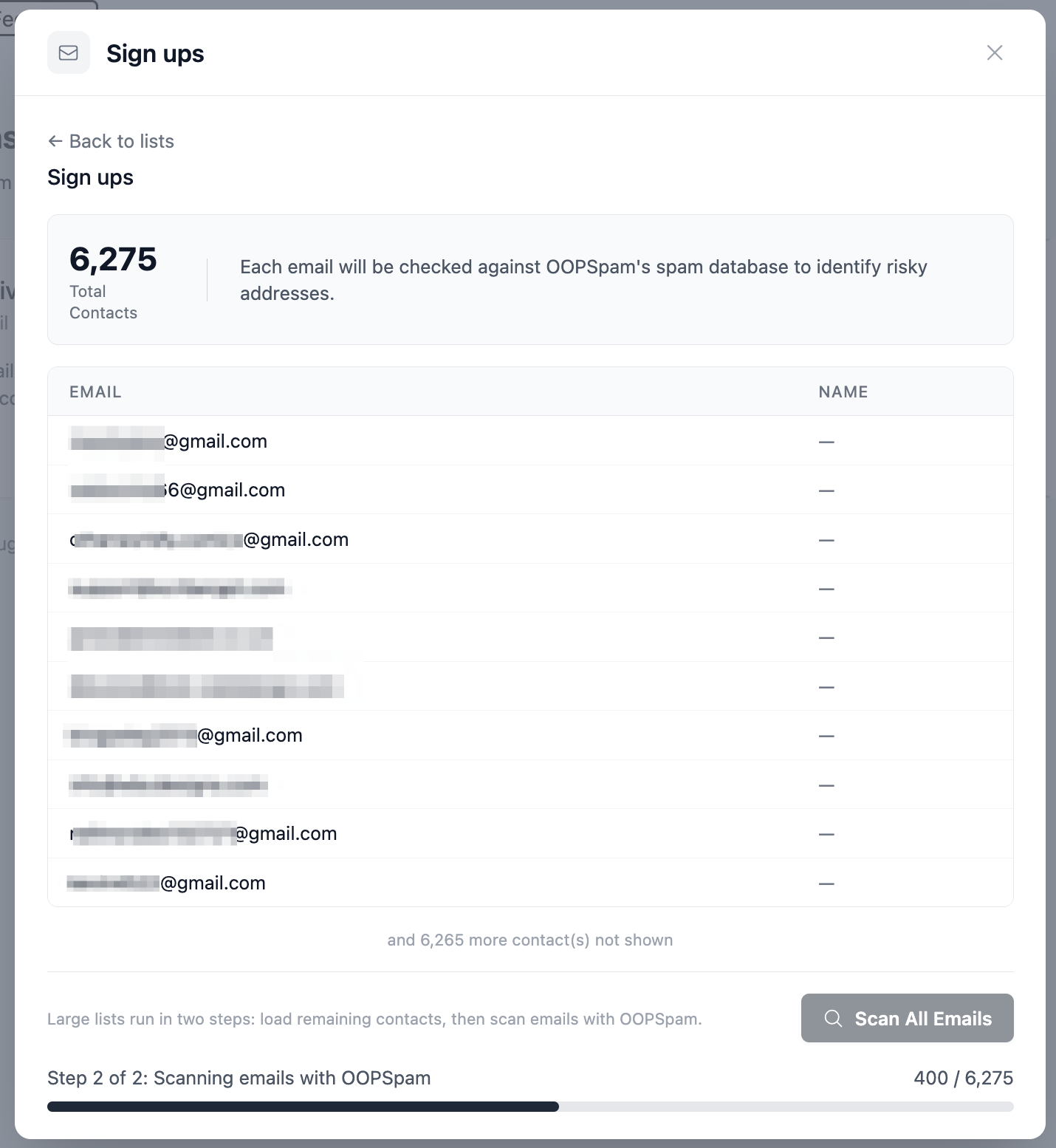
Once complete, you will see a summary showing Total Scanned, Clean, and Risky contacts.
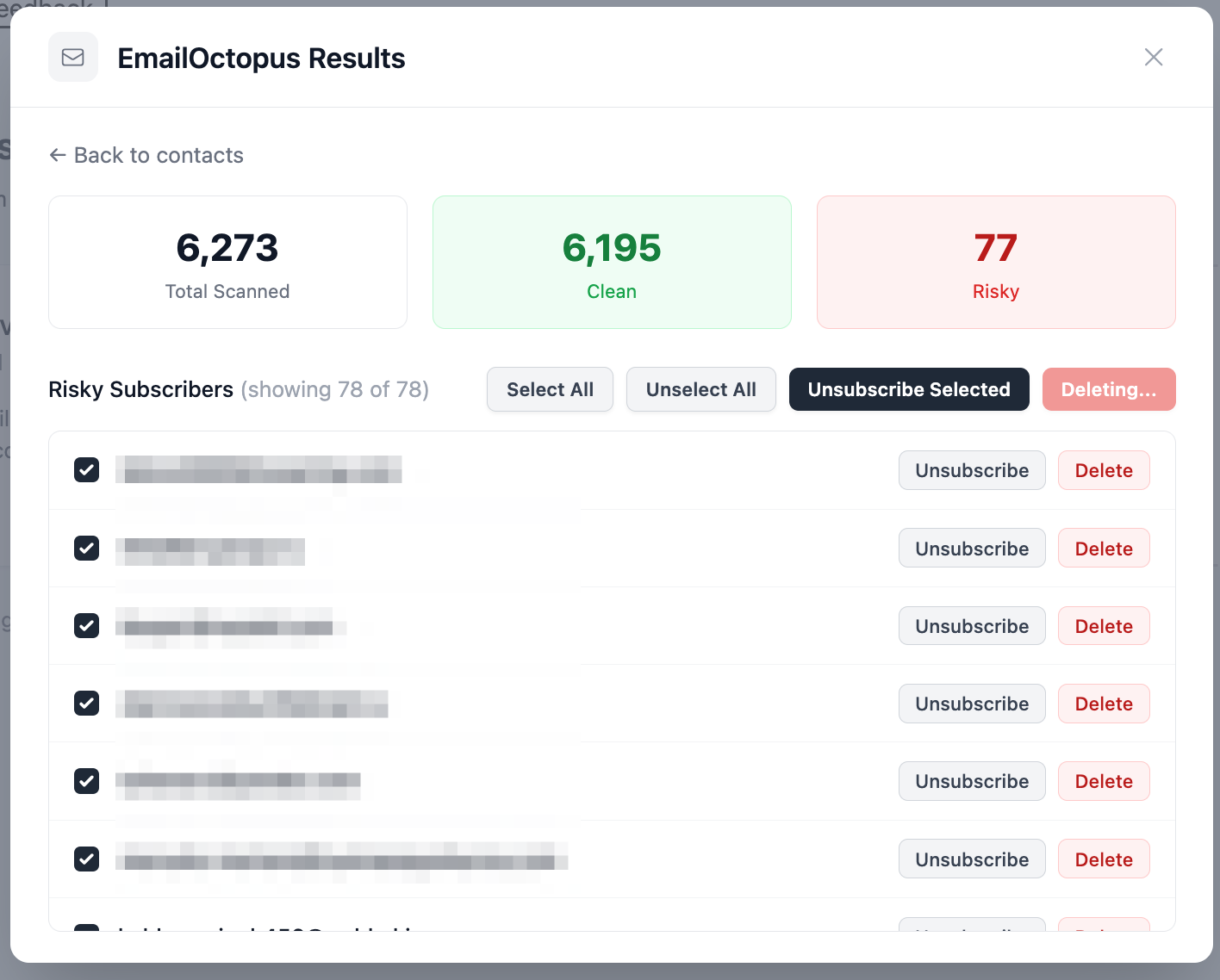
For risky contacts, you have two options per subscriber:
- Unsubscribe removes them from the selected list but keeps them in your account.
- Delete permanently removes them from your entire EmailOctopus account.
Use Select All to bulk-act on every risky contact at once. After confirming, your risky count drops to zero and your list is clean.
2. Set Up Email Authentication (SPF, DKIM, and DMARC)
Without proper authentication, email providers cannot confirm that your messages are actually from you. This is one of the most common reasons emails get flagged as spam. Since 2024, Gmail and other major providers have made DMARC mandatory, so this step is no longer optional.
How to set it up in EmailOctopus:
Go to your EmailOctopus Account Settings and open the Domains section. Add your sending domain (use your own domain, not a free provider like @gmail.com or @yahoo.com).
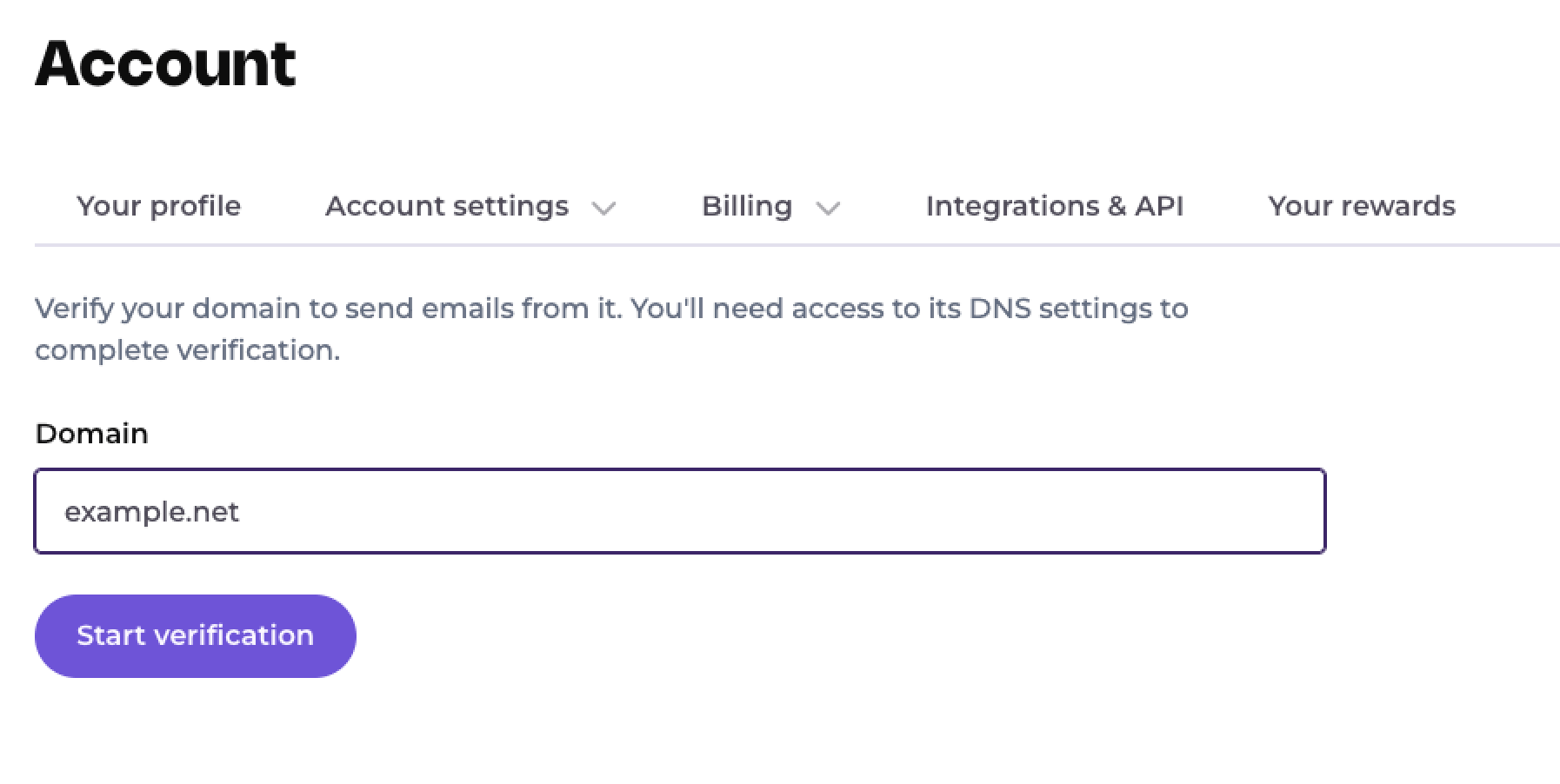
EmailOctopus will provide you with CNAME records to add to your DNS provider. Adding these configures SPF automatically.
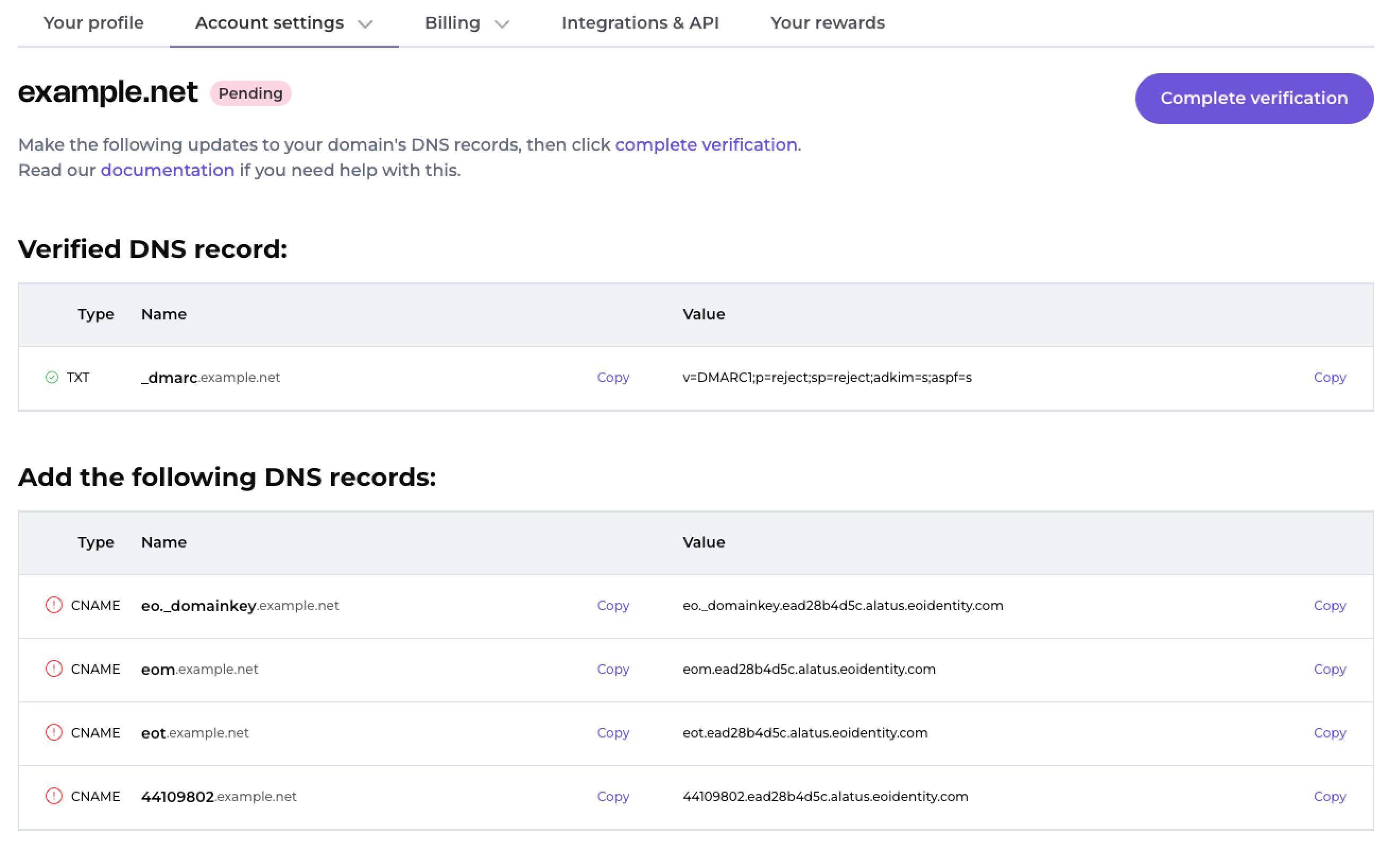
Add the provided DKIM record to your DNS. If you send from subdomains (e.g., mail.yourdomain.com), make sure each subdomain has its own DKIM record.
Add a DMARC TXT record to your DNS. A basic starting policy looks like this:
v=DMARC1; p=none; rua=mailto:dmarc@yourdomain.com
After adding the records, return to EmailOctopus and click Complete verification to confirm the setup is correct.
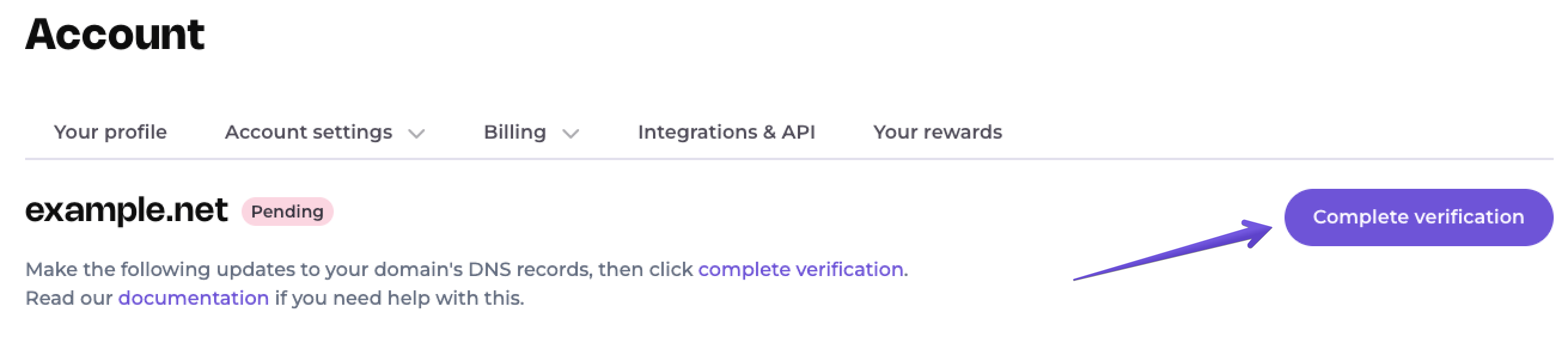
Once your domain is verified, use Mail-tester.com to send a test email and check your spam score. Use MXToolbox to confirm your domain is not on any public blocklists, and Google Postmaster Tools to monitor your domain’s sender reputation over time.
3. Use Double Opt-In and Avoid Purchased Lists
Where your subscribers come from matters as much as how many you have. Spam traps (fake addresses set up to catch bad senders) get added to lists through scraping and purchased databases. Hitting even a few of them can get your domain blacklisted.
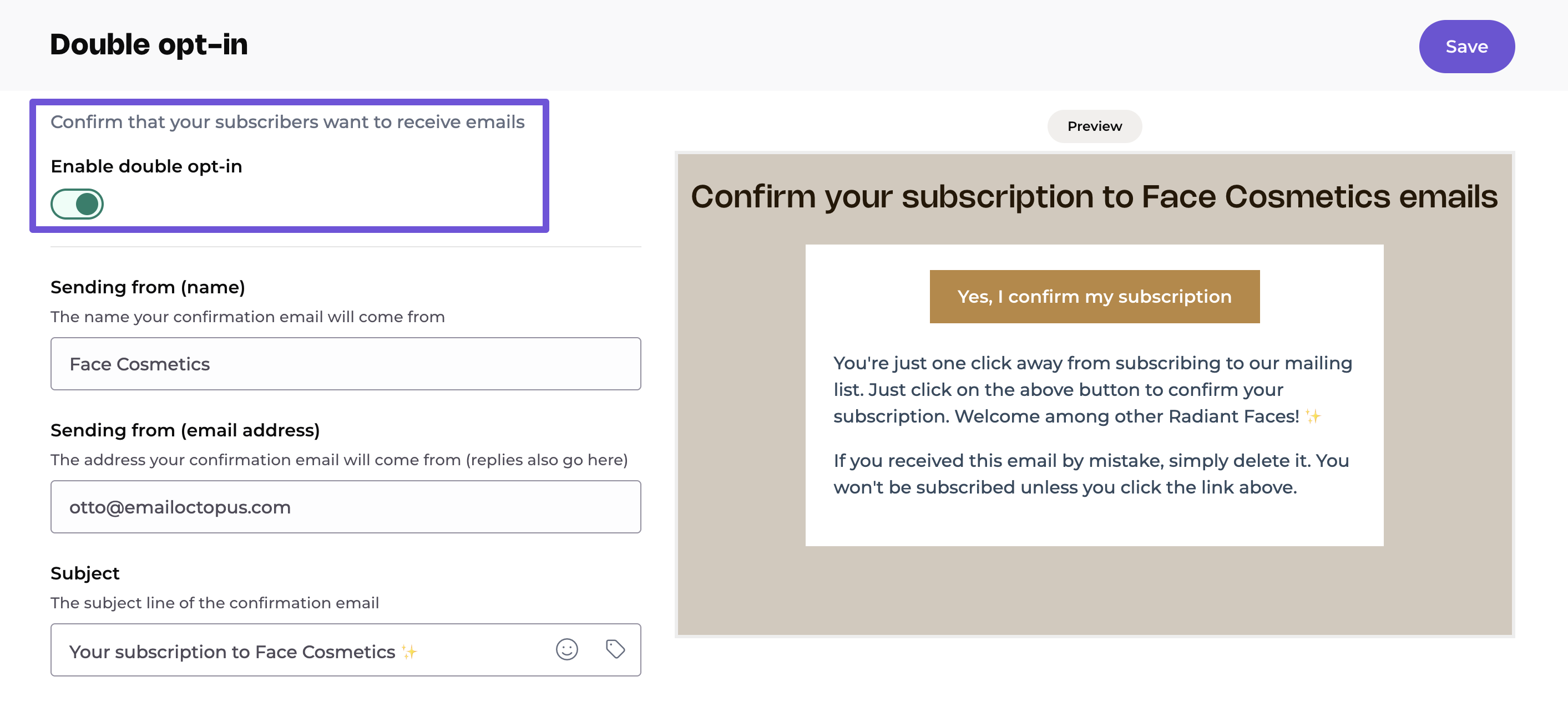
EmailOctopus supports double opt-in natively, so this only takes a few clicks to activate.
How to protect your list quality:
- In your EmailOctopus account, go to Forms and open the settings for your signup form.
- Enable Double Opt-In. This sends a confirmation email to each new subscriber before they are added to your list. It filters out fake addresses, typos, and malicious signups at the point of entry.
4. Remove Inactive Subscribers Regularly
Poor engagement is a direct signal to inbox providers that recipients do not want your emails. If a large portion of your list never opens your campaigns, email clients like Gmail start routing your messages to spam, even for subscribers who do engage.
How to clean up inactive subscribers:
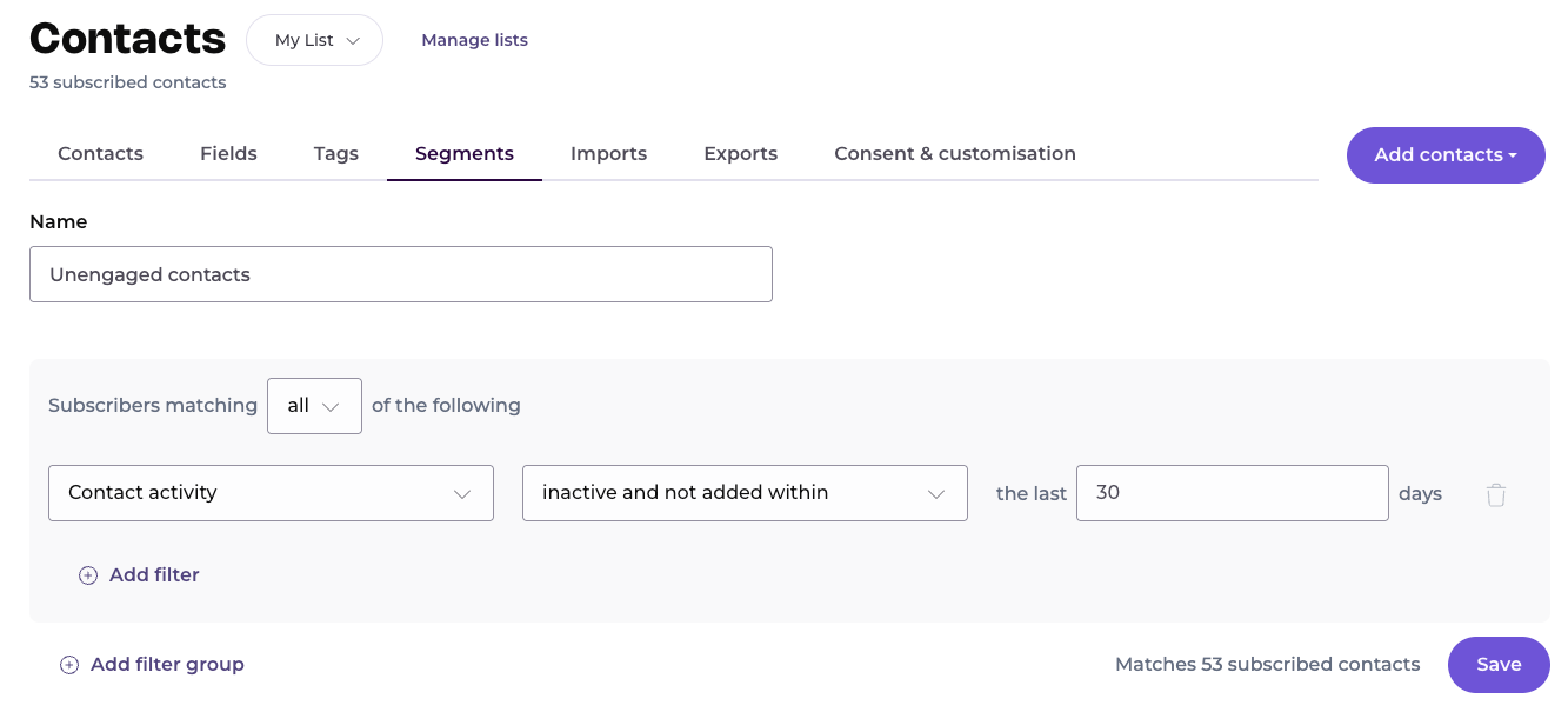
In EmailOctopus, go to Contacts and use the Segments feature to filter subscribers by activity. Create a segment for contacts who have not opened any email in the last 30 days.
Send this segment a final re-engagement email. Give them a clear reason to stay (a special offer, a reminder of what they signed up for) and a simple way to confirm they want to keep receiving emails.
Wait one week. Anyone who does not respond or engage should be unsubscribed or deleted from your list.
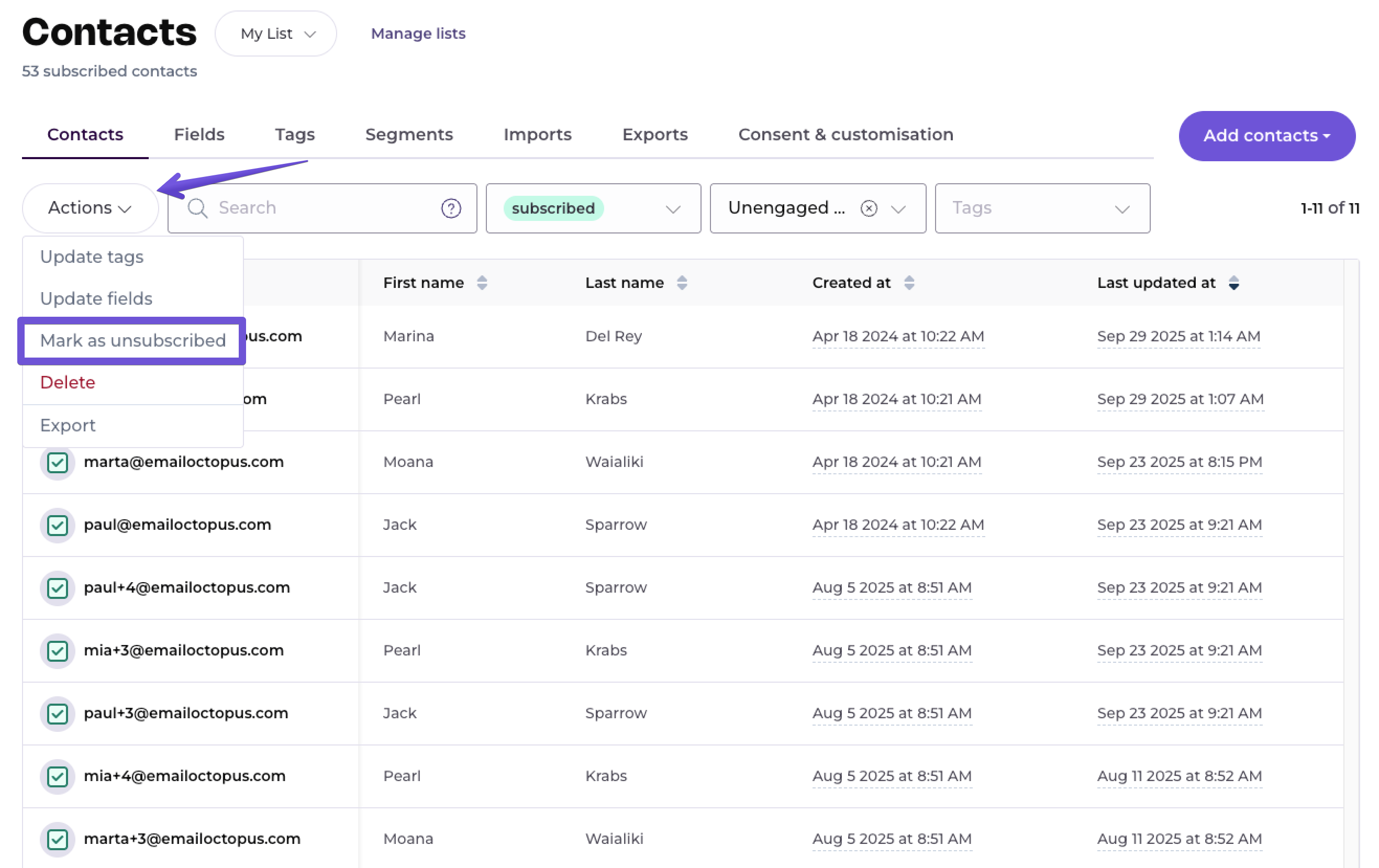
Repeat this process every three to six months to keep your engagement rates healthy.
Keeping your list lean improves your open rate, reduces spam complaints, and protects the sender reputation tied to your domain.
Final Thoughts
Stopping spam in EmailOctopus comes down to three things: a clean list, a verified domain, and well-crafted content. Start by scanning your list with OOPSpam to remove risky contacts immediately. Then lock in your technical setup with SPF, DKIM, and DMARC. From there, protect your list quality with double opt-in and regular pruning, and make sure every email you send passes basic content checks.
Done consistently, these four steps will move your emails out of spam folders and back into inboxes where they belong.