6 Ways to Protect Your eForm from Spam

Co-founder & Brand Designer

Reviewed by Onar Alili
Co-founder & Engineer
Published 9 min read
The best way to stop spam in eForm is to layer protections. Start with eForm’s free built-in tools: keep the honeypot active, set submission limits per IP, email or cookie, require login or a password on private forms, close forms you no longer use, and add a CAPTCHA element. Then add a server-side spam filter such as oopspam Anti-Spam (that’s us 👋), which supports eForm natively and catches what the built-in tools miss.
eForm (formerly FSQM Pro) is a WordPress form builder by WPQuark, sold on CodeCanyon. People use it for quizzes, surveys, cost estimators, payments and user registration, not just contact forms. That makes spam more costly: a fake entry can skew survey results, fill a leaderboard or create a junk account. This guide covers 6 ways to protect eForm, ordered by setup effort: free built-in options first, then a server-side filter that catches what they miss.
Why Does eForm Get Spam?
eForm forms are often public and collect structured data, so bots treat them like any other open form. Three facts shape your defense:
- Bots skip the browser. Many bots post straight to the form endpoint, so browser-only checks aren’t enough. You need a server-side check.
- Humans spam too. Paid spammers solve any CAPTCHA. Content, IP and email checks stop them.
- Friction costs answers. Every extra challenge lowers completion rates on surveys and quizzes.
1. Keep eForm’s Built-In Honeypot and Nonce Active
eForm ships with nonce security, a honeypot and tamper protection (eForm features). These run automatically, with nothing to configure. They stop simple bots that fill every field or replay old requests.
Two things to know:
- Caching can break the nonce. If a caching plugin serves an old copy of the page, real visitors may see a security error. Exclude your form pages from page caching.
- Smart bots get past honeypots. Treat this layer as a baseline, not your only defense.
2. Set Submission Limits
eForm has strong built-in limits under Form Settings > Submission Limitation (docs). You can cap submissions per email, per IP address, per registered user, per browser cookie, or in total. Each limit has its own notice message.
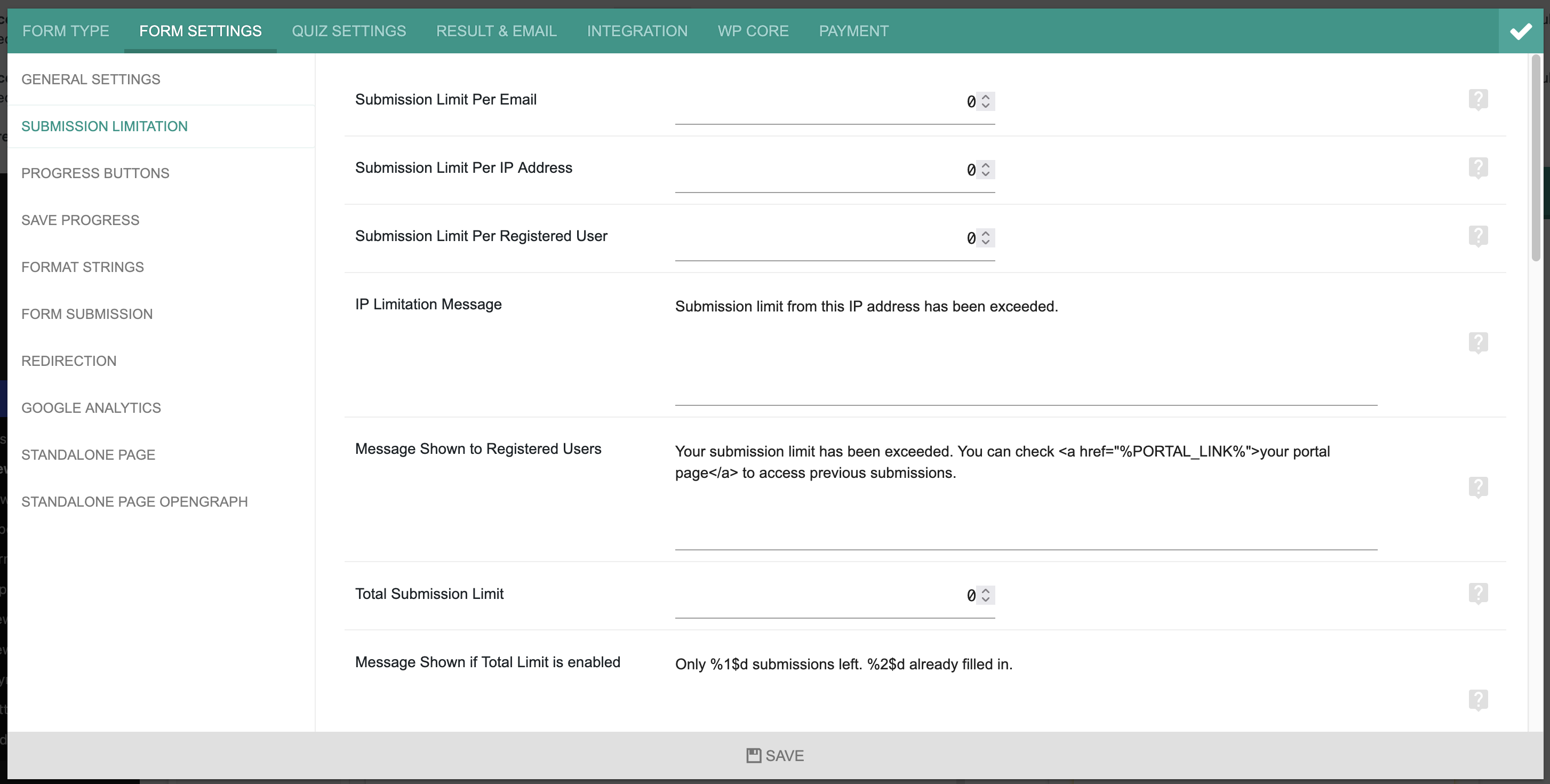
A per-IP or per-email cap stops one bot from submitting a form hundreds of times. These are lifetime counts, though, not per-hour limits. For time-based rate limiting on public forms, use oopspam. See How to limit form submissions in eForm for step-by-step setup.
3. Restrict Who Can Submit
If a form is meant for members, students or clients, don’t leave it open to everyone.
- Require login: in Submission Limitation, turn on Only Logged In user can submit.
- Password-protect the form: set the page that holds the form to Password Protected in WordPress, or use eForm’s conditional logic to hide the form until a password field matches (guide).
Logged-in users can also get a Submission Interval, a wait time in minutes between submissions.
4. Close Forms You No Longer Use
Old surveys and finished campaigns keep attracting bots long after you stop reading the entries. In Submission Limitation, set a Form Expiration Date so the form stops accepting entries on schedule. You can also set a Form Opening Date for forms that shouldn’t go live yet.
5. Add a reCAPTCHA or Math CAPTCHA Element
eForm has two CAPTCHA elements under Design and Security in the form builder.
Google reCAPTCHA (setup guide):
- Sign in to the reCAPTCHA admin console, register your domain, and copy the Site Key and Secret Key.
- Open your form in the eForm builder.
- Go to Design and Security > reCaptcha and add the element to your form.
- In the element’s reCAPTCHA settings, enter your Site Key and Secret Key. Optionally choose the reCaptcha Type and Language, then click Save Settings.
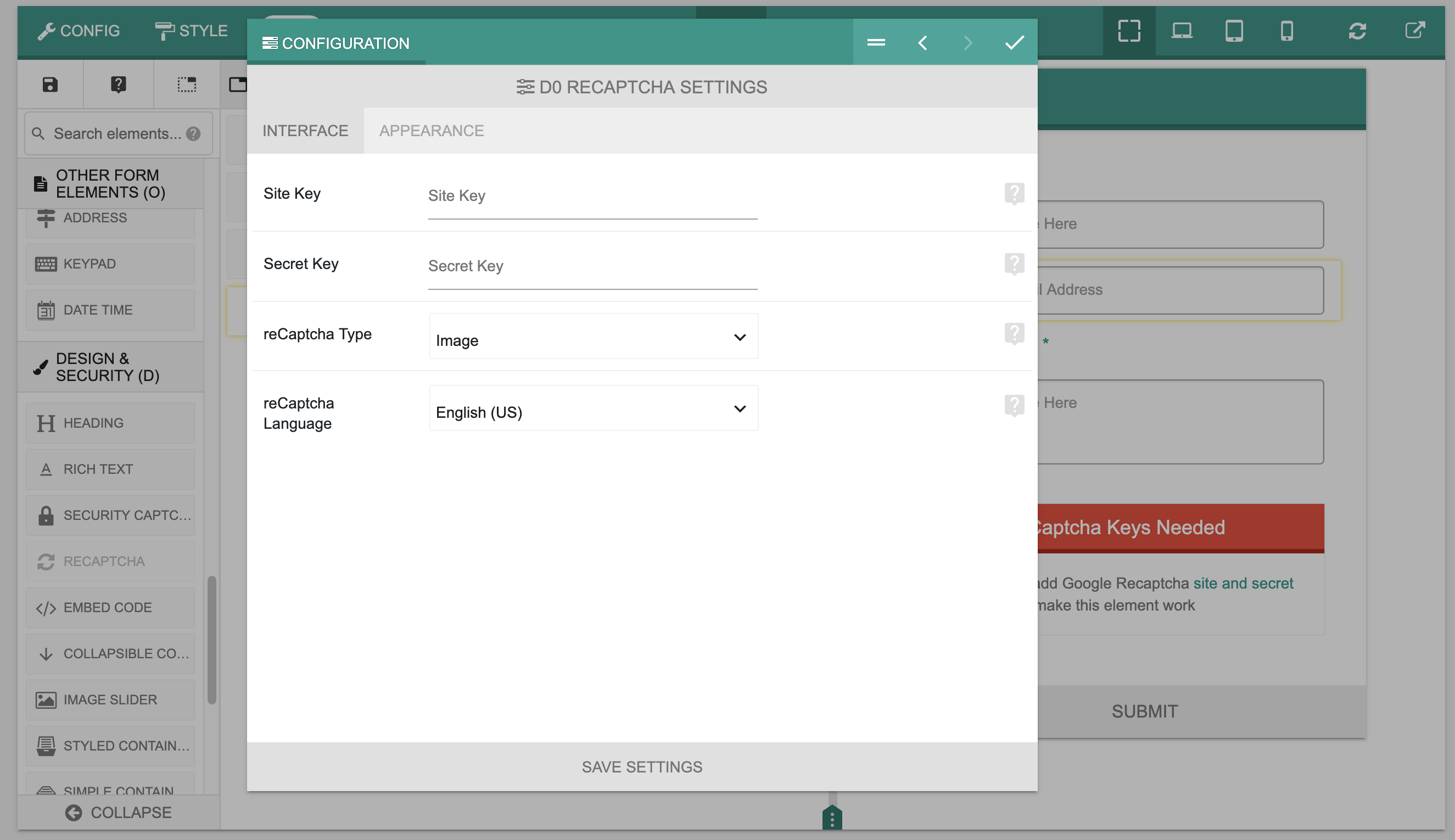
reCAPTCHA adds a Google script to your page and sends visitor data to Google, which matters under GDPR. AI-driven bots also pass it more often than they used to. Compare versions in reCAPTCHA v2 vs v3.
Security Captcha: add Design and Security > Security Captcha to show a simple math question, such as “2 plus 7 equals”. It needs no API keys and sends no data to a third party. It stops basic bots, but scripts can solve simple math, so treat it as a light extra layer.
Use one CAPTCHA per form, not both.
6. Add a Server-Side Spam Filter
A server-side filter checks each submission after it reaches your server. Bots can’t skip it, and visitors see no challenge. It’s the only layer here that catches human spammers and AI-written messages.
oopspam Anti-Spam added native eForm support in version 1.2.87. It scores message content and checks IP and email reputation. Optional rules add rate limits, country and language filters, VPN blocking and disposable email detection. Every blocked entry is logged with a reason.
How to Set Up oopspam with eForm
Setup takes about five minutes. You don’t need to edit your forms.
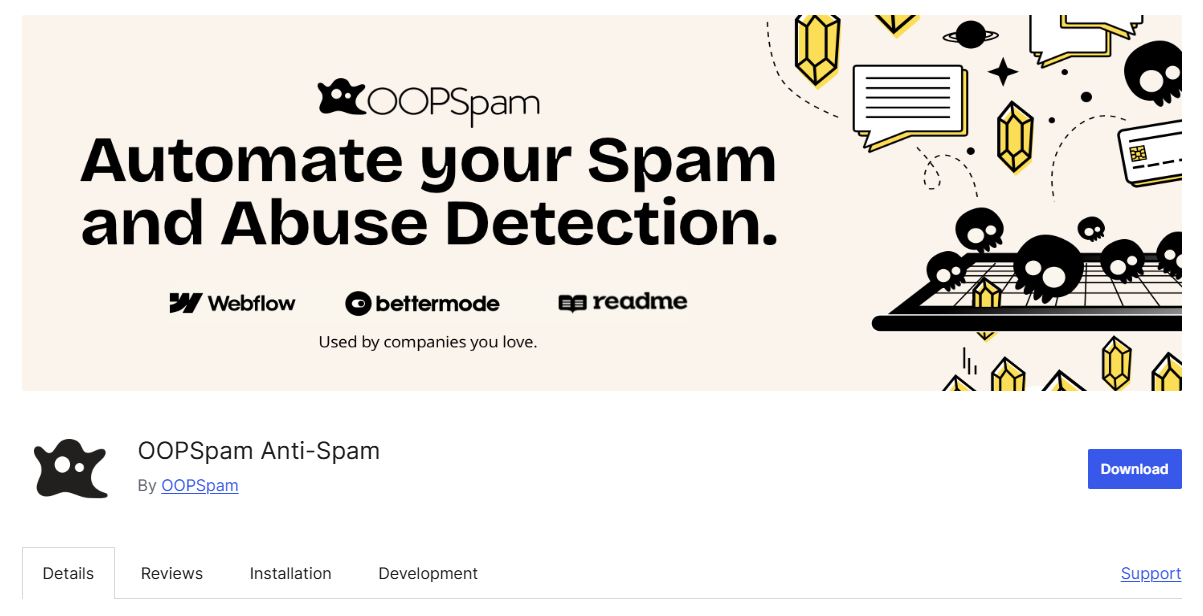
In WordPress, go to Plugins > Add New, search for oopspam Anti-Spam, then install and activate it. Make sure you run version 1.2.87 or later.
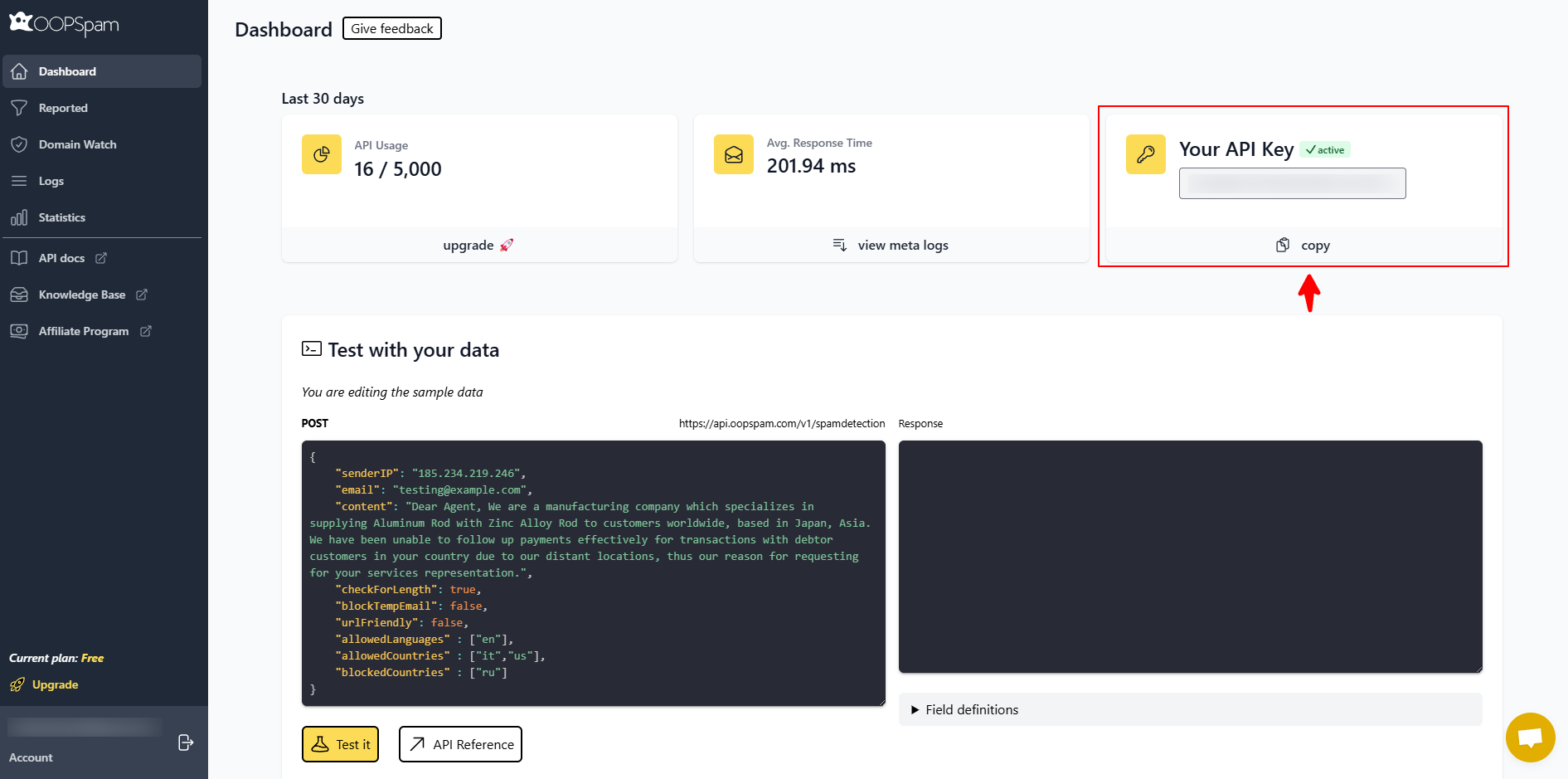
Create a free oopspam account and copy your API key from the dashboard.
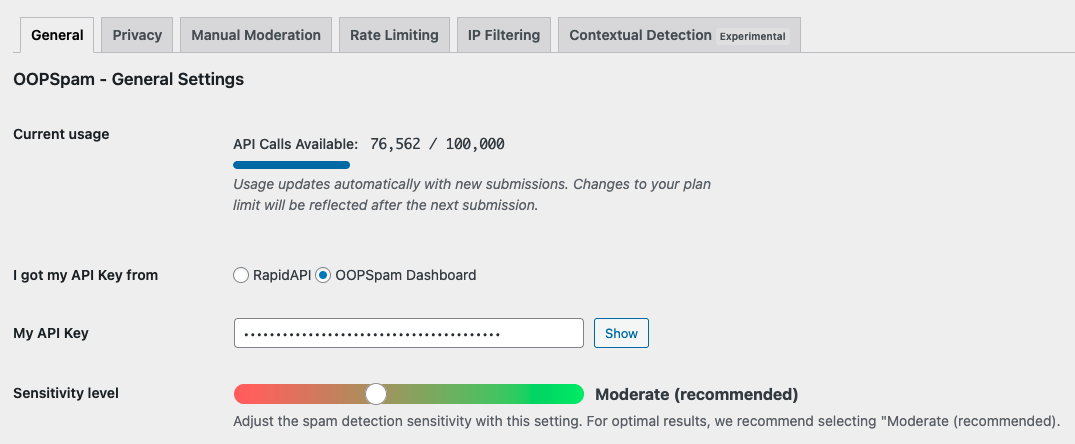
Go to Settings > oopspam Anti-Spam. In the General tab, select oopspam Dashboard as the source and paste your key into My API Key.
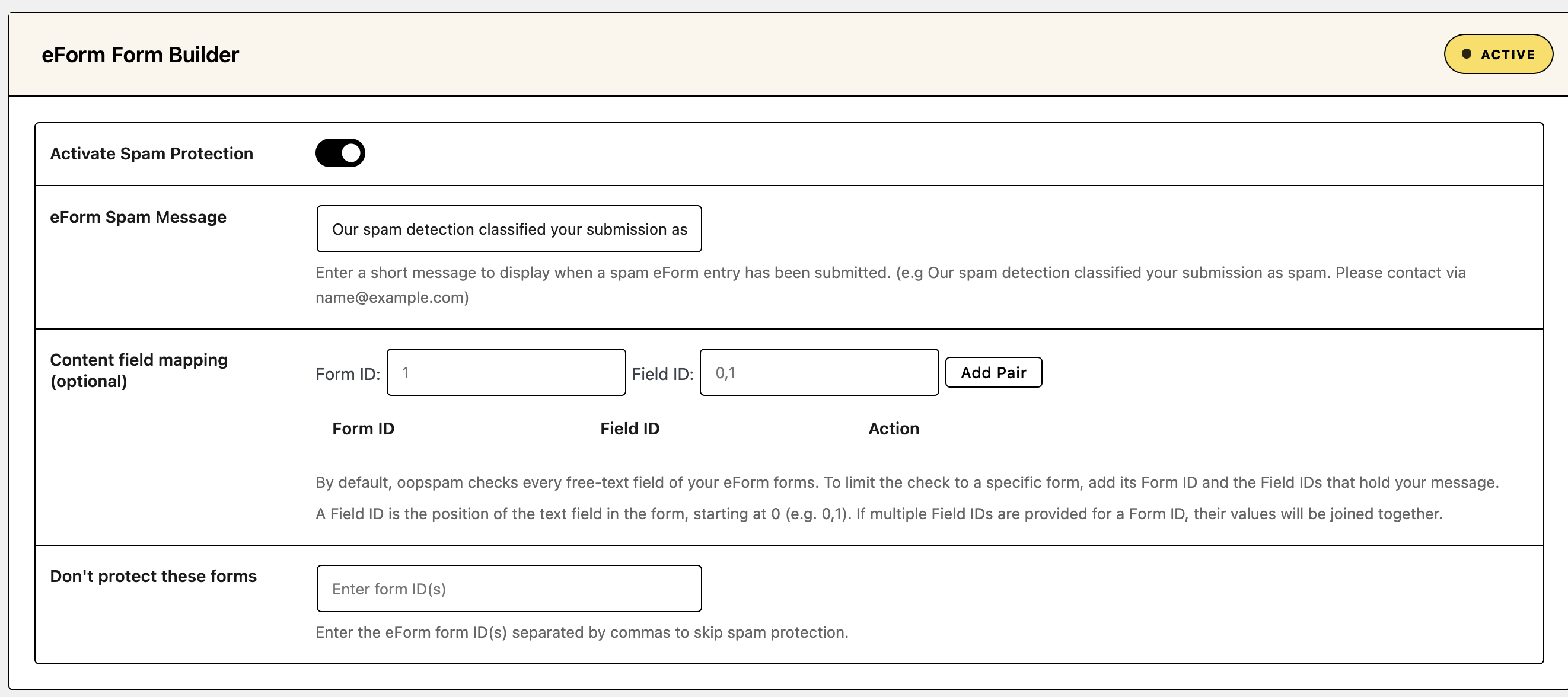
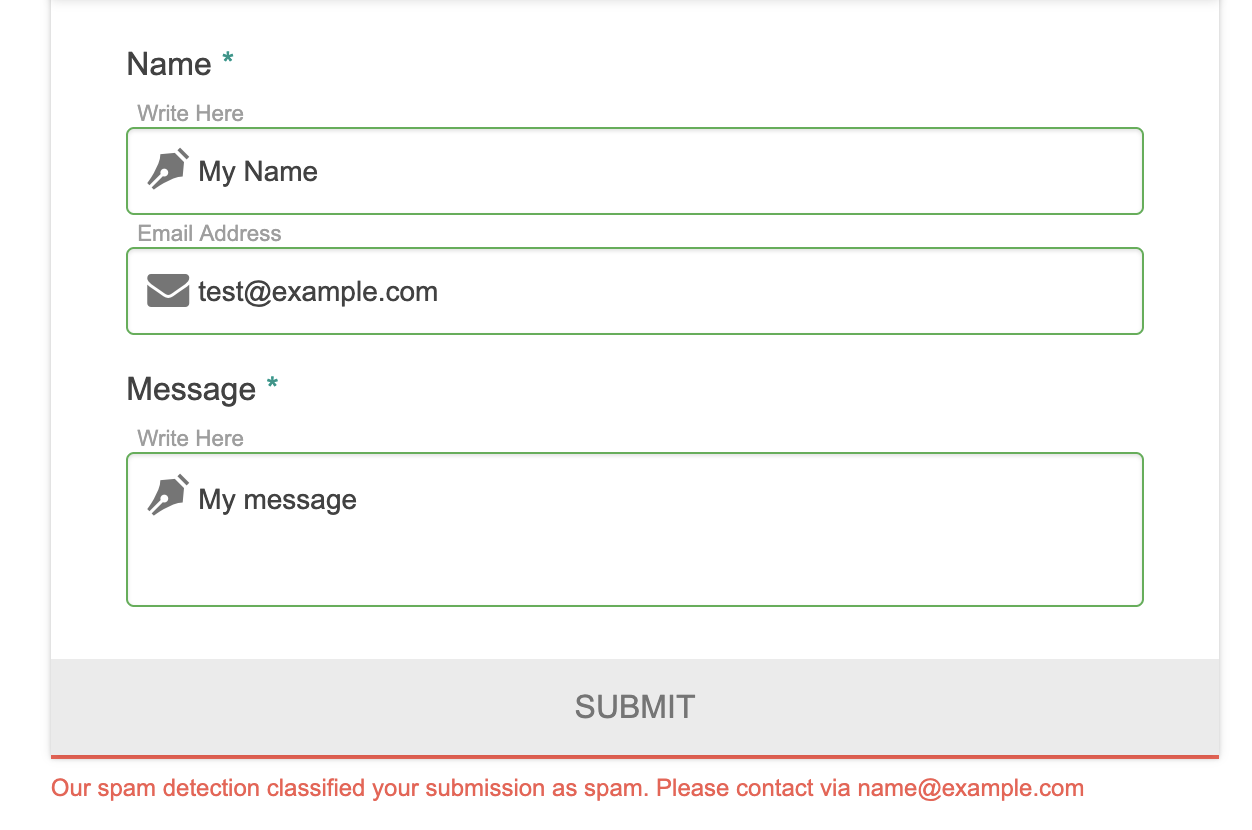
Find the eForm Form Builder section and turn on Activate Spam Protection. In eForm Spam Message, write what visitors see when a submission is blocked, for example “Our spam detection classified your submission as spam. Please contact us at [email protected].” Two optional settings help with special cases:
- Content field mapping: by default, oopspam checks every free-text field. To check only specific fields on a form, add its Form ID and the Field IDs that hold the message.
- Don’t protect these forms: enter the form IDs to skip, separated by commas.
Optional: set the sensitivity level and turn on rate limiting, country, language, VPN or disposable email filters. If your site runs behind Cloudflare or another proxy, open the Misc tab and turn on Trust proxy headers so oopspam sees real visitor IPs.

Submit a test entry. A blocked visitor sees your spam message on the form.
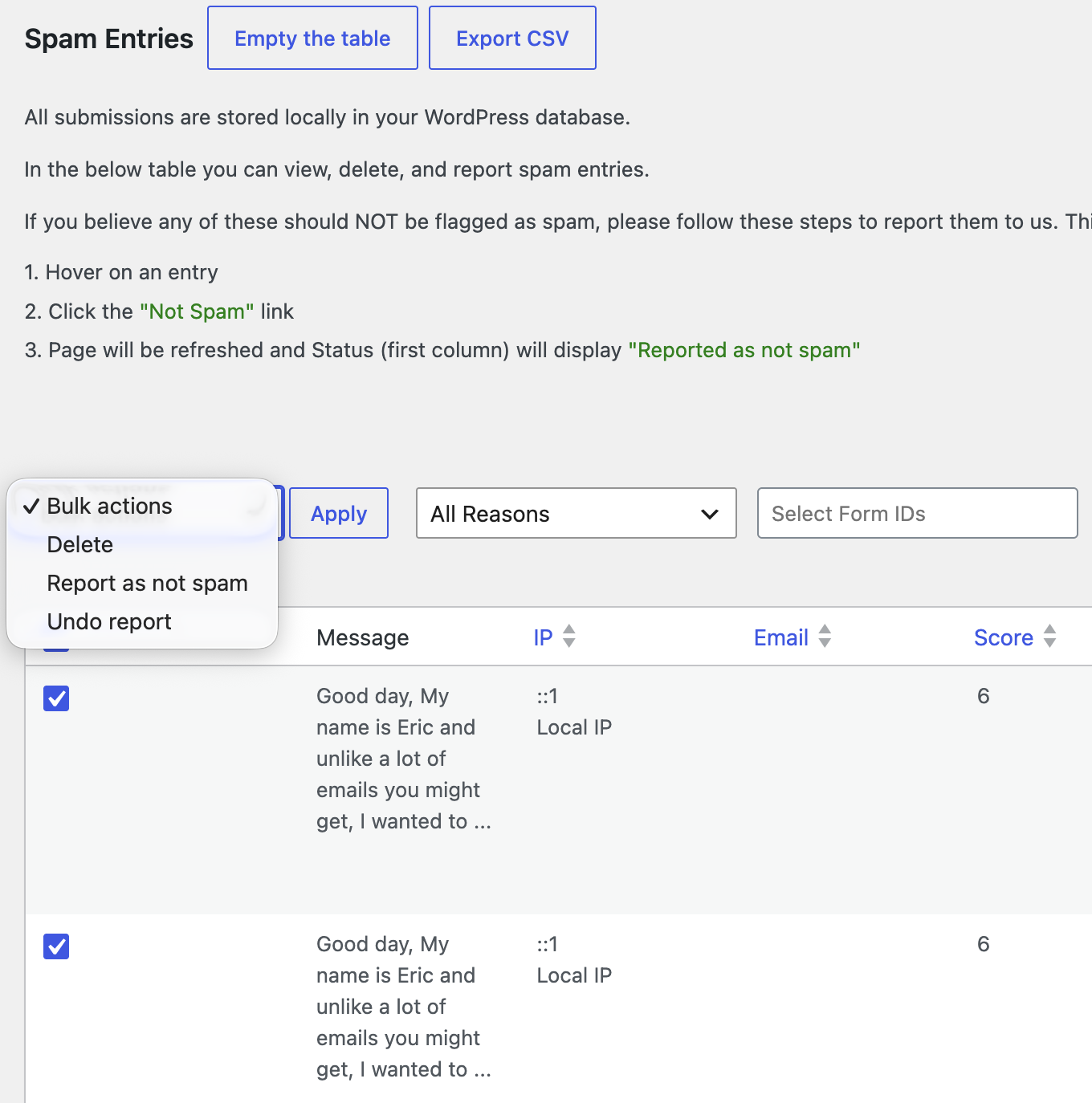
If a real entry gets blocked, open Form Spam Entries to see the reason. Mark it as not spam, add the sender to your allowed list, or lower the sensitivity.
Comparison
| Method | Blocks bots | Blocks human spam | Visitor friction | Cost |
|---|---|---|---|---|
| Honeypot and nonce | Simple bots | No | None | Free, built in |
| Submission limits | Repeat bots | Repeat spammers | None | Free, built in |
| Login or password | Yes | Mostly | High | Free, built in |
| Expiration date | On closed forms | On closed forms | None | Free, built in |
| reCAPTCHA or Security Captcha | Most bots | No | Low to medium | Free |
| oopspam (server-side filter) | Yes | Yes | None | Free plan, then paid |
FAQ
Does eForm have built-in spam protection?
Yes. eForm includes a honeypot, nonce security and tamper protection, plus optional CAPTCHA elements and submission limits. These stop simple bots but not human spammers or AI-written messages.
Does oopspam work with eForm?
Yes. oopspam Anti-Spam supports eForm from version 1.2.87. Turn on Activate Spam Protection in the eForm Form Builder section of the plugin settings.
Can I block countries or VPNs in eForm?
Not with eForm alone. Use oopspam’s country filtering and IP filtering. See How to block countries in eForm and How to block VPN and data center IP submissions in eForm.
Should I use reCAPTCHA and oopspam together?
You can, but most sites don’t need both. oopspam works without adding a challenge. Add reCAPTCHA only if a specific form still gets bot spam.
Final Thoughts
No single tool stops all spam. eForm’s honeypot and limits handle simple bots and repeat entries. A server-side filter like oopspam catches the rest, including human spam, without adding friction to your surveys and quizzes.
