How to Limit Form Submissions in eForm?

Co-founder & Brand Designer

Reviewed by Onar Alili
Co-founder & Engineer
Published 8 min read
eForm has some of the most complete built-in submission limits of any WordPress form builder. Under Form Settings > Submission Limitation, you can cap entries per email, IP address, registered user, browser cookie or in total, and set opening and expiration dates. These are lifetime counts. To limit how often anyone can submit per hour, add rate limiting with the oopspam Anti-Spam plugin (that’s us 👋).
eForm is a WordPress form builder by WPQuark for quizzes, surveys, cost estimators, payments and registrations. Submission limits keep a survey to one answer per person, close a contest after a set number of entries, and stop one visitor from flooding a form. This guide covers each option, step by step.
Method 1: Use eForm’s Number-Based Limits
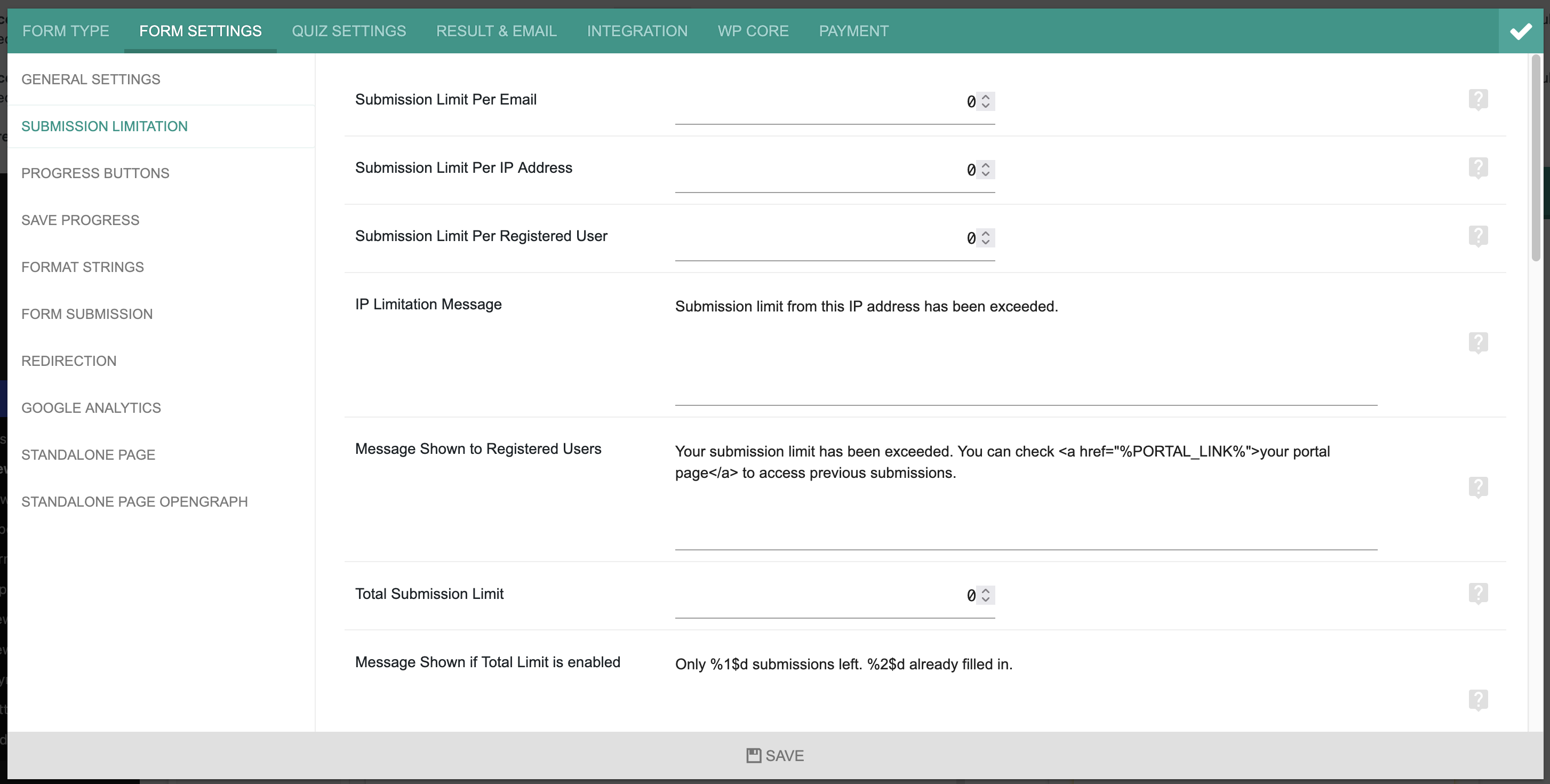
Edit your form, click Config, then go to Form Settings > Submission Limitation (docs). Enter a number in any of these fields. 0 means no limit. You can combine them:
| Setting | What it limits | Notes |
|---|---|---|
| Submission Limit Per Email | Entries per email address | Needs the Email element (Other Form Element > Email, stored in DB) on the form |
| Submission Limit Per IP Address | Entries per IP address | Works with IPv4 and IPv6 |
| Submission Limit Per Registered User | Entries per logged-in user | Only counts logged-in users |
| Cookie based Submission Limit | Entries per browser | Cookie lasts 365 days; from eForm 3.5.2 |
| Total Submission Limit | All entries for the form | The form stops accepting entries once reached |
Each limit has its own message. Edit IP Limitation Message, Message Shown to Registered Users, Message Shown to Exceeded Cookie Limit and Message Shown if Total Limit is enabled to suit your form. The total limit message can show how many places are left: %1$d is the number of submissions left and %2$d is the number already filled in. Click Save.
Which to use:
- One answer per person on a public survey: per email plus per cookie. A cookie stops casual repeats, and the email limit stops someone switching browsers.
- Contests and giveaways: per email plus a total limit.
- Member-only forms: per registered user.
Per-IP limits are useful against bots, but they can block real people who share an IP, such as an office or a school. Use a higher number, such as 3 to 5, rather than 1.
Method 2: Limit by Login, Time Interval or Date
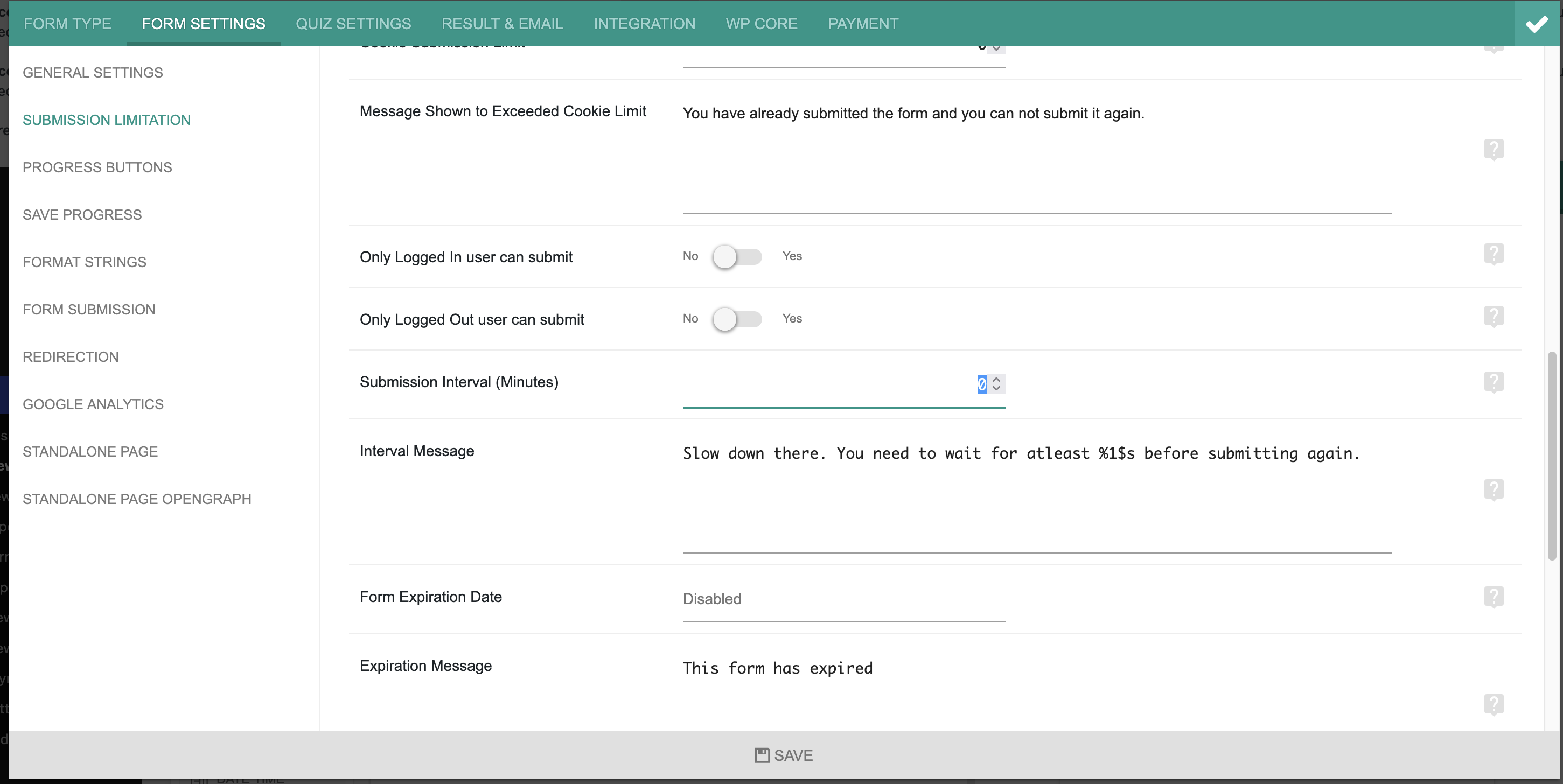
Allow Only Logged-In Users
In Submission Limitation, turn on Only Logged In user can submit. Then choose What to do when user not logged in: show eForm’s login form, or redirect to a Redirection URL. Login-only forms stop almost all anonymous spam.
The opposite setting, Only Logged Out user can submit, keeps a form for new visitors only, such as a registration form.
Set a Submission Interval
For logged-in users, set Submission Interval (Minutes). Users must wait that long before they can submit again. Edit the Interval Message to explain the wait. The placeholder %1$s shows the time left.
Set Opening and Expiration Dates
Set a Form Opening Date to start accepting entries later, or a Form Expiration Date to close the form automatically. Edit the Expiration Message to tell late visitors the form is closed. This is the easiest way to run a time-limited campaign or close an old survey.
Limits of the built-in options: the number-based limits are lifetime counts, and the interval only works for logged-in users. eForm has no per-hour limit for anonymous visitors, and bots that rotate IPs, emails and cookies get past count-based limits.
Method 3: Rate Limit Submissions per IP and Email with oopspam
The oopspam Anti-Spam plugin supports eForm natively from version 1.2.87. It checks each submission on the server and blocks visitors who go over your hourly limit. It works for anonymous visitors too.
How to Set It Up
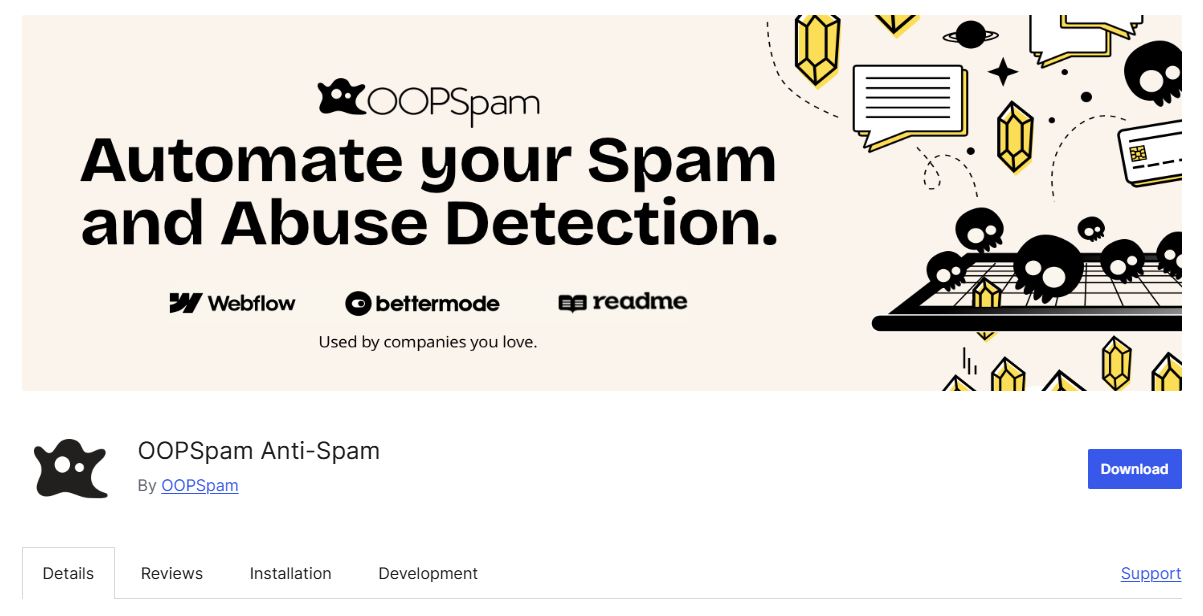
In WordPress, go to Plugins > Add New, search for oopspam Anti-Spam, then install and activate it.
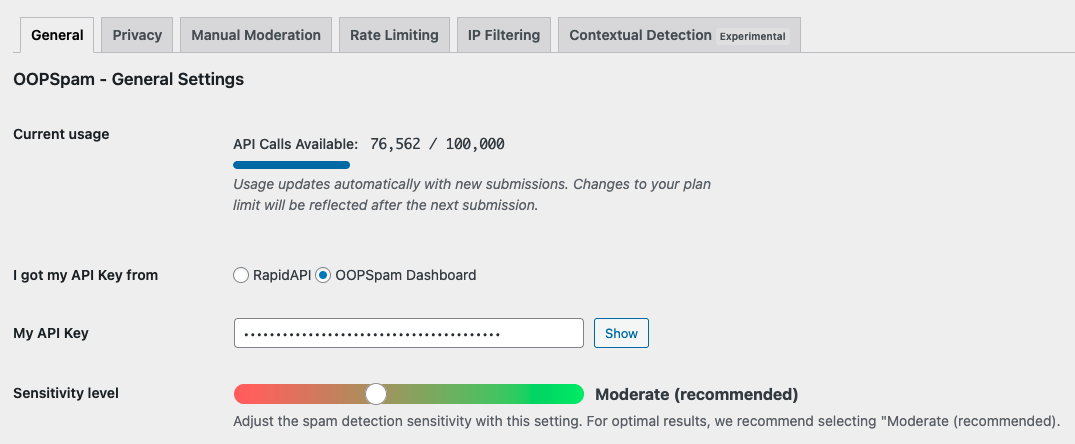
Create a free oopspam account and copy your API key. Go to Settings > oopspam Anti-Spam. In the General tab, select oopspam Dashboard as the source and paste your key into My API Key.
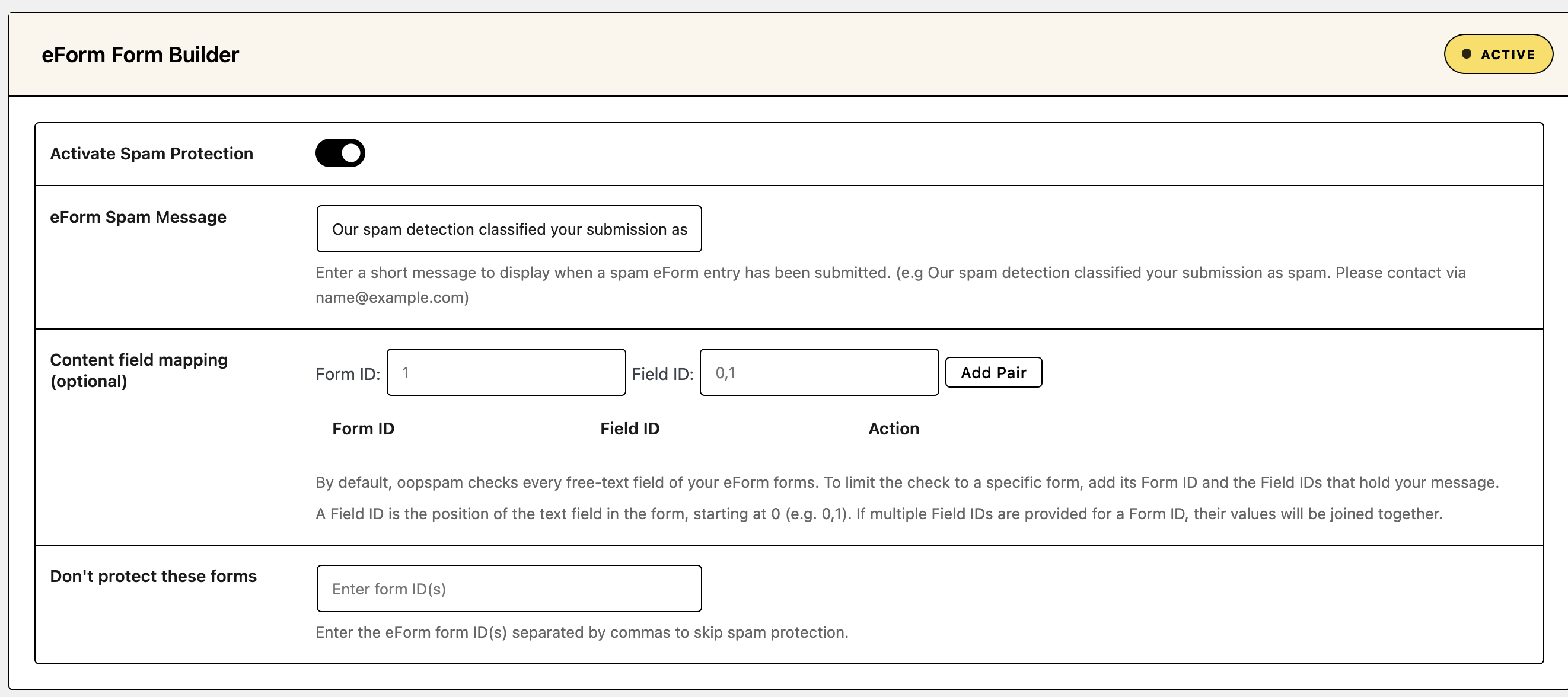
Scroll to the eForm Form Builder section and check Activate Spam Protection.
Open the Rate Limiting tab and turn on Enable Rate Limiting. Then set your limits:
- Max submissions per IP per hour: how many times one IP address can submit in an hour.
- Max submissions per email per hour: how many times one email address can submit in an hour.
- Block duration (in hours): how long an IP or email stays blocked after hitting the limit.
- Data clean-up frequency (in hours): how often oopspam clears the table it uses to track submissions.
Click Save Changes.
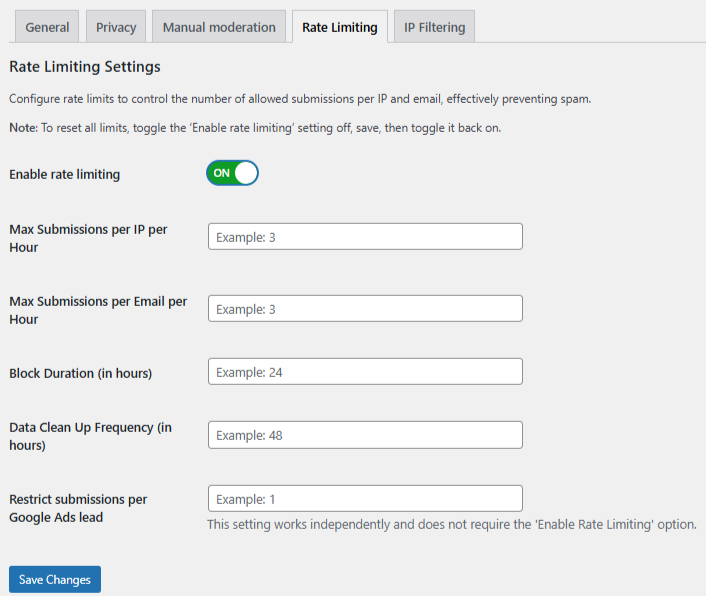
A good starting point is 3 submissions per hour per IP and per email, a 24-hour block and a 48-hour clean-up. Raise the numbers for quizzes people retake.
If your site runs behind Cloudflare or another proxy, open the Misc tab and turn on Trust proxy headers. Without it, all visitors share the proxy’s IP and could hit the limit together.

Test It
Submit your form a few more times than your limit allows. The blocked attempt shows your spam message on the form. Set a custom message in the eForm Spam Message field to tell real visitors how to reach you.
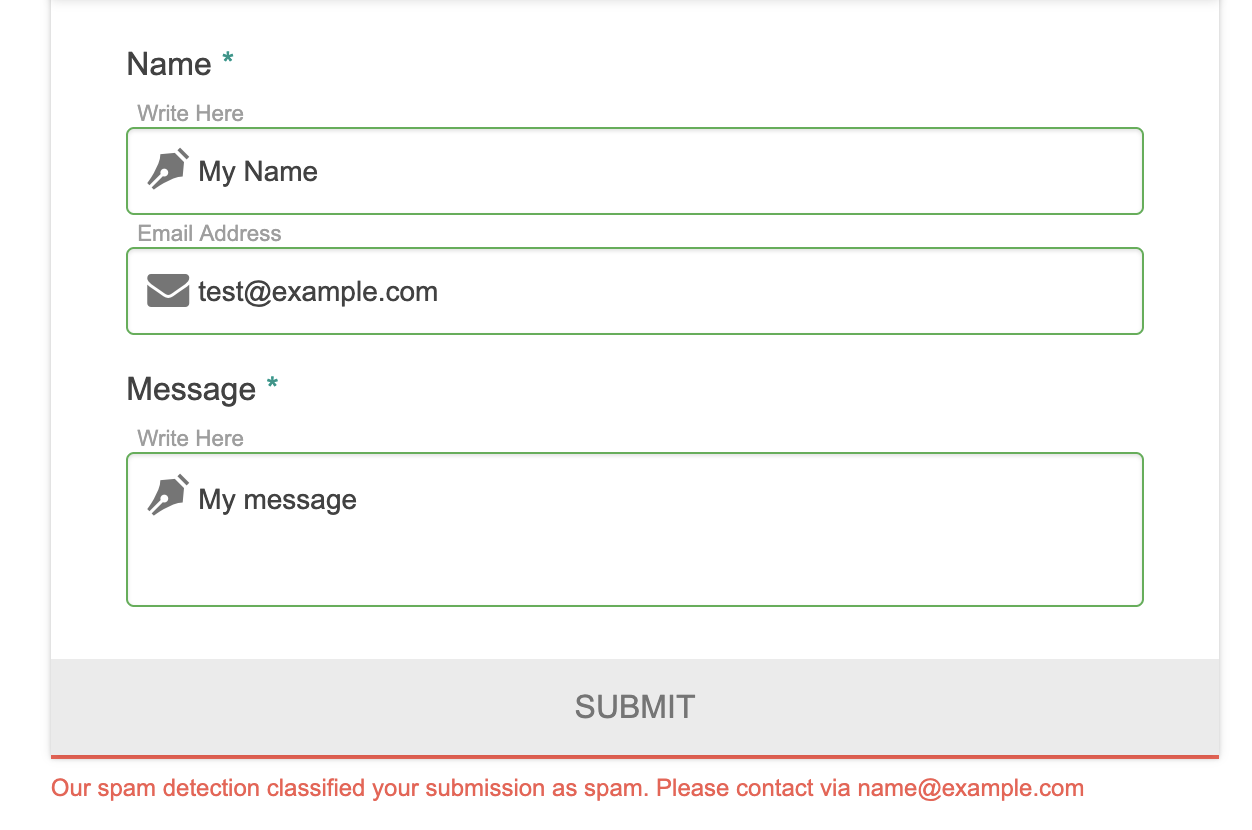
Check Form Spam Entries in WordPress to see blocked attempts and the reason (form entries guide).
Add More Filters
Rate limiting works best with oopspam’s other filters:
- VPN and data center blocking: see How to block VPN and data center IP submissions in eForm.
- Country filtering: see How to block countries in eForm.
- Disposable email blocking: see How to block disposable email addresses in WordPress forms. This also strengthens eForm’s per-email limit, since throwaway addresses can’t be used to get around it.
Which Method Should You Use?
| Goal | Best method |
|---|---|
| One answer per person | eForm per email + cookie limit |
| Close a form after a fixed total | eForm Total Submission Limit |
| Time-limited campaign | eForm opening or expiration date |
| Members only | Only Logged In user can submit |
| Stop floods on a public form | oopspam rate limiting |
FAQ
Can eForm limit submissions per IP address?
Yes. Use Submission Limit Per IP Address in Form Settings > Submission Limitation. It’s a lifetime count, not per hour. For hourly limits, use oopspam rate limiting.
Can I limit eForm submissions per hour?
Only for logged-in users, with Submission Interval (Minutes). For anonymous visitors, use oopspam’s per-IP and per-email hourly limits.
Why does the per-email limit need the Email element?
eForm compares the email stored with each submission. That only works when the form uses the Email element under Other Form Element, which saves the address in the database.
Will rate limiting block real visitors?
Rarely, if your limits are sensible. Three submissions per hour is plenty for most forms. Review Form Spam Entries for false positives.
Final Thoughts
Use eForm’s built-in limits for the business rule: one entry per person, a total cap or a closing date. Use oopspam rate limiting to stop floods from anonymous visitors and bots. Together they keep your eForm forms open to real people and closed to abuse.
