6 Ways to Protect Your WP Booking System from Spam

Co-founder & Brand Designer

Reviewed by Onar Alili
Co-founder & Engineer
Published 9 min read
The best way to stop spam in WP Booking System is to layer protections. Start with the free built-in tools: keep booking pages out of the cache so the security token works, set new bookings to Pending, use validated and required fields, and add the Captcha field. Developers can add custom validation rules. Then add a server-side spam filter such as oopspam Anti-Spam (that’s us 👋), which supports WP Booking System natively and catches what the built-in tools miss.
WP Booking System is a booking calendar plugin for WordPress. Holiday rentals, B&Bs, tour operators and appointment-based businesses use it to take bookings and payments. Spam costs more here than on a contact form. A fake booking can mark real dates as unavailable, send confirmation emails to fake addresses and bury real requests. This guide covers 6 ways to protect WP Booking System, ordered by setup effort: free built-in options first, then a server-side filter that catches what they miss.
Why Does WP Booking System Get Spam?
WP Booking System’s own docs say making a booking is too complex for spam bots (reCAPTCHA guide). That’s true for simple bots that click through the calendar. It isn’t true for bots that skip the browser. Three facts shape your defense:
- The booking is one request. The form sends each booking to
/wp-admin/admin-ajax.phpwith the actionwpbs_submit_form. A bot that loads the page once can send that request directly, without touching the calendar. You need a server-side check. - Humans spam too. Paid spammers solve any CAPTCHA. Content, IP and email checks stop them.
- Friction costs bookings. Every extra challenge on a booking form loses some real guests.
1. Keep the Built-In Security Token Working
WP Booking System adds a security token to every booking request. It runs automatically, with nothing to configure, and stops bots that replay old requests.
Two things to know:
- Caching can break the token. If a caching plugin serves an old copy of the page, the token can expire and real guests may see an error. Exclude your booking pages from page caching.
- There is no honeypot. WP Booking System doesn’t add a hidden trap field. Treat the token as a baseline, not your only defense.
2. Set New Bookings to Pending
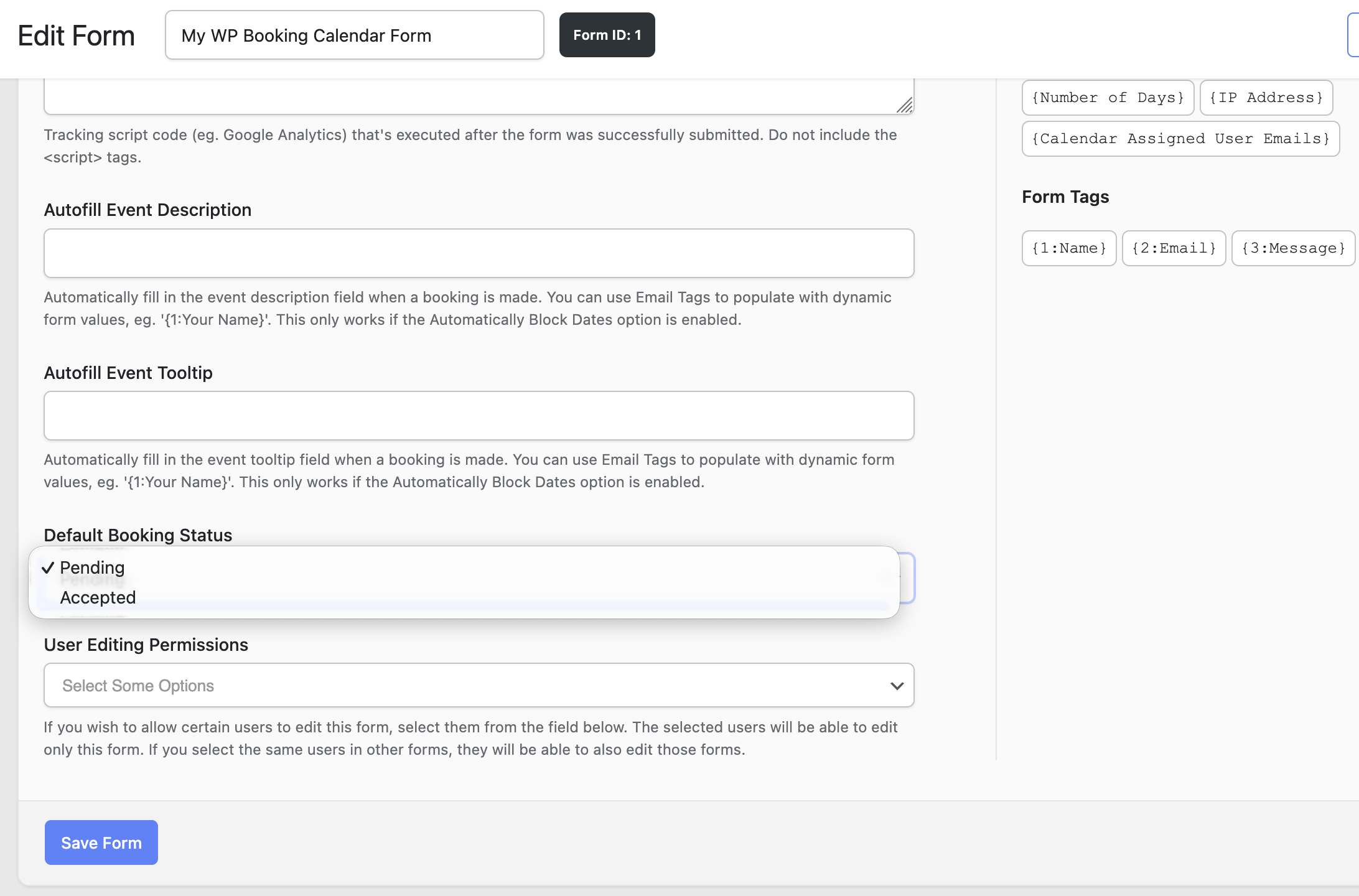
Edit your form and open Form Options > General Options. Set Default Booking Status to Pending (docs). Pending is the default. The only other option, Accepted, confirms every booking straight away, so check that nobody changed it.
Pending doesn’t stop spam, but it stops spam from becoming a confirmed booking. Before you accept a booking, check three things: the email address looks real, the message makes sense, and the dates fit your normal guests.
3. Use Validated and Required Fields
The form builder has fields that check their own input:
- Email checks for a valid address.
- Phone checks for a valid number. Turn on Enable Phone Number Stylised UI under Settings > Form for live validation.
- Number accepts numbers only, which suits guest counts.
- Consent is always required.
Mark every field you need as Required. Validated fields stop junk and half-empty bookings. They don’t stop a bot that fills in valid-looking data.
4. Add the Captcha Field (Google reCAPTCHA)
WP Booking System has a Captcha field that uses Google reCAPTCHA v2 Tickbox or v3 (setup guide).
- Sign in to the reCAPTCHA admin console and click + to register your site.
- Add a label, choose v2 Tickbox or v3, add your domain and click Submit.
- Copy the Site Key and Secret Key.
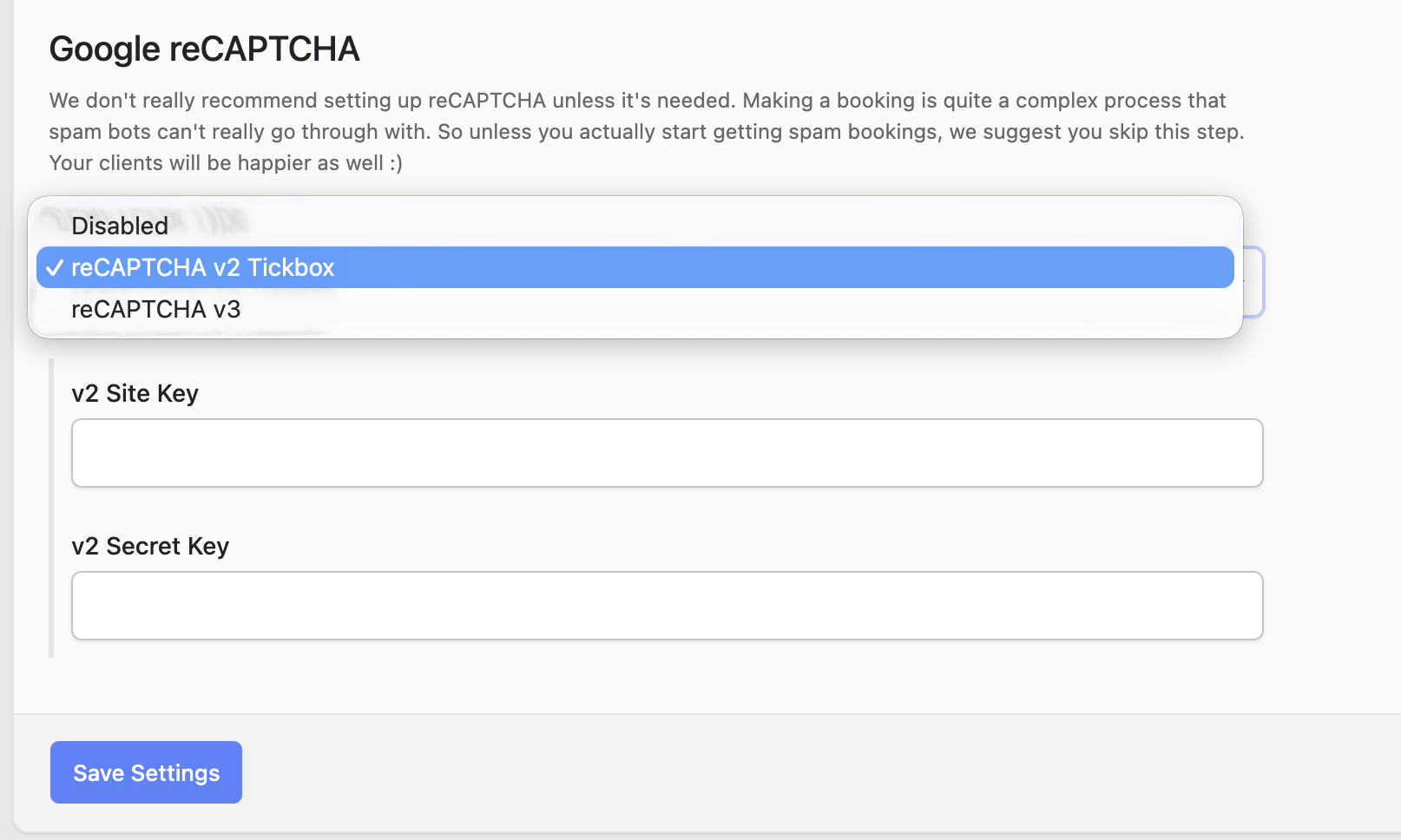
- In WordPress, go to WP Booking System > Settings > Form. Under Google reCAPTCHA, choose reCAPTCHA v2 Tickbox or reCAPTCHA v3 to match your keys, paste the Site Key and Secret Key, then click Save Settings.
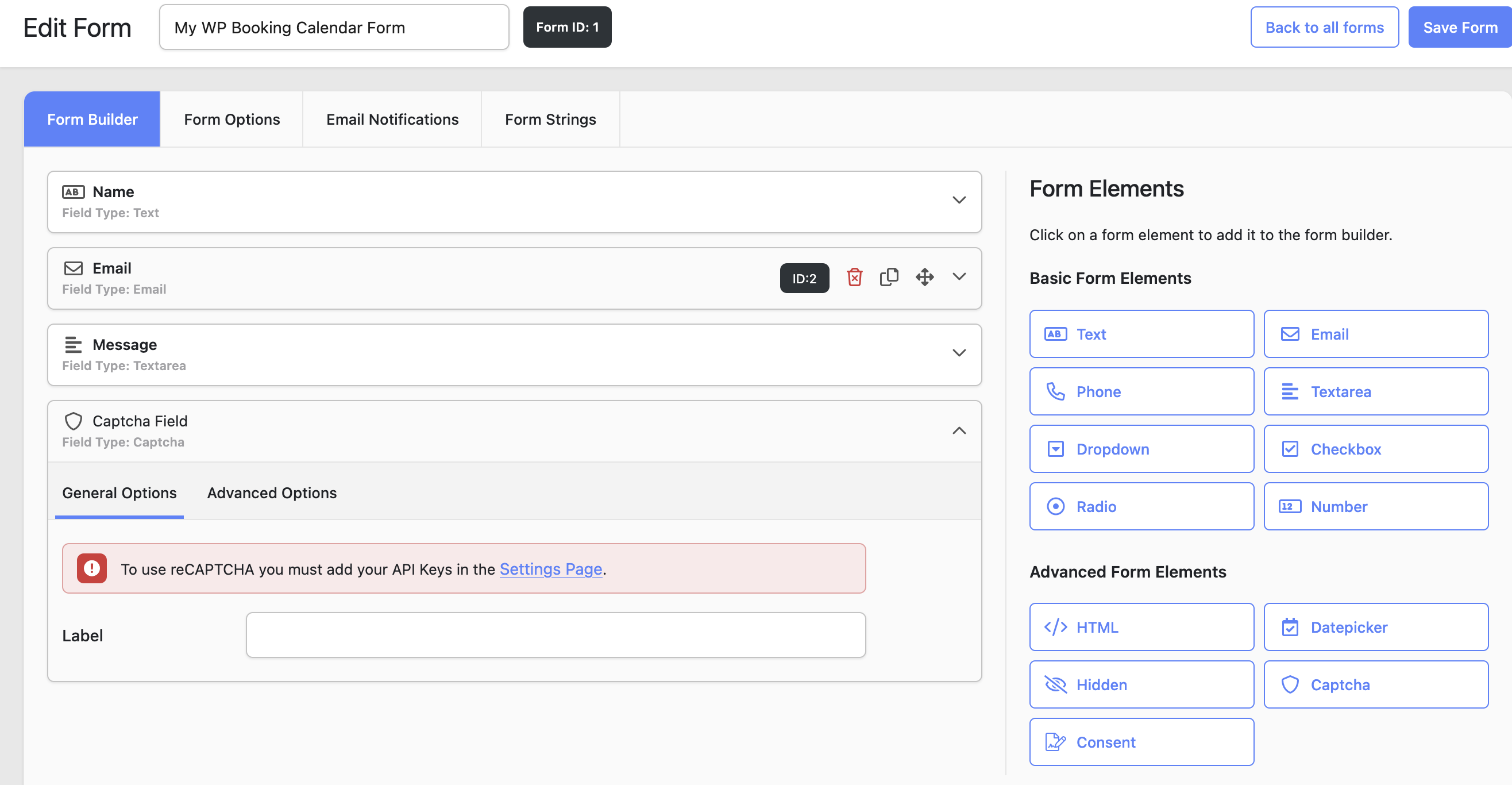
- Edit your form. In the Form Builder tab, click Captcha under Advanced Form Elements, then click Save Form.
WP Booking System itself suggests skipping reCAPTCHA until you actually get spam bookings, because every challenge adds friction for real guests.
reCAPTCHA adds a Google script to your page and sends visitor data to Google, which matters under GDPR. AI-driven bots also pass it more often than they used to. Compare versions in reCAPTCHA v2 vs v3.
5. Add Custom Validation Rules (for Developers)
WP Booking System lets developers add their own checks in the theme’s functions.php (custom validation rules). Both filters run after the form is submitted and can return an error:
wpbs_field_validationchecks one field, on all forms, one form or one field.wpbs_form_validationchecks several fields together.
Use them for rules your business knows best, such as rejecting messages that contain links or email domains you never see from real guests. Each rule is code you maintain, so keep the list short.
6. Add a Server-Side Spam Filter
A server-side filter checks each booking after it reaches your server. Bots can’t skip it, and guests see no challenge. It’s the only layer here that catches human spammers and AI-written messages.
oopspam Anti-Spam supports WP Booking System natively. It scores message content and checks IP and email reputation. Optional rules add rate limits, country and language filters, VPN blocking and disposable email detection. Every blocked booking is logged with a reason.
How to Set Up oopspam with WP Booking System
Setup takes about five minutes. You don’t need to edit your forms.
In WordPress, go to Plugins > Add New, search for oopspam Anti-Spam, then install and activate it.
Create a free oopspam account and copy your API key from the dashboard.
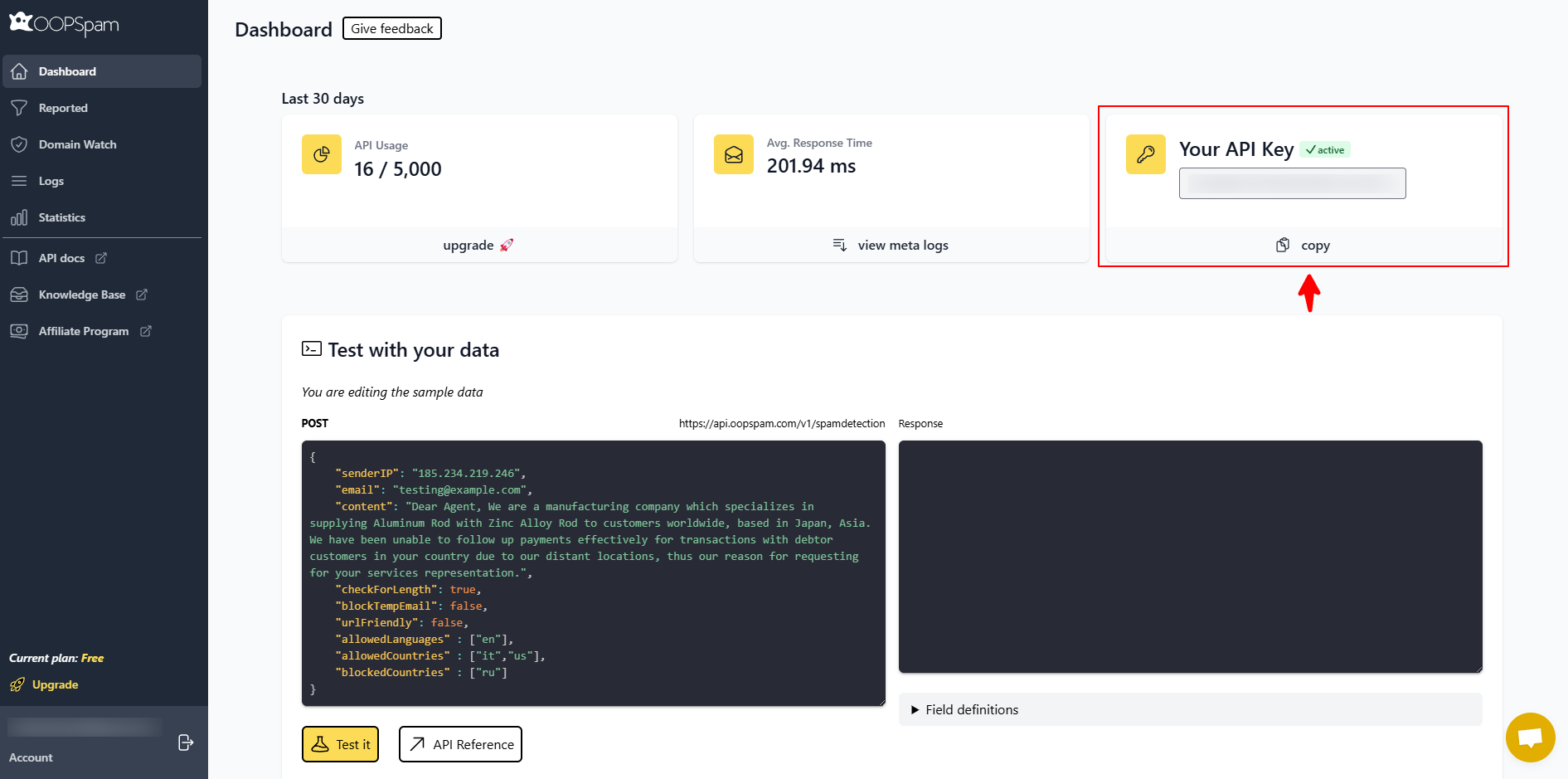
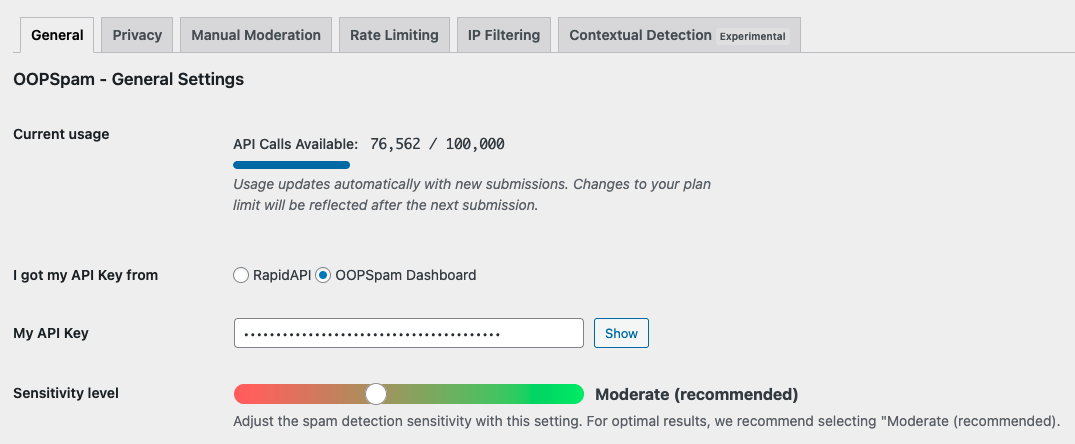
Go to Settings > oopspam Anti-Spam. In the General tab, select oopspam Dashboard as the source and paste your key into My API Key.
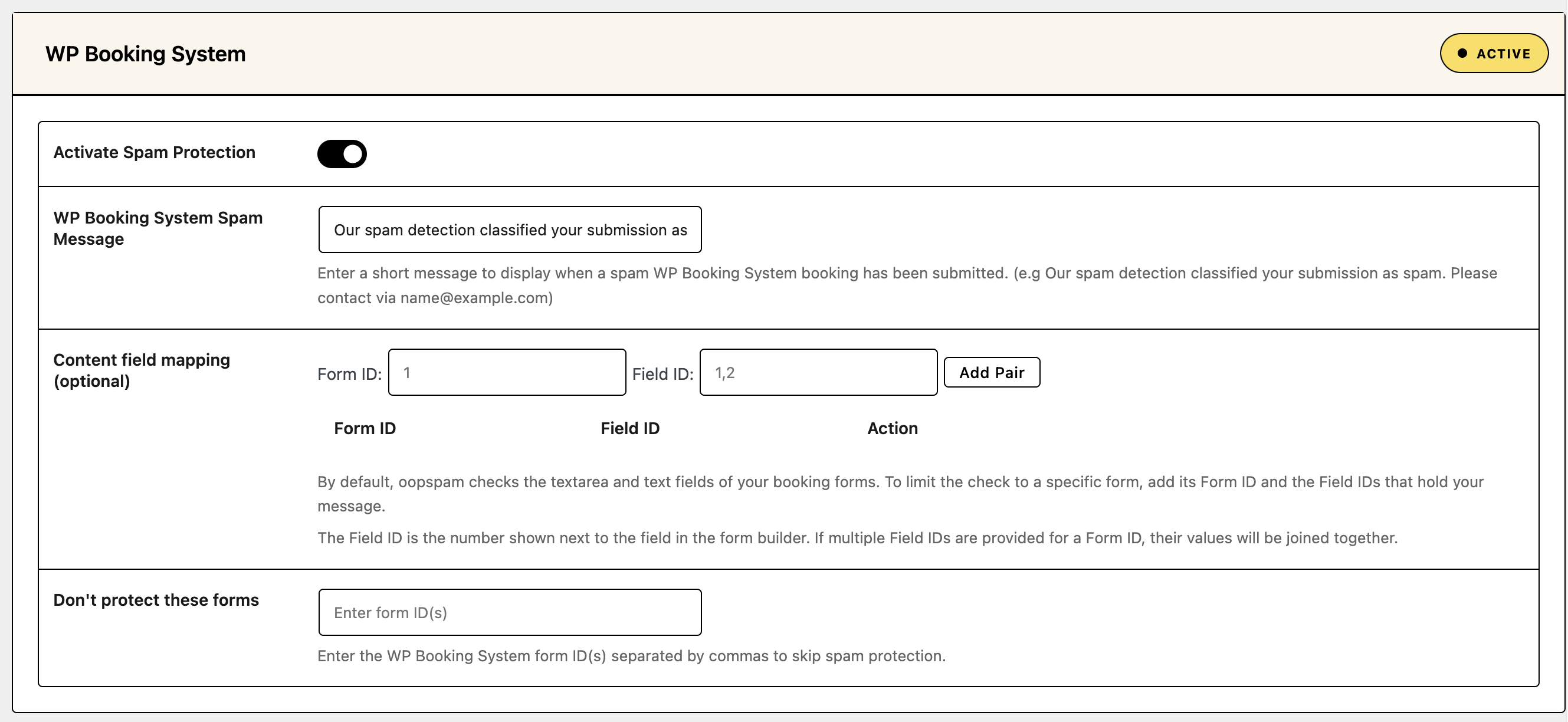
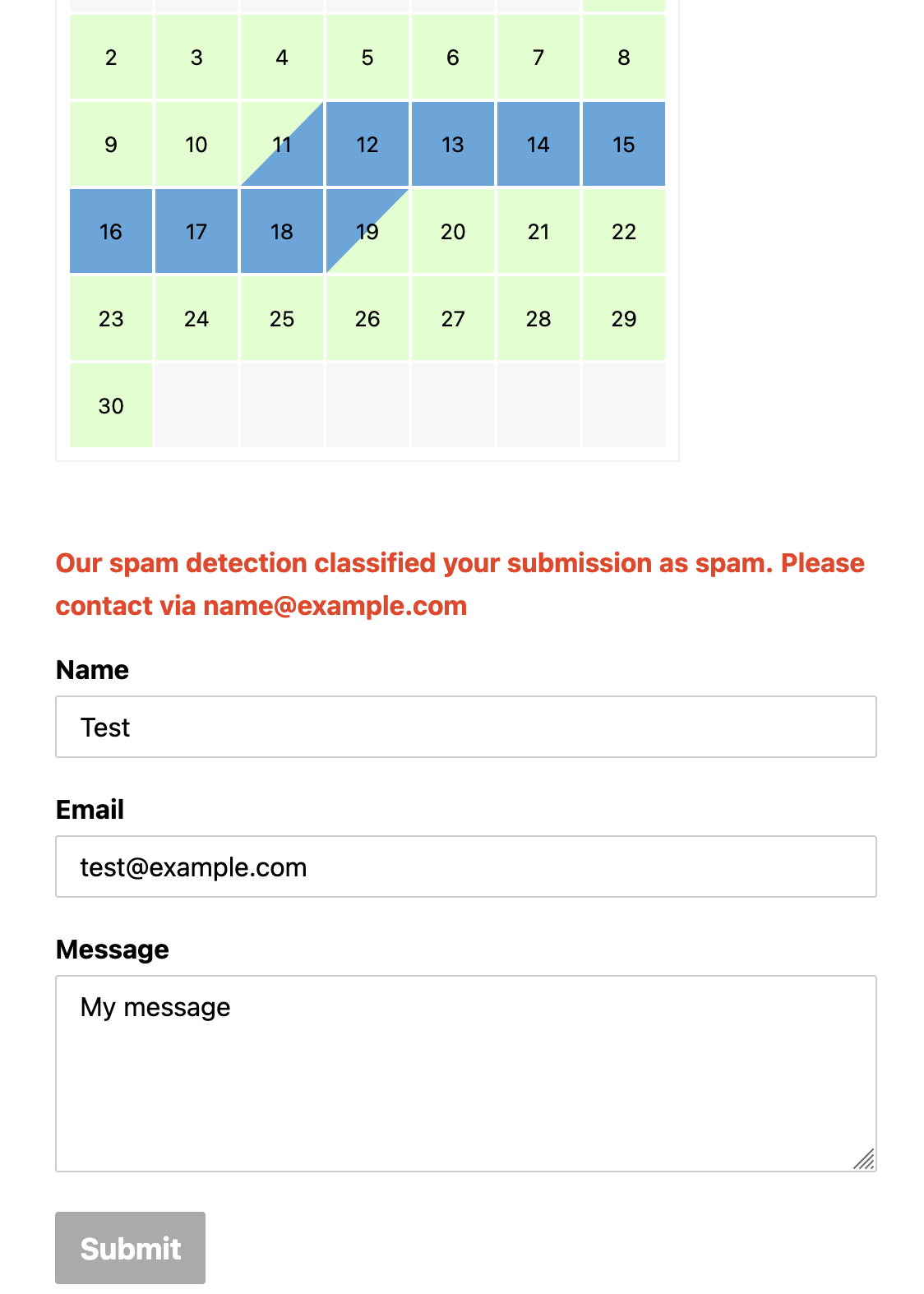
Find the WP Booking System section and turn on Activate Spam Protection. In WP Booking System Spam Message, write what guests see when a booking is blocked, for example “Our spam detection classified your submission as spam. Please contact us via [email protected].” Two optional settings help with special cases:
- Content field mapping: by default, oopspam checks the text and textarea fields of your booking forms. To check only specific fields on a form, add its Form ID and the Field IDs that hold the message, then click Add Pair. The Form ID shows at the top of the Edit Form page, and the Field ID is the number next to each field in the form builder.
- Don’t protect these forms: enter the form IDs to skip, separated by commas.
Optional: set the sensitivity level and turn on rate limiting, country, language, VPN or disposable email filters. If your site runs behind Cloudflare or another proxy, open the Misc tab and turn on Trust proxy headers so oopspam sees real visitor IPs.

Submit a test booking. A blocked guest sees your spam message above the form.
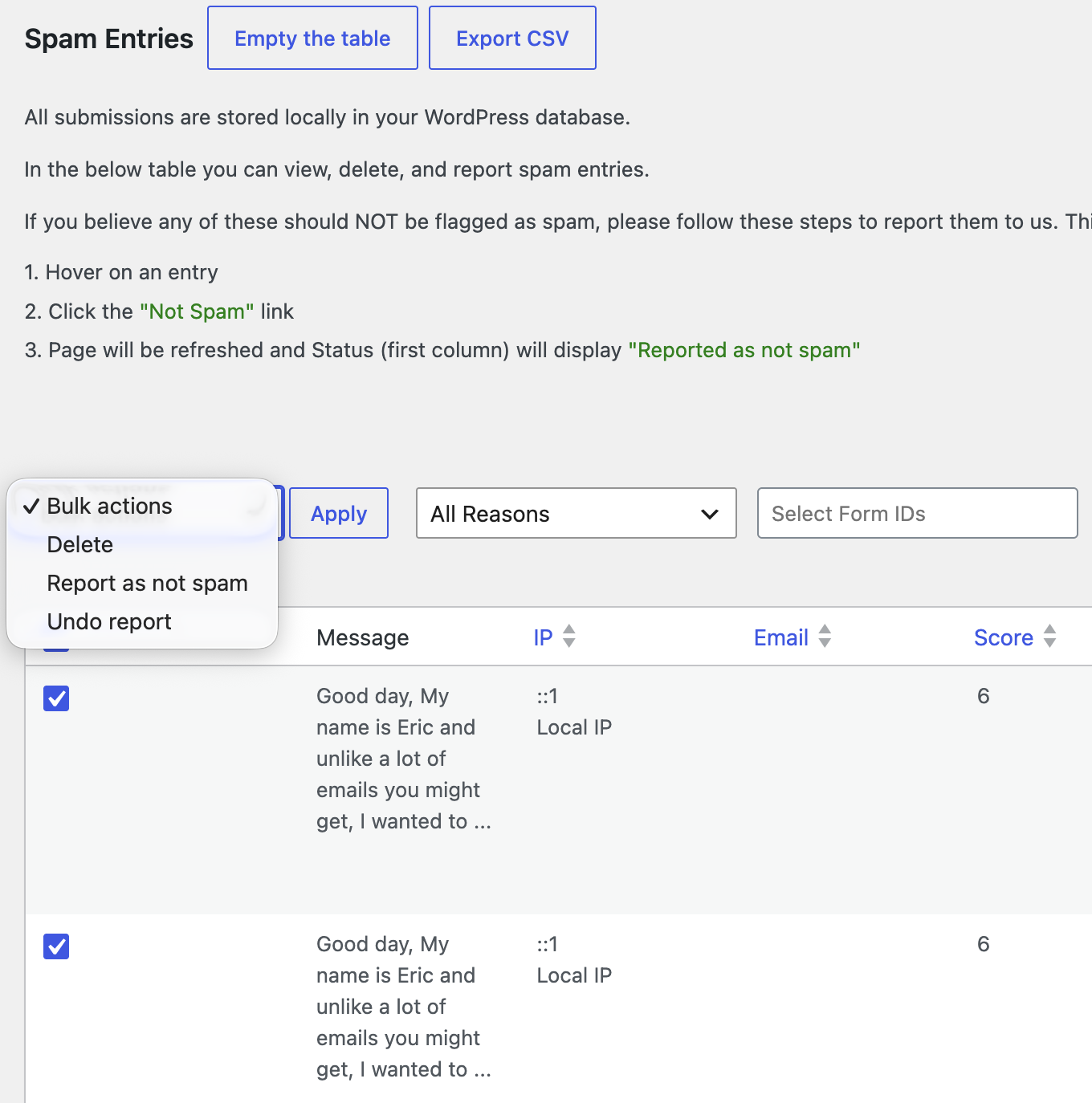
If a real booking gets blocked, open Form Spam Entries to see the reason. Mark it as not spam, add the sender to your allowed list, or lower the sensitivity.
Comparison
| Method | Blocks bots | Blocks human spam | Guest friction | Cost |
|---|---|---|---|---|
| Security token | Replayed requests | No | None | Free, built in |
| Pending status | Stops spam getting confirmed | Stops spam getting confirmed | None | Free, built in |
| Validated fields | Junk input | No | None | Free, built in |
| Captcha field (reCAPTCHA) | Most bots | No | Low to medium | Free |
| Custom validation rules | What you code | What you code | None | Developer time |
| oopspam (server-side filter) | Yes | Yes | None | Free plan, then paid |
FAQ
Does WP Booking System have built-in spam protection?
Yes, some. It has a security token on every request, a Captcha field for Google reCAPTCHA and fields that validate their input. It has no honeypot, and none of these stop human spammers or AI-written messages.
Do spam bots really get through a booking calendar?
Yes. The booking is sent as a single request to admin-ajax.php, so a bot can post it without clicking through the calendar.
Does oopspam work with WP Booking System?
Yes. oopspam Anti-Spam supports WP Booking System natively. Turn on Activate Spam Protection in the WP Booking System section of the plugin settings.
Can I block countries or VPNs in WP Booking System?
Not with WP Booking System alone. Use oopspam’s country filtering and IP filtering. See How to block countries in WP Booking System and How to block VPN and data center IP submissions in WP Booking System.
Should I use reCAPTCHA and oopspam together?
You can, but most sites don’t need both. oopspam works without adding a challenge to your booking form. Add reCAPTCHA only if a specific form still gets bot spam.
Final Thoughts
No single tool stops all spam. WP Booking System’s token, Pending status and validated fields handle simple bots and junk input. A server-side filter like oopspam catches the rest, including human spam, without adding friction to your booking form.
