How to Block VPN and Data Center IP Submissions in GiveWP Donation Forms?

Technical Content Marketer

Reviewed by Onar Alili
Co-founder & Engineer
Published 4 min read
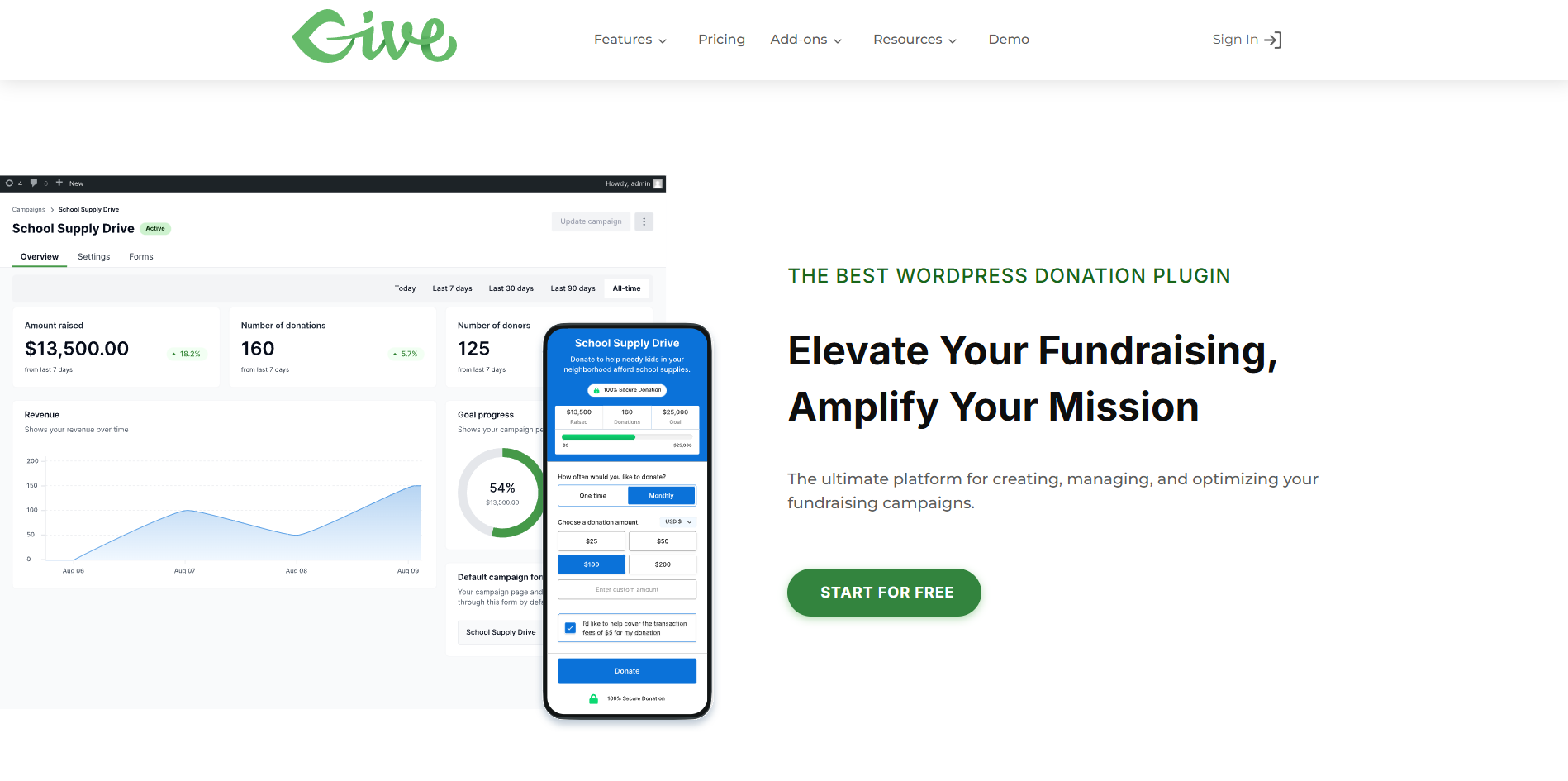
GiveWP does not filter VPN or data center IPs. Fake donations, card testing attacks, and bot submissions get through unless you add external protection. This guide covers three methods to stop them.
The Real Threat to Donation Forms
Donation forms are a prime target for card testing fraud. Attackers run stolen credit card numbers through small donations to check which ones work. They use cloud servers and VPNs to stay anonymous and avoid simple IP blocks.
GiveWP processes the payment. It does not evaluate where the request came from. That gap is what this guide addresses.
Method 1: oopspam Anti-Spam
oopspam (that’s us 👋) blocks VPN and cloud IP submissions before GiveWP processes them. It checks against a live database covering over 1,500 cloud providers and known VPN networks.
Step 1: Install the Plugin
Go to Plugins → Add New in WordPress. Search for “oopspam Anti-Spam”, install it, and activate.
Step 2: Add Your API Key
Sign up at the oopspam dashboard and copy your API key.
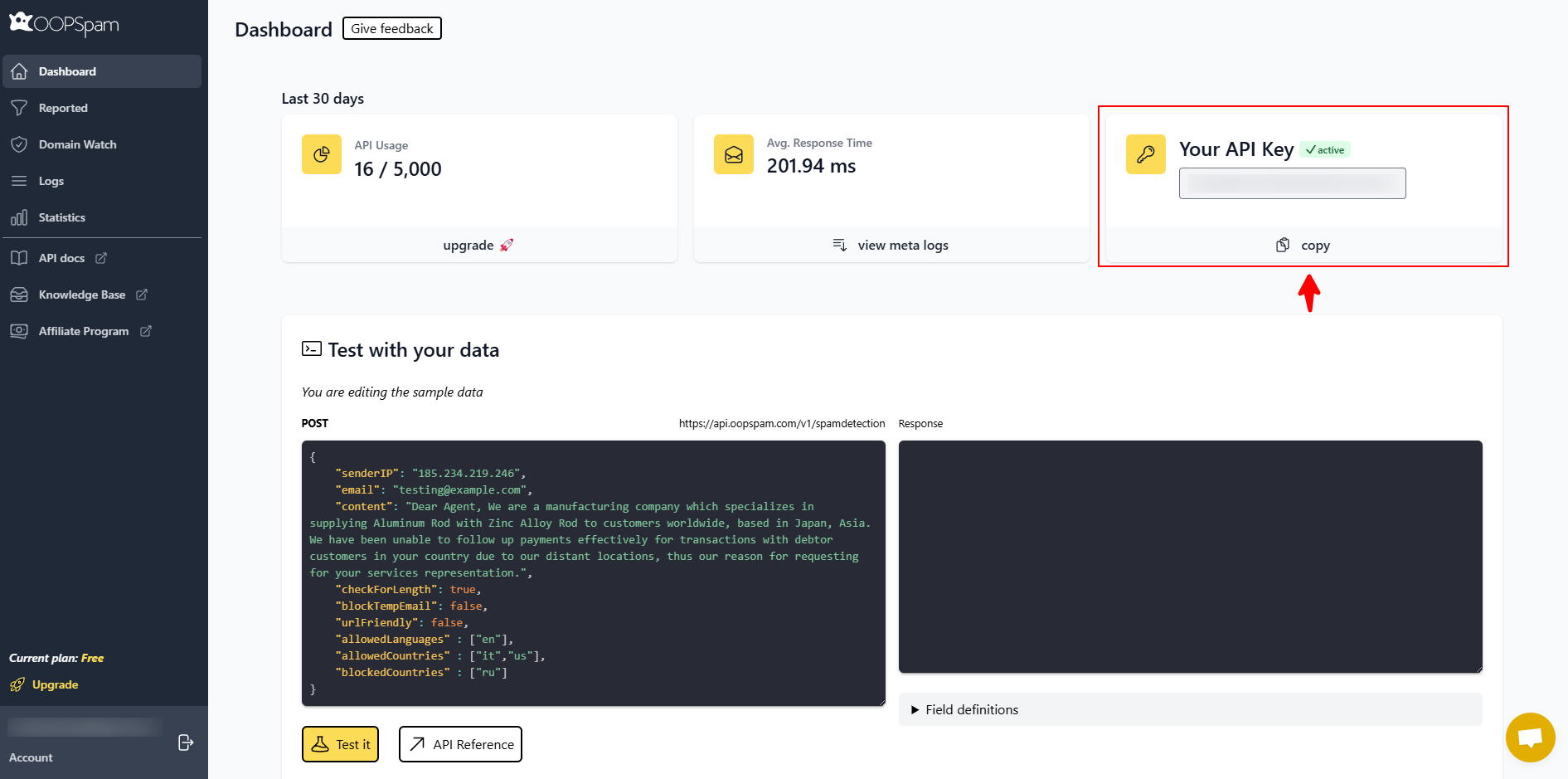
Go to Settings → oopspam Anti-Spam, paste the key, and save.
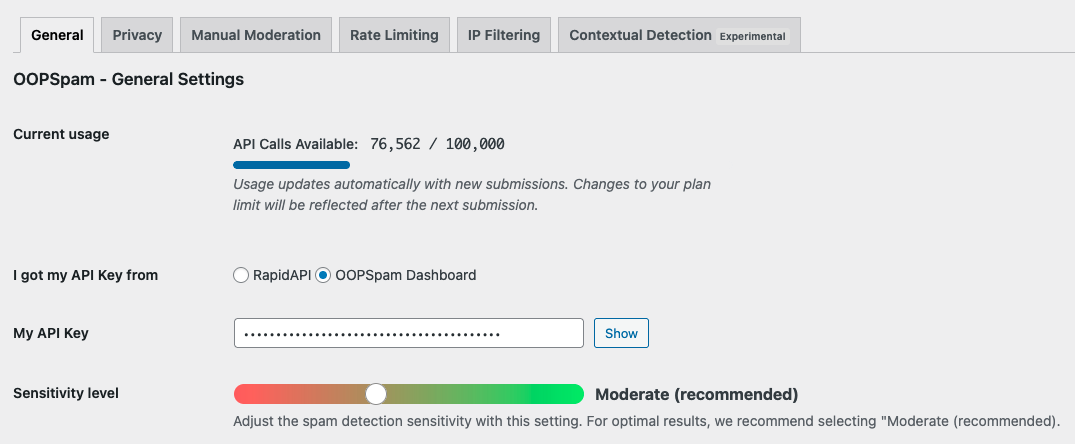
Step 3: Enable Protection
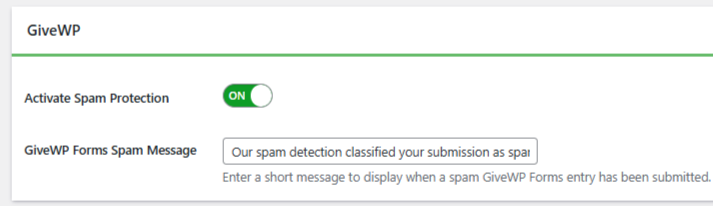
Open the General tab. Turn on Activate Spam Protection. oopspam automatically detects GiveWP, no additional setup inside GiveWP is needed.
Step 4: Set IP Filtering
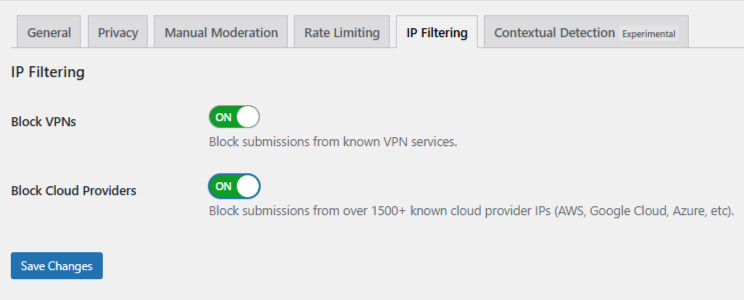
Go to the IP Filtering tab and enable:
- Block Cloud Providers – Stops submissions from data centers. Recommended. Most card testing fraud runs through cloud infrastructure.
- Block VPNs – Stops anonymous submissions. Use carefully if your donor base includes privacy-conscious users.
Save changes.
Manual Moderation
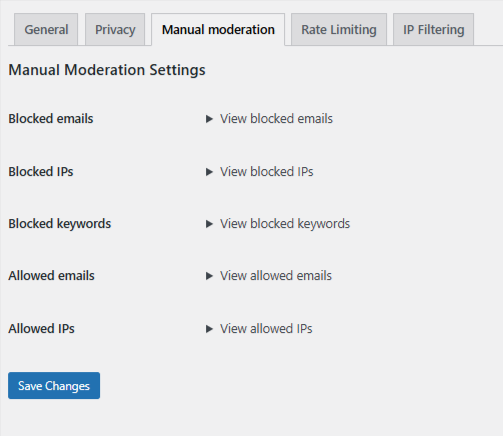
For persistent abuse that does not come from automated bots, use oopspam’s Manual Moderation. You can block specific IPs, email addresses, or keywords, and whitelist trusted donors to prevent false positives.
Method 2: Cloudflare Security Rules
Cloudflare lets you block traffic by ASN (Autonomous System Number) before it reaches your server. Each cloud provider operates under known ASNs. Blocking one stops all traffic from that network.
This is not GiveWP-specific. It applies site-wide.
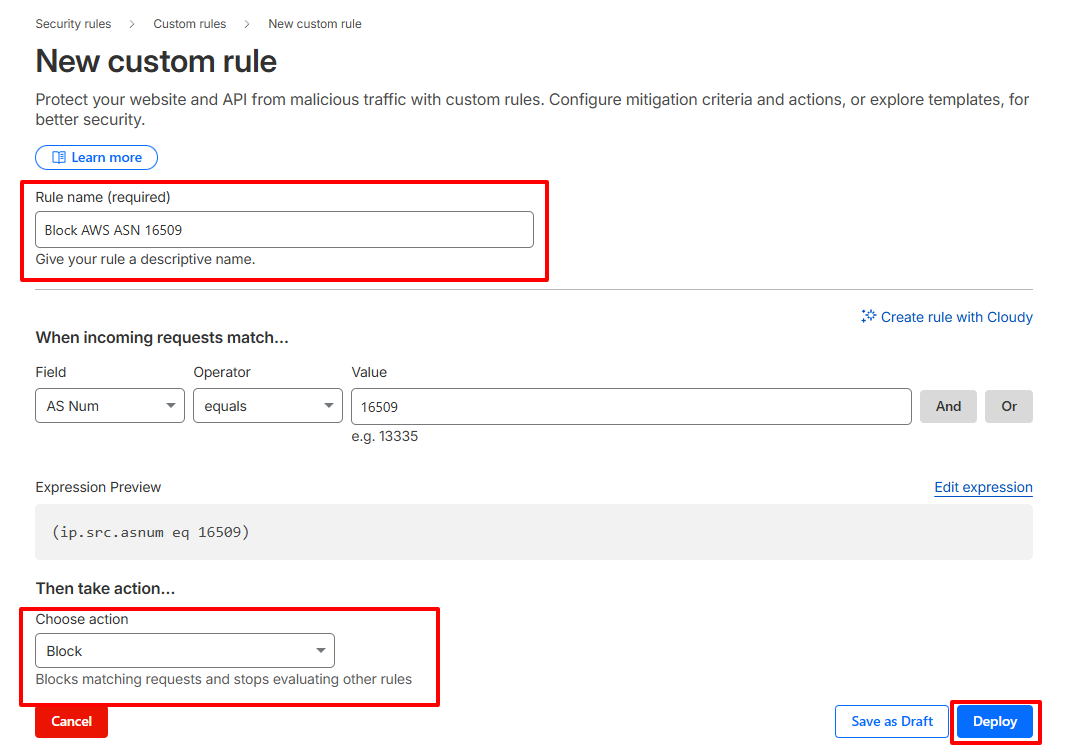
Create an ASN Rule:
- Log in to Cloudflare and select your site
- Go to Security → Security Rules → Custom Rules
- Click Create Rule
- Set the field to AS Num. Example: (ip.geoip.asnum eq 16509) for AWS
- Set the action to Managed Challenge to start, or Block if you are confident
- Name and deploy the rule
Use this method when attacks are high-volume and persist after form-level filtering. Broad ASN blocking can catch legitimate donors on corporate VPNs or cloud-hosted networks, so monitor closely after deployment.
Method 3: GiveWP Built-in Security Tools
These tools do not block VPN or data center IPs directly, but they stop general bot submissions and reduce fraudulent attempts significantly.
Cloudflare Turnstile
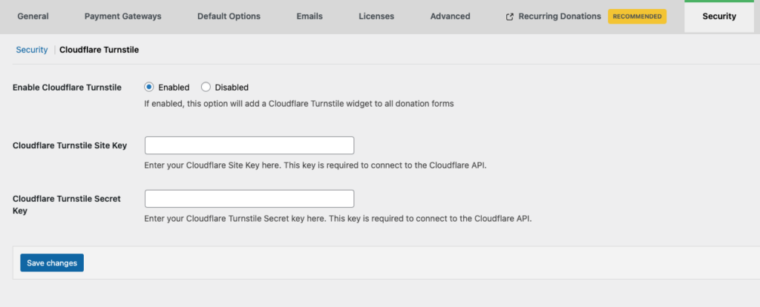
Turnstile analyzes browser behavior in the background. It blocks bots silently without asking donors to solve a CAPTCHA.
Install the Add-On:
Go to Plugins → Add New. Search for “Give – Cloudflare Turnstile” and install it.
Connect it to GiveWP:
- Create a free Cloudflare account if you do not have one
- In Cloudflare, go to Turnstile and create a widget for your site
- Copy the Site Key and Secret Key generated by Cloudflare
- In WordPress, go to Donations → Settings → Security → Cloudflare Turnstile
- Paste both keys into the appropriate fields
- Click Save Changes
Donors see no extra steps. Bots are blocked in the background.
Honeypot
Honeypot adds a hidden field to your forms. Real donors never see it. Bots fill it in automatically and get blocked.
Go to Donations → Settings → Security. Enable Honeypot and save. It runs quietly with no donor-facing impact.
Final Takeaway
GiveWP handles donations well, but fraud protection is not part of its core feature set. Add oopspam for IP-level filtering, enable Turnstile and Honeypot for bot protection, and use Cloudflare only if attacks persist at scale. All three together give your donation forms solid, layered defense.