How to Block VPN and Data Center IP Submissions in Paid Memberships Pro?

Technical Content Marketer

Reviewed by Onar Alili
Co-founder & Engineer
Published 4 min read

Paid Memberships Pro does not block VPN or data center IPs by default. But it does have a built-in checkout protection feature that most site owners overlook. Combined with oopspam and Cloudflare, you get solid coverage against fake registrations and automated abuse.
What Makes Membership Checkouts a Target
Automated bots treat membership checkout forms the same way they treat any signup form, as an entry point. They register fake accounts, test stolen payment credentials, and submit garbage data at scale. VPNs and cloud servers let them do this anonymously and repeatedly.
Paid Memberships Pro processes the checkout. It does not evaluate the IP reputation behind the request. That is the gap you need to fill.
Method 1: oopspam Anti-Spam
oopspam (that’s us 👋) filters submissions at the form level before Paid Memberships Pro processes them. It checks every checkout attempt against a real-time database of VPN ranges and over 1,500 cloud providers.
Step 1: Install the Plugin
In WordPress, go to Plugins → Add New. Search for “oopspam Anti-Spam”, install, and activate.
Step 2: Add Your API Key
Create a free account at the oopspam dashboard. Copy the API key.
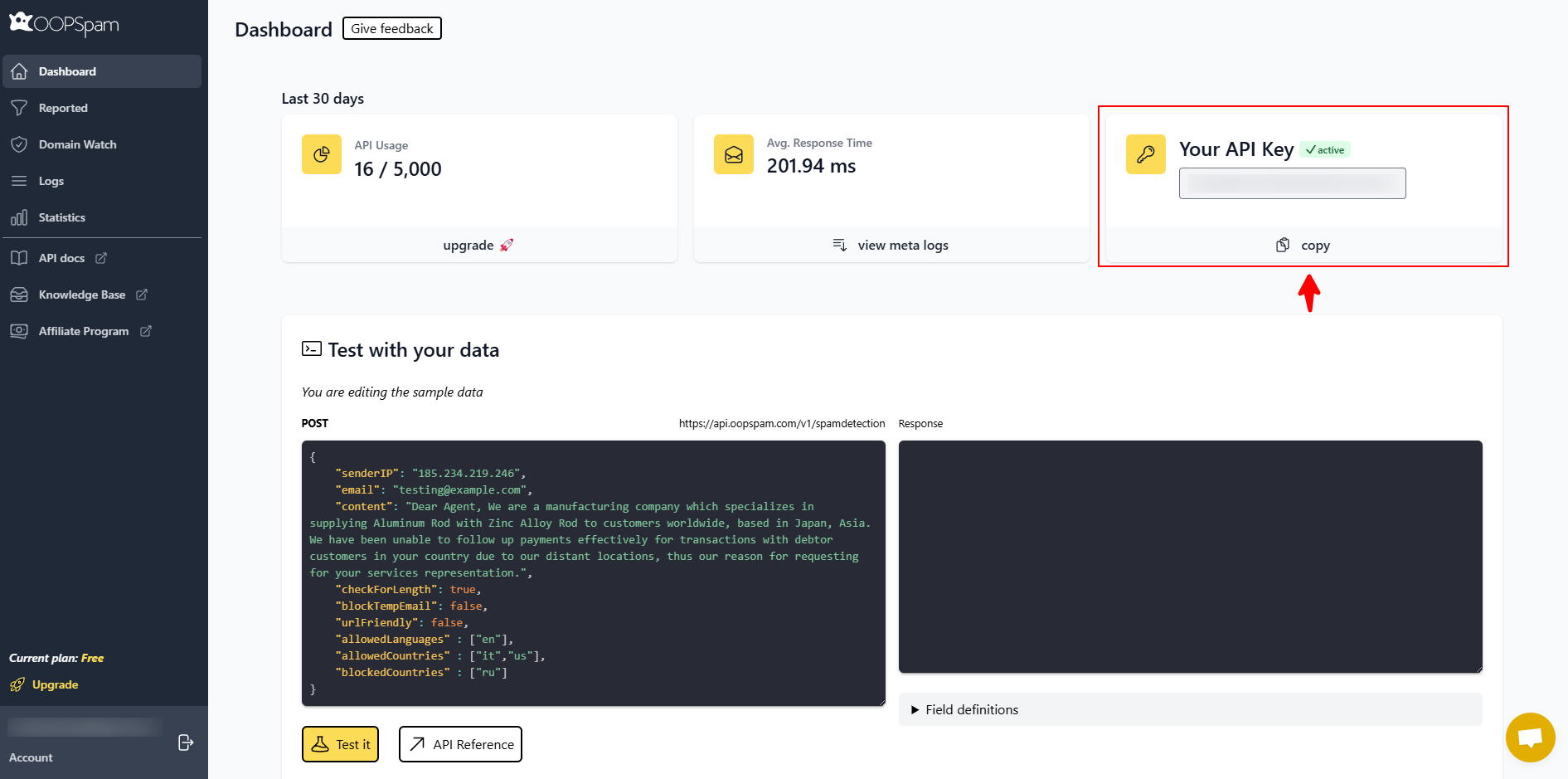
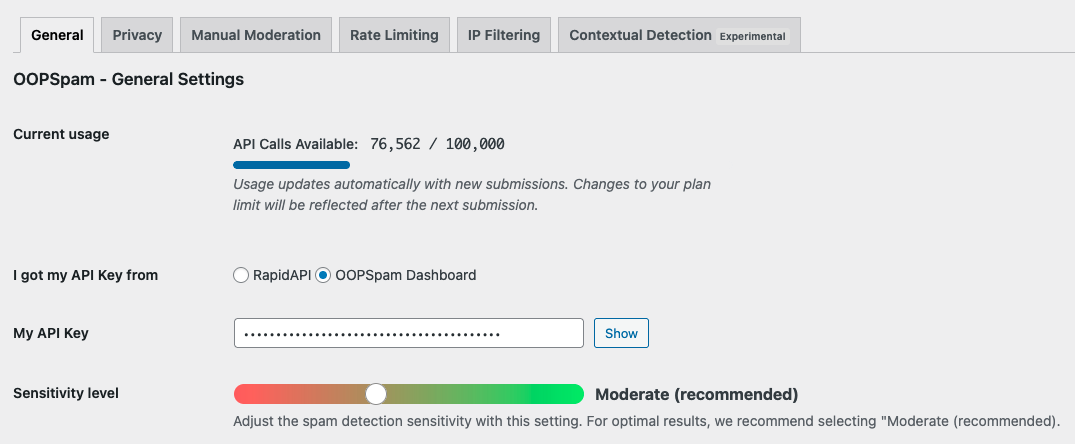
Go to Settings → oopspam Anti-Spam, paste the key, and save.
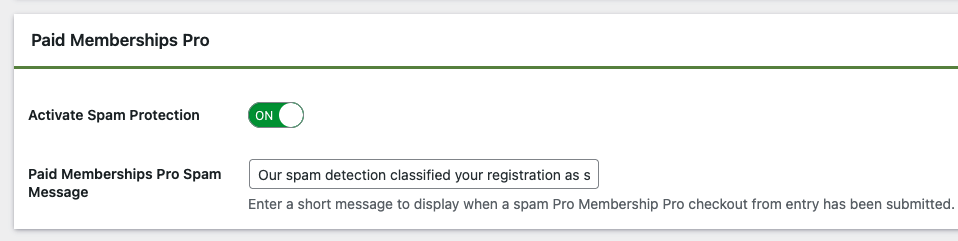
Step 3: Enable Protection
Open the General tab. Turn on Activate Spam Protection. oopspam detects Paid Memberships Pro automatically.
Step 4: Configure IP Filtering
Go to the IP Filtering tab and enable:
- Block Cloud Providers – Blocks checkout attempts from data centers and hosting servers. Recommended for all membership sites.
- Block VPNs – Blocks anonymous submissions through VPN services. Enable carefully if your members include remote workers or privacy-focused users.
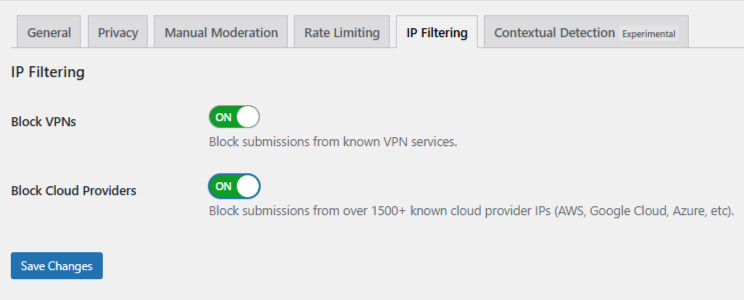
Save changes. Nothing else needs to be configured inside Paid Memberships Pro.
Manual Moderation
For targeted abuse that slips through automated filters, use oopspam’s Manual Moderation. Block specific IPs, email addresses, or keywords. Whitelist known members to prevent false positives.
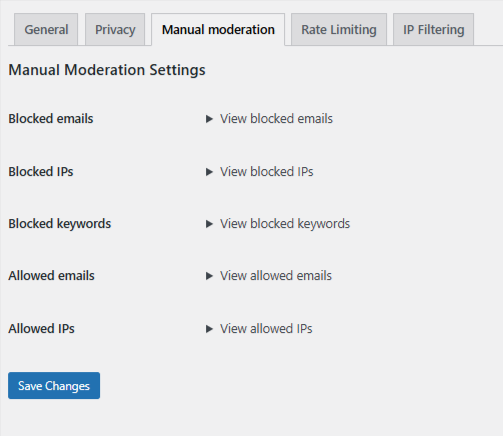
Method 2: Cloudflare Security Rules
Cloudflare blocks traffic by ASN (Autonomous System Number) before it reaches WordPress. Every cloud provider has a known ASN. Blocking it stops all traffic from that network.
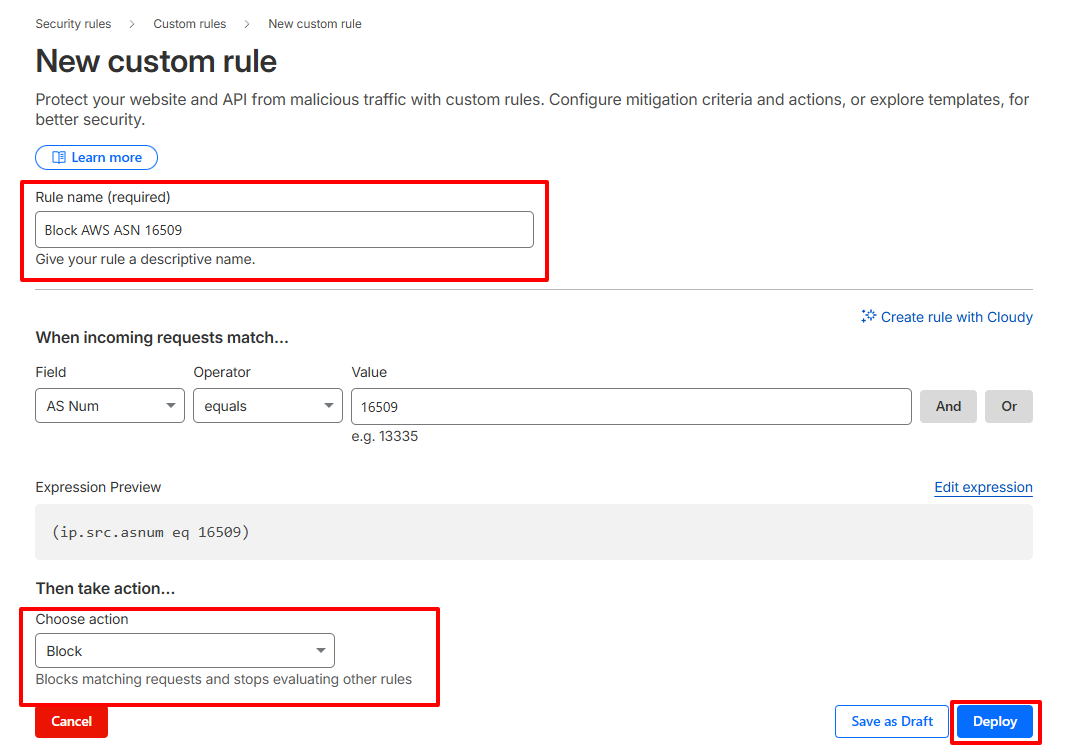
This is site-wide, not checkout-specific.
Create an ASN Rule:
- Log in to Cloudflare and select your site
- Go to Security → Security Rules → Custom Rules
- Click Create Rule
- Set the field to AS Num. Example: (ip.geoip.asnum eq 16509) for AWS
- Set the action to Managed Challenge to start, or Block if confident
- Name and deploy the rule
Reserve this method for sustained attacks from specific networks. ASN blocking can cut off legitimate members on corporate VPNs or cloud-hosted connections, so review impact before going broad.
Method 3: Paid Memberships Pro Built-in Checkout Protection
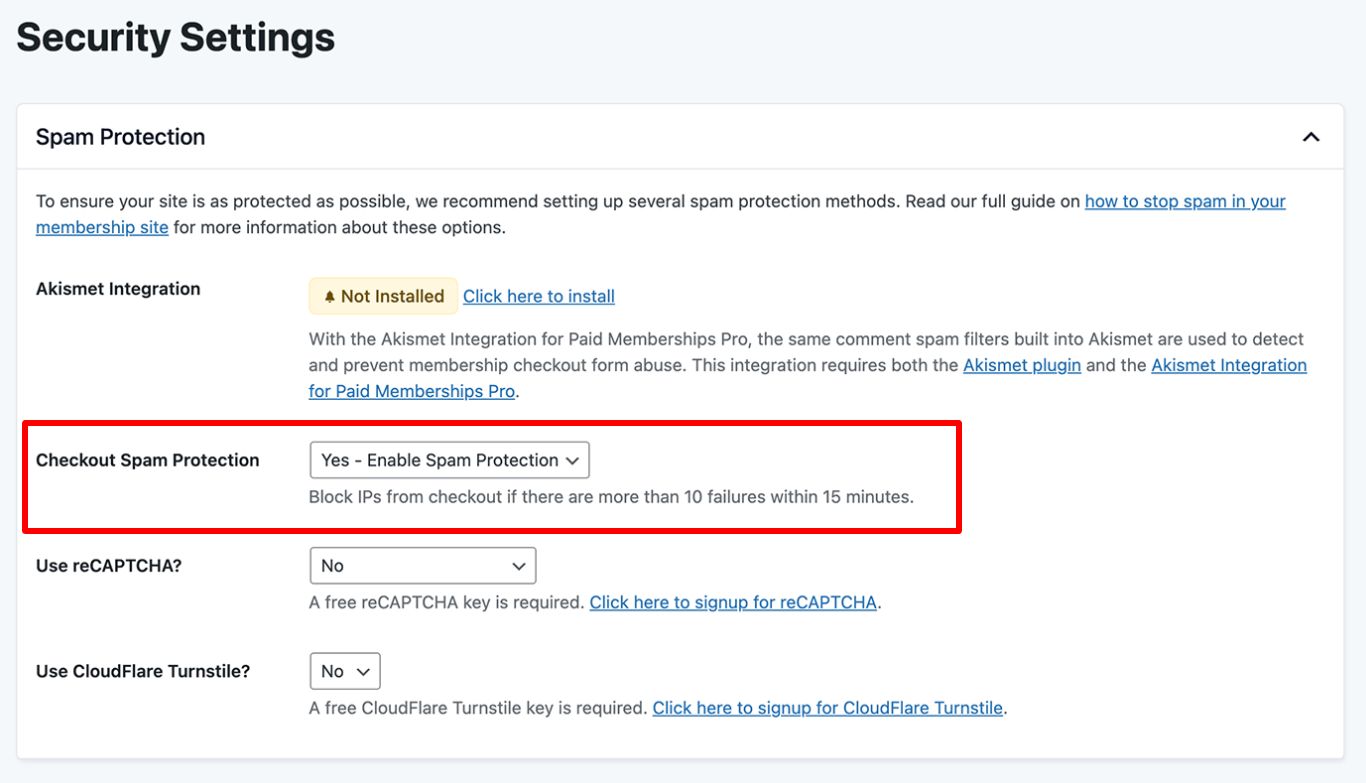
Paid Memberships Pro includes a native checkout spam protection setting that automatically rate-limits suspicious IPs.
When enabled, it blocks any IP address from completing checkout if it has more than 10 failures within 15 minutes. This directly targets automated bots running credential stuffing or card testing attacks through your membership forms.
Enable It:
- Go to your Paid Memberships Pro Settings → Security.
- Under the Spam Protection section, find Checkout Spam Protection and set it to Yes – Enable Spam Protection.
Save changes. That is all it takes.
Final Takeaway
Paid Memberships Pro gives you a head start with its built-in checkout spam protection. Enable it first, it is free and requires no setup beyond a single toggle. Then layer oopspam on top for IP-level filtering and use Cloudflare only if attacks persist at scale.