
Chazie Baniquid
Technical Content Marketer
5 minutes to read
How to Block VPN and Data Center IP Submissions in QuForm

QuForm does not natively identify or block VPN or data center IP addresses. To stop this type of spam, you must add an external IP-intelligence layer. The most effective options are OOPSpam for form-level filtering and Cloudflare for network-level blocking.
This guide explains both methods. You will understand when to use each one, how to set them up correctly, and how to avoid blocking legitimate submissions.
Why VPN And Data Center Spam Keeps Getting Through
Modern spam does not come from random home connections. It usually comes from cloud infrastructure or commercial VPN services. These sources allow attackers to rotate IPs, bypass rate limits, and submit forms repeatedly without being detected.
CAPTCHA and honeypots help, but they are no longer enough on their own. Blocking by IP reputation is now required to meaningfully reduce abuse.
Method 1: Block VPN And Cloud IPs Using OOPSpam
OOPSpam Anti-Spam (that’s us 👋) integrates directly with WordPress and evaluates each submission using real-time IP intelligence. It detects VPN services, proxy networks, and cloud infrastructure commonly used for automated abuse. Filtering happens before the submission becomes a QuForm entry.
This method is recommended for most QuForm users because it is lightweight and easy to maintain.
How To Enable VPN And Cloud IP Blocking With OOPSpam
Step 1: Install The Plugin
From your WordPress dashboard, go to Plugins, add a new plugin, search for OOPSpam Anti-Spam, then install and activate it.
Step 2: Get Your API Key
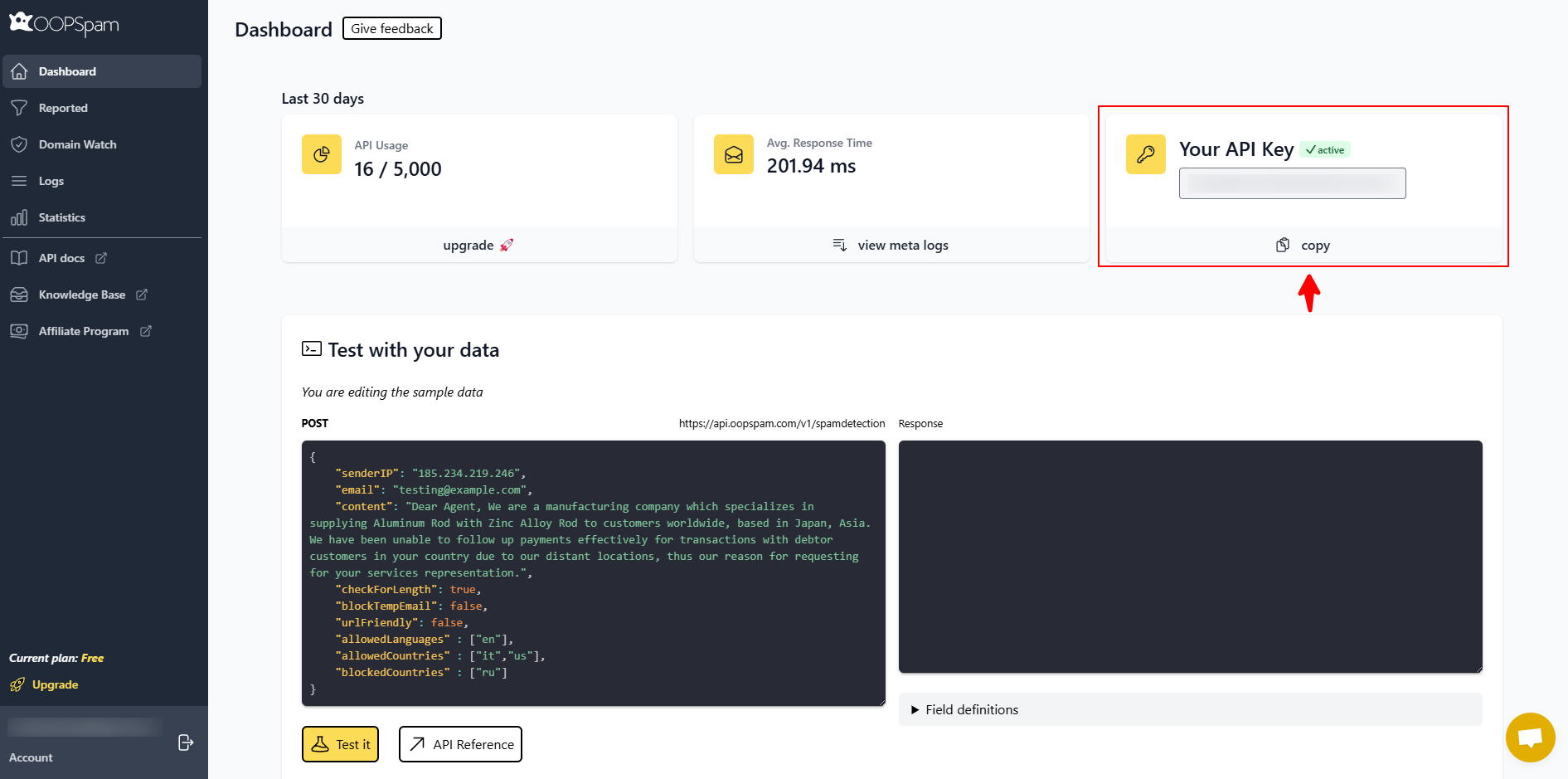
Create an account in the OOPSpam dashboard and copy your API key.
Step 3: Connect OOPSpam To WordPress
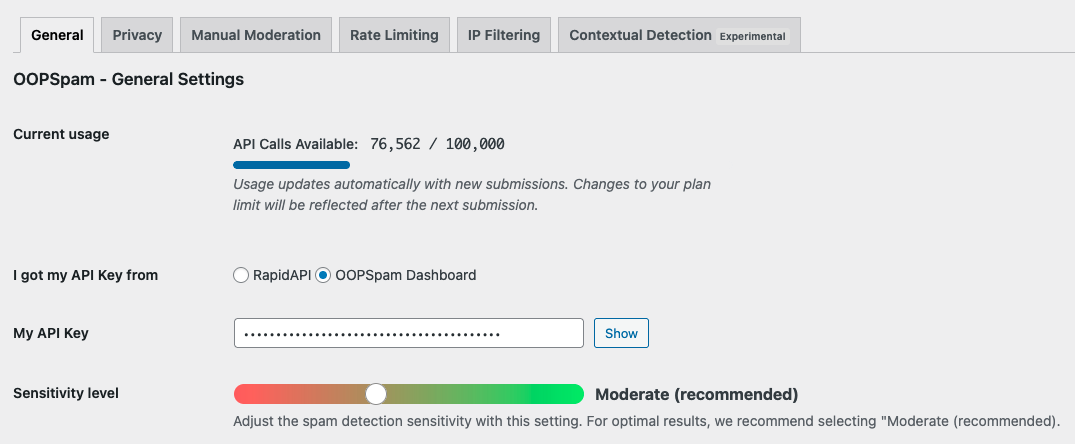
Open Settings, then OOPSpam Anti-Spam. In the General tab, paste your API key into the “My API Key” field and select “OOPSpam Dashboard” as the source.
Step 4: Enable QuForm Protection

Turn on spam protection and confirm that QuForm is enabled in the supported forms list. This ensures submissions are evaluated before QuForm processes them.
Step 5: Enable IP Filtering
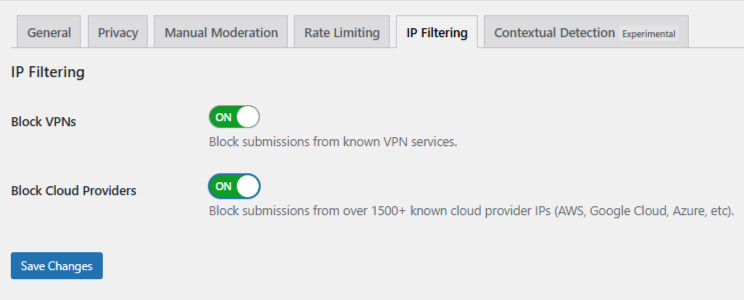
Open the IP Filtering tab and enable both:
- Block VPNs - Use with caution if you expect privacy-conscious users.
- Block Cloud Providers - Strongly recommended to stop automated spam.
This activates automatic filtering for known VPN networks and hosting providers.
Step 6: Save And Test
Save your changes and test your form from a normal connection and a VPN connection to confirm that filtering is working as expected.
Optional Step: Use Manual Moderation In OOPSpam
If you need more precision, OOPSpam includes a Manual Moderation tab. This is useful when automated blocking is not enough or when you want to handle specific patterns.
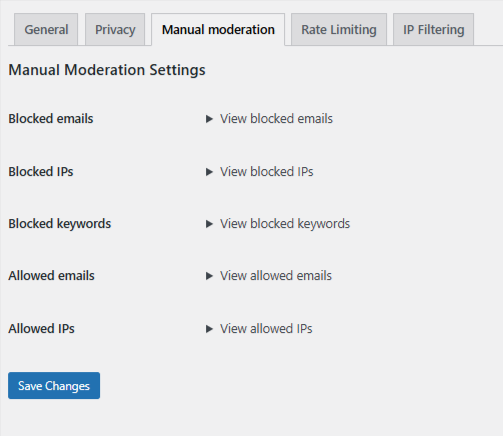
In OOPSpam → Manual Moderation, you can:
- Block specific IPs or entire IP ranges, which is helpful for persistent abuse from a single source or hosting provider
- Block email addresses to stop repeat offenders
- Block keywords to catch known spam phrases or abusive patterns
- Allow safe IPs or email addresses to ensure trusted users are never blocked
This option is ideal for handling edge cases and recurring spam without tightening global rules.
Why OOPSpam Works Well With QuForm
OOPSpam does not change your form layout, validation rules, or user experience. It runs quietly in the background, blocks spam before entries are created, and requires no ongoing IP maintenance. This makes it a strong long-term solution for QuForm-based sites.
Method 2: Block VPN And Cloud IPs Using Cloudflare
If your site uses Cloudflare, you can block or challenge traffic at the network level. This reduces server load and stops large-scale abuse earlier in the request lifecycle. Cloudflare rules typically work by blocking entire networks using Autonomous System Numbers, also known as ASNs.
How To Create A Cloudflare Security Rule
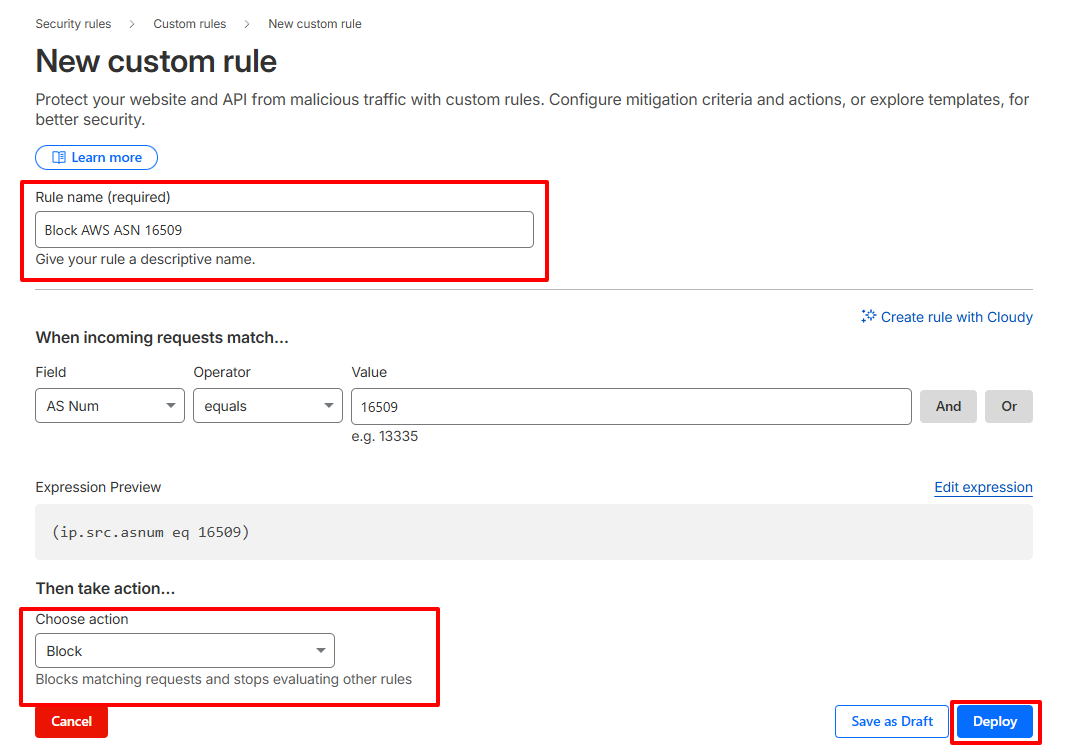
- Log in to your Cloudflare dashboard and select your website.
- Navigate to Security, then Security Rules, and create a new custom rule.
- To block AWS traffic, set the rule to match traffic where the AS Number equals 16509. The expression will look like
(ip.src.asnum eq 16509). - Choose an action:
-
-
Use Block when abuse is persistent and severe.
-
Managed Challenge is recommended because it reduces false positives.
-
- Name the rule clearly and deploy it.
You can repeat this process for other cloud providers if needed.
Important Considerations When Using Cloudflare
Some legitimate users browse from corporate VPNs. Some mobile networks use shared infrastructure that may appear similar to cloud traffic. Blocking entire ASNs can unintentionally block real users.
For this reason, Managed Challenge should be your default choice. Escalate to full blocking only after reviewing the impact.
Final Takeaway
QuForm needs external IP intelligence to block VPN and data center IP submissions effectively. OOPSpam is the safest and most accurate option for form-level protection, while Cloudflare adds a strong network-level layer when traffic volume is high.
Use these tools thoughtfully, test regularly, and focus on stopping abuse without blocking legitimate leads.