
Chazie Baniquid
Technical Content Marketer
5 minutes to read
How to Block VPN and Data Center IP Submissions in WPForms

WPForms cannot block VPN or data center IP traffic on its own. To stop this type of spam, you must add external IP intelligence. For most WPForms sites, the most effective solution is OOPSpam at the form level. Cloudflare is a secondary option for network-level control when more aggressive filtering is required.
This guide explains both methods clearly. It also shows how WPForms’ built-in tools fit into a layered spam protection strategy.
Why VPN and Data Center Spam Gets Through WPForms
Most spam submissions no longer come from random personal IP addresses. They come from:
- VPN services with rotating exit IPs
- Cloud hosting platforms like AWS, Google Cloud, and Azure
- Proxy networks designed to bypass rate limits
These sources allow attackers to submit forms repeatedly without being blocked. CAPTCHA and honeypots help, but they cannot identify whether an IP belongs to a VPN or a data center. That information requires real-time IP intelligence.
Method 1: Automatically Block VPN and Cloud IPs Using OOPSpam
OOPSpam Anti-Spam (that’s us 👋) integrates directly with WPForms and filters spam before entries are saved. It uses continuously updated threat data to detect VPNs, proxies, and cloud infrastructure. No IP list maintenance or firewall access is required.
For most WPForms users, this is the safest and simplest approach.
Why OOPSpam Works Well With WPForms
OOPSpam works at the form level. This means spam is blocked before it reaches your inbox or database. Setup is fast, false positives are easier to manage, and filtering stays up to date automatically.
Step-by-Step: Enable OOPSpam for WPForms

Install and activate the OOPSpam Anti-Spam plugin from your WordPress dashboard.
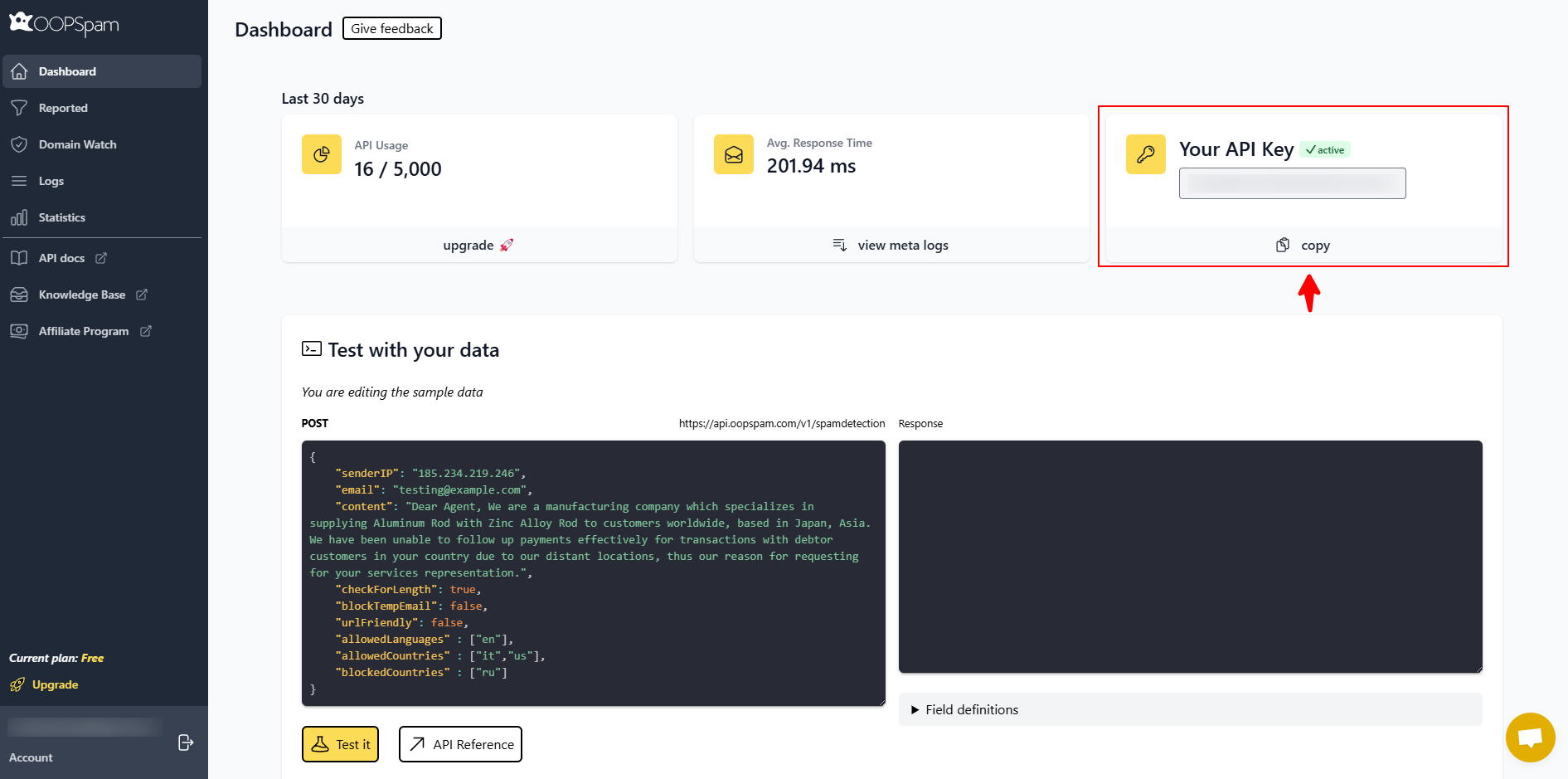
Create an account in the OOPSpam dashboard and copy your API key.
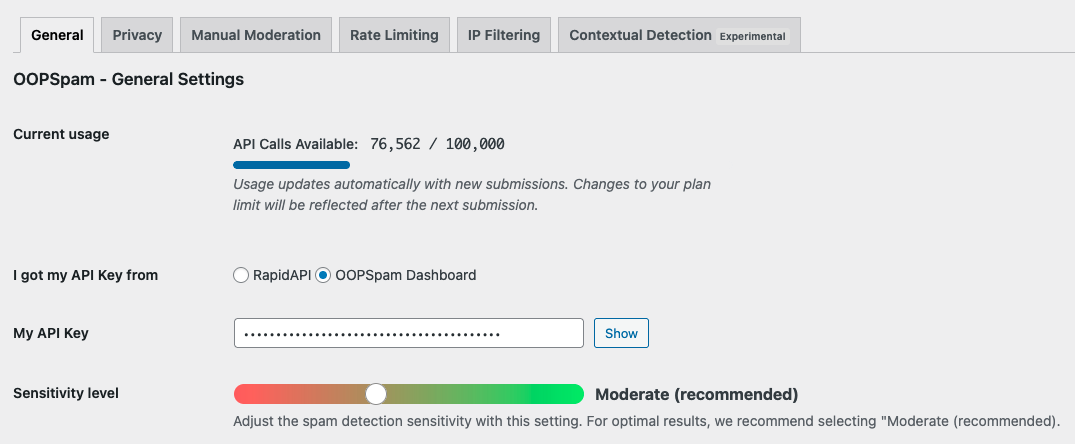
In WordPress, go to Settings → OOPSpam Anti-Spam, paste the API key, and select OOPSpam Dashboard as the source.
Once connected, OOPSpam is ready to filter submissions.
Enable Spam Protection for WPForms
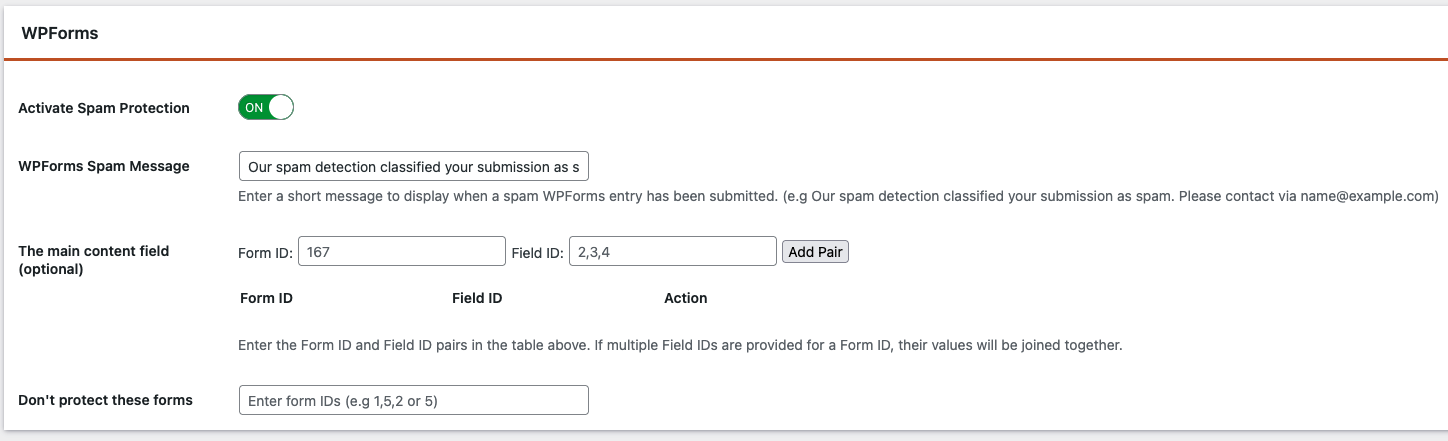
In the General tab of OOPSpam settings, enable Activate Spam Protection for WPForms. You may also set a custom message that appears when a submission is blocked.
Enable VPN and Cloud Provider Blocking
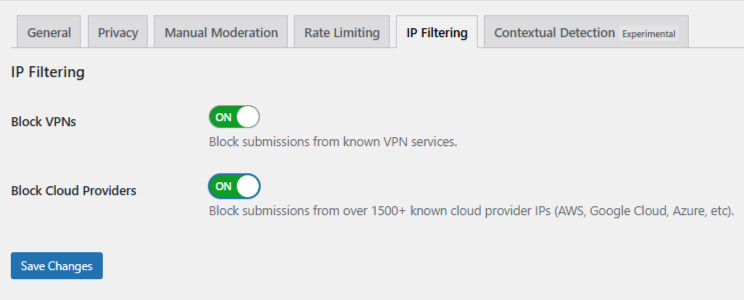
Open the IP Filtering tab in OOPSpam settings.
- Enable Block Cloud Providers to stop most automated spam.
- Enable Block VPNs only if your audience is unlikely to rely on VPNs for privacy or work.
Save your changes to apply the rules.
Blocking cloud providers is usually safe. Blocking VPNs should be done carefully.
Optional: Use Manual Moderation for Repeat Abuse
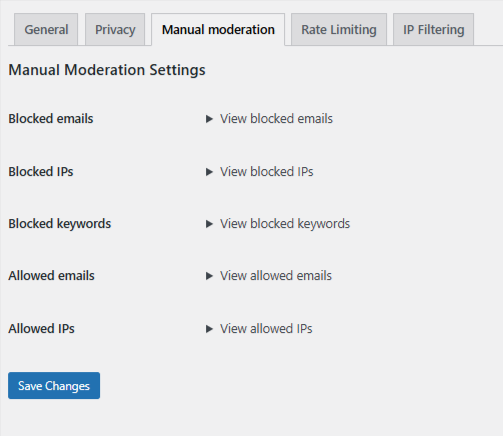
Manual moderation gives fine-grained control. In OOPSpam → Manual Moderation, you can:
- Block specific IPs or IP ranges
- Block repeat email addresses
- Block keywords or phrases
- Allow trusted IPs or emails
This is useful for persistent or borderline spam cases.
Additional WPForms Measures to Strengthen Protection
WPForms includes basic spam protection features that should always be enabled. These tools do not block VPNs or data center IPs, but they reduce low-effort spam and improve overall results.
Enable Modern Anti-Spam Protection
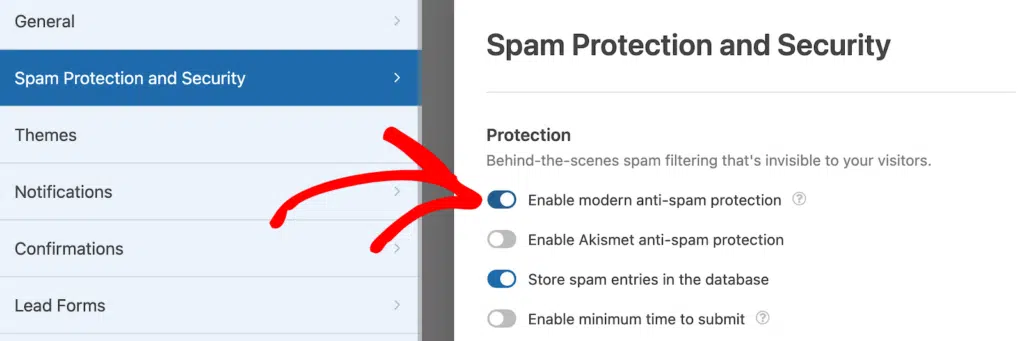
WPForms includes Modern Anti-Spam Protection, which uses a honeypot technique to block simple bots. It is usually enabled by default, but you should confirm it.
To check:
- Open the form in the WPForms builder
- Go to Settings → Spam Protection and Security
- Make sure Modern Anti-Spam Protection is enabled
This feature runs silently and does not affect real users.
Method 2: Block VPN and Data Center IPs Using Cloudflare Firewall Rules
Cloudflare operates at the network edge. Requests are filtered before they reach WPForms or your server. This reduces server load and blocks high-volume abuse.
This method is more advanced and should be configured carefully.
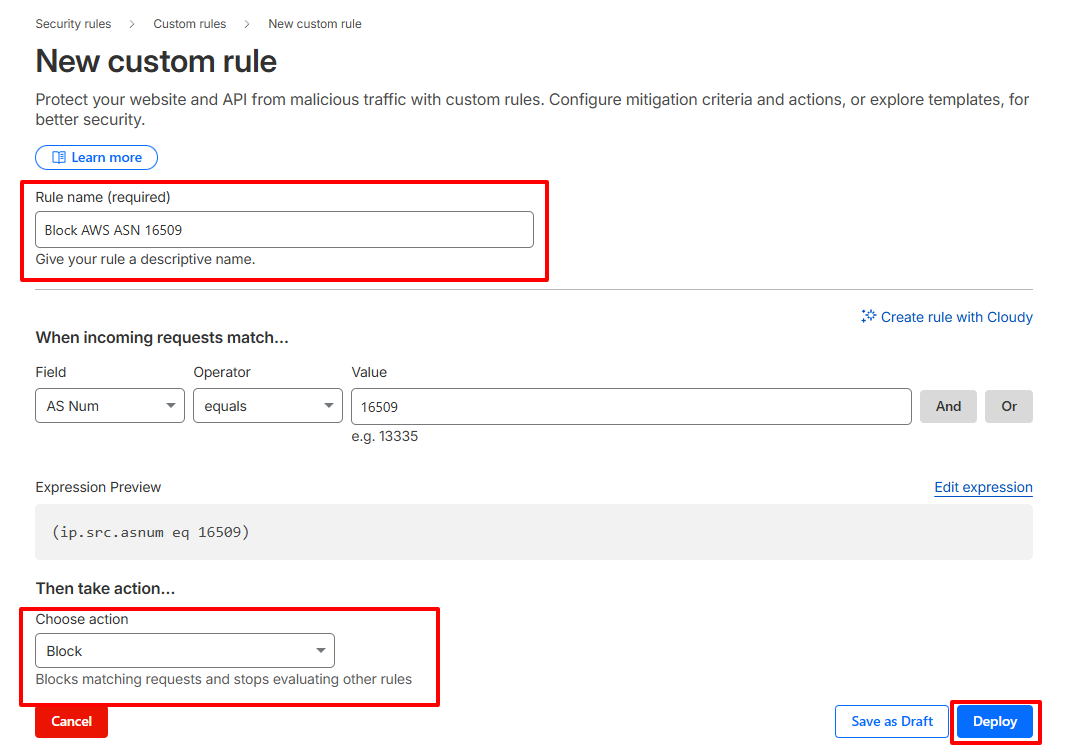
Step-by-Step: Create a Cloudflare ASN Rule
- Log in to Cloudflare and select your website
- Go to Security → Security Rules → Custom rules
- Create a new rule
- Match traffic by AS Num (example: 16509 for AWS)
- Choose an action:
-
-
Managed Challenge (recommended first)
-
Block (only if you are confident)
-
- Name the rule clearly and deploy it
Important Warnings About ASN Blocking
Large cloud providers host legitimate services and corporate traffic. Blocking entire ASNs too aggressively can prevent real users from submitting forms. Always start with challenges and review logs before escalating.
Final Takeaway
WPForms alone cannot block VPN and data center IP submissions. OOPSpam adds real-time detection at the form level. Cloudflare adds protection at the network level. WPForms’ built-in tools strengthen the baseline.
Enable built-in protection first. Block cloud providers next. Add VPN blocking only when needed. Review results before escalating. This approach reduces spam while protecting real WPForms submissions.