3 Ways to Protect Your MailPoet from Spam

Technical Content Marketer

Reviewed by Onar Alili
Co-founder & Engineer
Published 7 min read

Spam signups in MailPoet do more than clutter your list. They affect deliverability, increase bounce rates, and can damage your sender reputation.
The most effective way to protect MailPoet is to combine three key approaches: use a dedicated anti-spam plugin, enable MailPoet’s built-in protections, and secure your technical setup. If you set these up properly, you can significantly reduce spam while keeping your forms easy to use.
1. Install an Anti-Spam Plugin (oopspam)
MailPoet includes basic protection, but it is not always enough for modern spam. Bots today can bypass simple checks and submit forms at scale.
This is where a dedicated anti-spam plugin like oopspam helps.
oopspam (that’s us 👋) filters submissions in real time by analyzing behavior, content, and origin. It works in the background, so users do not experience extra steps like puzzles or checkboxes.
How to set it up
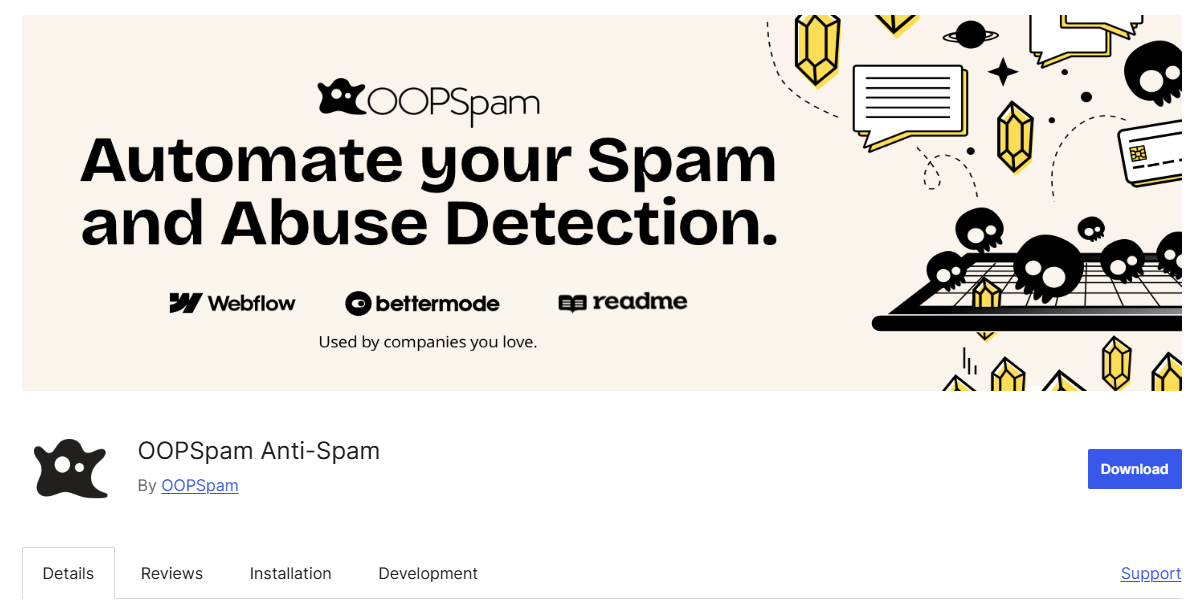
Start by installing the plugin. Go to Plugins → Add New, search for “oopspam Anti-Spam”, then install and activate it.
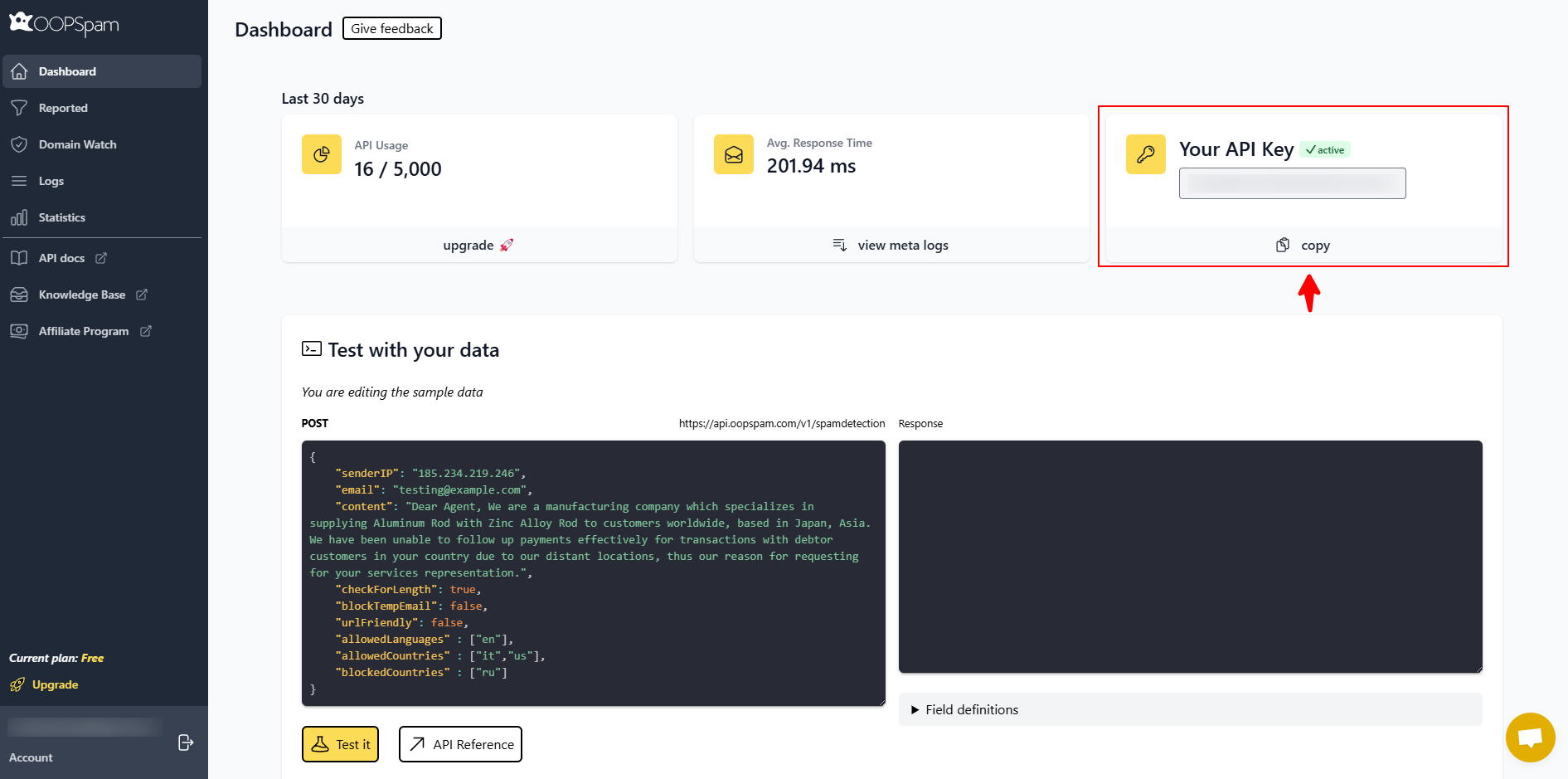
Next, connect your site using an API key. Create an account on the oopspam website and copy your API key from the dashboard.
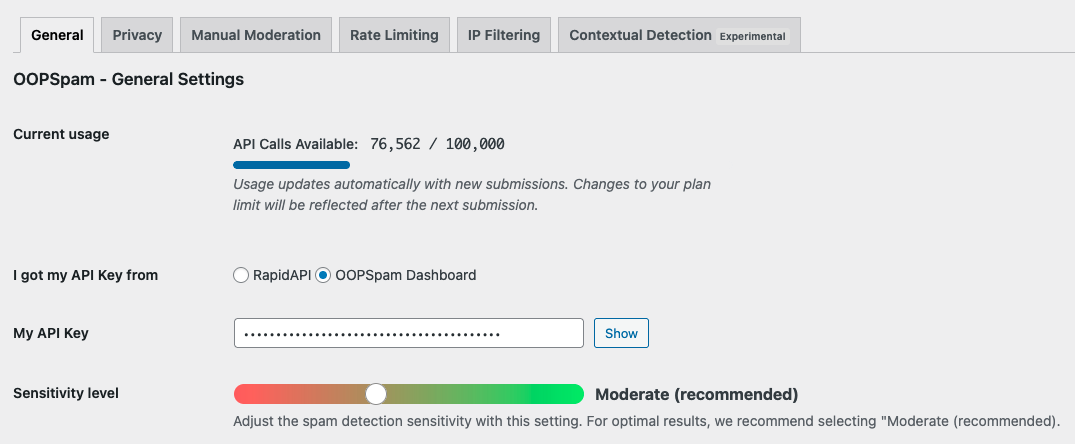
Go to Settings → oopspam in WordPress and paste the API key and save.
Then activate spam protection for your MailPoet.
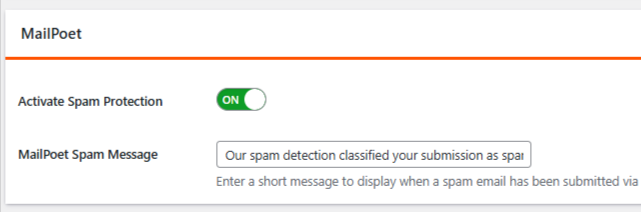
Once activated, it begins filtering submissions automatically.
What it helps with
oopspam gives you control over how submissions are handled. You can:
- Limit how many times an IP or email can submit
- Block or allow specific countries
- Filter traffic from VPNs, proxies, and data centers
- Detect disposable or suspicious email patterns
It also provides logs, so you can review what is being blocked and adjust your settings if needed. For many setups, this becomes the main spam filter.
2. Use MailPoet’s Built-In Protections
MailPoet already includes features designed to reduce spam. These should always be enabled before adding more complex solutions.
Enable Double Opt-in (Sign-up Confirmation)
Double opt-in requires users to confirm their email address before being added to your list.
When enabled, MailPoet sends a confirmation email with an activation link. Subscribers must click this link to complete their subscription. If they do not confirm, they remain “Unconfirmed” and will not receive your newsletters.
Important: If you are using the MailPoet Sending Service, sign-up confirmation is enforced and cannot be disabled.
How to set it up
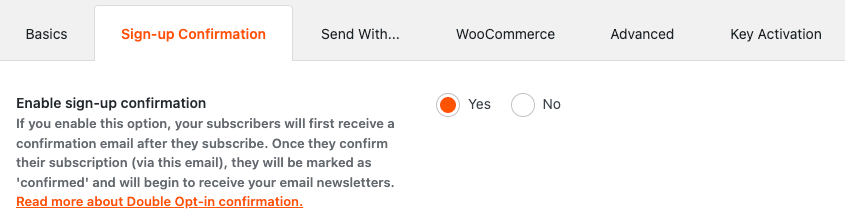
Go to MailPoet → Settings → Sign-up Confirmation. Enable “Sign-up confirmation” and save your settings.
You can also customize the confirmation email:
- Edit the email subject and content
- Enable visual email editor to match your branding
- Make sure the email includes the activation link
Once enabled, all new subscribers must confirm their email before they are added to your list.
Enable CAPTCHA on forms
CAPTCHA helps distinguish real users from bots and prevents automated signups from reaching your MailPoet lists.
MailPoet gives you two options:
- Built-in CAPTCHA (default) – simple, no setup required
- Google reCAPTCHA v2 – checkbox (“I’m not a robot”) or invisible version
How to set it up
Go to MailPoet → Settings → Advanced → Protect your forms against spam.
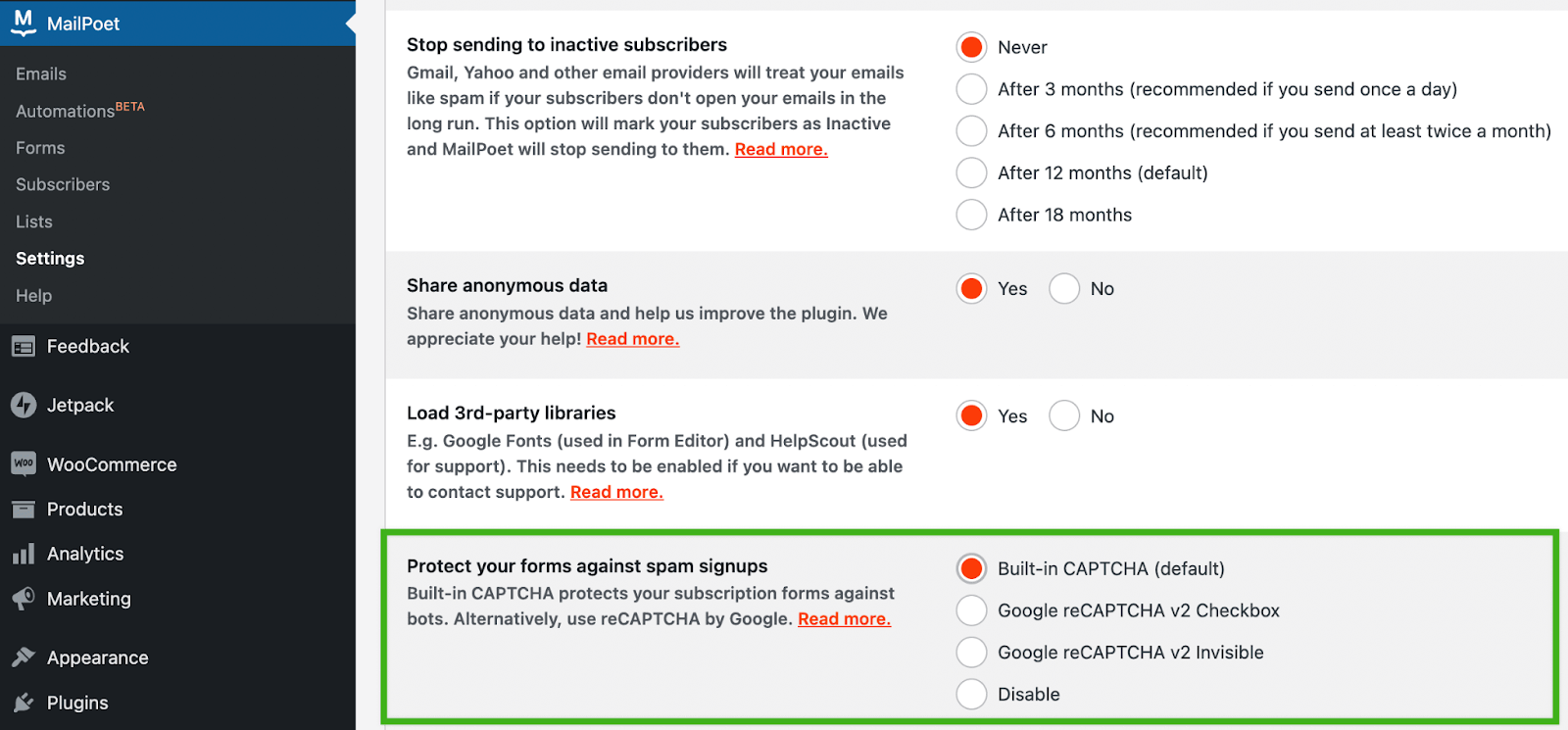
Choose your preferred option:
- Select Built-in CAPTCHA for a quick, zero-configuration setup
- Or choose Google reCAPTCHA v2 and enter your Site Key and Secret Key from Google
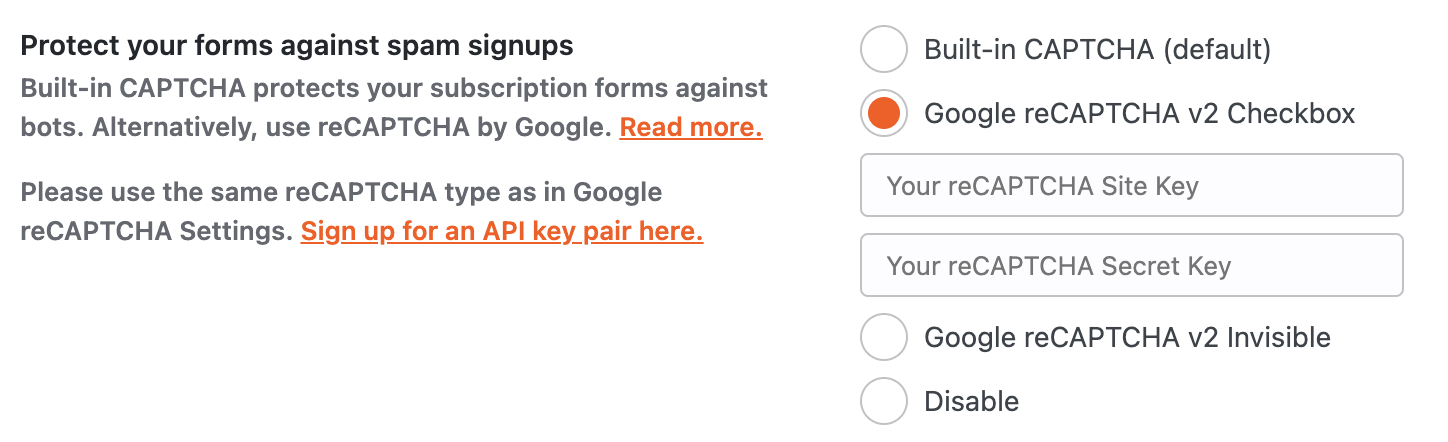
Once enabled, CAPTCHA applies to all MailPoet subscription forms.
Note: This setting only protects MailPoet forms. If you use other forms (e.g., contact or checkout), you will need to secure those separately.
3. Strengthen Your Technical and Security Setup
Even with form-level protection, spam can still reach your site. Strengthening your technical setup helps stop unwanted traffic earlier and protects your email system.
Set up email authentication (SPF, DKIM, DMARC)
Email authentication helps inbox providers verify that your emails are legitimate. It also helps protect your domain from spoofing and improves deliverability.
In simple terms:
- SPF shows which servers are allowed to send emails for your domain
- DKIM adds a digital signature to verify the message
- DMARC tells inbox providers what to do if an email fails authentication
If these records are missing or incorrect, your emails are more likely to land in spam. In some cases, sending can even be paused because the domain fails DMARC checks.
How to set it up
If you are using the MailPoet Sending Service, log in to your MailPoet account and go to My Sender Domains. Add your sender domain, which is usually the same domain used in your From email address.
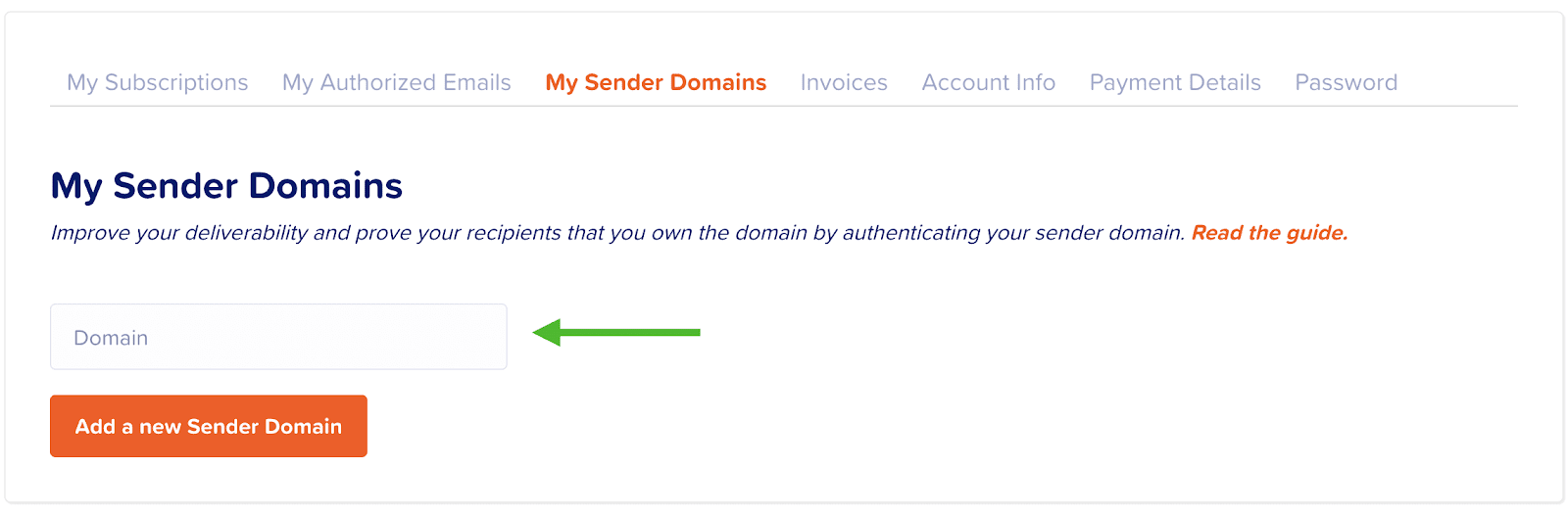
MailPoet will generate the DNS records you need. In most cases, this includes:
- Two CNAME records for DKIM
- TXT records for MailPoet verification and DMARC
Add these records in your domain provider or hosting DNS settings, then return to MailPoet and click Verify DNS records.
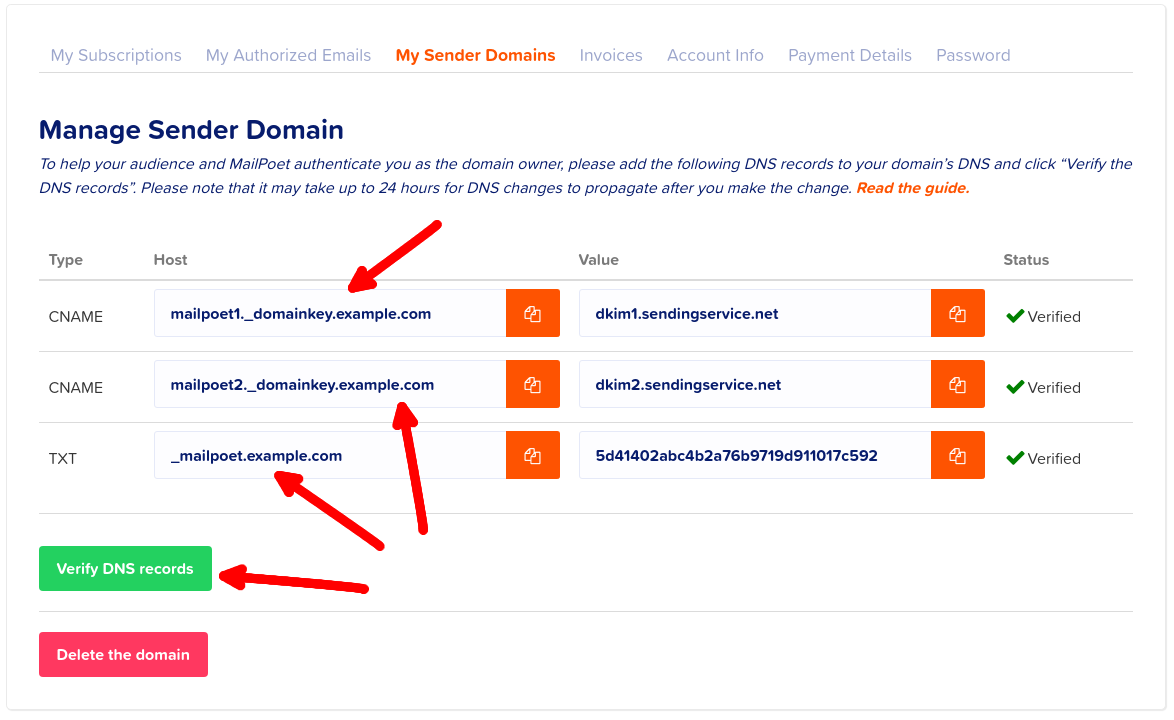
If you use Cloudflare, make sure the CNAME records are set to DNS only, not Proxied, or verification may fail.

A few important reminders
If you are setting up DMARC for the first time, it is usually safer to start with a monitoring policy first and make it stricter later.
Also double-check that your DNS records match MailPoet exactly. A small mistake in the host, type, or value can stop verification from working.
Use a proper “From” address
Always send emails from your own domain (e.g., [email protected]).
Avoid using free email services like Gmail or Yahoo as your sender address. These often fail authentication checks and reduce deliverability.
Add a Web Application Firewall (WAF)
A firewall helps block malicious traffic before it reaches your site or forms. This reduces spam attempts at the network level.
How to set it up
You can use your hosting provider’s firewall (such as ModSecurity) or a service like Cloudflare.
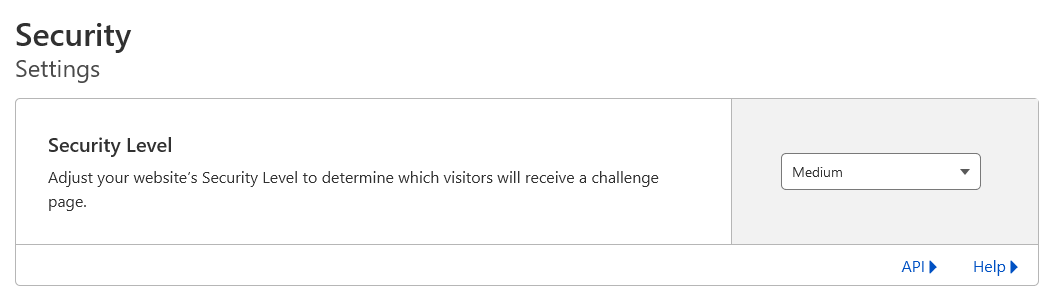
To set up Cloudflare:
- Create a Cloudflare account
- Add your website and update your nameservers
- Set the security level to Medium or higher
- Enable bot protection
A WAF is especially useful if your site receives high traffic or repeated spam attacks.
Final Thoughts
MailPoet spam is not just a form issue. It affects your entire email system, from list quality to deliverability.
Start with oopspam to handle advanced filtering. Then enable MailPoet’s built-in protections like double opt-in and CAPTCHA. Finally, strengthen your setup with proper email authentication and a firewall.
With these steps in place, you can reduce spam, protect your sender reputation, and maintain a clean, high-quality subscriber list.