4 Ways to Protect Your MC4WP: Mailchimp for WordPress from Spam

Technical Content Marketer

Reviewed by Onar Alili
Co-founder & Engineer
Published 5 min read
Spam signups don’t just clutter your list, they hurt your email deliverability, waste your marketing budget, and can even get your Mailchimp account flagged.
If you’re using MC4WP: Mailchimp for WordPress, you’re especially exposed because form endpoints are public and easy for bots to target.
Here are four proven ways to protect your MC4WP forms from spam.
1. Enable Double Opt-In in MC4WP
This is your first and most reliable filter against spam signups. By default, Mailchimp uses single opt-in, which means anyone who submits your MC4WP form is immediately added to your audience. That makes it fast, but also easier for bots to abuse.
With double opt-in, subscribers must confirm their email before being added. This extra step blocks most fake or automated signups.
How to enable it
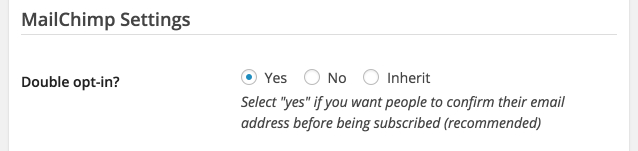
You can enable this directly inside your form settings:
- Edit your MC4WP form
- Scroll down to Mailchimp Settings
- Find Double opt-in?
- Select “Yes”
- Save your form
As shown above, this ensures users must confirm before being subscribed.
Once enabled, Mailchimp will send a confirmation email every time someone signs up through your MC4WP forms.
Important to know
- This setting applies only to Mailchimp signup forms (not API or some integrations)
- Double opt-in is required for certain features like abandoned cart SMS
You may get fewer signups, but they’ll be real, engaged users. That’s what protects your list long-term.
2. Add a Dedicated Anti-Spam Layer (oopspam)
Double opt-in helps, but it doesn’t stop everything, especially bots that repeatedly hit your MC4WP form or trigger Mailchimp API requests.
That’s where a dedicated anti-spam layer becomes important.
oopspam (that’s us 👋) filters submissions before they are sent to Mailchimp. This means spam is blocked early, without affecting your audience or API usage. Unlike CAPTCHA-based tools, it runs in the background, so users don’t need to solve puzzles or take extra steps.
How to set it up
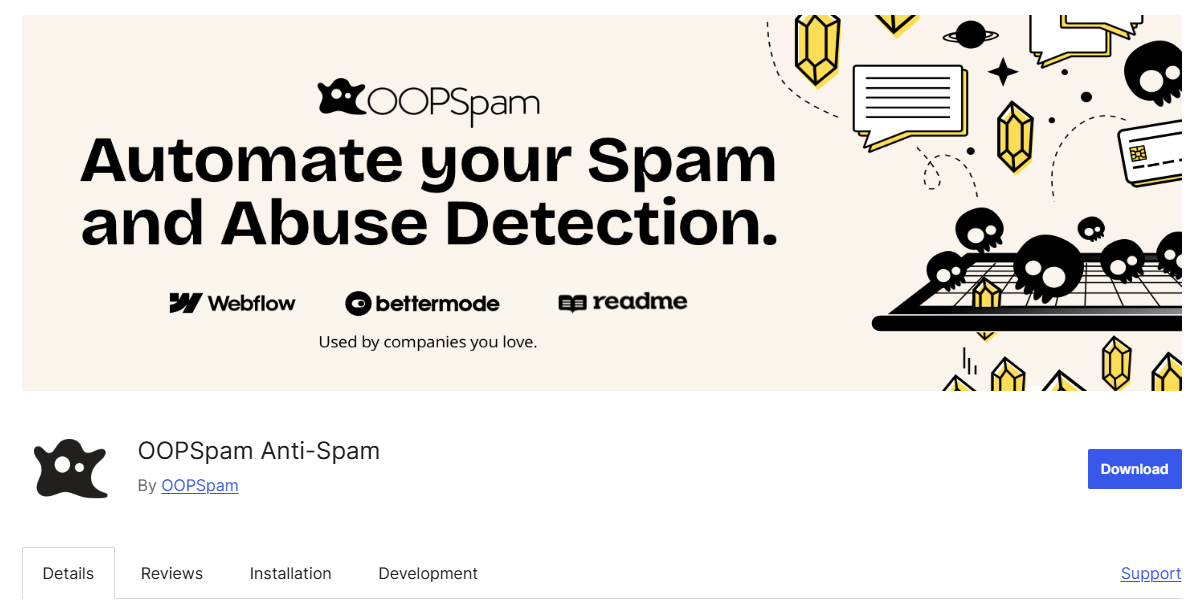
Go to Plugins → Add New in WordPress. Search for “oopspam Anti-Spam”, then install and activate.
Create an account on the oopspam website and copy your API key.
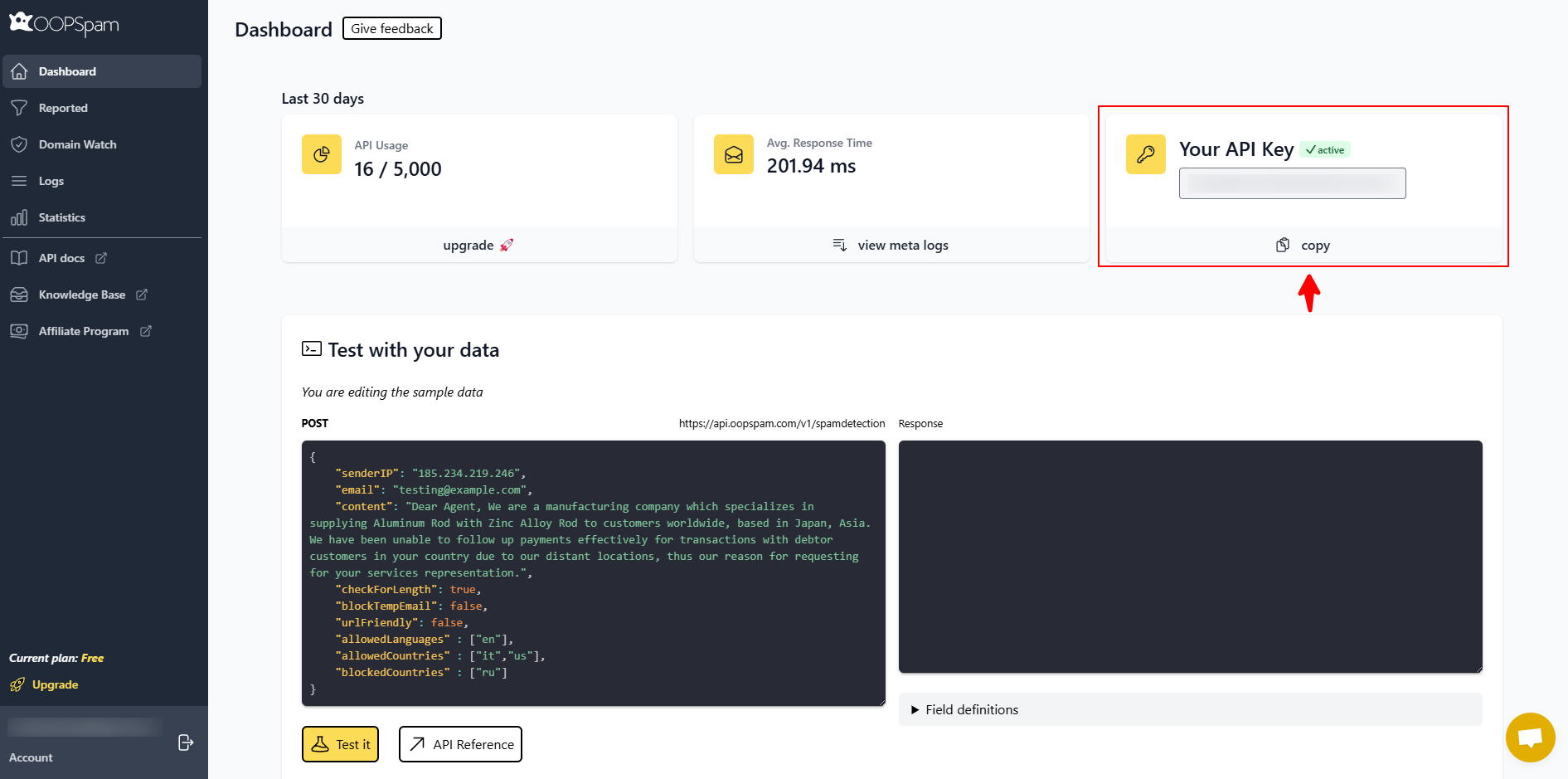
Go to Settings → oopspam and paste your API key.
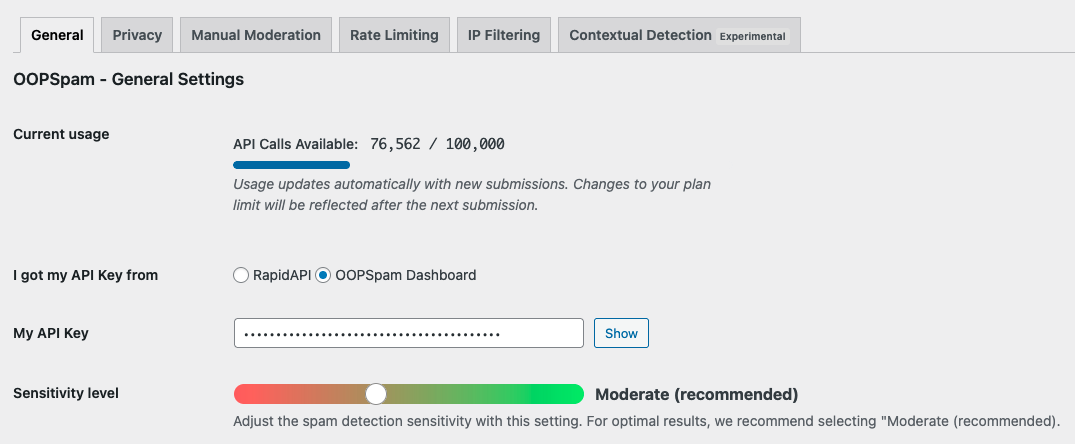
Once connected, enable protection for your MC4WP. The plugin will start filtering submissions automatically.
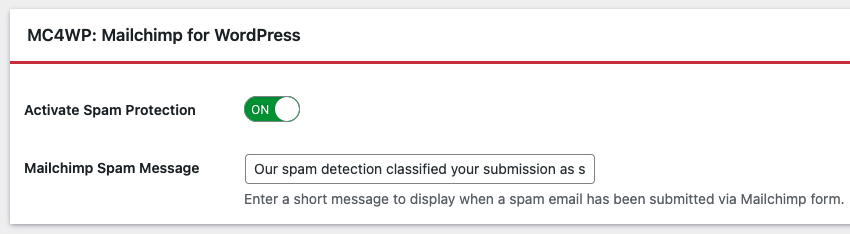
What it helps with
oopspam gives you more control over how form submissions are handled:
- Blocks known spam IPs and bot networks
- Filters VPN, proxy, and data center traffic
- Detects disposable or suspicious email addresses
- Allows country-based blocking or allowlisting
- Limits repeated submissions from the same IP or email
It also provides logs, so you can review blocked submissions and fine-tune your settings.
Why this matters for MC4WP
MC4WP forms are often targeted through public endpoints, making them easy for bots to access. Without proper filtering, bots can repeatedly submit forms and trigger unnecessary Mailchimp API calls.
This can quickly fill your audience list with low-quality or fake contacts. Adding this layer helps stop these issues before they reach Mailchimp.
3. Use CAPTCHA or Invisible Challenges
CAPTCHA adds a human verification step to your form. It’s still one of the most effective ways to stop automated submissions, especially if bots are getting past your initial filters.
However, there’s one important limitation to know:
As of MC4WP version 4.7, Google reCAPTCHA is no longer supported directly in Mailchimp for WordPress forms.
The good news is: you still have strong alternatives.
hCaptcha
hCaptcha is a privacy-friendly alternative that integrates well with MC4WP using a separate plugin. It works similarly to reCAPTCHA but is more flexible and widely supported in WordPress.
How to set it up
- Install the hCaptcha plugin from the WordPress repository
- Create a free account on hCaptcha to get your API keys
- Add your site key and secret key in the plugin settings
- Enable hCaptcha for your MC4WP forms
Once set up, hCaptcha will automatically protect your signup forms from automated submissions.
4. Apply Network-Level Protection (Cloudflare WAF)
Instead of filtering spam at the form level, Cloudflare Web Application Firewall (WAF) blocks bad traffic before it even reaches your website.
What you can control
With Cloudflare, you can block traffic from specific countries and reduce unwanted access before it reaches your site. You can also challenge suspicious IP ranges and stop known bot networks from interacting with your forms.
It also allows you to filter data center traffic, helping prevent automated attacks from large server networks.
How to set it up (Cloudflare)
- Create a Cloudflare account and add your website
- Update your domain nameservers to Cloudflare
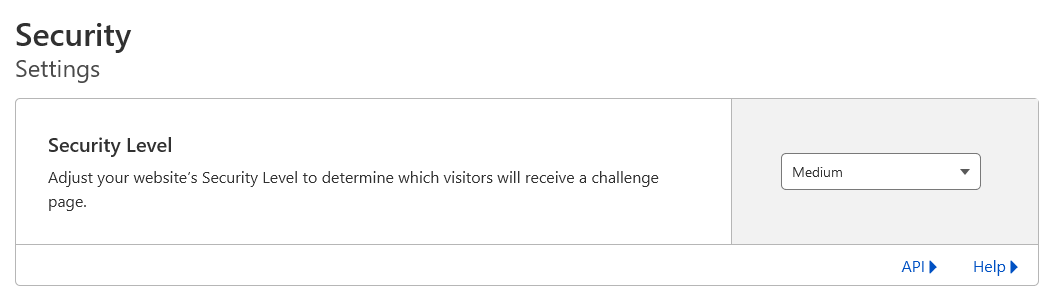
- Go to Security → Settings and set the level to Medium or higher
- Enable Bot Protection / Bot Fight Mode
Common Mistakes to Avoid
Even with the right tools, small gaps can let spam through. Avoid these:
- Using only one protection method
- Skipping double opt-in to increase list size
- Not monitoring form submissions regularly
- Allowing all countries when your audience is local
- Ignoring repeated API requests or spikes in signups
Spam evolves quickly. Your setup should be flexible enough to adapt.
Final Thoughts
Spam in MC4WP forms is not just annoying, it directly affects your email performance and business results.
The fix isn’t complicated. Start with double opt-in, then add filtering, verification, and network-level protection.
Keep it simple, but layered. That’s how you protect your forms, and your list from growing the wrong way.