5 Ways to Protect Your JetFormBuilder Forms from Spam

Co-founder & Brand Designer

Reviewed by Onar Alili
Anti-Abuse Engineer & Co-founder
Published 10 min read
The best way to stop spam on JetFormBuilder is to layer protections. Start with the free built-in tools: add a CAPTCHA, and turn on honeypot and CSRF protection. Add the Limit Form Responses addon if you need submission caps. Then add a server-side spam filter such as oopspam Anti-Spam (that’s us 👋), which supports JetFormBuilder natively and catches what the built-in tools miss.
JetFormBuilder is a block-based form builder for WordPress by Crocoblock. It powers contact forms, applications, bookings and forms that create posts or users. Every public form attracts bots, and every spam entry costs you time in your inbox and in Form Records. This guide covers 5 ways to protect JetFormBuilder forms, ordered by setup effort: free built-in options first, then a paid addon, then a server-side filter that catches what they miss.
Why Do JetFormBuilder Forms Get Spam?
JetFormBuilder forms are public by design, so bots find them like any other form. Three facts shape your defense:
- The submission is one request. A bot can send it without loading your page or running its scripts. Checks that run only in the browser don’t stop it, so you need a server-side check.
- Humans spam too. Paid spammers solve any CAPTCHA. Content, IP and email checks stop them.
- Some forms do more than send email. A JetFormBuilder form can create posts, register users or trigger webhooks. A spam entry then creates junk content or fake accounts, not just a junk message.
1. Add a CAPTCHA
JetFormBuilder supports four CAPTCHA providers: Google reCAPTCHA v3, hCaptcha, Friendly Captcha and Cloudflare Turnstile (Captcha Settings docs).
- Get a Site Key and Secret Key from your provider, such as the Cloudflare Turnstile dashboard or the reCAPTCHA admin console.
- To reuse the keys on every form, go to JetFormBuilder > Settings, open the Captcha Settings tab, paste the keys into your provider’s section and click Save.
- Open your form, go to the JetForm tab in the sidebar and unfold Captcha Settings. Change Captcha Provider from Without protection to your provider. Turn on Use Global Settings to use the saved keys, or paste keys into Site Key and Secret Key for this form only.
- Save the form. The CAPTCHA appears before the submit button. To place it elsewhere, click the Add … block button (for example, Add Turnstile block) and move the block.
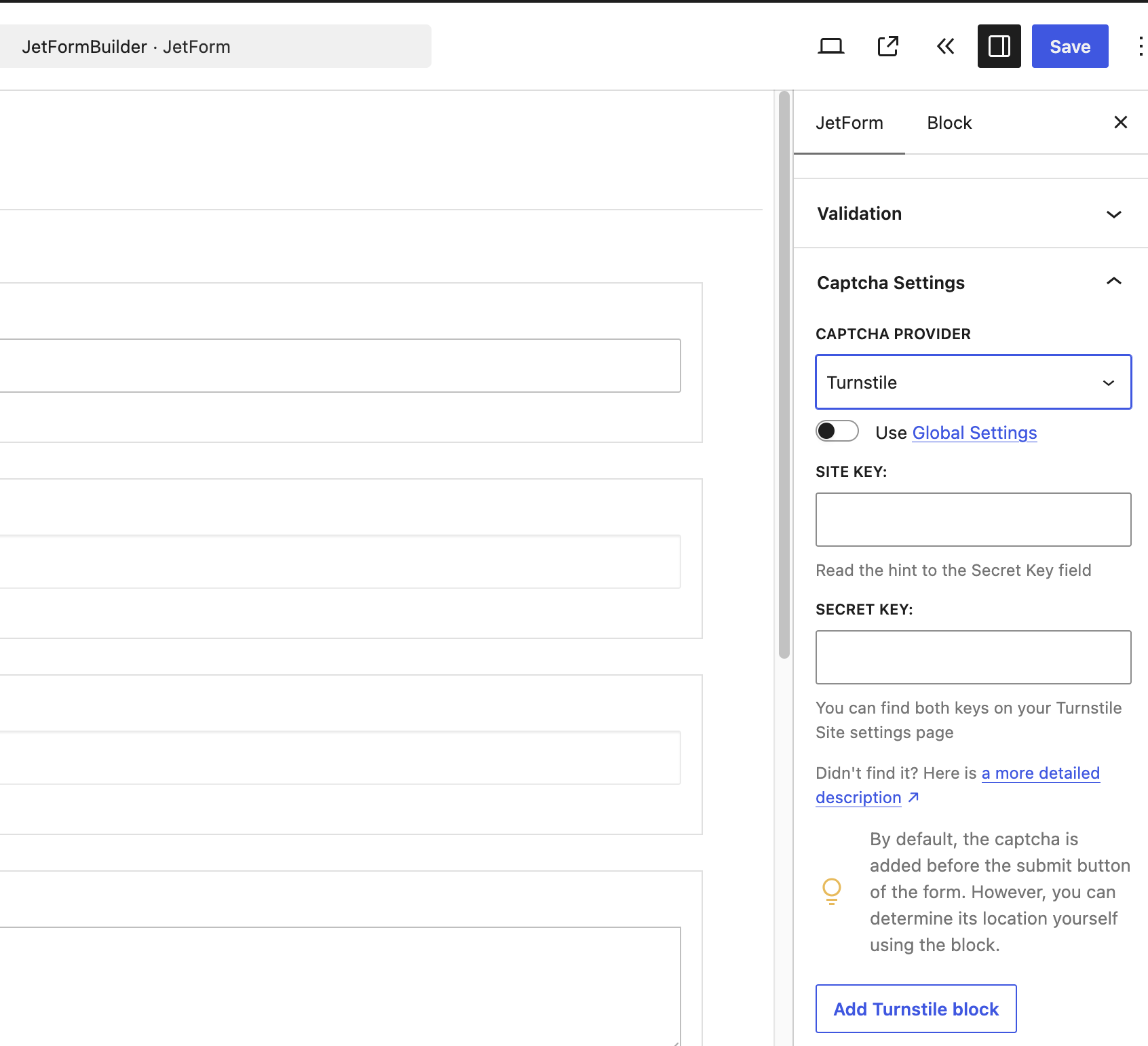
reCAPTCHA v3 lets you tune the Score Threshold (default 0.5). reCAPTCHA sends visitor data to Google, which matters under GDPR. Turnstile, hCaptcha and Friendly Captcha are lighter on privacy. Compare options in reCAPTCHA v2 vs v3.
2. Turn On Honeypot Protection
A honeypot adds a hidden field that real visitors never see. Bots that fill every field fill it too, and the submission is blocked (Crocoblock guide).
Open your form, go to the JetForm tab in the sidebar and unfold Validation. Turn on Enable Honeypot protection, then save the form.
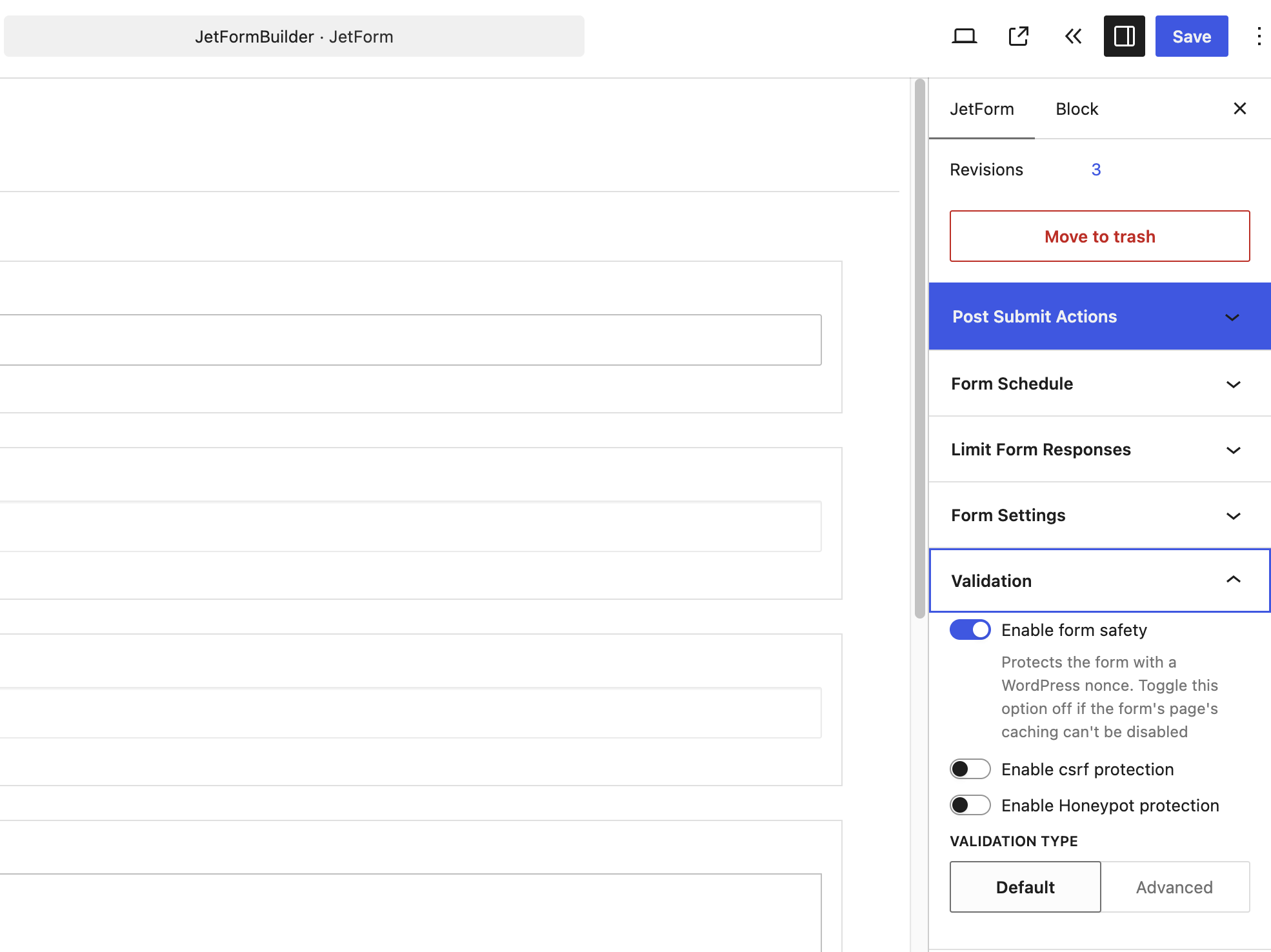
A honeypot costs nothing and adds no friction. Smarter bots skip hidden fields, so treat it as a first filter, not your only one.
3. Turn On CSRF Protection and Form Safety
In the same Validation section, two more toggles harden the form:
- Enable csrf protection checks that the submission came from your own form, not a forged request from another site.
- Enable form safety adds a WordPress nonce to each form. If your site uses full-page caching that you can’t turn off for the form page, leave this off. A cached nonce expires and real visitors get errors.
These stop replayed and forged requests. They don’t stop a bot that loads your page first and submits it like a browser.
4. Limit Responses with the Limit Form Responses Addon
The Limit Form Responses addon caps how many times a form can be submitted. It needs JetFormBuilder Pro. In the free version, the Limit Form Responses panel in the JetForm sidebar shows an upgrade notice instead of settings.
It offers two limits, which you can use separately or together:
- Limit Form Responses: caps the total number of successful submissions. Set the Limit and a Closed Message that replaces the form once it’s full.
- Restrict users from multiple responses: caps how often one visitor can submit. Choose Restrict Users By (IP address, cookie, session or logged-in user), set Maximum Submissions and a Reset Interval, and write a Restricted Message.
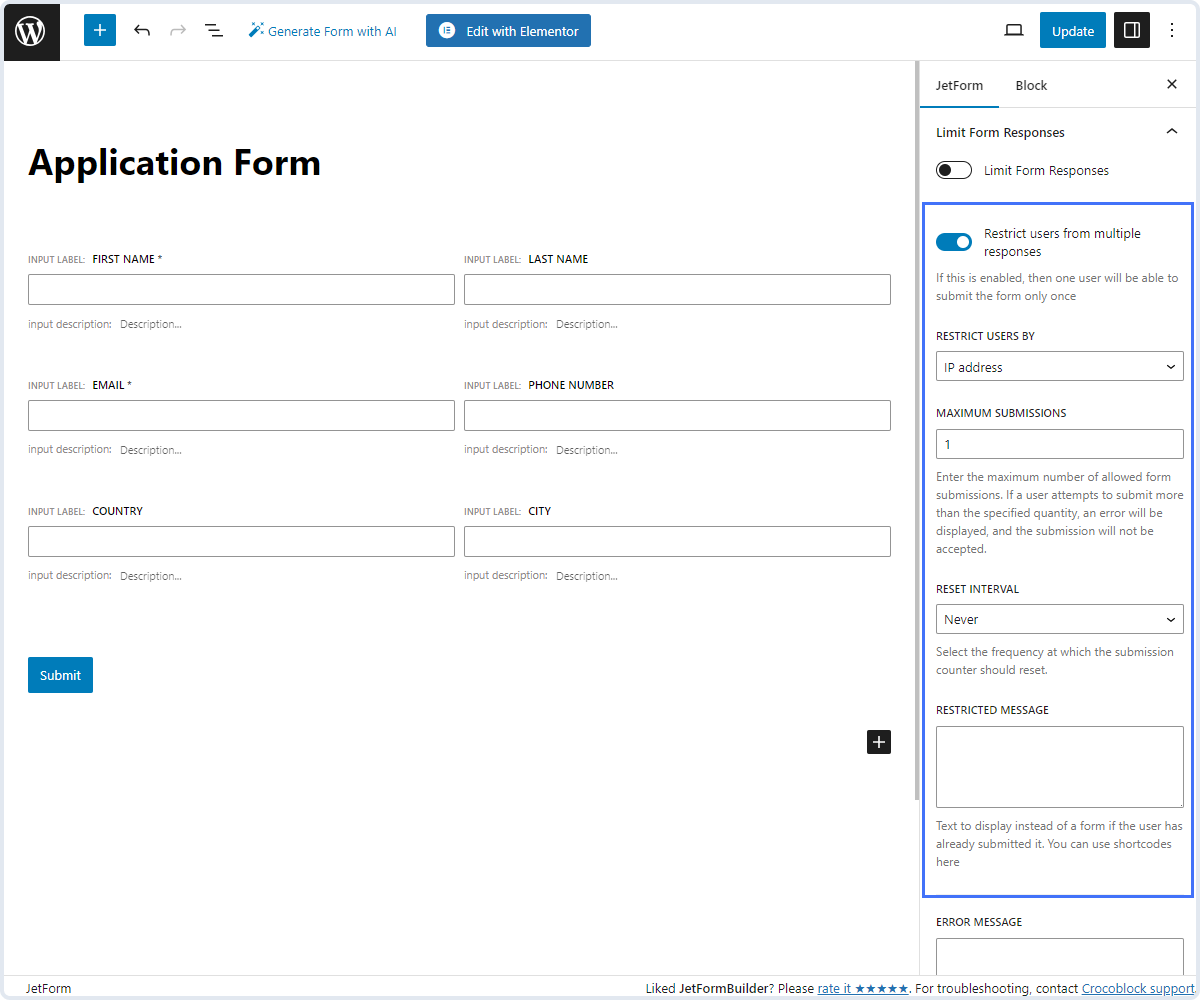
It works well for votes, surveys and one-time applications. It doesn’t judge content, so a spammer who rotates IPs or clears cookies gets through.
We cover limits in detail in How to limit form submissions in JetFormBuilder.
5. Add a Server-Side Spam Filter
A server-side filter checks each submission after it reaches your server. Bots can’t skip it, and visitors see no challenge. It’s the only layer here that catches human spammers, AI-written messages and junk with real-looking details.
oopspam Anti-Spam supports JetFormBuilder natively. It scores message content and checks IP and email reputation. Optional rules add rate limits, country and language filters, VPN blocking and disposable email detection. Every blocked submission is logged with a reason.
How to Set Up oopspam with JetFormBuilder
Setup takes about five minutes. You don’t need to edit your forms.
In WordPress, go to Plugins > Add New, search for oopspam Anti-Spam, then install and activate it.
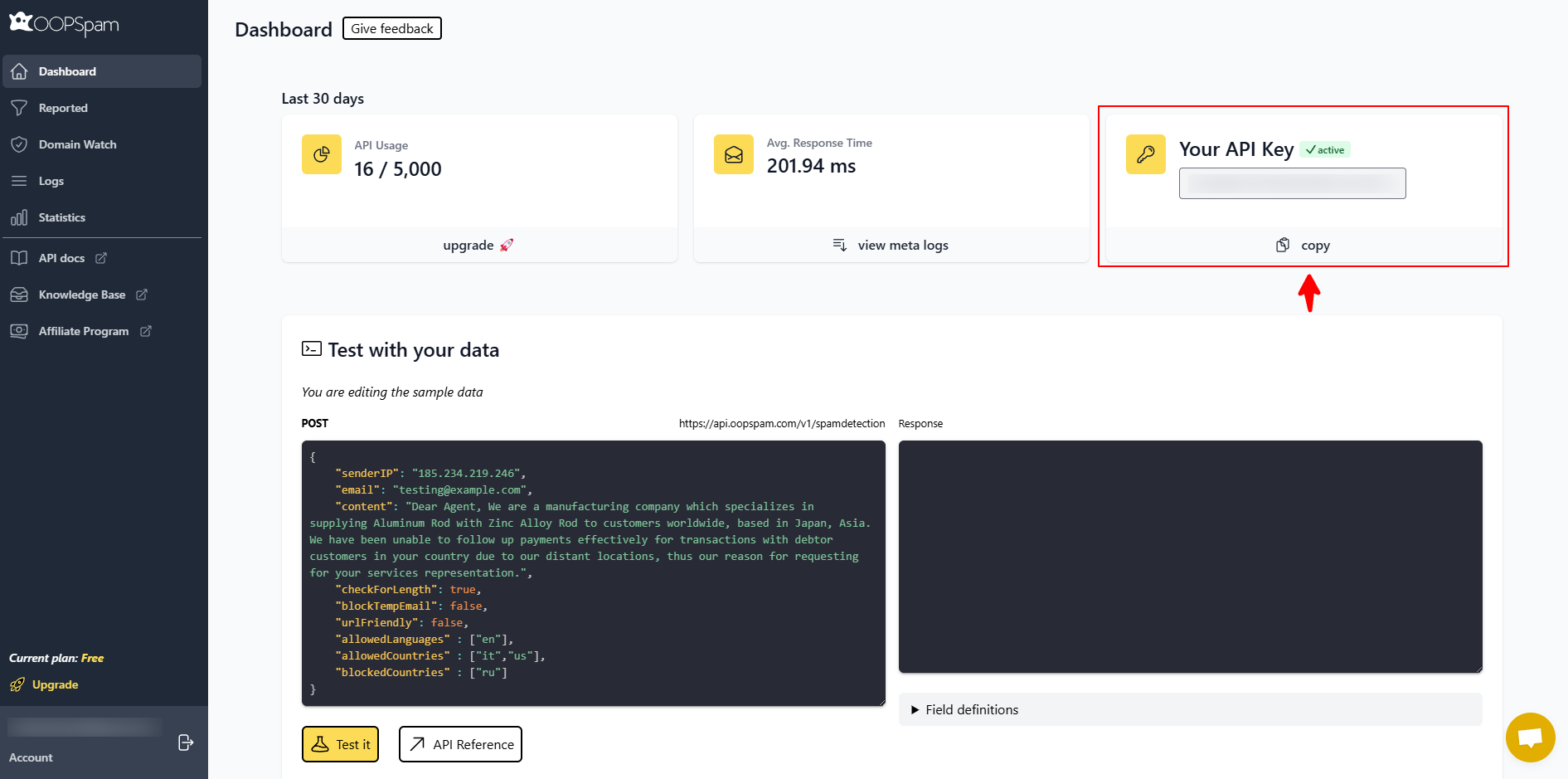
Create a free oopspam account and copy your API key from the dashboard.
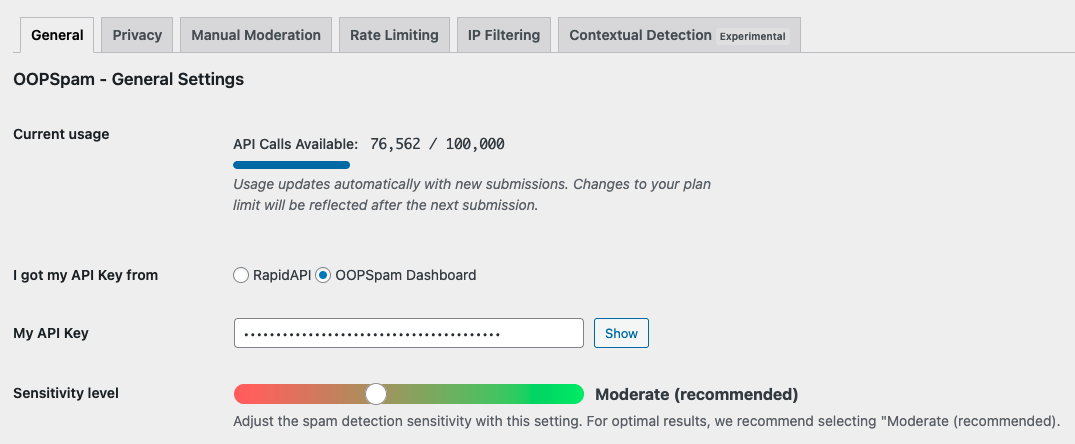
Go to Settings > oopspam Anti-Spam. In the General tab, select oopspam Dashboard as the source and paste your key into My API Key.
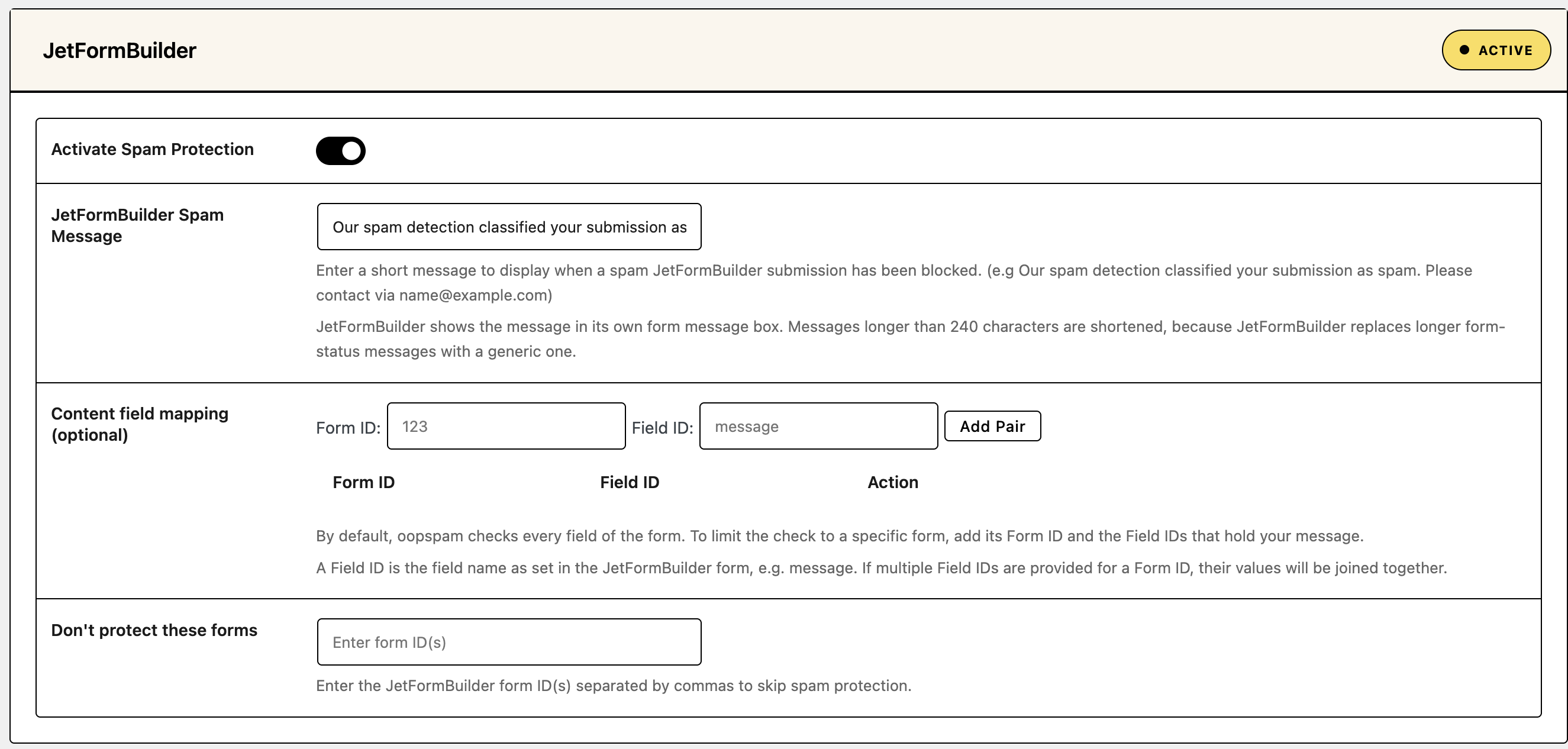
Find the JetFormBuilder section and turn on Activate Spam Protection. This covers every JetFormBuilder form on your site. Two optional settings help with special cases:
- Content field mapping: by default, oopspam checks every field of the form. To check only the message, add the Form ID and Field ID, then click Add Pair. The Form ID is the form’s numeric ID, for example
123. The Field ID is the field name as set in the JetFormBuilder form, for examplemessage. If you add several Field IDs for one form, their values are checked together. - Don’t protect these forms: enter the JetFormBuilder form IDs you want to skip, separated by commas.
Optional: set the sensitivity level and turn on rate limiting, country, language, VPN or disposable email filters. If your site runs behind Cloudflare or another proxy, open the Misc tab and turn on Trust proxy headers so oopspam sees real visitor IPs.

Set the Message Visitors See
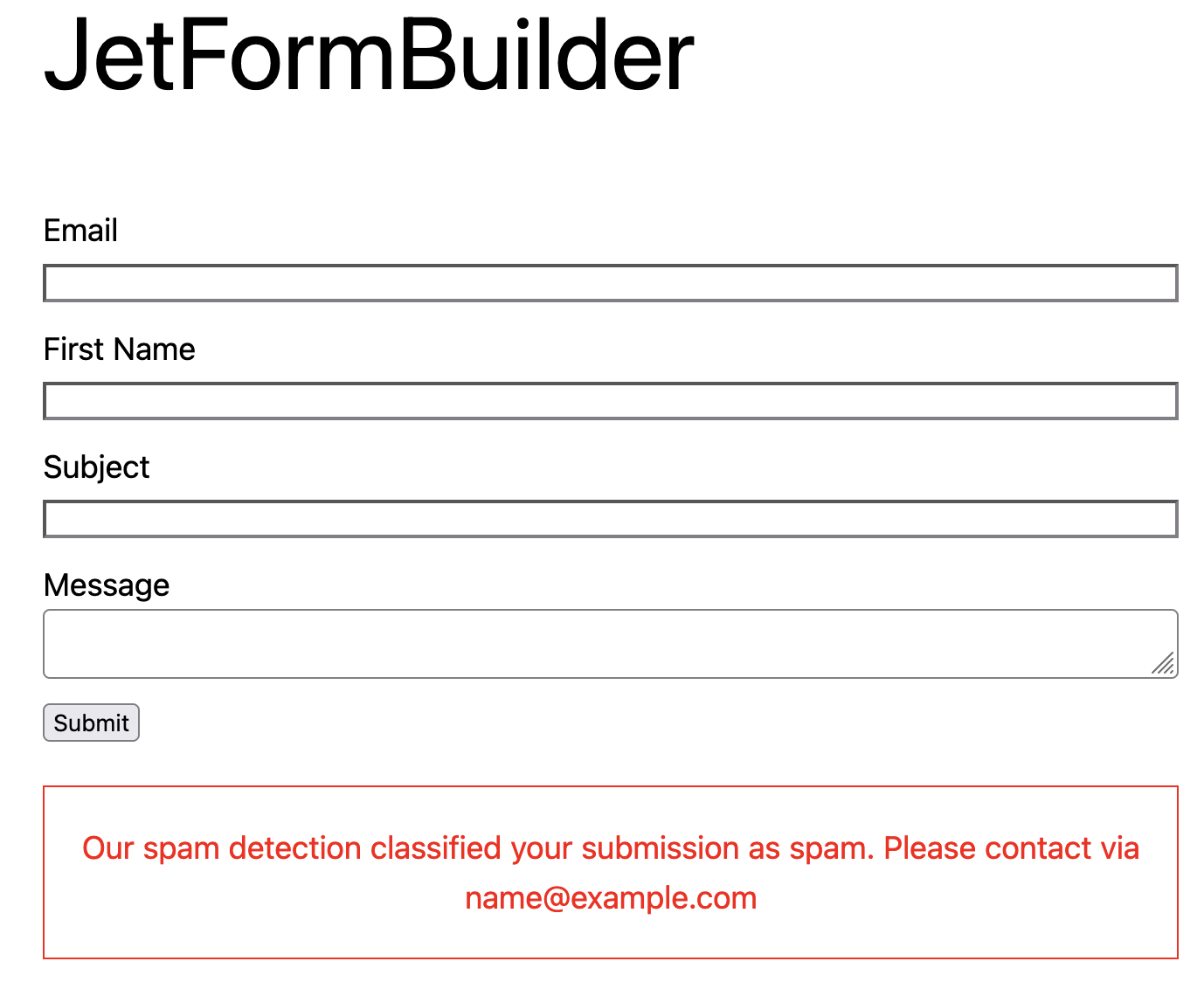
When oopspam blocks a submission, JetFormBuilder shows the JetFormBuilder Spam Message from oopspam’s settings in its own form message box. Write one that helps real visitors, for example: “Our spam detection classified your submission as spam. Please contact us at [email protected].”
Keep it under 240 characters. JetFormBuilder replaces longer form-status messages with a generic one.
Submit a test entry with spammy text. The form shows your spam message instead of the success message.
Review Blocked Submissions
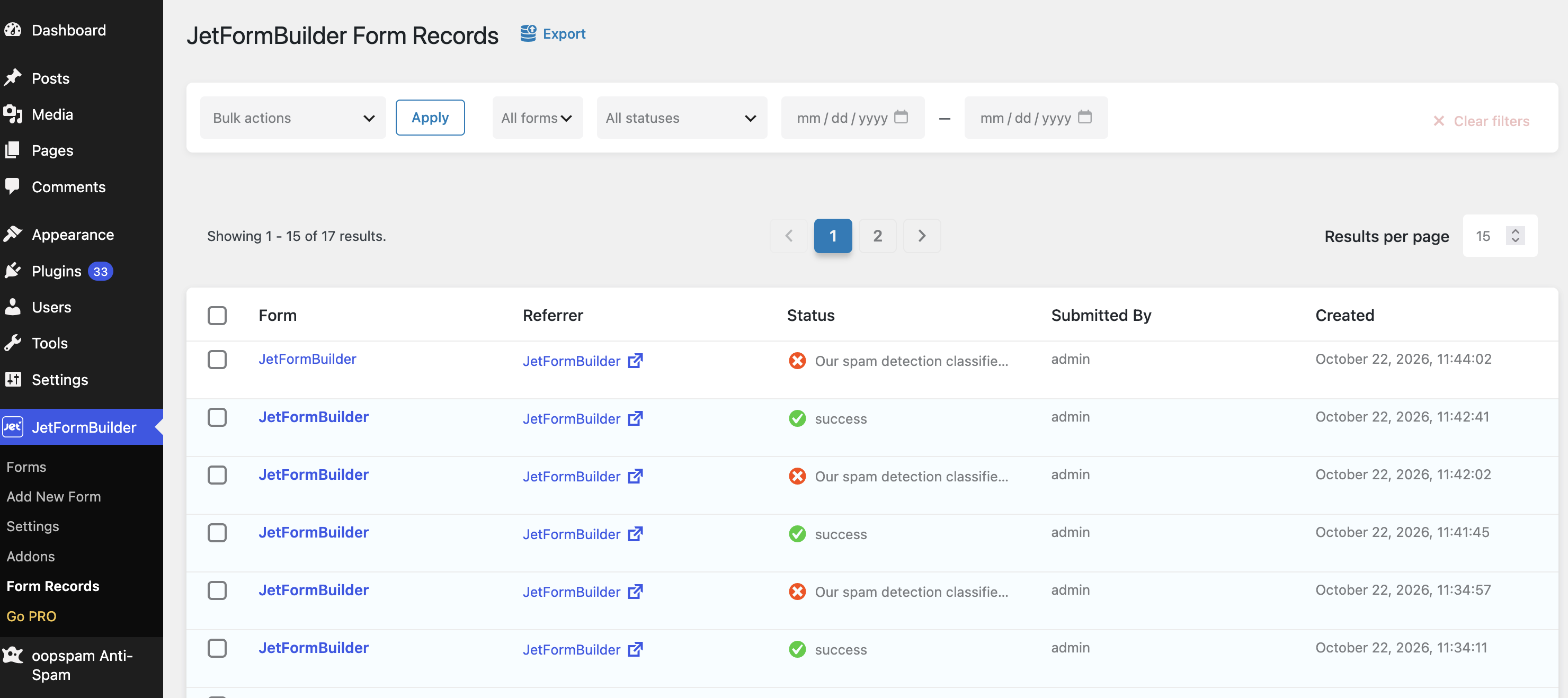
If your form saves records, blocked attempts appear in JetFormBuilder > Form Records with your spam message as the status, next to accepted entries marked success. oopspam also logs each one in Form Spam Entries with the reason. If a real submission gets blocked, mark it as not spam there, add the sender to your allowed list, or lower the sensitivity.
Comparison
| Method | Blocks bots | Blocks human spam | Visitor friction | Cost |
|---|---|---|---|---|
| CAPTCHA (reCAPTCHA v3, hCaptcha, Friendly Captcha, Turnstile) | Most bots | No | Low | Free |
| Honeypot | Simple bots | No | None | Free, built in |
| CSRF protection and form safety | Forged and replayed requests | No | None | Free, built in |
| Limit Form Responses addon | Repeat submissions from one IP, cookie or session | Repeat submissions only | None until the limit | Paid addon |
| oopspam (server-side filter) | Yes | Yes | None | Free plan, then paid |
FAQ
Does JetFormBuilder have built-in spam protection?
Yes. It supports reCAPTCHA v3, hCaptcha, Friendly Captcha and Cloudflare Turnstile, plus honeypot and CSRF protection in each form’s Validation settings. These stop many bots, but not human spammers or AI-written messages.
Does oopspam work with JetFormBuilder?
Yes. oopspam Anti-Spam supports JetFormBuilder natively. Turn on Activate Spam Protection in the JetFormBuilder section of the plugin settings.
Where do blocked JetFormBuilder submissions show up?
If your form saves records, in JetFormBuilder > Form Records with your spam message as the status. oopspam also logs them in Form Spam Entries with the reason they were blocked.
Can I block countries or VPNs in JetFormBuilder?
Not with JetFormBuilder alone. Use oopspam’s country filtering and IP filtering. See How to block countries in JetFormBuilder forms and How to block VPN and data center IP submissions in JetFormBuilder forms.
Should I use a CAPTCHA and oopspam together?
You can, but most sites don’t need both. oopspam works without adding a challenge to your forms. Keep the honeypot on, and add a CAPTCHA only if a specific form still gets bot spam.
Final Thoughts
No single tool stops all spam. JetFormBuilder’s CAPTCHA, honeypot and CSRF options handle simple bots for free, and the Limit Form Responses addon caps repeat entries. A server-side filter like oopspam catches the rest, including human spam, without adding friction to your forms.
