How to Block VPN and Data Center IP Submissions in JetFormBuilder Forms

Co-founder & Brand Designer

Reviewed by Onar Alili
Anti-Abuse Engineer & Co-founder
Published 8 min read
JetFormBuilder has no setting to block VPN or data center IP addresses. The fastest fix is the oopspam Anti-Spam plugin (that’s us 👋). Install it, turn on JetFormBuilder protection, then enable Block Cloud Providers and, if needed, Block VPNs in the IP Filtering tab. For a manual, network-level option, create Cloudflare custom rules that block hosting provider ASNs and Tor traffic.
Why VPN and Data Center IPs Are a Problem for JetFormBuilder Forms
JetFormBuilder powers contact forms, applications, bookings and forms that create posts or users. Bots that hit them fill your inbox, your Form Records and, on registration or post forms, your site.
Most automated abuse comes from two sources:
- Data centers and cloud providers. Bots run on servers at AWS, Google Cloud, DigitalOcean, Hetzner and similar hosts. Real people rarely fill out a form from a server.
- VPNs and proxies. Spammers use them to hide their location and switch IP addresses between attempts. That also gets them around per-IP limits like the Limit Form Responses addon.
JetFormBuilder doesn’t check where a submission comes from. Blocking by IP origin closes that gap, even for a bot with a fresh IP and no spam history.
Not sure where a suspicious IP comes from? Paste it into IP Reputation Check to see if it belongs to a VPN or data center.
Method 1: Block VPN and Cloud IPs with oopspam
The oopspam Anti-Spam plugin supports JetFormBuilder natively. It checks every submission on the server before JetFormBuilder runs its actions. There is no CAPTCHA and no change to your forms.
Step 1: Install the Plugin
In WordPress, go to Plugins > Add New, search for oopspam Anti-Spam, then install and activate it.
Step 2: Add Your API Key
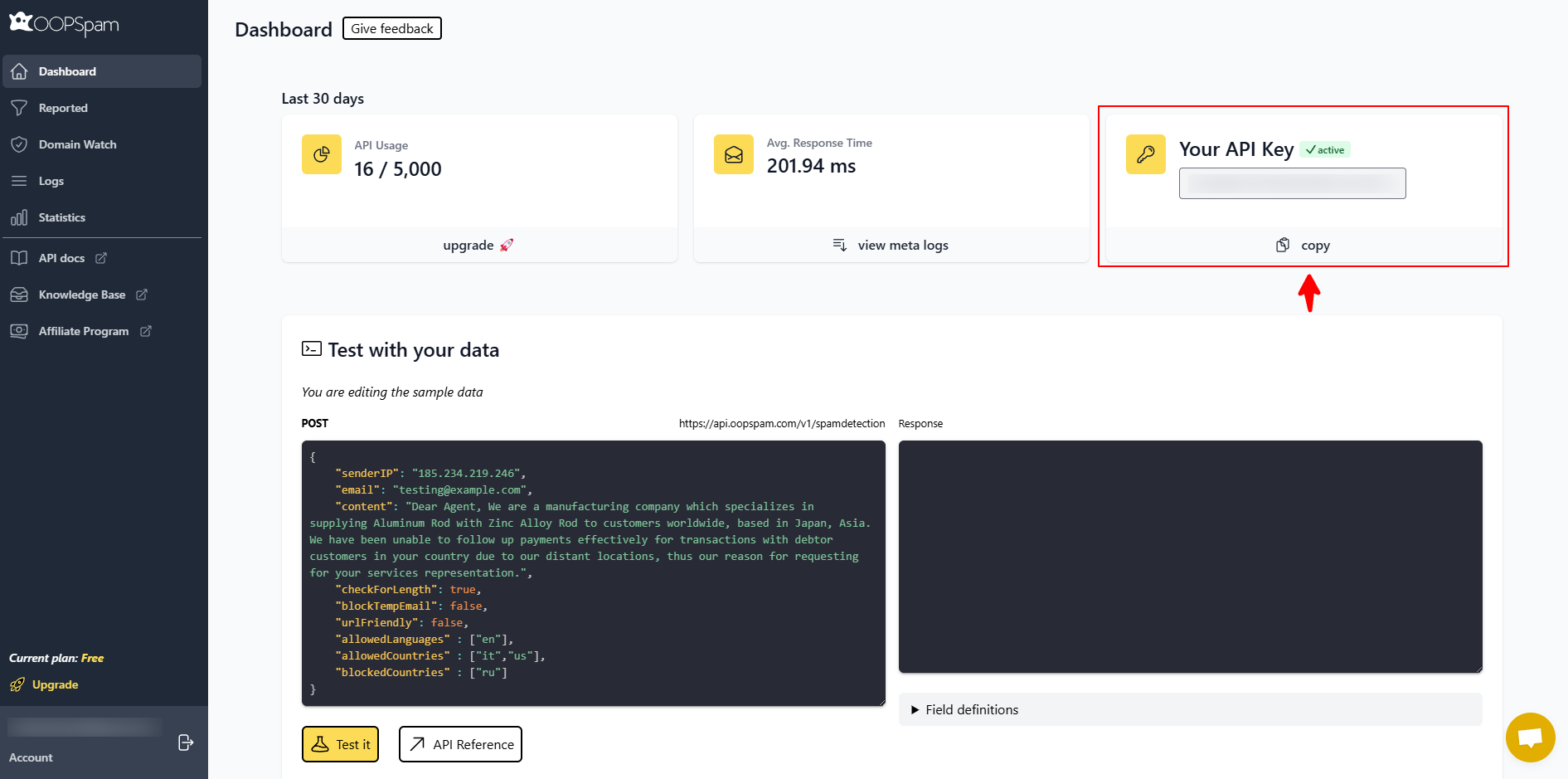
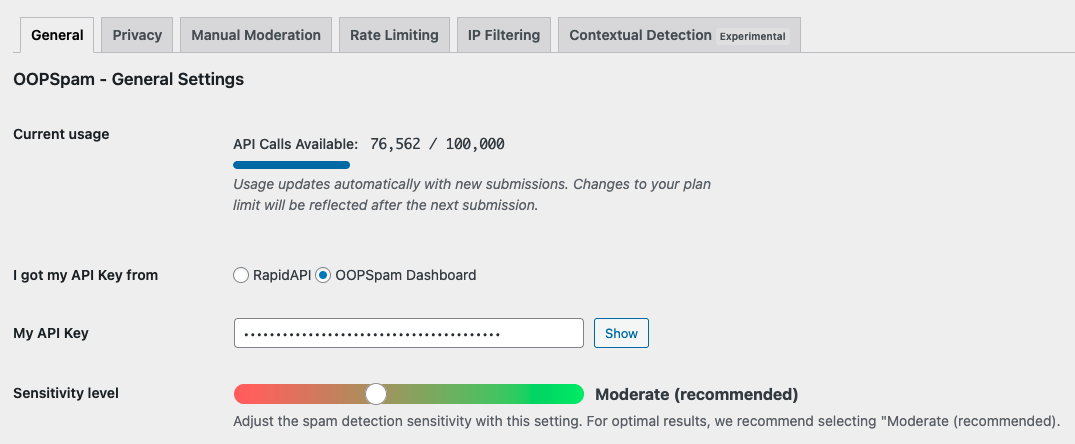
Create a free oopspam account and copy your API key. In WordPress, go to Settings > oopspam Anti-Spam. In the General tab, select oopspam Dashboard as the source and paste your key into My API Key.
Step 3: Activate JetFormBuilder Protection
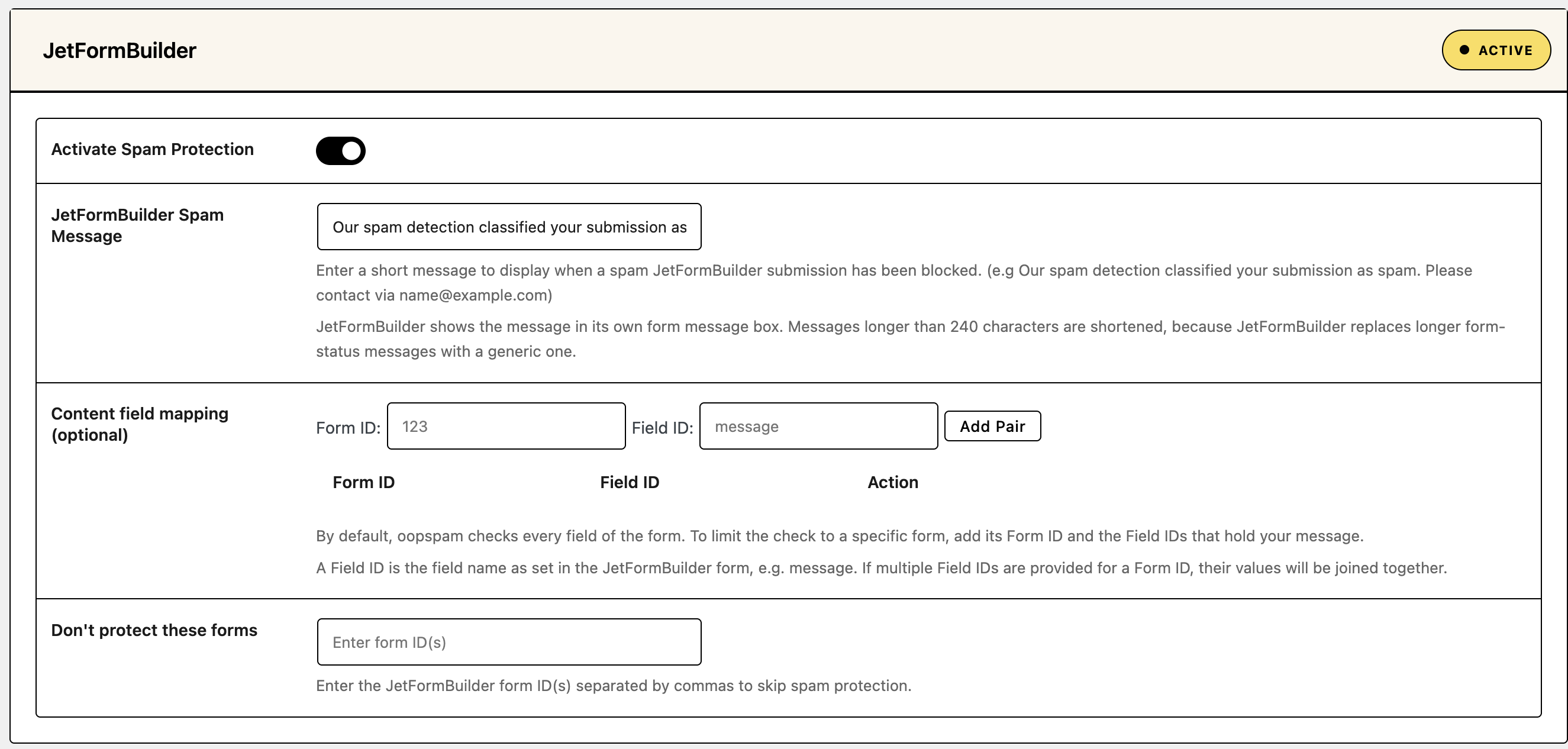
Scroll to the JetFormBuilder section and turn on Activate Spam Protection. This covers every JetFormBuilder form on your site.
Step 4: Enable IP Filtering
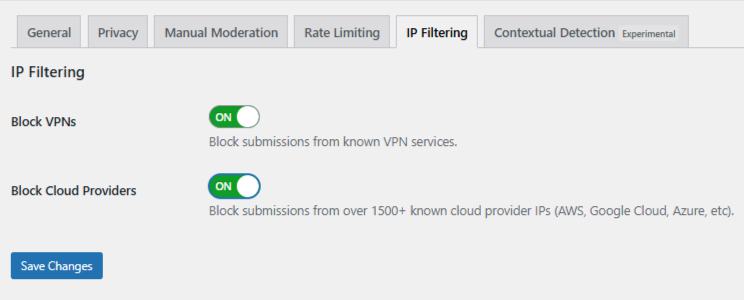
Open the IP Filtering tab. You’ll see two toggles:
- Block Cloud Providers: blocks submissions from 1,500+ known cloud providers, such as AWS, Google Cloud and Azure. This is the safer, high-impact setting. Turn it on first.
- Block VPNs: blocks submissions from known VPN services. Use it with care, because some real visitors use a personal VPN for privacy.
Click Save Changes.
Step 5: Turn On Trust Proxy Headers (If You Use Cloudflare or Another Proxy)
IP filtering only works if oopspam sees the visitor’s real IP address. If your site runs behind Cloudflare or another proxy, open the Misc tab and turn on Trust proxy headers.

Step 6: Set the Spam Message and Test
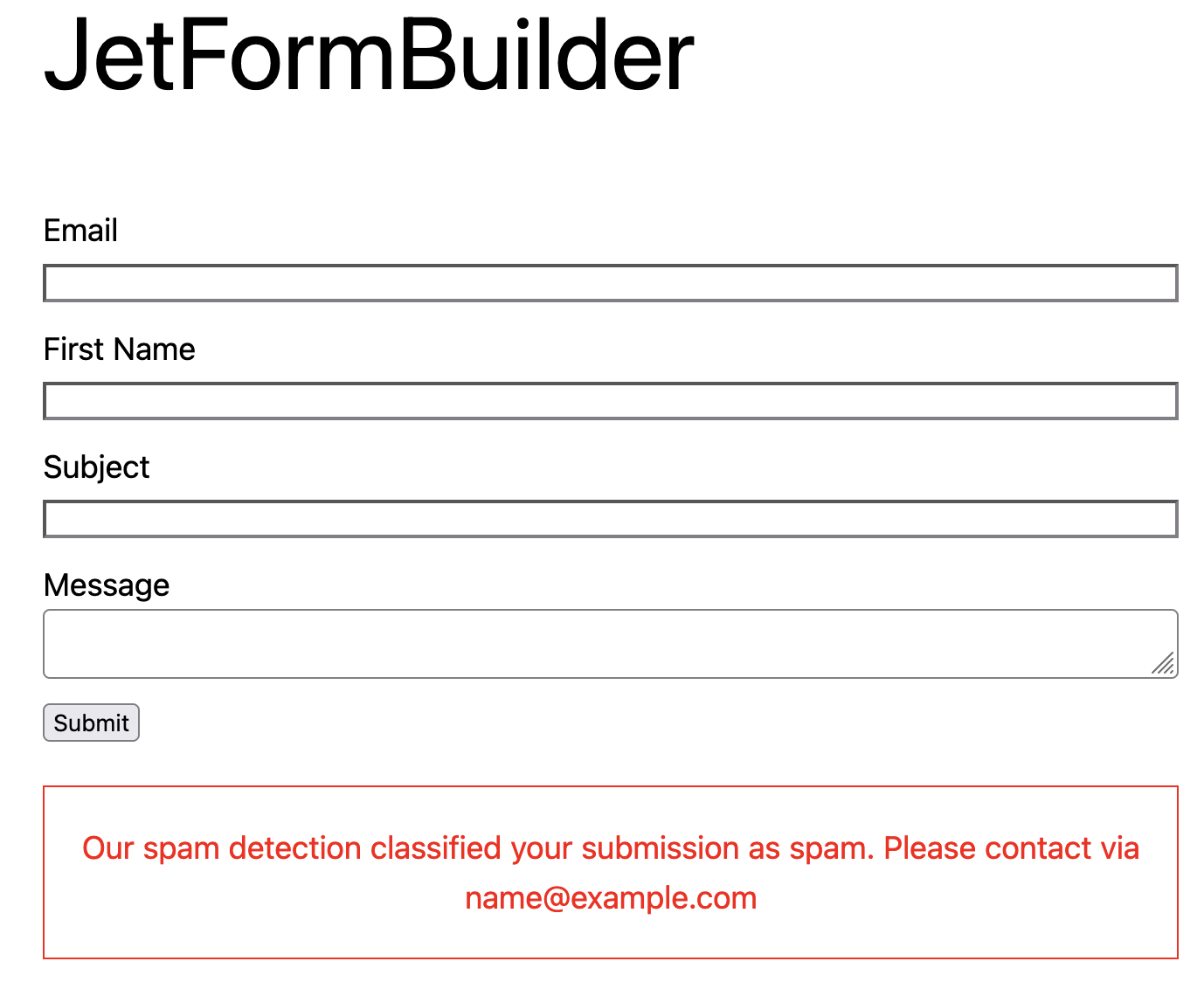
Write the message blocked visitors see in the JetFormBuilder Spam Message field, for example: “We couldn’t accept your submission. If you’re using a VPN, turn it off and try again, or email us at [email protected].” Keep it under 240 characters, or JetFormBuilder replaces it with a generic message.
Then connect to a VPN and submit the form. You’ll see your spam message in the form’s message box.
Open Form Spam Entries in WordPress. The entry should show VPN or cloud provider as the reason. If a real visitor was blocked, mark the entry as not spam. Learn more in the form entries guide.
Step 7: Add Extra Layers (Optional)
- Rate limiting: cap submissions per IP or email per hour.
- Country filtering: reject submissions from countries you don’t serve. See How to block countries in JetFormBuilder forms.
Method 2: Block VPN and Cloud IPs with Cloudflare
If your site runs behind Cloudflare, you can block traffic at the network edge with custom rules that target ASNs (Autonomous System Numbers). An ASN identifies the network that owns an IP range, such as a cloud host.
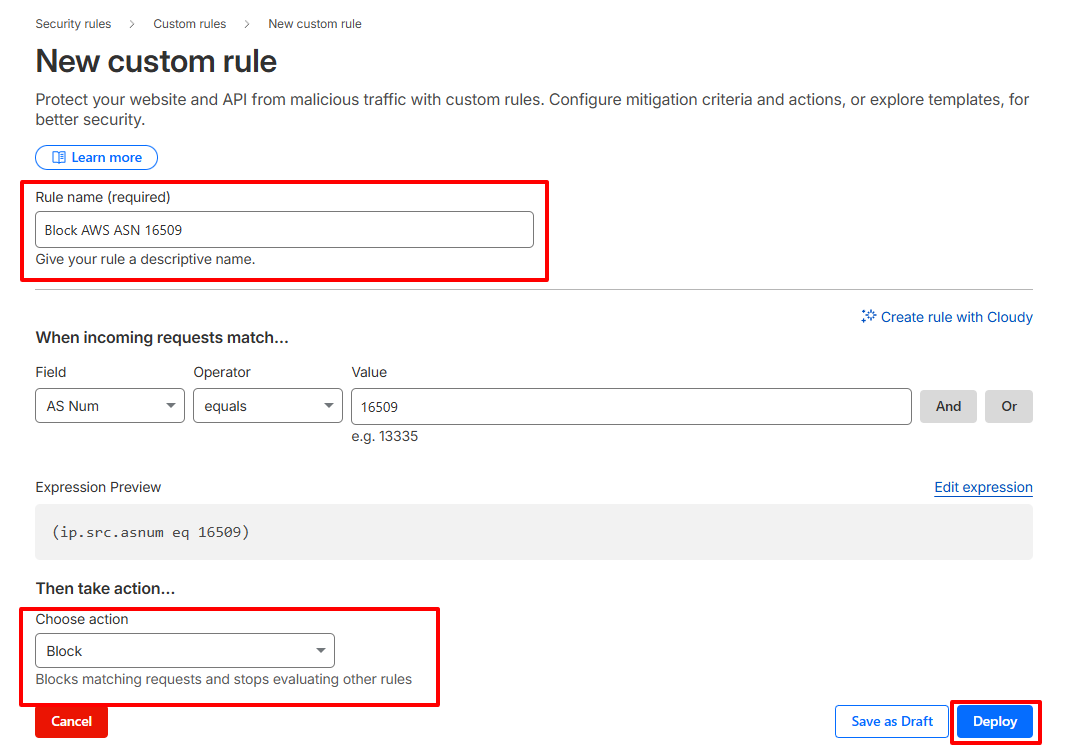
- In the Cloudflare dashboard, go to Security > Security Rules.
- Click Create rule, then select Custom rules.
- Name the rule, for example “Block hosting providers.”
-
Click Edit expression and add the ASNs you want to block:
 (ip.src.asnum in {14061 16509 14618 396982 63949 24940 16276 20473})
 or (ip.src.country eq "T1")
This covers DigitalOcean (14061), AWS (16509, 14618), Google Cloud (396982), Linode/Akamai (63949), Hetzner (24940), OVH (16276) and Vultr (20473). T1 is Cloudflare’s label for Tor traffic.
- Choose Block, then click Deploy.
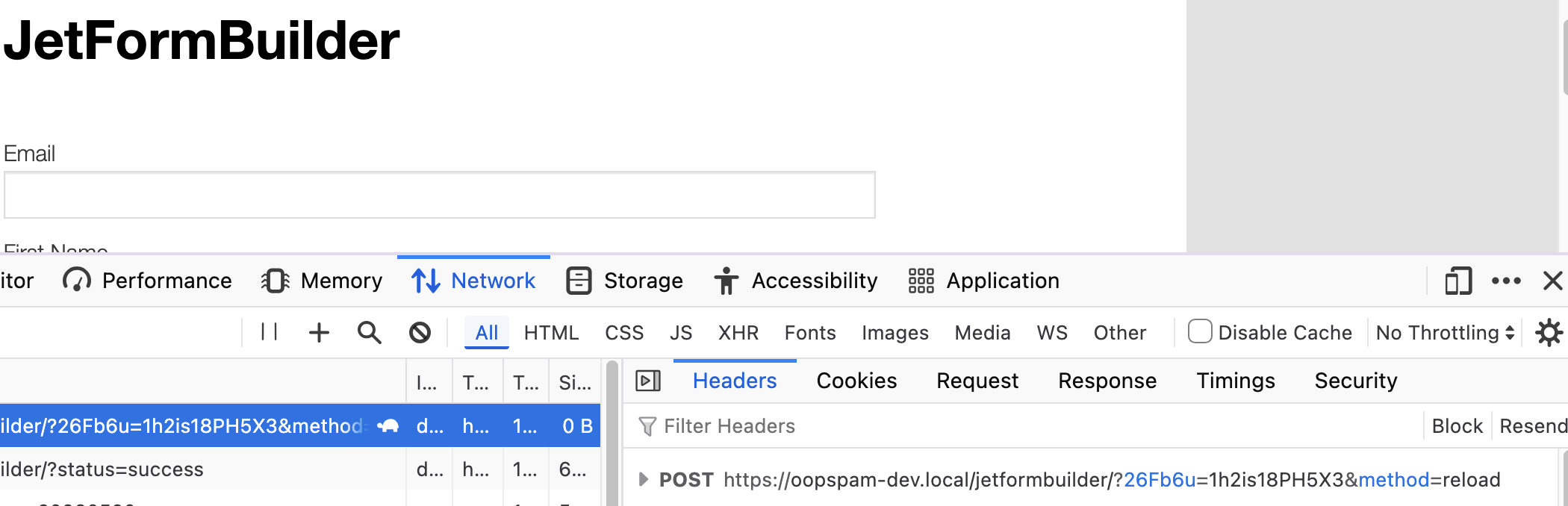
This rule applies to your whole site. To limit it to form submissions, scope it to the form’s page. JetFormBuilder posts each submission back to the page the form sits on, with a generated query string, for example /contact/?26Fb6u=...&method=reload. Only the path matters, so match the page path and the POST method. Blocked networks can still read the page but can’t submit it:
((ip.src.asnum in {14061 16509 14618 396982 63949 24940 16276 20473})
or (ip.src.country eq "T1"))
and http.request.method eq "POST"
and http.request.uri.path eq "/contact/"
Replace /contact/ with the path of your form’s page. For several forms, use http.request.uri.path in {"/contact/" "/apply/"}.
Three things to know:
- Cloudflare can’t target one form. The form details travel in the request body, which custom rules don’t read.
- Use Block, not Managed Challenge. A form submitted in the background can’t display a challenge page, so a challenged submission simply fails.
- Test after deploying. Submit a form from a normal connection to confirm real visitors still get through.
Limitations
- Manual upkeep. Hosting networks change, so you must update ASNs yourself.
- No commercial VPN coverage. Most VPN providers rent space across many networks.
- Rule limits. Cloudflare’s Free plan allows only five custom rules.
- False positives. Some legitimate businesses route traffic through cloud servers.
Cloudflare works best alongside oopspam, not instead of it. See Cloudflare’s custom rules documentation for more options.
oopspam vs Cloudflare: Quick Comparison
| oopspam | Cloudflare | |
|---|---|---|
| Setup time | About 5 minutes | 15 to 30 minutes |
| Maintenance | Automatic | Manual ASN updates |
| VPN detection | Yes | Tor only (T1) |
| Data center blocking | Yes, 1,500+ cloud providers | Only ASNs you add |
| Scope | JetFormBuilder forms only | Whole site, or POSTs to the form's page |
| Logs with block reason | Yes, in WordPress | Cloudflare security events |
FAQ
Does JetFormBuilder block VPNs on its own?
No. JetFormBuilder doesn’t check whether a submission comes from a VPN or data center. Use oopspam or Cloudflare for that.
Will blocking VPNs stop real visitors?
It can. Some people use a VPN for privacy or work. Start with Block Cloud Providers, add Block VPNs only if spam continues, and review your logs for false positives.
Does IP filtering work if my site uses Cloudflare?
Yes, as long as you turn on Trust proxy headers in oopspam’s Misc tab. Otherwise oopspam sees Cloudflare’s IP address instead of the visitor’s.
Can the Limit Form Responses addon stop VPN spam?
Not on its own. It limits repeat submissions per IP, cookie or session, so a bot that switches VPN servers or clears cookies starts fresh each time. Block the networks instead.
Final Thoughts
Bots that spam JetFormBuilder forms mostly run on cloud servers and VPNs. oopspam blocks both with two toggles and no rule upkeep. Cloudflare adds a network-level layer for technical teams. Use one, or both for full coverage.
