How to Limit Form Submissions in JetFormBuilder

Co-founder & Brand Designer

Reviewed by Onar Alili
Anti-Abuse Engineer & Co-founder
Published 8 min read
Free JetFormBuilder has no submission limit. To cap submissions, use the paid Limit Form Responses addon, which limits total responses and repeat submissions per IP, cookie or session. For hourly limits per IP and per email that also catch spam, use the oopspam Anti-Spam plugin (that’s us 👋). Cloudflare’s rate limiting rules add a coarser limit at the network edge.
JetFormBuilder powers contact forms, applications, votes and registrations. Without a limit, one bot can send hundreds of entries in minutes, and each one lands in your inbox and Form Records. This guide covers each option, step by step.
Method 1: Use the Limit Form Responses Addon
Limit Form Responses is a JetFormBuilder addon that needs JetFormBuilder Pro. In the free version, the Limit Form Responses panel in the JetForm sidebar shows an upgrade notice instead of settings.
To install it, go to JetFormBuilder > Addons, find Limit Form Responses and click Install Addon. Then open your form, go to the JetForm tab and unfold Limit Form Responses. It offers two limits, which you can use separately or together.
Limit the total number of responses. Turn on Limit Form Responses and set the Limit, the total number of successful submissions the form accepts. Write a Closed Message to show instead of the form once it’s full. Use this for event sign-ups, job applications or giveaways with a fixed number of places.
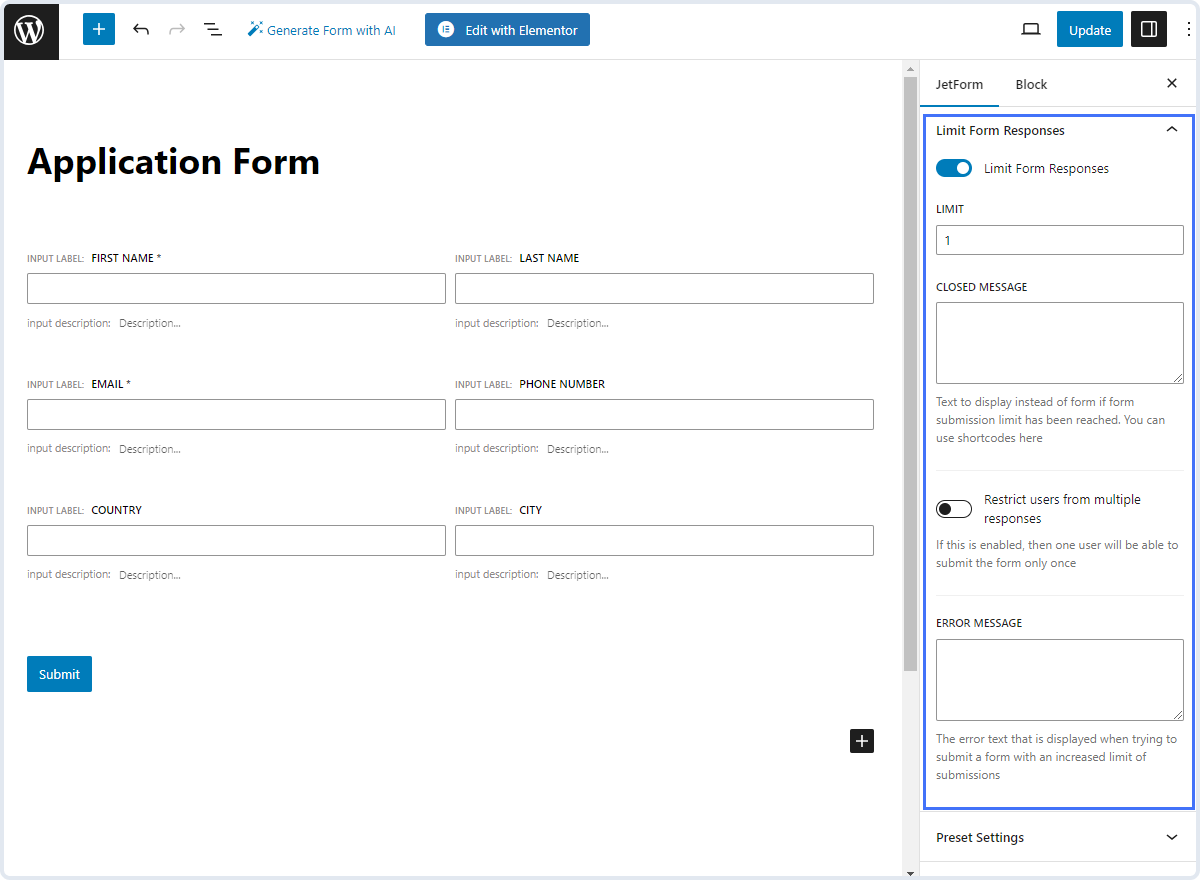
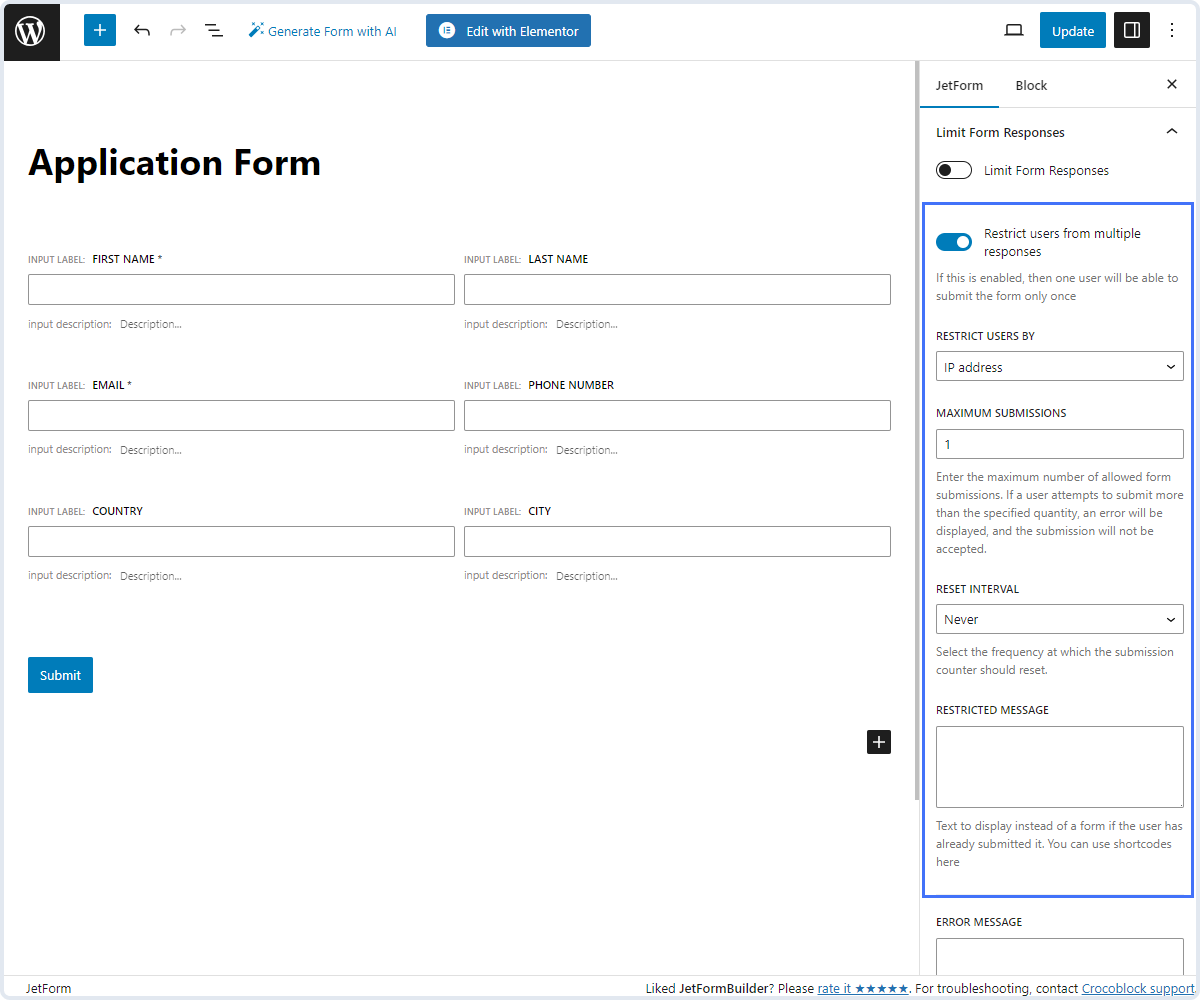
Limit responses per visitor. Turn on Restrict users from multiple responses, then set:
- Restrict Users By: how a visitor is identified, by IP address, cookie, session or logged-in user.
- Maximum Submissions: how many times one visitor can submit.
- Reset Interval: when the count starts over, or Never.
- Restricted Message: the text shown instead of the form once a visitor has used up their submissions.
An Error Message field sets the text shown if someone still tries to submit past the limit.
The addon suits votes, surveys and one-time applications. It has gaps for spam: cookies and sessions reset when a bot clears them, an IP limit fails when a bot rotates IPs, and it can’t limit by email address.
Method 2: Rate Limit Submissions per IP and Email with oopspam
The oopspam Anti-Spam plugin supports JetFormBuilder natively. It checks each submission on the server and blocks visitors who go over your hourly limit, before JetFormBuilder runs its actions.
How to Set It Up
In WordPress, go to Plugins > Add New, search for oopspam Anti-Spam, then install and activate it.
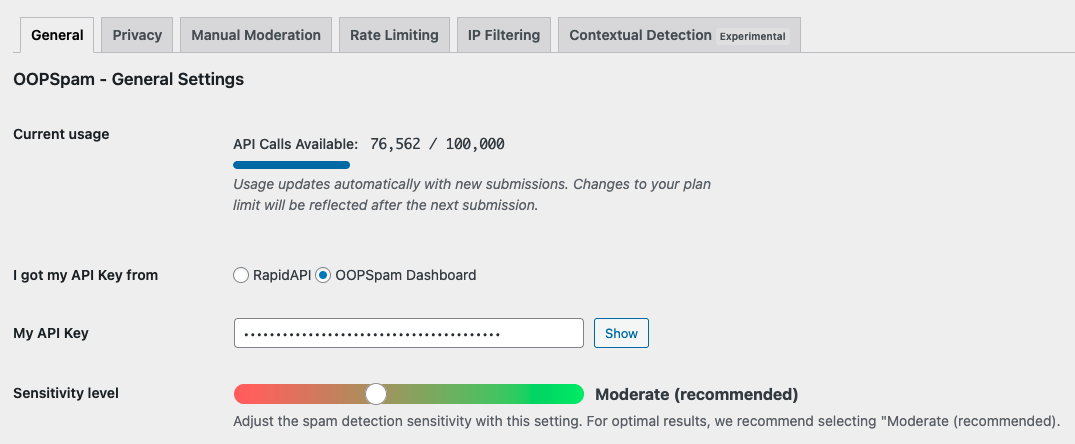
Create a free oopspam account and copy your API key. Go to Settings > oopspam Anti-Spam. In the General tab, select oopspam Dashboard as the source and paste your key into My API Key.
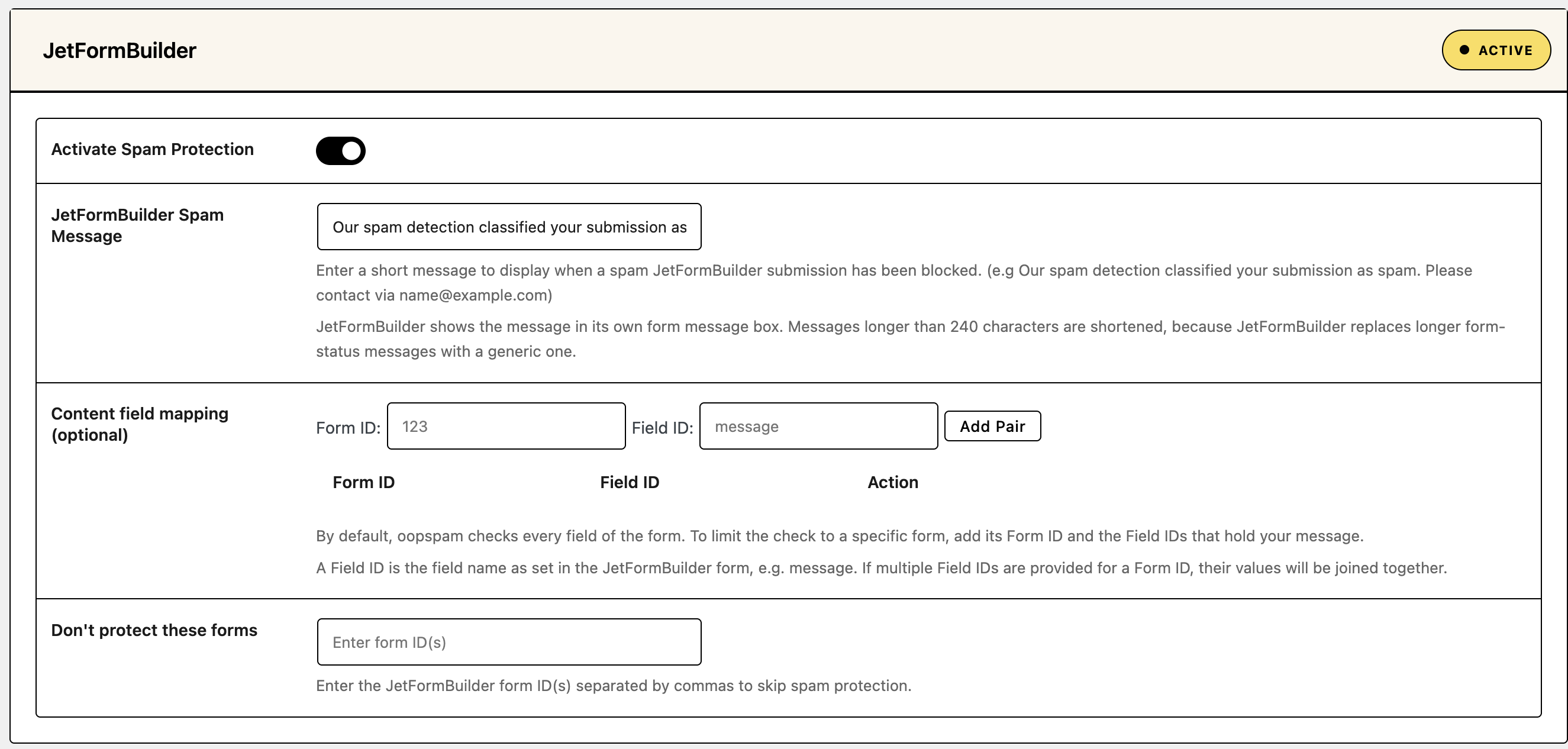
Scroll to the JetFormBuilder section and turn on Activate Spam Protection.
Open the Rate Limiting tab and turn on Enable Rate Limiting. Then set your limits:
- Max submissions per IP per hour: how many times one IP address can submit in an hour.
- Max submissions per email per hour: how many times one email address can submit in an hour.
- Block duration (in hours): how long an IP or email stays blocked after hitting the limit.
- Data clean-up frequency (in hours): how often oopspam clears the table it uses to track submissions.
Click Save Changes.
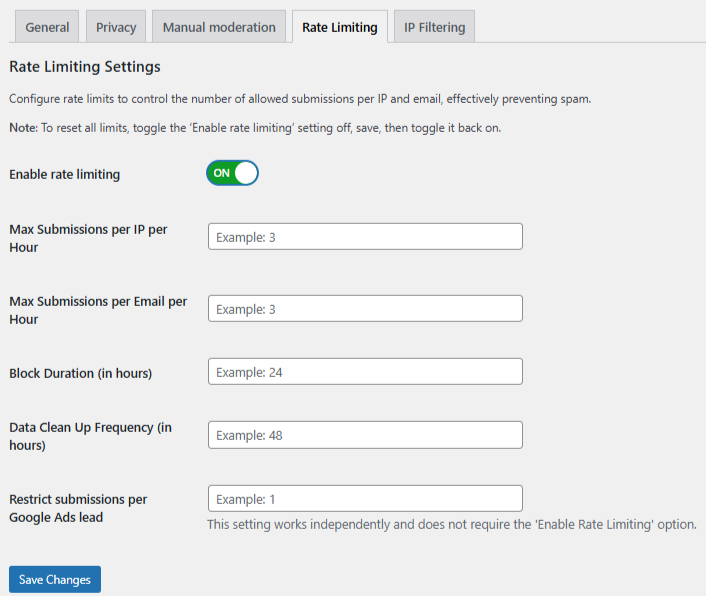
A good starting point is 3 submissions per hour per IP and per email, a 24-hour block and a 48-hour clean-up.
If your site runs behind Cloudflare or another proxy, open the Misc tab and turn on Trust proxy headers. Without it, all visitors share the proxy’s IP and could hit the limit together.

Set the Spam Message and Test
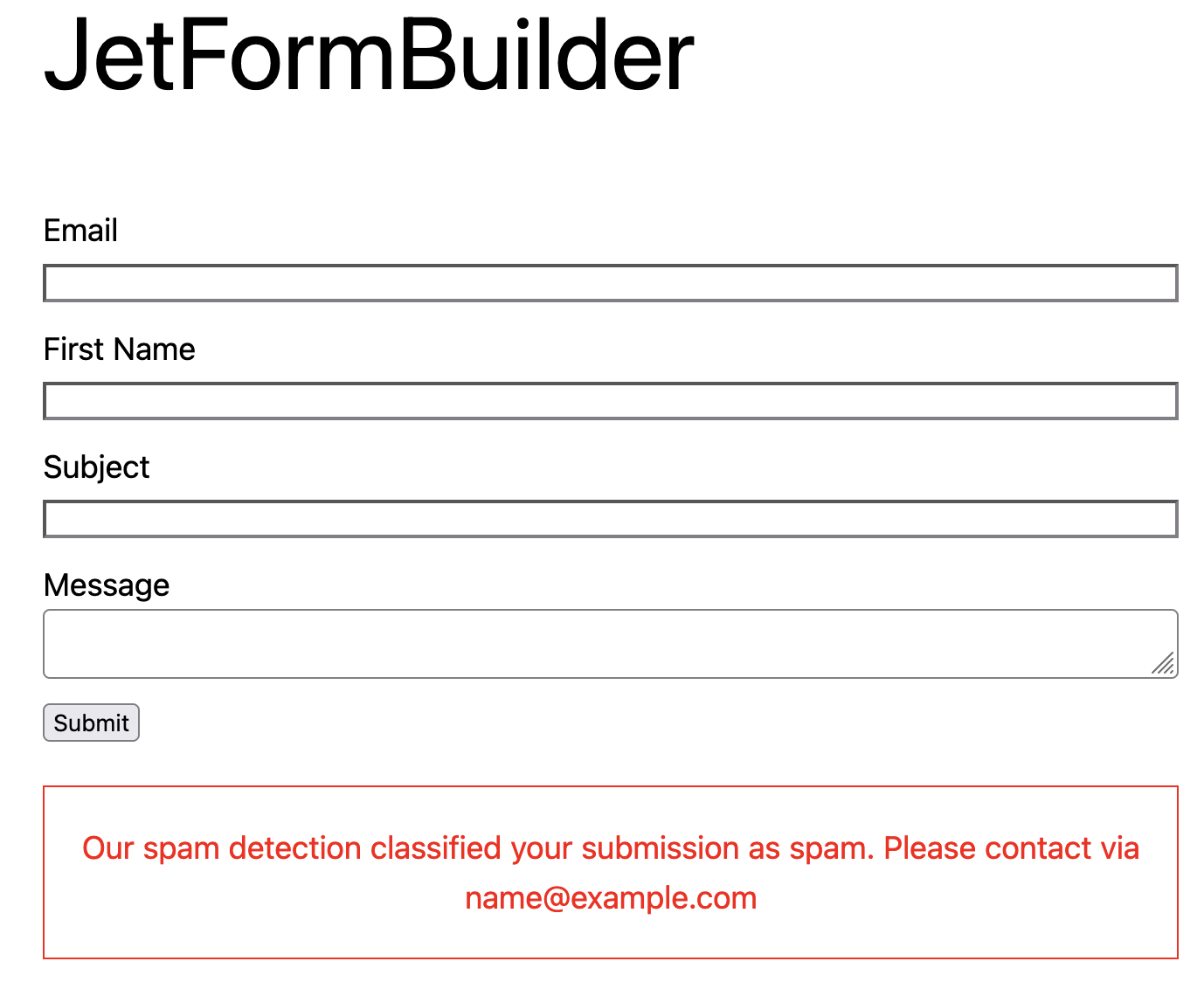
Write the message blocked visitors see in the JetFormBuilder Spam Message field, for example: “You’ve sent several submissions in a short time. Please try again later or email us at [email protected].” Keep it under 240 characters, or JetFormBuilder replaces it with a generic message.
Then submit the form a few more times than your limit allows. The blocked attempt shows your spam message in the form’s message box.
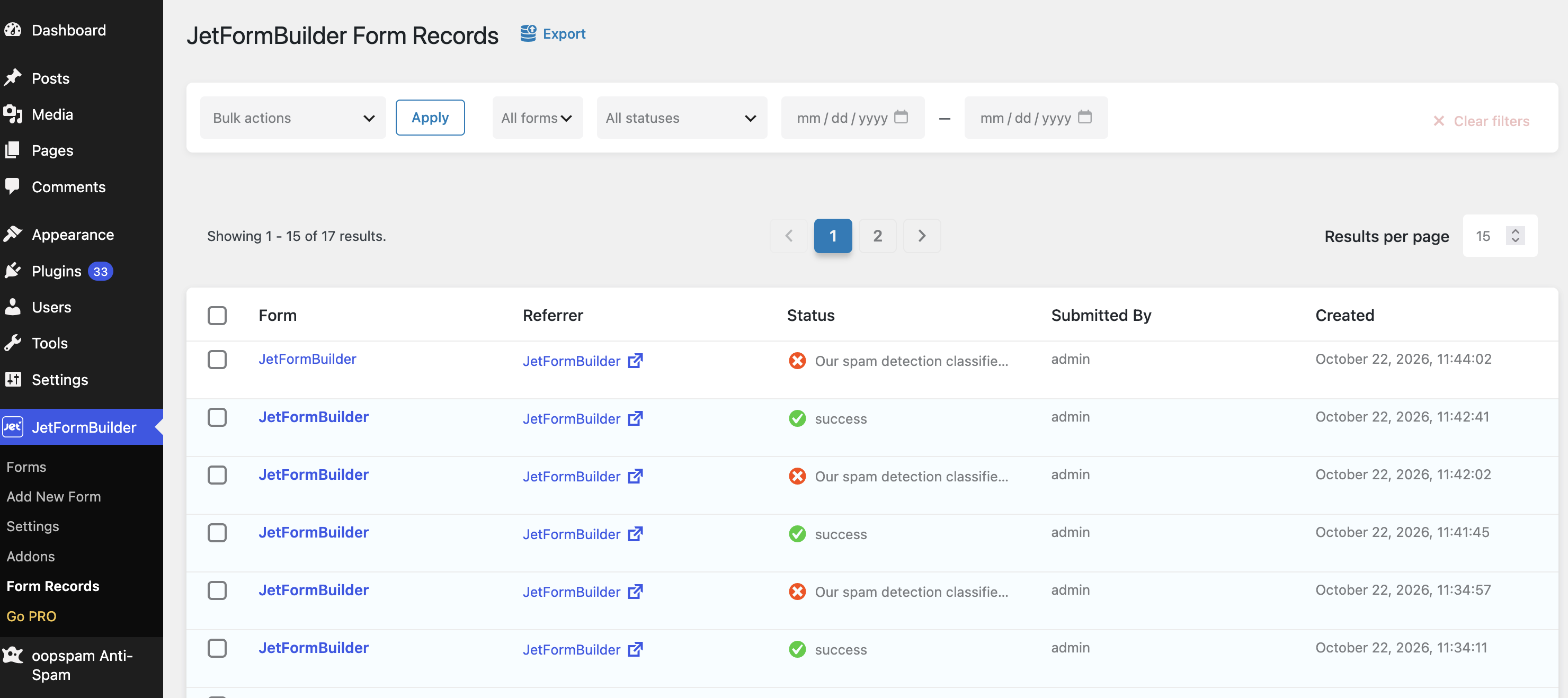
Check Form Spam Entries in WordPress to see blocked attempts and the reason (form entries guide). If your form saves records, they also appear in JetFormBuilder > Form Records with your spam message as the status.
Add More Filters
Rate limiting works best with oopspam’s other filters:
- VPN and data center blocking: see How to block VPN and data center IP submissions in JetFormBuilder forms.
- Country filtering: see How to block countries in JetFormBuilder forms.
- Disposable email blocking: see How to block disposable email addresses in WordPress forms. Throwaway addresses are how bots get around per-email limits.
Method 3: Add a Cloudflare Rate Limiting Rule
If your site runs behind Cloudflare, a rate limiting rule can stop bursts of requests at the network edge, before they reach WordPress.
- In the Cloudflare dashboard, go to Security > Security Rules.
- Click Create rule, then select Rate limiting rules.
- Name the rule, for example “Limit form submissions.”
- Under When incoming requests match, set URI Path to equals the path of your form’s page, for example
/contact/. JetFormBuilder posts each submission back to that page with a generated query string, which you can ignore. - Set the rate, for example 5 requests per 10 seconds per IP.
- Choose Block as the action, then click Deploy.
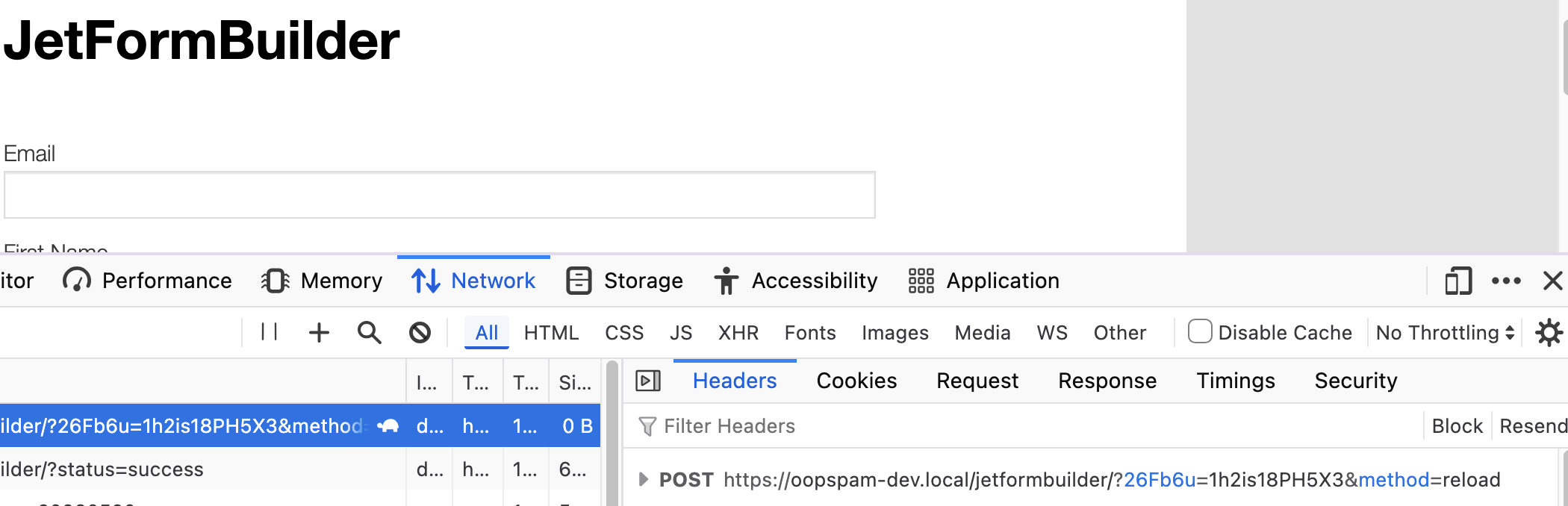
Three things to know:
- It’s short-term only on the Free plan. You get one rate limiting rule, a 10-second counting period and a 10-second block. That stops fast floods, not a bot that sends one entry a minute.
- It may count more than submissions. JetFormBuilder posts back to the form’s page, so page views count too, not only submissions. Set the limit high enough that normal browsing never hits it, and test after deploying.
- It doesn’t know about emails. Cloudflare counts by IP only, so it can’t stop one email address from submitting again from a new IP.
Use Cloudflare for burst protection and oopspam for the hourly per-IP and per-email limits.
Which Method Should You Use?
| Goal | Best method |
|---|---|
| Close a form after a set number of responses | Limit Form Responses addon |
| Allow one vote or application per visitor | Limit Form Responses addon, by IP or logged-in user |
| Stop one visitor from flooding a form | oopspam rate limiting per IP |
| Stop repeat submissions from one email address | oopspam rate limiting per email |
| Stop fast bursts before they reach WordPress | Cloudflare rate limiting rule |
FAQ
Can JetFormBuilder limit submissions without an addon?
No. The free plugin has no submission limits. You need the paid Limit Form Responses addon, or a plugin like oopspam.
What’s the difference between the addon and oopspam’s rate limiting?
The addon caps total responses and repeat submissions per IP, cookie, session or logged-in user, with an optional reset interval. oopspam caps submissions per IP and per email per hour, blocks for a set time, and also runs its spam checks on every submission.
What limit should I set?
Start with 3 submissions per hour per IP and per email. Raise it if real users submit several entries in one session.
Will rate limiting block visitors on a shared network?
It can, since people in one office or school may share an IP. Keep the per-IP limit a little higher than the per-email limit, and review Form Spam Entries for false positives.
Final Thoughts
JetFormBuilder needs an addon or a plugin to limit submissions. The Limit Form Responses addon fits votes and one-time forms. oopspam adds hourly limits per IP and per email alongside its other spam checks. Cloudflare adds burst protection at the network edge.
