5 Ways to Protect Your Meta Box Frontend Submission Forms from Spam

Co-founder & Brand Designer

Reviewed by Onar Alili
Anti-Abuse Engineer & Co-founder
Published 11 min read
The best way to stop spam on Meta Box Frontend Submission forms is to layer protections. Start with the free built-in tools: add Cloudflare Turnstile or Google reCAPTCHA v3, hold new submissions for review, and add validation rules. Then add a server-side spam filter such as oopspam Anti-Spam (that’s us 👋), which supports Meta Box Frontend Submission natively and catches what the built-in tools miss.
Meta Box is a custom fields framework for WordPress. Its MB Frontend Submission extension turns a field group into a form on the front end, so visitors can submit posts, listings, reviews or custom data without opening the WordPress admin. Every entry creates content on your site, so spam doesn’t just fill an inbox. It fills your database and can end up published. This guide covers 5 ways to protect these forms, ordered by setup effort: free built-in options first, then a server-side filter that catches what they miss.
Why Do Meta Box Frontend Submission Forms Get Spam?
These forms are public by design, so bots find them like any other form. Three facts shape your defense:
- Every entry creates content. A submission becomes a post or a custom table row. If the form publishes straight away, spam links go live on your site.
- The submission is one request. A standard form posts back to the page it sits on. With Ajax turned on, it posts to
/wp-admin/admin-ajax.php. A bot can send that request without loading your page, so you need a server-side check. - Humans spam too. Paid spammers solve any CAPTCHA. Content, IP and email checks stop them.
1. Add Google reCAPTCHA v3 or Cloudflare Turnstile
MB Frontend Submission supports Google reCAPTCHA v3 and Cloudflare Turnstile (MB Frontend Submission docs). Both run in the background, so most visitors never see a puzzle. The Submission Form block offers reCAPTCHA v3 only. Turnstile needs the shortcode.
With the Submission Form block:
- Register your site in the reCAPTCHA admin console, choose v3, and copy the Site Key and Secret Key.
- Select the Submission Form block and open Google reCaptcha (v3) in the block settings.
- Paste your keys into Site Key and Secret Key, then save the page.
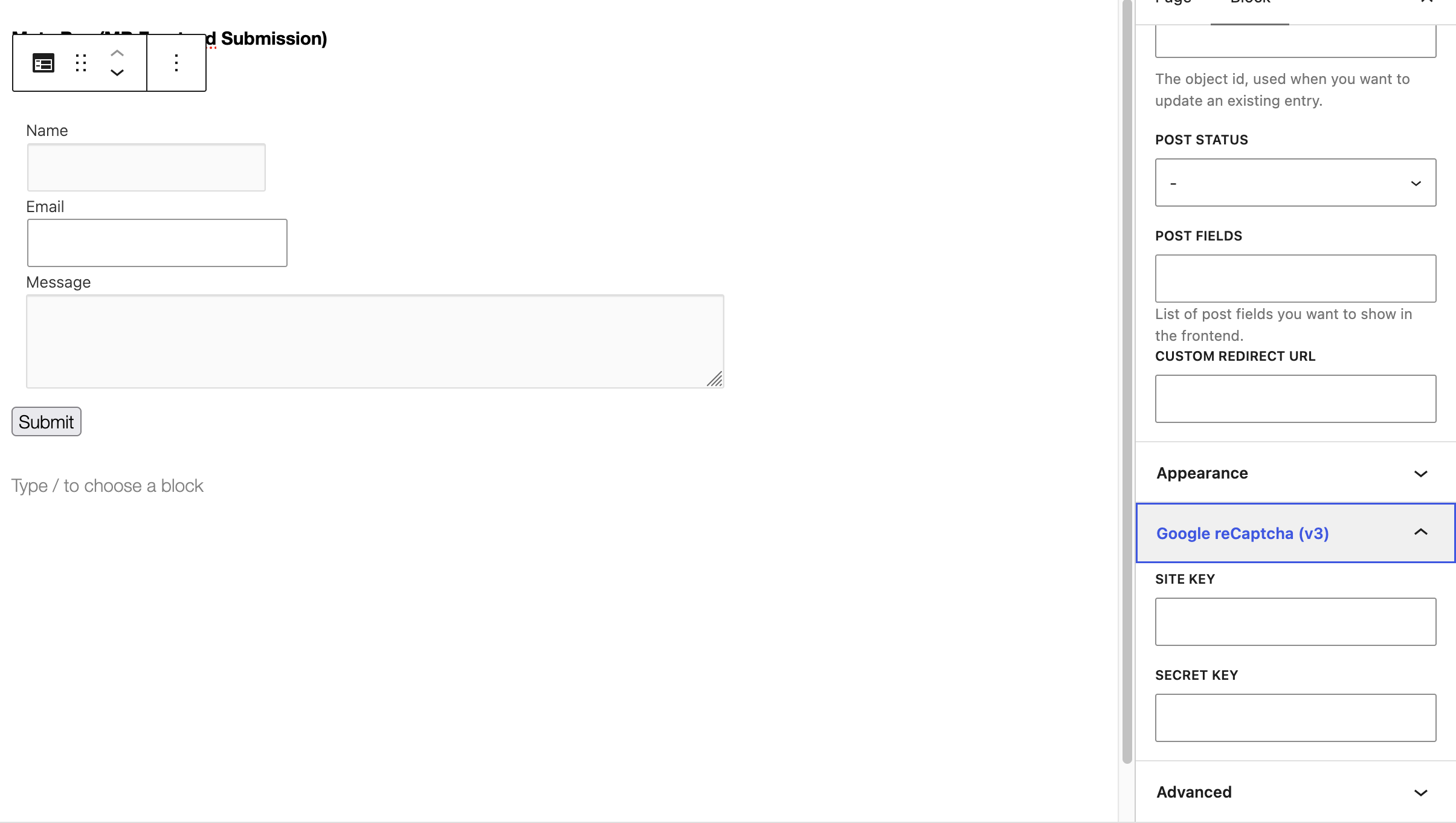
With the shortcode: get your keys from the Cloudflare Turnstile dashboard or the reCAPTCHA console. Set captcha_provider to turnstile or recaptcha, and add the keys with recaptcha_key and recaptcha_secret. The key attributes keep the recaptcha_ name for both providers:
[mb_frontend_form id="your-field-group" captcha_provider="turnstile" recaptcha_key="YOUR_SITE_KEY" recaptcha_secret="YOUR_SECRET_KEY"]
reCAPTCHA sends visitor data to Google, which matters under GDPR. Turnstile is lighter on privacy. Either way, AI-driven bots pass background checks more often than they used to. Compare options in reCAPTCHA v2 vs v3.
2. Hold Submissions for Review
In the Submission Form block settings, set Post Status to pending. With the shortcode, add post_status="pending". New submissions then wait in Posts > Pending (or the pending view of your custom post type) until you approve them.
The dropdown starts on -, which leaves the status to Meta Box’s default. Pick pending on purpose so nothing goes live before you review it.
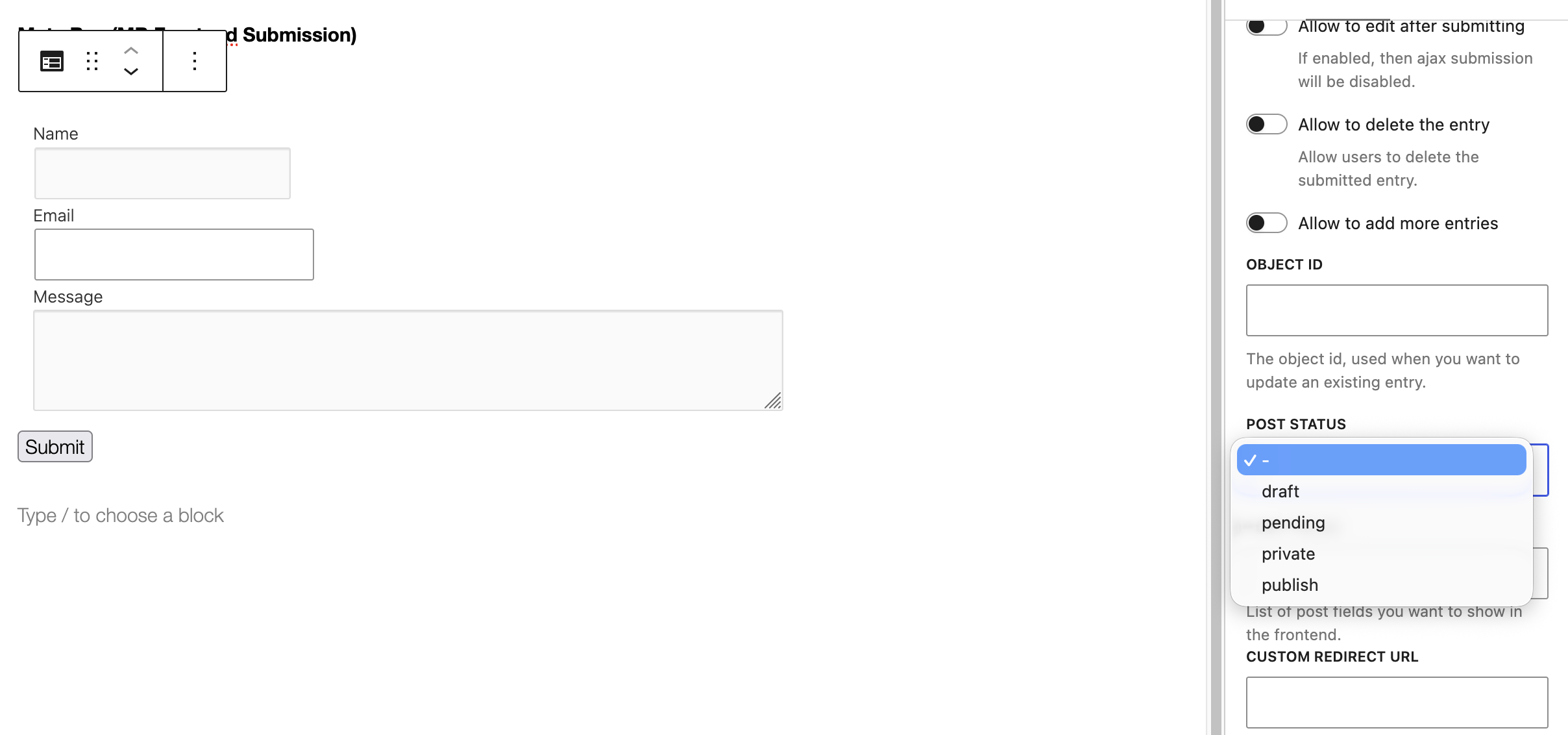
This doesn’t stop spam from arriving, but it stops spam from going live. The cost is moderation time, which grows with your spam volume.
3. Add Validation Rules
Meta Box can validate each field before the form is sent (validation docs). In MB Builder, open your field group and select a field. In the field settings, open Validation and click + Add Rule. Pick a rule from the dropdown, such as Required, and enter the error message visitors see, for example “An email is required.” Click Save Changes.
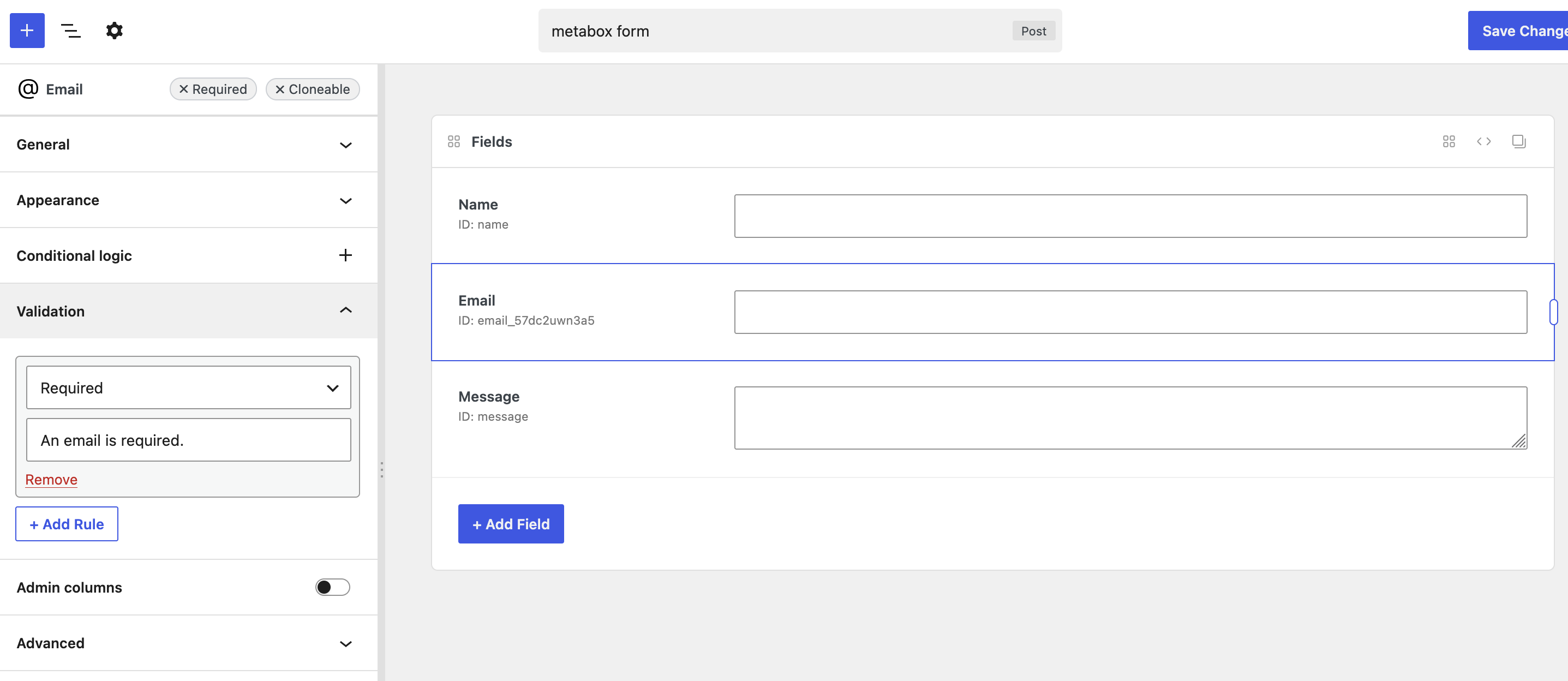
Make the fields you need Required, and add a maximum length rule to message fields to reject long, link-stuffed text. These rules run in the browser, so they stop half-empty and malformed entries from real visitors. A bot that posts directly skips them.
4. Block Links with a Custom Validation Filter
For a server-side rule, use the rwmb_frontend_validate filter. Return true to accept the submission, or a string to reject it with that message. This example rejects any message that contains a link:
add_filter( 'rwmb_frontend_validate', function( $validate, $config ) {
    if ( 'your-field-group' !== $config['id'] ) {
        return $validate;
    }
    $message = isset( $_POST['message'] ) ? wp_unslash( $_POST['message'] ) : '';
    if ( preg_match( '#https?://|www\.#i', $message ) ) {
        return 'Links are not allowed in this form.';
    }
    return $validate;
}, 10, 2 );
Replace your-field-group with your field group ID and message with your field ID. Add the code to a code snippets plugin or your child theme. A rule like this catches one pattern only, and you maintain it yourself.
5. Add a Server-Side Spam Filter
A server-side filter checks each submission after it reaches your server. Bots can’t skip it, and visitors see no challenge. It’s the only layer here that catches human spammers, AI-written messages and junk with real-looking details.
oopspam Anti-Spam supports Meta Box Frontend Submission natively. It scores message content and checks IP and email reputation. Optional rules add rate limits, country and language filters, VPN blocking and disposable email detection. Every blocked submission is logged with a reason.
How to Set Up oopspam with Meta Box Frontend Submission
Setup takes about five minutes. You don’t need to edit your field groups.
In WordPress, go to Plugins > Add New, search for oopspam Anti-Spam, then install and activate it.
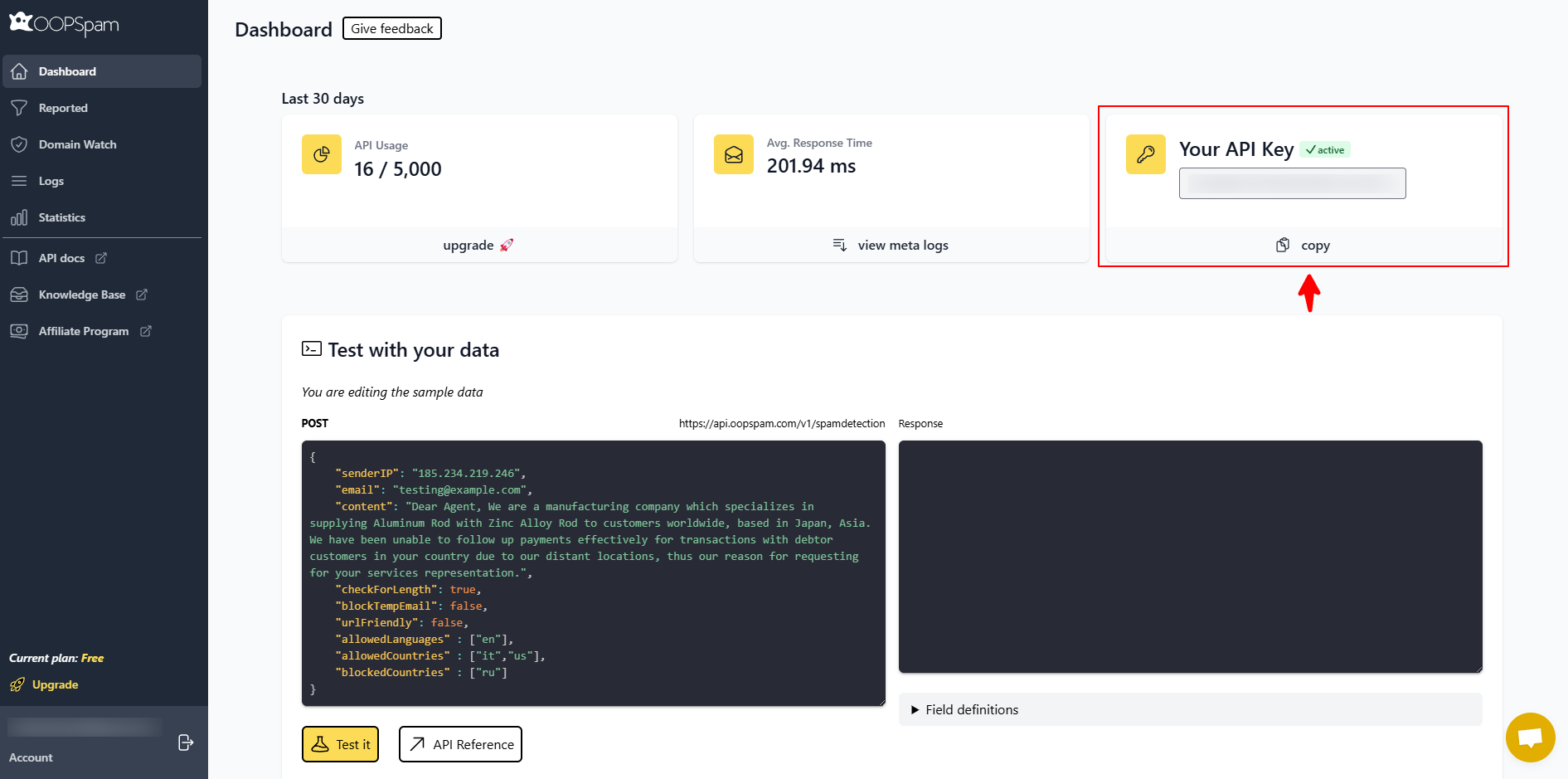
Create a free oopspam account and copy your API key from the dashboard.
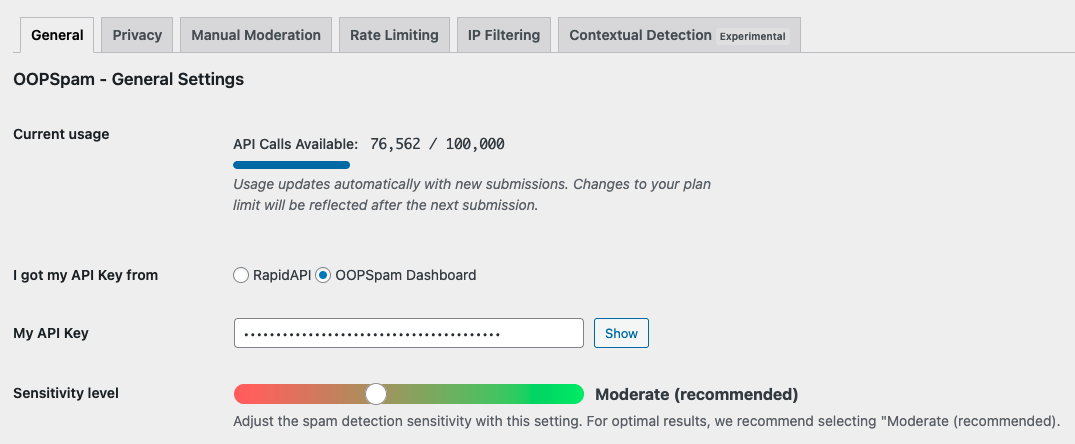
Go to Settings > oopspam Anti-Spam. In the General tab, select oopspam Dashboard as the source and paste your key into My API Key.
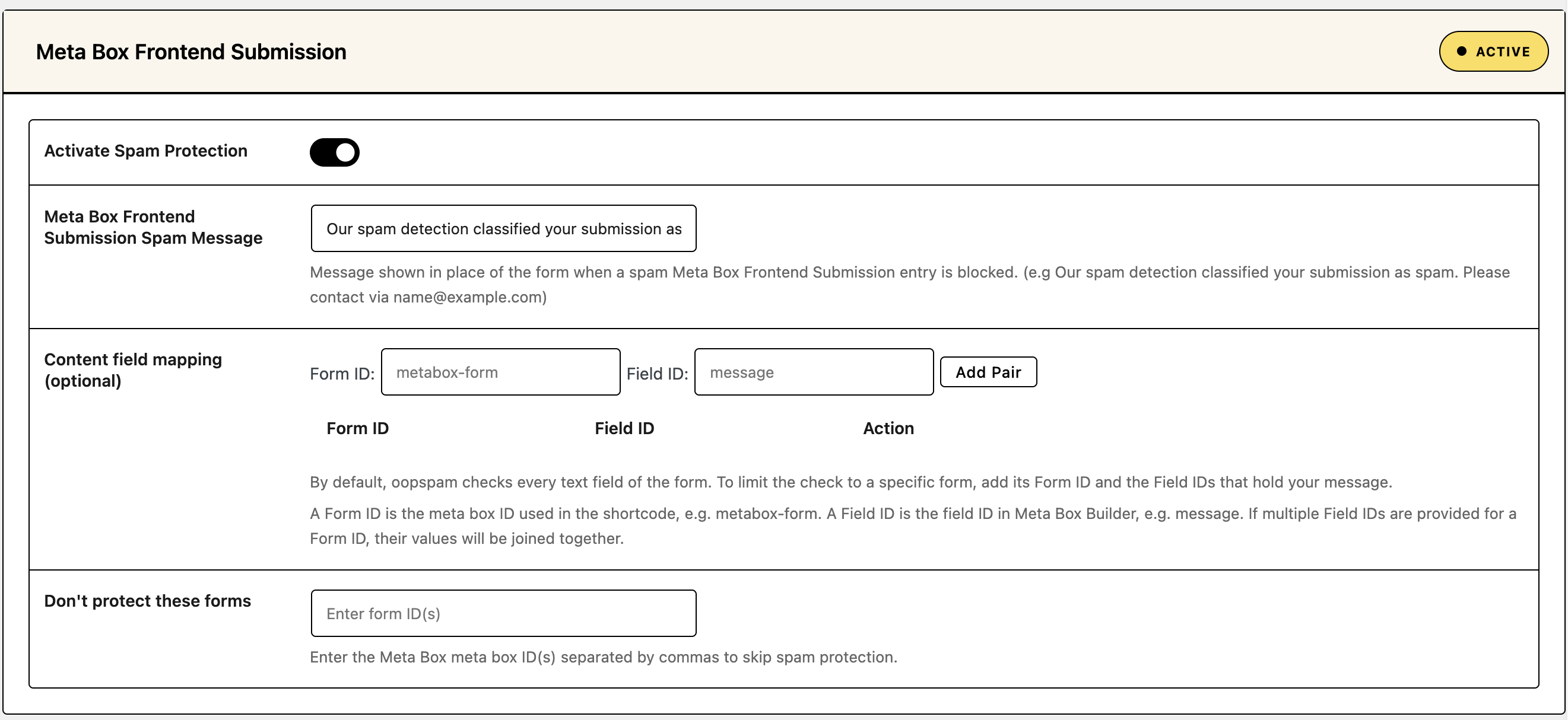
Find the Meta Box Frontend Submission section and turn on Activate Spam Protection. This covers every Meta Box frontend form on your site. Two optional settings help with special cases:
- Content field mapping: by default, oopspam checks every text field of the form. To check only the message, add the Form ID and Field ID, then click Add Pair. The Form ID is the meta box ID used in the shortcode, for example
metabox-form. The Field ID is the field ID in MB Builder, for examplemessage. If you add several Field IDs for one form, their values are checked together. - Don’t protect these forms: enter the meta box IDs of forms you want to skip, separated by commas.
Optional: set the sensitivity level and turn on rate limiting, country, language, VPN or disposable email filters. If your site runs behind Cloudflare or another proxy, open the Misc tab and turn on Trust proxy headers so oopspam sees real visitor IPs.

Set the Message Visitors See
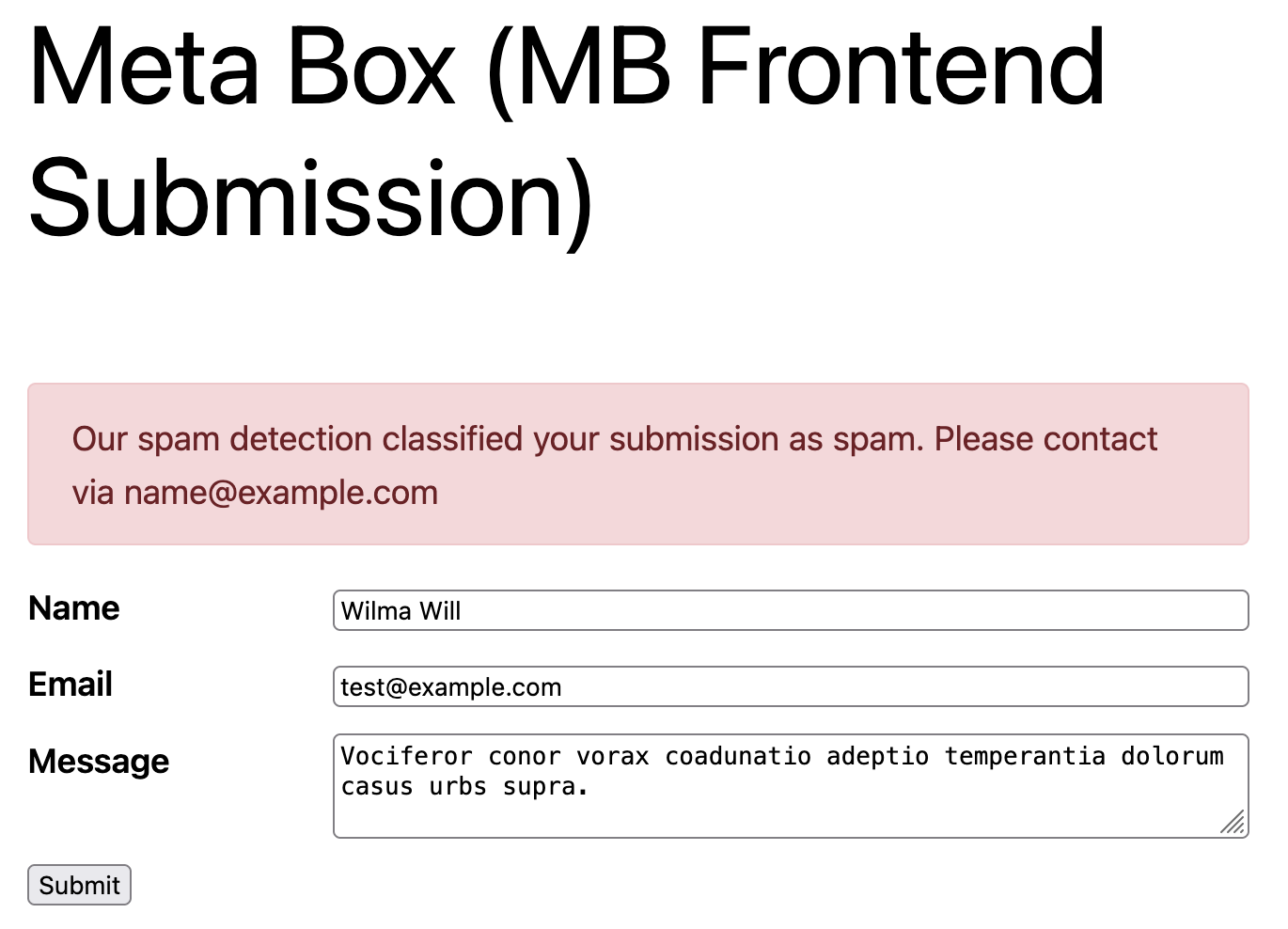
When oopspam blocks a submission, Meta Box shows the Meta Box Frontend Submission Spam Message from oopspam’s settings in place of the form. Write one that helps real visitors, for example: “Our spam detection classified your submission as spam. Please contact us at [email protected].”
The message only appears when the form submits with Ajax. In the Submission Form block settings, turn on Enable ajax submission. If you use the shortcode, add ajax="true". Without Ajax, a blocked submission sends the visitor to your 404 Not Found page instead.
Submit a test entry with spammy text. The form is replaced by your spam message.
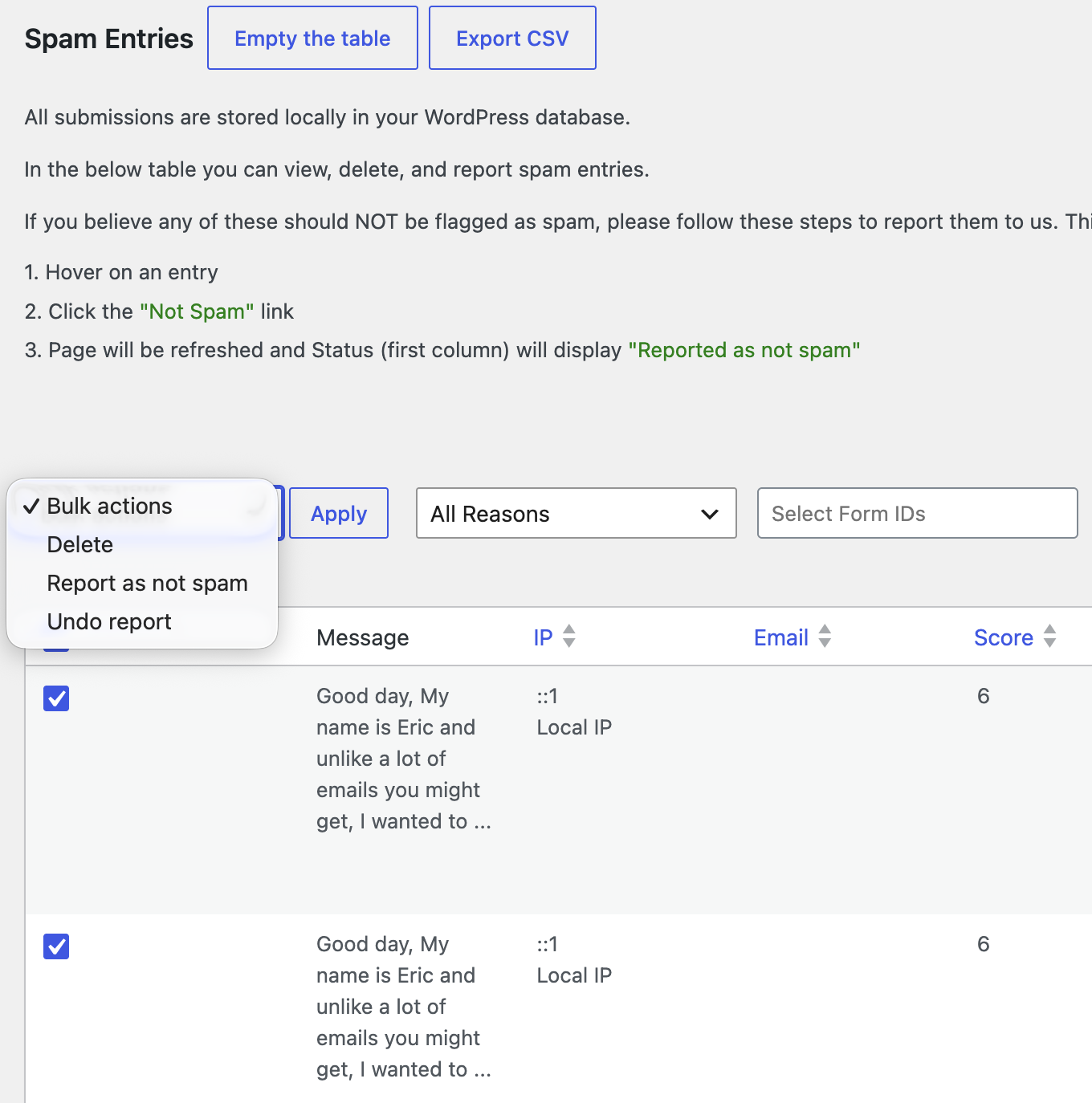
If a real submission gets blocked, open Form Spam Entries to see the reason. Mark it as not spam, add the sender to your allowed list, or lower the sensitivity.
Comparison
| Method | Blocks bots | Blocks human spam | Visitor friction | Cost |
|---|---|---|---|---|
| Turnstile or reCAPTCHA v3 | Most bots | No | Low | Free |
| Pending post status | Keeps spam off the live site | Keeps spam off the live site | None | Free, built in (your review time) |
| Validation rules | Junk input from browsers | No | None | Free, built in |
| Custom validation filter | The patterns you code | The patterns you code | None | Free, needs code |
| oopspam (server-side filter) | Yes | Yes | None | Free plan, then paid |
FAQ
Does Meta Box Frontend Submission have built-in spam protection?
Yes, Google reCAPTCHA v3 or Cloudflare Turnstile, plus field validation and the option to hold submissions as pending. These stop many bots, but not human spammers, AI-written messages or bots that post the form request directly.
Does oopspam work with Meta Box Frontend Submission?
Yes. oopspam Anti-Spam supports Meta Box Frontend Submission natively. Turn on Activate Spam Protection in the Meta Box Frontend Submission section of the plugin settings.
Why do blocked visitors see a 404 page?
The form isn’t using Ajax. Turn on Enable ajax submission in the Submission Form block, or add ajax="true" to the shortcode. Visitors then see your Meta Box Frontend Submission Spam Message instead.
Can I block countries or VPNs in Meta Box Frontend Submission?
Not with Meta Box alone. Use oopspam’s country filtering and IP filtering. See How to block countries in Meta Box Frontend Submission forms and How to block VPN and data center IP submissions in Meta Box Frontend Submission forms.
Should I use a CAPTCHA and oopspam together?
You can, but most sites don’t need both. oopspam works without adding a challenge to your forms. Add Turnstile or reCAPTCHA only if a specific form still gets bot spam.
Final Thoughts
No single tool stops all spam. Meta Box’s CAPTCHA support, pending status and validation handle simple bots and keep junk off your live site. A server-side filter like oopspam catches the rest, including human spam, without adding friction to your forms.
