How to Block Countries in Meta Box Frontend Submission Forms

Co-founder & Brand Designer

Reviewed by Onar Alili
Anti-Abuse Engineer & Co-founder
Published 8 min read
Meta Box has no built-in country blocking. To block countries, use the oopspam Anti-Spam plugin (that’s us 👋) to filter Meta Box Frontend Submission entries by country, or use Cloudflare to block whole countries from your website. For most sites, form-level filtering is the better choice because your site stays open to everyone.
Meta Box is a custom fields framework for WordPress. Its MB Frontend Submission extension lets visitors submit posts, listings and other content from the front end. Spam from countries you don’t serve fills your database and your review queue. Blocking those countries cuts the noise.
Does Meta Box Have Built-In Country Blocking?
No. MB Frontend Submission offers Google reCAPTCHA v3 or Cloudflare Turnstile, field validation and a post status setting. None of these look at where a visitor is. To block countries, you need a third-party tool. We cover Meta Box’s built-in protection in 5 Ways to Protect Your Meta Box Frontend Submission Forms from Spam.
Method 1: Block Countries in Meta Box Frontend Submission with oopspam
oopspam Anti-Spam supports Meta Box Frontend Submission natively. It checks each submission on the server before Meta Box saves it. Visitors from blocked countries can still read your site. They just can’t submit your forms.
What oopspam Adds to Meta Box
- Country filtering: block or allow submissions from selected countries
- Trusted countries: let your core markets skip spam checks
- Language filtering: reject messages written in languages you don’t support
- VPN, proxy and data center blocking: stop visitors who hide their real location
- Rate limiting: cap how often one IP or email can submit
- Logs: see every blocked submission and the reason it was blocked
How to Set It Up
Step 1: Install the oopspam plugin
In WordPress, go to Plugins > Add New, search for oopspam Anti-Spam, then install and activate it. You can also download it from the WordPress plugin directory.
Step 2: Get your API key
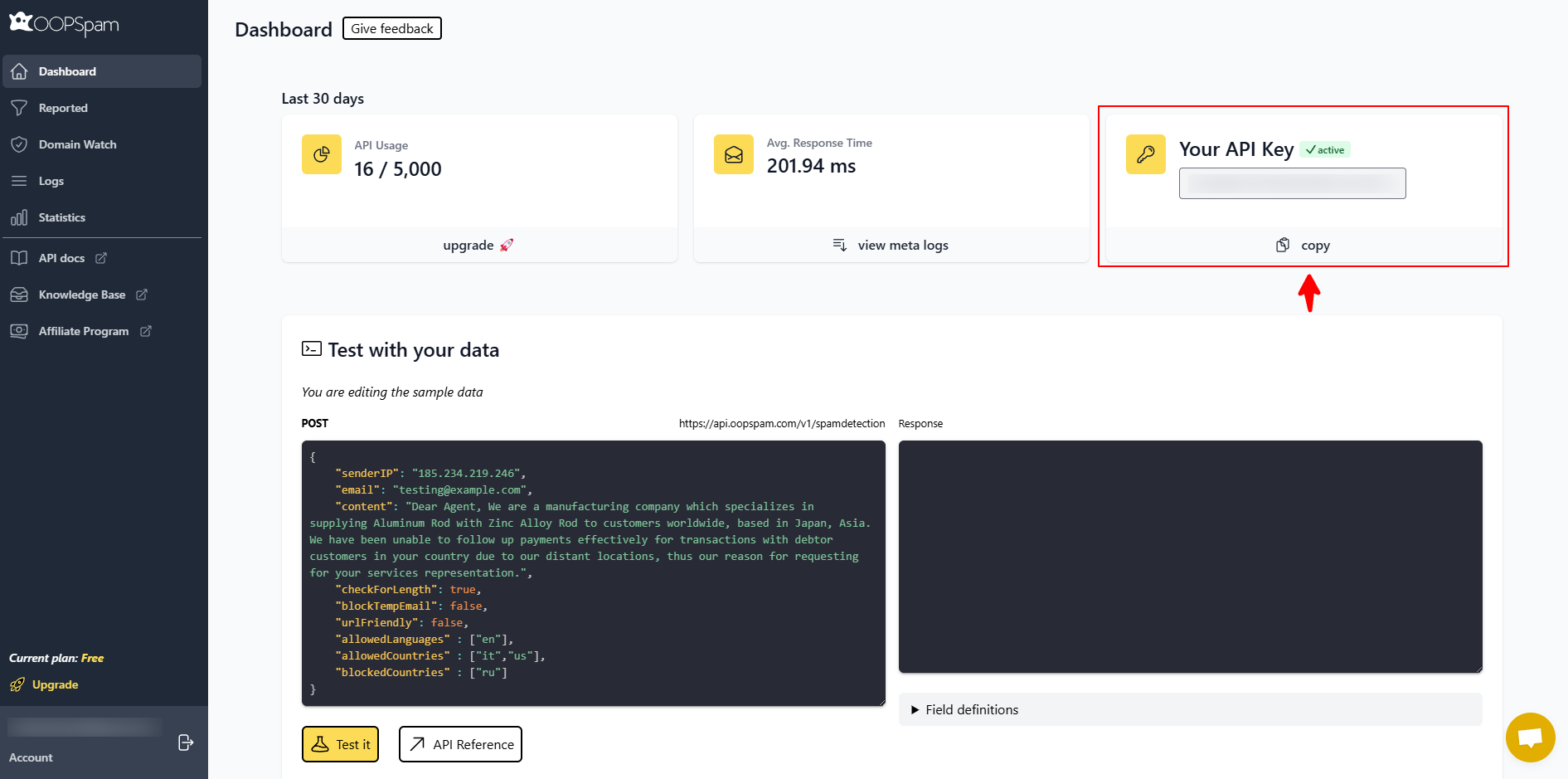
Create a free oopspam account and copy your API key from the dashboard.
Step 3: Connect the API key
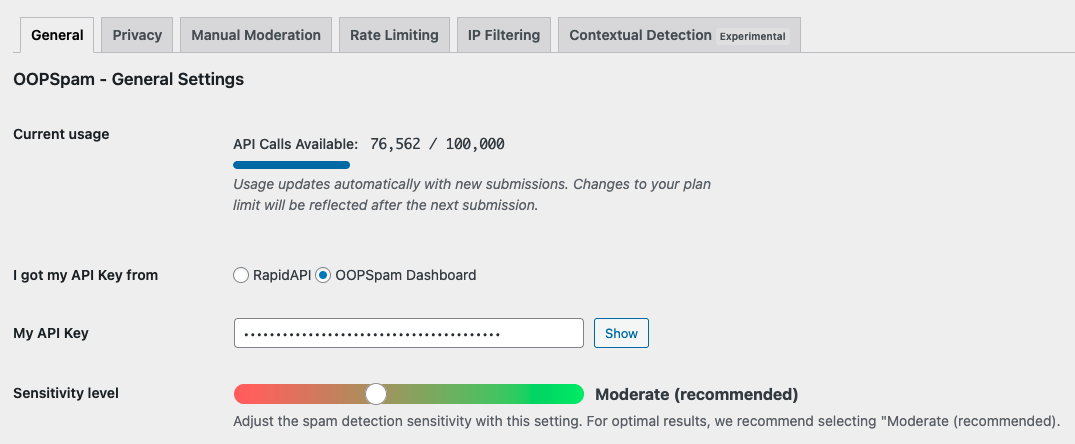
Go to Settings > oopspam Anti-Spam. Paste the key into My API Key and select oopspam Dashboard as the key source. Save your changes.
Step 4: Turn on Meta Box protection
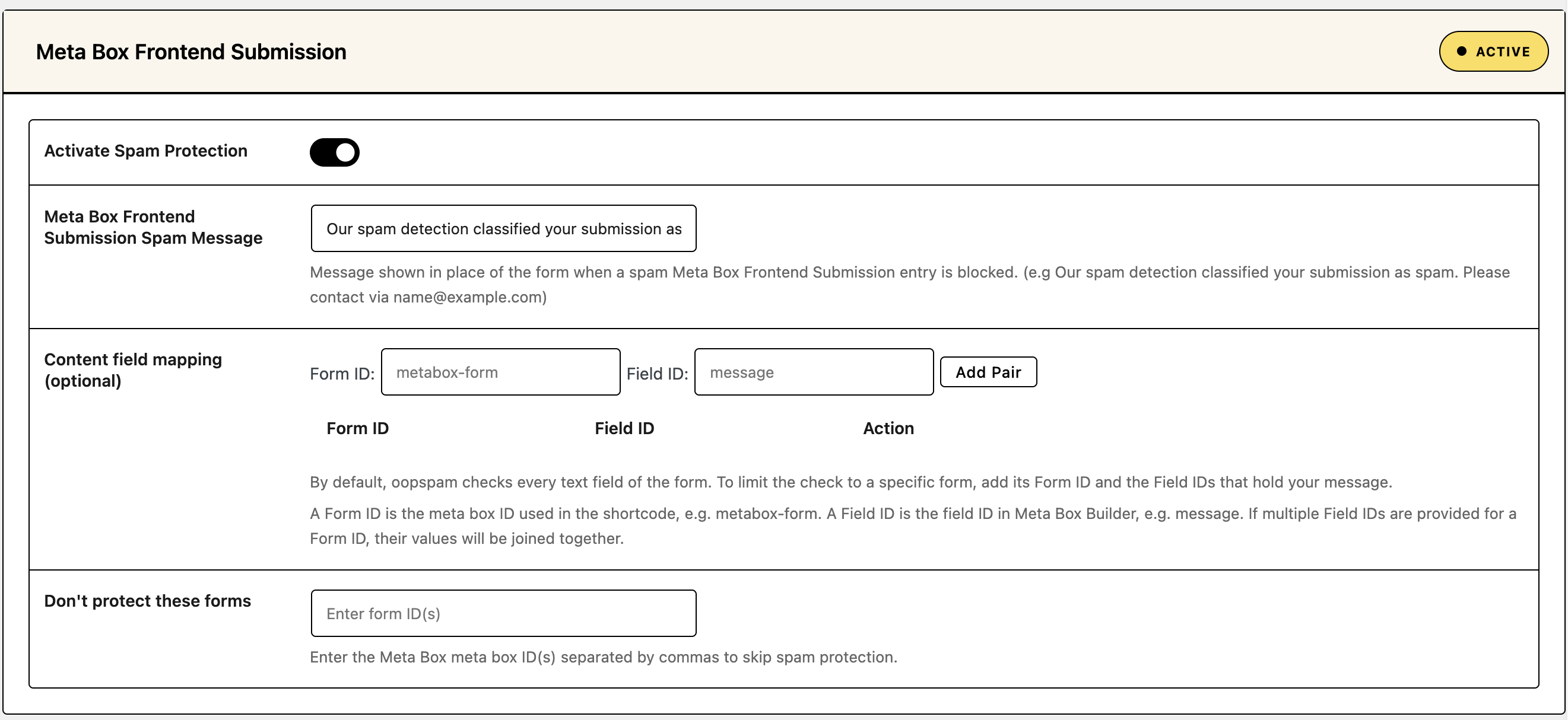
Scroll to the Meta Box Frontend Submission section and turn on Activate Spam Protection. This covers every Meta Box frontend form on your site. To skip a form, enter its meta box ID under Don’t protect these forms.
Step 5: Block or allow countries
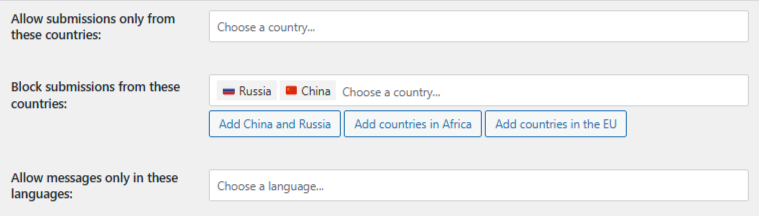
Go to Country Filtering under the General tab. You’ll see three options:
- Trusted Countries: submissions from these countries skip all spam checks. Use this only for your core market or internal team.
- Country Allowlist: only accept submissions from these countries. Everyone else is blocked.
- Country Blocklist: reject submissions from these countries. Quick-add buttons let you add common groups, such as China and Russia, African countries or EU countries.
Trusted Countries always override the blocklist. Pick the allowlist if you only serve a few countries. Pick the blocklist if most of your spam comes from a few countries. Save your settings.
Step 6: Turn on Trust proxy headers (if you use Cloudflare or another proxy)
If your site runs behind Cloudflare or another proxy, go to the Misc tab and turn on Trust proxy headers. Without it, oopspam sees the proxy’s IP address instead of the visitor’s, and country rules match the wrong location.

Step 7: Set the spam message and test
Write the message blocked visitors see in the Meta Box Frontend Submission Spam Message field, for example: “We can’t accept submissions from your region. Please email us at [email protected].”
The message only shows when the form uses Ajax. Turn on Enable ajax submission in the Submission Form block settings, or add ajax="true" to the shortcode. Without it, a blocked visitor lands on your 404 Not Found page.
Then connect to a VPN server in a country on your blocklist and submit the form. The form is replaced by your spam message.
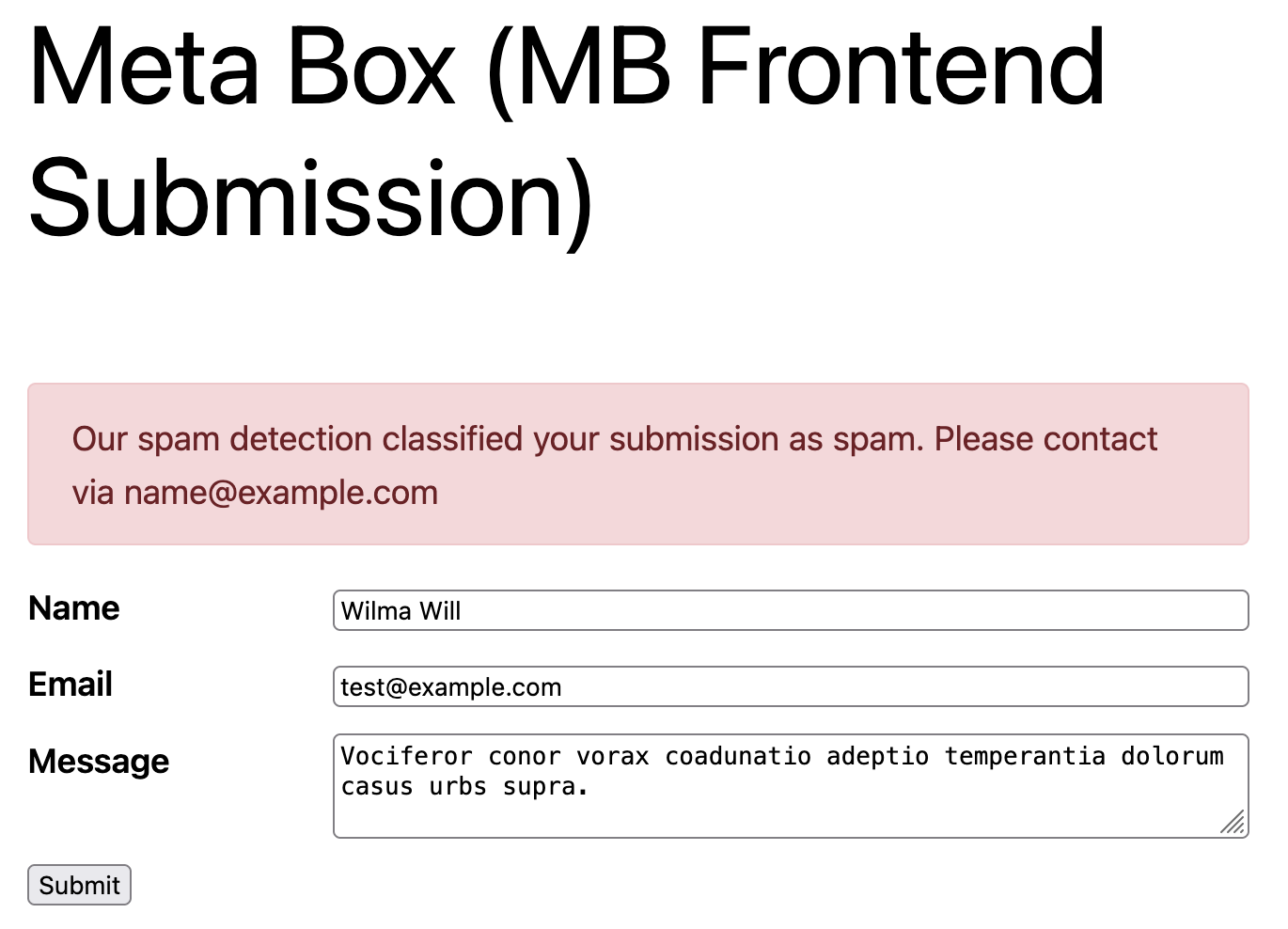
The entry appears in Form Spam Entries with the country as the reason. If you also block VPNs, the reason may say VPN instead, which still confirms the block works.
Review Blocked Submissions
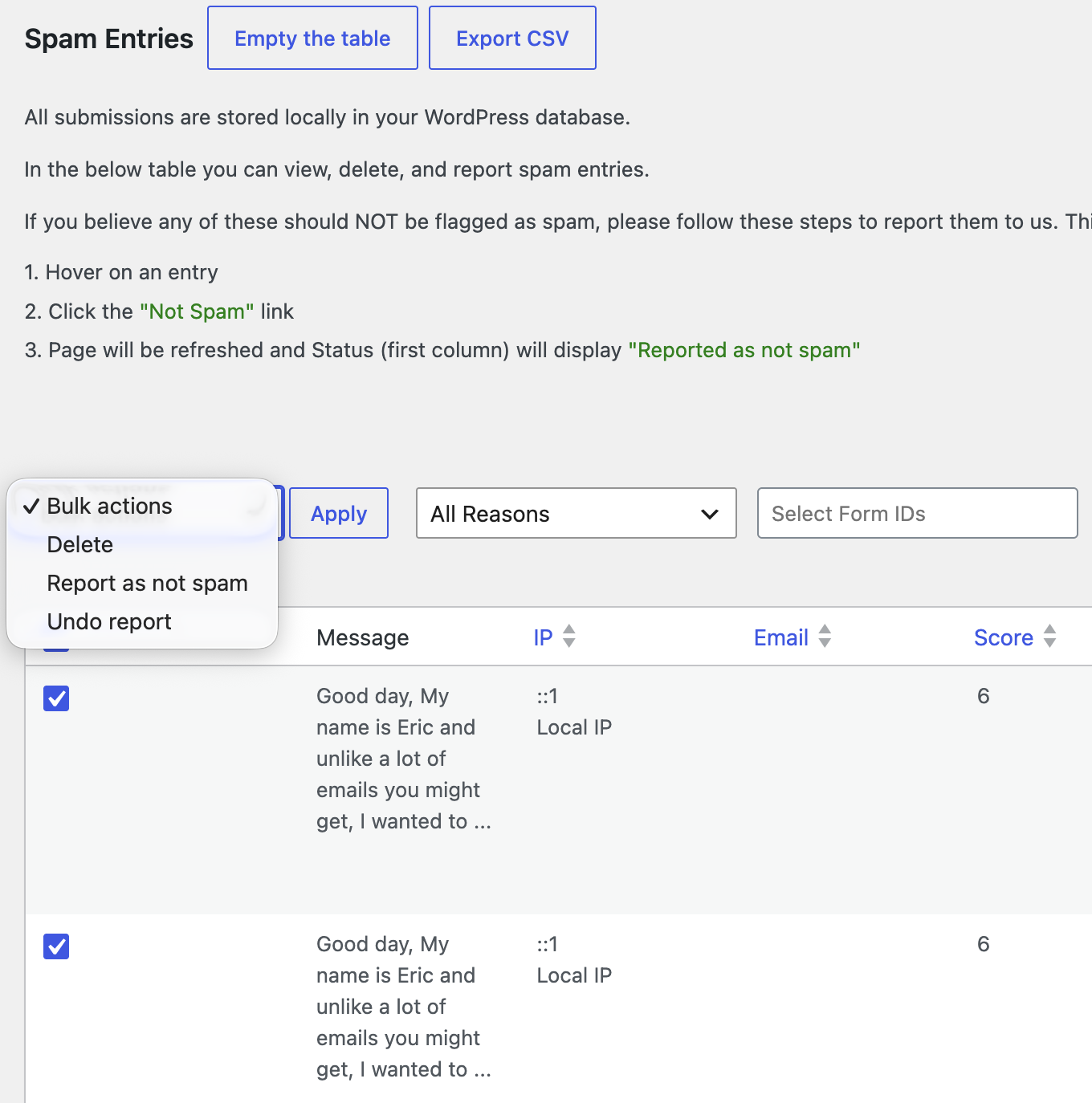
oopspam logs every submission it checks, so you can see why one was blocked and restore real entries. Go to oopspam > Form Spam Entries for blocked entries and Form Ham Entries for accepted ones. Learn more in the form entries guide.
Turn On Extra Filters
Country blocking alone won’t stop spammers who use a VPN. Combine it with:
- VPN and data center IP blocking: see How to block VPN and data center IP submissions in Meta Box Frontend Submission forms.
- Rate limiting: see How to limit form submissions in Meta Box Frontend Submission.
- Language filtering: see How to block foreign language spam in WordPress forms.
Method 2: Block Entire Countries with Cloudflare
Cloudflare blocks visitors from selected countries before they reach your website. Use it when you face a targeted attack, heavy scraping or a legal reason to restrict a region.
Important: This method blocks your entire website for those countries, not only your Meta Box forms.
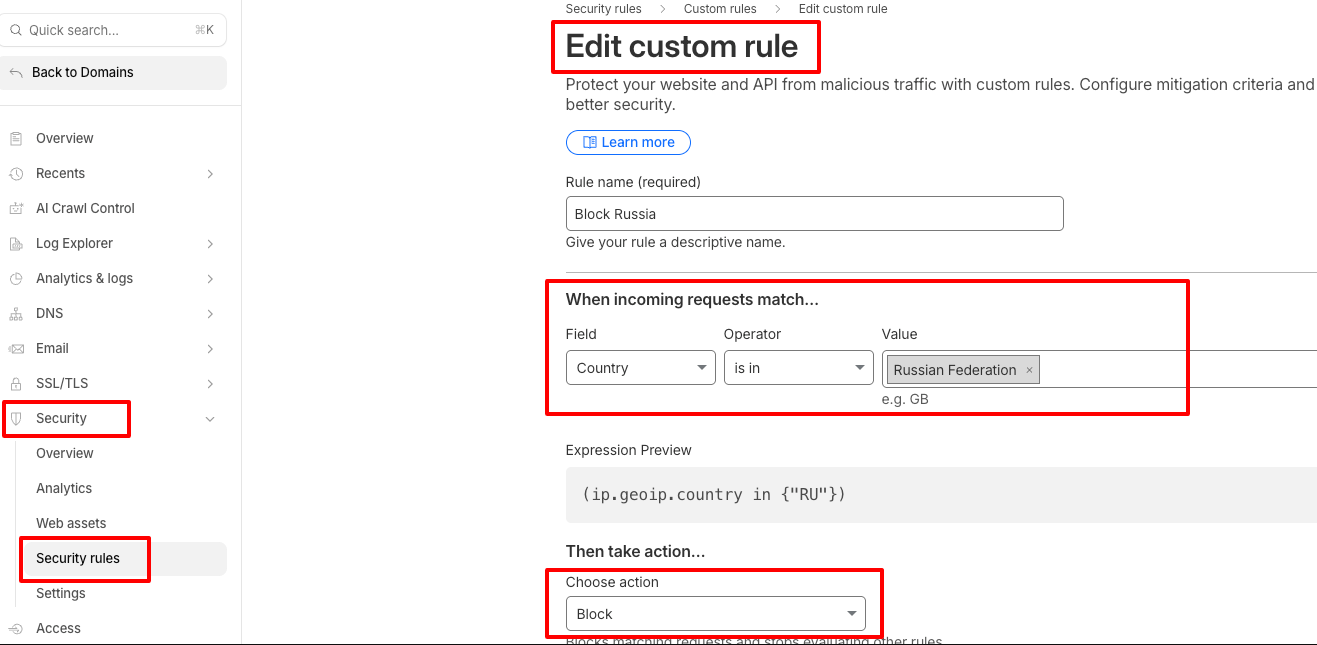
- Log in to the Cloudflare dashboard and select your domain.
- Go to Security > Security Rules.
- Click Create rule, then select Custom rules. Name the rule (for example, “Block countries”).
- Under When incoming requests match, set Field to Country, Operator to is in, and select the countries.
- Under Then take action, choose Block, or Managed Challenge if you want real people to get through after a quick check.
- Click Deploy.
See Cloudflare’s custom rules documentation or our guide on how to block countries in Cloudflare.
Which Method Should You Use?
| Method | What it blocks | Can blocked visitors read your site? | Logs with block reason | Best for |
|---|---|---|---|---|
| Meta Box built-in | Not available | Yes | No | Needs a third-party tool |
| oopspam | Form submissions only | Yes | Yes | Spam control, region filtering |
| Cloudflare | Your entire website | No | Cloudflare security events | Attacks, compliance, server load |
FAQ
Can I block countries in Meta Box without a plugin?
Not inside Meta Box. Its form settings don’t use location. Without a plugin, your only option is a network firewall such as Cloudflare, which blocks your whole site.
Does country blocking work on every Meta Box frontend form?
Yes. Once Activate Spam Protection is on, oopspam’s country rules apply to every Meta Box Frontend Submission form, except the ones you list under Don’t protect these forms.
Will country blocking stop spammers who use a VPN?
No. A VPN makes the visitor appear to be in the VPN server’s country. Turn on oopspam’s VPN and cloud provider blocking alongside country filtering.
Should I use the allowlist or the blocklist?
Use the allowlist if you only serve a few countries, such as a local directory. Use the blocklist if your audience is global and spam comes from a few countries.
Final Thoughts
Meta Box doesn’t block countries on its own, but you can add it in a few minutes. oopspam filters submissions by country, language, IP reputation and content while your site stays open to every visitor. Cloudflare is the heavier option when you need to keep a region off your whole site.
For more, see our complete guide to blocking countries from your website.
