How to Limit Form Submissions in Spectra Forms

Co-founder & Brand Designer

Reviewed by Onar Alili
Anti-Abuse Engineer & Co-founder
Published 8 min read
Spectra has no setting to limit form submissions. The Form block and the Spectra Pro Register block accept as many entries as anyone sends, from the same IP or email. To cap how often one visitor can submit, add rate limiting with the oopspam Anti-Spam plugin (that’s us 👋), which sets hourly limits per IP and per email for both blocks. Cloudflare’s rate limiting rules add a coarser limit at the network edge.
Spectra adds a Form block for contact and lead forms, and Spectra Pro adds a Register block for user sign-ups. Without a limit, one bot can send hundreds of messages or create hundreds of accounts in minutes. This guide covers each option, step by step.
What Spectra Has Built In
Spectra’s Form block has no submission limit of any kind: no cap per IP, per email, per hour or in total. The Register block can’t limit sign-ups either, though two things make floods less harmful:
- WordPress refuses duplicate accounts. A second sign-up with the same username or email fails, so one address can only create one account. A bot just uses a new address each time.
- Registration can be switched off. The Register block only works while Anyone can register is on under Settings > General > Membership. Turn it off when you don’t need open sign-ups.
For real rate limiting, add it on top.
Method 1: Rate Limit Submissions per IP and Email with oopspam
The oopspam Anti-Spam plugin supports Spectra Forms and Spectra Pro Register natively. It checks each submission on the server and blocks visitors who go over your hourly limit, on both blocks.
How to Set It Up
In WordPress, go to Plugins > Add New, search for oopspam Anti-Spam, then install and activate it.
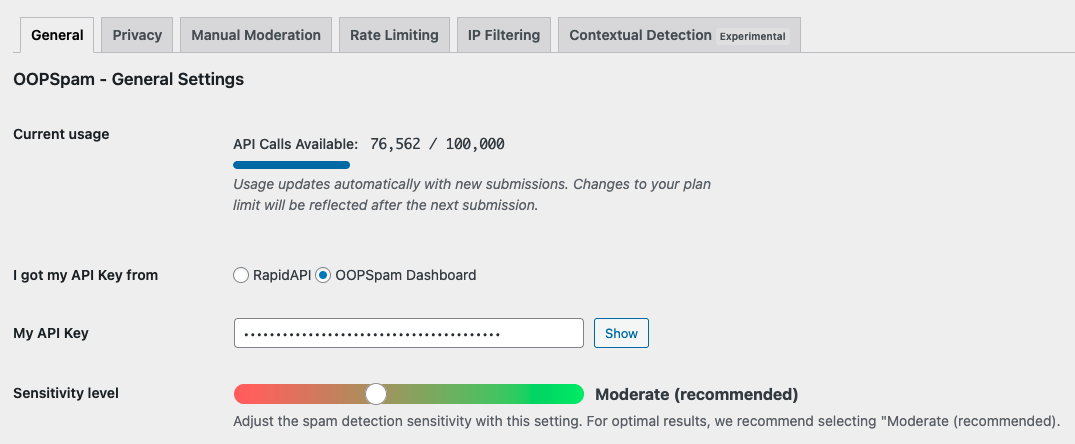
Create a free oopspam account and copy your API key. Go to Settings > oopspam Anti-Spam. In the General tab, select oopspam Dashboard as the source and paste your key into My API Key.
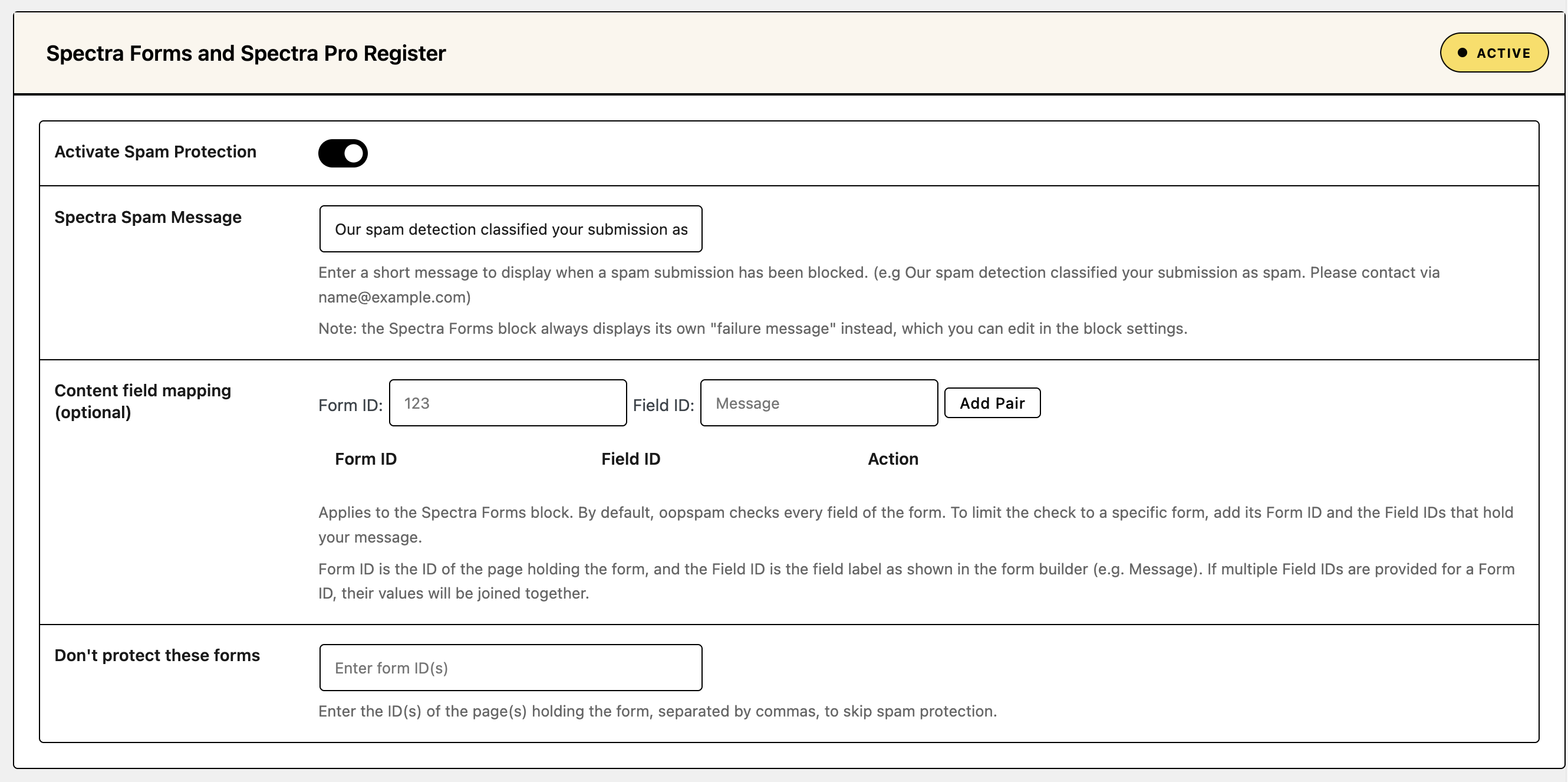
Scroll to the Spectra Forms and Spectra Pro Register section and turn on Activate Spam Protection.
Open the Rate Limiting tab and turn on Enable Rate Limiting. Then set your limits:
- Max submissions per IP per hour: how many times one IP address can submit in an hour.
- Max submissions per email per hour: how many times one email address can submit in an hour.
- Block duration (in hours): how long an IP or email stays blocked after hitting the limit.
- Data clean-up frequency (in hours): how often oopspam clears the table it uses to track submissions.
Click Save Changes.
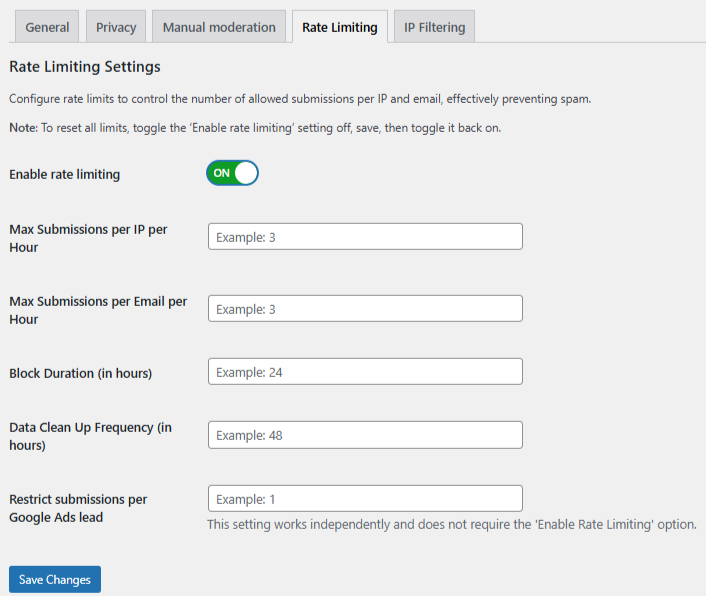
A good starting point is 3 submissions per hour per IP and per email, a 24-hour block and a 48-hour clean-up. Registration needs even less: a real person signs up once.
If your site runs behind Cloudflare or another proxy, open the Misc tab and turn on Trust proxy headers. Without it, all visitors share the proxy’s IP and could hit the limit together.

Set the Failure Message and Test
When oopspam blocks a Form block submission, Spectra shows the form’s own failure message. Select the Form block, open its General settings and edit the Error Message Text so real visitors know what to do, for example: “We couldn’t send your message. Please try again later or email us at [email protected].”
The Register block shows oopspam’s Spectra Spam Message instead, so set that too.
Then submit the form a few more times than your limit allows. The blocked attempt shows your failure message.
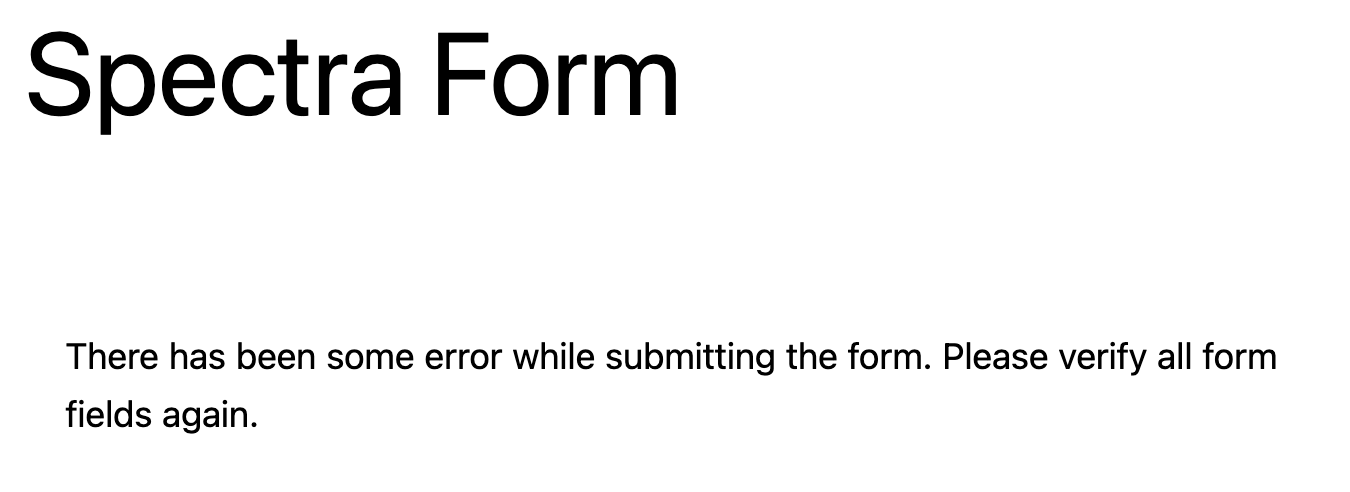
Check Form Spam Entries in WordPress to see blocked attempts and the reason (form entries guide).
Add More Filters
Rate limiting works best with oopspam’s other filters:
- VPN and data center blocking: see How to block VPN and data center IP submissions in Spectra Forms.
- Country filtering: see How to block countries in Spectra Forms.
- Disposable email blocking: see How to block disposable email addresses in WordPress forms. Throwaway addresses are how bots get around per-email limits and WordPress’s one-account-per-email rule.
Method 2: Add a Cloudflare Rate Limiting Rule
If your site runs behind Cloudflare, a rate limiting rule can stop bursts of requests at the network edge, before they reach WordPress. Both Spectra blocks post to /wp-admin/admin-ajax.php, so that’s the path to limit.
- In the Cloudflare dashboard, go to Security > Security Rules.
- Click Create rule, then select Rate limiting rules.
- Name the rule, for example “Limit form submissions.”
- Under When incoming requests match, set URI Path to equals
/wp-admin/admin-ajax.php. - Set the rate, for example 5 requests per 10 seconds per IP.
- Choose Block as the action, then click Deploy.
Three things to know:
- It’s short-term only on the Free plan. You get one rate limiting rule, a 10-second counting period and a 10-second block. That stops fast floods, not a bot that sends one entry a minute.
- It counts all AJAX traffic. Other plugins use
admin-ajax.phptoo, such as live search or cart updates. Set the limit high enough that normal browsing never hits it, and test after deploying. - It doesn’t know about emails. Cloudflare counts by IP only, so it can’t stop one email address from submitting again from a new IP.
Use Cloudflare for burst protection and oopspam for the hourly per-IP and per-email limits.
Which Method Should You Use?
| Goal | Best method |
|---|---|
| Stop one visitor from flooding a contact form | oopspam rate limiting per IP |
| Stop repeat submissions from one email address | oopspam rate limiting per email |
| Stop fake sign-ups on the Register block | oopspam rate limiting, plus disposable email blocking |
| Stop very fast bursts before they reach WordPress | Cloudflare rate limiting rule |
| Close registration when you don't need it | Turn off Anyone can register in WordPress |
FAQ
Can Spectra limit form submissions on its own?
No. The Form block has no submission limits, and the Register block only relies on WordPress refusing duplicate usernames and emails. Use oopspam or Cloudflare to add limits.
Does rate limiting work on the Spectra Pro Register block?
Yes. oopspam’s rate limits apply to both the Form block and the Register block once Activate Spam Protection is on.
Will rate limiting block real visitors?
Rarely, if your limits are sensible. Three submissions per hour is plenty for most contact forms. Review Form Spam Entries for false positives.
Why don’t visitors see my Spectra Spam Message?
On the Form block, Spectra always shows the block’s own Error Message Text when a submission is blocked, so edit that message in the Form block’s settings. The Spectra Pro Register block does show the Spectra Spam Message.
Final Thoughts
Spectra doesn’t limit submissions, so add the limit yourself. oopspam’s hourly per-IP and per-email limits cover both the Form block and the Register block. A Cloudflare rate limiting rule adds burst protection at the edge. Together they keep your forms open to real people and closed to floods.
