5 Ways to Protect Your Spectra Forms from Spam

Co-founder & Brand Designer

Reviewed by Onar Alili
Anti-Abuse Engineer & Co-founder
Published 10 min read
The best way to stop spam on Spectra is to layer protections. Start with the free built-in tools: turn on Google reCAPTCHA in the Form block and the Register block, keep new accounts on a low-privilege role, and use validated, required fields. Then add a server-side spam filter such as oopspam Anti-Spam (that’s us 👋), which supports Spectra Forms and Spectra Pro Register natively and catches what the built-in tools miss.
Spectra is a block plugin for the WordPress editor by Brainstorm Force, the team behind the Astra theme. Its free Form block handles contact and lead forms. Spectra Pro adds a Register block for user sign-ups. Both are easy targets: contact forms fill your inbox with junk, and an open registration form fills your site with fake accounts. This guide covers 5 ways to protect both, ordered by setup effort: free built-in options first, then a server-side filter that catches what they miss.
Why Do Spectra Forms Get Spam?
Spectra forms are public by design, so bots find them like any other form. Three facts shape your defense:
- The submission is one request. The Form block sends each entry to
/wp-admin/admin-ajax.phpwith the actionuagb_process_forms. The Register block uses the actionspectra_pro_block_register. A bot can post straight to that endpoint without loading your page. You need a server-side check. - Humans spam too. Paid spammers solve any CAPTCHA. Content, IP and email checks stop them.
- Fake accounts cost more than fake messages. Each one sits in your user list, can receive emails and may try to post comments or reach member content.
1. Add Google reCAPTCHA to the Form Block
The Form block has reCAPTCHA built in, set per form (Form block docs).
- Register your site in the reCAPTCHA admin console, choose v2 or v3, and copy the Site Key and Secret Key.
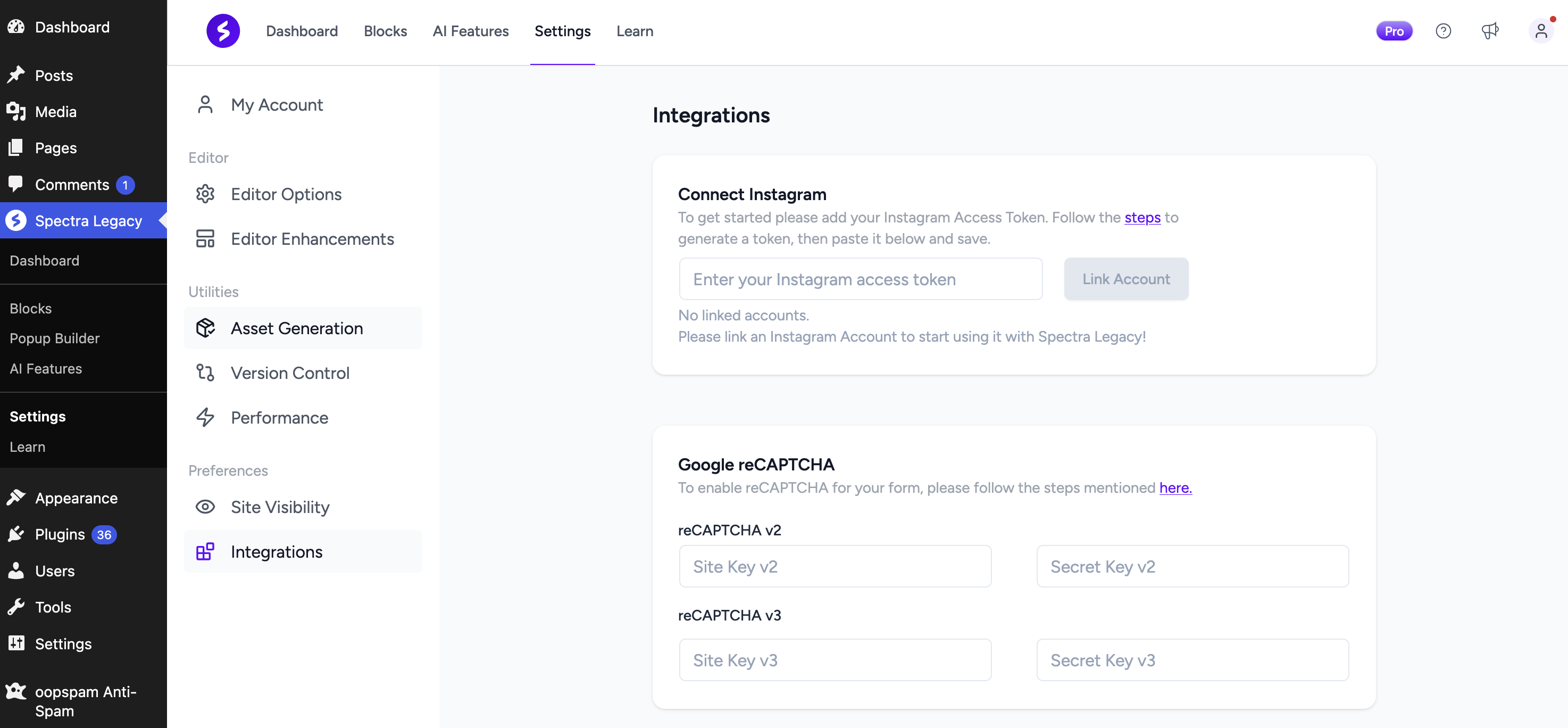
- In WordPress, go to Spectra > Settings > Integrations (the menu may show Spectra Legacy). Under Google reCAPTCHA, paste your keys into the reCAPTCHA v2 or reCAPTCHA v3 fields.
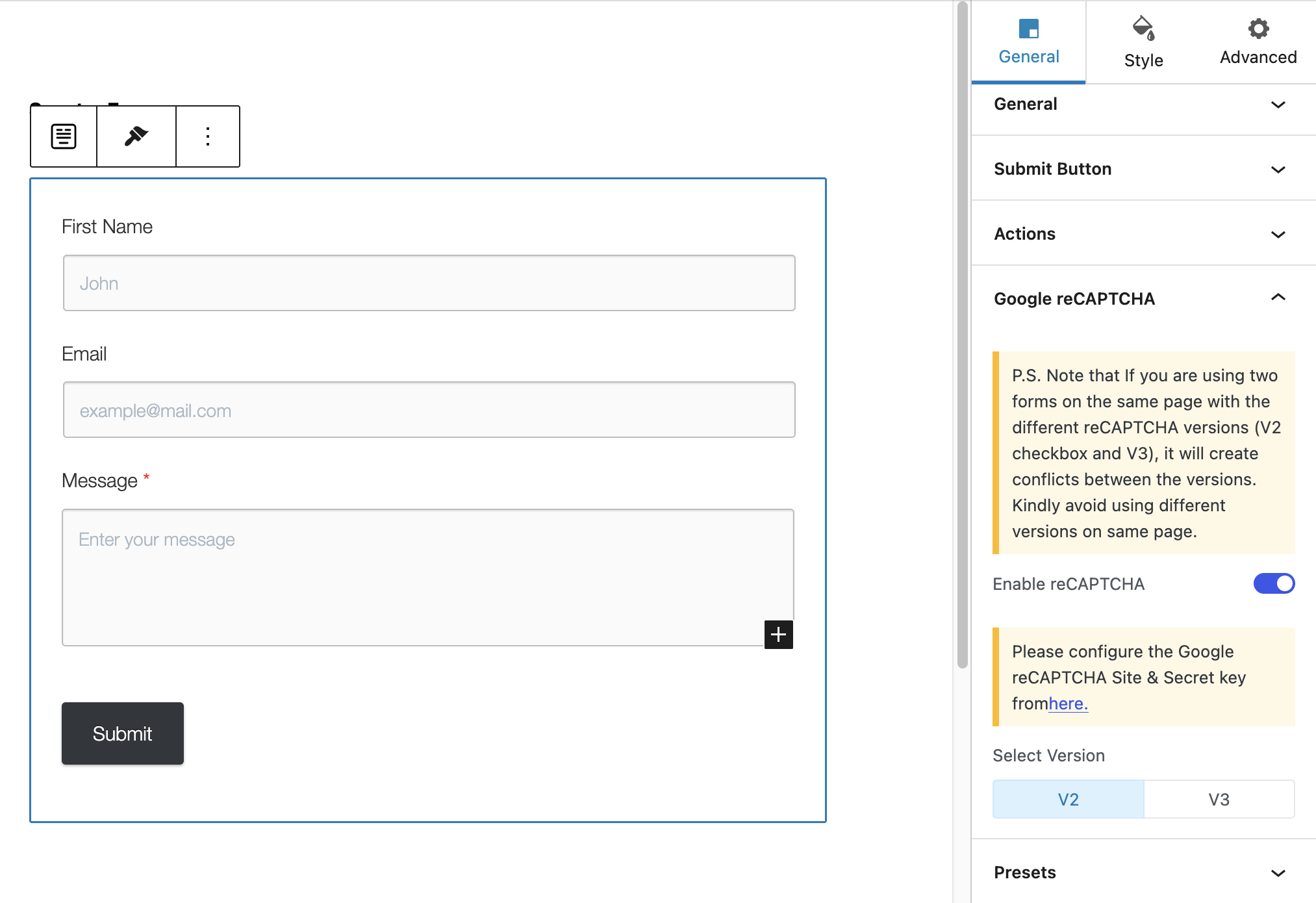
- Edit the page with your form and select the Form block. In the General tab, open Google reCAPTCHA, turn on Enable reCAPTCHA and choose V2 or V3 under Select Version, matching your keys.
- Save the page.
reCAPTCHA adds a Google script to your page and sends visitor data to Google, which matters under GDPR. AI-driven bots also pass it more often than they used to. Compare versions in reCAPTCHA v2 vs v3.
2. Add Google reCAPTCHA to the Register Block
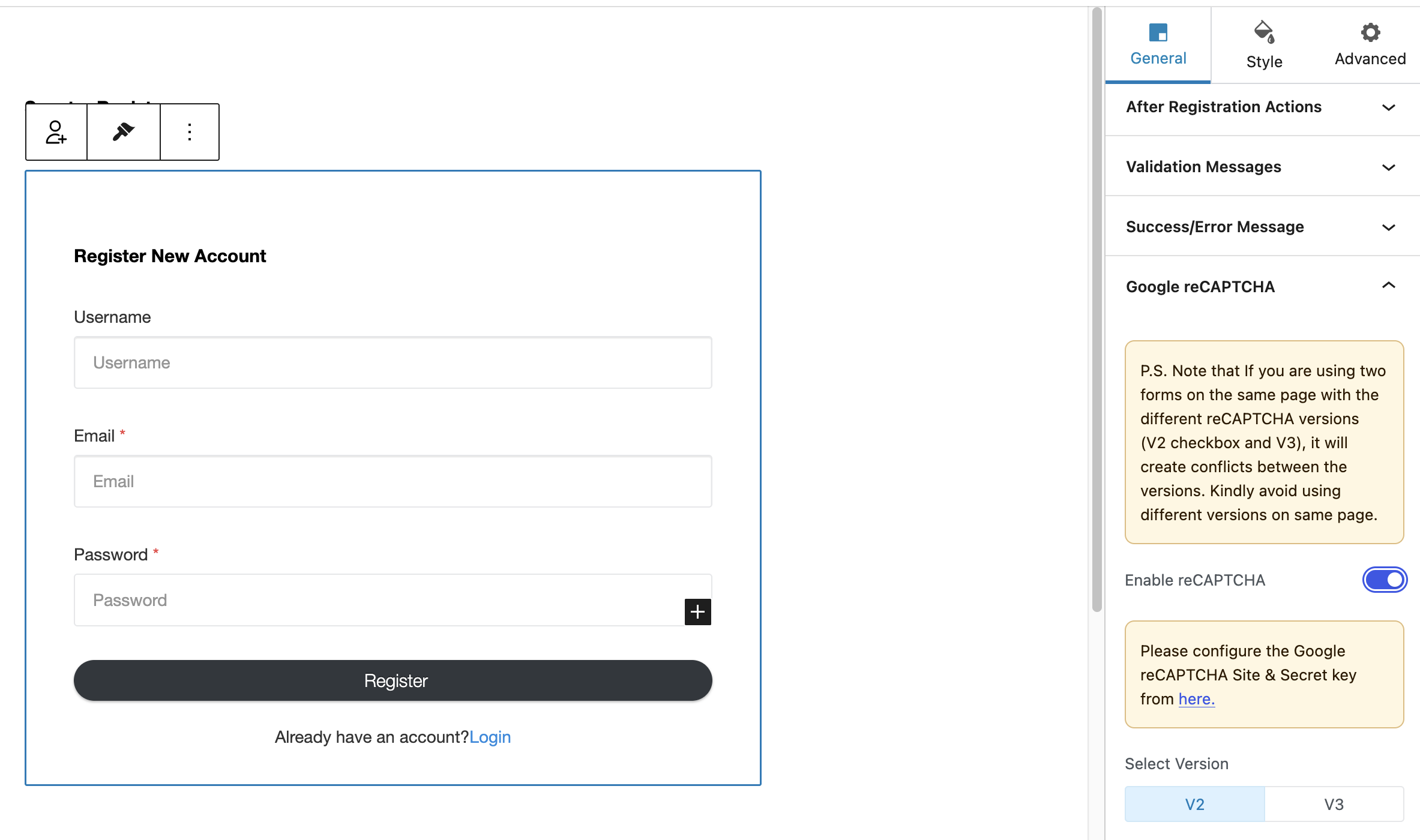
The Spectra Pro Register block has its own reCAPTCHA setting (Register block docs). Select the Register block, and in the General tab open Google reCAPTCHA. Turn on Enable reCAPTCHA and choose V2 or V3 under Select Version. It uses the same keys as the Form block.
Use one reCAPTCHA version per page. If a page holds both a Form block and a Register block, set both to the same version.
3. Lock Down Registration Settings
The Register block only works when Anyone can register is turned on under Settings > General > Membership. That setting opens registration for your whole site, so set it up with care:
- Keep the default role low. In the Register block’s Registration Form settings, set the user role to Subscriber, or leave it on Select to use WordPress’s New User Default Role. Never let public sign-ups pick their own role.
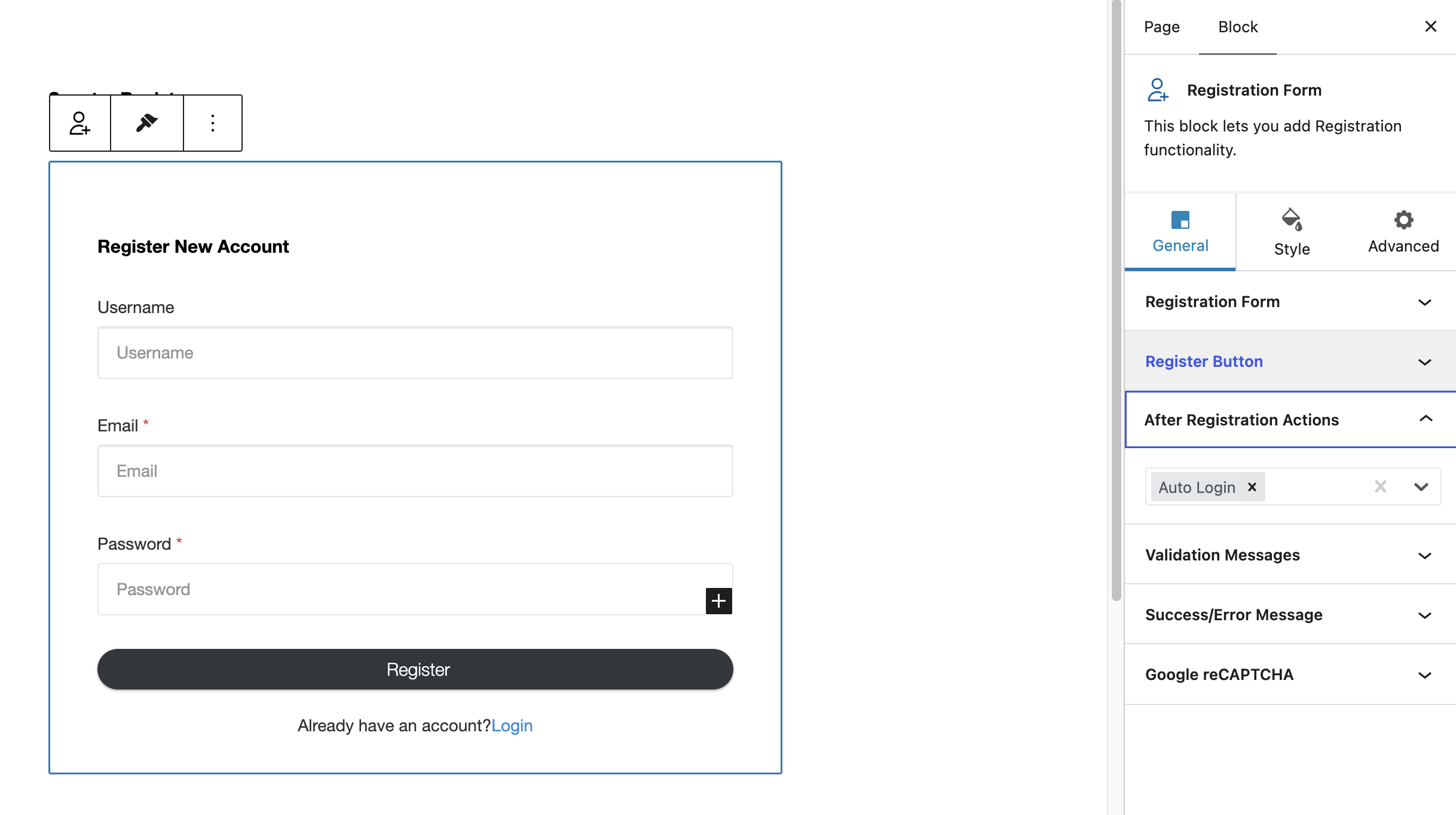
- Remove Auto Login. Open After Registration Actions and remove Auto Login by clicking its ×. Send users to a page that explains the next step instead. A fake account that can’t log in straight away is less useful to a bot.
- Turn registration off when you don’t need it. If sign-ups are only open for an event or a launch, switch Anyone can register off afterwards.
4. Use Required and Validated Fields
Mark the fields you need as Required in both blocks, and use the Email field type for email addresses so the format is checked. The Register block also supports Validation (Regex) on its fields, with a custom Validation Error Message. Use it to reject usernames or names that match obvious junk patterns, such as long strings of random letters.
Validated fields stop half-empty and malformed submissions. They don’t stop a bot that fills in valid-looking data.
5. Add a Server-Side Spam Filter
A server-side filter checks each submission after it reaches your server. Bots can’t skip it, and visitors see no challenge. It’s the only layer here that catches human spammers, AI-written messages and fake sign-ups with real-looking details.
oopspam Anti-Spam supports Spectra Forms and Spectra Pro Register natively, in one integration. It scores message content and checks IP and email reputation. Optional rules add rate limits, country and language filters, VPN blocking and disposable email detection. Every blocked submission is logged with a reason.
How to Set Up oopspam with Spectra
Setup takes about five minutes. You don’t need to edit your forms.
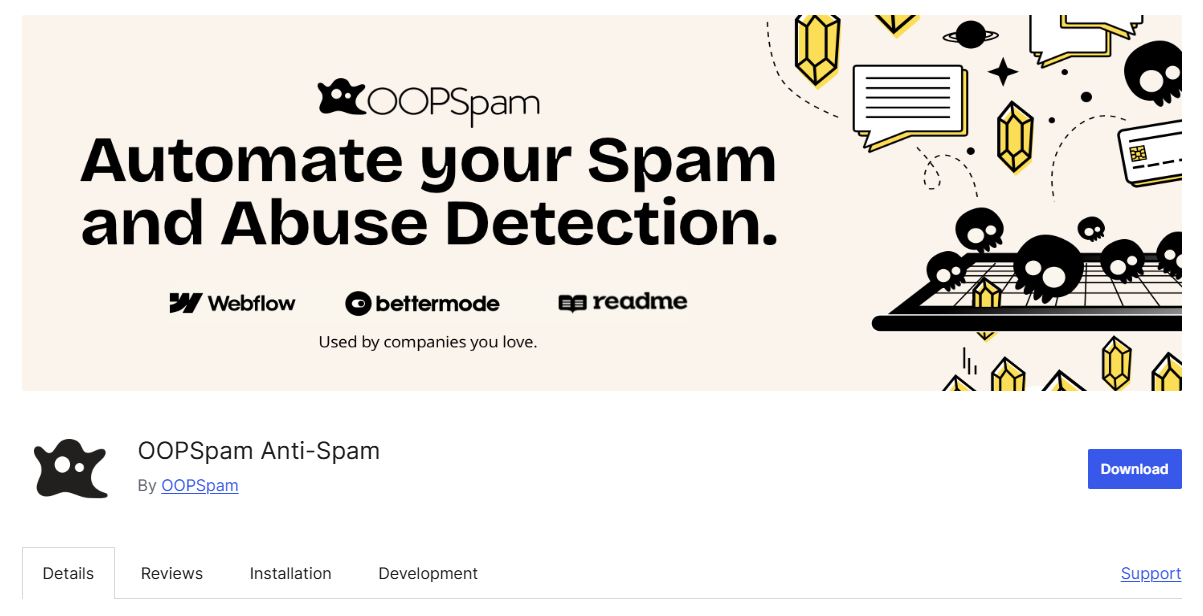
In WordPress, go to Plugins > Add New, search for oopspam Anti-Spam, then install and activate it.
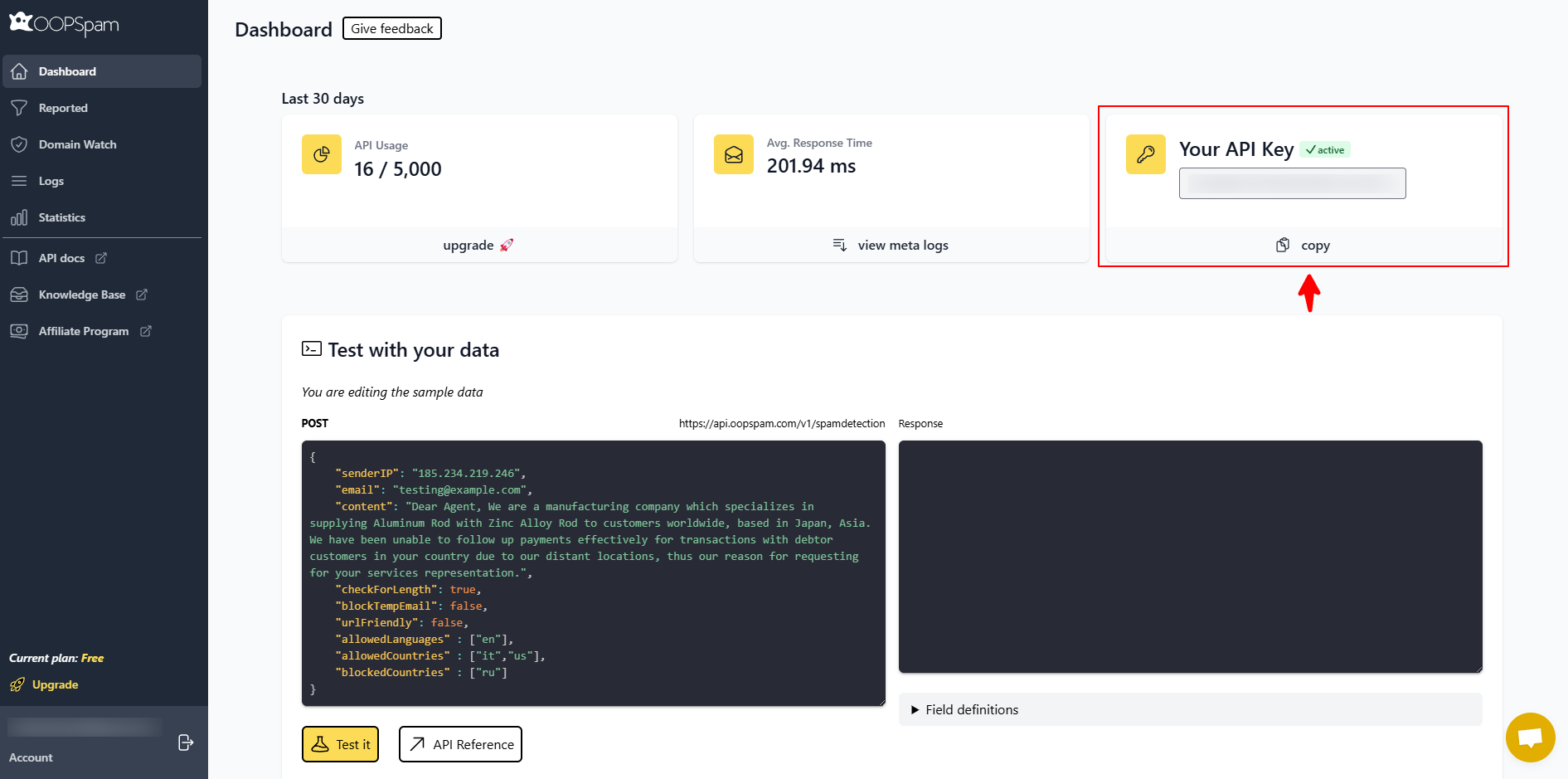
Create a free oopspam account and copy your API key from the dashboard.
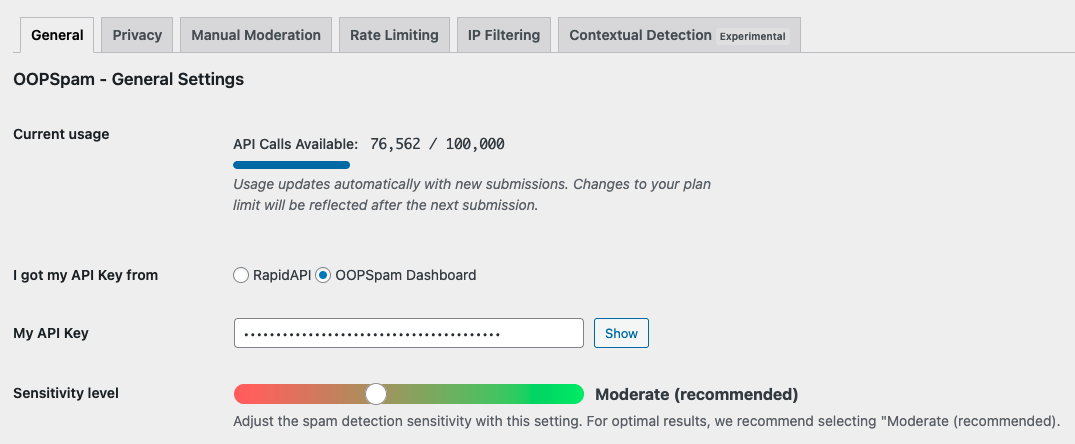
Go to Settings > oopspam Anti-Spam. In the General tab, select oopspam Dashboard as the source and paste your key into My API Key.
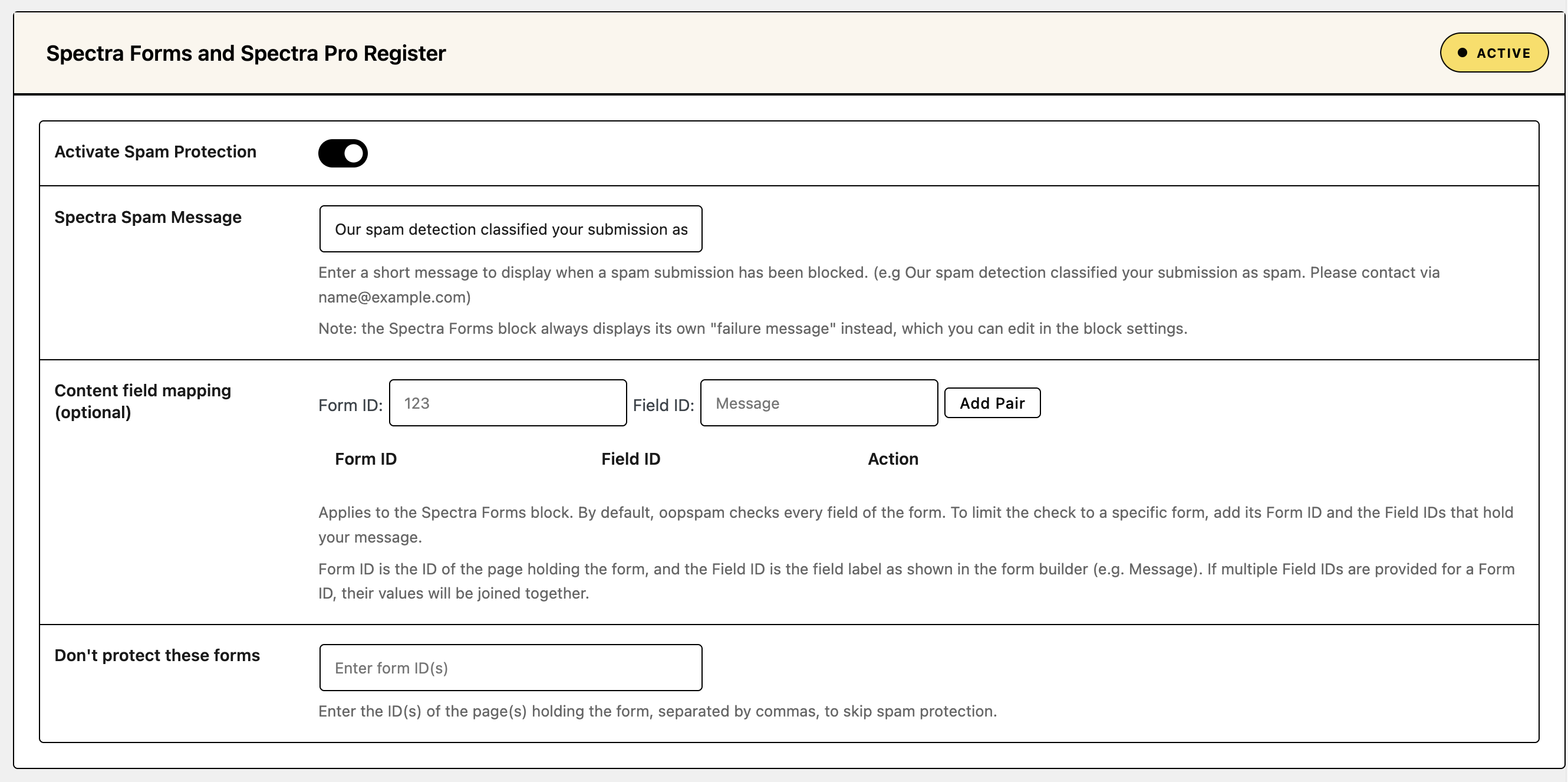
Find the Spectra Forms and Spectra Pro Register section and turn on Activate Spam Protection. This covers both blocks. Two optional settings help with special cases:
- Content field mapping: applies to the Form block. By default, oopspam checks every field of the form. To check only the message, add the Form ID and Field ID, then click Add Pair. The Form ID is the ID of the page that holds the form. The Field ID is the field’s label as shown in the form builder, for example Message. If you add several Field IDs for one form, their values are checked together.
- Don’t protect these forms: enter the IDs of the pages that hold forms you want to skip, separated by commas.
Optional: set the sensitivity level and turn on rate limiting, country, language, VPN or disposable email filters. If your site runs behind Cloudflare or another proxy, open the Misc tab and turn on Trust proxy headers so oopspam sees real visitor IPs.

Set the Message Visitors See
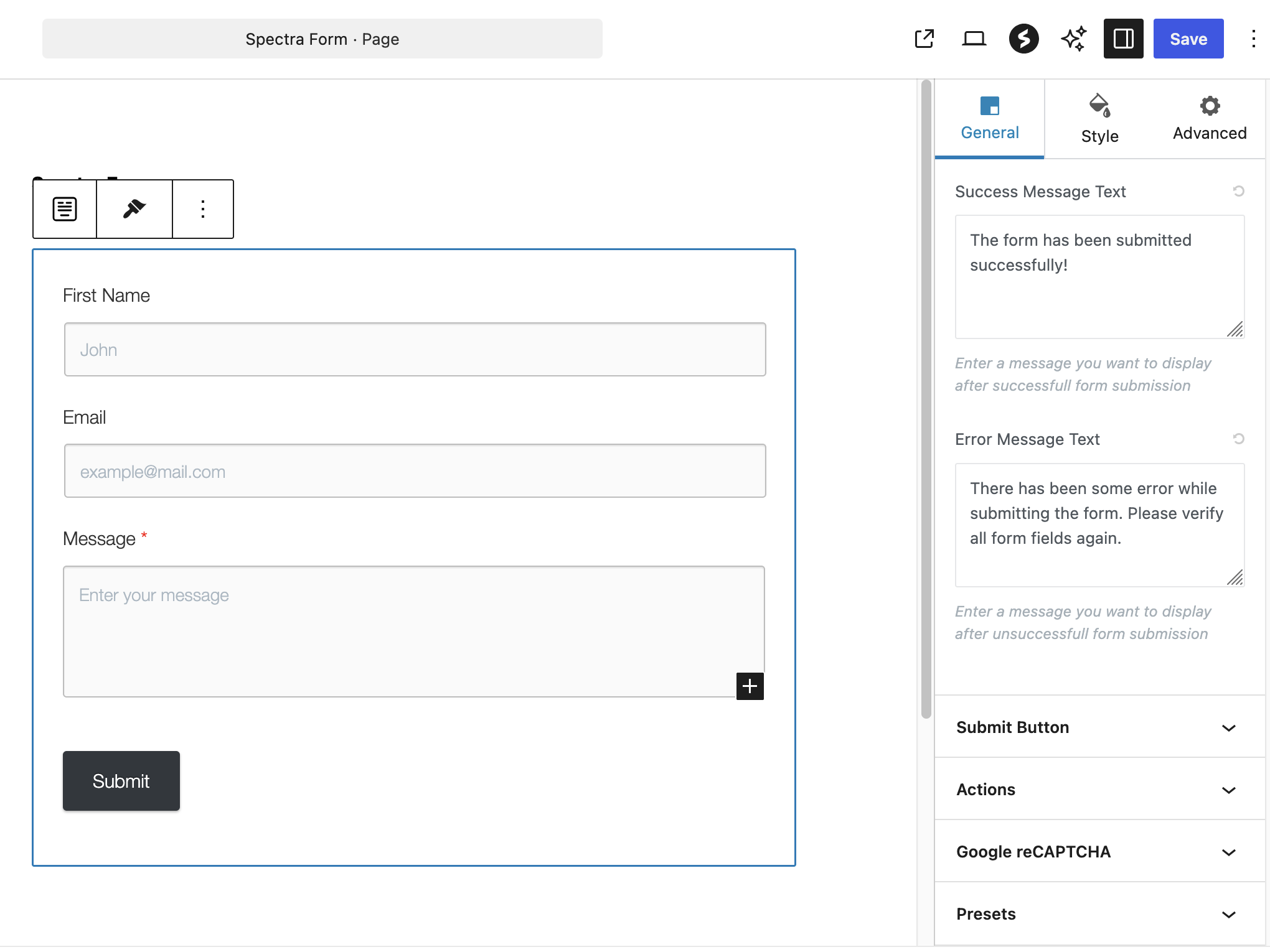
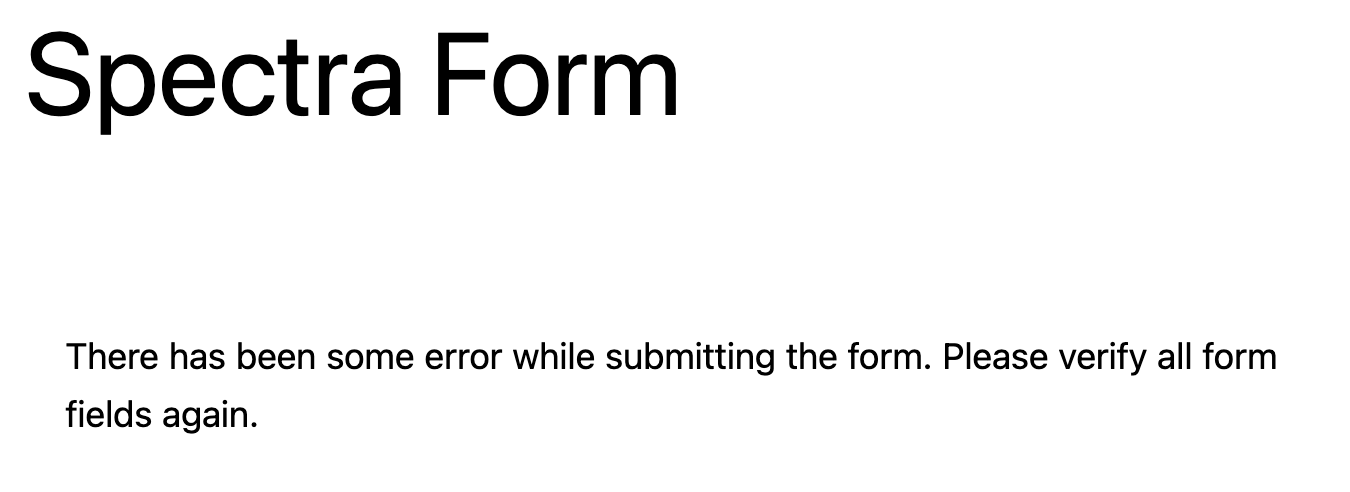
When oopspam blocks a Form block submission, Spectra shows the form’s own failure message, not the Spectra Spam Message from oopspam’s settings. The default reads “There has been some error while submitting the form. Please verify all form fields again.”
That message also appears for real errors, so write one that works for both. Select the Form block, open its General settings and edit the Error Message Text, for example: “We couldn’t send your message. If this keeps happening, email us at [email protected].”
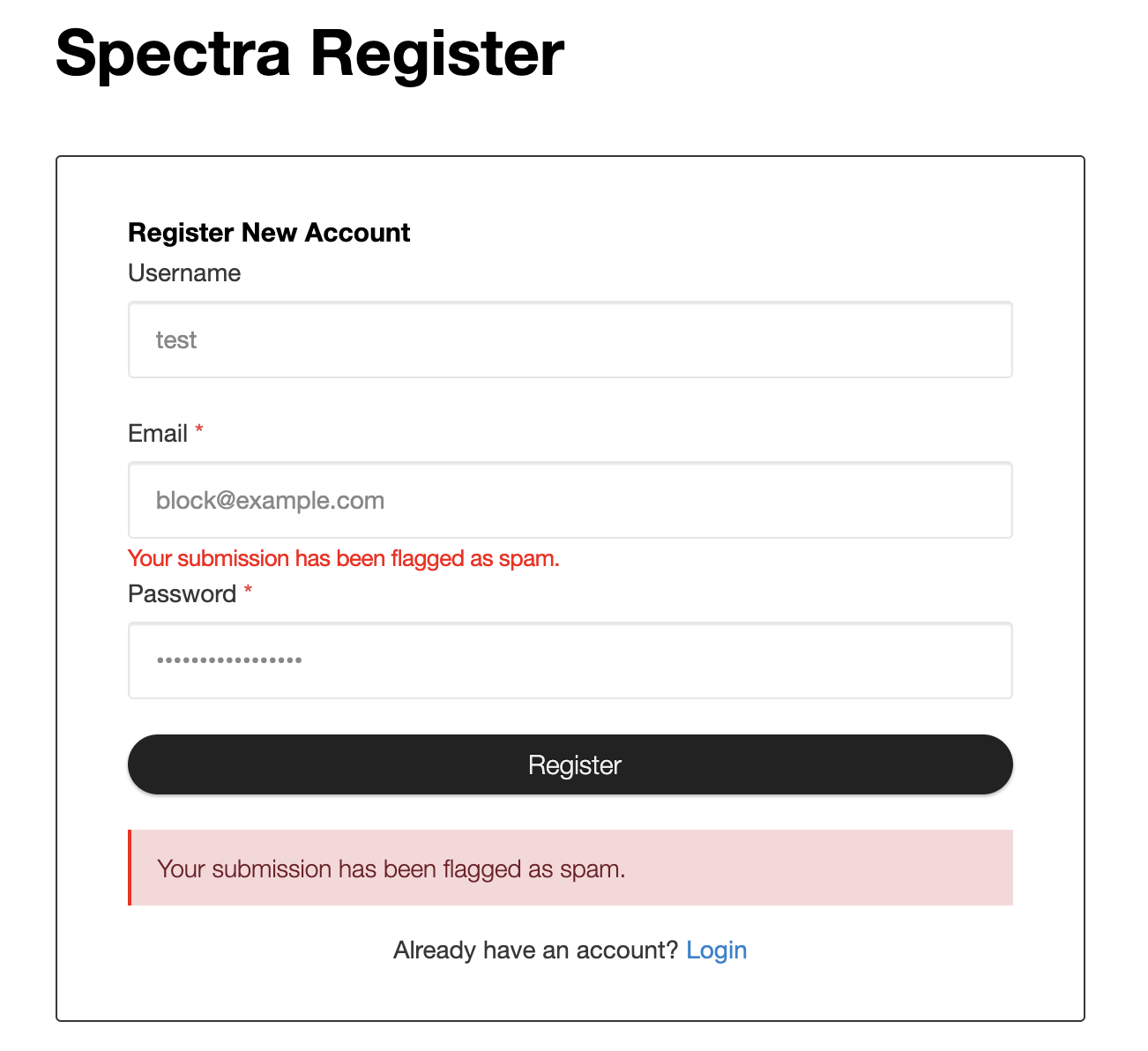
The Register block works differently. It shows oopspam’s Spectra Spam Message, under the field that triggered the block and again in the error box below the Register button. Write that message in the Spectra Spam Message field of oopspam’s settings, for example: “Our spam detection classified your sign-up as spam. Please contact us at [email protected].”
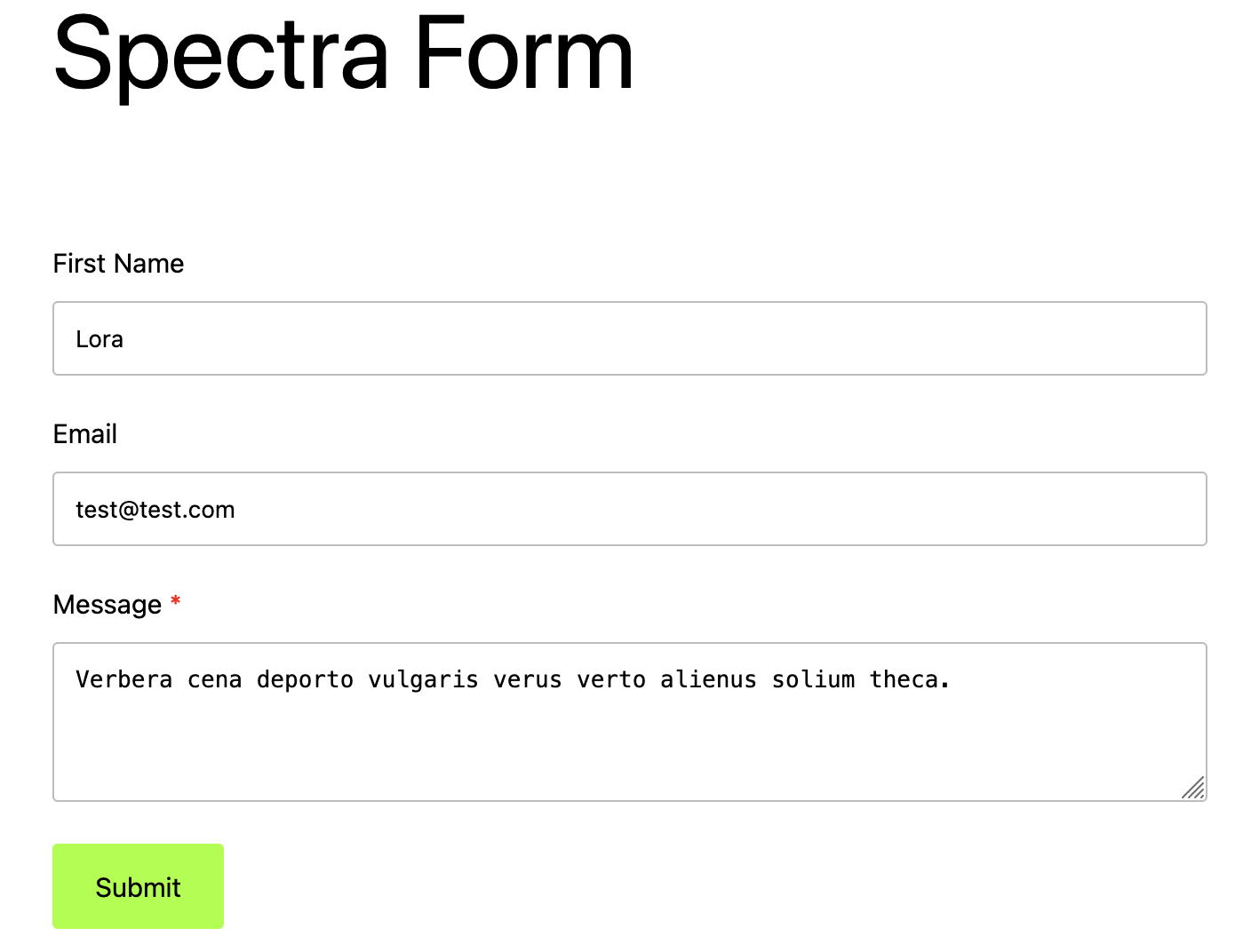
Submit a test entry with spammy text. The form shows your failure message instead of sending.
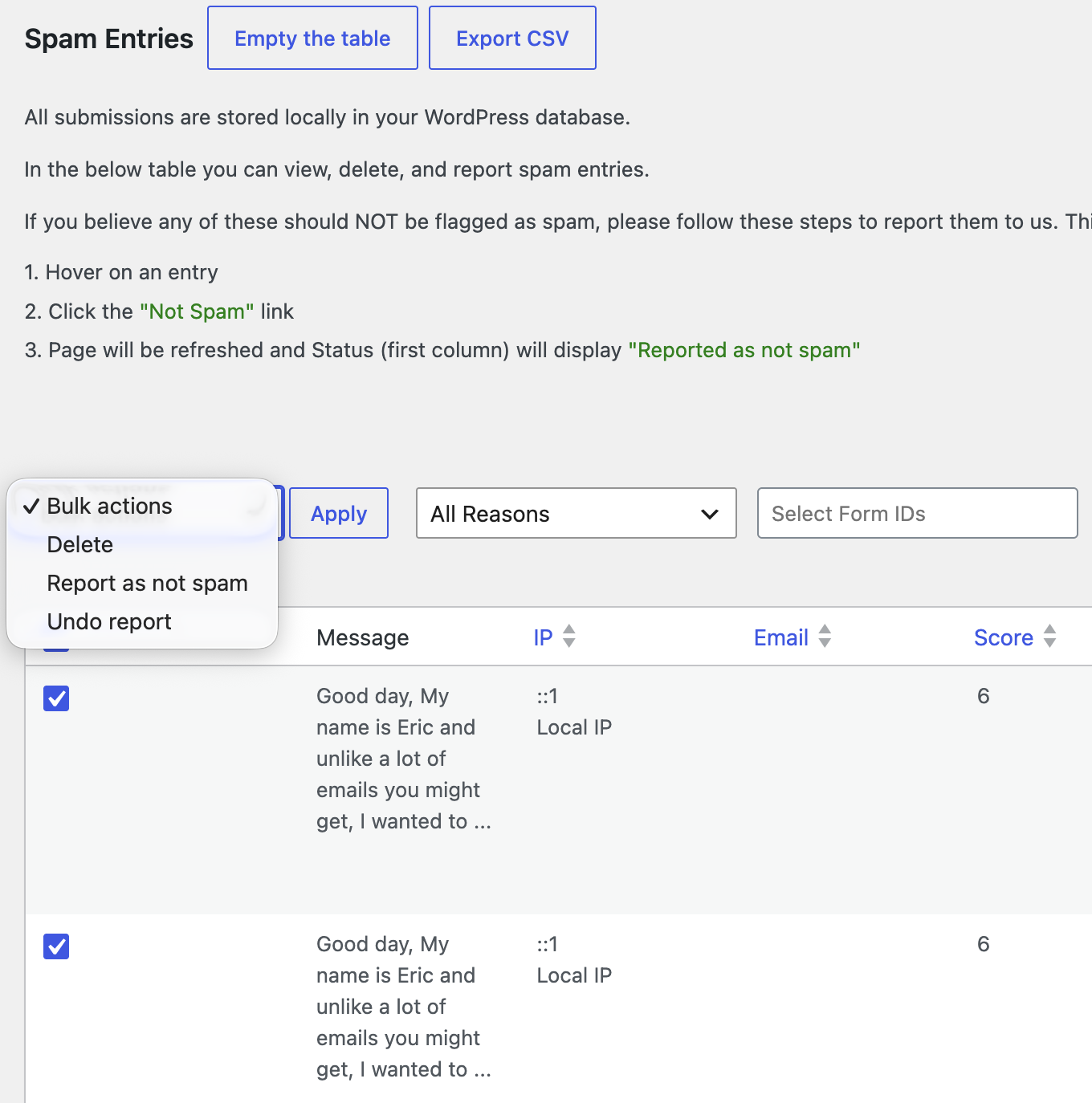
If a real submission gets blocked, open Form Spam Entries to see the reason. Mark it as not spam, add the sender to your allowed list, or lower the sensitivity.
Comparison
| Method | Blocks bots | Blocks human spam | Visitor friction | Cost |
|---|---|---|---|---|
| reCAPTCHA on the Form block | Most bots | No | Low to medium | Free |
| reCAPTCHA on the Register block | Most bots | No | Low to medium | Free with Spectra Pro |
| Safe registration settings | Limits what fake accounts can do | Limits what fake accounts can do | None | Free, built in |
| Required and validated fields | Junk input | No | None | Free, built in |
| oopspam (server-side filter) | Yes | Yes | None | Free plan, then paid |
FAQ
Does Spectra have built-in spam protection?
Yes, Google reCAPTCHA v2 or v3 on the Form block and the Register block, plus required and validated fields. These stop many bots, but not human spammers, AI-written messages or bots that post straight to admin-ajax.php.
Does oopspam work with Spectra?
Yes. oopspam Anti-Spam supports the Spectra Forms block and the Spectra Pro Register block in one integration. Turn on Activate Spam Protection in the Spectra Forms and Spectra Pro Register section of the plugin settings.
Why don’t visitors see my Spectra Spam Message?
On the Form block, Spectra always shows the block’s own Error Message Text when a submission is blocked, so edit that message in the Form block’s settings. The Spectra Pro Register block does show the Spectra Spam Message.
Can I block countries or VPNs in Spectra?
Not with Spectra alone. Use oopspam’s country filtering and IP filtering. See How to block countries in Spectra Forms and How to block VPN and data center IP submissions in Spectra Forms.
Should I use reCAPTCHA and oopspam together?
You can, but most sites don’t need both. oopspam works without adding a challenge to your forms. Add reCAPTCHA only if a specific form still gets bot spam.
Final Thoughts
No single tool stops all spam. Spectra’s reCAPTCHA, registration settings and field validation handle simple bots and junk input. A server-side filter like oopspam catches the rest, including human spam and fake sign-ups, without adding friction to your forms.
