
Chazie Baniquid
Technical Content Marketer
8 minutes to read
8 Ways to Protect Your Contact Form 7 from Spam
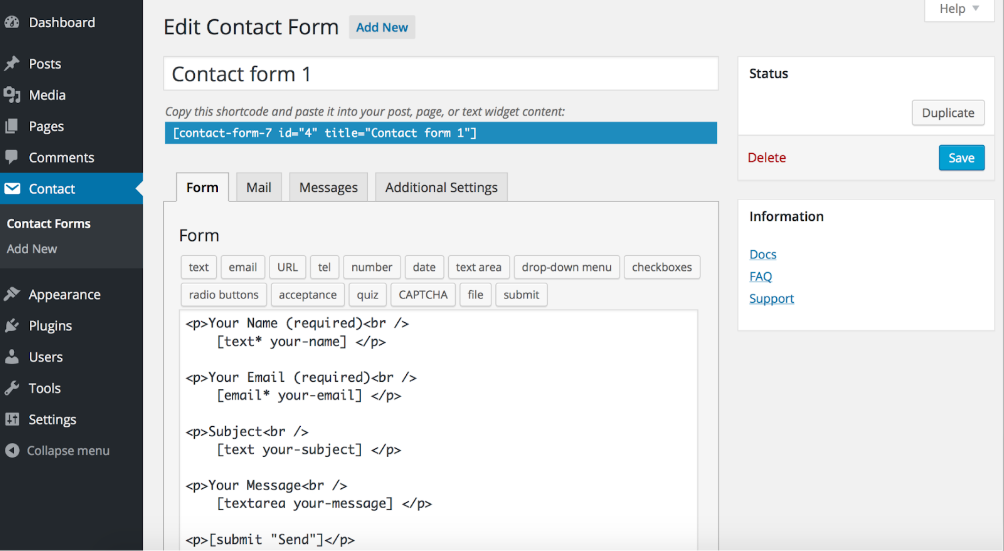
If your Contact Form 7 is getting spam, start with two things: enable Cloudflare Turnstile and install oopspam. These handle most automated and low-quality submissions right away.
Then improve your form with validation, honeypots, and basic filters. This combination is simple to manage and works well for most websites.
Why Contact Form 7 Gets So Much Spam
Contact Form 7 is widely used, which makes it an easy target.
Bots are built to scan the web for common plugins. Once they detect a Contact Form 7 form, they attempt to submit links, random messages, or fake inquiries.
Another issue is setup. Many forms are left unprotected after installation. Without proper filtering or bot detection, spam gets through easily.
Spam today is also more advanced. Some bots behave like real users, which is why basic protection alone is not enough.
1. Keep Contact Form 7 Updated
Start with the simplest fix. Updates often include security improvements that reduce abuse. Running an outdated version can leave your form exposed.

To update, go to Dashboard → Updates, find Contact Form 7, and click Update Now.

Do the same for WordPress core and other plugins. Keeping everything current helps prevent avoidable issues.
2. Use Contact Form 7 reCAPTCHA
Contact Form 7 includes built-in support for Google reCAPTCHA v3, which helps reduce spam without adding friction for users. It works in the background by assigning a score to each submission and blocking those that appear to be bots.
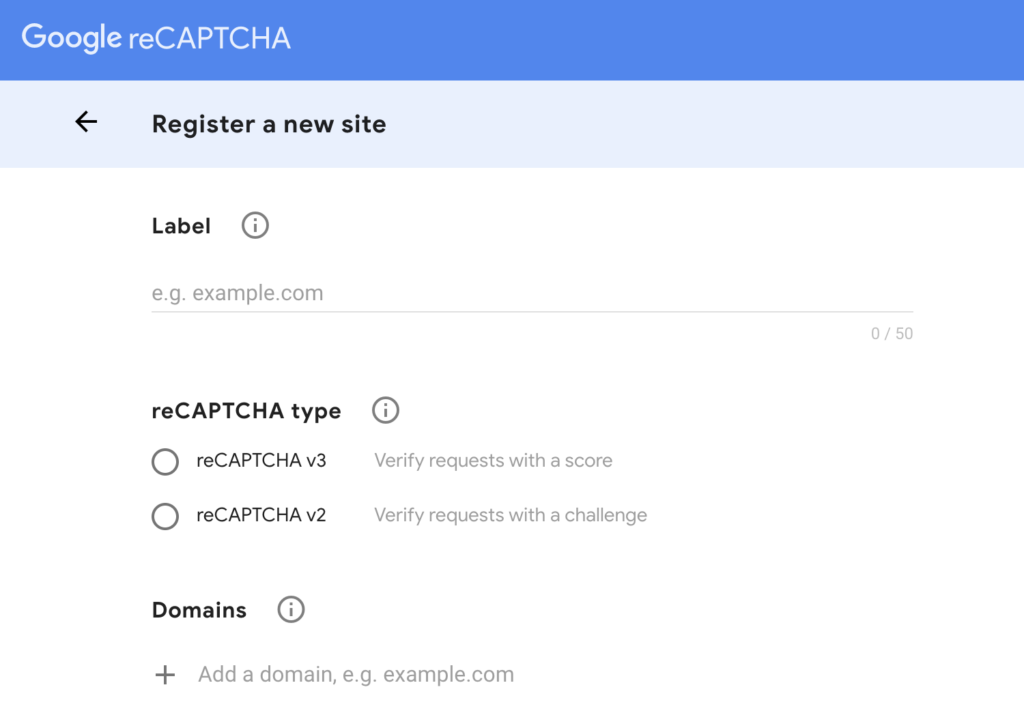
To set it up, go to the Google reCAPTCHA Admin Console, register your site, and choose reCAPTCHA v3. Copy your Site Key and Secret Key.
Then in WordPress, go to Contact → Integration, click Setup Integration under reCAPTCHA, paste your keys, and save.
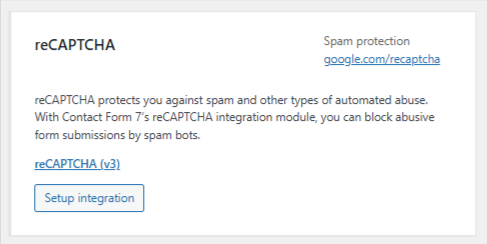
Once enabled, reCAPTCHA starts protecting your Contact Form 7 forms automatically.
3. Use Cloudflare Turnstile
Turnstile is one of the easiest ways to block bots without affecting real users. Instead of showing puzzles, it runs quietly in the background and checks user behavior. Most visitors will not even notice it.
To set it up, create a Turnstile account on Cloudflare and register your website. You will get a Site Key and Secret Key.
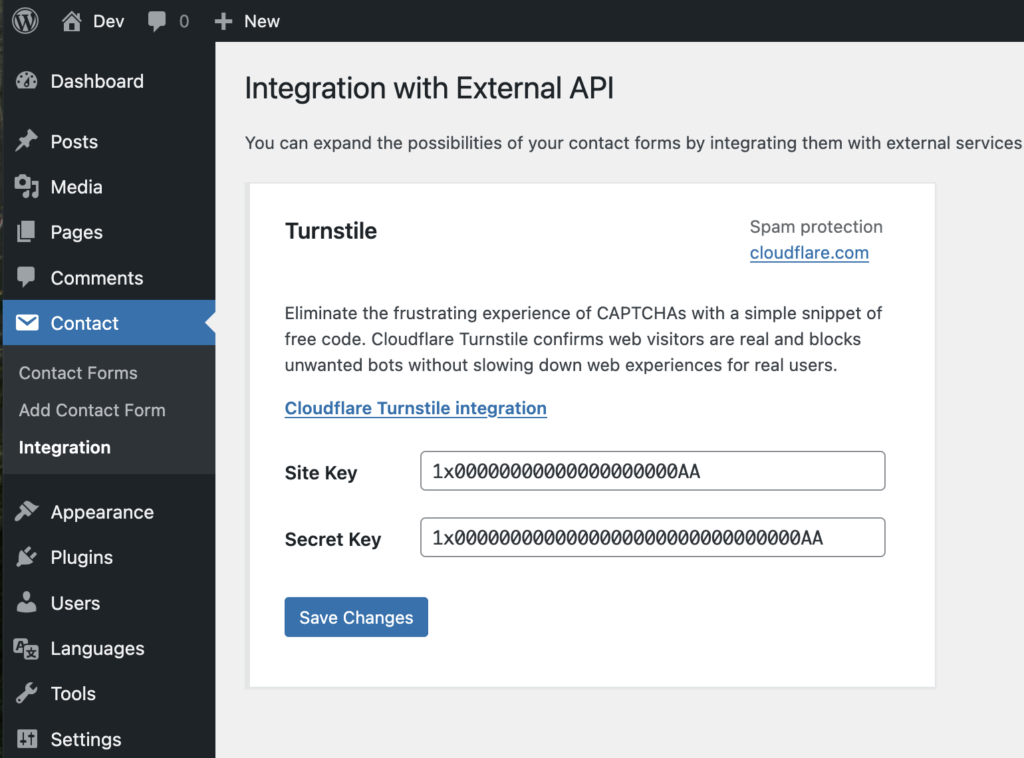
In WordPress, go to Contact → Integration, find Turnstile, and paste your keys. Save the changes, and it will start working immediately.
4. Add oopspam for Filtering
oopspam (that’s us 👋) works differently from Turnstile and CAPTCHA. Instead of asking users to complete a challenge, it analyzes each submission in the background. It looks at behavior, content, and technical signals to decide whether a message is spam.
This makes it effective even against more advanced spam that mimics real users.
How to set it up
Start by installing the plugin. Go to Plugins → Add New, search for “oopspam Anti-Spam,” then install and activate it.
Once activated, you need to connect your website to oopspam using an API key.
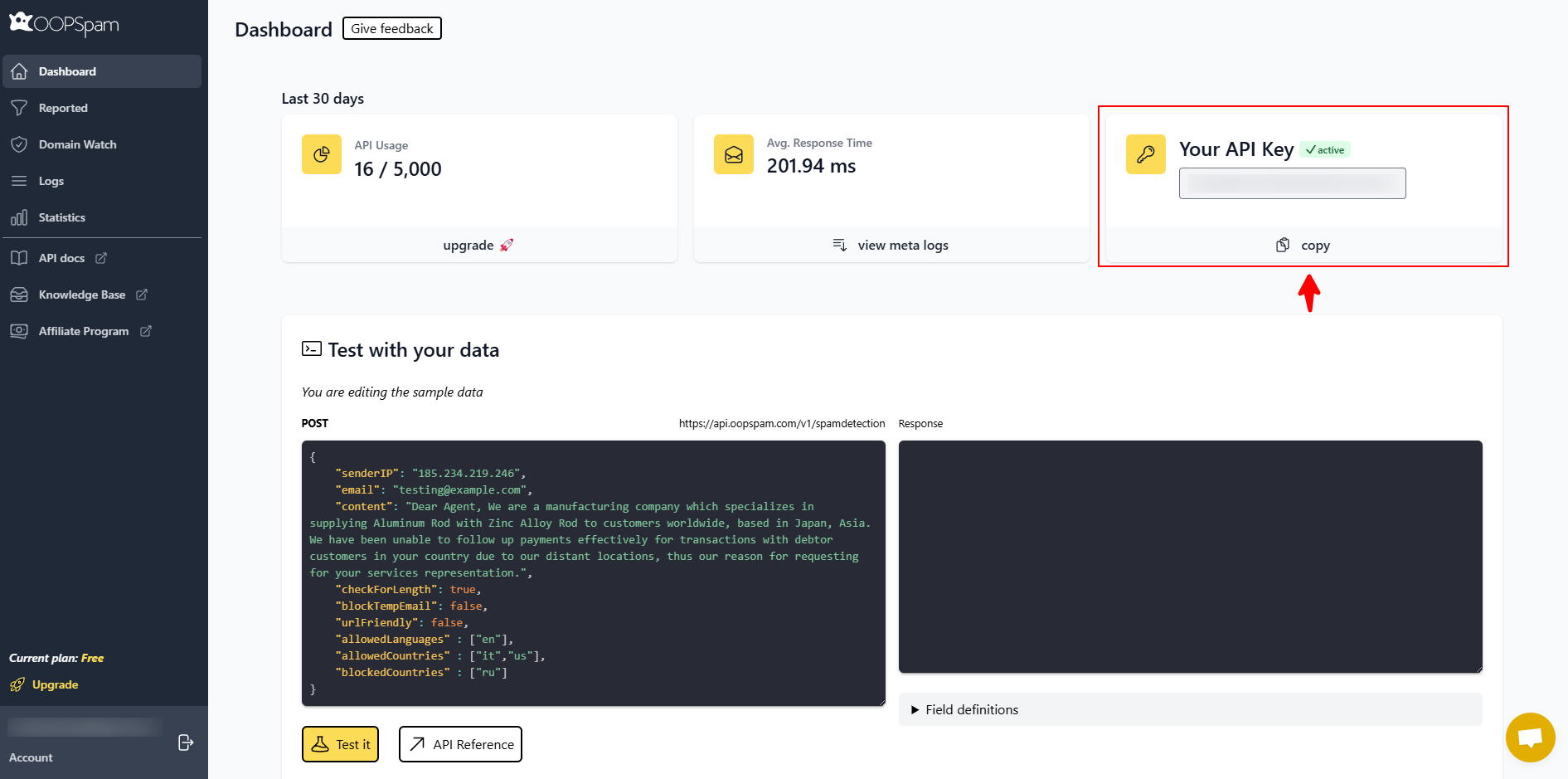
Create an account on the oopspam website. After signing in, you will find your API key in the dashboard. Copy this key.
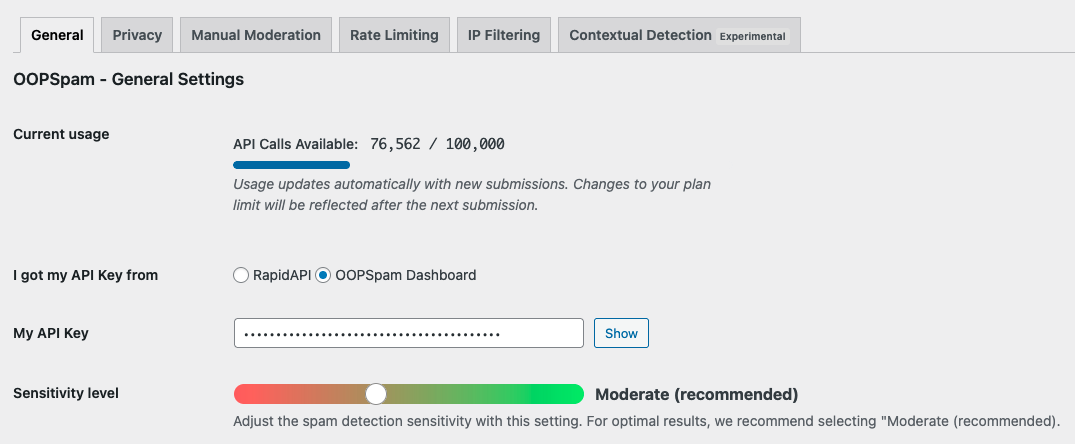
Next, go back to WordPress and open Settings → oopspam. Paste your API key into the field provided and save your changes.
At this point, the plugin is connected, but you still need to activate spam protection for Contact Form 7.
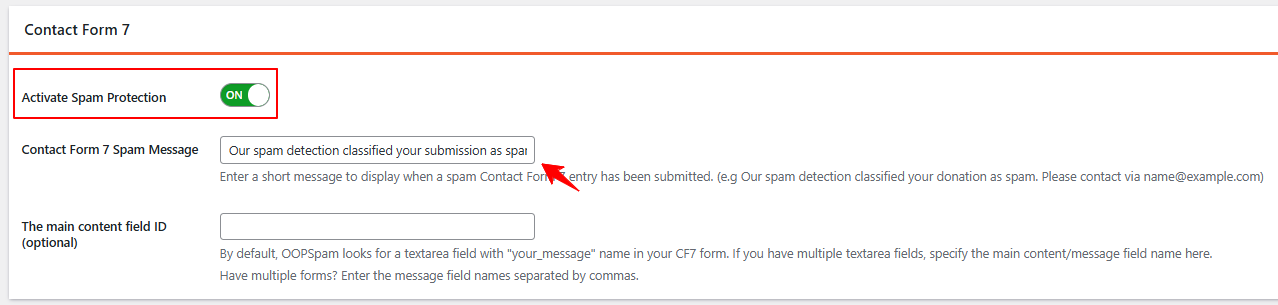
Scroll through the oopspam settings page and find the Contact Form 7 integration option. Turn it on. Once enabled, oopspam will start filtering submissions automatically.
Adjusting your settings
You do not need to configure everything right away. The default settings already work well for most websites.
However, you can fine-tune the protection if needed. On the settings page, you can:
- Adjust the sensitivity level of spam detection
- Allow or block submissions from specific countries
- Filter messages based on language
- Enable logs to review blocked submissions
If you are unsure, keep the sensitivity on the default “moderate” level and adjust later based on results.
What oopspam checks behind the scenes
oopspam uses multiple signals to detect spam without interrupting users.
It evaluates things like repeated submissions, suspicious IP behavior, and content patterns. It can also detect traffic coming from VPNs, proxies, or disposable email services.
Because it runs in the background, your visitors do not experience any extra steps when submitting the form. For most websites, this becomes the main filtering system, while other tools simply support it.
5. Add a Honeypot Field
A honeypot is a hidden field that normal users never see. Bots tend to fill out every field they detect. When they fill in this hidden field, the submission is flagged as spam.
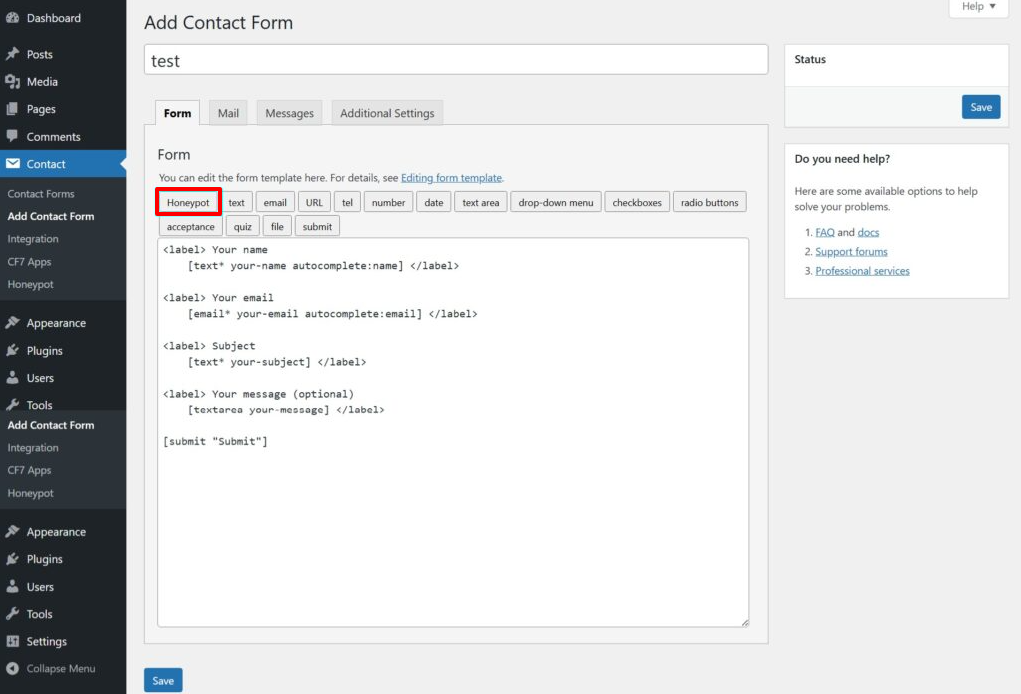
To add one, install the “Honeypot for Contact Form 7” plugin. Then edit your form under Contact → Contact Forms and insert a honeypot tag like: [honeypot your-field]
Save the form, and it will start working in the background.
6. Use the Disallowed List
WordPress includes a built-in feature that lets you block certain words, links, or IP addresses.
Go to Settings → Discussion and scroll to Disallowed Comment Keys. Add terms commonly found in spam messages, such as suspicious keywords or URLs.
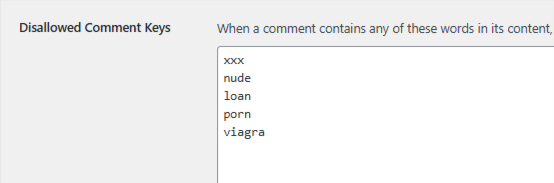
Save your changes once done. Keep this list focused. Adding too many general words can block real messages.
7. Improve Form Validation
Form validation helps reduce low-quality spam, especially short or random messages. By setting rules on your fields, you can prevent submissions that do not meet basic requirements.
Contact Form 7 already supports built-in validation, such as required fields and proper email formats. You can also add limits to control how much content users must enter.
For example, you can require fields and set minimum or maximum lengths directly in your form:
[text* your-name]
[textarea* your-message minlength:20 maxlength:500]
This ensures that very short or meaningless messages are not submitted.
If needed, you can also create custom validation rules using filters. For example, you can require users to confirm their email address or match specific field values. This is more advanced, but useful for stricter forms.
8. Use Quizzes Only If Needed
Contact Form 7 includes a quiz feature that works like a simple question-and-answer check. Before submitting the form, users must enter the correct answer. This can stop basic bots that cannot process the question.
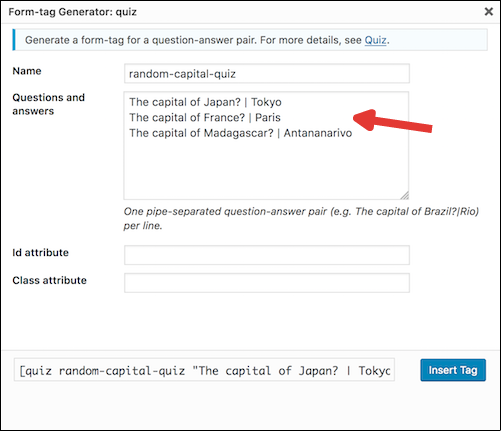
You can add a quiz field directly in your form, such as:
[quiz capital-quiz "The capital of Japan?|Tokyo"]
Or a simple math question:
[quiz math-quiz "1+1=?|2"]
You can also include multiple questions, and one will be shown randomly:
[quiz random-quiz
"The capital of Japan?|Tokyo"
"The capital of France?|Paris"]
While this can help reduce simple spam, it is not very effective against modern bots. It also adds an extra step for users, which can affect form completion.
Because of this, quizzes are best used only for small sites or as an additional check, not as your main protection method.
Final Thoughts
Contact Form 7 spam is manageable once the right tools are in place.
Spam patterns change over time, so it helps to review your form activity occasionally.
Check your oopspam logs and look for patterns in blocked submissions. You might notice repeated phrases, email formats, or locations. Use that information to refine your filters, update your disallowed list, or adjust settings.
A few small adjustments can make a big difference over time.