
Chazie Baniquid
Technical Content Marketer
6 minutes to read
4 Ways to Protect Your Toolset Forms from Spam
If you’re seeing spam in your Toolset Forms, the best approach is to build protection in layers. Start by enabling Google reCAPTCHA and adding a honeypot field to block most automated submissions early.
From there, strengthen your setup with a filtering tool like oopspam or a firewall to catch more advanced or persistent spam. These methods are easy to manage and provide solid protection for most Toolset websites.
Why Toolset Forms Get Spam
Toolset Forms are widely used for inquiries, registrations, and submissions, making them an easy target for bots. Automated scripts scan for forms and submit fake messages, links, or random data. Forms without proper protection are especially vulnerable.
Spam has also become more advanced, often mimicking real users, so relying on just one protection method is not enough.
1. Enable Google reCAPTCHA in Toolset
Start with the built-in option. Toolset Forms supports Google reCAPTCHA, which helps block automated submissions before they reach your form.
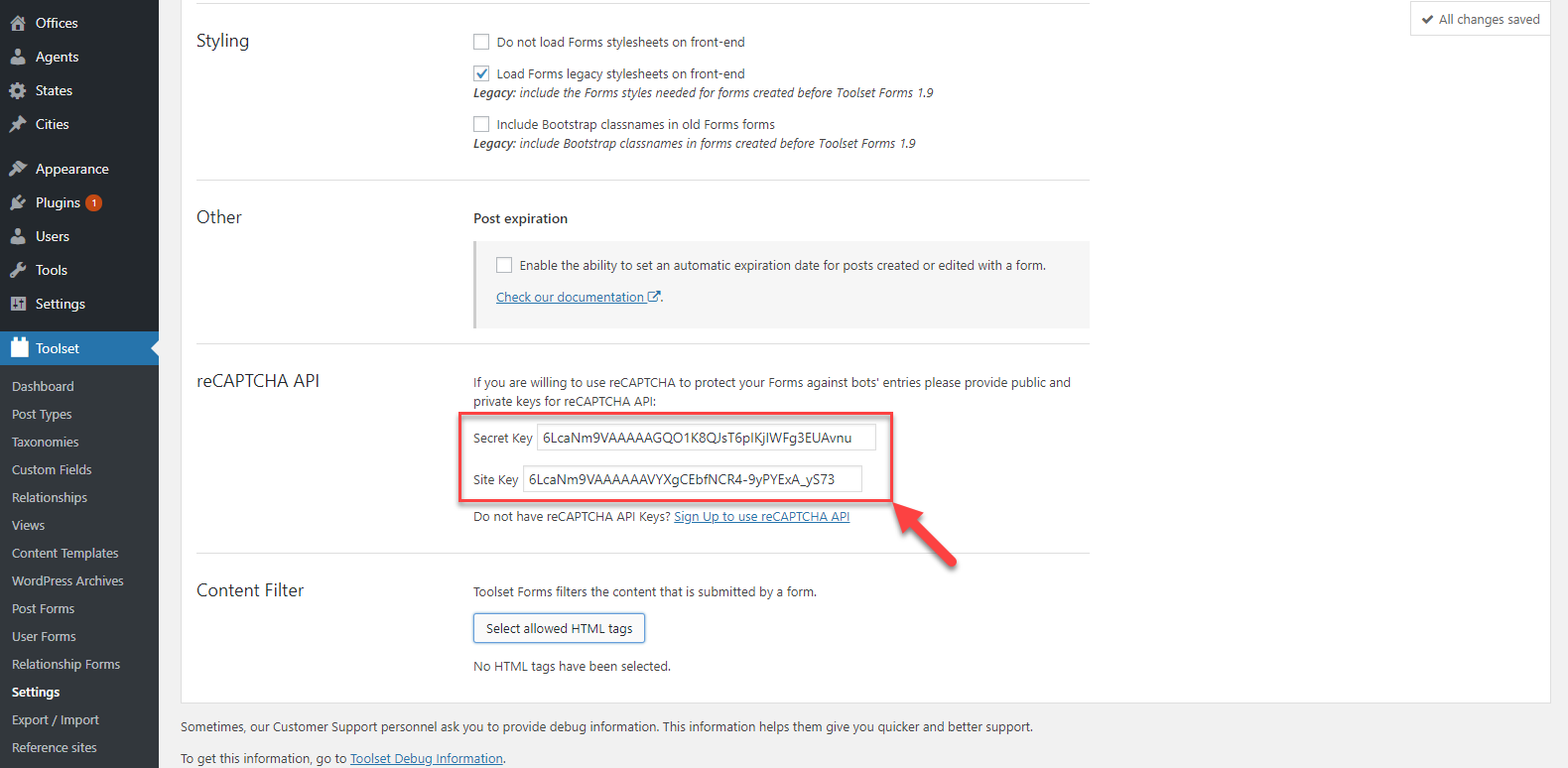
To set it up, register your site on Google reCAPTCHA and get your Site Key and Secret Key. Then go to:
Toolset → Settings → Forms
Paste your API keys into the reCAPTCHA section and save your changes.
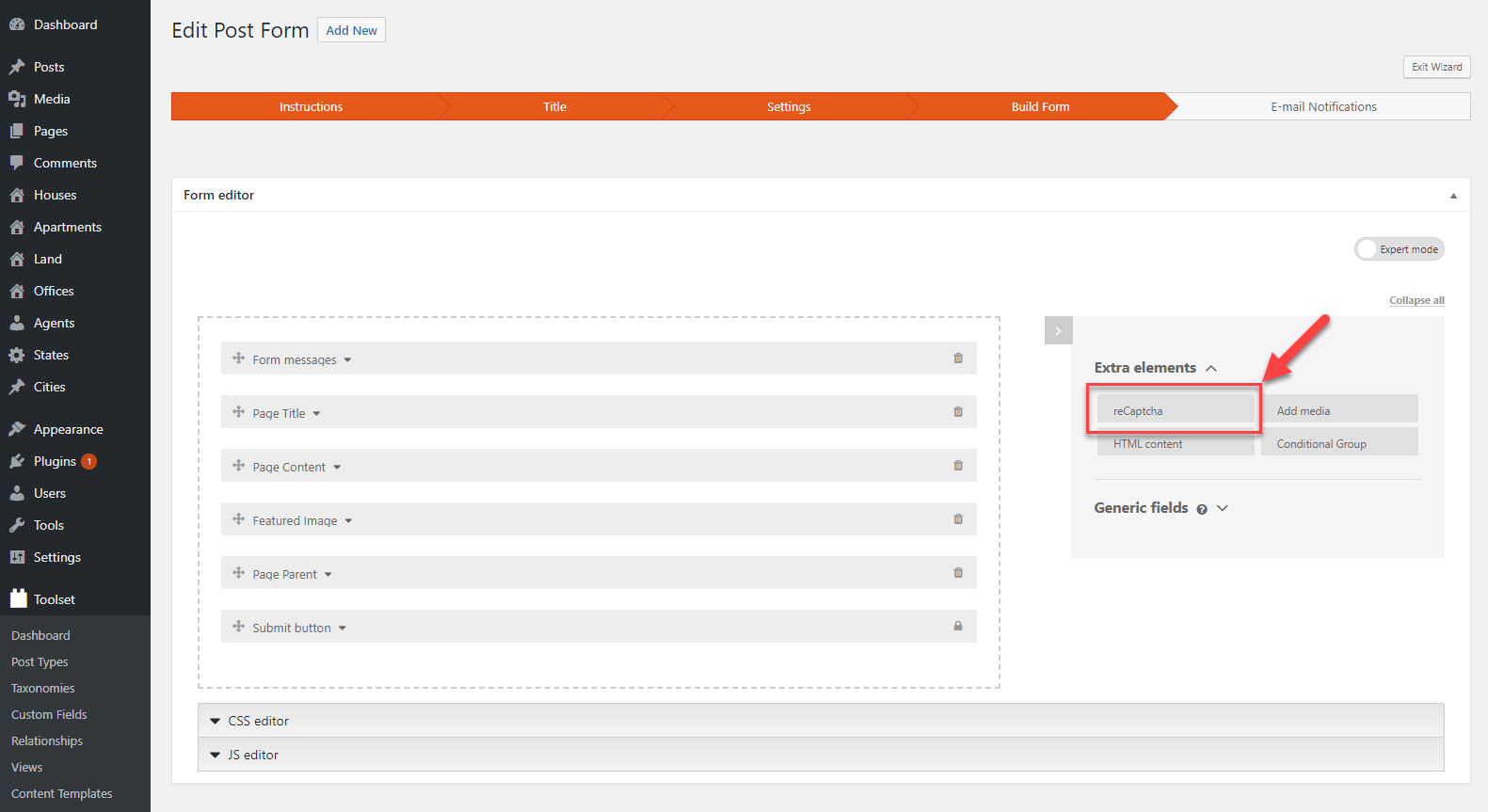
When creating a new form, Toolset will automatically include the reCAPTCHA field. For existing forms, you can add it manually using the drag-and-drop builder.
reCAPTCHA works by checking user behavior. It can either show a checkbox (v2) or run in the background (v3), depending on your setup.
This is a strong first layer, but it should not be your only protection. Some spam can still bypass CAPTCHA, especially low-volume or human-assisted submissions.
2. Add a Honeypot Field
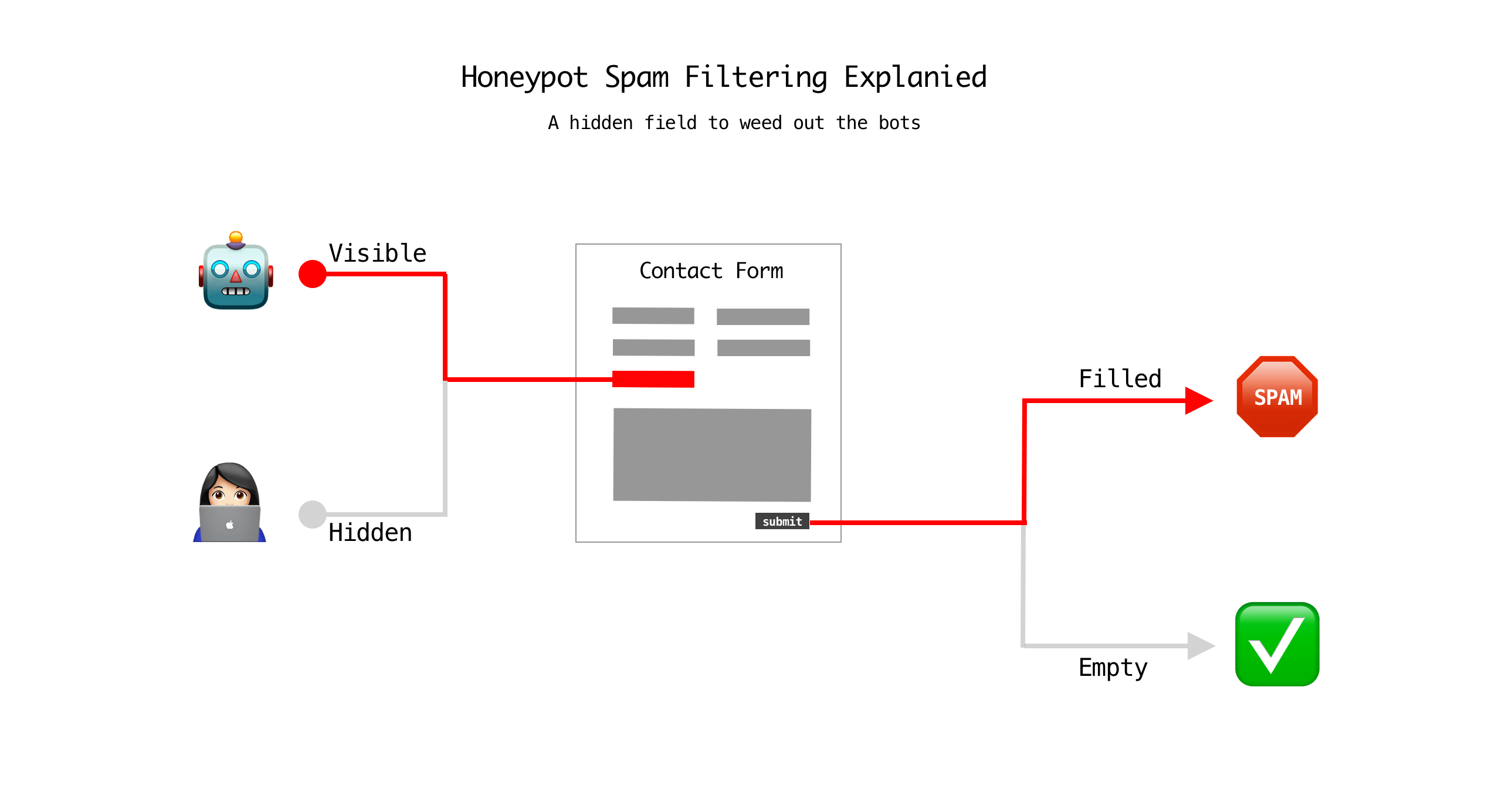
A honeypot is a hidden field that real users never see. Bots, however, tend to fill out every field they detect.
When a bot fills in this hidden field, the submission is flagged and rejected.
You can implement this by adding a hidden input field to your Toolset form and configuring your validation rules to block submissions where that field is not empty.
Why this works well:
- No impact on user experience
- Blocks simple automated bots
- Runs silently in the background
Honeypots are lightweight and effective, but they only stop basic spam. They should be used alongside other methods, not on their own.
3. Add oopspam for Advanced Filtering
oopspam (that’s us 👋) adds a stronger layer of protection by analyzing each submission instead of relying on user challenges. Unlike CAPTCHA, it does not ask users to complete anything. It runs in the background and evaluates signals such as:
- Message content and patterns
- IP reputation and behavior
- Repeated submissions from the same source
- Use of VPNs, proxies, or disposable emails
- Create an account on the oopspam website
This makes it effective against spam that looks more like real user activity.
How to set it up for Toolset Forms
Start by installing the plugin. Go to Plugins → Add New, search for “oopspam Anti-Spam”, then install and activate it.
Once activated, connect your website using an API key:
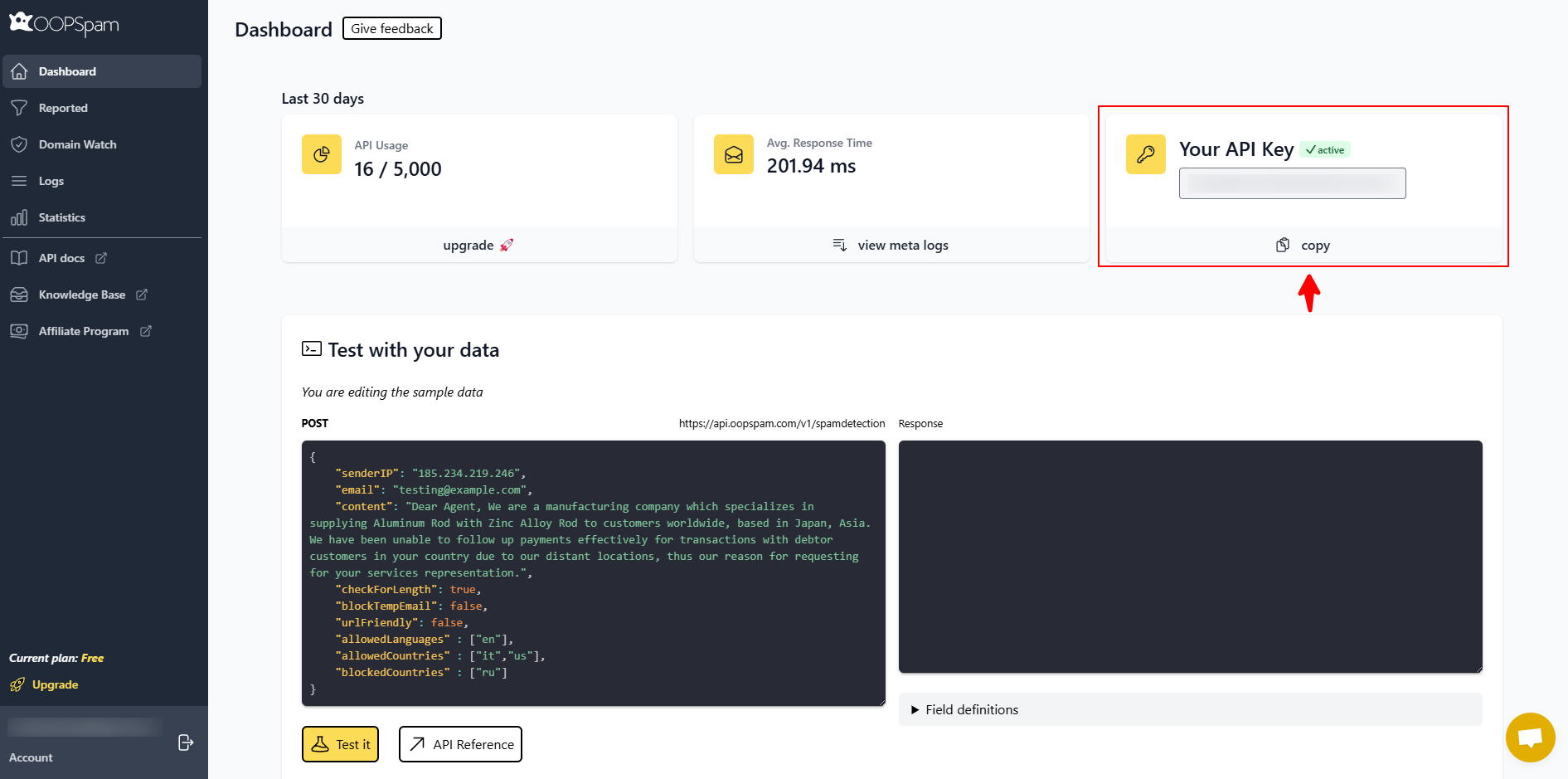
- Create an account on the oopspam website
- Copy your API key from the dashboard
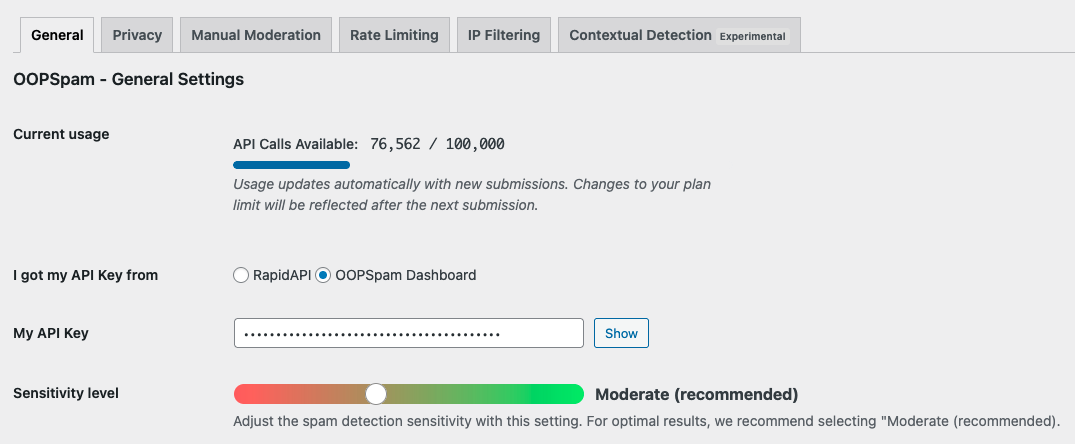
Then in WordPress, go to Settings → oopspam and paste your API key and save.
After connecting, scroll through the settings and enable spam protection for Toolset Forms.
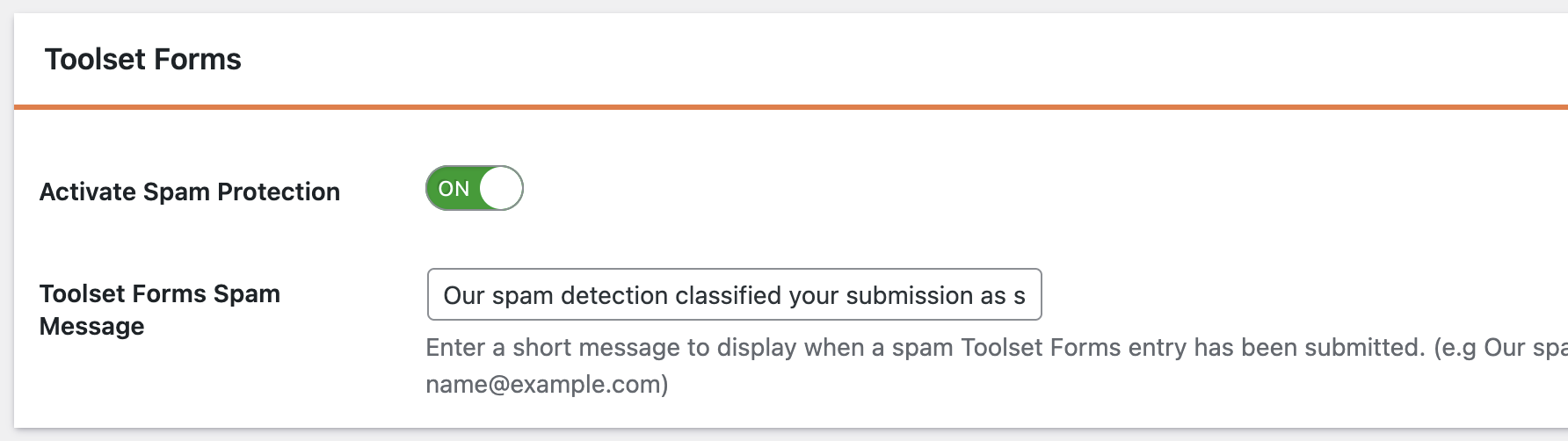
Once enabled, oopspam will begin filtering submissions automatically.
Adjusting your settings
You do not need to configure everything right away. The default setup works well for most Toolset sites.
If needed, you can fine-tune:
- Sensitivity level of spam detection
- Limits on submissions per IP or email
- Country or language-based filtering
- Logs to review blocked submissions
- Message content patterns
- Traffic from VPNs, proxies, or disposable emails
If unsure, keep the default “moderate” setting and adjust based on your results.
How oopspam Improves Spam Filtering
oopspam focuses on behavior and content, not just form interaction. This helps detect spam that basic tools may miss.
For many Toolset Forms setups, oopspam can handle most of the filtering on its own. You do not need to rely on reCAPTCHA if it is already working effectively.
4. Use a Firewall or Web Application Firewall (WAF)
A firewall helps stop spam before it even reaches your website. Services like Cloudflare act as a filter between your site and incoming traffic. They can block:
- known malicious IP addresses
- suspicious traffic patterns
- automated bot requests
This reduces the load on your Toolset Forms and prevents a large portion of spam at the network level.
How to set it up
- Create a Cloudflare account
- Add your website and update nameservers
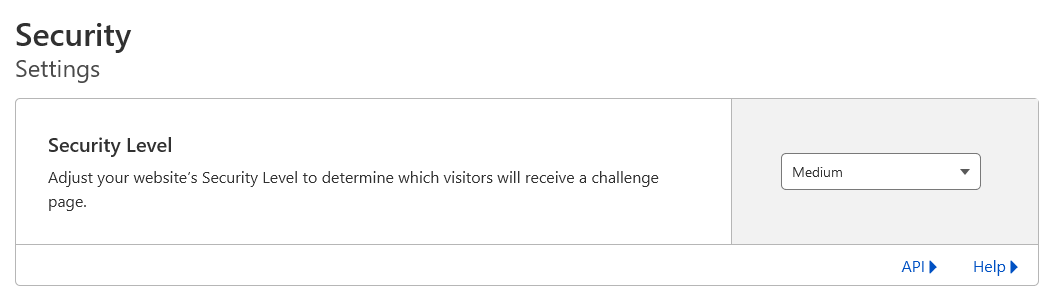
- Set security level to Medium or higher
- Enable bot protection
A firewall is especially useful if your site receives high traffic and sees repeated spam attacks.
Final Thoughts
Toolset Forms spam is manageable once you apply the right layers.
Start with reCAPTCHA to handle basic bots. Then add oopspam to filter more advanced submissions. If needed, use a firewall to block unwanted traffic before it reaches your site.
Spam patterns change over time, so it helps to review your form activity regularly. Check logs, look for repeated patterns, and adjust your settings as needed.
A few small changes can significantly reduce spam and keep your Toolset Forms clean and reliable.