Active vs Inactive Plugins: Can an Inactive Plugin Still Be a Security Risk?

Technical Content Marketer

Reviewed by Onar Alili
Co-founder & Engineer
Published 5 min read
Yes. Deactivating a plugin stops it from running, but its files stay on your server. Bots scan for known file paths and can exploit them directly, active or not. Inactive plugins also stop getting updated in practice, so a newly disclosed flaw often goes unpatched. Delete what you don’t use, and run OOPVulns to check every installed plugin, not just the active ones.
What “Deactivated” Actually Means
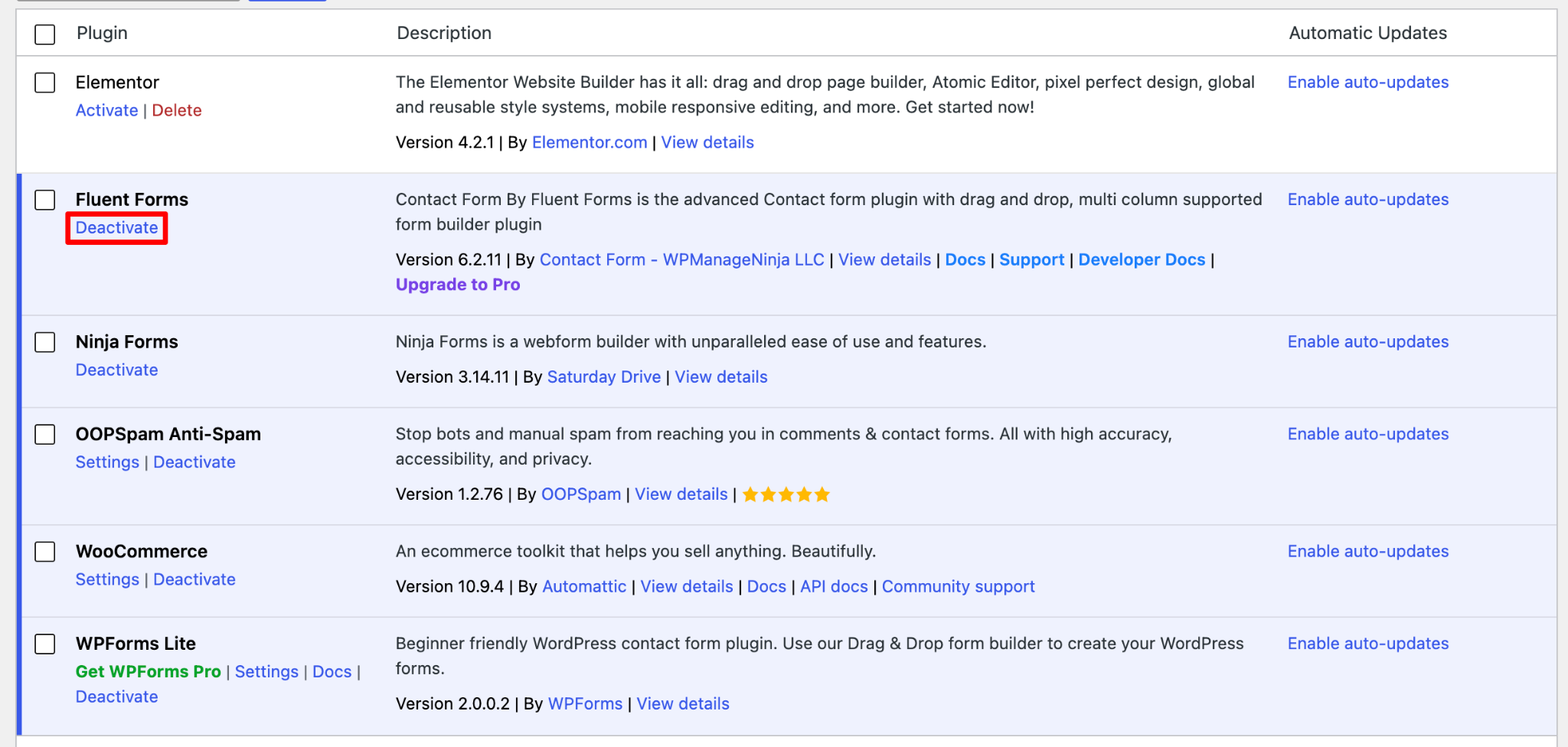
Deactivating a plugin flips a single flag in the database. WordPress stops loading its code on each page request, but every file the plugin installed stays exactly where it was, sitting in wp-content/plugins. Nothing is deleted, moved, or disabled at the file level. The plugin is off. The code is still there.
The Files Are the Risk, Not the Toggle
A vulnerability usually lives in a specific PHP file, and that file can often be requested directly by URL, regardless of whether WordPress has the plugin activated. If the file itself has an exploitable flaw, an attacker doesn’t need the plugin to be running inside WordPress. They just need the file to still exist on the server, and it does.
This is exactly what automated scanners are built to find. Bots don’t check your admin dashboard for a list of active plugins. They request known file paths in bulk across thousands of sites, looking for a response instead of a 404. An old, deactivated plugin with a public exploit is just as visible to that scan as an active one.
The Update Blind Spot
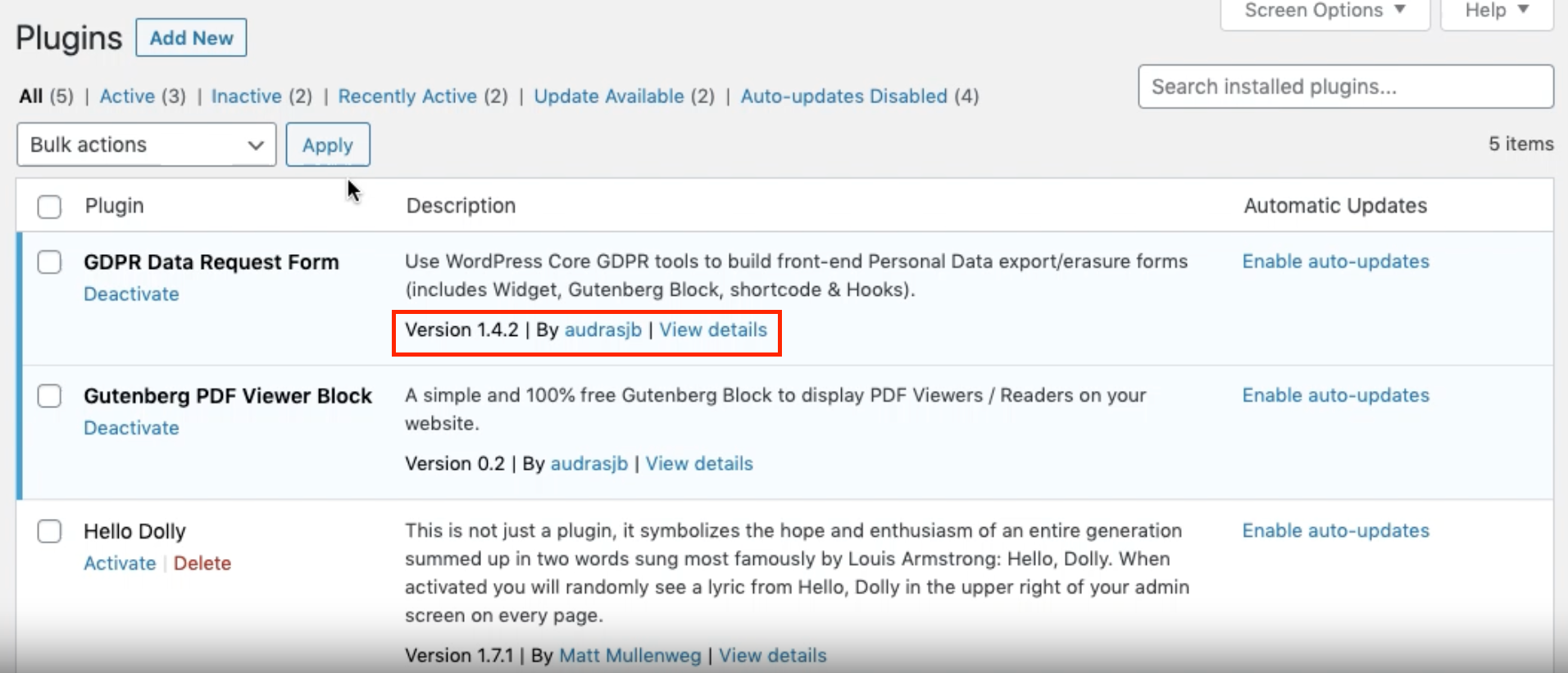
Active plugins get attention because they show up in your daily workflow. Inactive ones don’t. Most site owners stop checking version numbers on anything they’ve turned off, so when a new vulnerability is disclosed for that plugin, the patch sits unapplied indefinitely. Auto-updates can help, but many hosts and setups only apply them to active plugins by default.
Active vs Inactive: Where the Risk Actually Sits
| Risk Factor | Active Plugin | Inactive Plugin |
|---|---|---|
| Files on server | Yes | Yes |
| Directly requestable files | Yes | Often yes |
| Runs on every page load | Yes | No |
| Gets checked for updates by habit | Usually | Rarely |
| Shows up in a vulnerability scan | Yes | Only if the scanner checks inactive plugins too |
What To Do Instead of Deactivating
- Delete plugins you’re not actively using. Deactivation is a pause, not a fix.
- Audit installed plugins on a schedule, not just when something breaks.
- Treat “might need it later” as a reason to keep a note, not a reason to keep the files installed.
- If you truly need to keep a plugin inactive for a future project, still update it to the latest version first.
Catching What’s Still Installed with OOPVulns
OOPVulns (that is us) scans WordPress core, every installed plugin, and every installed theme against a live vulnerability database, not just the ones currently switched on. That matters here specifically: a deactivated plugin with a disclosed vulnerability still shows up in the scan results, with the same severity rating and version details as an active one, as shown below.
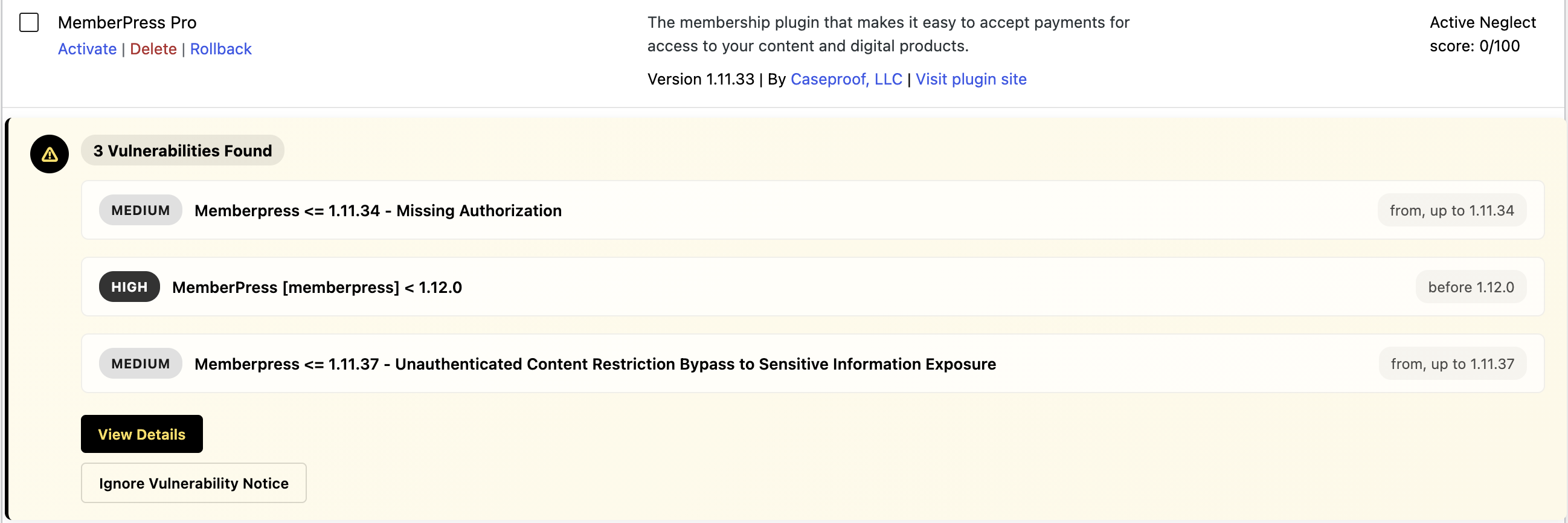
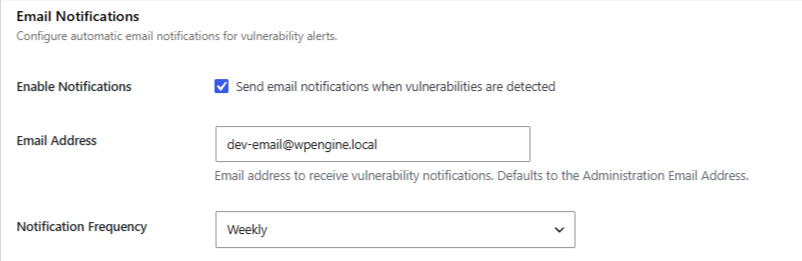
Scanning is opt-in. It does nothing until an admin turns it on in Settings, and it can run daily or weekly with email alerts when something new is found.
It also flags abandonment risk using a neglect score built from WordPress.org signals (last-updated date and unresolved critical support threads), with a badge like “Slow maintenance” or “Likely abandoned.” A plugin you deactivated a year ago and forgot about is a textbook case: it’s exactly the kind of file sitting quietly on your server that this check is built to surface.
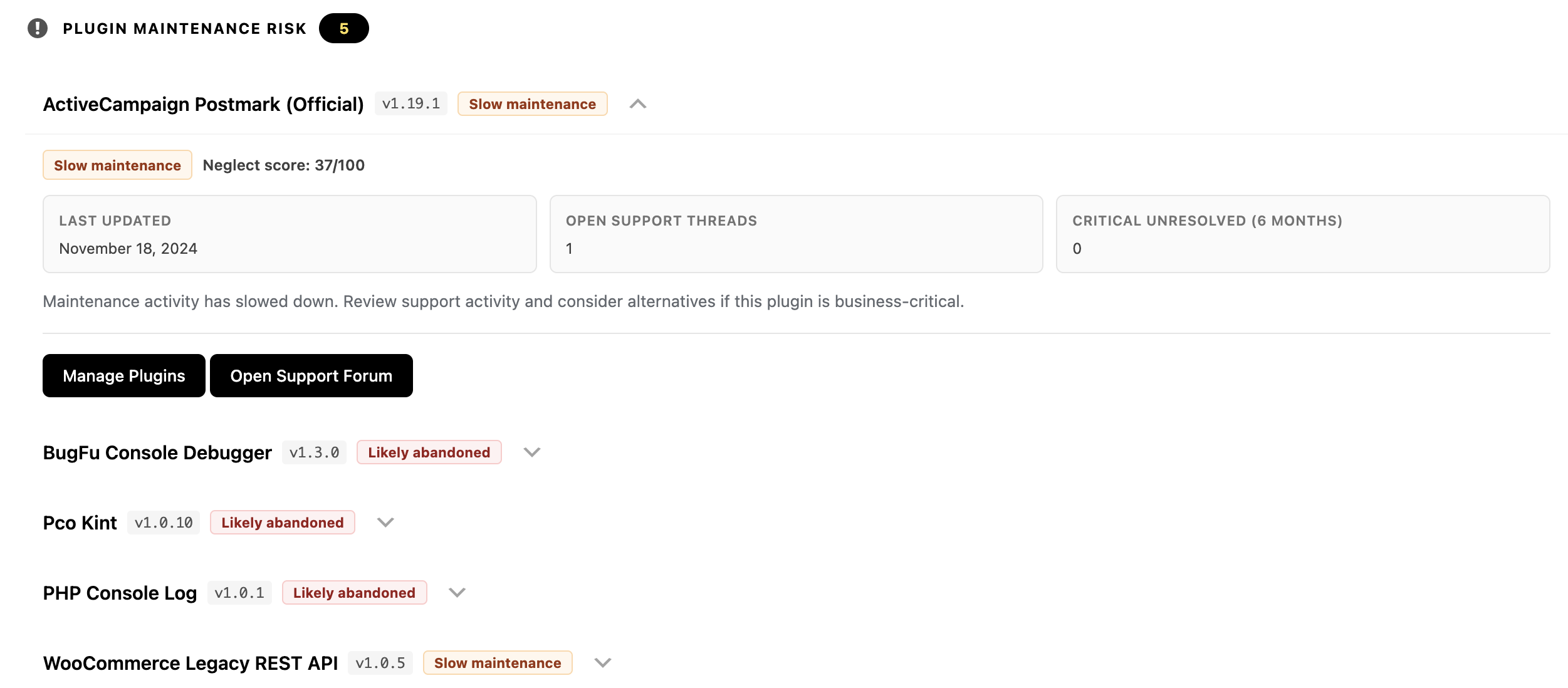
Only plugin/theme slugs, versions, and your core version are sent out. No personal data or site content leaves your server.
Setting Up OOPVulns
Install OOPVulns from Plugins → Add New, then activate it.

Register to generate an API key, then paste it into the plugin. Go to Settings and enable vulnerability scanning (disabled by default).
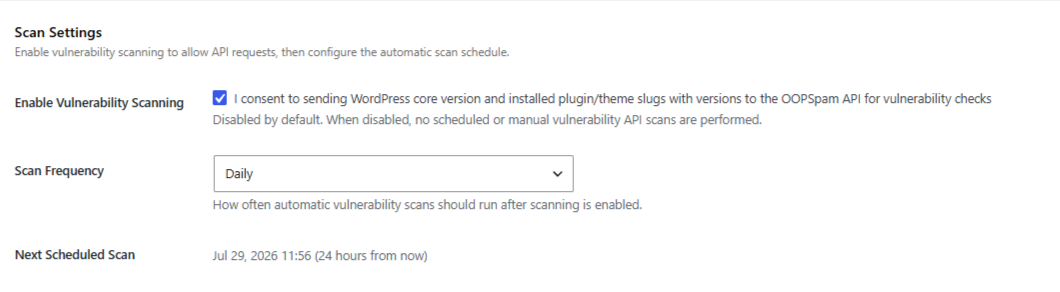
Set a scan schedule (daily or weekly) and turn on email notifications.
Run the first scan. It checks every installed plugin and theme, active or not.
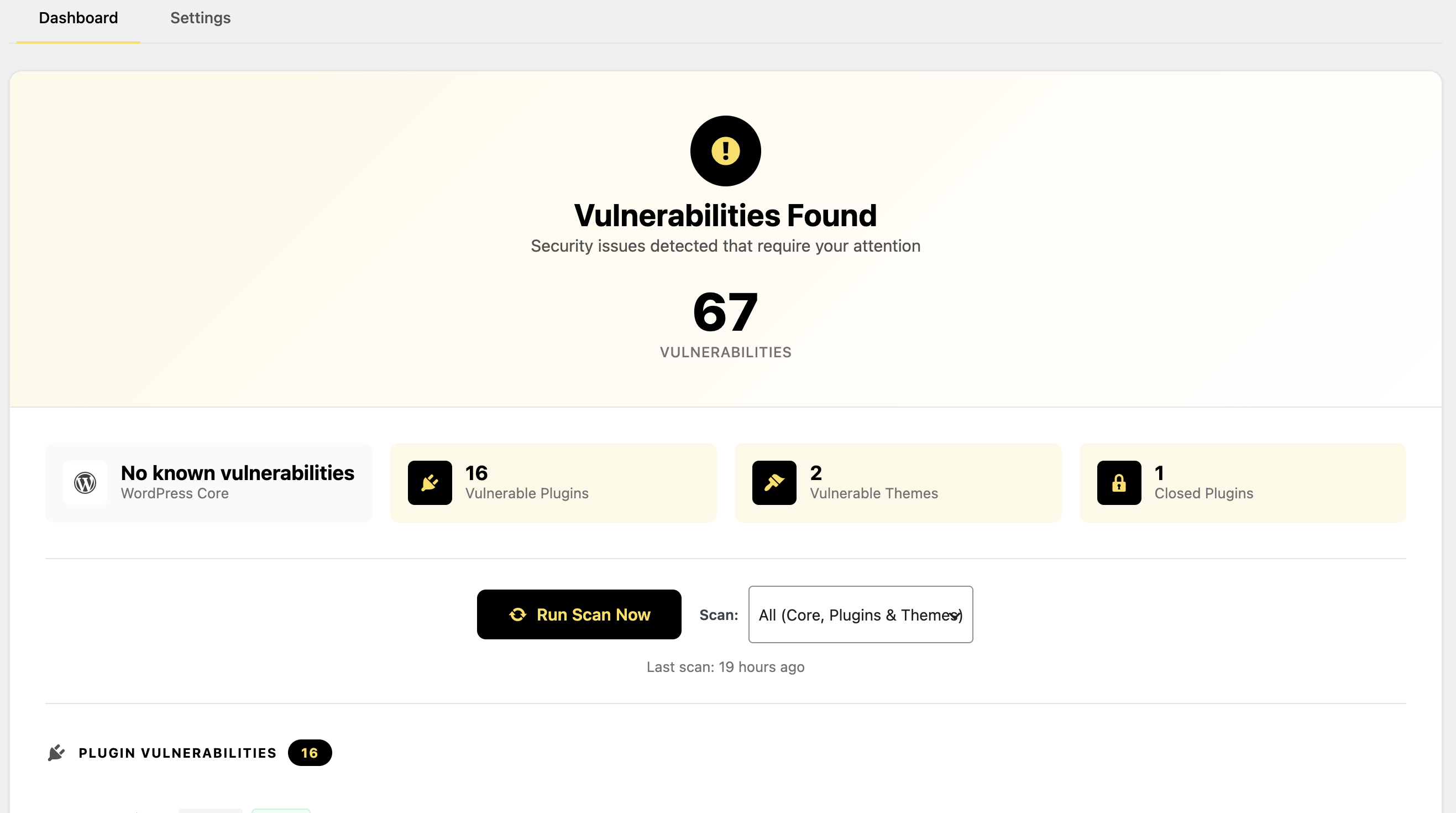
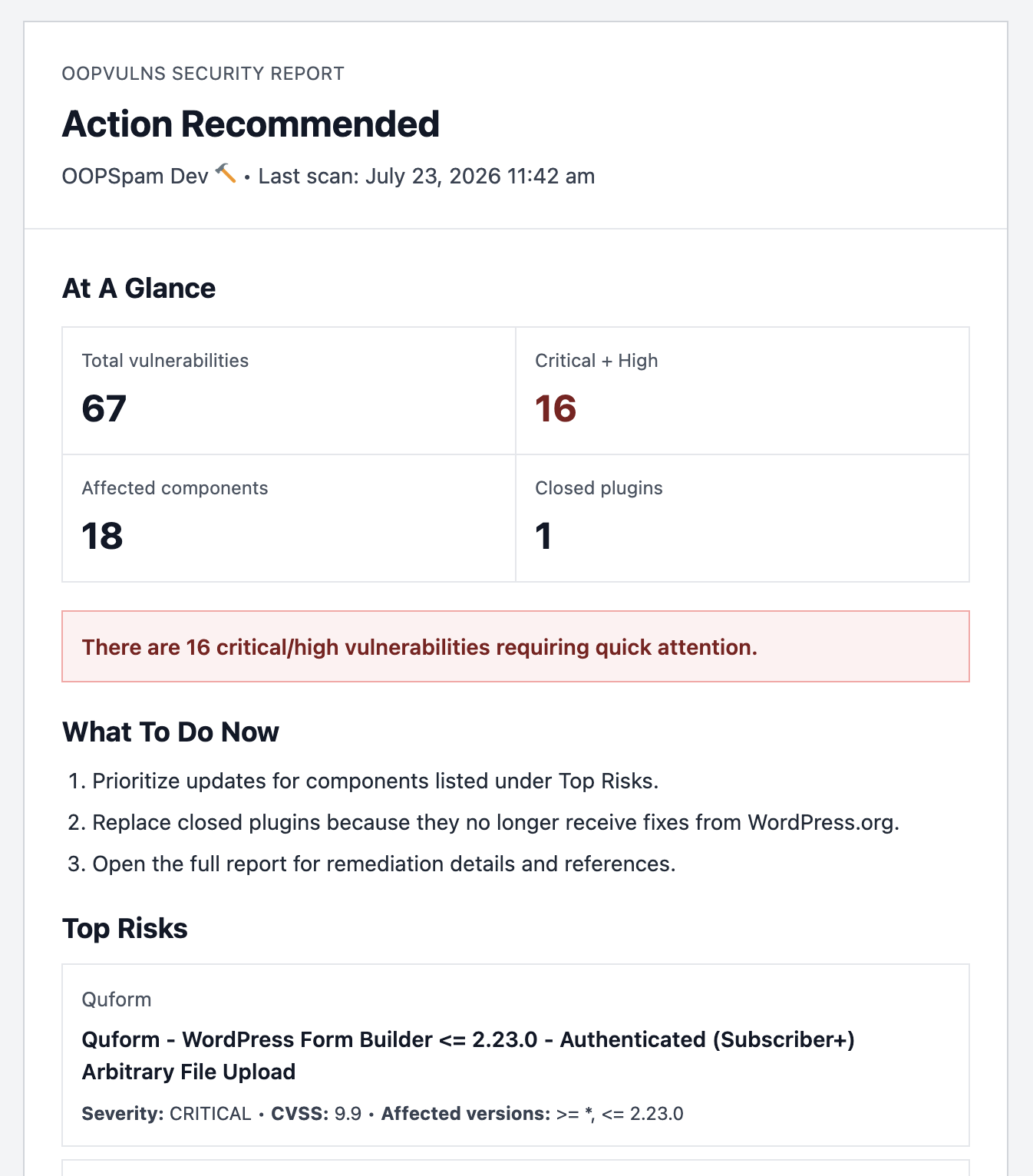
Open the generated “Action Recommended” summary, shown below, for a quick record of total vulnerabilities, affected components, and top risks.
Delete anything flagged that you don’t actually need, rather than just leaving it deactivated again.
Re-scan after cleanup, and repeat on the schedule you set.
Final thoughts
Turning a plugin off doesn’t remove it. The files, and whatever flaws they contain, stay on the server until you delete them. OOPVulns closes that gap by scanning everything installed, not just what’s currently switched on.