
Chazie Baniquid
Technical Content Marketer
6 minutes to read
Why Updating a WordPress Plugin Is Not Always Enough
Updating a plugin patches the specific code flaw. It doesn’t undo damage from an attack that already happened, remove a backdoor planted before the patch, or fix mismatched PHP versions, file permissions, or database issues. If the vulnerable version was live for a while, treat the update as step one, not the whole fix. Run OOPVulns to confirm the update actually resolved the flag, and to catch the next one earlier.
What an Update Actually Fixes
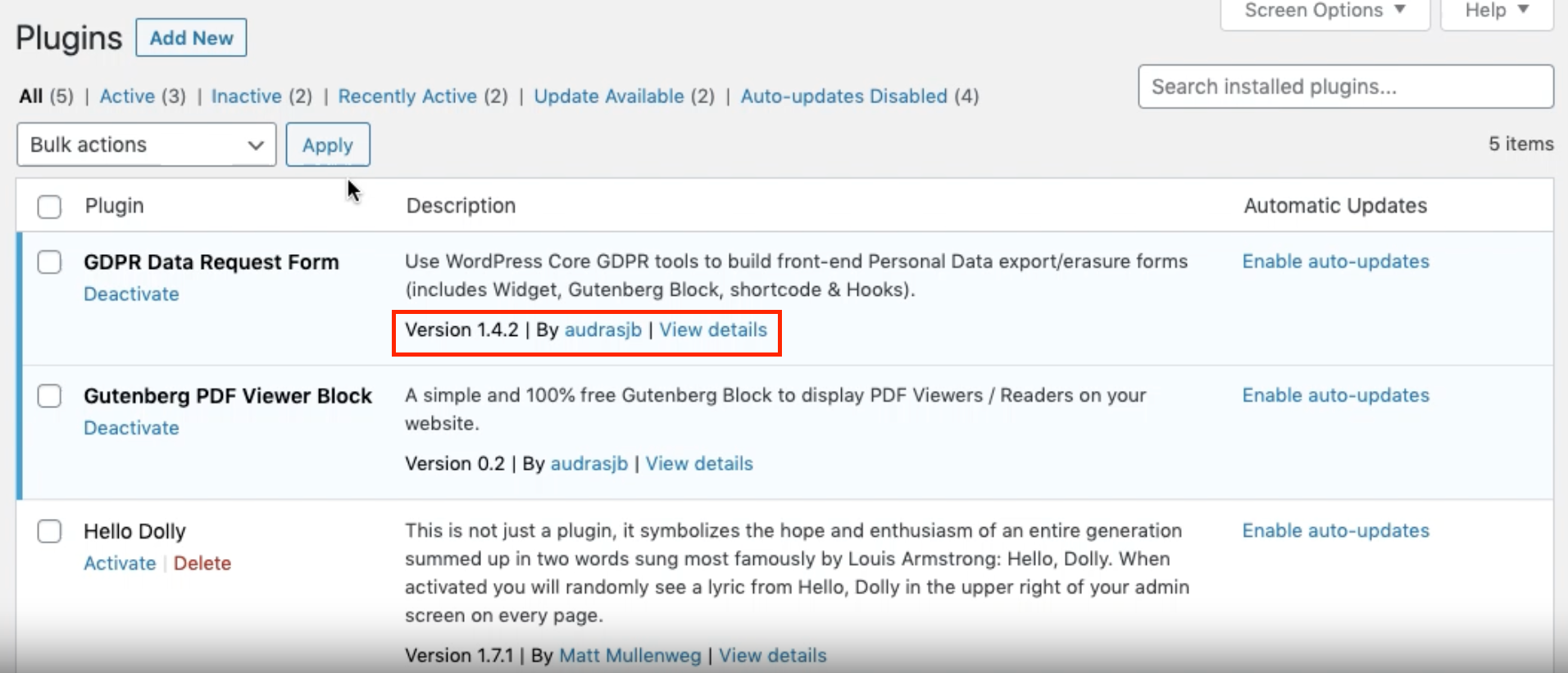
A plugin update replaces flawed code with corrected code. That’s it. It closes the specific entry point described in the vulnerability advisory. It does not check whether that entry point was already used, does not remove anything an attacker left behind, and does not touch any other part of your site. An update is a patch for the hole, not an inspection of what came through it.
If the Flaw Was Already Exploited, the Update Won’t Know
Vulnerable plugins are often exploited before most site owners even see the disclosure. If that happened to you, an attacker may have already created a hidden admin account, dropped a web shell in an uploads folder, or added a malicious scheduled task. Updating the plugin closes the original door, but none of those planted items go away on their own. They stay active until someone finds and removes them.
Where Leftover Code Likes to Hide
- Uploads folder: rarely scanned for executable code, and often writable by any plugin.
- Must-use plugins (mu-plugins): load automatically and don’t show up in the normal plugin list.
- Database entries: injected options, rogue admin users, or malicious redirects stored as settings.
- Cron entries: scheduled tasks that quietly re-download malicious code even after cleanup.
Server-Level Issues an Update Can’t Touch
Some plugin problems aren’t about the plugin’s code at all. A mismatched PHP version can silently break a security check the update relies on. Overly permissive file permissions let any compromised plugin write anywhere on the server. Stale caching, whether a CDN, browser cache, or object cache, can keep serving the old vulnerable version to visitors even after you’ve updated it on the backend. None of this is fixed by clicking “Update Now.”
What Updating Fixes vs What It Doesn’t
| Updating Fixes | Updating Does Not Fix |
|---|---|
| The specific flawed code path | Backdoors planted before the patch |
| The version number on record | Rogue admin accounts already created |
| Future exploit attempts against that flaw | Malicious files in uploads or mu-plugins |
| The plugin's own listed vulnerability | Server, PHP, or caching issues |
Confirming an Update Actually Worked with OOPVulns
OOPVulns (that is us) scans WordPress core, every installed plugin, and every installed theme against a live vulnerability database. After you update a flagged plugin, re-scanning is how you confirm the fix actually landed, rather than assuming the update panel is telling the whole story.
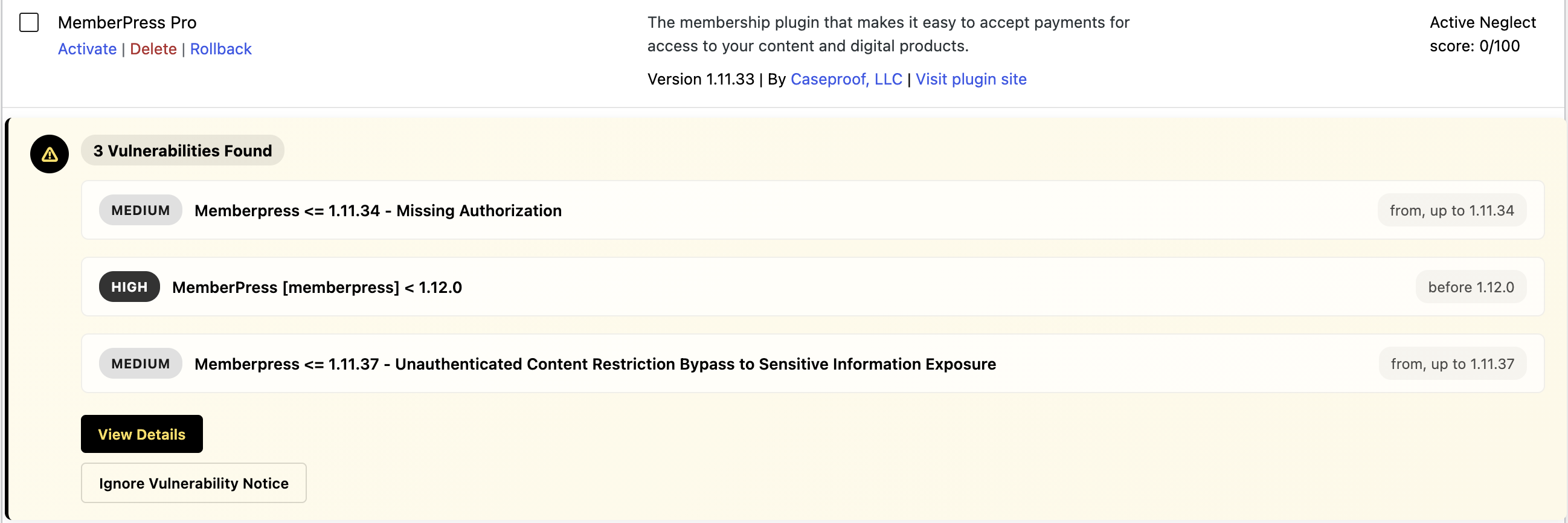
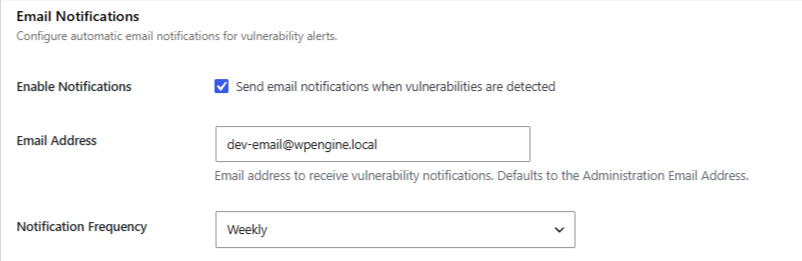
Scanning is opt-in. It does nothing until an admin turns it on in Settings, and it can run daily or weekly with email alerts when something new is found, so a vulnerability that reappears, or a related plugin that gets flagged next, doesn’t sit unnoticed, like the severity breakdown shown below.
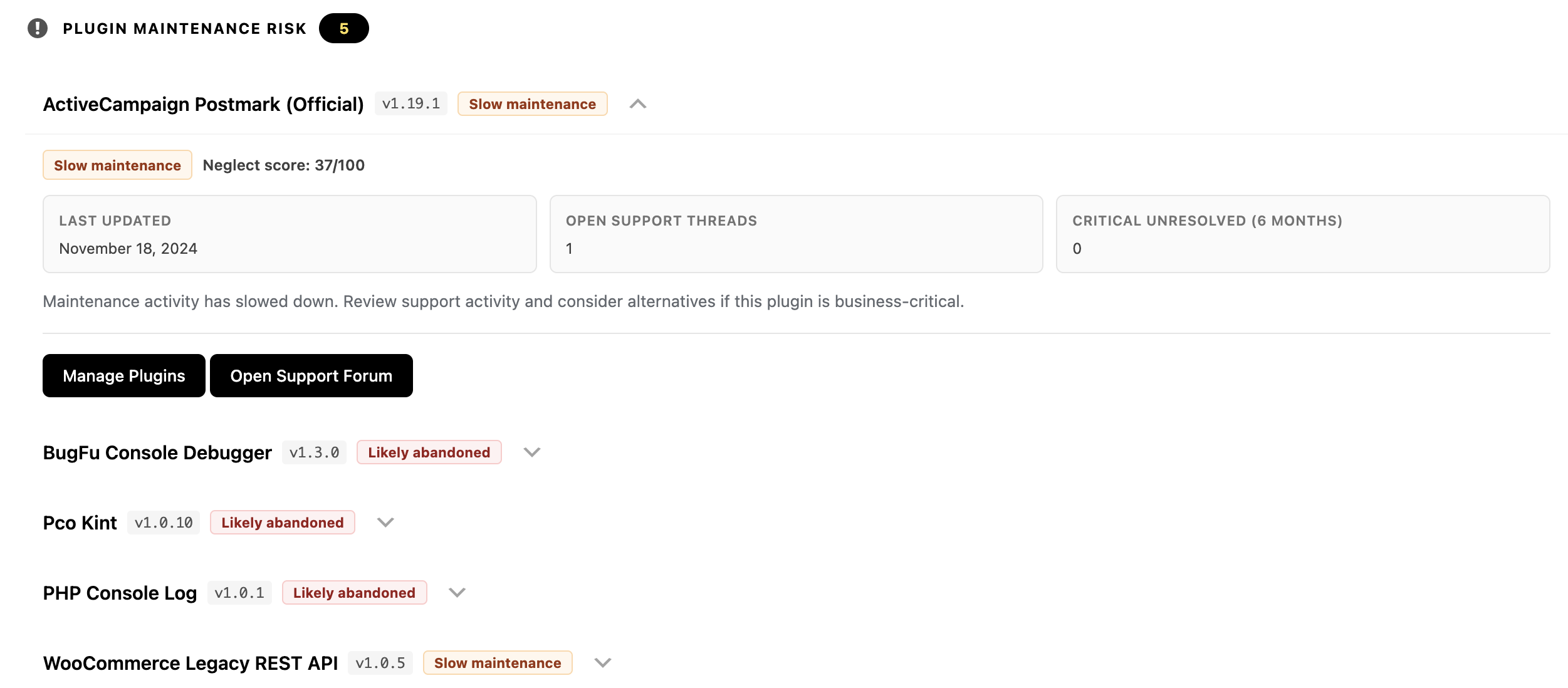
It also flags abandonment risk using a neglect score built from WordPress.org signals (last-updated date and unresolved critical support threads), with a badge like “Slow maintenance” or “Likely abandoned.” That matters here specifically: a plugin that needed an emergency patch once and is now barely maintained is a strong candidate for replacement, since the same gap between disclosure and fix can repeat.
Only plugin/theme slugs, versions, and your core version are sent out. No personal data or site content leaves your server.
Setting Up OOPVulns
Install OOPVulns from Plugins → Add New, then activate it.
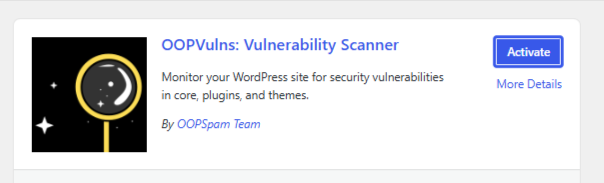
Register to generate an API key, then paste it into the plugin. Go to Settings and turn on vulnerability scanning. It’s off by default until an admin enables it.
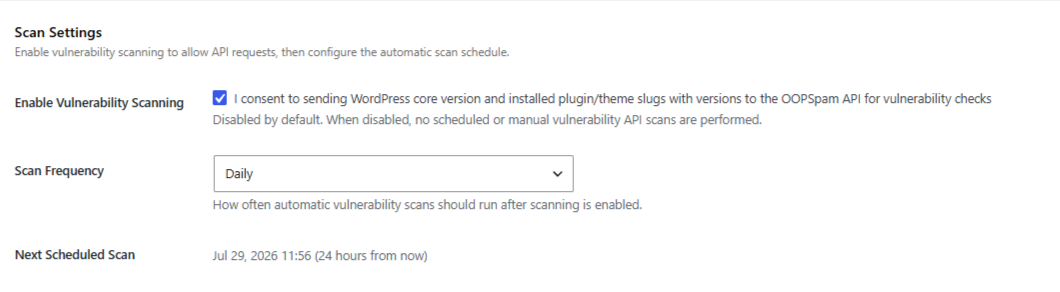
Set a scan schedule (daily or weekly) and turn on email notifications.
Run a scan before applying any pending update, so you have a clear before-and-after record.
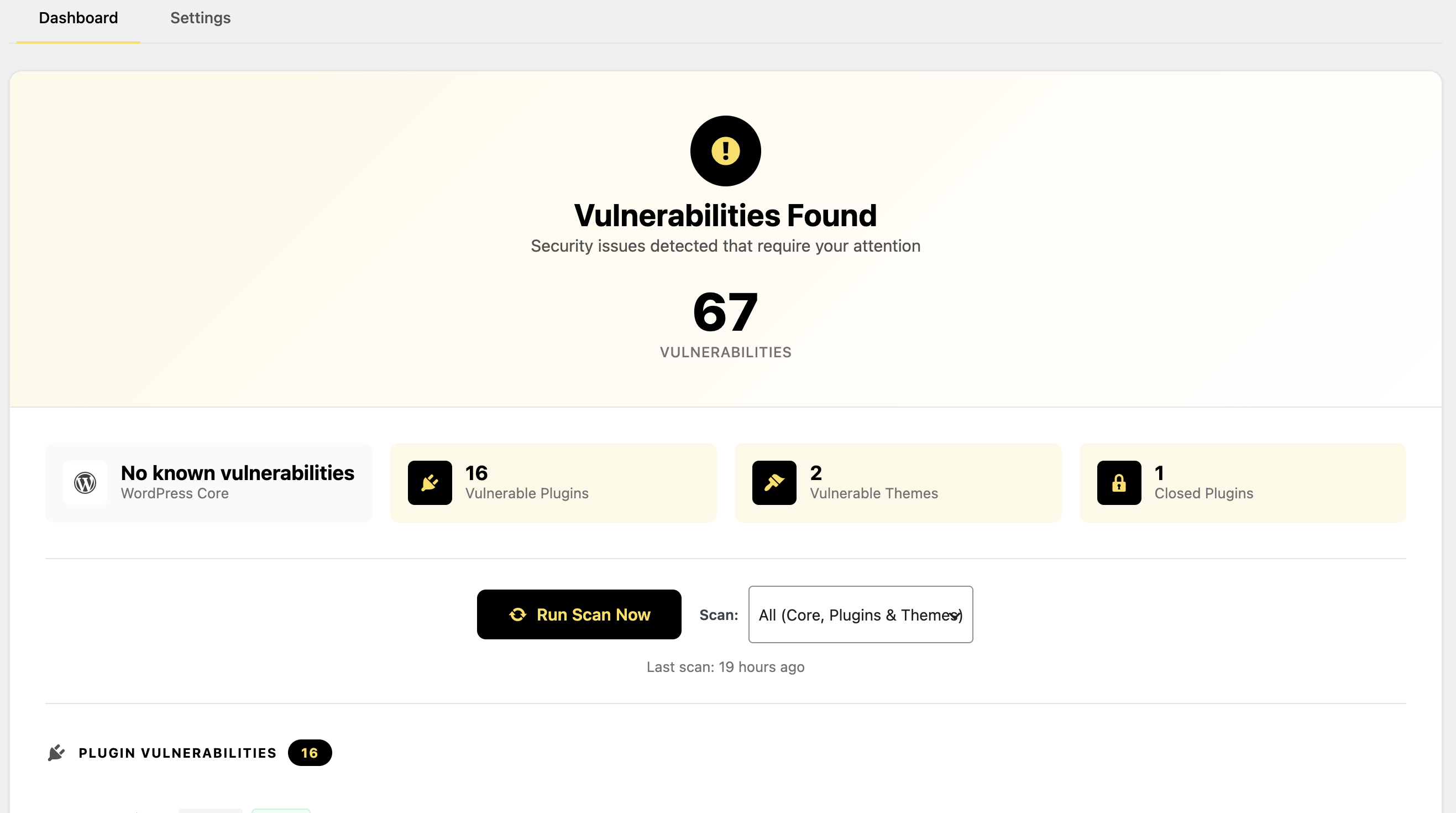
Check the ‘Action Recommended’ full report, shown below, which lists total vulnerabilities, affected components, and top risks in one place.
Apply the update, then re-scan to confirm the flagged vulnerability actually clears.
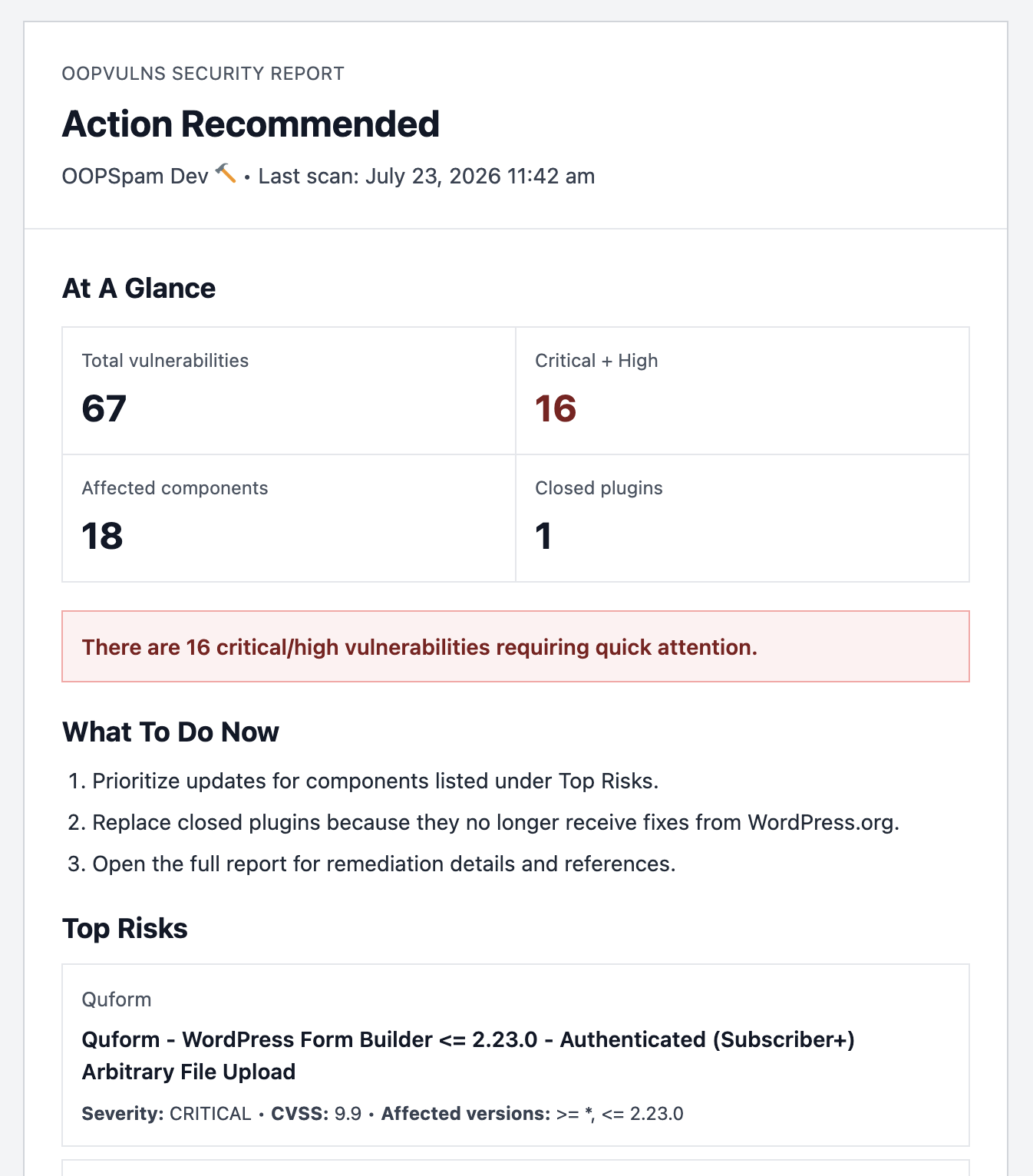
Review the maintenance-risk section for the plugin you just patched. A low neglect score is a good sign; a “Likely abandoned” badge is a reason to plan a replacement anyway.
Keep the schedule running so the next disclosed vulnerability, in this plugin or another, doesn’t wait for you to remember to check.
Final thoughts
An update closes the hole it was built to close. It doesn’t audit what happened before, and it doesn’t fix anything outside the plugin itself. OOPVulns gives you a way to confirm the fix worked and to catch what an update alone can’t.