
Chazie Baniquid
Technical Content Marketer
4 minutes to read
How to Block Countries in Super Forms?
Super Forms does not list a built-in country blocking setting in its documentation. To block form submissions by country, use the OOPSpam Anti-Spam plugin, which filters Super Forms entries by country from your WordPress dashboard. To block visitors from your entire site, add a Cloudflare security rule. Combine both for layered protection. Neither method is fully accurate, because VPNs and proxies can hide a visitor’s real location.
Method 1: Use OOPSpam for Form-Level Country Filtering
OOPSpam checks each Super Forms submission and rejects it if it comes from a country you block. Your site stays visible to visitors worldwide. Only form submissions are filtered.
How to set it up
In WordPress, go to Plugins > Add New, search for OOPSpam Anti-Spam, then install and activate it.
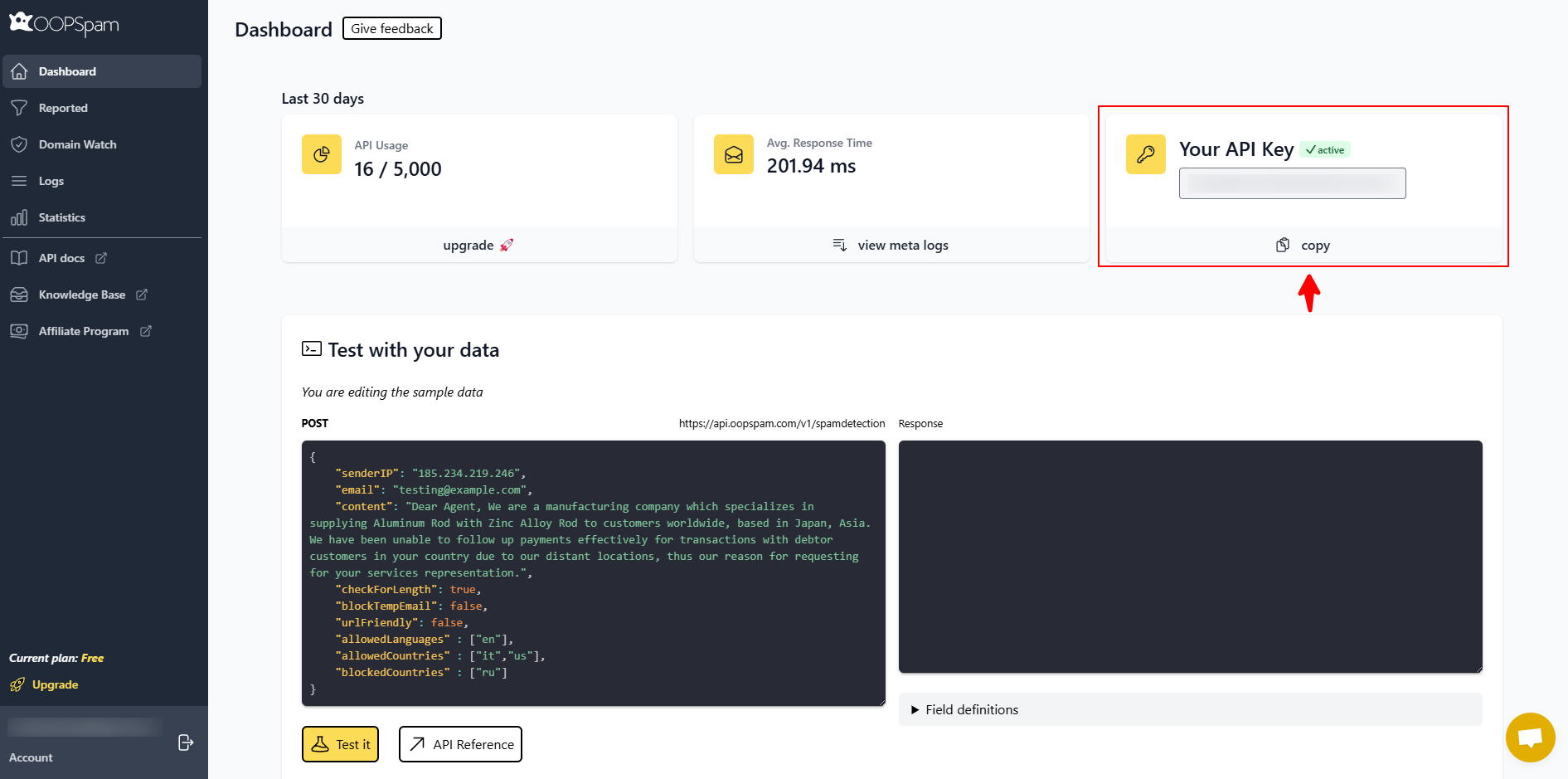
Create a free account at oopspam.com and copy your API key from the dashboard.
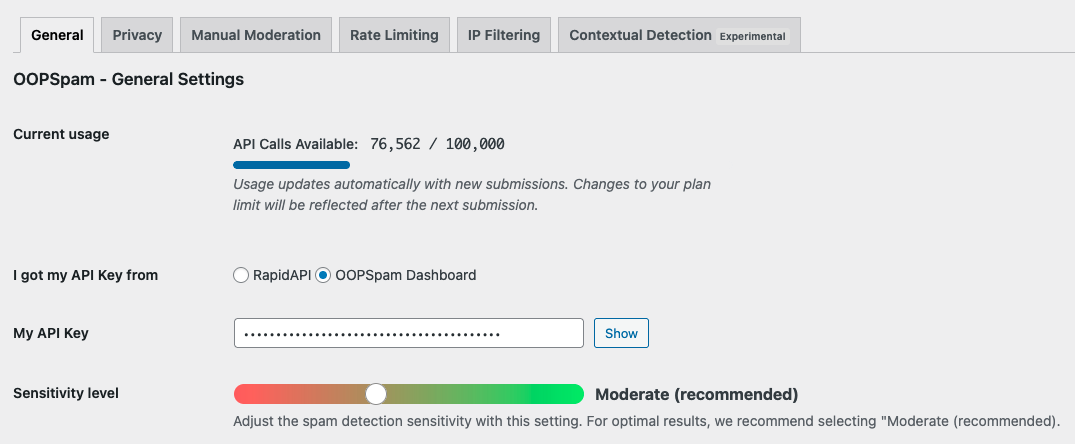
Open the OOPSpam settings in WordPress, paste your API key in the General tab, and save.
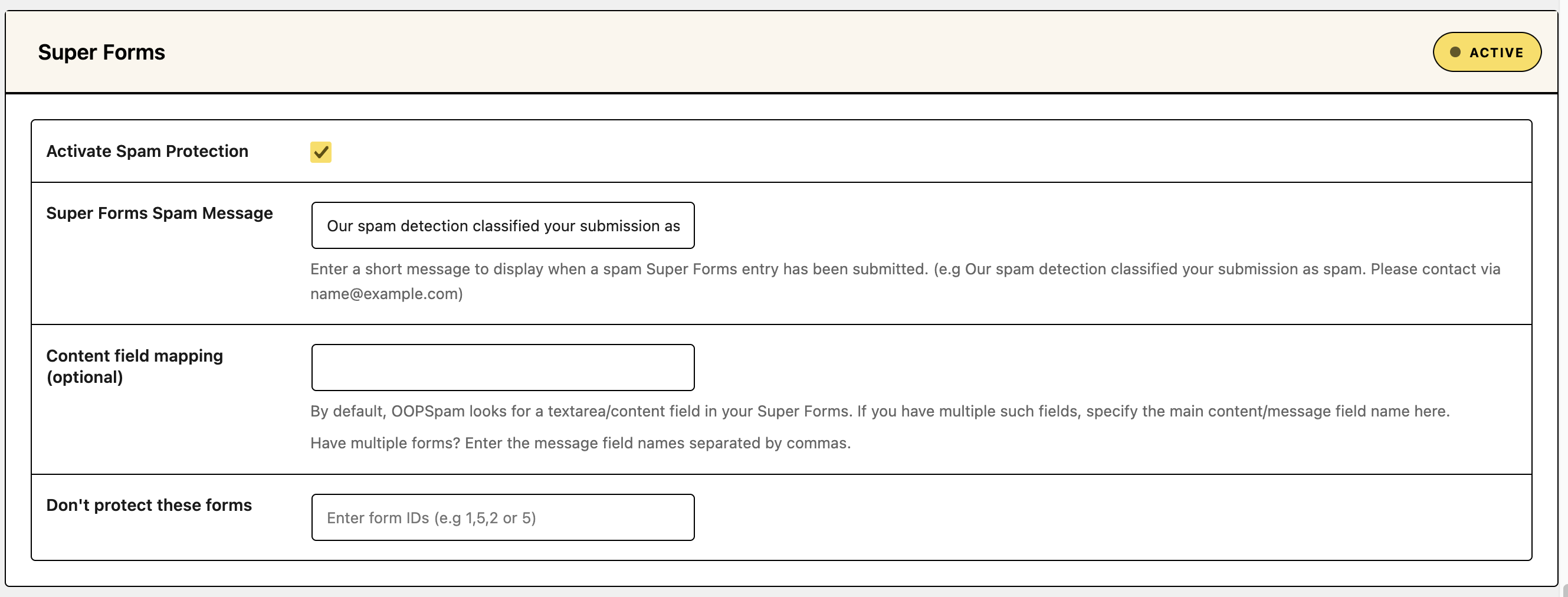
Find the Super Forms section and check Activate Spam Protection.
Set up Country Filtering and choose one approach:
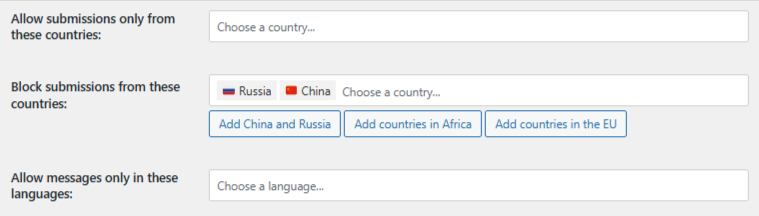
- Country Allowlist: accept submissions only from the countries you select. Everyone else is blocked.
- Country Blocklist: reject submissions from the countries you select.
- Trusted Countries: submissions from these countries skip all spam checks and override the blocklist. Use this only for your core market or internal users.
Optional: edit Super Forms Spam Message to explain the block, for example “We’re unable to process submissions from your region. Please contact [email protected].”
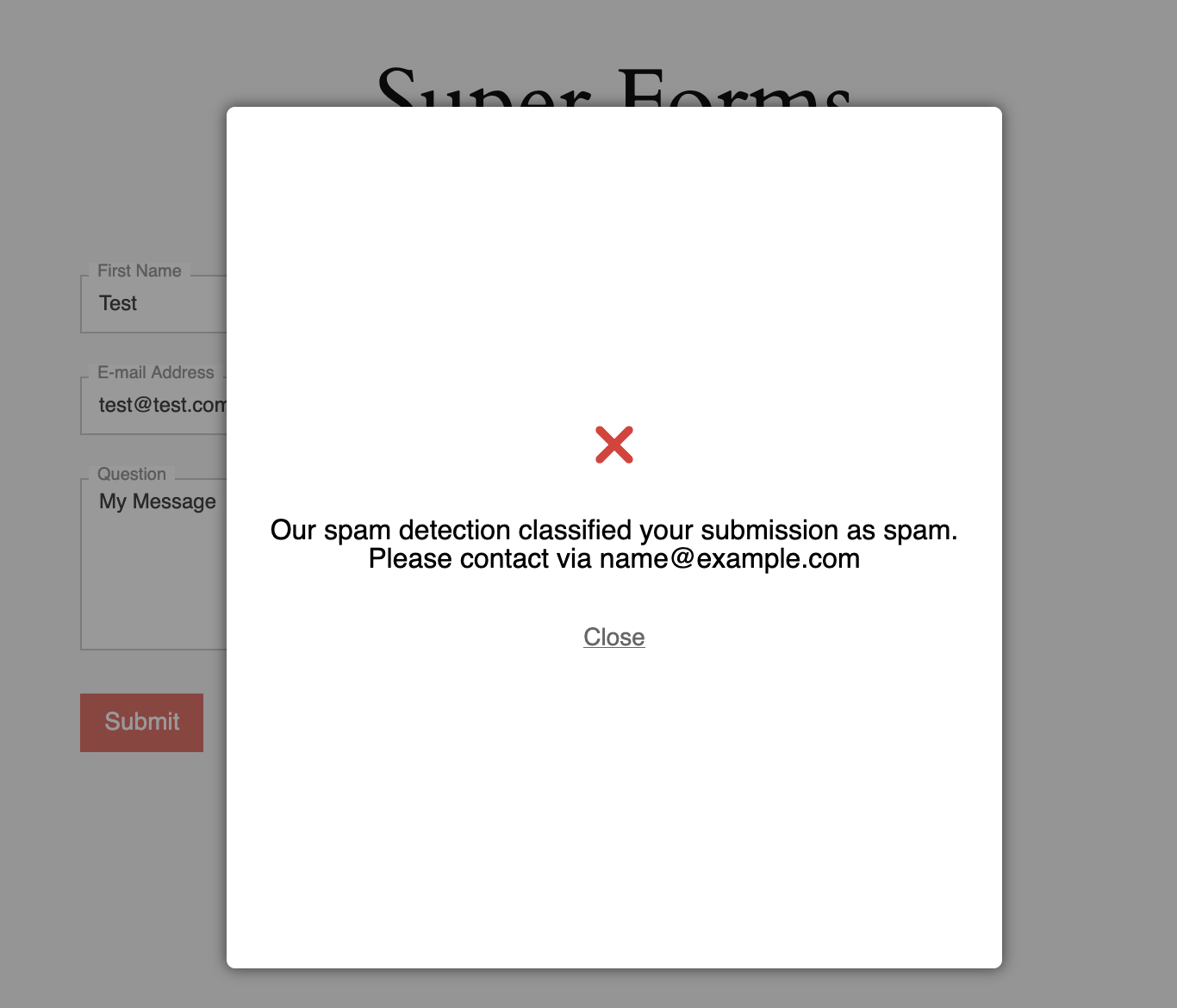
Save your settings.
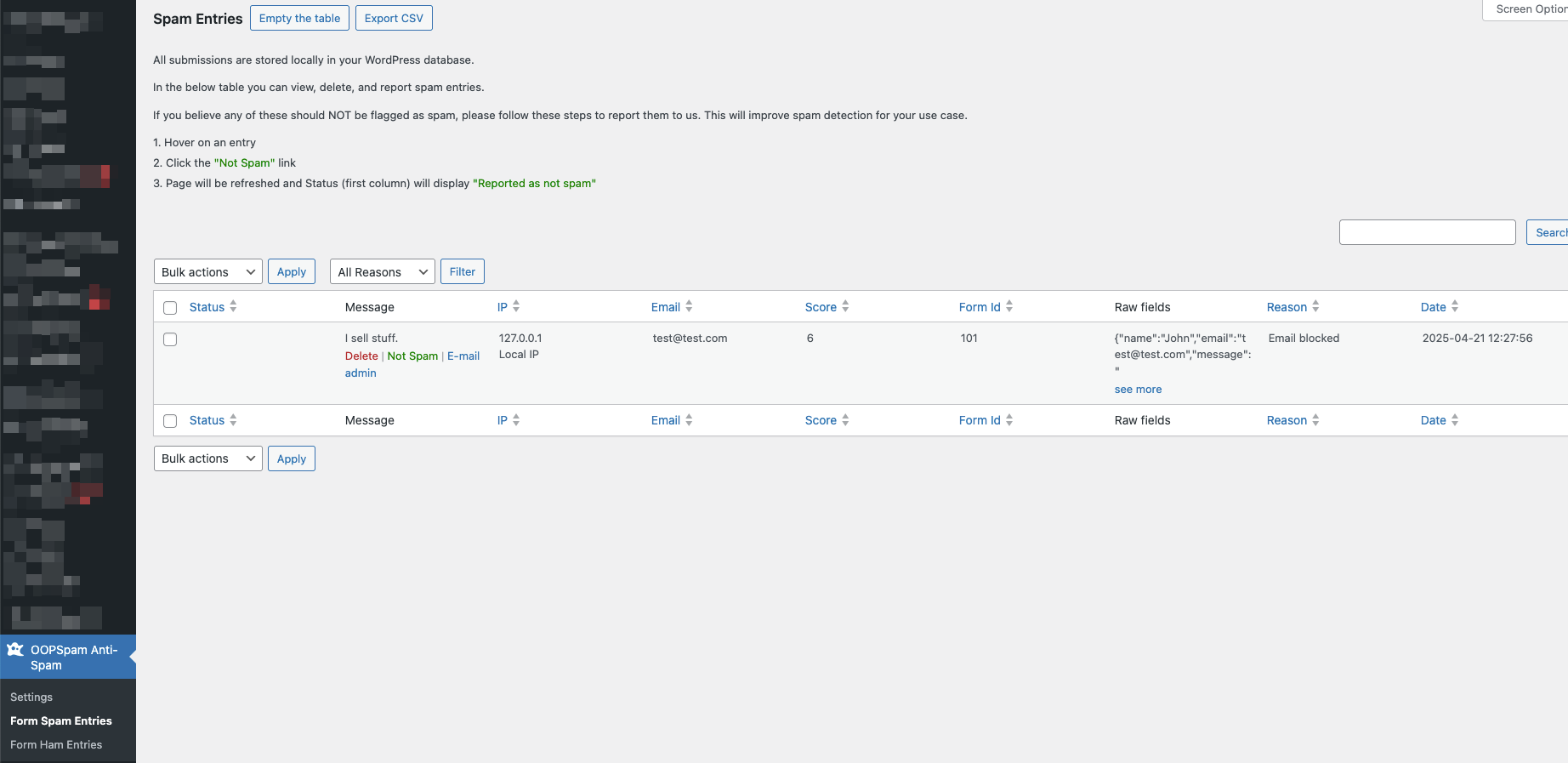
Test the form in an Incognito window. Then check the OOPSpam spam and ham logs to confirm what was blocked.
Which country setting should you use?
| Setting | Use it when |
|---|---|
| Country Blocklist | Spam comes from a few known regions and you accept everyone else |
| Country Allowlist | Your customers are in a few countries and you want a strict rule |
| Trusted Countries | You want your home market to bypass all checks |
Add more filters
- Language Allowlist: accept only messages written in the languages you choose. It works best when the form has a message field.
- Rate limiting: stop repeated submissions from the same IP or email.
- IP filtering: block bad IPs, VPNs, and data center traffic.
Method 2: Block Countries at the Edge With Cloudflare
Cloudflare blocks requests by country before they reach WordPress. This blocks visitors from the whole site, not just the form. Use it for region-limited businesses or high-volume attacks.
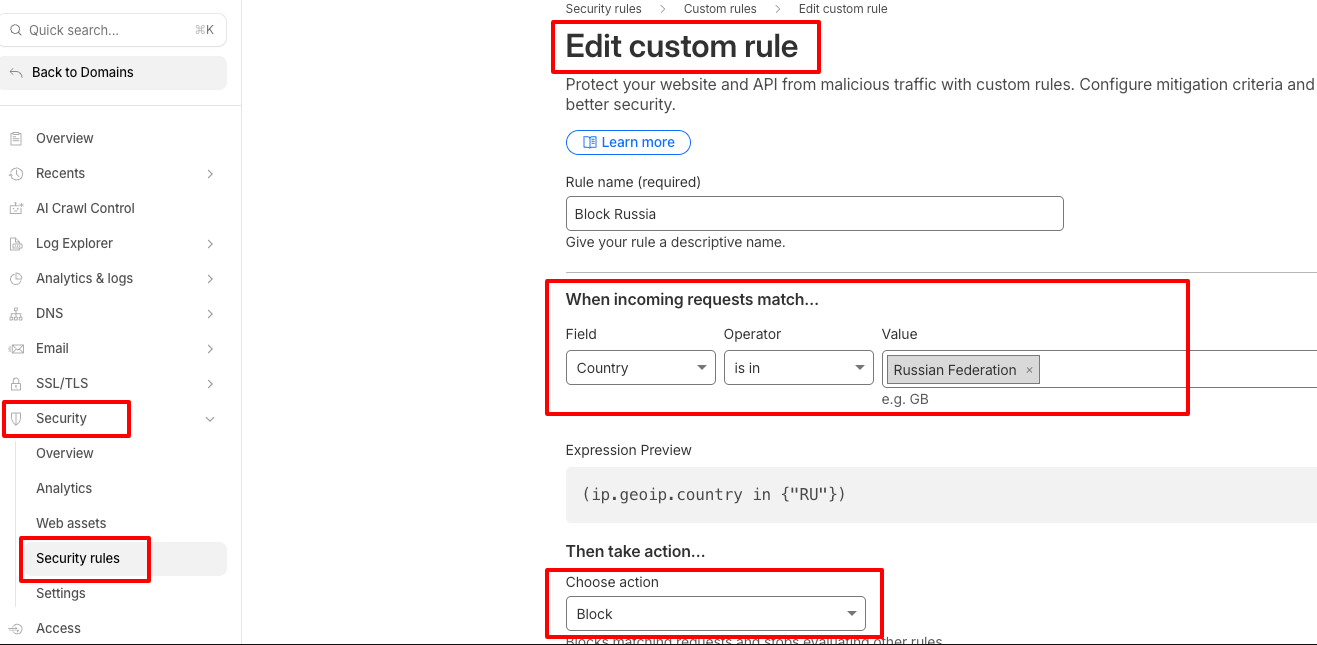
- Log into your Cloudflare dashboard and select your site.
- Go to Security > Security rules.
- Click Create rule and name it “Block Countries.”
- Set the field to Country, the operator to is in, and select the countries.
- Set the action to Block and save.
What to Know Before You Block
- VPNs and proxies can hide a visitor’s real country, so country rules will not stop every submission.
- Country blocking alone rarely solves spam long term. Pair it with content and IP filtering.
- Blocking a country can also block real customers. Review the OOPSpam logs after setup and adjust.
Final thoughts
Super Forms has no native country filter, so use an external tool. OOPSpam is the most direct option because it filters at the form level and leaves your site open. Add Cloudflare if you need a hard block across the whole site.