
Chazie Baniquid
Technical Content Marketer
5 minutes to read
5 Ways to Protect Your Super Forms From Spam
You can protect Super Forms from spam in five ways: add an anti-spam plugin such as OOPSpam, enable Google reCAPTCHA v2 or v3, block duplicate entries, add a custom PHP blocklist, or block countries at Cloudflare. Layering two or three of these works best, since each catches a different type of spam. The steps for each method are below.
Method 1: Add Google reCAPTCHA v2 or v3
Super Forms includes a Google reCAPTCHA element that verifies visitors are human.
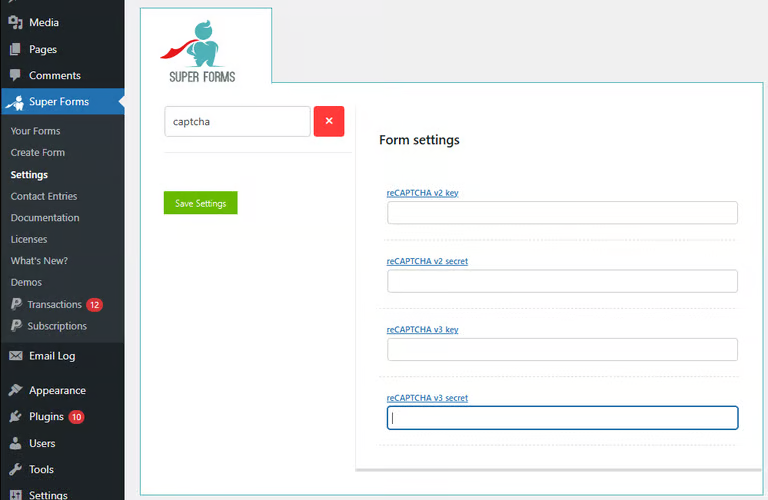
- Create a v2 (checkbox) or v3 key pair in the Google reCAPTCHA admin console. Add your exact domain.
- In WordPress, go to Super Forms > Settings, search for “captcha”, and paste your Site Key and Secret Key.
- Save, then add the reCAPTCHA element to your form.
v2 and v3 keys are not interchangeable. reCAPTCHA stops most bots, but it does not reliably stop a human who fills in the form by hand.
Method 2: Block Duplicate Entries
Duplicate blocking limits repeat submissions from the same email address.
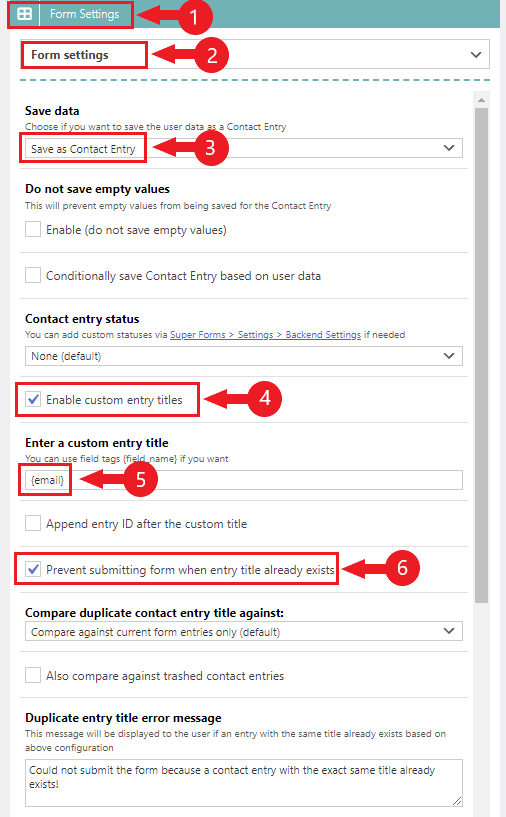
- Edit your form and open Form Settings.
- Set Save data to Save as Contact Entry.
- Check Enable custom entry titles and enter {email} as the value.
- Enable Prevent submitting form when entry title already exists.
This stops repeats from one address. It does not stop a spammer who rotates addresses.
Method 3: Install the OOPSpam Anti-Spam Plugin
OOPSpam hooks into the Super Forms submission process and filters spam automatically. Visitors never see a puzzle or checkbox.
How to set it up
In WordPress, go to Plugins > Add New, search for OOPSpam Anti-Spam, then install and activate it.
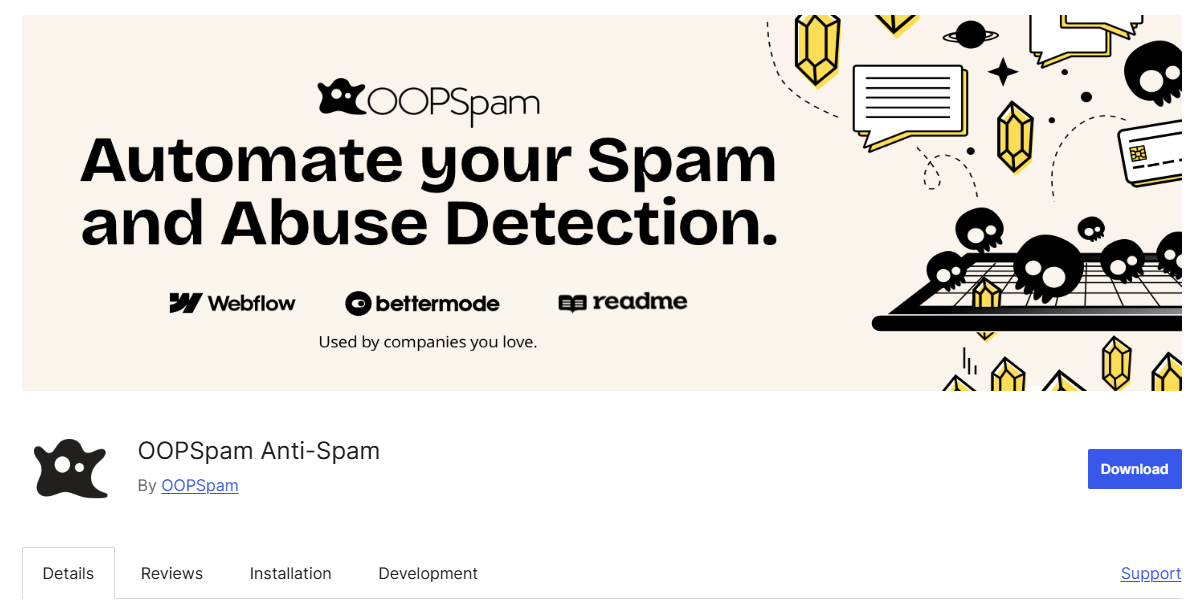
Create a free account at oopspam.com and copy your API key from the dashboard.
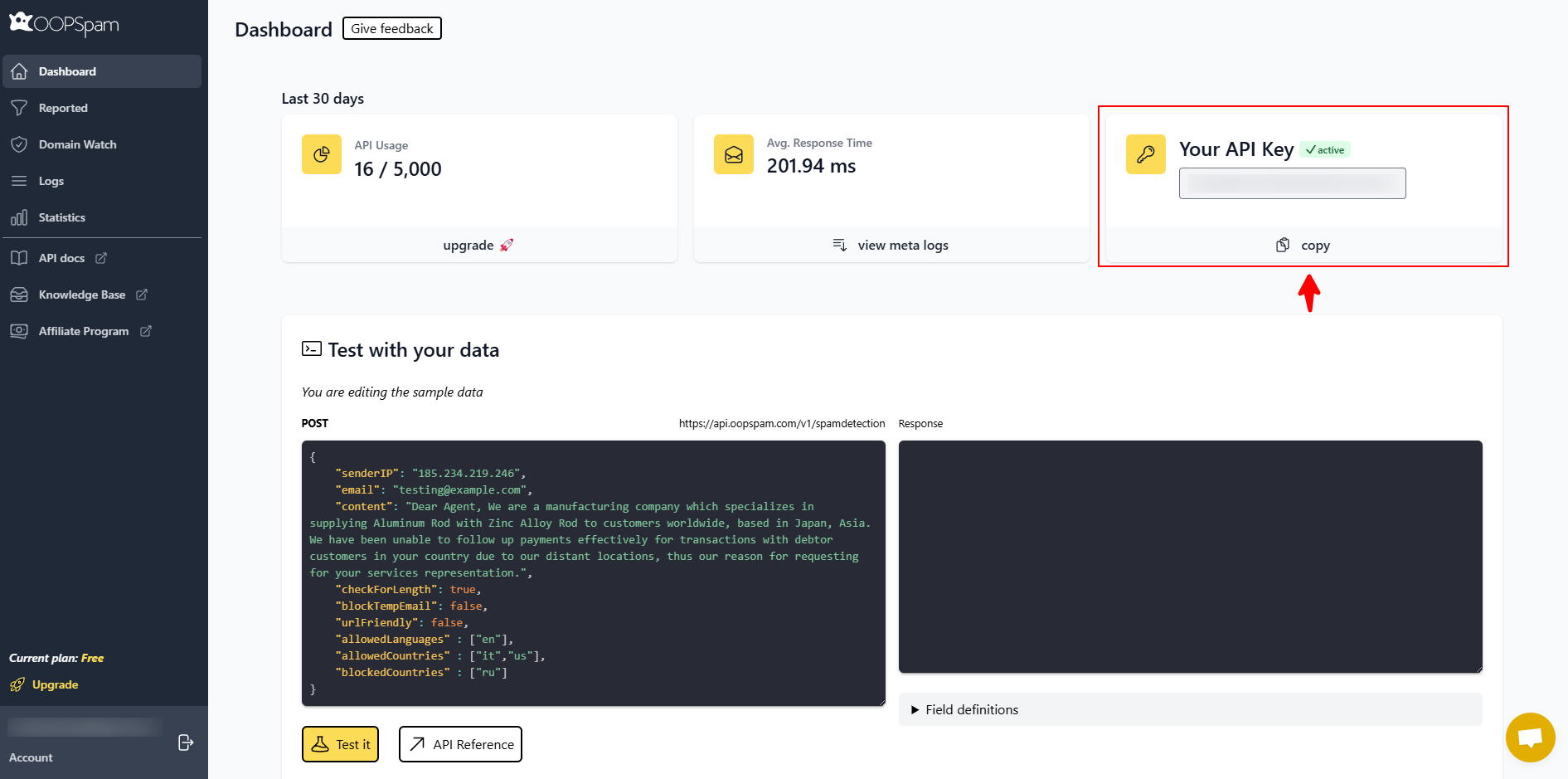
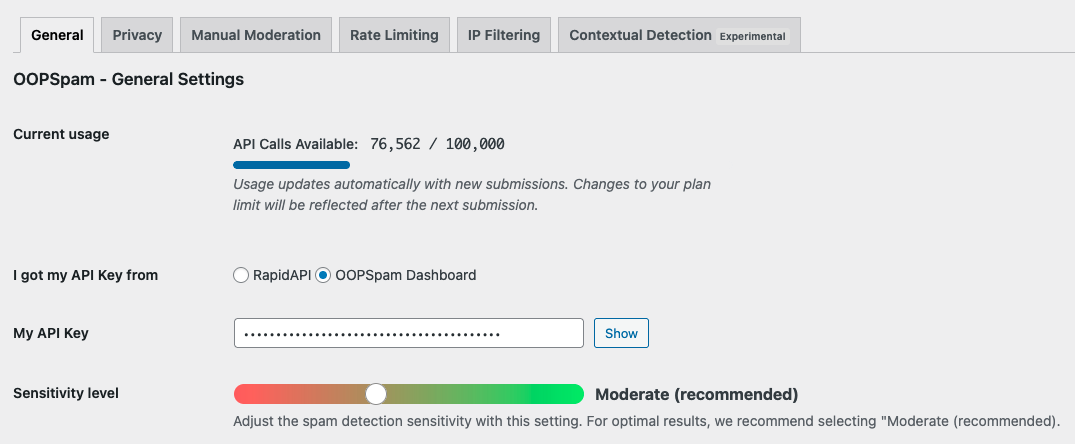
Go to Settings > OOPSpam, paste your API key, and save.
Find the Super Forms section and check Activate Spam Protection.
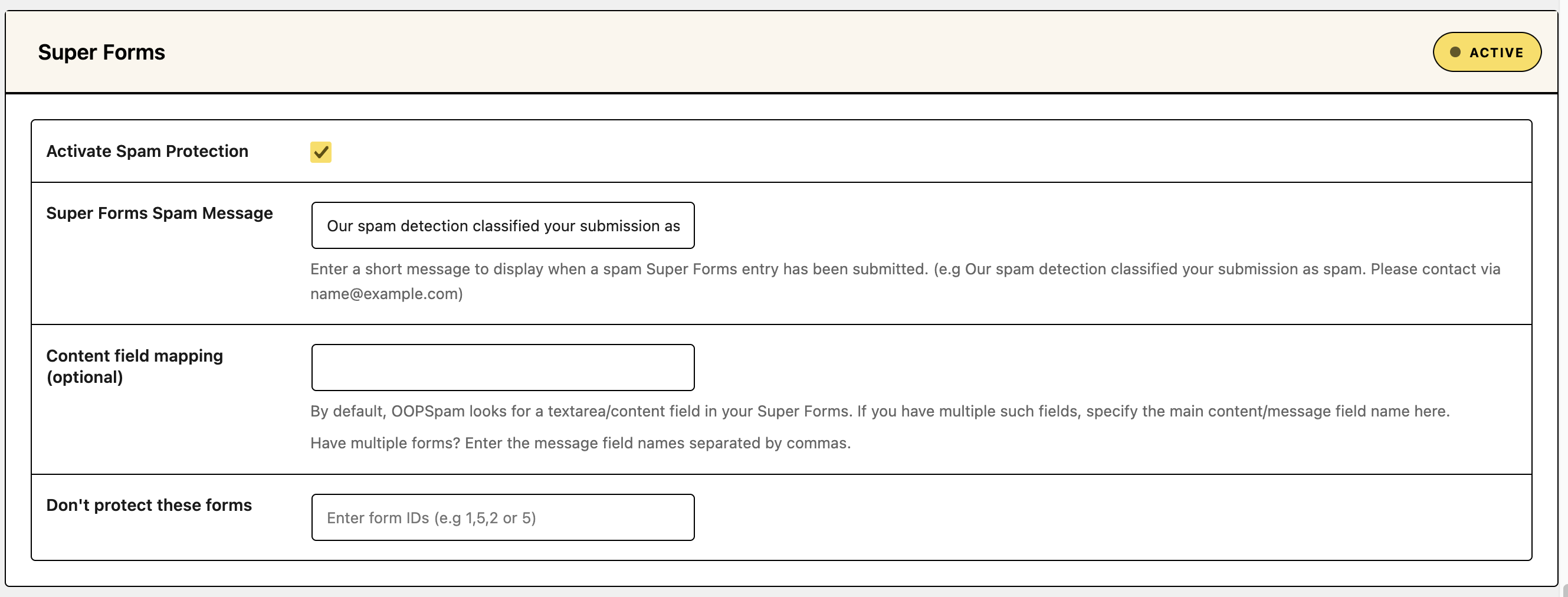
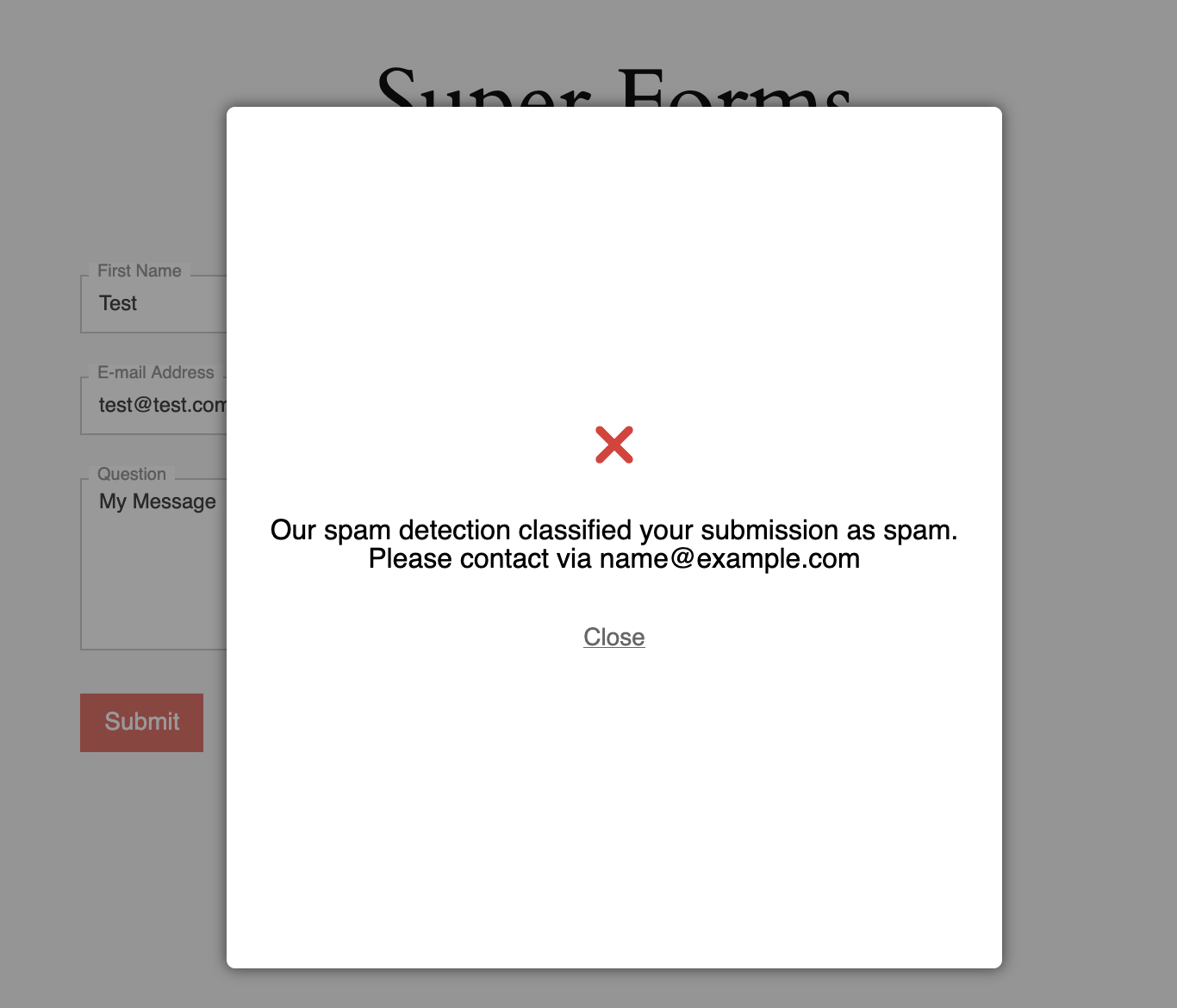
- Optional: edit Super Forms Spam Message. This is what a visitor sees when a submission is flagged, for example “Our spam detection classified your submission as spam. Please contact via [email protected]”.
- Optional: use Content field mapping if your form has more than one textarea. Enter the name of the main message field. For multiple forms, separate field names with commas.
- Optional: enter form IDs in Don’t protect these forms (for example 1,5,2) to skip forms that don’t need filtering.
What OOPSpam can filter
- Known spam IPs and email domains
- VPN, proxy, and data center traffic
- Disposable email addresses
- Submissions from countries you choose to block
- Repeat submissions from the same IP or email within a set time
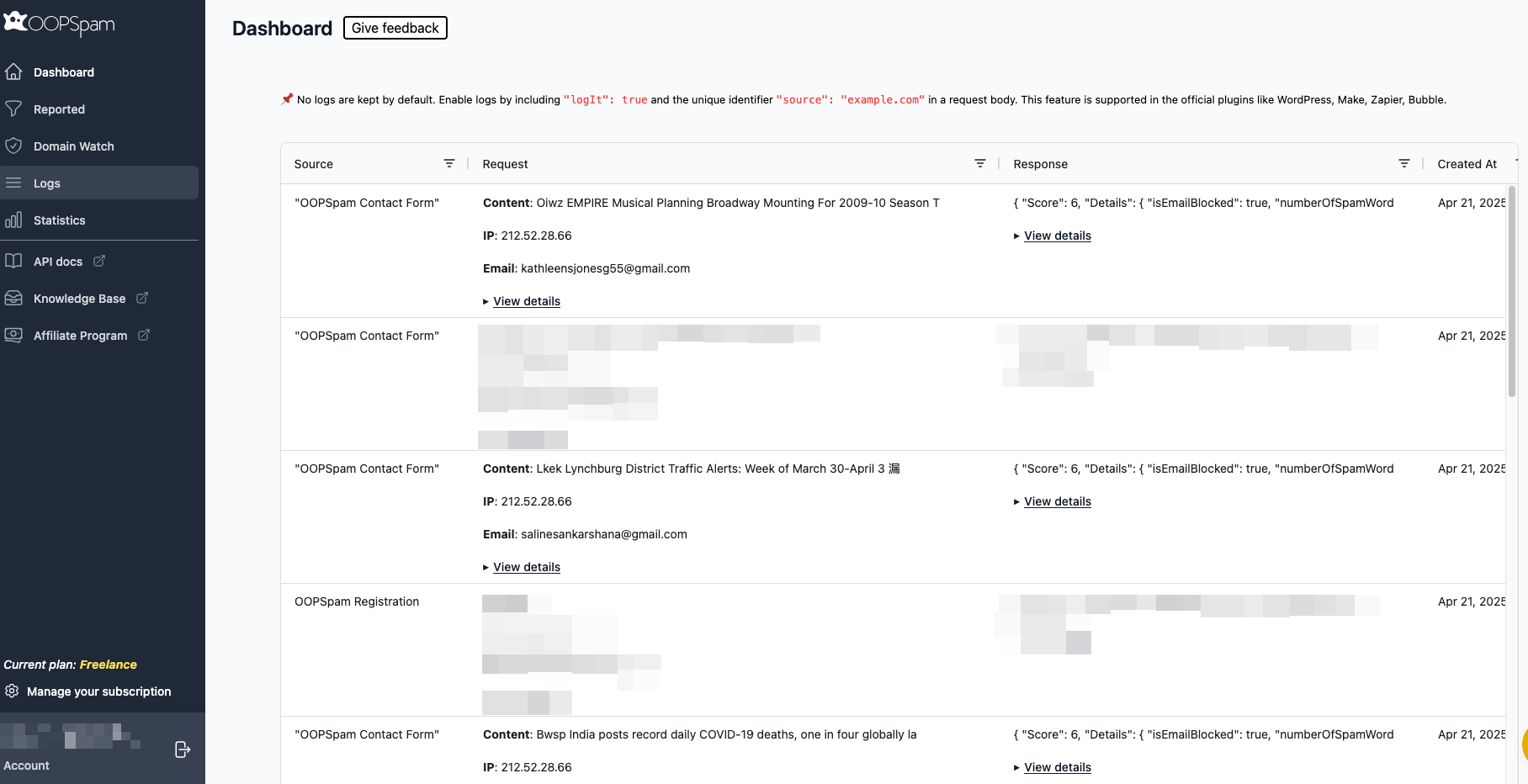
OOPSpam also keeps a submission log, so you can review blocked entries and adjust settings if a real visitor gets caught.
Method 4: Add a Custom PHP Blocklist
Super Forms documents a super_before_processing_data hook that compares submitted values against a list you define. When a value matches, it shows the bot a fake “Thank you” message and discards the submission. The bot never learns it was blocked. See the Super Forms code example. Use this for known bad emails or phone numbers. You must maintain the list yourself.
Method 5: Block Countries at Cloudflare
If your spam comes from regions where you have no customers, block them before requests reach WordPress.
- Log into Cloudflare and select your site.
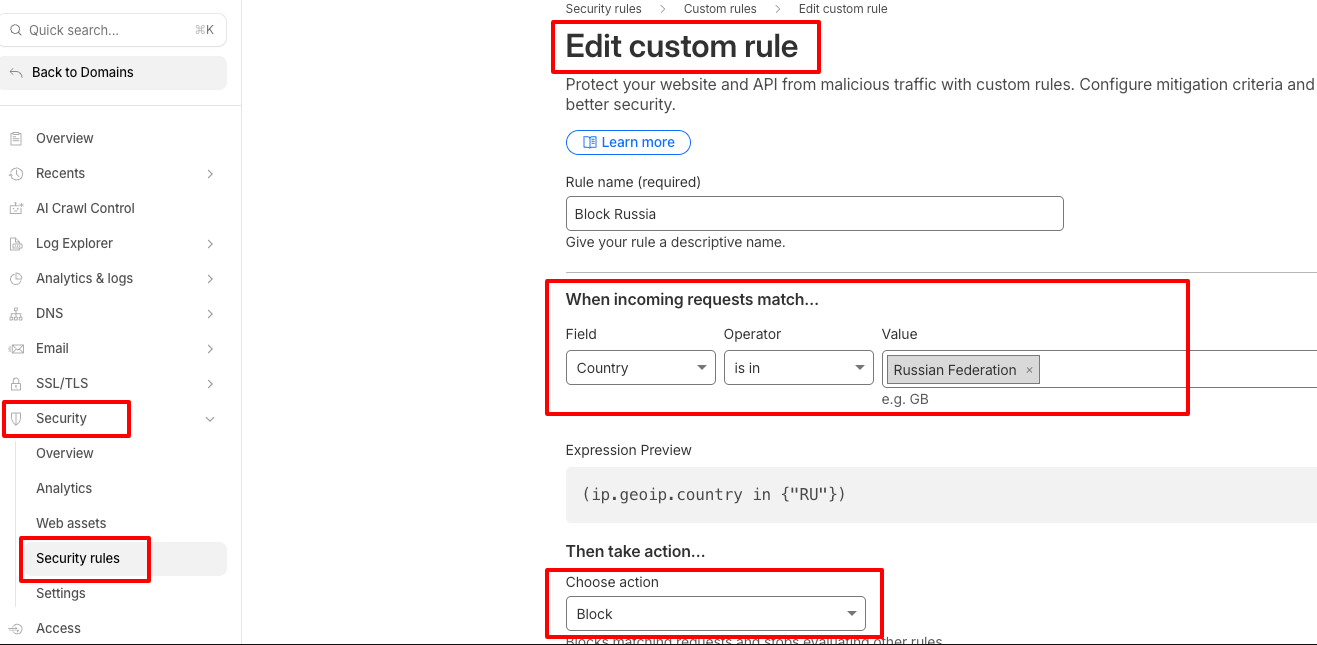
- Go to Security > Security rules and click Create rule.
- Set the field to Country, the operator to is in, and select the countries.
- Set the action to Block and deploy.
This is a blunt tool. Use it only when the pattern is clear and real visitors won’t be locked out.
Final thoughts
Layer your defenses. Start with OOPSpam for automatic filtering, add reCAPTCHA for bot verification, and use duplicate blocking, custom rules, or Cloudflare for specific patterns. Keep Super Forms updated to 6.3.314 or later, which patched a critical file upload vulnerability.