
Chazie Baniquid
Technical Content Marketer
6 minutes to read
How to Limit Form Submissions in Super Forms?
Super Forms has two built-in submission limits, a User Form locker and a Global Form locker, both under Form Settings. Both are count-based, and the documentation does not describe IP, email, or per-hour limits. To cap repeat submissions per IP or email within a set time, add rate limiting with the OOPSpam Anti-Spam plugin. This guide covers both, step by step.
Method 1: Use the Super Forms User Form Locker
Use this to limit how many times one user can submit a form.
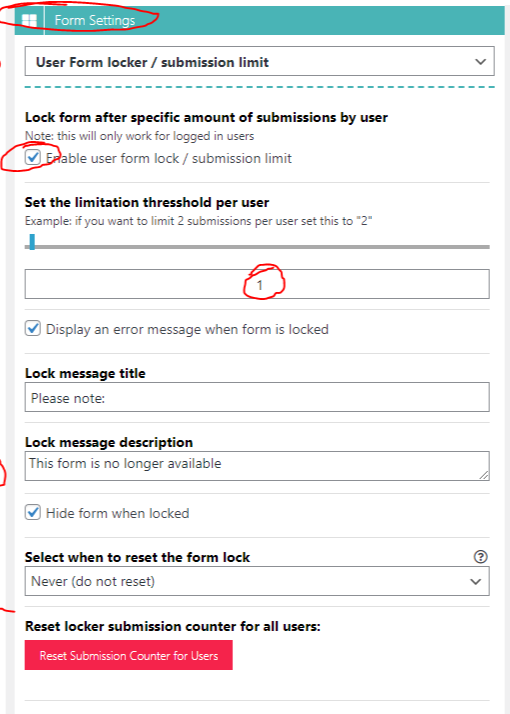
- Edit your form and open Form Settings.
- Go to User Form locker / submission limit.
- Set how many times a user can submit the form.
- Enter a message to show when the limit is reached.
- Optional: enable hiding the form once the limit is reached.
- Reset the counter whenever you want to let users submit again.
The Super Forms feature list describes this limit as applying to logged in users. If your form is public, it is not a reliable way to stop anonymous bots. For those, use Method 3.
Method 2: Use the Super Forms Global Form Locker
Use this to close a form after a fixed total number of submissions, such as a giveaway or event signup.
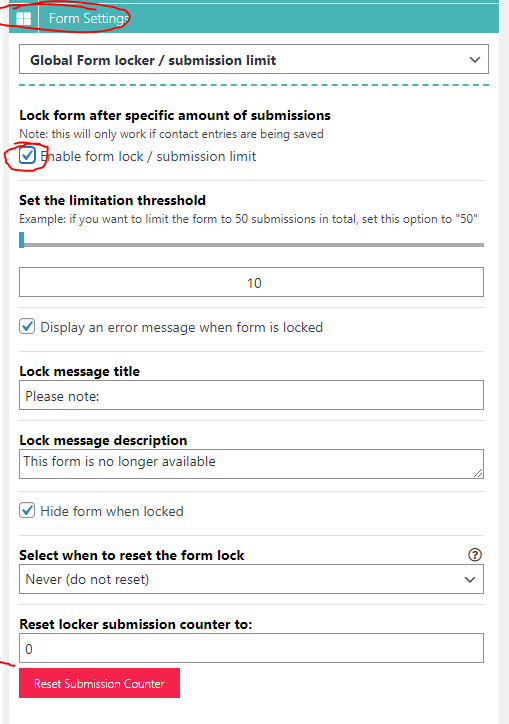
- Edit your form and open Form Settings.
- Go to Global Form locker / submission limit.
- Set the total number of submissions allowed, for example 10.
- Enter the message that later visitors will see.
- Optional: enable hiding the form once it is locked.
- Reset the counter if you reopen the form.
The Super Forms feature list also mentions resetting the lock on a schedule (daily, weekly, monthly, yearly, or manually). A global cap counts spam too. A bot can use up your limit and lock out real visitors, so pair this method with spam filtering.
Method 3: Add Rate Limiting With OOPSpam
OOPSpam checks each submission before it is processed. If a visitor goes over your limit, the submission is blocked. Real visitors are not affected as long as they stay under the cap.
How to set it up
In WordPress, go to Plugins > Add New, search for OOPSpam Anti-Spam, then install and activate it.
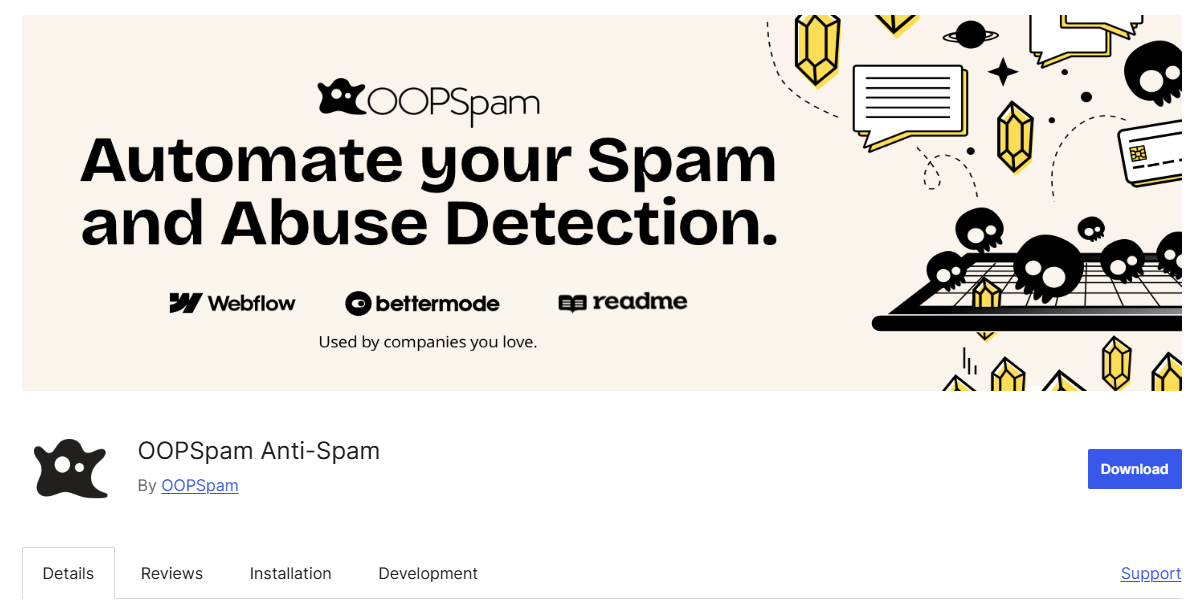
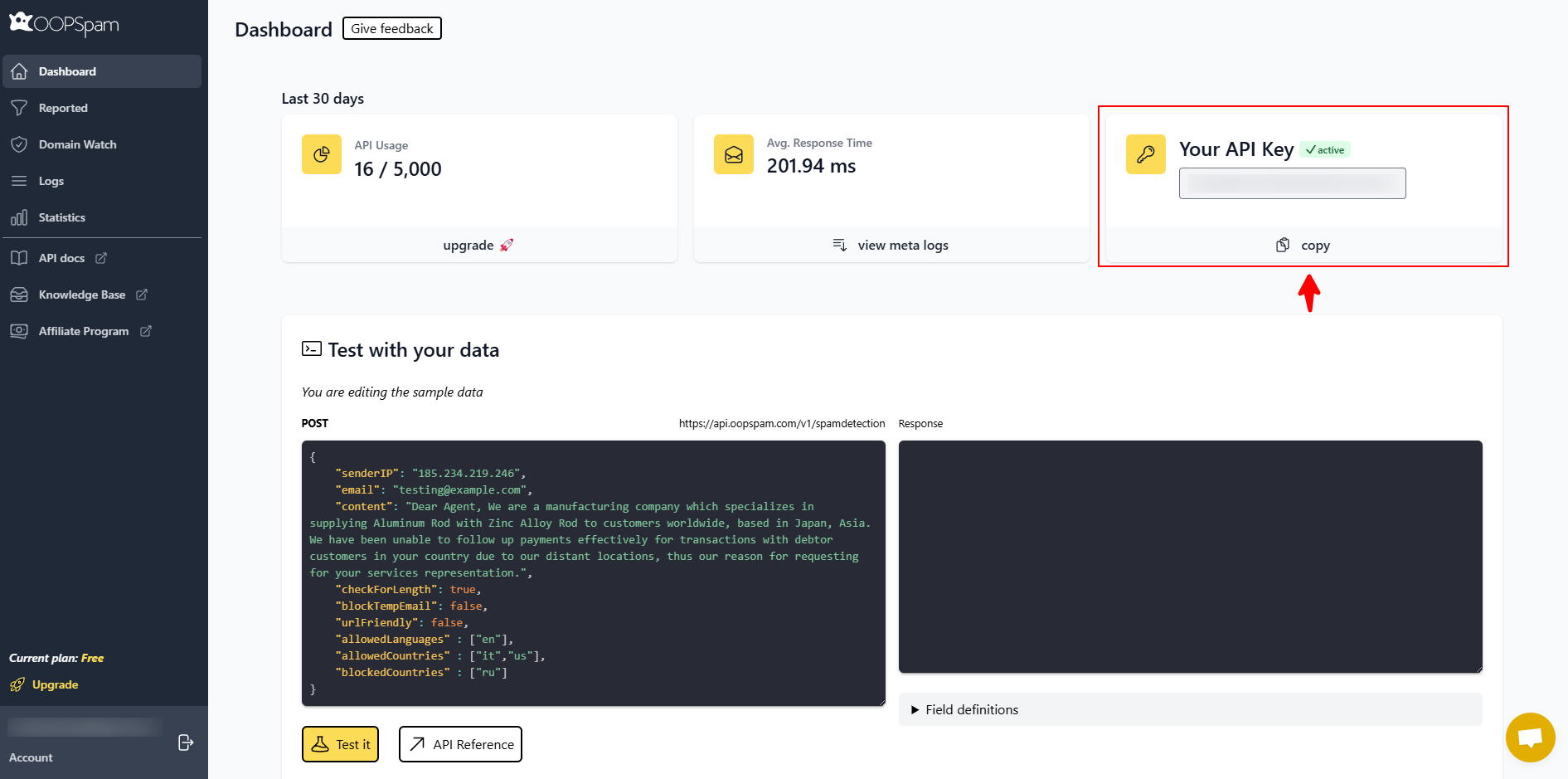
Create a free account at oopspam.com and copy your API key from the dashboard.
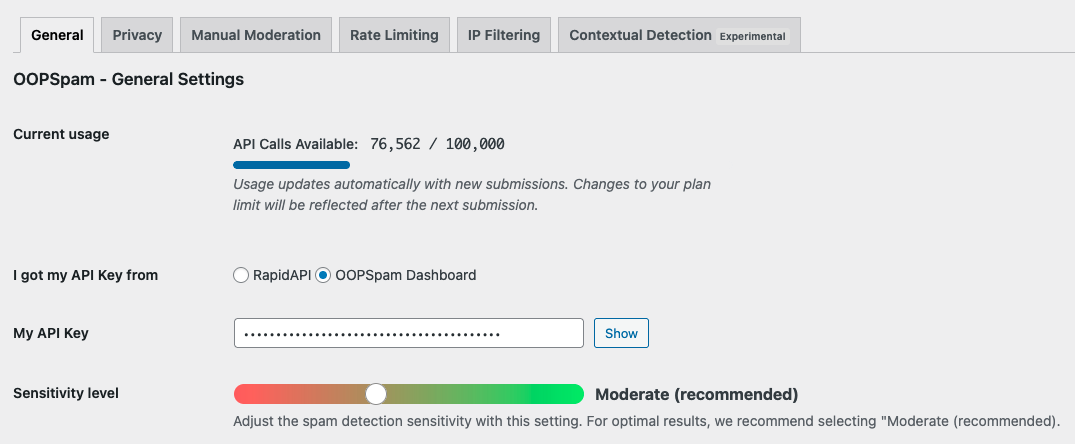
Open the OOPSpam settings in your WordPress dashboard, paste your API key, and save.
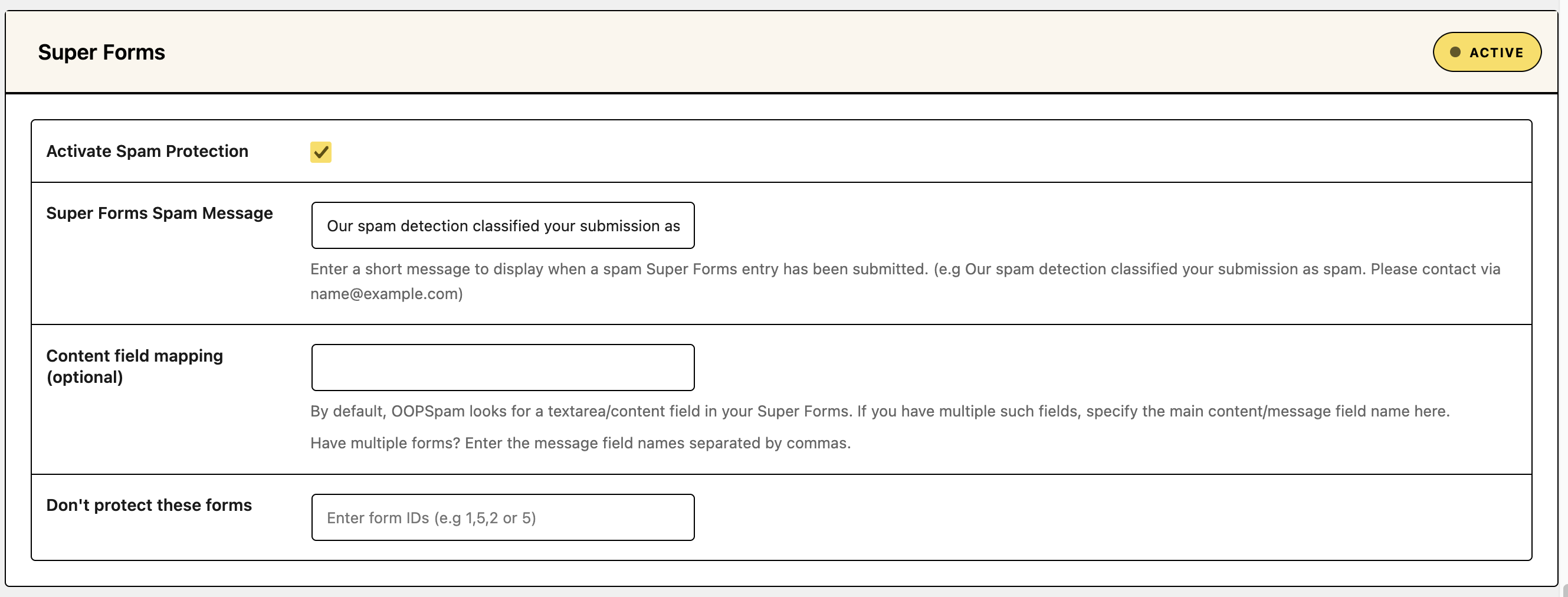
Find the Super Forms section and check Activate Spam Protection.
Open the Rate Limiting tab and turn on Enable Rate Limiting.
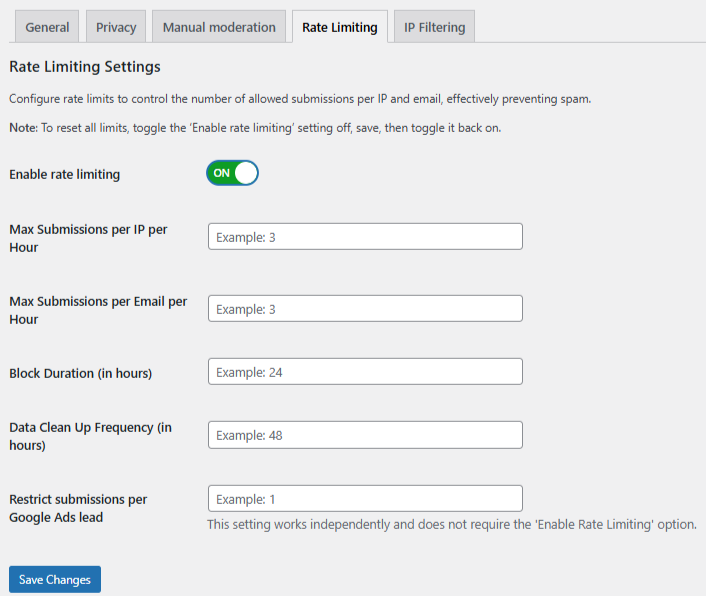
Set your limits:
- Max submissions per IP per hour: how many times one IP address can submit in an hour.
- Max submissions per email per hour: how many times one email address can submit in an hour.
- Block duration (in hours): how long an IP or email stays blocked after hitting the limit.
- Data clean-up frequency (in hours): how often OOPSpam clears the table it uses to track submissions.
Click Save Changes, then submit your form several times to test it.
A good starting point is 3 submissions per hour per IP and per email, a 24 hour block, and a 48 hour clean-up. Raise the numbers if your form has legitimate repeat users, such as support forms.
Add more filters
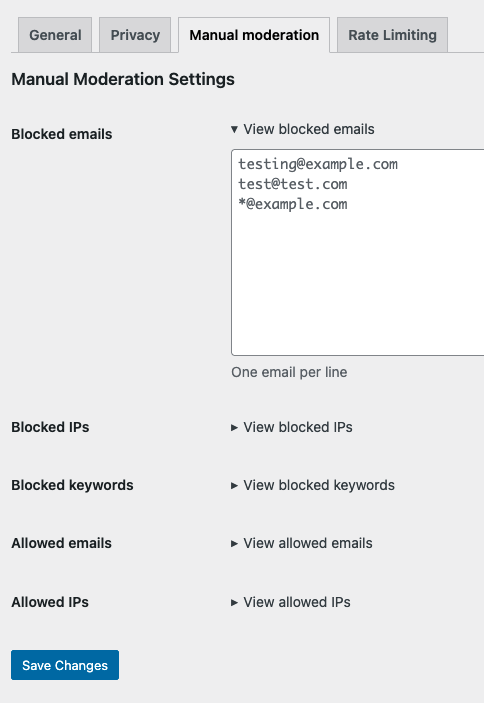
Rate limiting works best with OOPSpam’s other filters. You can block VPN and data center IPs, disposable emails, and specific countries. You can also block keywords and review blocked entries in the submission log.
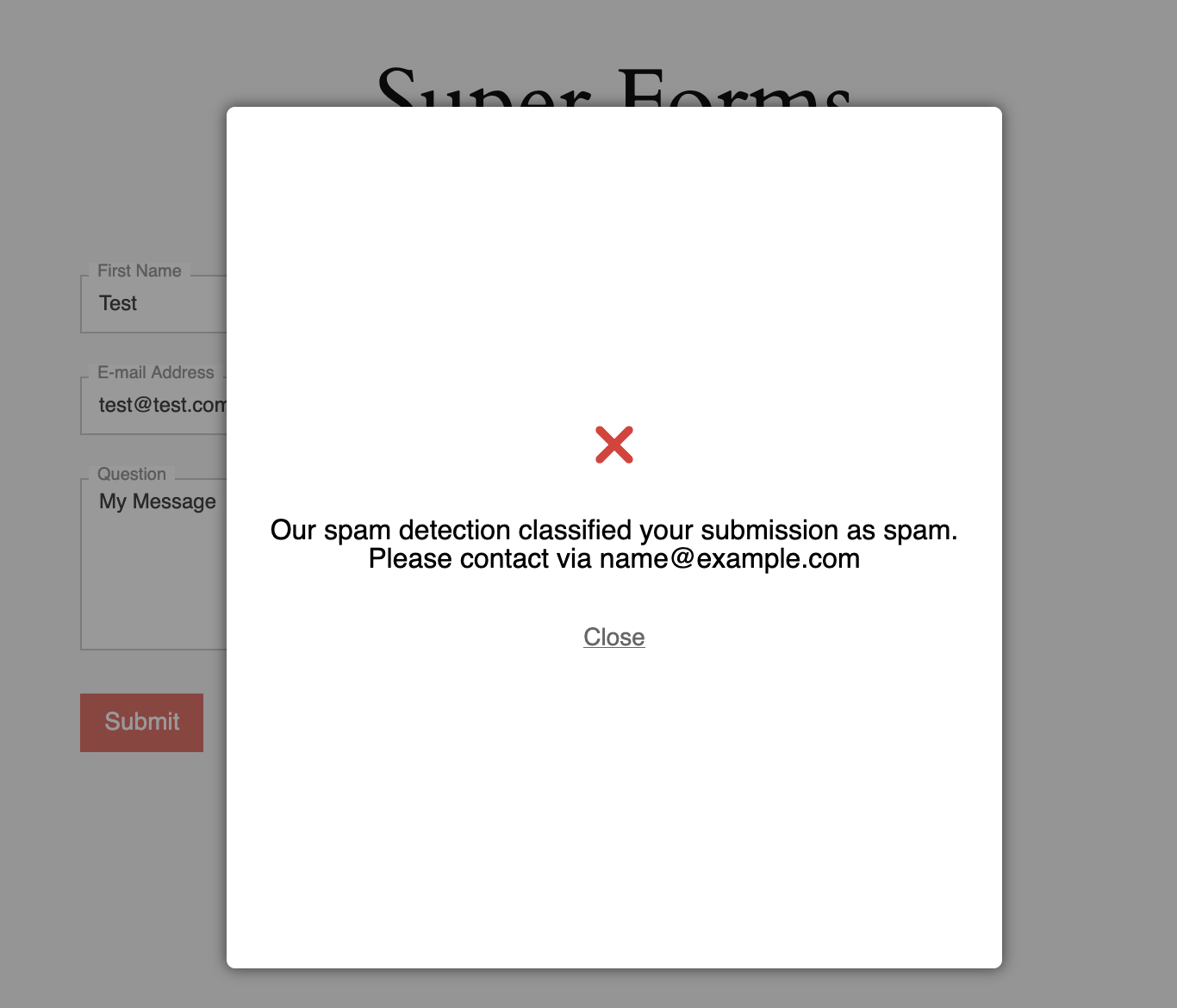
Use the optional Super Forms Spam Message field to tell blocked visitors how to reach you, in case a real person is caught by mistake.
Which Method Should You Use?
| Goal | Best method |
|---|---|
| Stop bots from flooding a public form | OOPSpam rate limiting |
| Limit repeat submissions per IP or email | OOPSpam rate limiting |
| Limit submissions per logged in user | User Form locker |
| Close a form after a fixed total | Global Form locker |
Final thoughts
Use the built-in lockers to control who can submit and how many entries you accept. Use OOPSpam rate limiting to control how fast anyone can submit. Keep in mind that attackers spreading requests across many IPs can stay under per-IP limits, so combine rate limiting with content filtering. Keep Super Forms updated to version 6.3.314 or later, which patched a critical file upload vulnerability.