
Chazie Baniquid
Technical Content Marketer
4 minutes to read
How to Block VPN and Data Center IP Submissions in Super Forms
Super Forms does not list a built-in setting to block VPN or data center IPs. To block them, use the OOPSpam Anti-Spam plugin and turn on Block Cloud Providers and Block VPNs. For site-wide control, add a Cloudflare rule that challenges or blocks cloud provider ASNs. Start by blocking cloud providers, and enable VPN blocking only if your audience does not rely on VPNs.
Method 1: Block VPN and Cloud IPs With OOPSpam
OOPSpam checks each Super Forms submission against a database of known VPN services and cloud provider IP ranges. It blocks matches before they reach your inbox or entries.
How to set it up
In WordPress, go to Plugins > Add New, search for OOPSpam Anti-Spam, then install and activate it.
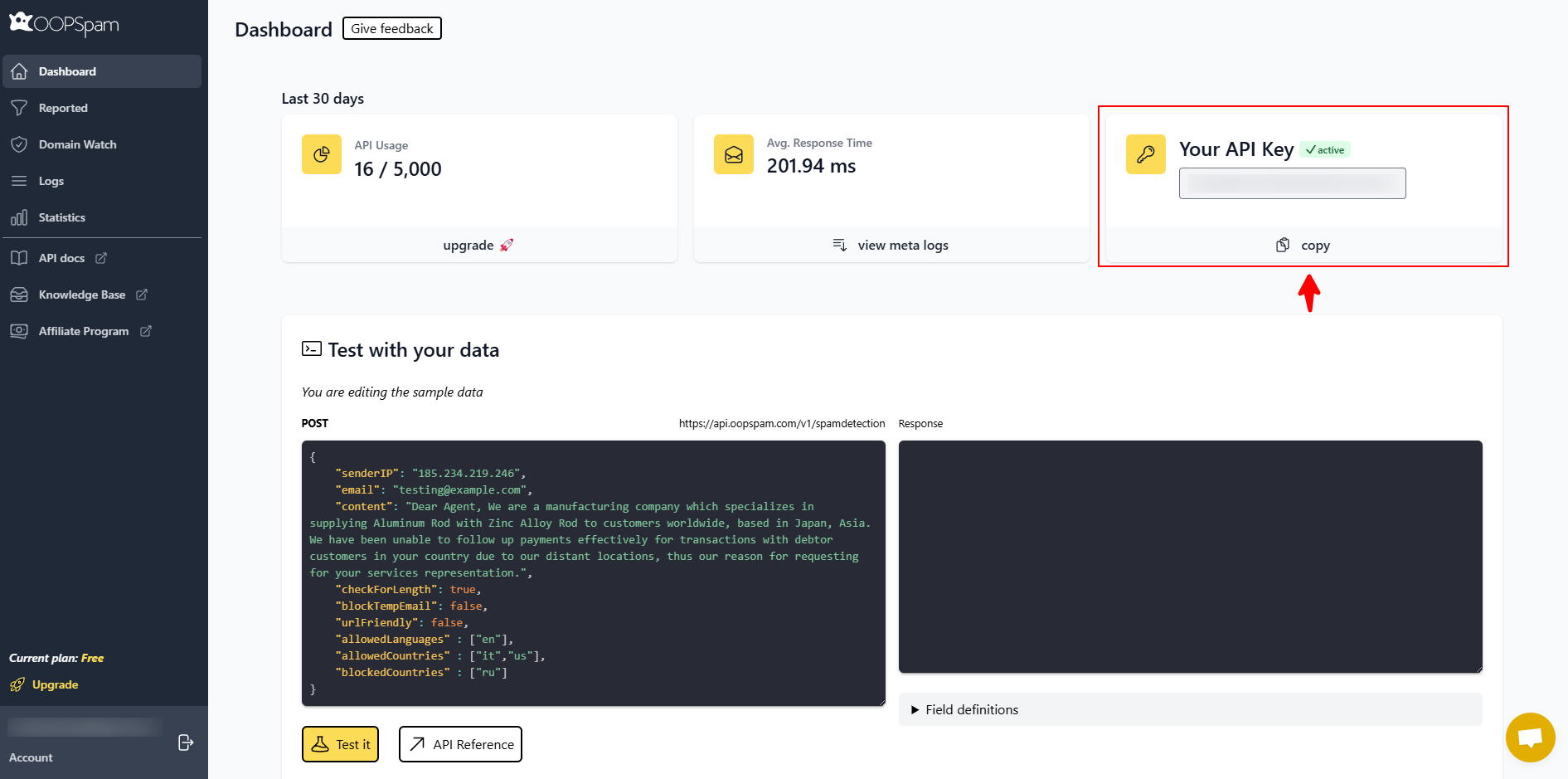
Create a free account at oopspam.com and copy your API key from the dashboard.
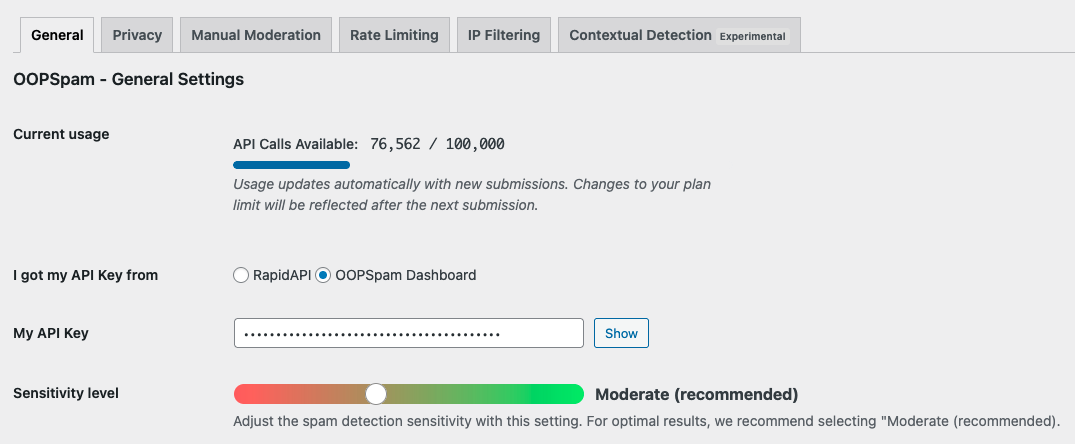
Open the OOPSpam settings in WordPress, paste your API key, and save.
Find the Super Forms section and check Activate Spam Protection.
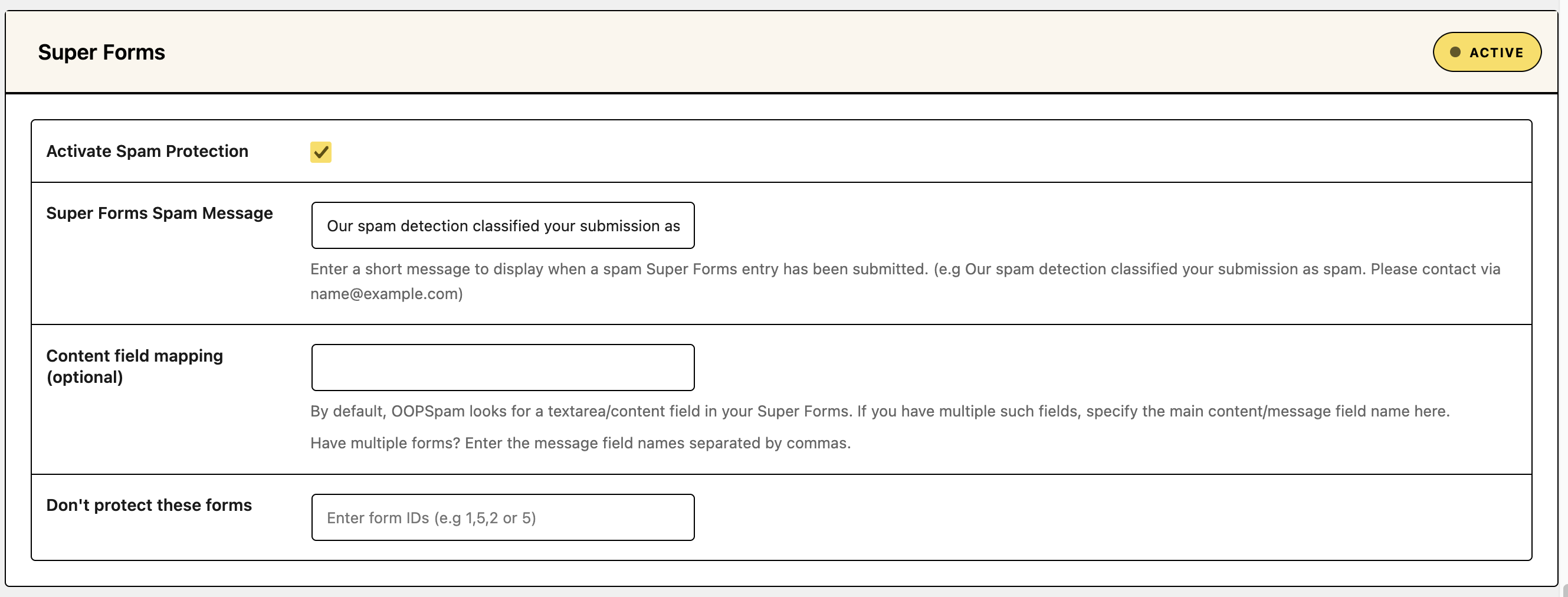
Optional: edit Super Forms Spam Message so blocked visitors know how to reach you, for example “We couldn’t process your submission. Please email [email protected].”
Open the IP Filtering tab and enable:
- Block Cloud Providers: blocks submissions from over 1,500 known cloud provider IP ranges. Real visitors rarely submit forms from cloud servers, so this is safe for most sites.
- Block VPNs: blocks submissions from known VPN services. Use it only if your audience is unlikely to use VPNs for privacy or work.
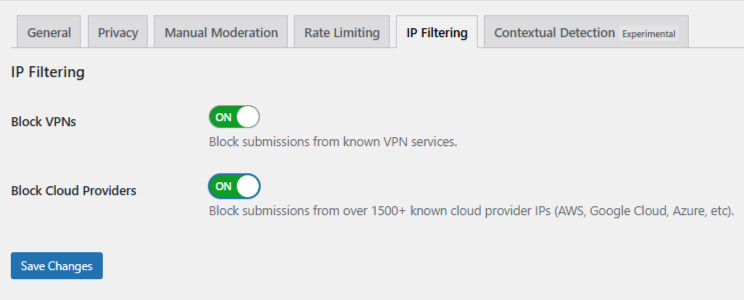
Save your changes, then submit a test entry and check the OOPSpam spam and ham logs.
If your site uses Cloudflare

Open the OOPSpam Miscellaneous settings and enable Trust proxy headers. This lets the plugin see the visitor’s real IP instead of Cloudflare’s. Only enable it if you trust your proxy service. Also keep the Do not analyze IP addresses privacy setting off, because IP filtering needs the visitor’s IP.
Handle false positives with Manual Moderation
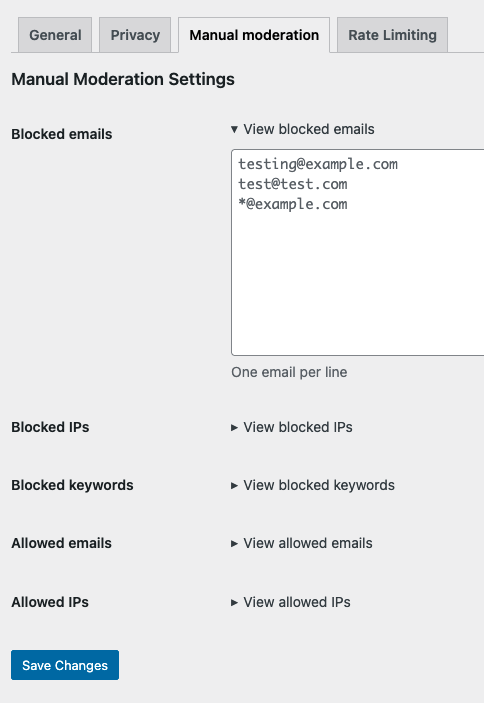
In the Manual Moderation tab, add one item per line to block or allow specific IPs. It supports single IPs, ranges, and CIDR notation such as 192.168.1.0/24. Allowed IPs and emails bypass the spam check, so use them for trusted partners or staff on a VPN.
Method 2: Block Cloud Providers With Cloudflare
Cloudflare filters requests by ASN (Autonomous System Number) before they reach WordPress. Each cloud provider operates under known ASNs. This applies site-wide, not just to your form.
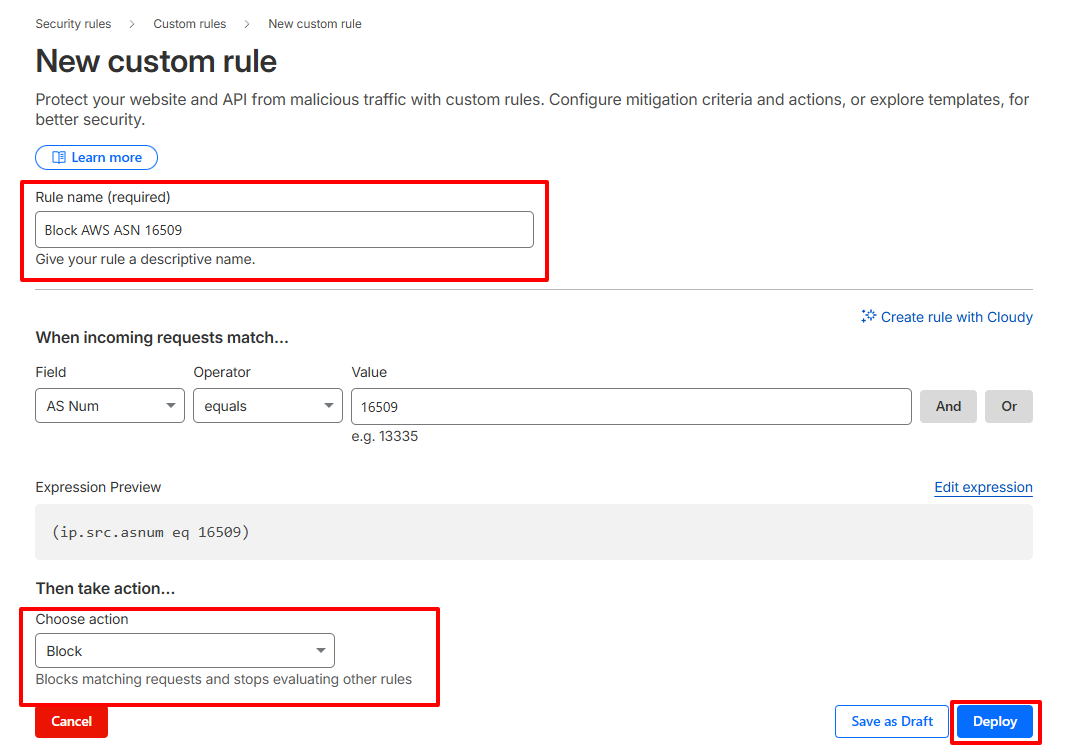
- Log into your Cloudflare dashboard and select your site.
- Go to Security > Security rules > Custom rules.
- Click Create rule and name it “Block Data Center IPs.”
- Set the field to AS Num. For example,
ip.geoip.asnum eq 16509matches AWS. - Set the action to Managed Challenge first. Switch to Block only when you are confident in the rule.
- Save and deploy.
Repeat for other providers such as Google Cloud, Microsoft Azure, and DigitalOcean.
What to Know Before You Block
- Blocking cloud providers is usually safe. Blocking VPNs can turn away real users who use one for privacy or work.
- Broad ASN rules can catch legitimate corporate traffic. Start with Managed Challenge and review your Cloudflare logs.
- IP filtering does not stop spam from residential IPs. Pair it with content filtering and rate limiting.
Final thoughts
Super Forms has no native VPN or data center filter, so add one. Set up OOPSpam first, starting with Block Cloud Providers. Add Block VPNs if your audience allows it. Add Cloudflare ASN rules only if attacks continue at scale.