
Chazie Baniquid
Technical Content Marketer
6 minutes to read
How to Limit Form Submissions in ACF Frontend Forms?
Advanced Custom Fields (ACF) does not include built-in submission limits. To control how often users can submit your ACF frontend forms, you must use a third-party plugin or write custom PHP. The three best options are Advanced Forms Pro, oopspam Anti-Spam, and custom validation code.
Why You Need Submission Limits in ACF Forms
Limiting submissions protects your site from spam, bot abuse, duplicate entries, and form floods that slow down performance. Since ACF only handles field management, you must add your own control layer on top. The methods below work for developers, agencies, and site owners who rely on ACF for custom workflows.
Use Advanced Forms Pro to Add Basic Submission Limits
Advanced Forms Pro is a third-party plugin that lets you create ACF frontend forms with extra features, including simple submission limits. It works with all ACF field types and uses the same interface you already know. You must have ACF PRO v5.7 or later installed.
What You Can Limit
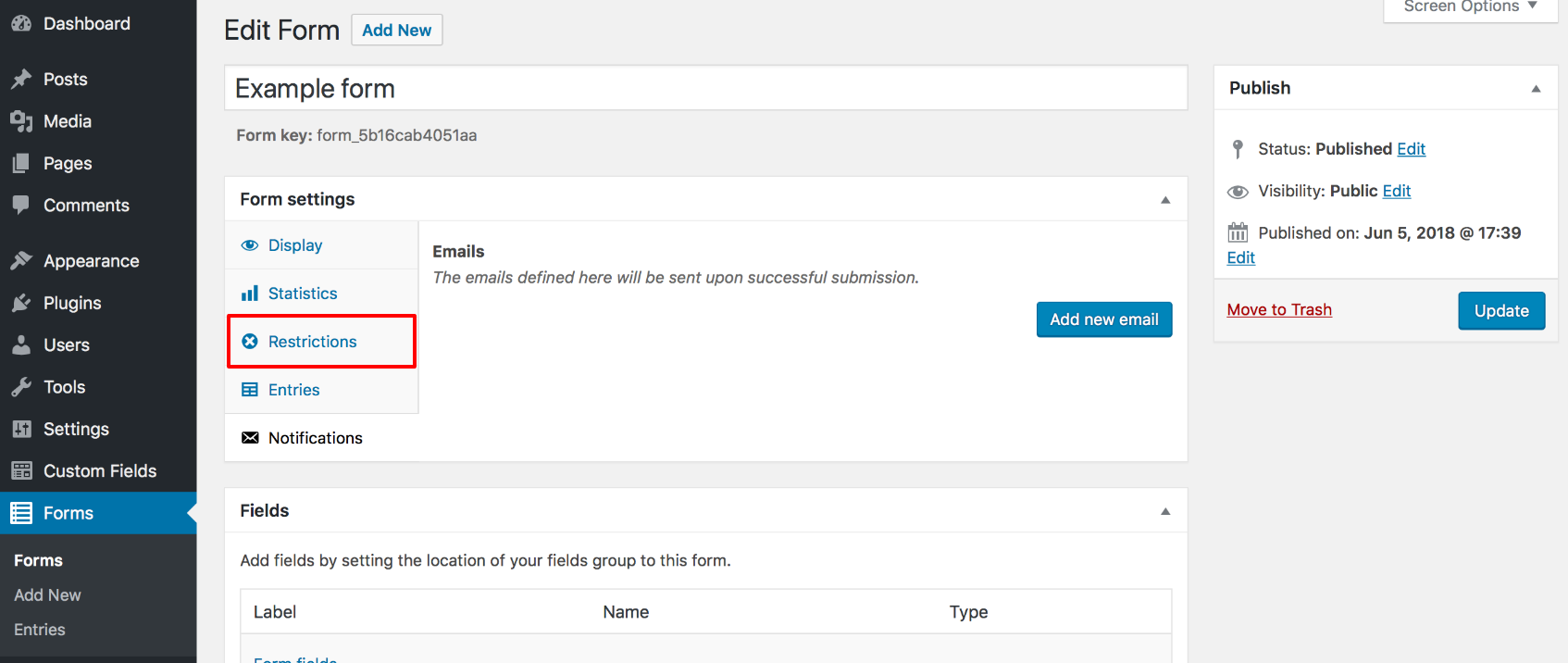
Advanced Forms Pro includes three built-in restriction options:
- Limit the total number of submissions
- Allow submissions from logged-in users only
- Restrict submissions to a specific date or time range
These settings apply immediately because the plugin manages form rendering and processing for you.
How to Enable These Limits
- Install and activate Advanced Forms Pro.
- Make sure ACF PRO v5+ is active.
- Open your form inside WordPress.
- Scroll to the Restrictions section.
- Choose the limit you want to apply.
- Save your settings.
Advanced Forms Pro is useful when you want simple limits without coding. It works well for small campaigns, event registrations, or any form with low-volume submissions.
Use oopspam for Strong Spam Filtering and Advanced Rate Limiting
oopspam (that’s us 👋) is the best option for controlling ACF form submissions because it combines spam filtering, rate limiting, country rules, and detailed logs. It protects your forms at a deeper level than simple submission caps.
oopspam works with ACF Frontend Forms automatically once enabled. You do not need custom code.
Why oopspam Works Better
ACF forms are often targeted by bots because they do not include built-in spam protection or throttling. oopspam fills that gap with:
- Machine-learning spam detection
- VPN, Proxy, and TOR blocking
- Language and country filtering
- IP and email rate limiting
- Built-in logs for approved and blocked submissions
This gives you both quality filtering and submission control at the same time.
Install oopspam
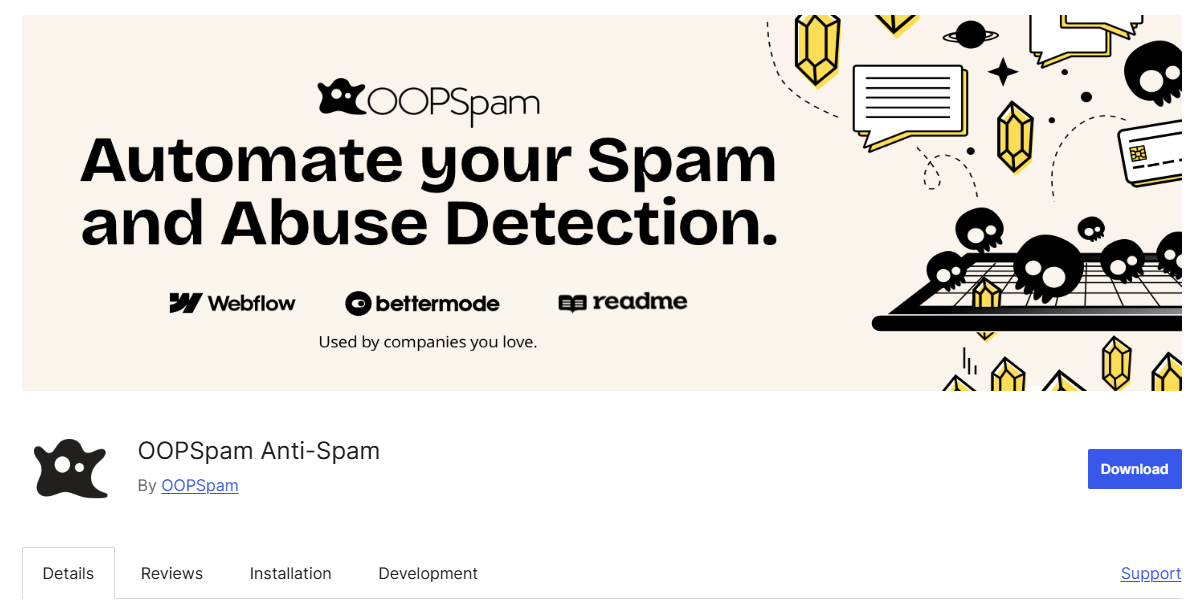
Go to Plugins → Add New and search for oopspam Anti-Spam. Install and activate the plugin.
Connect Your API Key
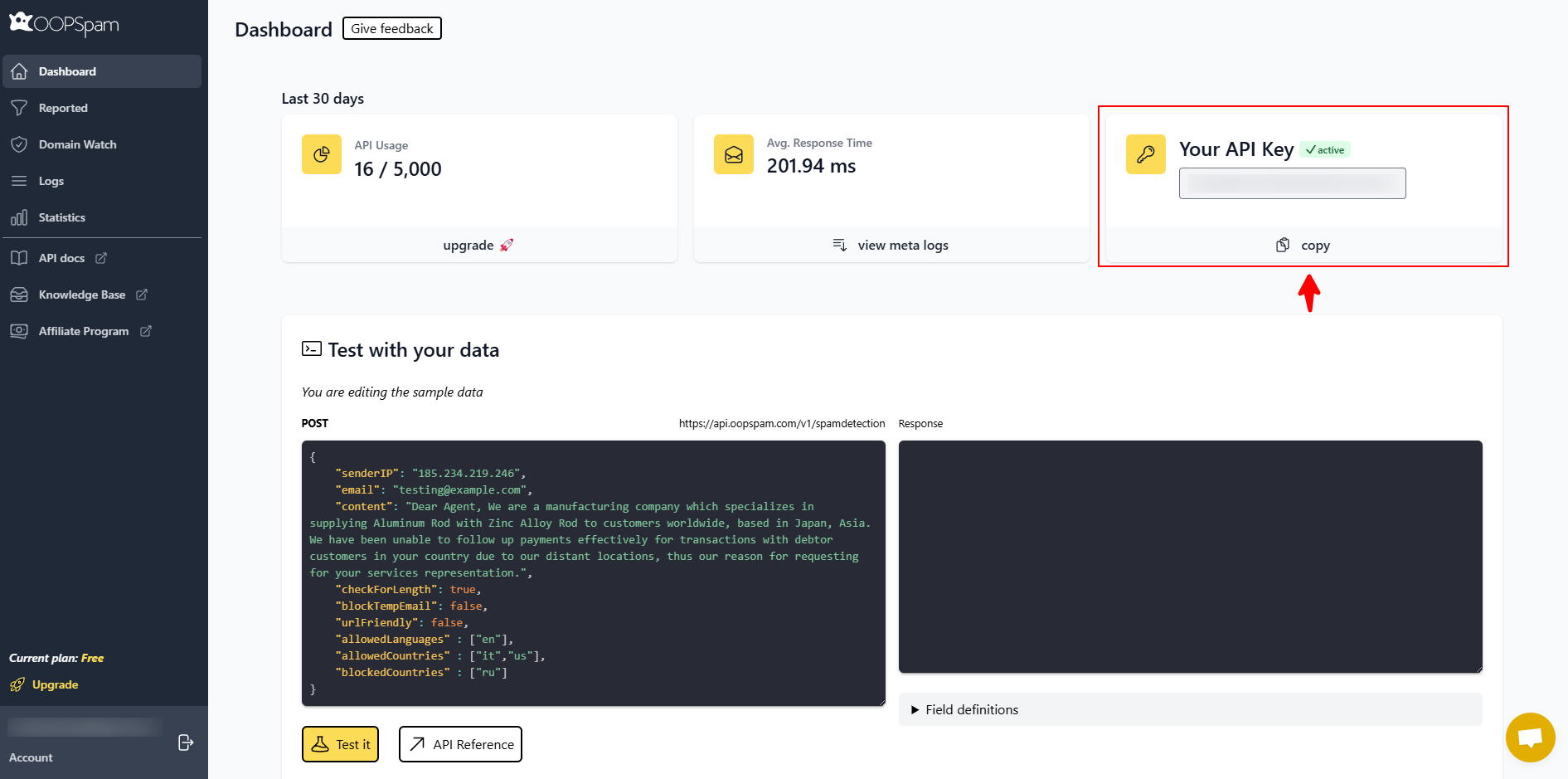
Create an account on oopspam.com and copy your API key.
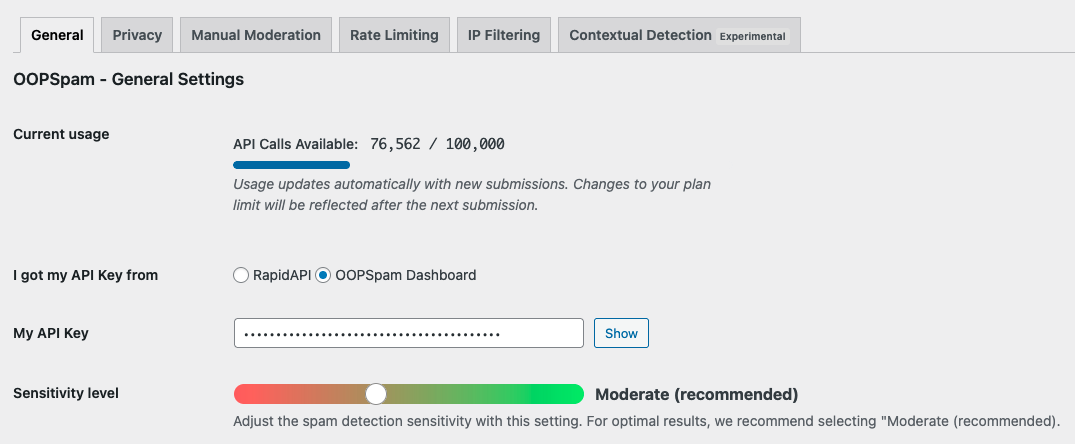
In WordPress, go to oopspam → General Settings. Paste your key into the API field. Save settings.
Enable ACF Form Protection
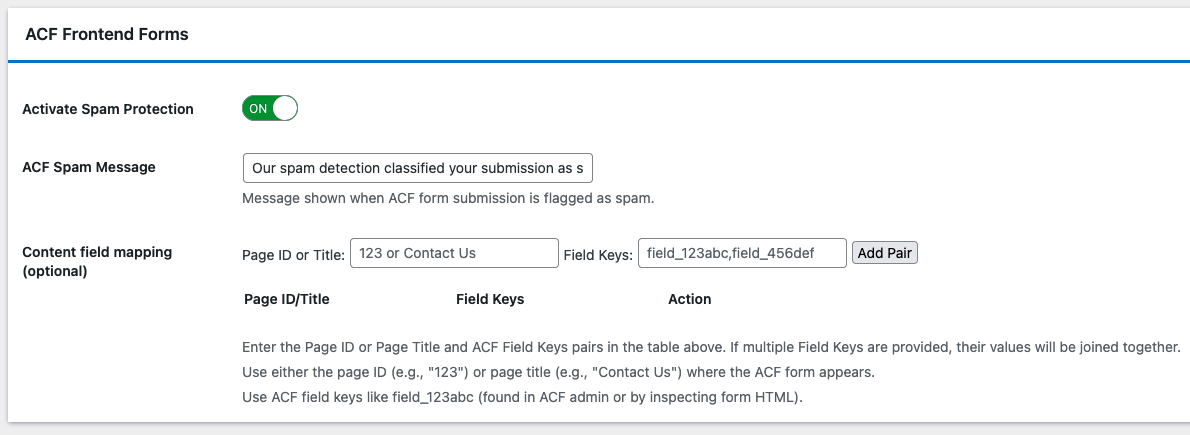
In the oopspam settings, make sure ACF Frontend Forms spam protection is turned ON.
Turn On Rate Limiting
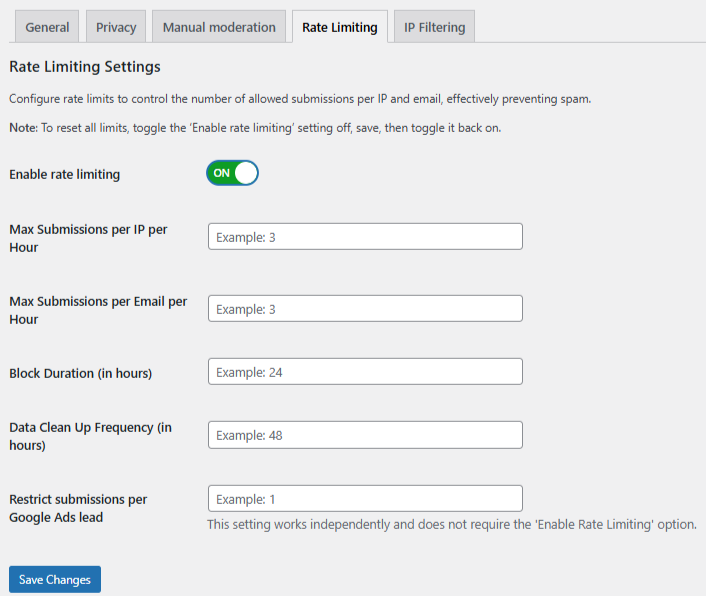
Go to oopspam → Rate Limiting tab and toggle Enable Rate Limiting to ON.
Configure your limits:
- Max submissions per IP per hour – How many times one IP can submit in an hour.
- Max submissions per email per hour – How many times one email can submit in an hour.
- Block duration (hours) – How long an IP or email stays blocked.
- Data cleanup schedule (hours) – How often old submission data is cleared.
Click Save Changes.
Strengthen Protection
Enable additional filters for better accuracy:
- VPN and Proxy blocking
- Country allow or deny rules
- Language filtering
- Contextual spam detection
- Logs and monitoring
This setup blocks abusive users, reduces bot attacks, and keeps genuine submissions clean.
Use Custom PHP If You Want Full Control
Developers can enforce their own submission limit rules with custom code. This is the most flexible option, but it requires PHP and WordPress experience.
What You Need to Build
A custom solution uses three steps:
- Track submissions
-
-
Save counts in user meta, options table, or a custom table
-
Use
acf/save_postoracf/pre_save_post
-
- Validate before save
-
-
Use
acf/validate_valueoracf/validate_save_post -
Stop the submission when the limit is reached
-
- Show an error message
-
- Return a readable error to the user
Example Logic (conceptual)
- Count submissions from the current IP or email
- Compare against your hourly or daily limit
- Block the submission if it exceeds that limit
This option is best when you need custom rules like per-user quotas, tiered access, or business-specific validation.
How to Test Your Limits
- Submit the form multiple times from the same IP.
- Try different emails.
- Use an incognito window to simulate another user.
- Review logs (oopspam) to confirm blocks.
- Confirm custom error messages appear correctly.
Testing ensures that legitimate users do not get blocked while abusive patterns are stopped.
Final Thoughts
ACF gives you control over custom fields, but it does not manage form security or submission limits. Adding limits prevents spam, protects your site, and ensures your forms work as intended. Whether you choose Advanced Forms Pro, oopspam, or a custom PHP solution, each method gives you reliable control over how your ACF frontend forms behave.