5 Ways to Stop Fake Orders in FluentCart

Technical Content Marketer

Reviewed by Onar Alili
Co-founder & Engineer
Published 7 min read
To stop fake orders in FluentCart, start with an order-screening plugin like oopspam Anti-Spam. It checks every order against 500M+ known malicious IPs and emails, blocks VPNs and cloud servers, rate limits checkout, and blocks countries you do not serve. It works without a CAPTCHA. Add Cloudflare Turnstile, Stripe 3D Secure and Radar, and an edge firewall for full coverage.
Why FluentCart Stores Get Fake Orders
FluentCart is fully self-hosted. Every order, customer, and failed attempt lands in your own WordPress database. Bots hit your server directly, so fake orders cost you hosting resources, gateway fees, and chargebacks.
The biggest threat is card testing. Fraudsters run stolen card numbers through small checkouts to see which ones work. oopspam’s 2025 Annual Spam Report found eCommerce spam rose to 22% of all tracked spam, up from 15% the year before. Card testing drove most of that growth.
FluentCart includes Cloudflare Turnstile, Stripe 3D Secure, server-side price and stock validation, and duplicate-order protection. These stop simple bots. They do not check an order’s IP or email against a reputation database. They do not block countries or rate limit checkout per IP. That gap is where most fake orders get through.
1. Install oopspam Anti-Spam
oopspam is the strongest single fix. It supports FluentCart natively and runs in the background, so real buyers never solve a puzzle.
Set it up in four steps:
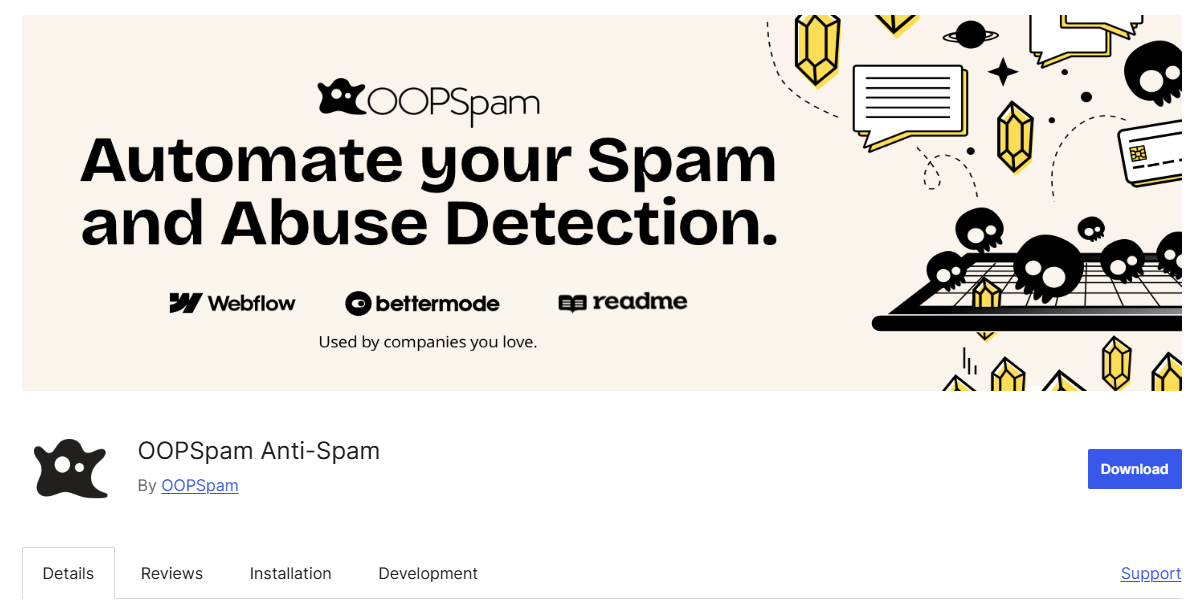
Install the free oopspam Anti-Spam plugin from WordPress.org.
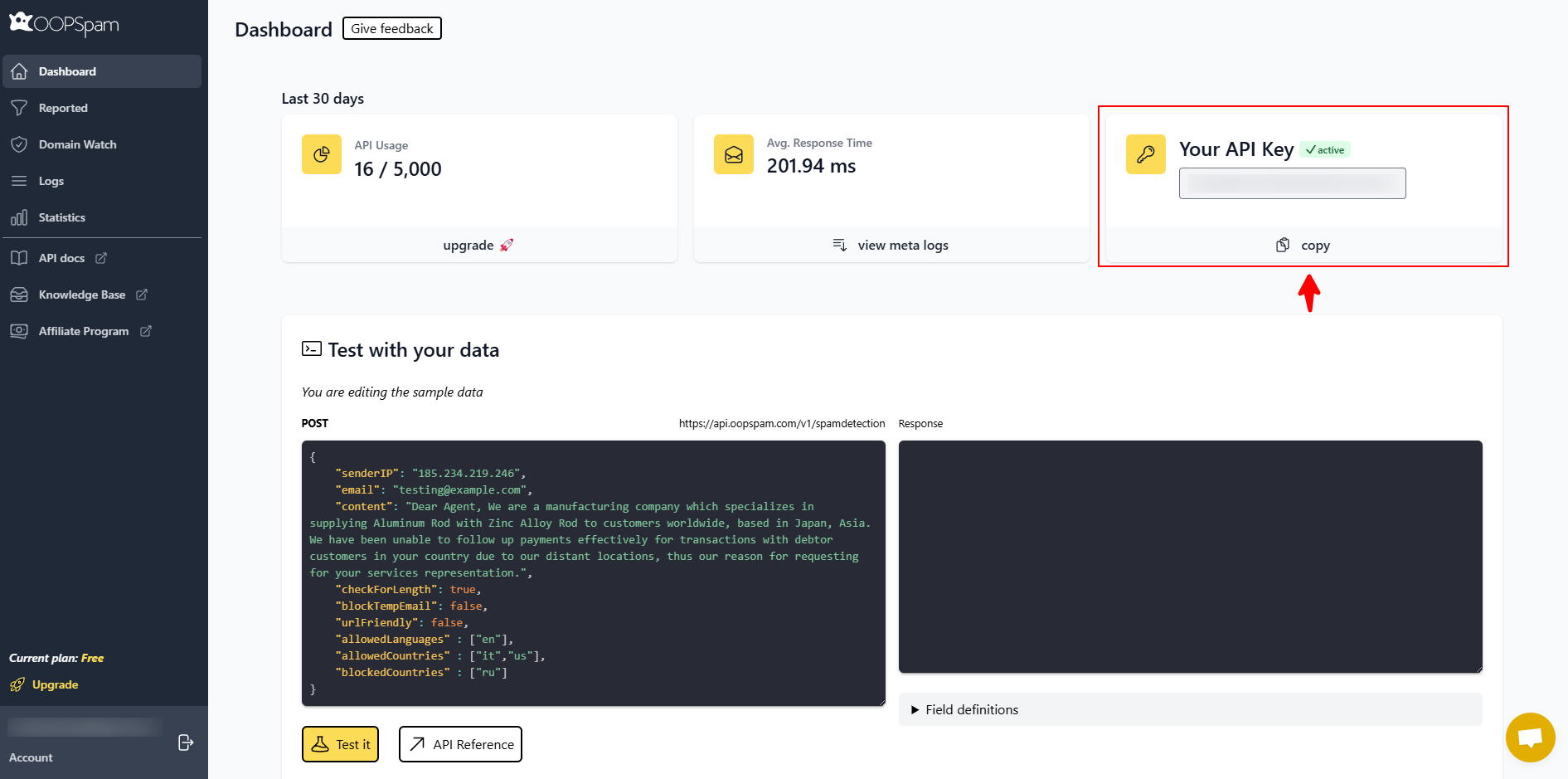
Create a free account at oopspam.com and copy your API key.
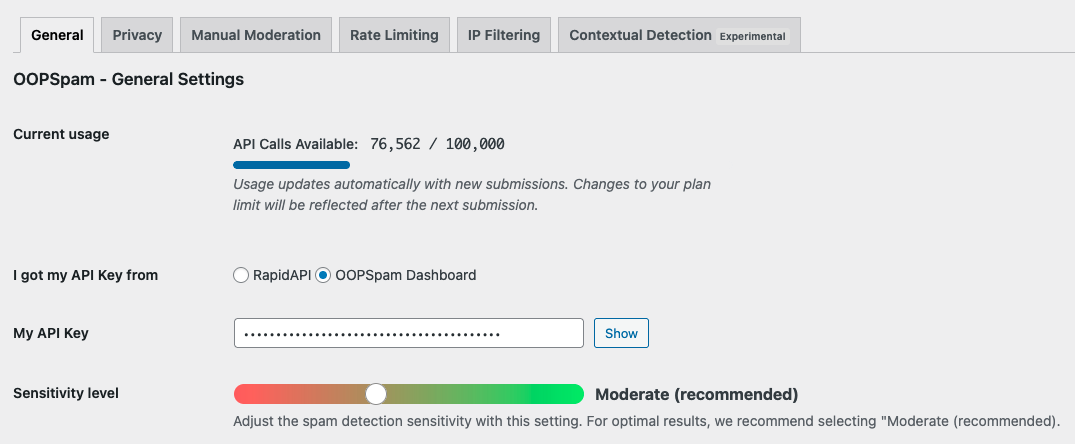
Go to Settings > oopspam Anti-Spam, paste the key, and set Sensitivity to Moderate.
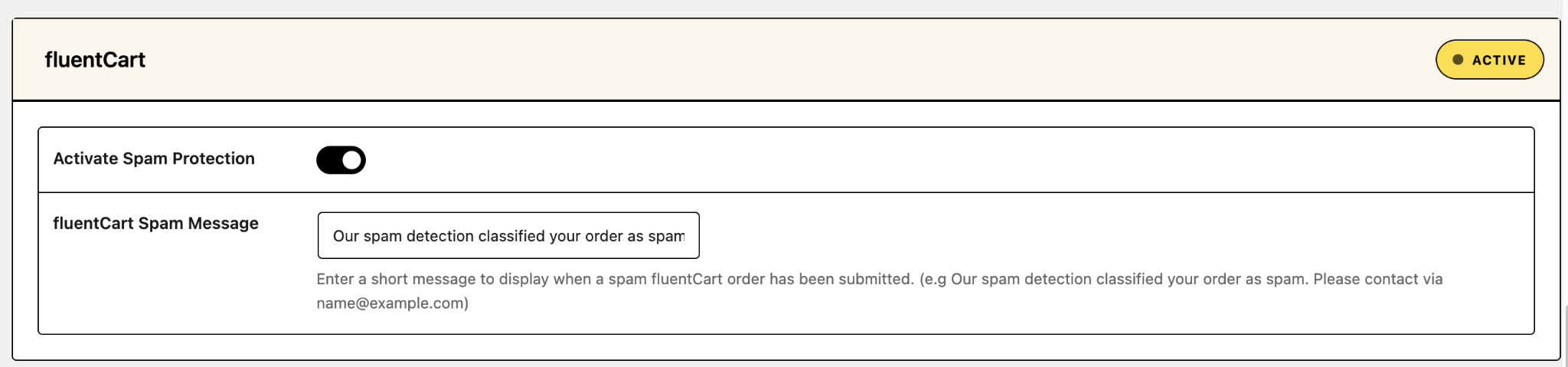
Find the FluentCart section and turn on Activate Spam Protection.
Then turn on these settings:
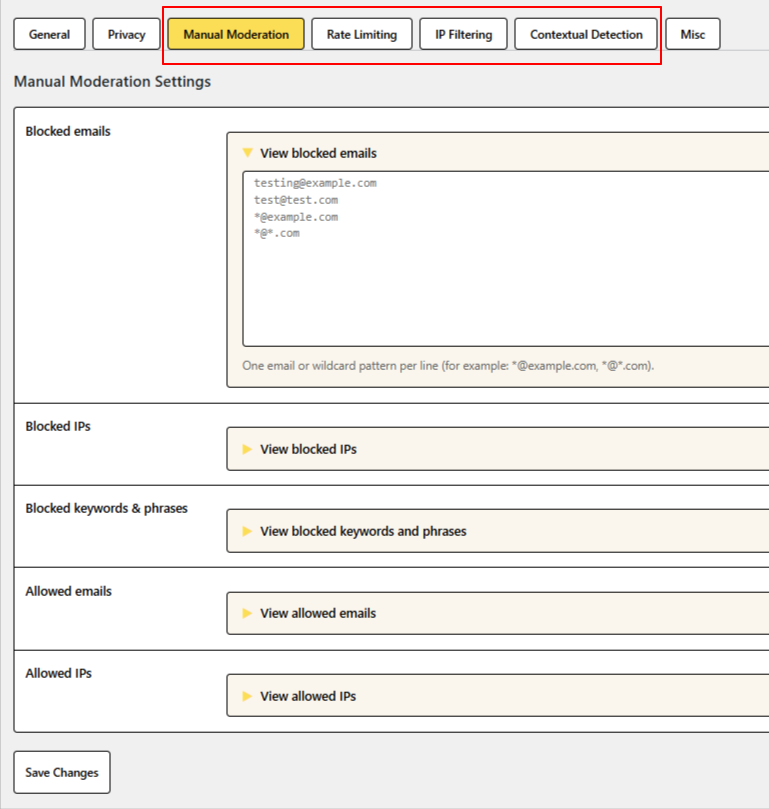
- Block VPNs and cloud providers. Card testers hide behind VPNs and data center IPs. Real shoppers rarely do.
- Rate limiting. Cap order attempts per IP or email in a set time window. This stops rapid-fire card testing.
- Country blocking. Reject orders from countries you do not sell to.
- Manual rules. Block specific IPs, emails, or keywords you see in bad orders.
- Logs. Review spam and valid entries to see why each order was blocked or allowed.
One API key covers unlimited sites, which suits agencies. Logs stay in your WordPress database, and IP and email analysis can be turned off for stricter privacy needs.
2. Turn On Cloudflare Turnstile
FluentCart ships with Cloudflare Turnstile support on checkout. Turnstile confirms a visitor is human without a visible puzzle in most cases. It is free on every Cloudflare plan.

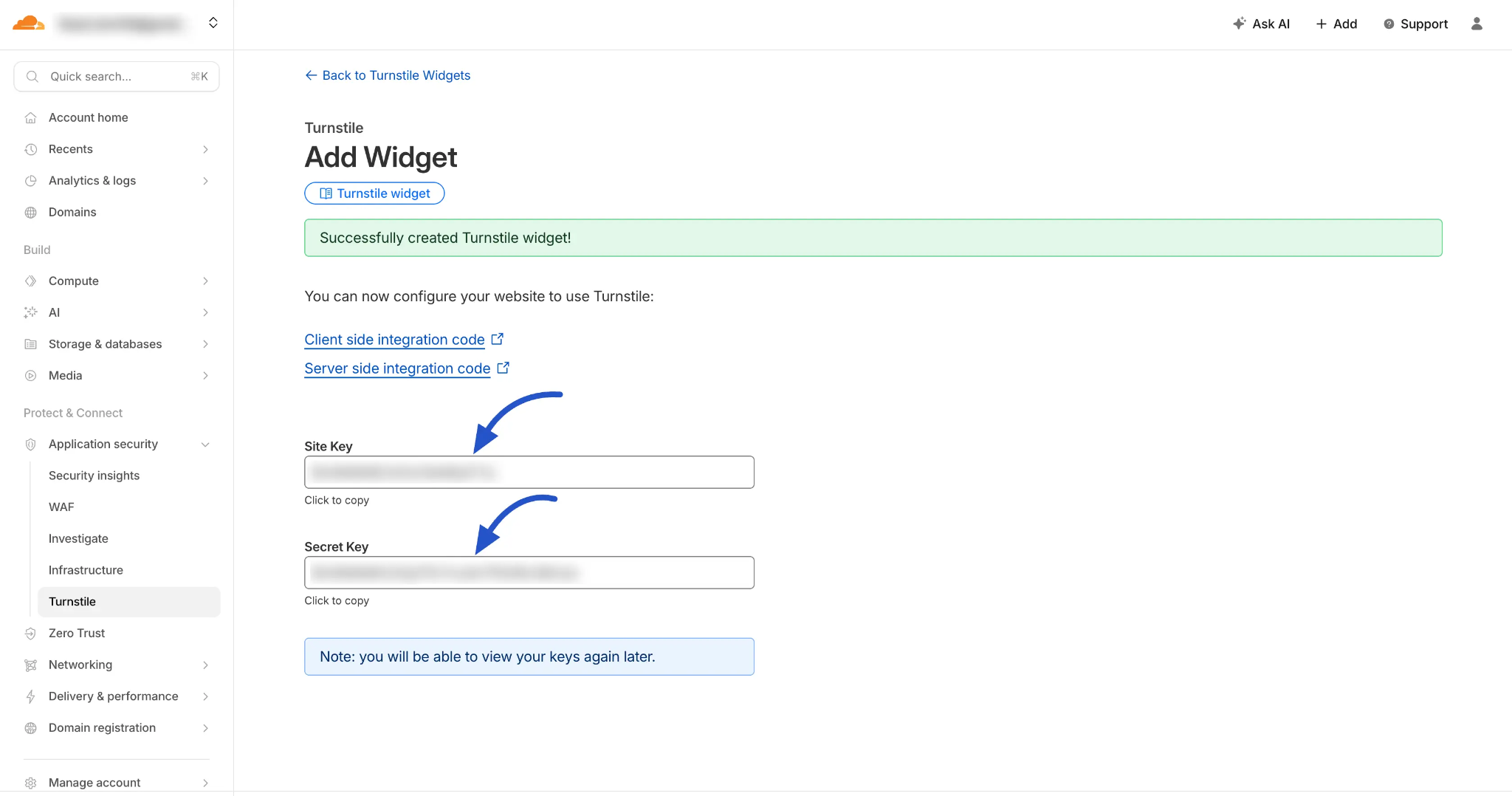
- In the Cloudflare dashboard, go to Turnstile and add your site.
- Copy the site key and secret key.
- Paste both keys into FluentCart’s Turnstile settings and save.
- Run a test checkout to confirm the widget loads.
Turnstile stops automated scripts. It does not stop human fraudsters or CAPTCHA-solving services. Use it alongside oopspam, not instead of it.
3. Use Stripe 3D Secure and Radar Rules
FluentCart supports Stripe 3D Secure at checkout. 3D Secure asks the cardholder’s bank to verify risky payments. It shifts fraud liability away from you on authenticated payments.
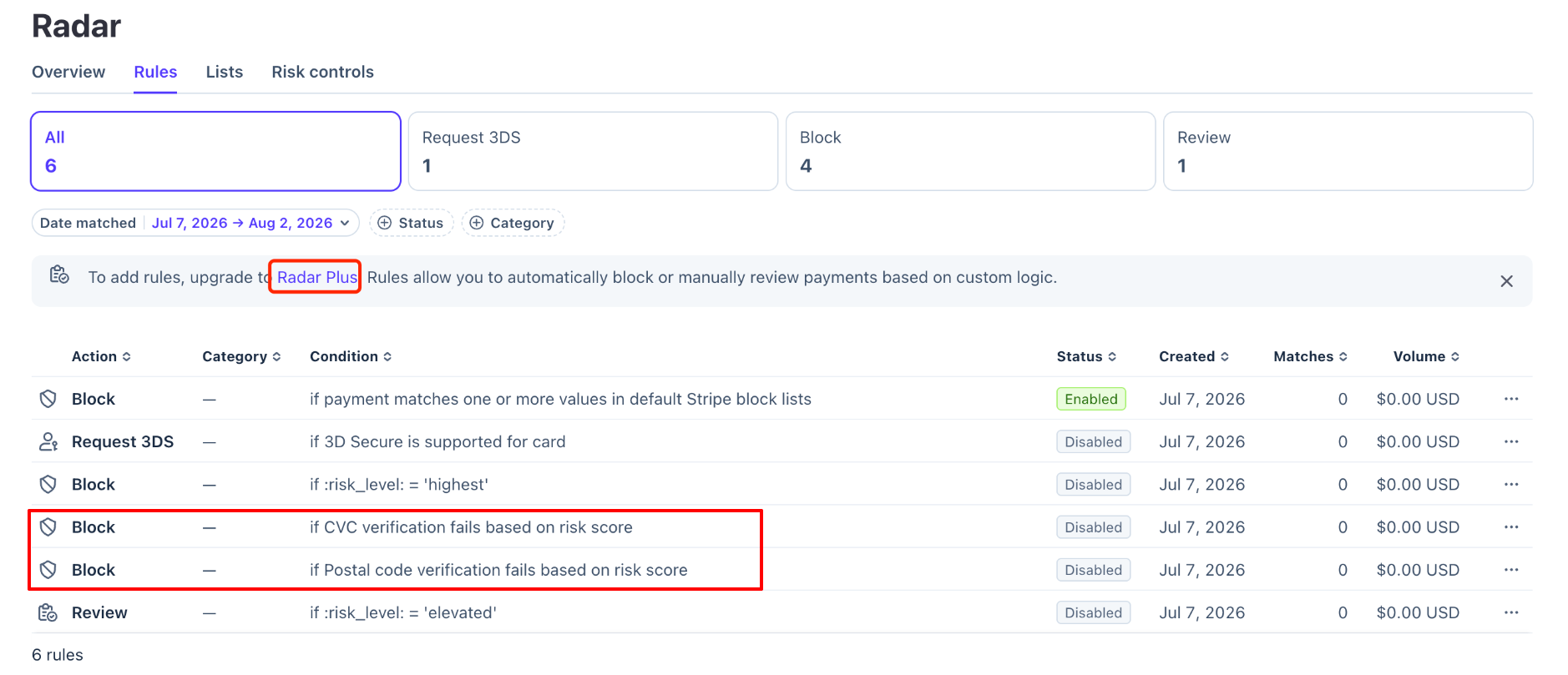
If you use Stripe, open Radar > Rules in the Stripe Dashboard and review your card checks:
- Enable Block if CVC verification fails based on risk score.
- Enable Block if postal code verification fails based on risk score.
Stripe now recommends these risk-based rules over the older hard-block CVC and postal code rules. The older rules can block real buyers whose bank already approved the payment. Make sure your checkout collects the CVC and postal code, or these checks cannot run.
FluentCart also supports PayPal, Paddle, Mollie, Square, Authorize.Net, and others. Check each gateway’s fraud settings.
4. Add a Firewall at the Edge
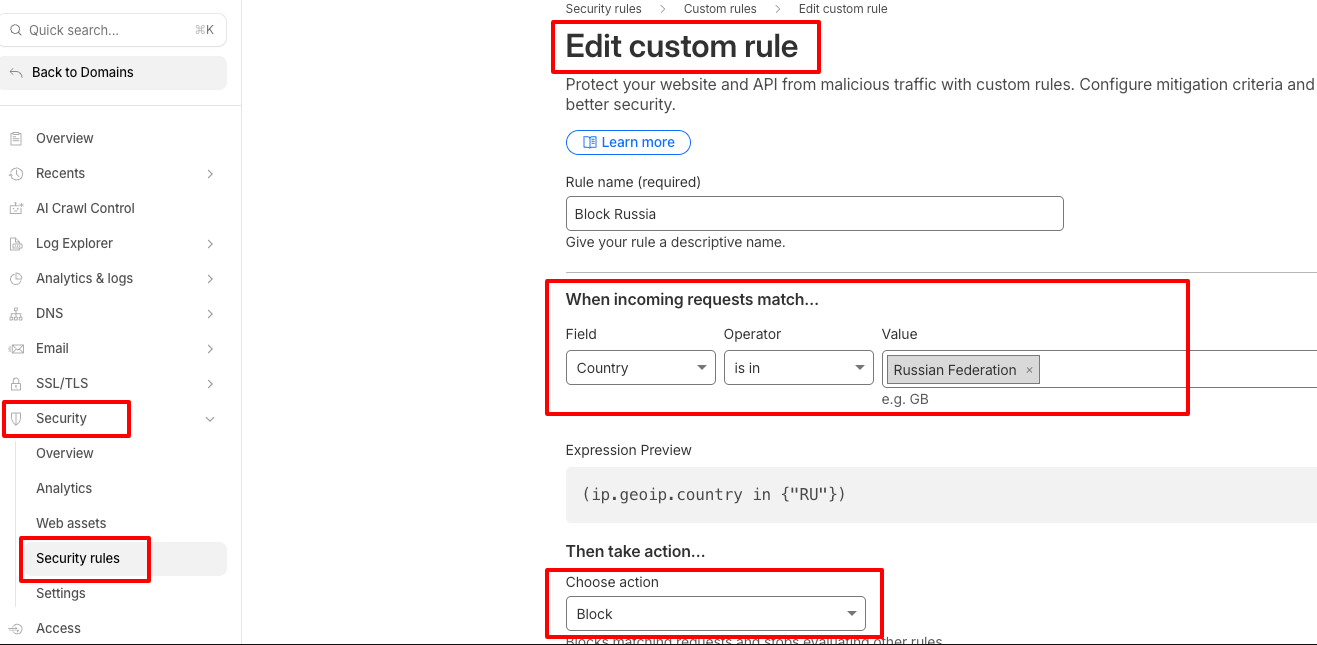
A web application firewall (WAF) blocks bad traffic before it reaches WordPress. This matters more on a self-hosted store because every bot request uses your server.
- Put your site behind Cloudflare and create a rate limiting rule for your checkout URL.
- Challenge or block traffic from known bad networks and countries you do not serve.
- Use your host’s server firewall if it offers one.
A WAF cuts load. oopspam still handles the order-level checks a WAF cannot see, like email reputation.
5. Clean Up and Monitor Your Orders
If fake orders slip through, remove them fast and learn from them.
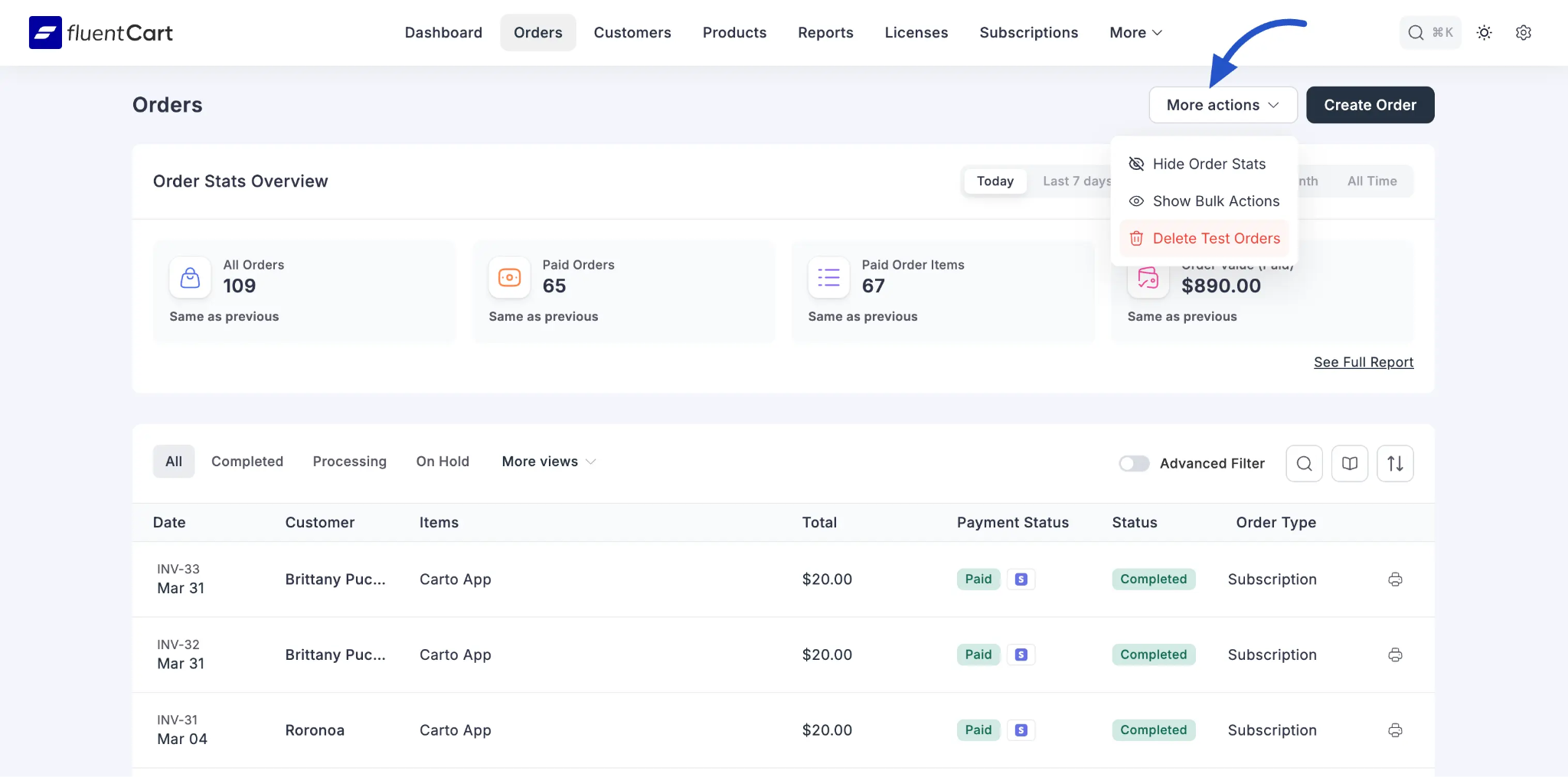
- Open the FluentCart Orders page.
- Filter by status (failed, pending, or cash on delivery) and date range.
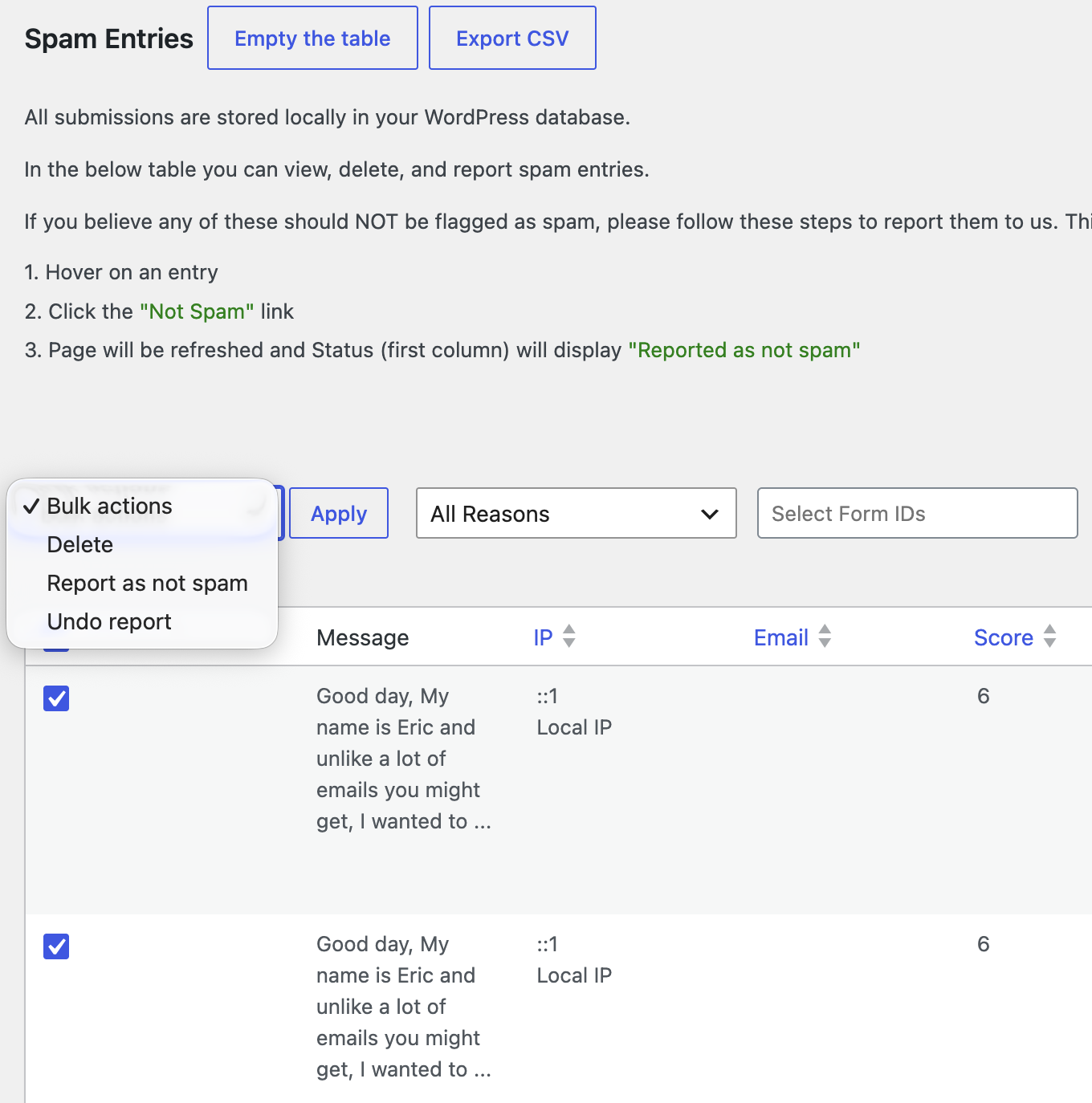
- Select the batch and use bulk actions to remove it.
- Note repeat IPs, emails, and domains, then add them to oopspam’s manual block rules.
Watch your Stripe Dashboard for spikes in declined payments. A sudden jump in small failed charges is the clearest sign of card testing.
Quick Setup Checklist
| Layer | Tool | What it stops |
|---|---|---|
| Order screening | oopspam | Bad IPs and emails, VPNs, rapid repeats, blocked countries |
| Bot check | Cloudflare Turnstile | Automated scripts |
| Payment | Stripe 3D Secure and Radar | Stolen and unverified cards |
| Network | Cloudflare WAF | High-volume traffic before WordPress |
| Cleanup | FluentCart bulk actions | Leftover fake orders |
Final thoughts
No single tool stops every fake order. Bots, human fraudsters, and card testers each slip past a different layer, so you need more than one.
Start with order screening. oopspam checks each order’s IP and email, blocks VPNs, rate limits repeat attempts, and filters countries. These are the checks FluentCart does not include by default. Add Cloudflare Turnstile to stop scripts, Stripe 3D Secure and Radar to catch bad cards, and a firewall to cut load on your server.
After setup, review your spam logs and declined payments every week. Attack patterns change, so adjust your settings when they do. A few minutes of review keeps fake orders, fees, and chargebacks low.