How to Rate Limit Orders in FluentCart?

Technical Content Marketer

Reviewed by Onar Alili
Co-founder & Engineer
Published 7 min read
FluentCart limits its Place Order endpoint to 5 requests per 60 seconds per IP or user. Its docs list no setting to change that number. To cap orders per IP or email per hour, add rate limiting with the oopspam Anti-Spam plugin. Turn on FluentCart’s built-in Cloudflare Turnstile to block bots at checkout. For high traffic, add a Cloudflare WAF rule at the edge.
Method 1: Use FluentCart’s Built-in Checkout Rate Limit
This limit is on by default. You do not need to set anything up.
FluentCart caps its public Place Order endpoint (POST /wp-json/fluent-cart/v2/checkout/place-order) at 5 requests per 60 seconds per IP or user. Requests over the cap get an HTTP 429 “Too many requests” response. The same endpoint also rejects a cart that was already completed, which stops simple duplicate orders.
The wider FluentCart REST API has its own hourly limits:
| Request type | Limit |
|---|---|
| Place Order (checkout) | 5 per 60 seconds per IP or user |
| Authenticated API requests | 1,000 per hour |
| Unauthenticated API requests | 100 per hour |
| Bulk operations | 10 per hour |
API responses include X-RateLimit-Limit, X-RateLimit-Remaining, and X-RateLimit-Reset headers. If you create orders through the API, read these headers and retry with exponential backoff after a 429.
The gaps:
- The limit is per minute, not per hour. One IP can still send up to 300 checkout requests an hour.
- It counts IPs and users, not email addresses.
- The docs describe no dashboard setting to change it.
- Card-testing bots rotate IPs, so each IP stays under the cap.
Use this method as a baseline. Add Methods 2 and 3 for real control.
Method 2: Turn On Cloudflare Turnstile in FluentCart
Use this to stop automated scripts before they place an order. FluentCart has built-in Turnstile support for the checkout page, and Turnstile is free.

- In WordPress, go to FluentCart > Settings.
- Find the Cloudflare Turnstile card and set it to Active.
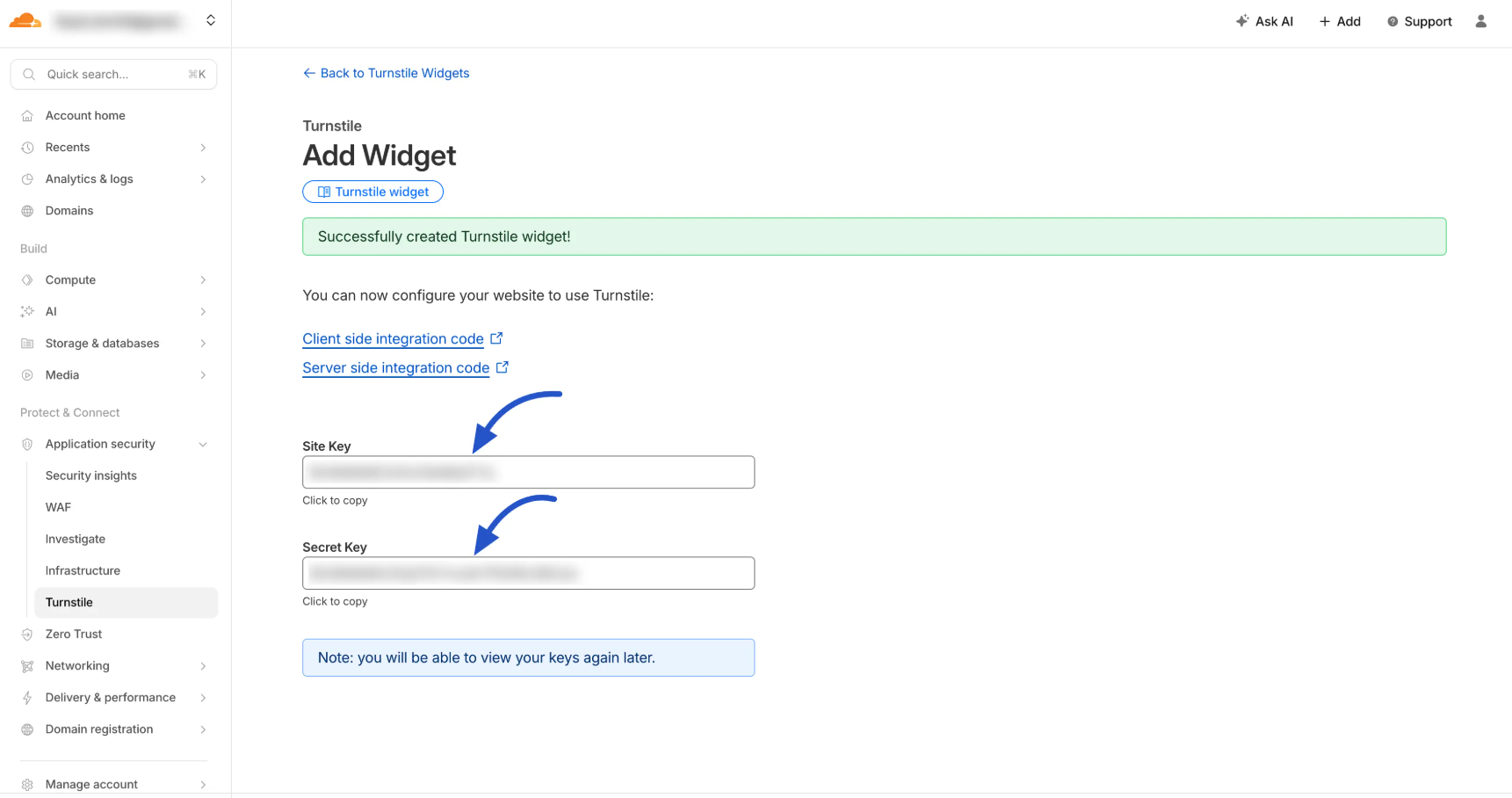
- Log in to Cloudflare and open Protect & Connect > Turnstile.
- Add a widget for your store’s domain.
- Copy the Site Key and Secret Key.
- Paste them into the Turnstile Site Key and Turnstile Secret Key fields in FluentCart.
- Click Save Settings, then place a test order.
Turnstile is a bot check, not a rate limit. It does not cap how many orders a real browser can place. Pair it with Method 3.
Method 3: Add Rate Limiting With oopspam
oopspam checks each FluentCart order before it is processed. If a visitor goes over your limit, the order is blocked. Real customers are not affected as long as they stay under the cap. FluentCart support was added in oopspam Anti-Spam version 1.2.85.
How to set it up
In WordPress, go to Plugins > Add New, search for oopspam Anti-Spam, then install and activate it.
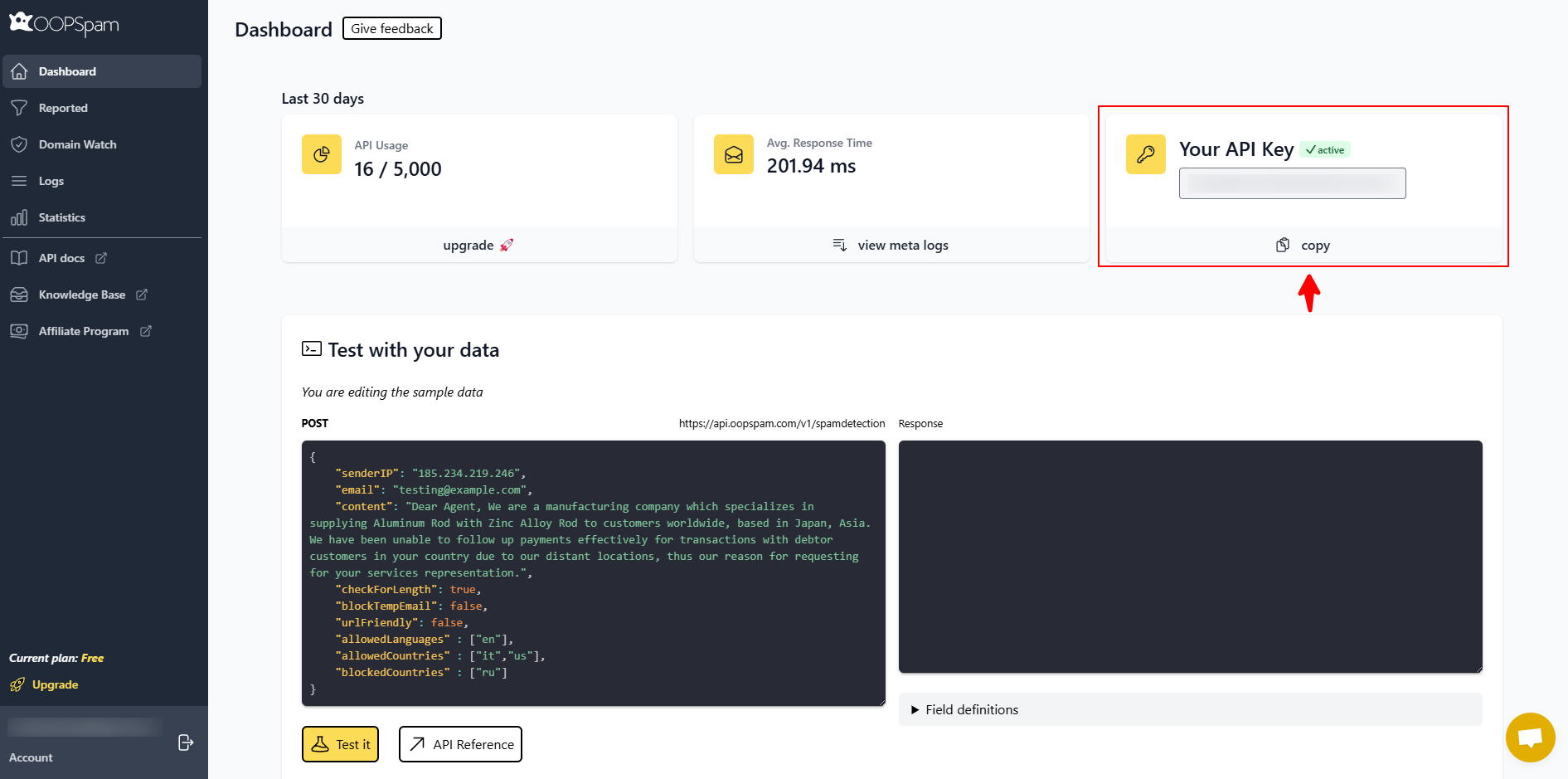
Create a free account at oopspam.com and copy your API key from the dashboard.
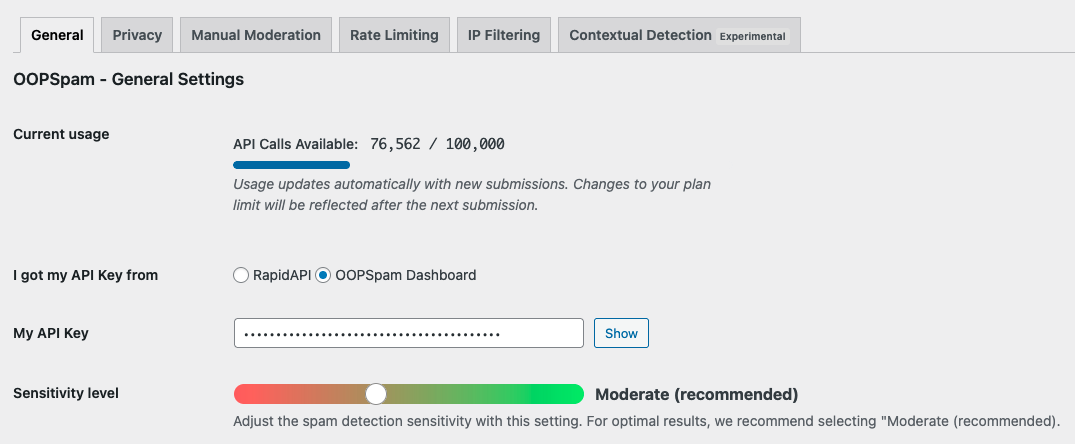
Open the oopspam settings in WordPress, paste your API key, and save.
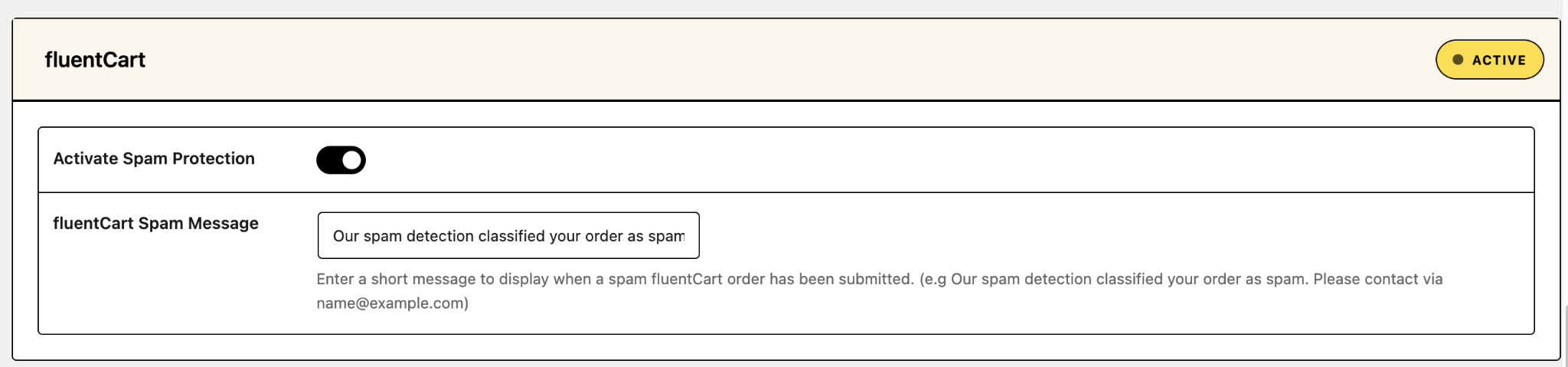
Find the FluentCart section and check Activate Spam Protection.
Open the Rate Limiting tab and turn on Enable Rate Limiting.
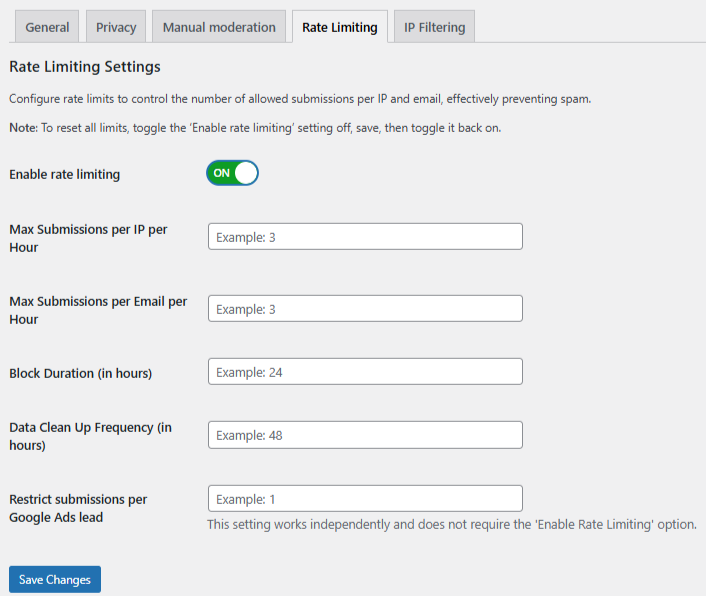
Set your limits (see below). Click Save Changes, then place several test orders to confirm the block.
Set these limits:
- Max submissions per IP per hour: how many orders one IP address can place in an hour.
- Max submissions per email per hour: how many orders one email address can place in an hour.
- Block duration (in hours): how long an IP or email stays blocked after hitting the limit.
- Data clean-up frequency (in hours): how often oopspam clears its tracking table.
A good starting point is 3 orders per hour per IP and per email, a 24 hour block, and a 48 hour clean-up. Raise the numbers if you sell to offices, schools, or other buyers who share one IP.
If your site runs behind Cloudflare or another proxy, turn on Trust proxy headers. Without it, oopspam may count the proxy’s IP instead of the buyer’s.
Add more filters
Rate limiting works best with oopspam’s other checks. You can block VPN and data center IPs, disposable emails, and specific countries. You can also block keywords and review every blocked order in the spam entries log.
The free plan includes 40 spam checks per month. Each checked order uses one.
Method 4: Add a Cloudflare Rate Limiting Rule
Use this if your store already runs on Cloudflare and gets heavy bot traffic. A rate limiting rule blocks excess requests at the edge, before they reach WordPress.
- In the Cloudflare dashboard, create a new rate limiting rule for your domain.
- Match the path
/wp-json/fluent-cart/v2/checkout/place-order. - Count requests by IP.
- Set the requests per period and the block duration.
- Choose Block as the action and deploy.
What each plan allows:
| Cloudflare plan | Rules | Longest counting period | Longest block |
|---|---|---|---|
| Free | 1 | 10 seconds | 10 seconds |
| Pro | 2 | 1 minute | 1 hour |
| Business | 5 | 10 minutes | 1 day |
The Free plan only handles short bursts. Cloudflare also notes that a few extra requests can slip through before the counter updates. Use it as an outer layer, not a replacement for Method 3.
Which Method Should You Use?
| Goal | Best method |
|---|---|
| Limit orders per IP or email per hour | oopspam rate limiting |
| Stop card testing and fake orders | oopspam rate limiting + Turnstile |
| Block automated checkout scripts | Cloudflare Turnstile |
| Absorb high-volume bot floods before WordPress | Cloudflare rate limiting rule |
| Basic burst protection with no setup | FluentCart built-in limit |
Final Thoughts
FluentCart’s built-in limit controls bursts. Turnstile controls who can check out. oopspam rate limiting controls how many orders each IP or email can place. Attackers who spread orders across many IPs can stay under per-IP limits, so keep per-email limits and spam filtering on as well. Review your spam log weekly and adjust the limits to fit your real buyers.