
Chazie Baniquid
Technical Content Marketer
8 minutes to read
Add Spam Protection to Embedded Forms Using OOPSpam and Zapier
You can stop spam from reaching your CRM, inbox, or database by routing embedded form submissions through OOPSpam via Zapier. No CAPTCHAs required. Setup takes under 30 minutes.
Why Spam Filtering for Embedded Forms Is Critical
Spam form submissions are more than a nuisance. They pollute your CRM data, waste your sales team’s time, and can even trigger unwanted email automation sequences. Traditional spam defenses like CAPTCHA reduce spam but also hurt conversion rates by adding friction for real users.
The OOPSpam and Zapier combination gives you a better alternative. OOPSpam (that’s us 👋) is a privacy-friendly anti-spam solution that checks submissions against millions of blocked emails and IPs using machine learning, updated daily. Zapier acts as the automation layer that connects your form to OOPSpam and then routes clean submissions to their final destination.
What You Need Before Starting
Make sure you have the following ready before building your Zap:
- A compatible form - This setup works with Typeform, Webflow, HubSpot, Jotform, Elementor, Gravity Forms, Google Forms, or any form that connects to Zapier via a webhook.
- An OOPSpam account and API key - Sign up and grab your API key from the dashboard.
- A Zapier account - A free plan works for low-volume forms. Higher submission volumes may require a paid plan.
How the Workflow Operates
Before diving into steps, here is the big picture of how data flows through this system:
- A user submits your embedded form.
- Zapier captures the submission instantly.
- OOPSpam scores the submission based on content, email reputation, and IP address.
- A filter checks the score. If it is low (clean), the data moves forward. If it is high (spam), the Zap stops.
- Clean submissions reach your final destination (CRM, Google Sheets, Slack, Gmail, etc.).
Now here is how to build it.
Step 1: Set Up Your Form Trigger
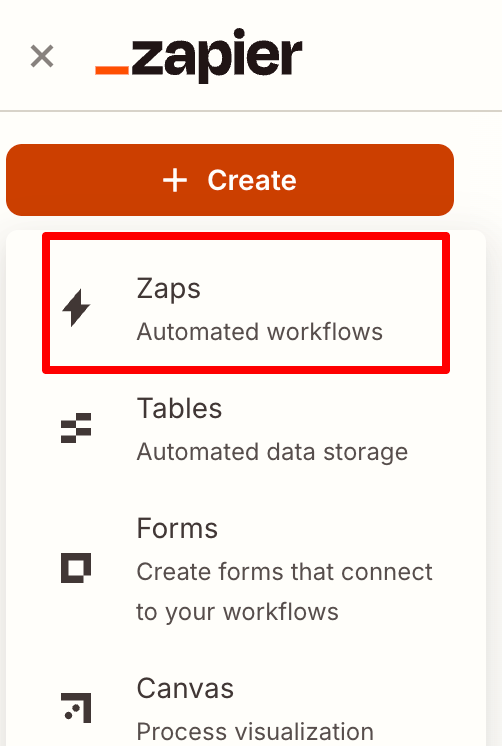
Log in to Zapier and click Create Zap.
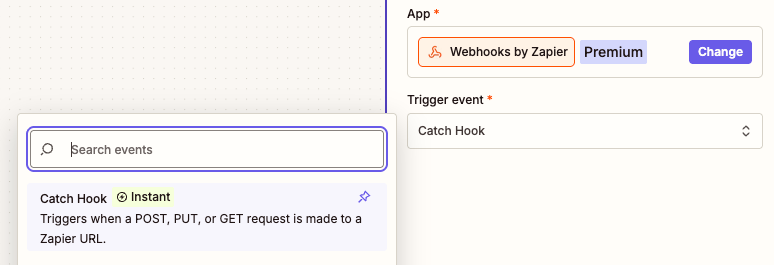
In the Trigger step, search for your form provider (Typeform, Jotform, Webflow, HubSpot, etc.). If you are using a custom embedded form, select Webhooks by Zapier and choose Catch Hook as the event.
Follow the prompts to connect your form account.
Submit a real test entry through your form so Zapier has actual field data to map in the next steps.
Note for Webflow users: You must publish your website and submit at least one form submission before Zapier can recognize your contact form. Otherwise, the form will be hidden from the trigger setup.
Step 2: Add the OOPSpam Spam Check
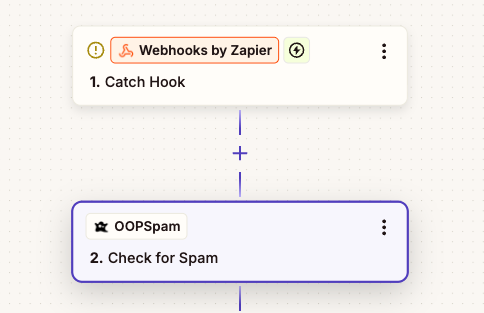
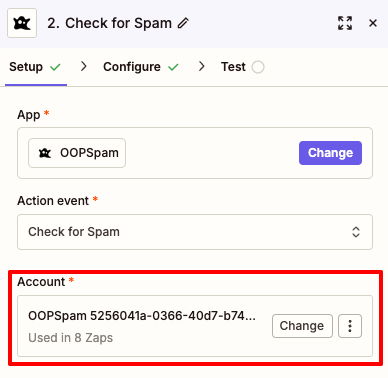
Click the + icon to add a new action step. Search for and select OOPSpam. Choose Check for Spam as the action event.
When prompted, paste in your OOPSpam API key to connect your account.
Map your form fields to the OOPSpam input fields:
- Content - Map your message or comment field.
- Email - Map the user’s email address field.
- Sender IP - Map the IP address if your form captures it.
- Language / Country - Optional. Use these if you want to restrict submissions to specific regions or languages.
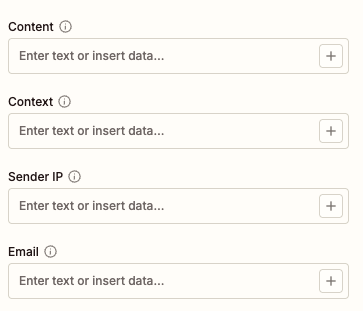
OOPSpam will now analyze each incoming submission and return a Spam Score between 0 and 6.
Step 3: Add the Filter (Your Spam Gatekeeper)
This is the step that actually blocks spam from moving forward.
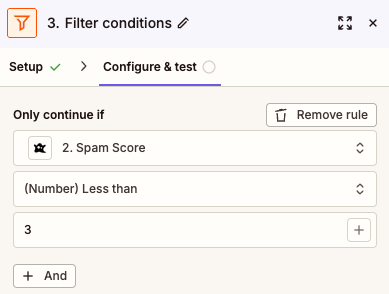
- Click + to add another step.
- Select Filter by Zapier.
- Set the condition: Only continue if… Spam Score (from OOPSpam) is less than 3.
Scores of 3 or higher should be treated as spam, while scores below 3 are considered non-spam. You can adjust this threshold based on your tolerance for false positives.
With this filter in place, any submission scoring 3 or above will stop the Zap completely. It will never reach your inbox or CRM.
Step 4: Route Clean Submissions to Your Destination
Click + to add your final action step. Choose your destination app (HubSpot, Google Sheets, Gmail, Slack, Salesforce, etc.).
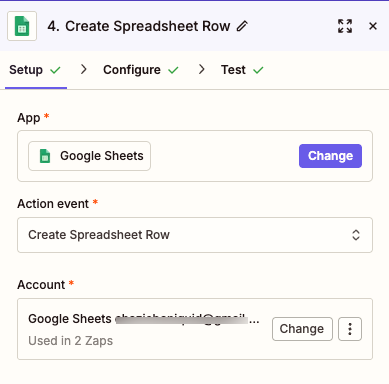
Map the original form fields to this app’s required fields.
That is it. Your spam-filtered form pipeline is now active.
Pro Tip: Handle False Positives With Paths
If you are concerned about occasionally blocking a legitimate lead, skip the Filter step and use Paths by Zapier instead. This approach gives you a safety net:
- Path A (Score below 3): Send the lead directly to your CRM or sales team.
- Path B (Score 3 or above): Save the submission to a “Spam Review” tab in Google Sheets or a dedicated Slack channel. Reviewing these stored spam submissions once a week lets you catch any false positives before they are permanently lost.
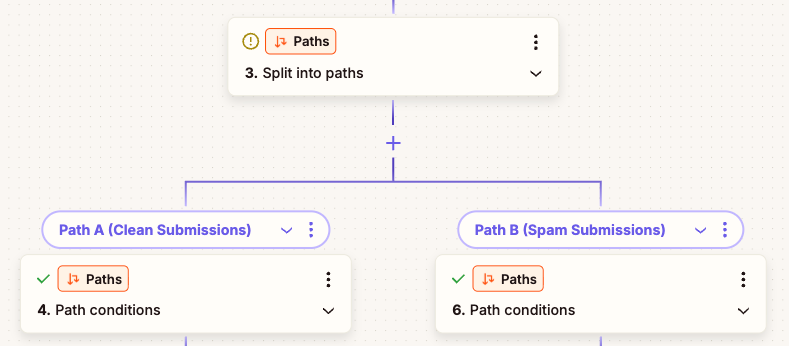
This is especially valuable for B2B teams where missing a single enterprise lead could be costly.
Key Benefits of This Setup
- No CAPTCHA friction. Users complete your form naturally without solving puzzles, which protects your conversion rate.
- Privacy by design. OOPSpam does not store the data you send for analysis, keeping you compliant with privacy expectations.
- Multi-layer detection. OOPSpam checks for malicious content using machine learning, and simultaneously cross-references IPs and emails against millions of known spam sources.
- Works across your entire stack. Whether your form lives on Webflow, HubSpot, Jotform, or a custom embedded widget, Zapier connects it all using the same four-step workflow.
Quick Reference: The Full Workflow
| Step | Tool | What It Does |
|---|---|---|
| 1 | Your Form + Zapier Trigger | Captures the submission |
| 2 | OOPSpam Anti-Spam | Scores the submission (0-6) |
| 3 | Filter by Zapier | Stops anything scored 3 or higher |
| 4 | Destination App | Receives only clean submissions |
Final Thoughts
This four-step Zap is one of the most effective, user-friendly spam protection setups available for embedded forms. It requires no code, no CAPTCHA, and no ongoing maintenance once it is live. OOPSpam’s machine learning handles the detection work, Zapier handles the routing, and your team only sees the submissions that matter.
Set it up once, and let it run quietly in the background while your forms stay clean.