
Chazie Baniquid
Technical Content Marketer
4 minutes to read
How to block countries in ACF Frontend Forms?
Advanced Custom Fields (ACF) Frontend Forms cannot block countries on their own. To filter submissions by location, you must use a third-party anti-spam plugin like OOPSpam or apply network-level rules through tools like Cloudflare. The simplest and most effective method is OOPSpam because it blocks only the form, not your entire website.
You need country blocking in ACF because spam attacks now rely heavily on VPNs, proxies, and automated bots. This guide explains each method clearly and shows the easiest approach for ACF users.
Method 1: Use OOPSpam Anti-Spam (Form-Level Country Blocking)
OOPSpam Anti-Spam is the strongest option for ACF forms. It blocks spam before WordPress saves the submission. It offers:
- Country allowlists
- Country blocklists
- VPN, proxy, and TOR blocking
- Rate limiting
- Language filtering
- Contextual spam detection
- Logs and monitoring
This method targets only the form. Your site stays accessible.
How to Set Up OOPSpam for ACF Frontend Forms
Below is the full, simple process based on the provided instructions.
1. Install the Plugin
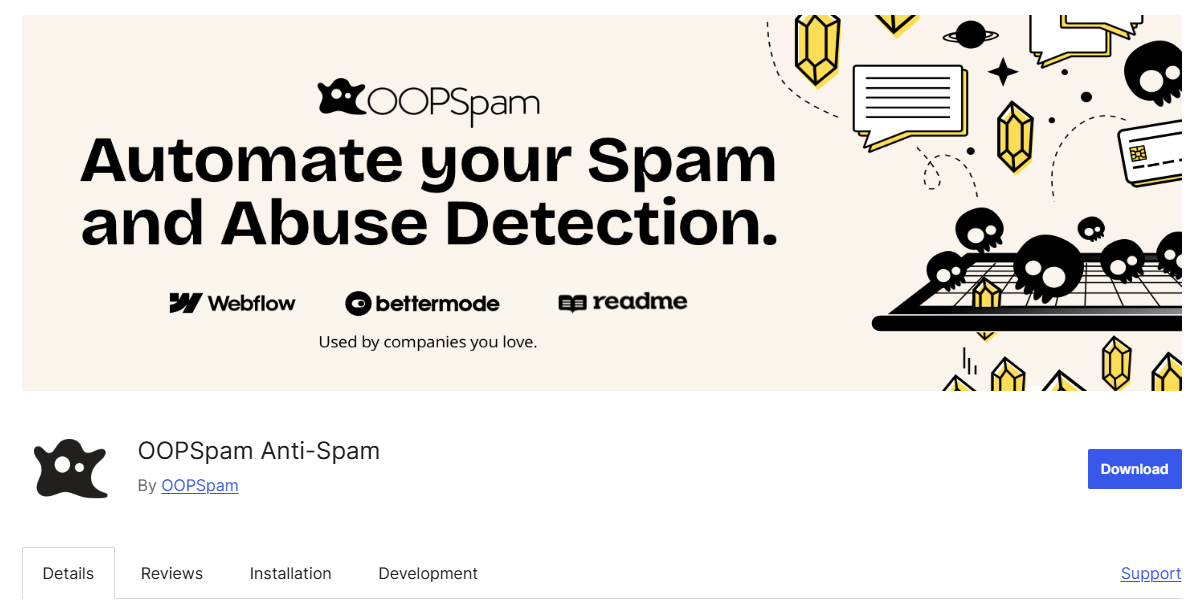
Go to Plugins → Add New and search for OOPSpam Anti-Spam. Install and activate it.
2. Create Your OOPSpam Account
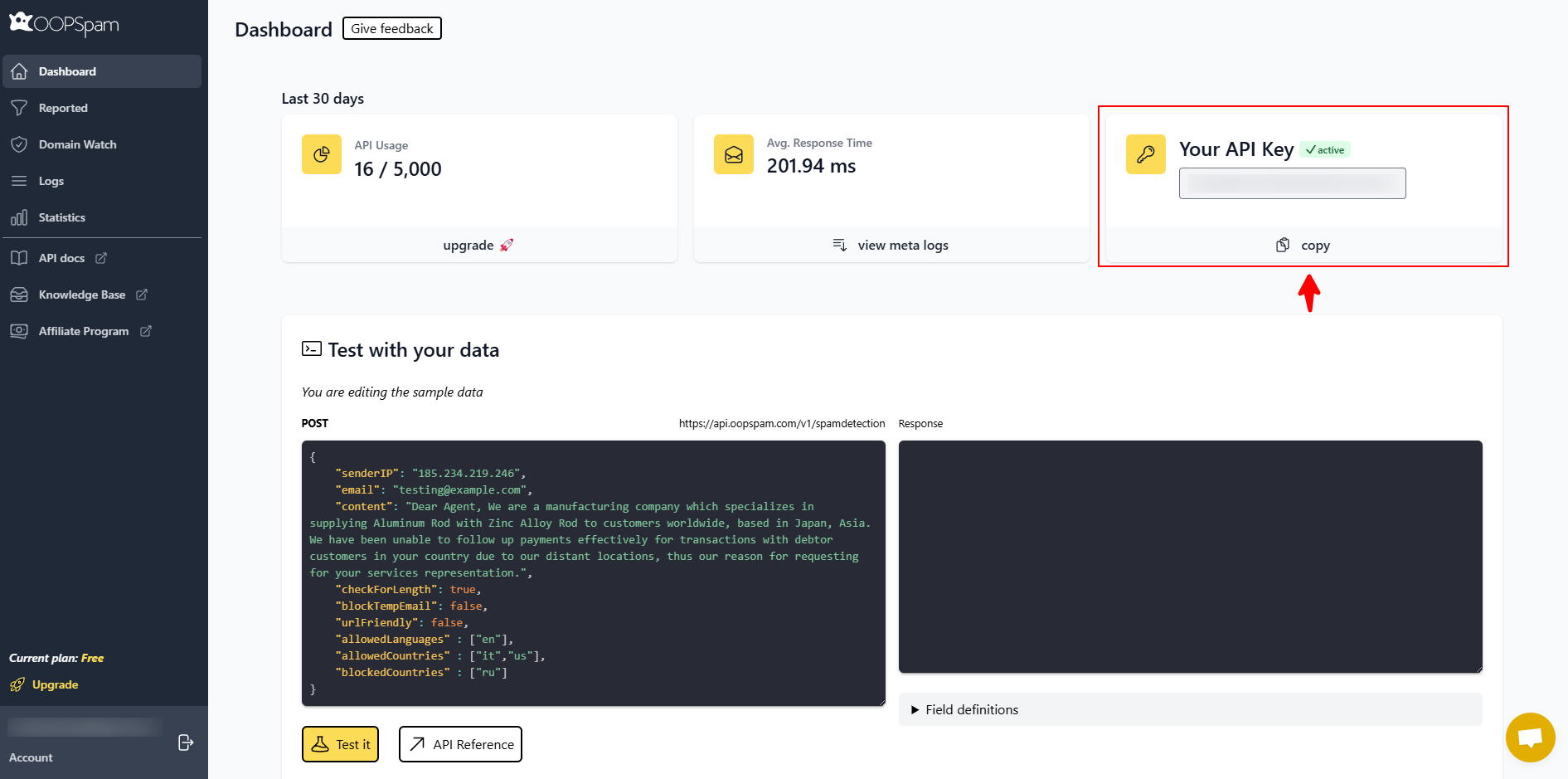
Go to OOPSpam.com and create an account. Copy your API key from your dashboard.
3. Paste the API Key in WordPress
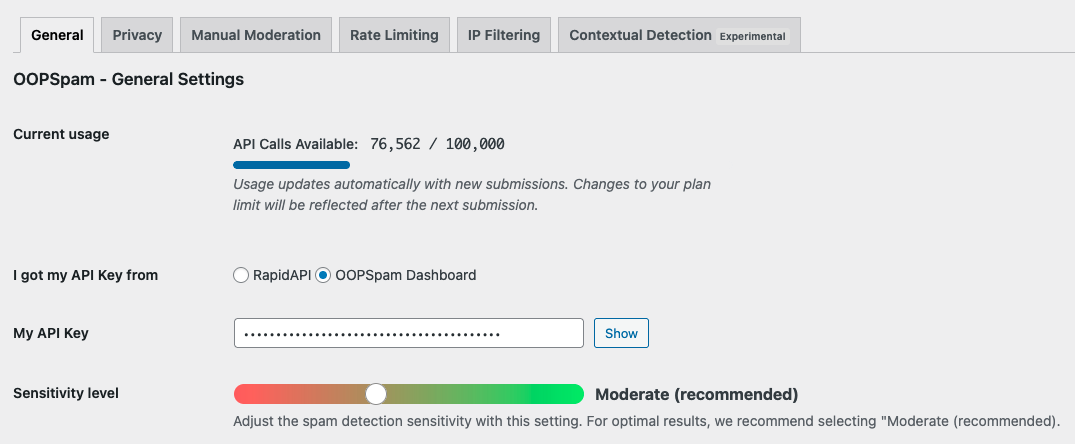
Go to OOPSpam → General Settings. Paste your API key into the “My API Key” field. Adjust the sensitivity slider. Moderate is recommended.
4. Enable ACF Form Protection
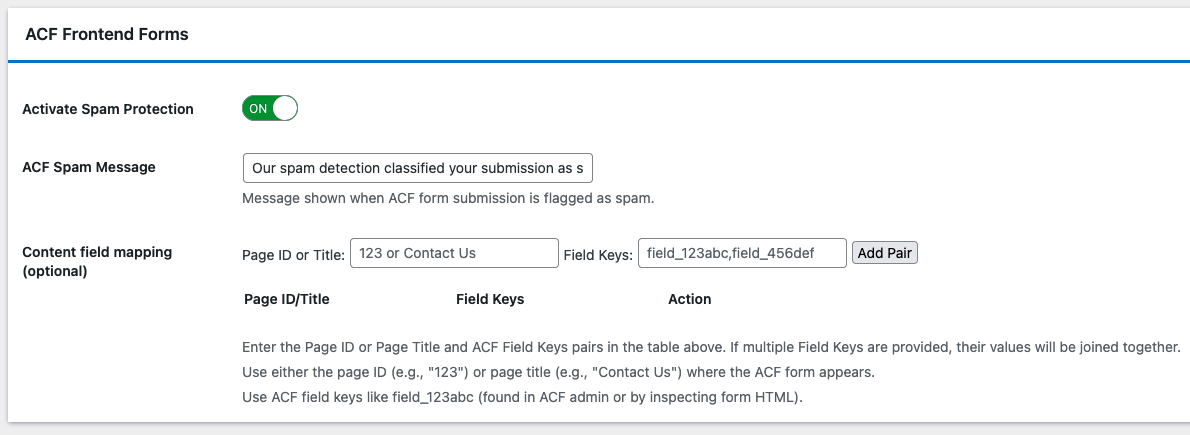
Inside OOPSpam settings, turn on spam protection for ACF Frontend Forms. This ensures all ACF forms are screened.
5. Set Up Country Filtering
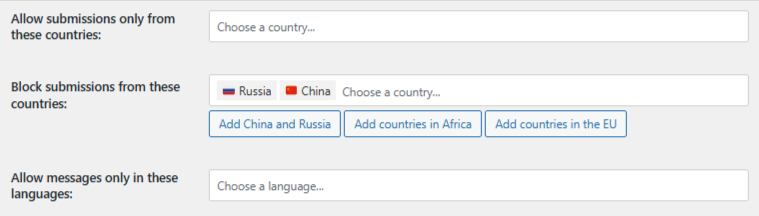
Under OOPSpam → Settings, scroll down to Country Filtering. You’ll see three options:
- Trusted Countries — always allow submissions from these locations and skip all spam checks. Use this for regions where your business operates or for low-risk markets. This prevents blocking legitimate users and reduces false positives.
- Country Allowlist — allow submissions only from selected countries. Leave this empty if you do not want strict country-only access.
- Country Blocklist — block submissions from selected countries. Trusted Countries always override the blocklist.
Select the countries you want to allow or block, then click Save changes.
OOPSpam will now filter ACF Frontend Form submissions using IP geolocation, spam signals, and behavior patterns.
6. Strengthen Protection (Highly Recommended)
Turn on extra filtering:
- VPN / Proxy / TOR blocking
- Rate limiting
- Language filtering
- Contextual detection
- Logs and monitoring
This lowers spam dramatically while keeping real engagement high.
Alternative Method: Use Cloudflare Firewall Rules (Site-Wide Blocking)
Use Cloudflare if you want broader protection. This method blocks the entire site for certain countries, including the form pages.
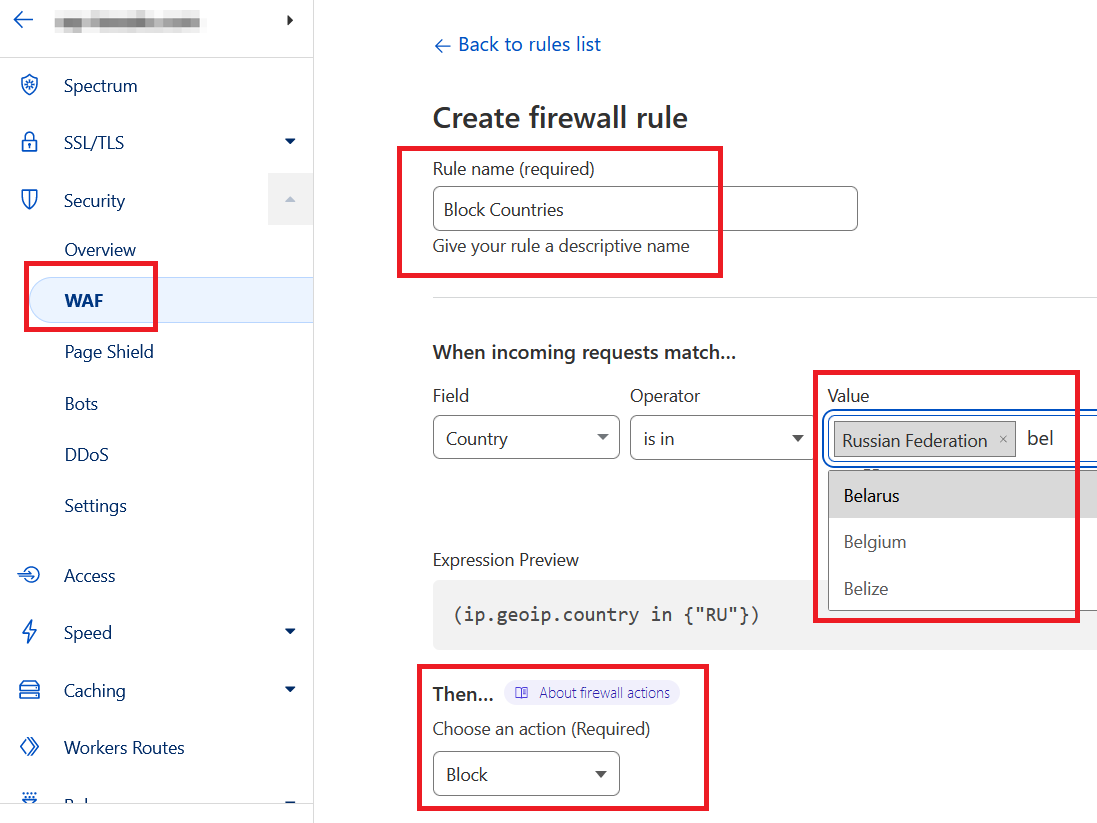
Steps:
- Log in to Cloudflare.
- Go to Security → Security rules.
- Create a rule:
-
- Field: Country
- Operator: is in
- Action: Block
- Save and deploy.
When to use this:
- You want site-wide blocking.
- You need DDoS filtering.
- You want strong network-level protection.
Note: This blocks all visitors from those countries, not just the form.
Other Options: WordPress Security Plugins or Hosting Tools
Plugins like Wordfence and hosting firewalls can block countries by IP range. These methods:
- Block the whole website
- Are less precise
- Do not offer form-level filtering
- Do not detect VPNs or proxies reliably
They are useful only if you need simple, broad blocking.
Final Thoughts
If you use ACF Frontend Forms, the most effective setup is: Use OOPSpam Anti-Spam for form-level filtering + Use Cloudflare Firewall Rules for network-level protections. This two-layer approach matches today’s spam trends. It gives clean submissions, strong security, and minimal impact on real users.