How to Block Specific Order Amounts in WooCommerce

Technical Content Marketer

Reviewed by Onar Alili
Co-founder & Engineer
Published 5 min read
If your WooCommerce store keeps getting fraudulent orders for the same odd amounts, you’re likely dealing with card testing bots. The fastest fix is a plugin that blocks orders by exact total. oopspam Anti-Spam is a strong option to start with since it combines specific-amount blocking with broader fraud detection in one free plugin.
Why This Happens
Card testing attacks use stolen credit card numbers to place small, repeated orders to see which cards still work. Warning signs include a flood of failed orders, the same total amount appearing again and again, fake customer details, and heavy use of PayPal or credit cards. Blocking specific totals stops this pattern before it reaches your payment processor.
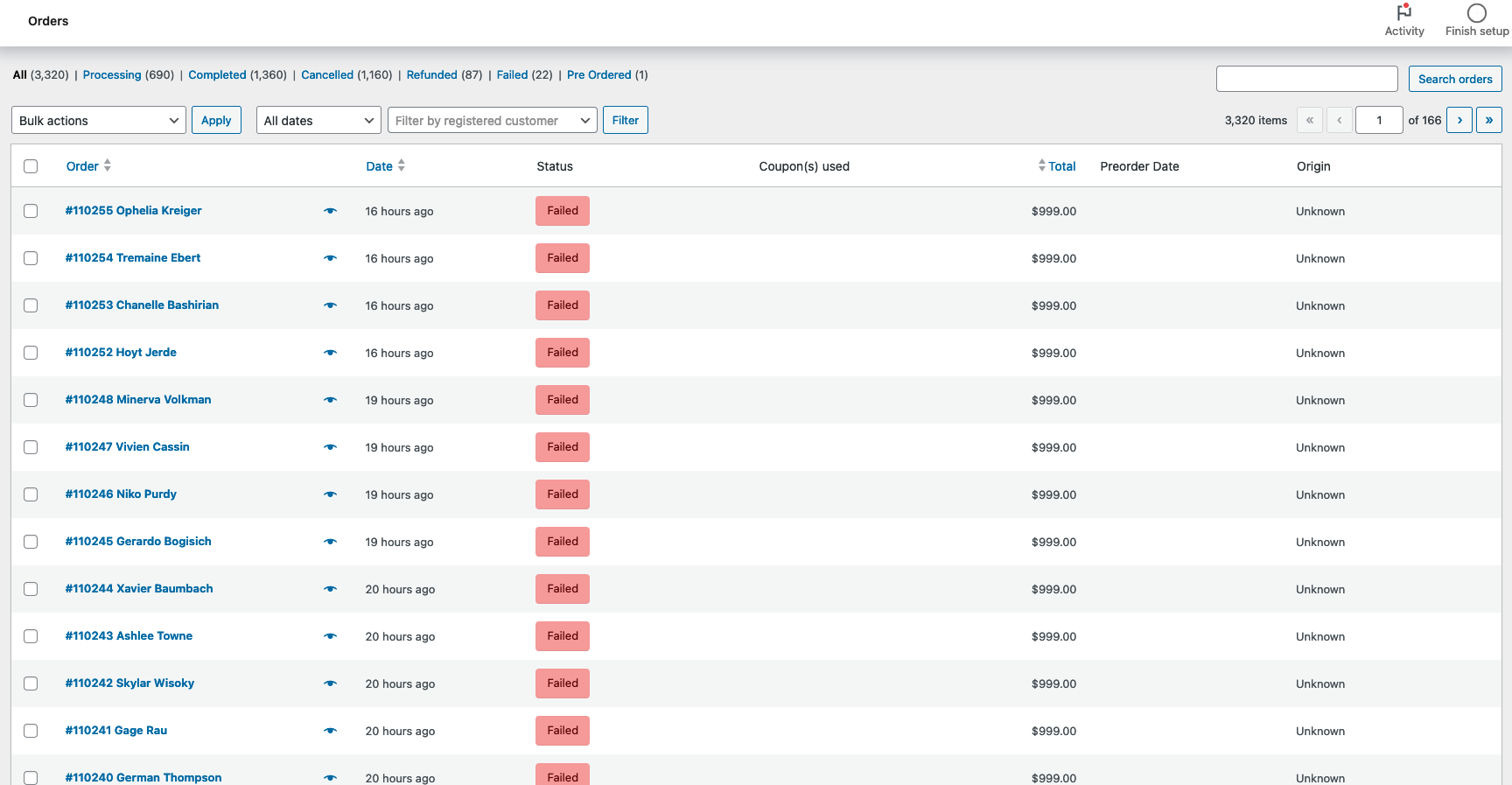
Here’s a real example from a WooCommerce order list, where dozens of failed orders all share the exact same $999.00 total within hours of each other, a clear sign of a bot repeatedly testing the same card details:
Option 1: oopspam Anti-Spam
oopspam (that’s us) is a WordPress plugin built for spam and fraud prevention, including WooCommerce checkouts. Rather than relying on CAPTCHA, it works quietly in the background, checking orders against a database of 500 million+ known malicious IPs and emails, plus machine learning analysis. It has reportedly caught over 1 billion spam submissions to date, and store owners report card testing attacks stopping entirely after activation.
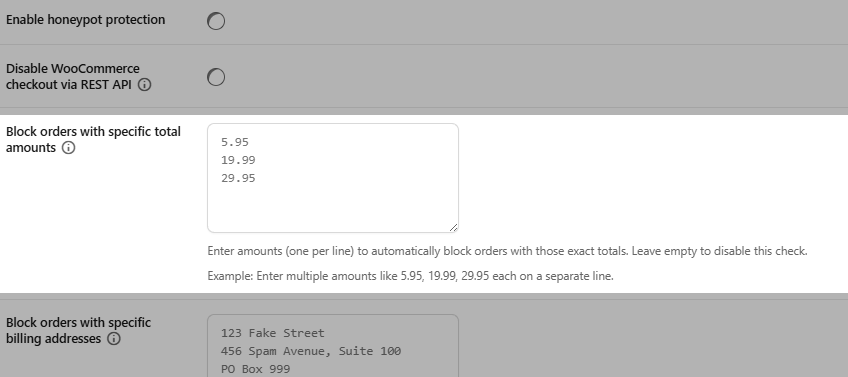
Its “Block orders with specific total amounts” setting lets you list exact dollar figures, one per line, to reject automatically at checkout.
Keep in mind that blocking by amount is a reactive, quick fix. If the same fraudster simply changes the order total, that specific rule stops catching them. This is where oopspam’s other checks matter: alongside amount blocking, it also screens each order’s IP address and email against its database of known bad actors, so an attacker can still get flagged even after switching up the total.
Steps:
Install and activate the oopspam Anti-Spam plugin.
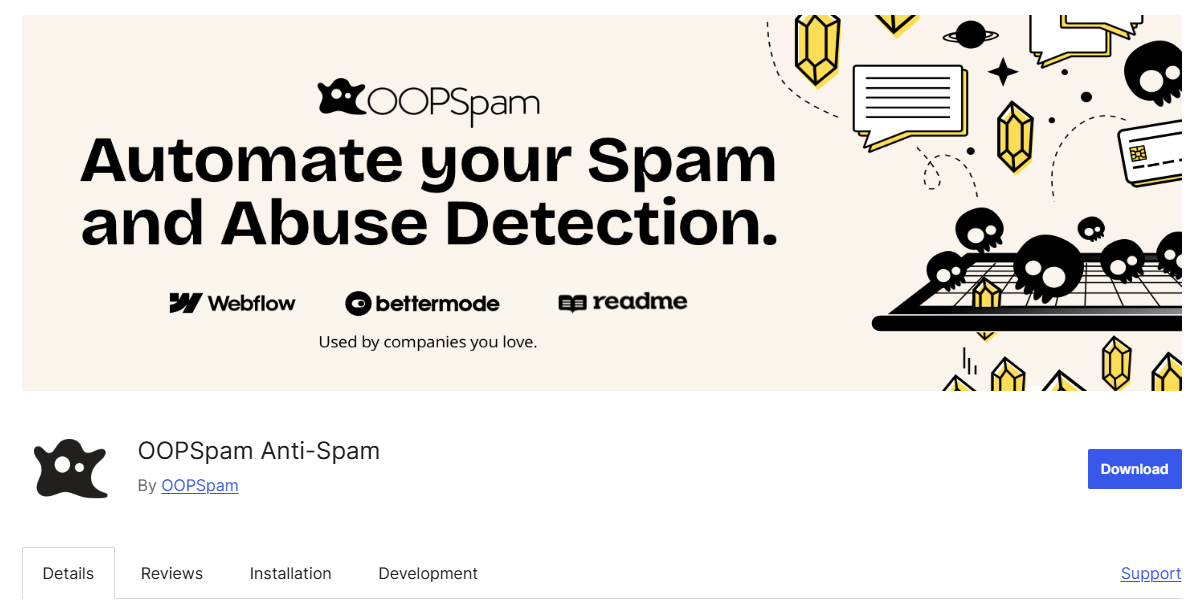
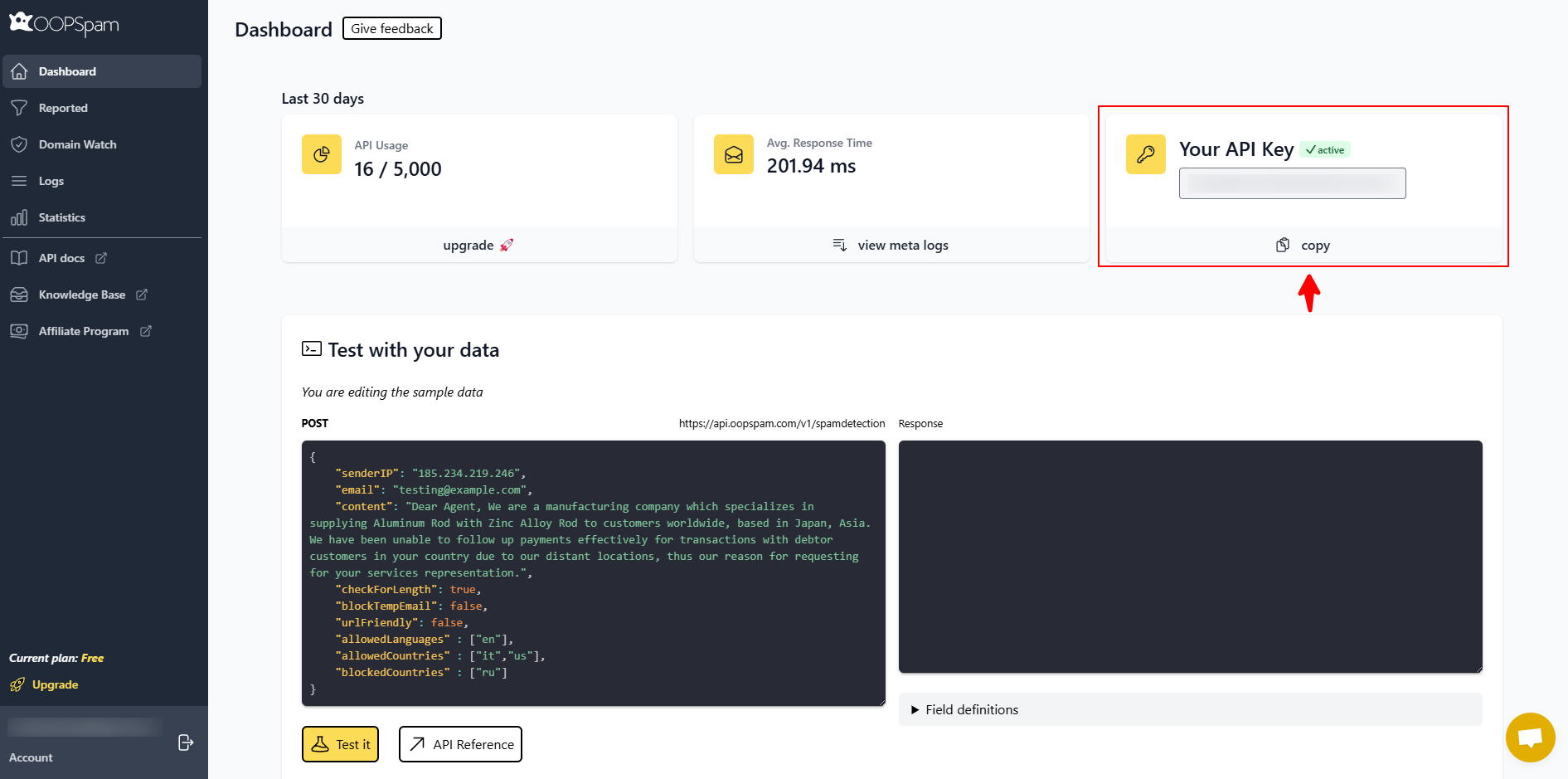
Sign up for a oopspam API key.
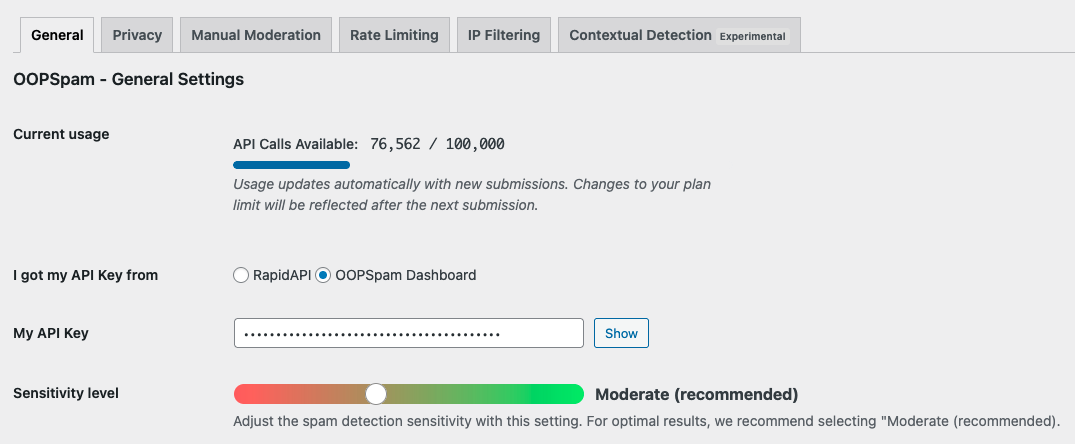
Go to Settings > oopspam Anti-Spam > General, paste the key, and save.
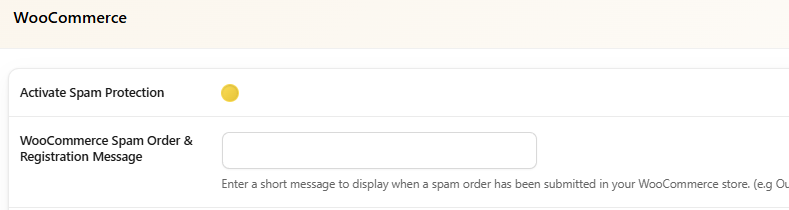
In the oopspam settings, find the WooCommerce section and turn on Activate Spam Protection.
Under Block orders with specific total amounts, enter the totals to block, one per line (for example: 5.95, 19.99, 29.95).
Optionally customize the rejection message shown to customers. Click Save changes.
For added protection, also consider enabling Block orders from unknown origin and Rate limiting in the same settings panel.
Option 2: Order Minimum/Maximum Amount Limits for WooCommerce
If you want to enforce order total ranges rather than exact figures, this WPFactory plugin is a flexible pick. It lets you set limits by sum, quantity, weight, or volume, and apply them globally, per product, per category, or per user role.
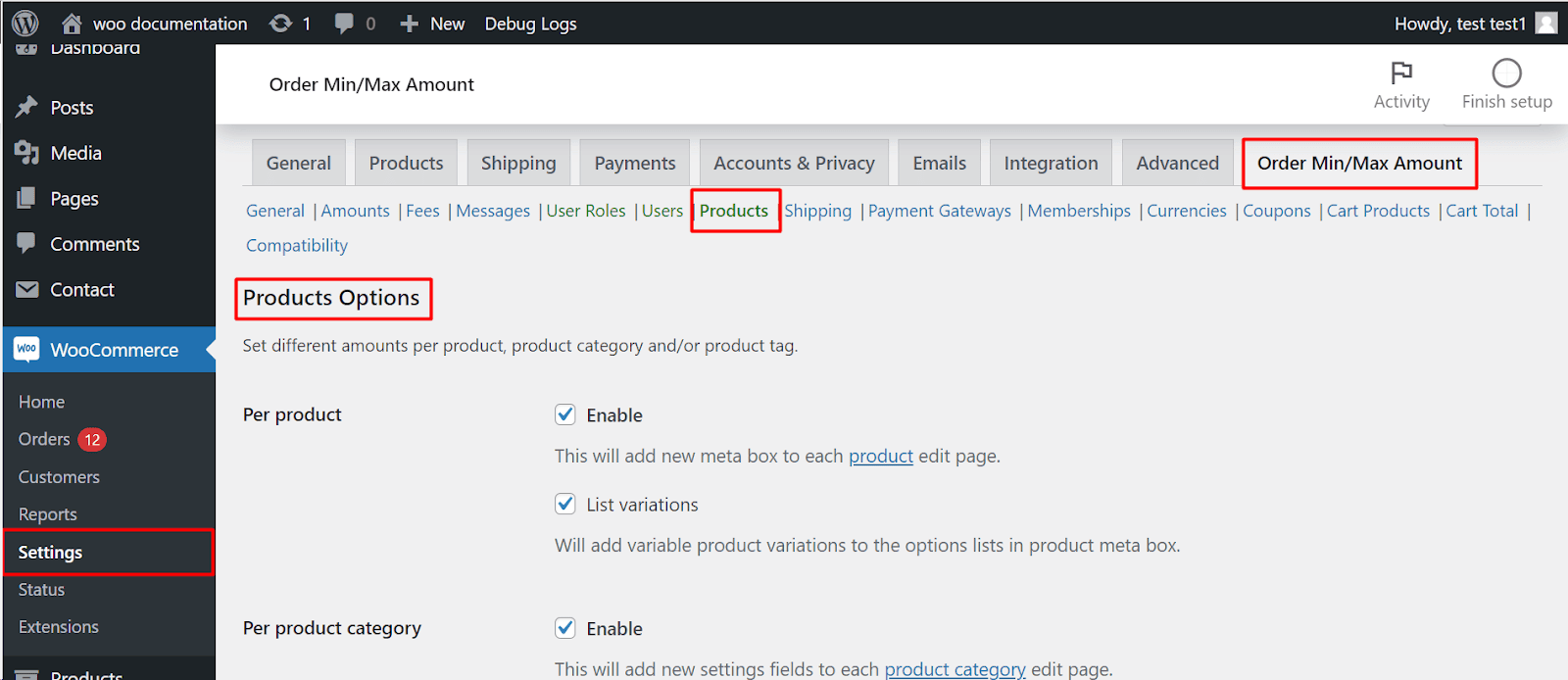
- Install and activate Order Minimum/Maximum Amount for WooCommerce from your WordPress dashboard.
- Go to WooCommerce > Settings > Order Min/Max Amount.
- Check Enable plugin, then set your Amount limits (Minimum, Maximum, or both) and choose an Amount type such as Sum for order totals.
- Enable Block checkout process so orders that don’t meet the limits can’t go through.
- Go to the Messages tab to customize the notice shown to customers on the cart, mini-cart, and checkout pages.
-
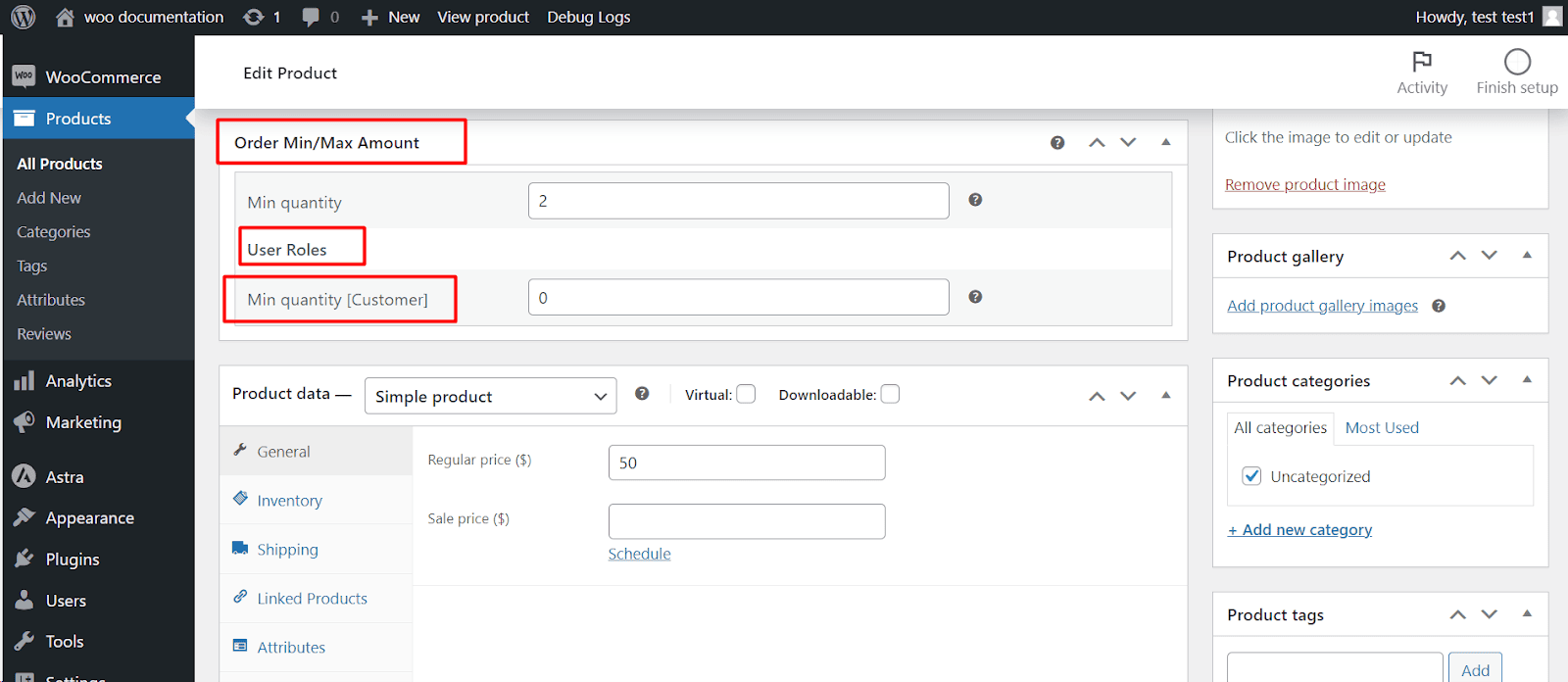
For product-specific rules, go to the Products tab, enable Per product and/or Per product category, then set the limits directly on each product or category edit page (a new Order Min/Max Amount box appears there, where you can also set different limits per user role).
-
Save your settings.
Keep in mind this plugin blocks ranges, not exact totals. It will not stop an order at exactly $19.99 unless that figure falls outside your min/max range.
Option 3: Custom Code Snippet
Developers can add a PHP snippet to their child theme’s functions.php file or a plugin like WPCode:
add_action( 'woocommerce_checkout_process', 'wc_minimum_order_amount' );
add_action( 'woocommerce_before_cart', 'wc_minimum_order_amount' );

function wc_minimum_order_amount() {
    $minimum_amount = 50.00;

    if ( WC()->cart->subtotal < $minimum_amount ) {
        wc_add_notice(
            sprintf( 'A minimum order total of %s is required to checkout.', wc_price( $minimum_amount ) ),
            'error'
        );
    }
}
This only enforces a minimum total. Blocking exact figures requires custom array logic, and you lose the fraud intelligence, logging, and rate limiting a dedicated plugin provides.
Which Option Should You Choose?
- Repeated fraud at specific amounts? oopspam is purpose-built for this, and layered with fraud and spam protection.
- Just need a flexible min/max range without extra fraud detection? Order Minimum/Maximum Amount for WooCommerce covers that.
- Comfortable maintaining code for a simple minimum? The PHP snippet works, but you’ll need to maintain it yourself.
For most stores facing the classic “same odd total, over and over” pattern, oopspam offers a fairly complete solution with minimal setup effort.