
Chazie Baniquid
Technical Content Marketer
6 minutes to read
How to Limit Form Submissions in WooCommerce for Orders and Registrations
WooCommerce does not include built-in submission limits. To control how many times a customer can submit an order or registration, you must use plugins that add limits, rate-limiting, and anti-spam protection. This guide shows the simplest and most effective methods.
Why You Need Submission Limits in WooCommerce
WooCommerce forms are frequent targets for spam orders, repeated registrations, coupon abuse, and automated attacks. Limiting submissions prevents order abuse, fake accounts, and excessive usage of checkout and registration forms.
Submission limits also help with stock control, subscription rules, and compliance requirements.
1. Limit Form Submissions with a Form Builder Plugin
If you use custom registration or order forms, form builders offer built-in limit controls. Form builder plugins give you direct control over total entries, users, IPs, and submission time windows.
How it works
WPForms, Gravity Forms, and Formidable Forms include “Limit Entries,” “Restrictions,” or “Form Locker” features. These settings let you:
- Limit total submissions
- Limit submissions per user, email, or IP
- Restrict by date or time
- Allow only logged-in customers
- Allow only specific user roles
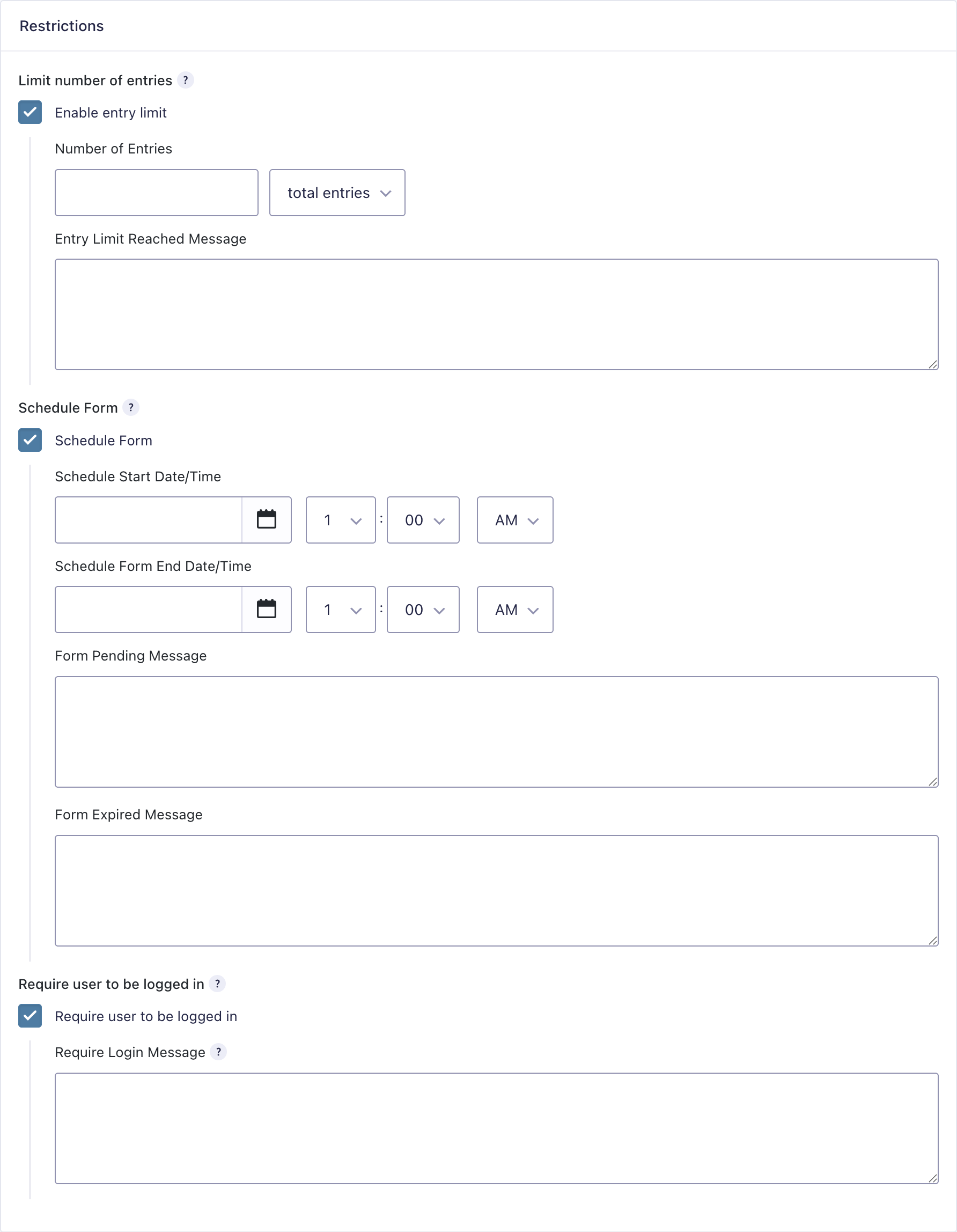
The image is from Gravity Forms, showing its built-in Restrictions settings.
These controls let you limit how many total entries a form can receive, schedule when the form opens and closes, and require users to be logged in before submitting. You simply:
- Set the entry limit for how many submissions are allowed.
- Choose start and end dates if you want the form to open and close automatically.
- Add custom messages for pending or expired forms.
This makes Gravity Forms useful for WooCommerce stores that need controlled registrations, preorders, or member-only form access.
This method works only for forms created by the plugin. Default WooCommerce checkout and registration forms need a different solution.
2. Limit Submissions on WooCommerce Checkout & Registration Using oopspam
oopspam (that’s us 👋) adds rate limiting, spam filtering, contextual scoring, and IP controls to WooCommerce forms. WooCommerce’s built-in forms do not support submission limits. But oopspam Anti-Spam adds a server-side limit that controls how many times a user can submit your forms within a set timeframe.
This prevents:
- Spam registrations
- Automated checkout attempts
- Card testing attacks
- Repeated abusive orders
- Fake emails and mass IP submissions
- Failed orders coming from unknown or suspicious origins
How to Set Up oopspam for WooCommerce (Step-by-Step)
Step 1: Install the Plugin
Go to Plugins → Add New. Search for oopspam Anti-Spam. Install and activate.
Step 2: Get Your API Key
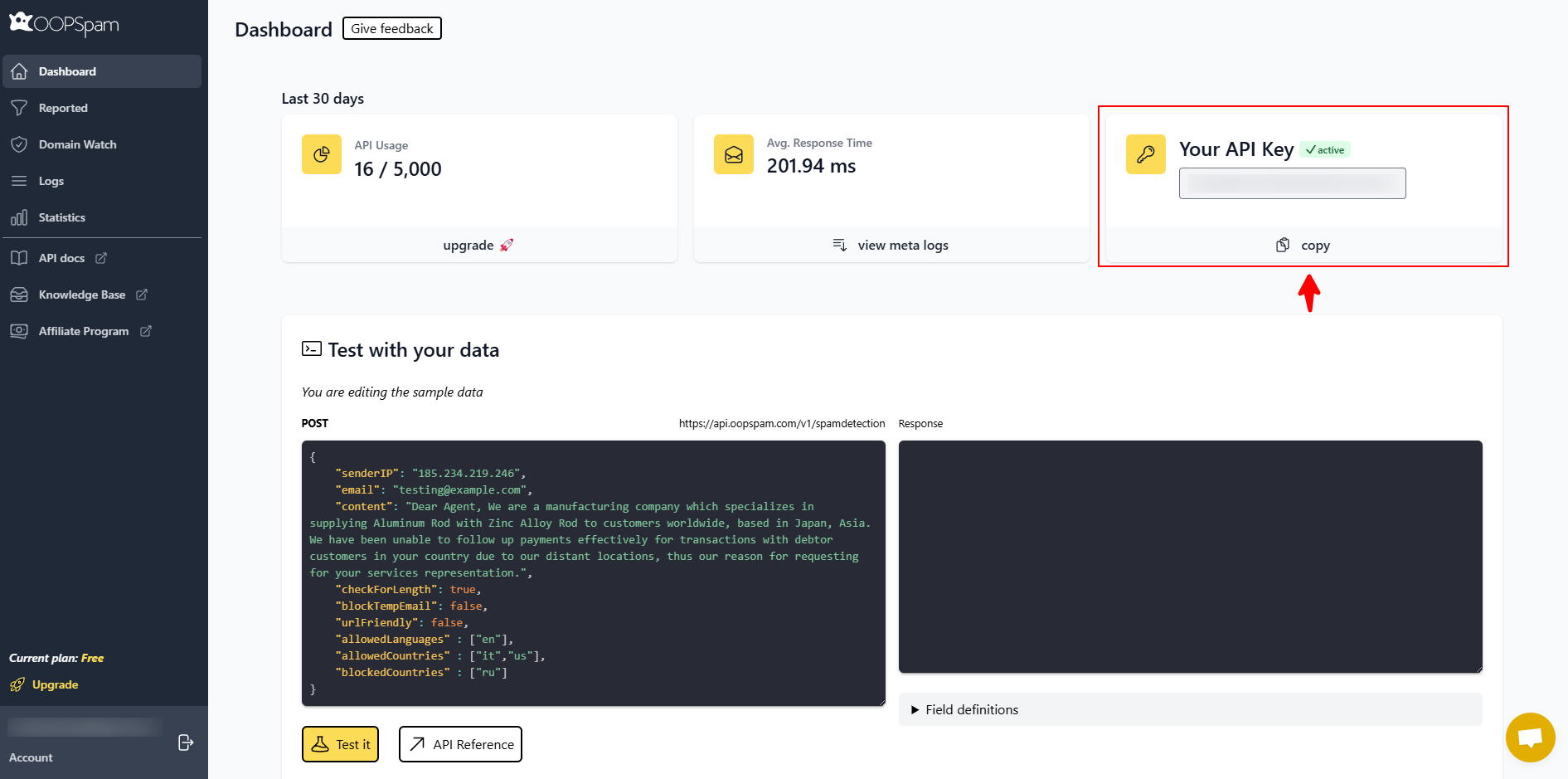
Create an account on oopspam.com and copy your API Key from the dashboard.
Step 3: Add API Key in WordPress
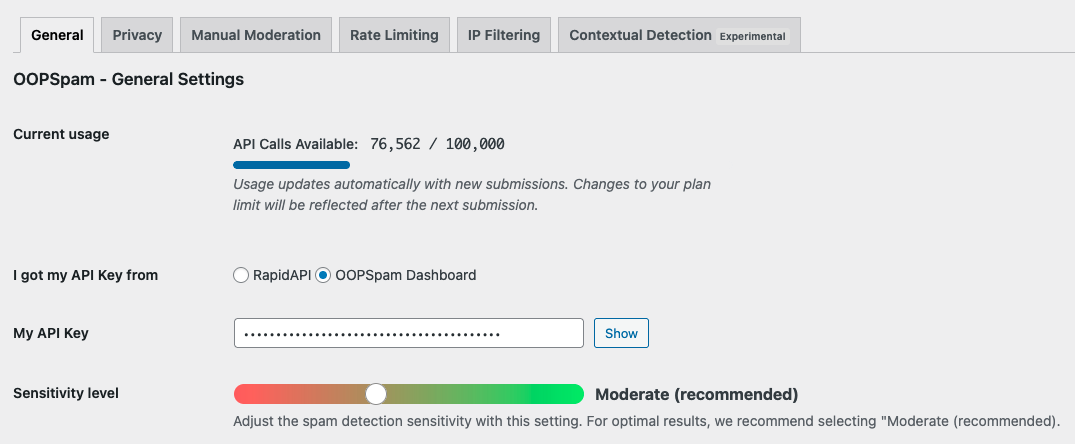
Go back to oopspam → General Settings and paste your API key. Adjust sensitivity if needed.
Step 4: Activate WooCommerce Spam Protection
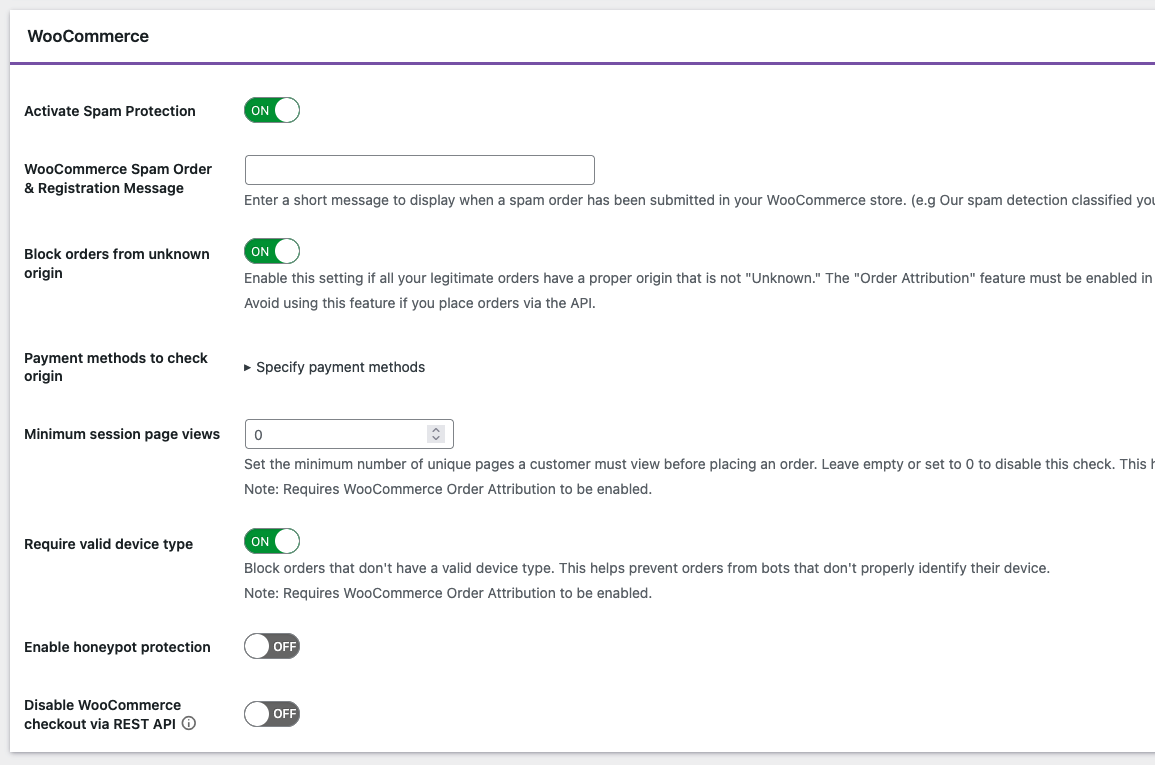
Scroll down and turn on WooCommerce Spam Protection and configure the optional checks:
- Block orders from unknown origin – Prevents orders that don’t have a proper attribution source.
- Require valid device type – Blocks bots or devices that fail to identify properly.
- Minimum session page views – Set how many unique pages a user must view before checkout.
- Enable honeypot protection – Adds an invisible field to catch basic bots.
- Disable checkout via REST API (optional) – Prevents automated API-based order submissions.
After adjusting these settings, click Save. This activates oopspam’s core detection engine for your WooCommerce forms.
Step 4: Enable Rate Limiting
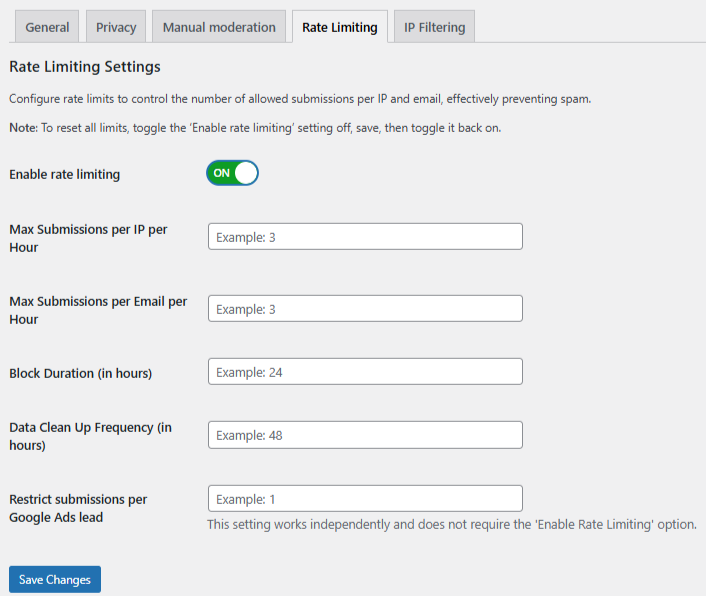
Go to Rate Limiting tab and toggle Enable Rate Limiting ON.
Configure:
- Max submissions per IP per hour – Prevents repeated attempts from the same IP.
- Max submissions per email per hour – Blocks mass-use disposable emails.
- Block duration (hours) – Determines how long a violator stays blocked.
- Data cleanup frequency – Automatically deletes old activity logs.
Click Save.
oopspam will now block spam and limit how often a customer can submit WooCommerce registration and checkout forms.
Strengthen Protection Further
Enable these filters for stronger WooCommerce security:
- VPN / Proxy / TOR blocking
- Country-based blocking
- Language filtering
- Contextual spam detection
- Logs and monitoring
This reduces automated abuse while keeping real customer engagement high.
3. Limit WooCommerce Orders Using the “Maximum Products per User” Plugin
If your goal is to restrict how many orders or products a single customer can place, use a WooCommerce-specific quantity limiter. This plugin allows you to limit purchases by customer, timeframe, or order status.
What the plugin does
The Maximum Products per User for WooCommerce plugin lets you:
- Restrict the number of orders a customer can place
- Limit purchases by lifetime or by time period
- Only count orders with specific statuses (Processing, Completed, etc.)
- Apply limits per product or storewide
Use cases
- Subscription Services – Limit each customer to one subscription order per month. This keeps their billing cycle aligned.
- Pharmaceutical or Regulated Products – Limit customers to one order per month to comply with dispensing rules.
This method protects inventory and reduces order abuse.
Final Takeaway
WooCommerce does not limit form submissions by itself. To control registrations, orders, and product purchasing behavior, you must add plugins that enforce submission caps, rate limits, and product restrictions. Most stores benefit from using all three, because they solve different problems:
- Use form builder limits when you have custom forms.
- Use oopspam advanced rate limiting to protect WooCommerce’s built-in forms.
- Use Maximum Products per User to control purchase quantity.
By using a layered approach you protect your store, reduce spam, and keep your WooCommerce workflow clean and stable.