How to Block Orders by Billing Address in WooCommerce

Technical Content Marketer

Reviewed by Onar Alili
Co-founder & Engineer
Published 5 min read
The fastest way to block orders by billing address in WooCommerce is to install a dedicated anti-fraud plugin like oopspam Anti-Spam, enter the addresses, cities, or PO boxes you want to reject in its “Block orders with specific billing addresses” field, and save. No coding required. Alternatives include WooCommerce’s built-in Selling location(s) setting (country-level only) or a custom PHP snippet, but oopspam offers broader fraud coverage in one tool.
Why Repeat Fraudulent Addresses Keep Costing You Money
Fraudsters and bots often reuse the same fake billing details, like reshipping PO boxes or addresses tied to past chargebacks. Blocking these values at checkout stops repeat offenders before they order, saving you inventory, fees, and chargebacks.
Here are the top three ways to do it:
Option 1: oopspam Anti-Spam
oopspam (that’s us) is a WordPress plugin built specifically for spam and fraud prevention across forms, comments, and WooCommerce checkouts. Rather than relying on CAPTCHA (which frustrates real customers), it works quietly in the background, cross-checking orders against a database of over 500 million known malicious IPs and emails, plus machine learning analysis. The plugin has reportedly caught over a billion spam submissions to date.
For billing address specifically, oopspam lets you enter a list of addresses, cities, states, or PO boxes to block, and it automatically rejects any order whose billing address contains that text (matching is case-insensitive).
This makes it useful against reshipping fraud, repeat chargeback customers, and known fake addresses.
Steps to set it up:
Install and activate the oopspam Anti-Spam plugin from your WordPress dashboard.
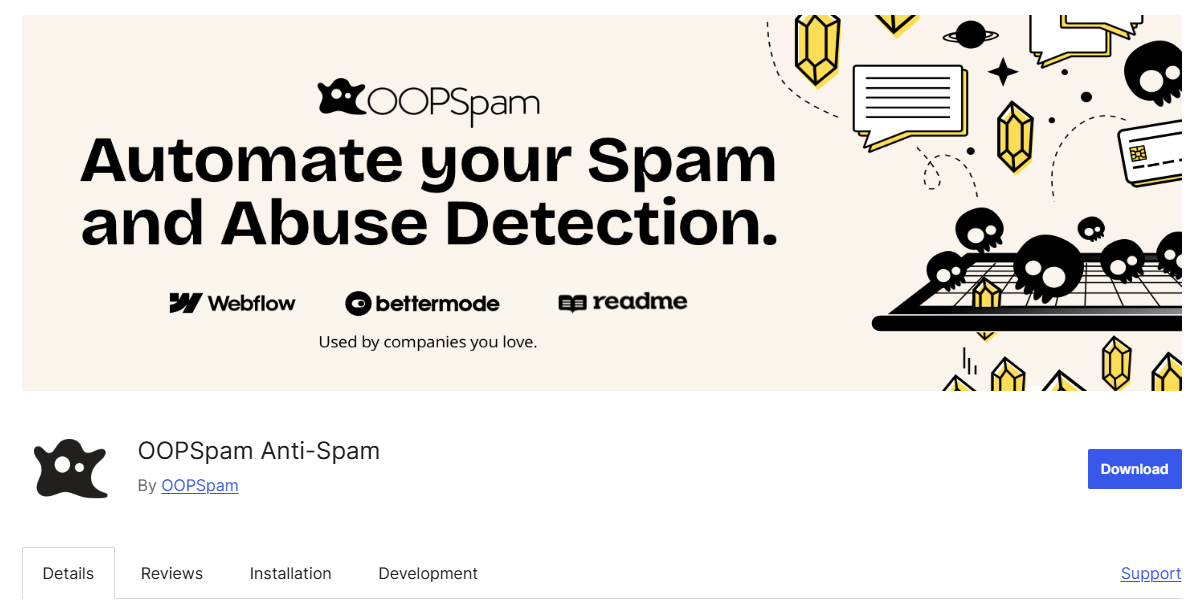
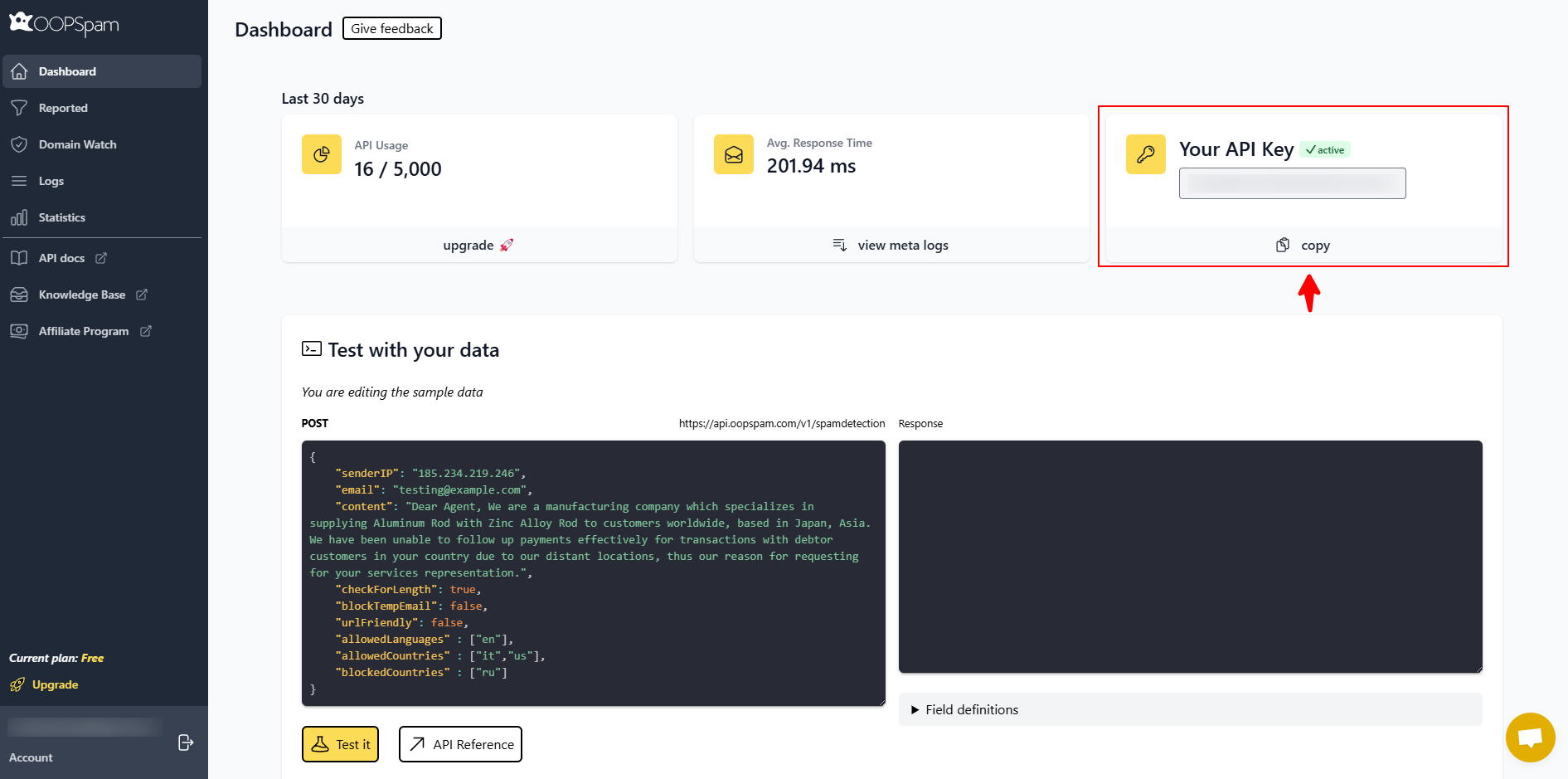
Sign up for a oopspam API key.
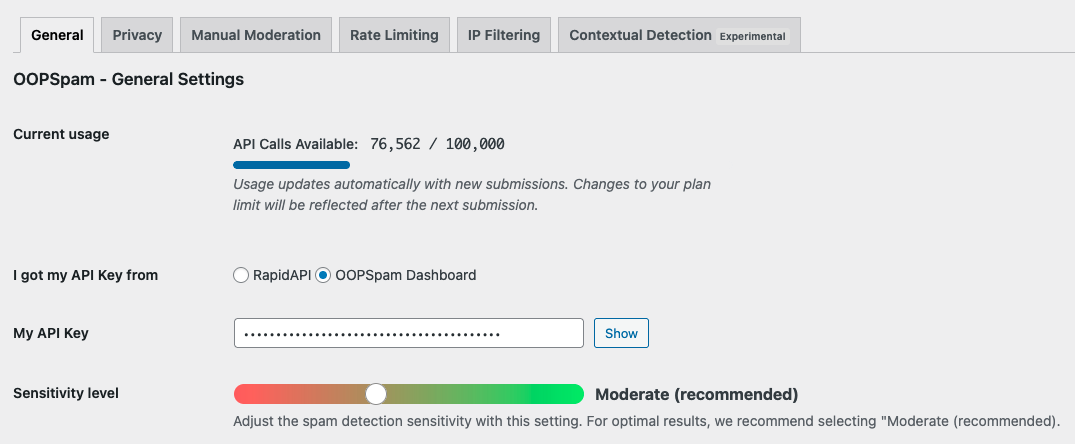
Go to Settings > oopspam Anti-Spam > General, paste your API key, and save.
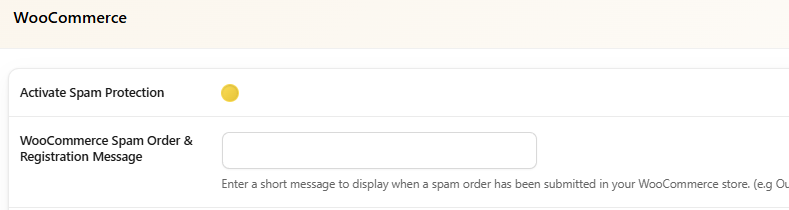
In the oopspam settings, find the WooCommerce section and turn on Activate Spam Protection.
Under Block orders with specific billing addresses, enter each address, city, or PO box on its own line (for example: 123 Fake Street, 456 Spam Avenue Suite 100, PO Box 999).
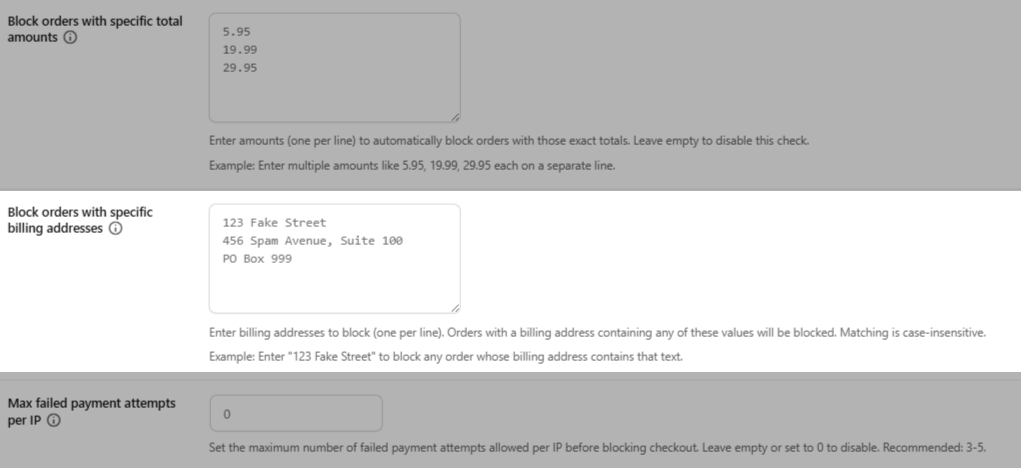
Customize the customer-facing error message if you want a specific tone. Click Save changes.
Because oopspam bundles this feature alongside other protections, blocking specific order totals, country and language filtering, rate limiting, and blocking orders from unknown origin, you get a more complete fraud-prevention layer instead of a single-purpose tool.
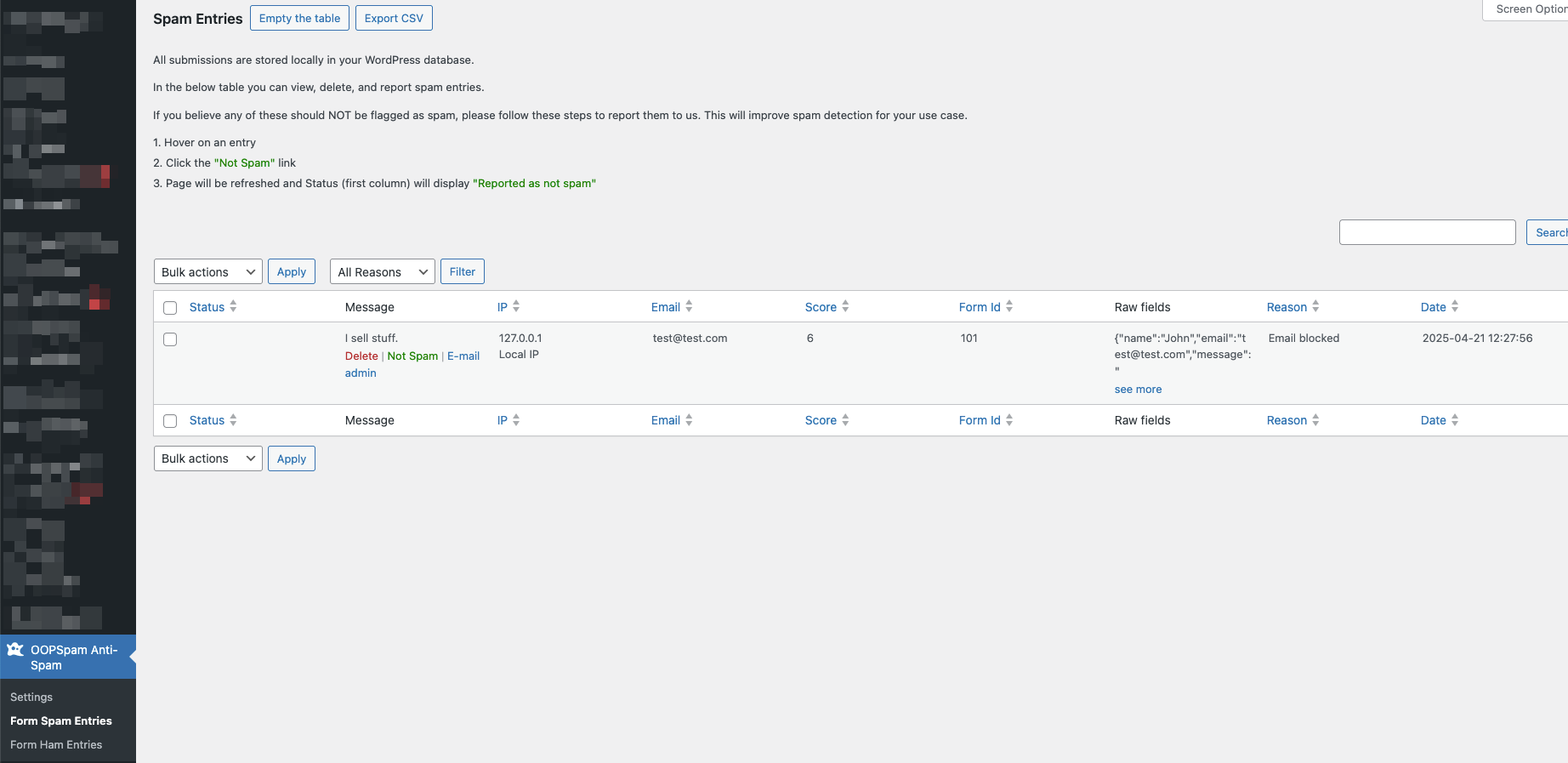
oopspam also stores rejected submissions locally in your WordPress database (under Form Spam Entries) so you can audit what was blocked and why, and it doesn’t use cookies or share your data, which is worth noting if privacy compliance matters to your business.
Option 2: WooCommerce’s Built-In Selling Location(s) Setting
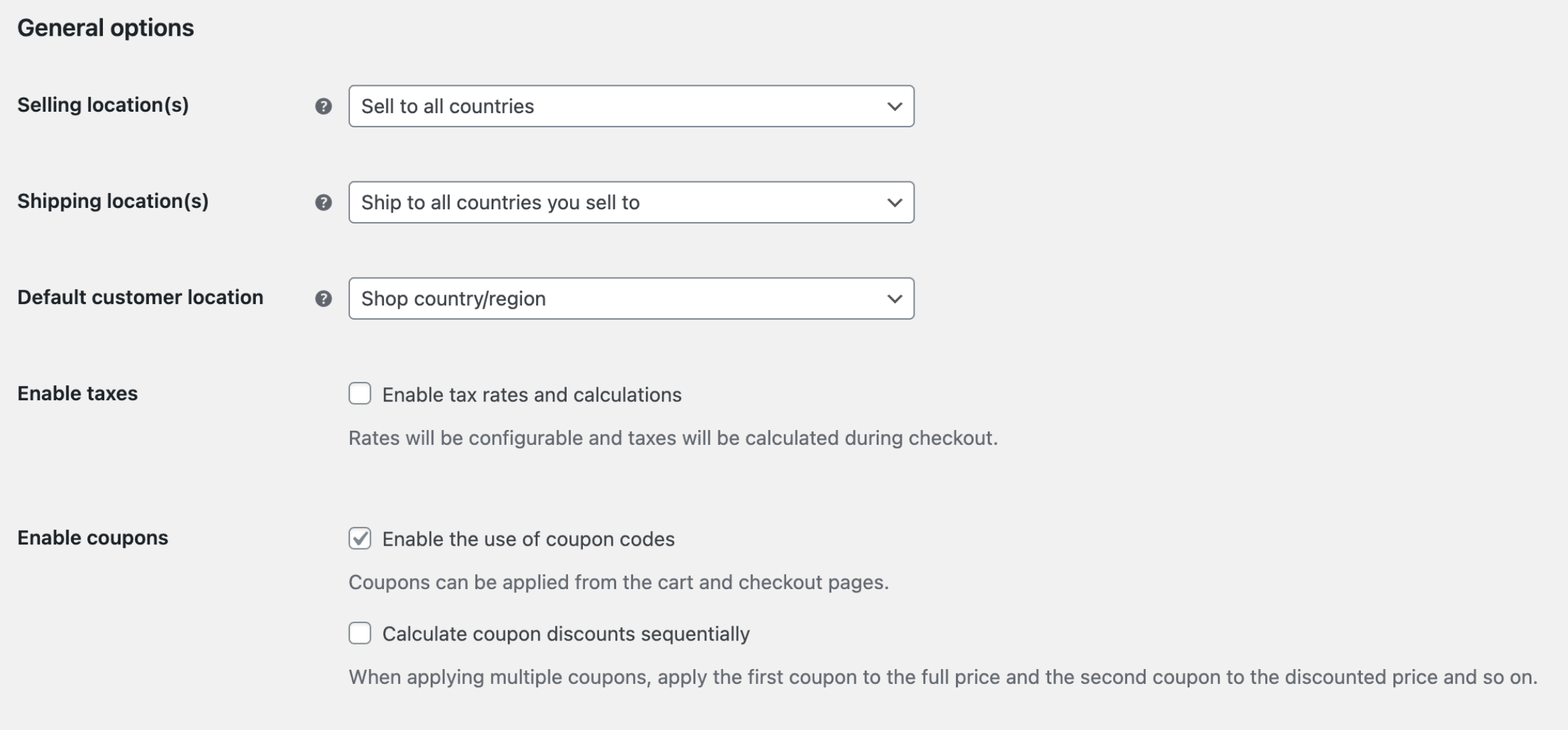
WooCommerce’s built-in Selling location(s) setting can restrict orders by country, but it doesn’t filter specific addresses. It’s a native, no-cost option worth knowing about, even though it’s not a true address-blocking tool.
Steps:
- Go to WooCommerce > Settings, where the General tab opens by default.
- Under General options, find Selling location(s).
- Choose from Sell to all countries, Sell to all countries, except for…, or Sell to specific countries.
- Adjust Shipping location(s) to match, if needed.
- Click Save changes.
This setting is useful for broad, country-level restrictions and quick compliance needs, but it has no field for blocking a specific street address, city, or PO box. If your goal is to stop orders from a known bad address rather than an entire country, you’ll need oopspam, a dedicated extension, or the PHP snippet below.
Option 3: Custom PHP Snippet
For a code-based approach, developers can add a validation function to their theme’s functions.php file or a code snippets plugin. This example blocks a specific billing city:
add_action( 'woocommerce_checkout_process', 'block_orders_by_billing_address' );

function block_orders_by_billing_address() {
    $blocked_city = 'ExampleCityName';

    if ( isset( $_POST['billing_city'] ) && $_POST['billing_city'] === $blocked_city ) {
        wc_add_notice( __( 'Orders from this billing location are not accepted.', 'woocommerce' ), 'error' );
    }
}
This method is free but requires ongoing maintenance, manual updates to your blocklist, and some PHP knowledge. It also won’t survive a theme update unless placed in a child theme or snippets plugin.
Which Option Should You Choose?
- Want the most complete protection with minimal setup? Go with oopspam. It covers billing address blocking plus IP, email, and behavioral fraud checks in one plugin.
- Only need to restrict entire countries, not specific addresses? WooCommerce’s native Selling location(s) setting handles that for free.
- Comfortable with code and want a free, minimal solution? Use the PHP snippet, but expect to maintain it yourself.
Blocking known bad billing addresses is a simple, effective first step in reducing spam orders and fraud. Pairing it with a dedicated tool like oopspam gives your store a stronger, more automated defense without adding friction for legitimate customers.