3 Ways to Protect Your Breakdance Forms from Spam

Technical Content Marketer

Reviewed by Onar Alili
Co-founder & Engineer
Published 7 min read
Spam protection is essential for Breakdance Forms. Bots can bypass simple filters and submit messages that look real. Using just one protection method is not enough.
The solution is layered protection. Enable the built-in Honeypot to block basic bots. Add Google reCAPTCHA v3 to analyze user behavior. Use oopspam to evaluate message content, email quality, and IP signals. Together, these three tools significantly reduce spam and keep your submissions clean.
Here is how to set them up correctly.
1. Enable the Built-In Honeypot Field
The Honeypot is the easiest and fastest protection you can enable in Breakdance. It requires no API keys, no third-party services, and no extra configuration beyond a simple toggle.
How to Enable Honeypot in Breakdance
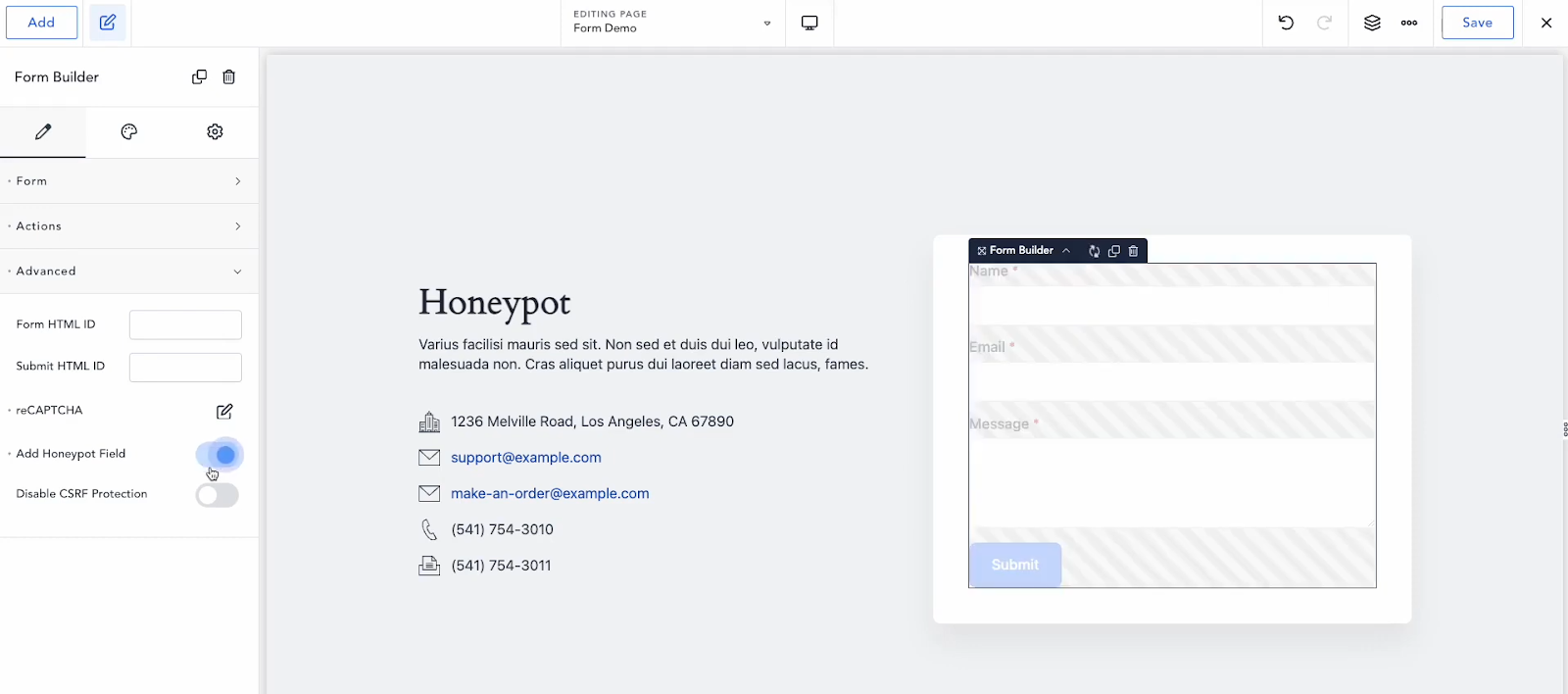
- Open your page in Breakdance.
- Select the Form Builder element.
- Go to the Advanced section.
- Toggle Add Honeypot Field on.
- Save your form.
Once enabled, Breakdance automatically adds a hidden field (commonly named hpinput). If that field contains data during submission, the form will reject it.
The Honeypot effectively blocks basic bots and low-effort spam scripts. However, it does not stop advanced bots that simulate real browser behavior or human-assisted spam submissions. For that reason, you should treat it as your first layer of defense, not your only one.
2. Add Google reCAPTCHA v3
Google reCAPTCHA v3 adds a behavioral layer to your spam protection. Unlike older versions of CAPTCHA, it does not require users to solve puzzles. Instead, it runs silently in the background and assigns a risk score based on how the user interacts with the page.
This approach helps identify suspicious activity without creating friction for legitimate visitors.
Step 1: Generate reCAPTCHA API Keys
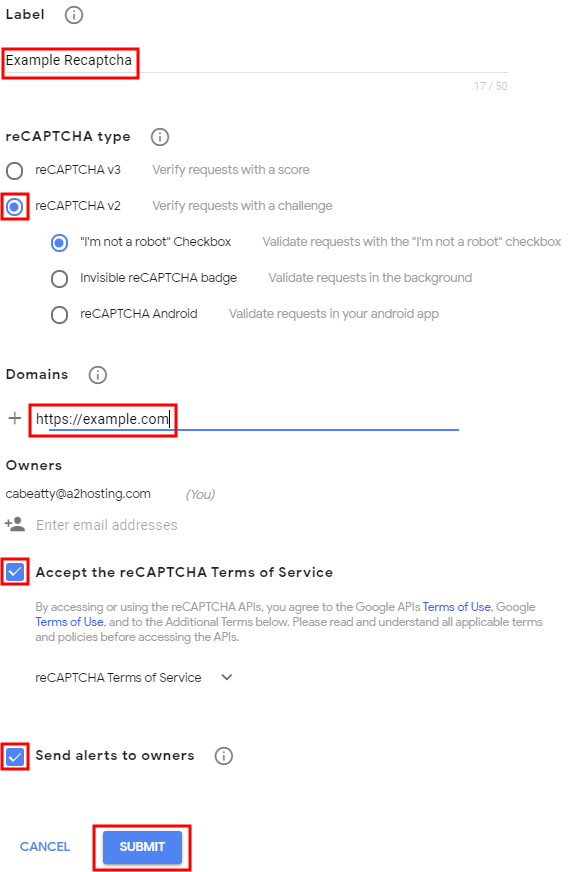
- Visit the Google Cloud Console.
- Create a new reCAPTCHA key.
- Choose Website as the platform type.
- Add your domain.
- Copy the Site Key and Secret Key.
Step 2: Enable reCAPTCHA in Breakdance
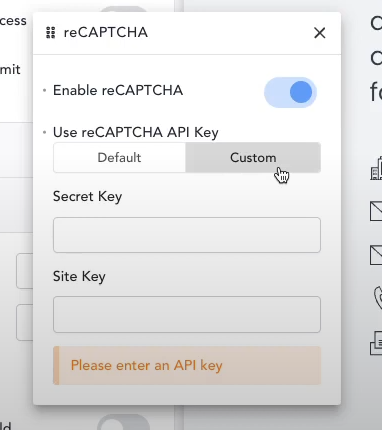
- Select your Form Builder element.
- Go to Advanced → reCAPTCHA settings.
- Toggle reCAPTCHA on.
- Enter your Site Key and Secret Key.
- Save the form.
After saving, visit your form on the frontend. You should see the reCAPTCHA badge at the bottom-right of the page, which confirms it is active.
While reCAPTCHA improves protection significantly, it does not eliminate spam entirely. Some services solve CAPTCHAs manually. Some bots simulate real human activity. That is why content-based filtering is still necessary.
3. Use oopspam for Advanced Spam Filtering
oopspam (that’s us 👋) adds intelligent spam protection to Breakdance Forms. It evaluates the actual message, not just the user behavior.
Option 1: Activate oopspam Using the WordPress Plugin
This is the easiest way to add oopspam to Breakdance Forms.
Step 1: Install the Plugin
Go to Plugins → Add New. Search for oopspam Anti-Spam. Install and activate the plugin.
Step 2: Get Your API Key
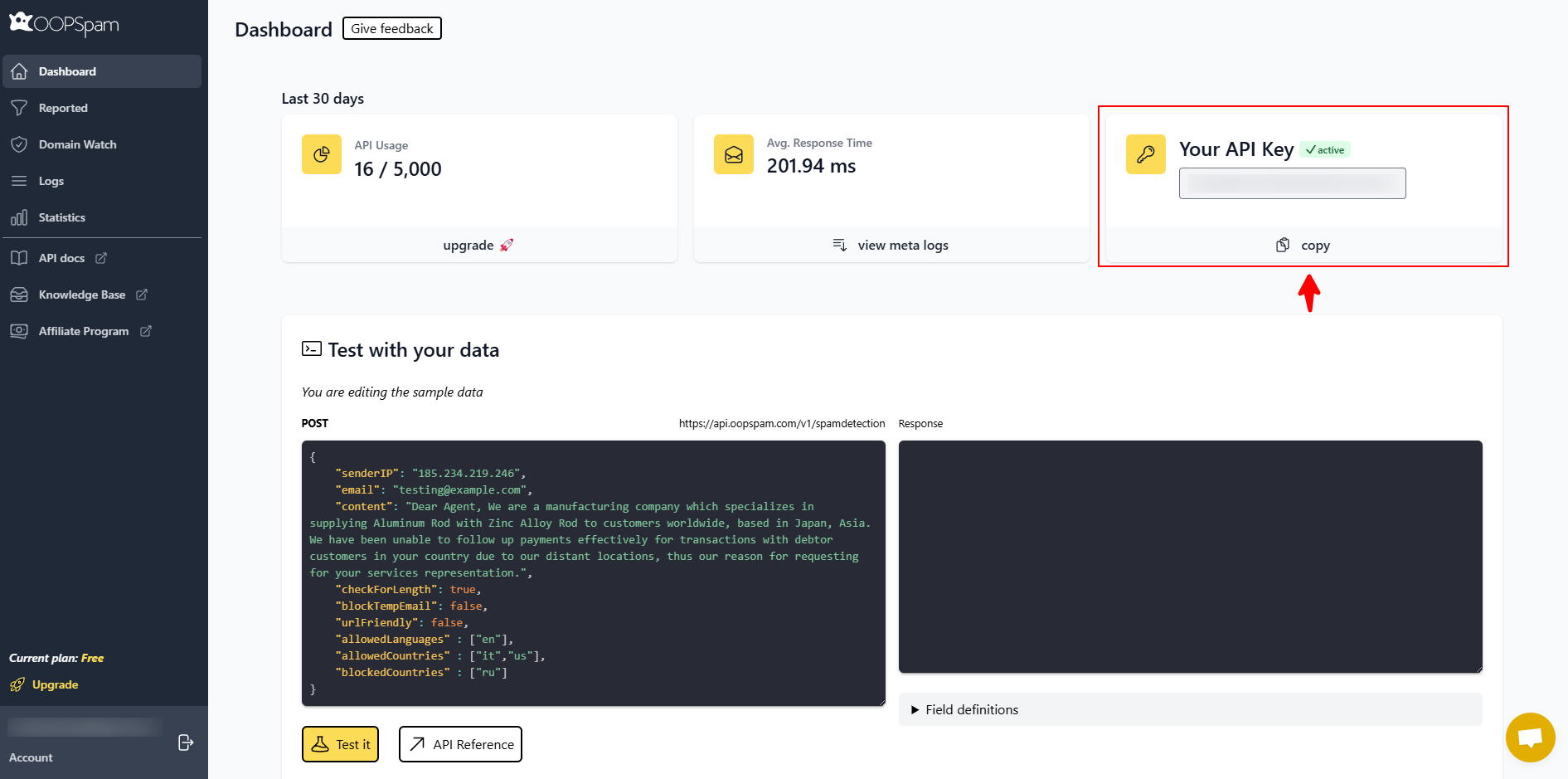
Subscribe to oopspam, log in to your dashboard and copy your API key.
Step 3: Add API Key in WordPress
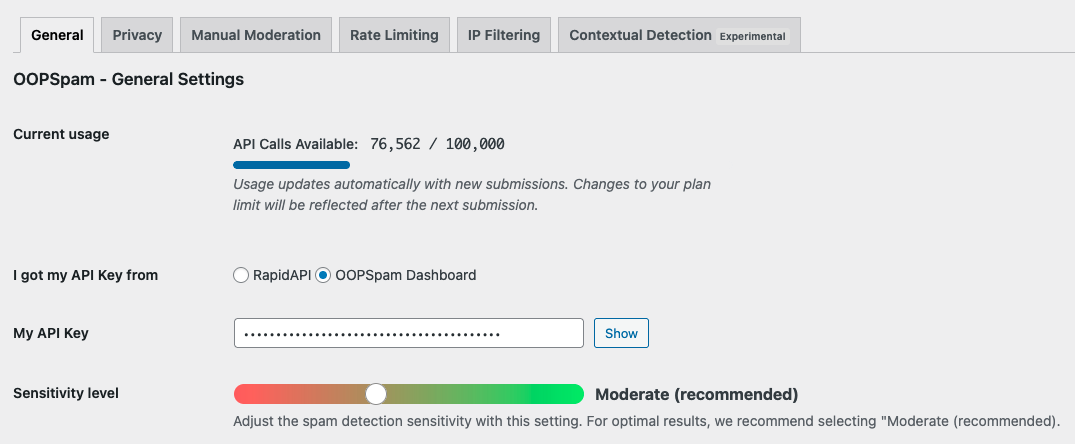
- Go to your WordPress Admin Dashboard.
- Navigate to Settings → oopspam Anti-Spam.
- Paste your API key in the appropriate field.
- Make sure you select the oopspam Dashboard on the settings page.
- Save changes.
Step 4: Enable Spam Protection for Breakdance Forms
If Breakdance is installed, a dedicated Breakdance Forms section will appear automatically in the oopspam plugin settings.
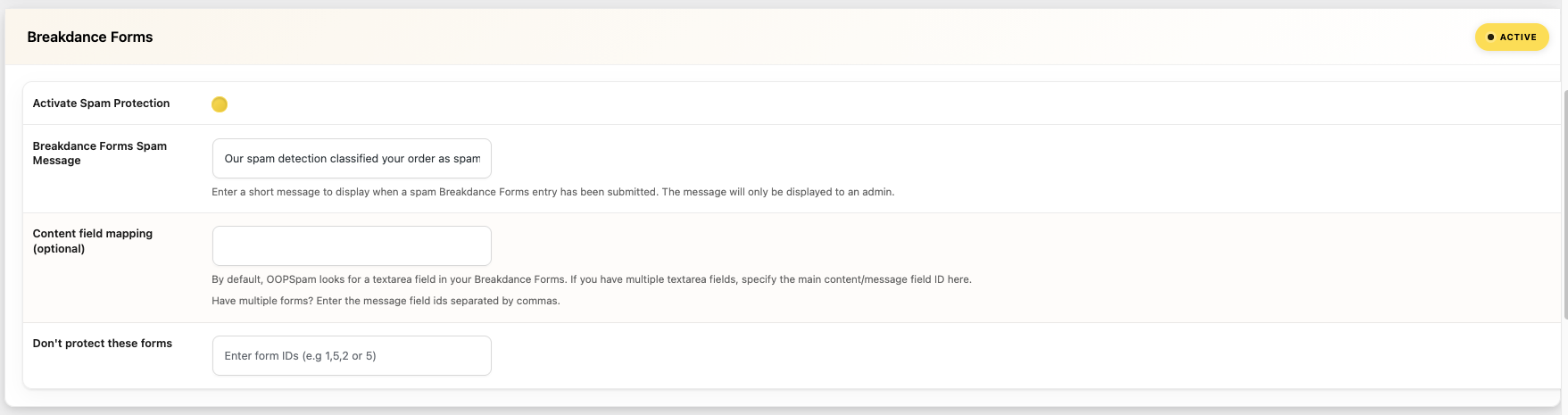
In this section:
- Turn on Activate Spam Protection.
- Optionally customize the Breakdance Forms Spam Message that appears when a submission is flagged as spam.
- Save your settings.
After enabling this option, oopspam will automatically monitor all Breakdance form submissions and filter spam based on its detection rules.
No additional actions need to be added inside the Breakdance form builder. Once spam protection is activated, oopspam works in the background and evaluates every submission automatically.
Optional Settings
You may also configure additional options in this section:
- Content field mapping if your form uses multiple message fields
- Exclude specific forms from spam protection using their form IDs
These settings are optional and are only needed for advanced configurations.
Once configured, oopspam will begin filtering Breakdance form submissions immediately.
Option 2: Advanced Setup Using Make + oopspam
For most websites, the oopspam WordPress plugin is enough to protect Breakdance Forms. However, some teams prefer more advanced automation workflows.
Connecting Breakdance Forms to Make allows you to process submissions, filter spam, and route legitimate entries to different systems such as CRMs, spreadsheets, or email tools.
This setup is useful if you want more control over how form submissions are handled after they are submitted.
Basic Workflow
- Add a Webhook action to your Breakdance form.
- Send the form submission data to Make.
- Use the oopspam module in Make to evaluate the submission.
- Route the result to different actions depending on the spam score.
Configure the Webhook in Breakdance
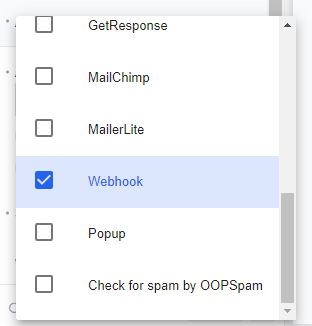
Open your Breakdance form and go to Actions → Actions After Submit. Add a Webhook action and paste the webhook URL generated from Make.
Configure the Scenario in Make
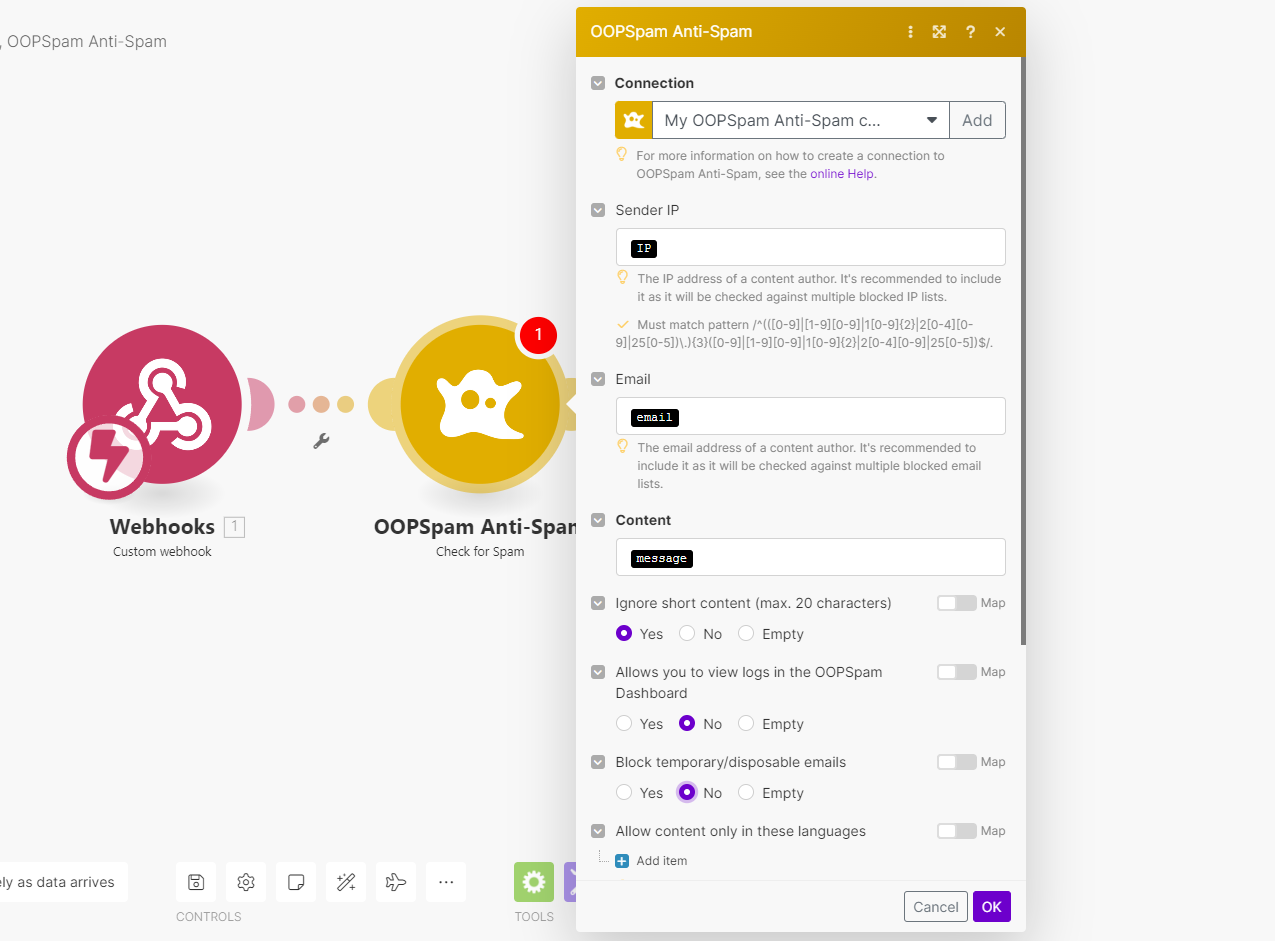
Inside Make:
- Add a Webhook module to receive the form submission.
- Add the oopspam – Check for Spam module.
- Enter your oopspam API key.
- Map the relevant fields from the Breakdance form:
-
- Content → Message field
- Email → Email field
- IP Address → IP field (if available)
Providing the IP address improves detection accuracy.
Route Submissions Based on Spam Score
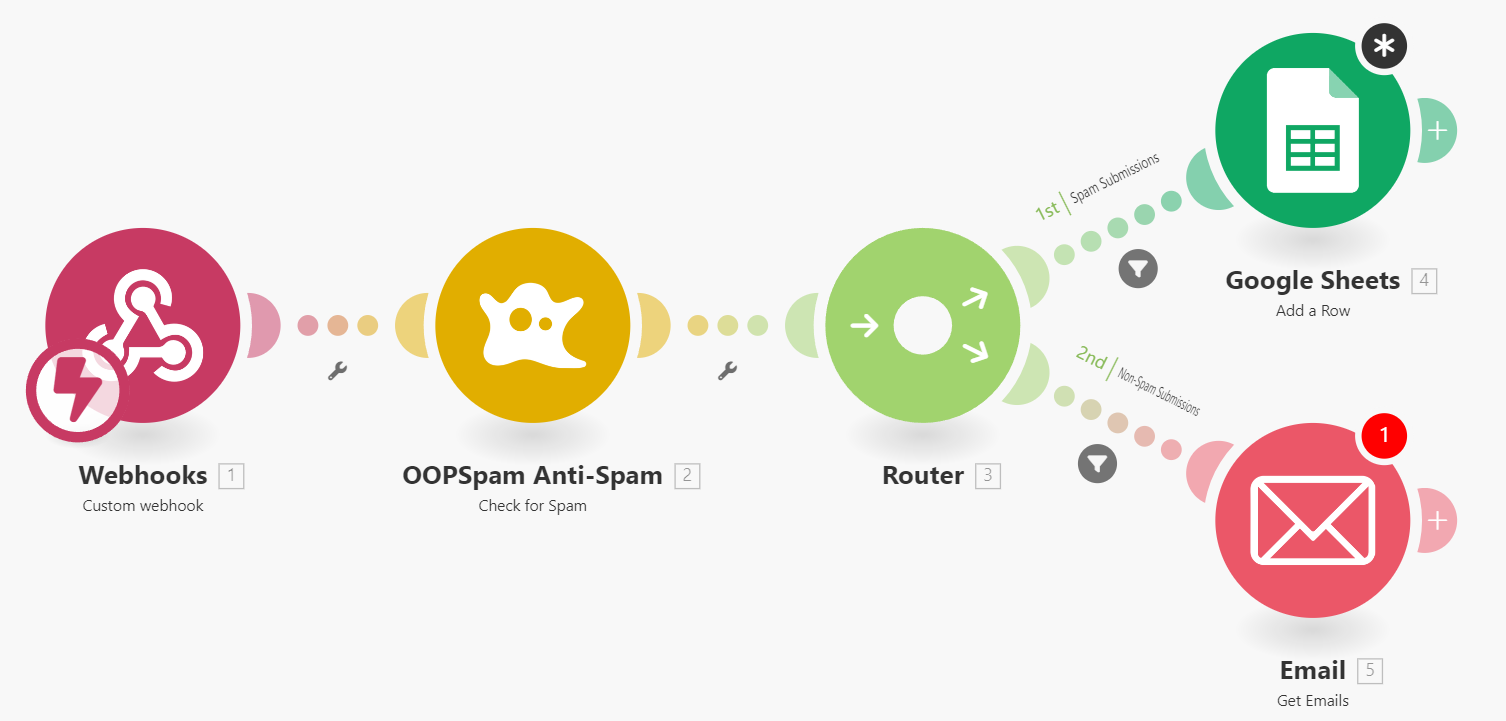
After oopspam evaluates the submission, you can create routing rules.
For example:
- If the spam score is high, store the submission in a log, spreadsheet, or monitoring tool.
- If the score is low, send the data to email notifications, CRM systems, or marketing tools.
Typical spam score guidance:
- 1–2: Not spam
- 3–6: Spam
These thresholds can be adjusted based on your needs.
Using Make in this way gives you full flexibility to automate workflows while keeping spam submissions separated from legitimate leads.
Enable Advanced oopspam Filters
For stronger protection, enable additional filters inside oopspam:
- Rate limiting to restrict repeated submissions from the same IP
- VPN, proxy, and TOR blocking
- Country allow or deny lists
- Language filtering
- Disposable email blocking
- Contextual spam detection
- Logs for monitoring attempts
These settings help stop more sophisticated abuse patterns.
Recommended Protection Setup
Start by enabling the Honeypot in Breakdance. It is built-in, easy to activate, and blocks many basic bots without affecting users.
If you want a free additional layer, add Google reCAPTCHA v3. It analyzes visitor behavior and helps detect suspicious submissions.
If you need more control over spam filtering, use the oopspam WordPress plugin. It evaluates message content, email reputation, and IP signals while keeping the impact on your website’s performance low.
You don’t need to use reCAPTCHA if you are using oopspam WordPress plugin.
Final Thoughts
Spam will continue to evolve, but you can stay ahead by combining simple built-in tools with intelligent filtering.
Start with the Honeypot to block basic bots. Add reCAPTCHA v3 to analyze behavior. Use oopspam to evaluate the actual submission content before it reaches your inbox.
When configured correctly, this setup keeps your Breakdance Forms clean, protects your CRM, and saves valuable time.