
Chazie Baniquid
Technical Content Marketer
7 minutes to read
3 Ways to Protect Your QuForm from Spam

Spam submissions waste time, pollute lead data, and overload inbox notifications. The good news is that Quform already includes built-in anti-spam tools. When combined with submission limits and advanced filtering, these tools can block most automated spam.
This guide shows three simple ways to protect your Quform forms from spam.
1. Enable Quform’s Built-In Protection: reCAPTCHA, Honeypot, CSRF, Turnstile, and hCaptcha
Quform includes several native features that help stop automated form submissions while keeping the experience simple for real users.
CAPTCHA Options (reCAPTCHA, Turnstile, hCaptcha)
Quform supports multiple CAPTCHA providers:
- Google reCAPTCHA
- Cloudflare Turnstile
- hCaptcha
These tools verify users before submission. They help detect bots using behavior signals, browser data, and challenge responses.
Steps to Enable CAPTCHA in Quform
Step 1: Open global settings
Go to Forms → Settings → reCAPTCHA
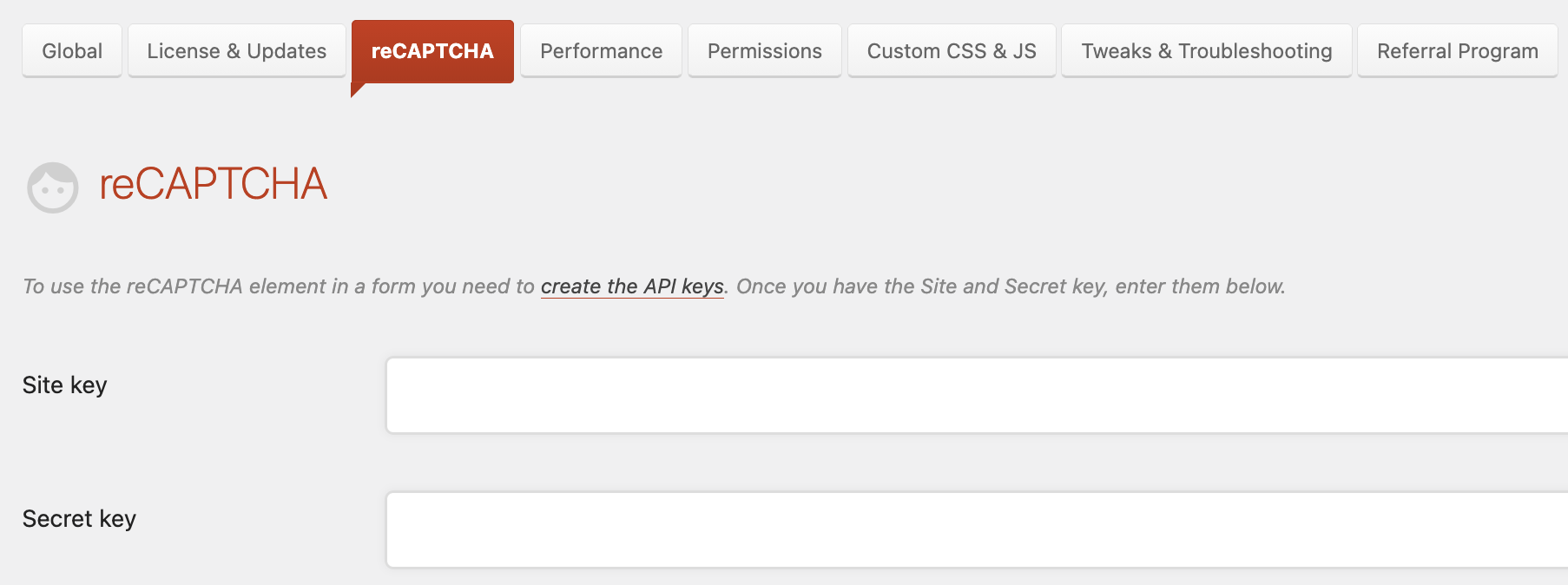
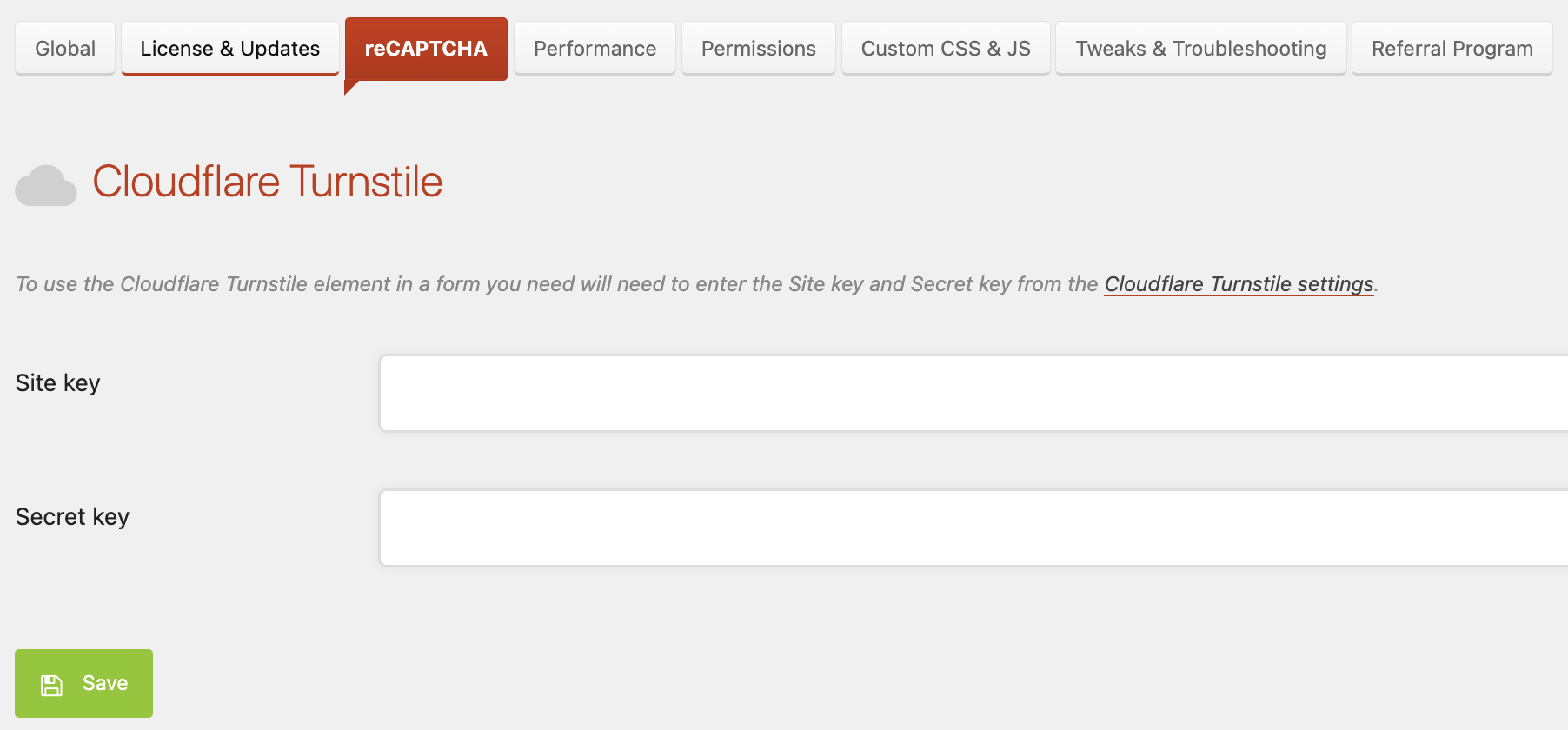
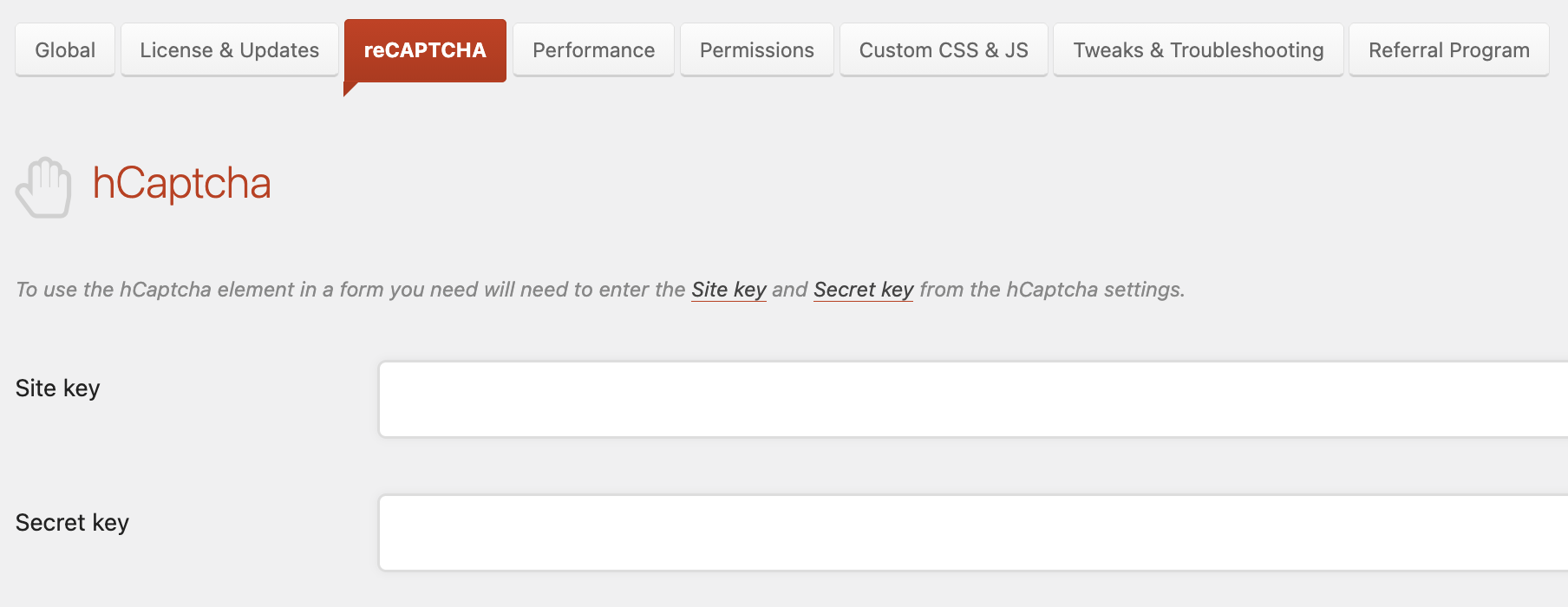
Step 2: Choose your CAPTCHA provider
You will see sections for:
reCAPTCHA
Cloudflare Turnstile
hCaptcha
Step 3: Add your keys
Enter the required credentials:
- Site Key
- Secret Key
You can get these keys from the respective provider dashboard.
Step 4: Save settings
Click Save after adding your keys.
Once configured, you can add the CAPTCHA element to your form inside the builder.
Note:
- Turnstile is a good low-friction option that often works without user interaction.
- hCaptcha is a strong alternative if you want a non-Google solution.
- Invisible reCAPTCHA is ideal for minimal user disruption.
Honeypot Fields
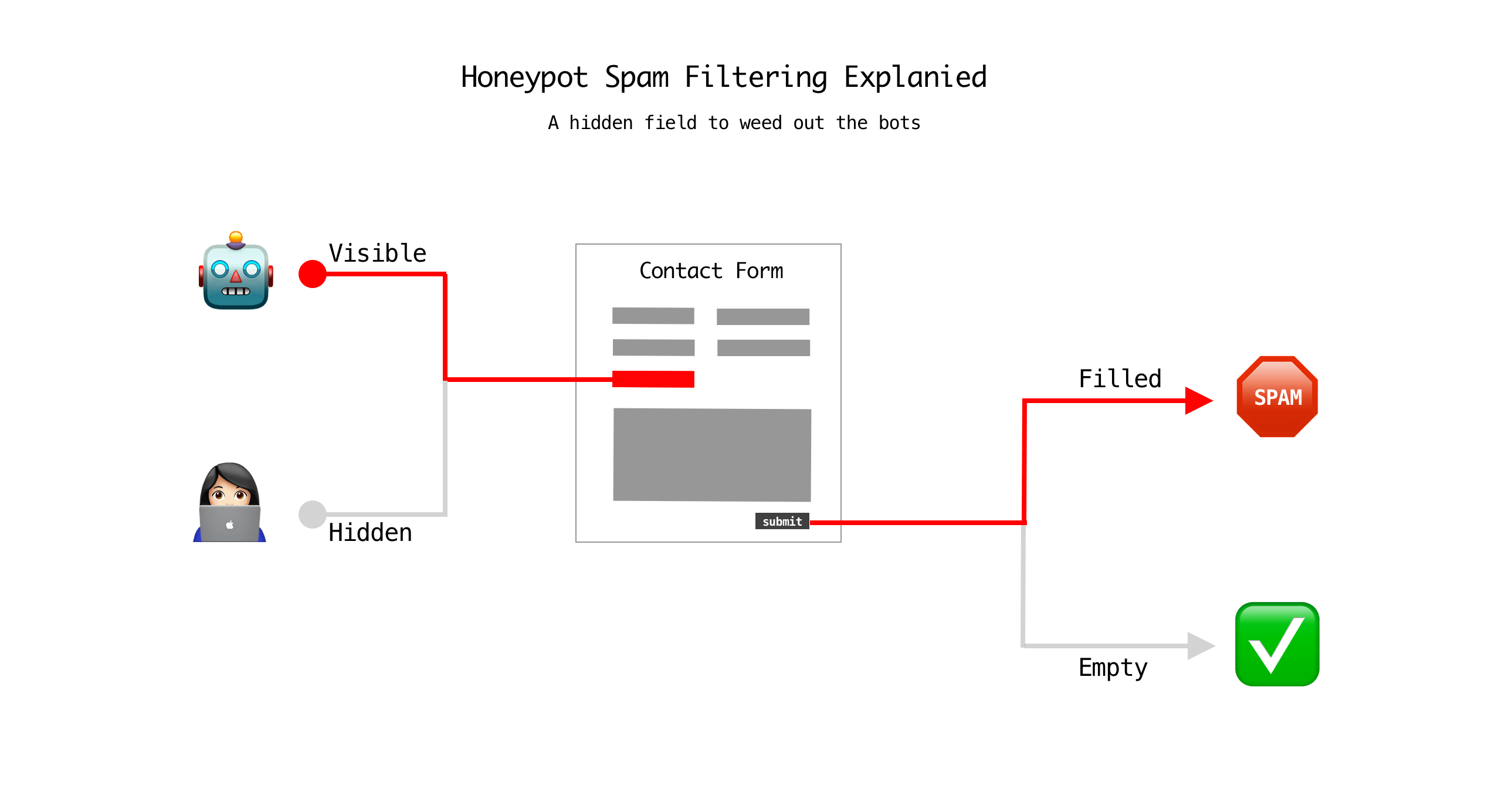
A honeypot field is a hidden form field that users cannot see. Bots that automatically fill every field will complete it, allowing Quform to detect and block the submission.
Recent updates improved this feature by randomly placing the honeypot field and making it look like a normal field to bots, making detection more effective.
CSRF Protection
Quform includes CSRF protection, which adds a unique security token to each form submission. The token ensures the request comes from your website and prevents unauthorized submissions.
To enable or confirm it: Go to Forms → Settings → Tweaks & Troubleshooting.Make sure CSRF protection is turned ON.
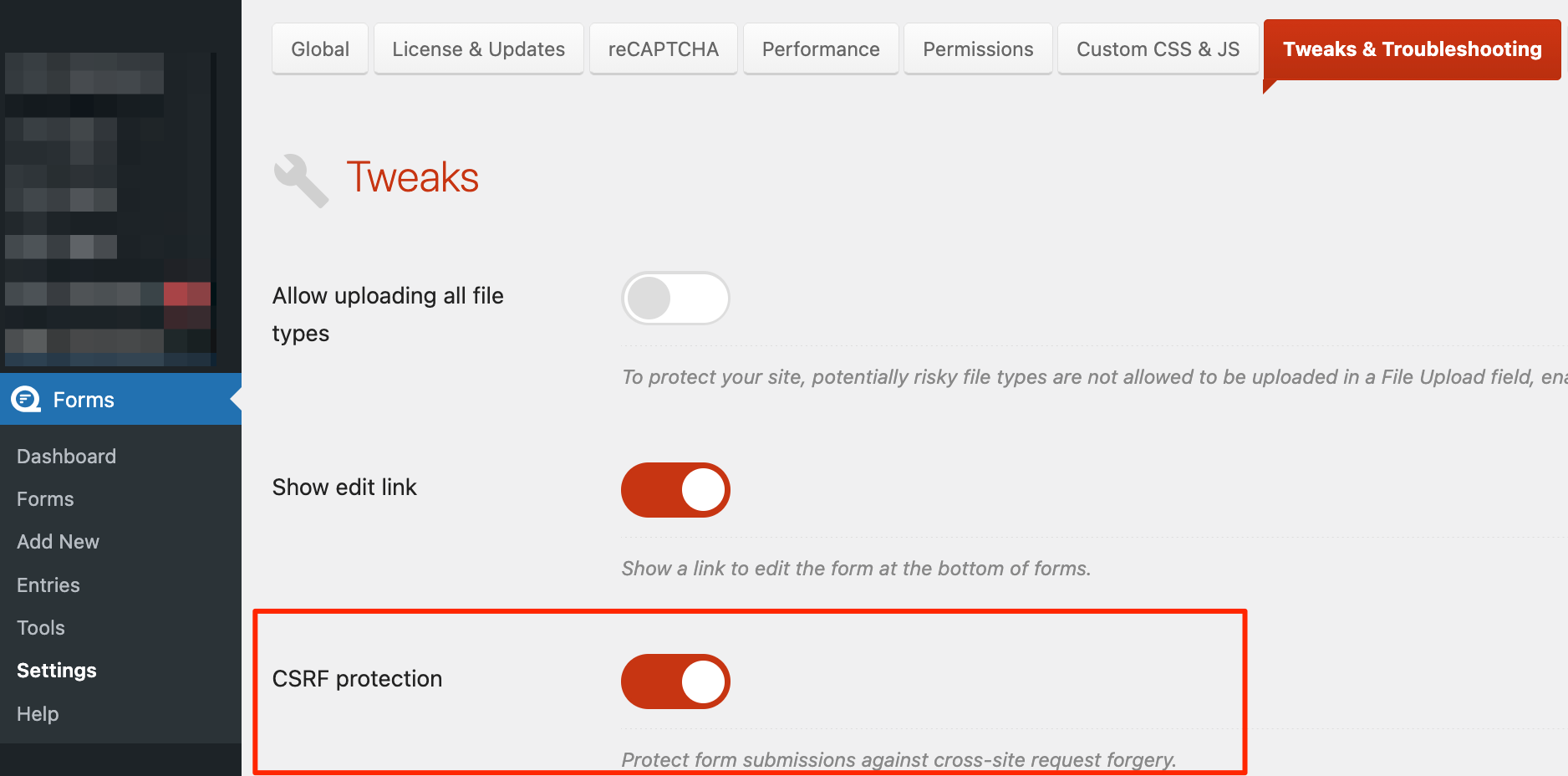
Together, these built-in protections help block common spam methods and should always be the first layer of defense for your Quform forms.
2. Use Submission Limits to Prevent Form Abuse
Another effective way to reduce spam is to limit how often a form can be submitted. Quform includes built-in controls that allow you to restrict submissions directly from the form builder.
Steps to Set Submission Limits in Quform
Step 1: Open your form
Go to Quform → Forms in your WordPress dashboard. Select the form you want to protect and click Edit.
Step 2: Go to the Limits settings
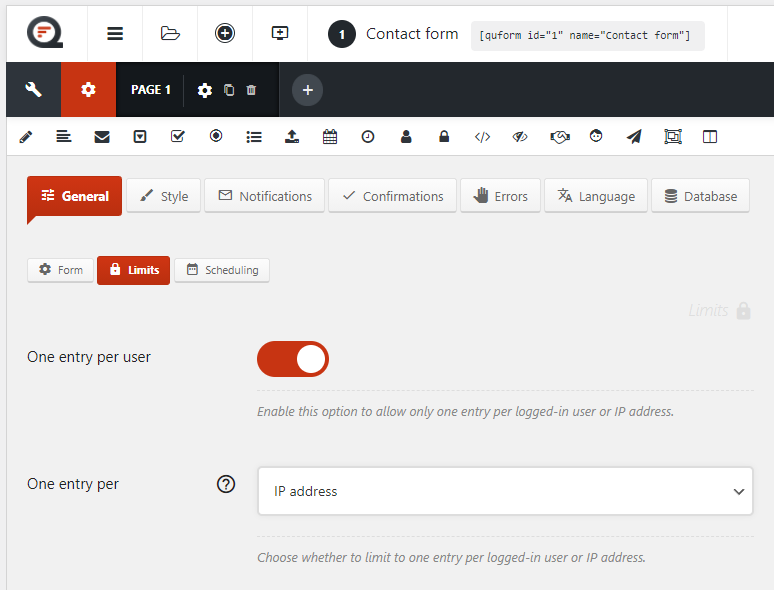
In the form builder, click the Settings icon. Then navigate to General → Limits.
Step 3: Enable submission limits
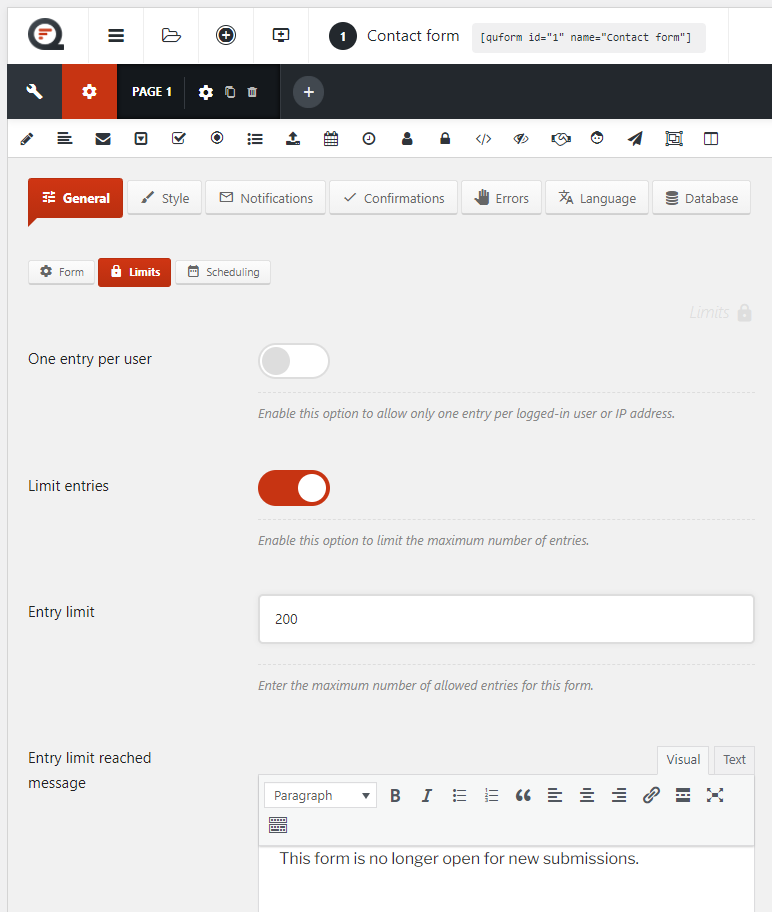
You can enable two useful options:
- One Entry Per User – Limits the form to one submission per logged-in user or IP address.
- Limit Entries – Sets a maximum number of submissions for the form. Once the limit is reached, the form automatically closes and displays a message such as “This form is no longer open for new submissions.”
Step 4: (Optional) Schedule the form
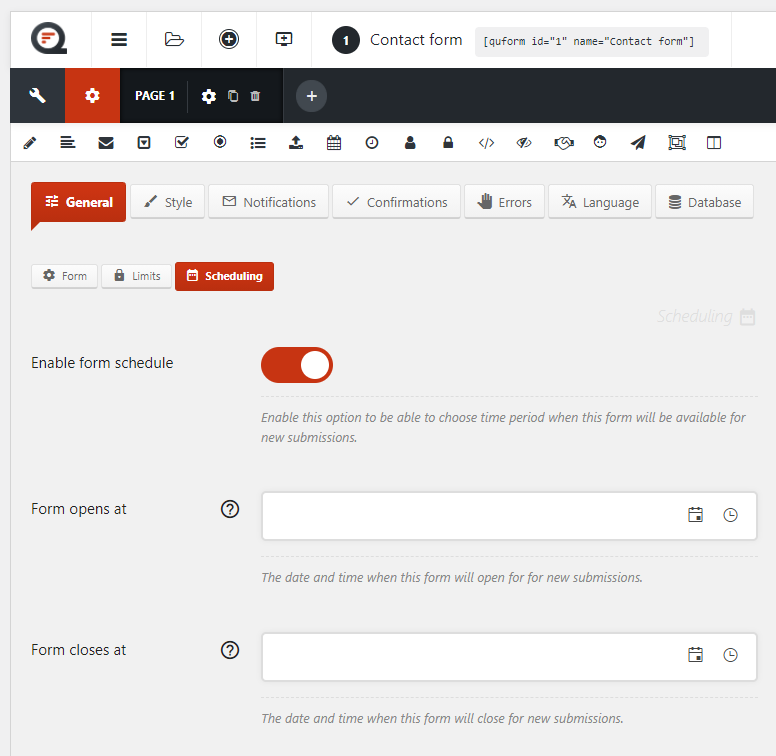
You can also control when the form opens and closes. Go to Settings → General → Scheduling, then set the date and time for when submissions should start and stop.
Submission limits help prevent repeated bot submissions and form flooding. Even if spam bots bypass CAPTCHA, these controls can still stop large volumes of automated submissions.
3. Use OOPSpam for Advanced Spam Filtering
Quform’s built-in protections stop many bots, but some spam can still get through. OOPSpam (that’s us 👋) adds an additional layer of protection by analyzing the actual content of form submissions using machine learning.
OOPSpam evaluates signals such as message content, IP reputation, and behavior patterns. This helps detect more sophisticated spam that traditional methods may miss.
Steps to Add OOPSpam to Your WordPress Site
Step 1: Install the OOPSpam Plugin
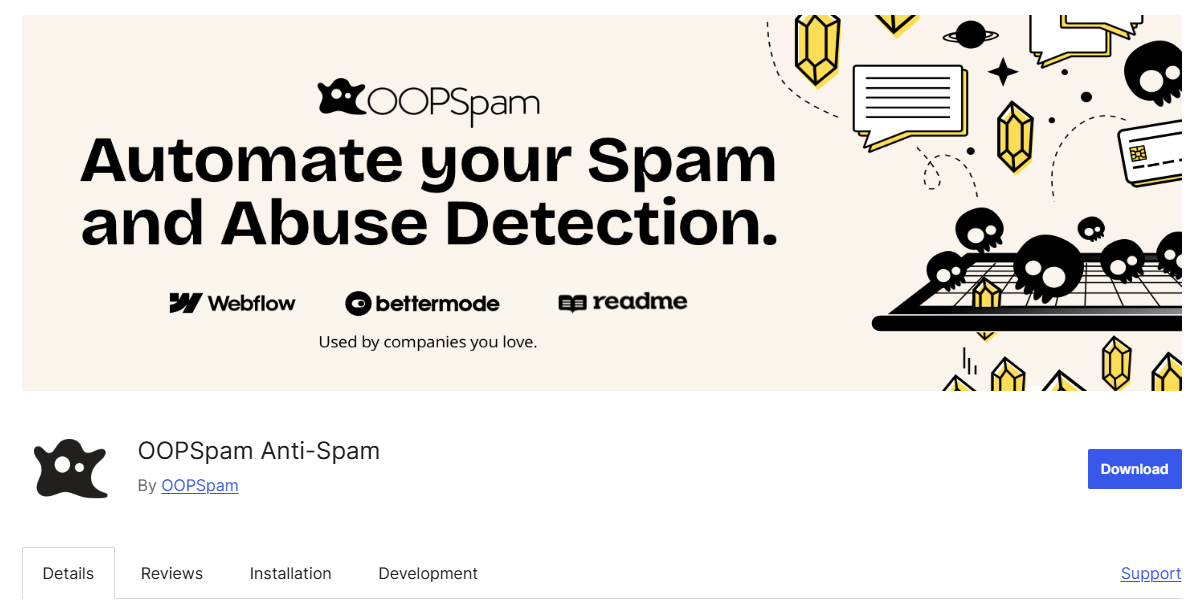
Go to your WordPress dashboard and navigate to Plugins → Add New. Search for OOPSpam Anti-Spam, then install and activate the plugin.
Step 2: Get Your API Key
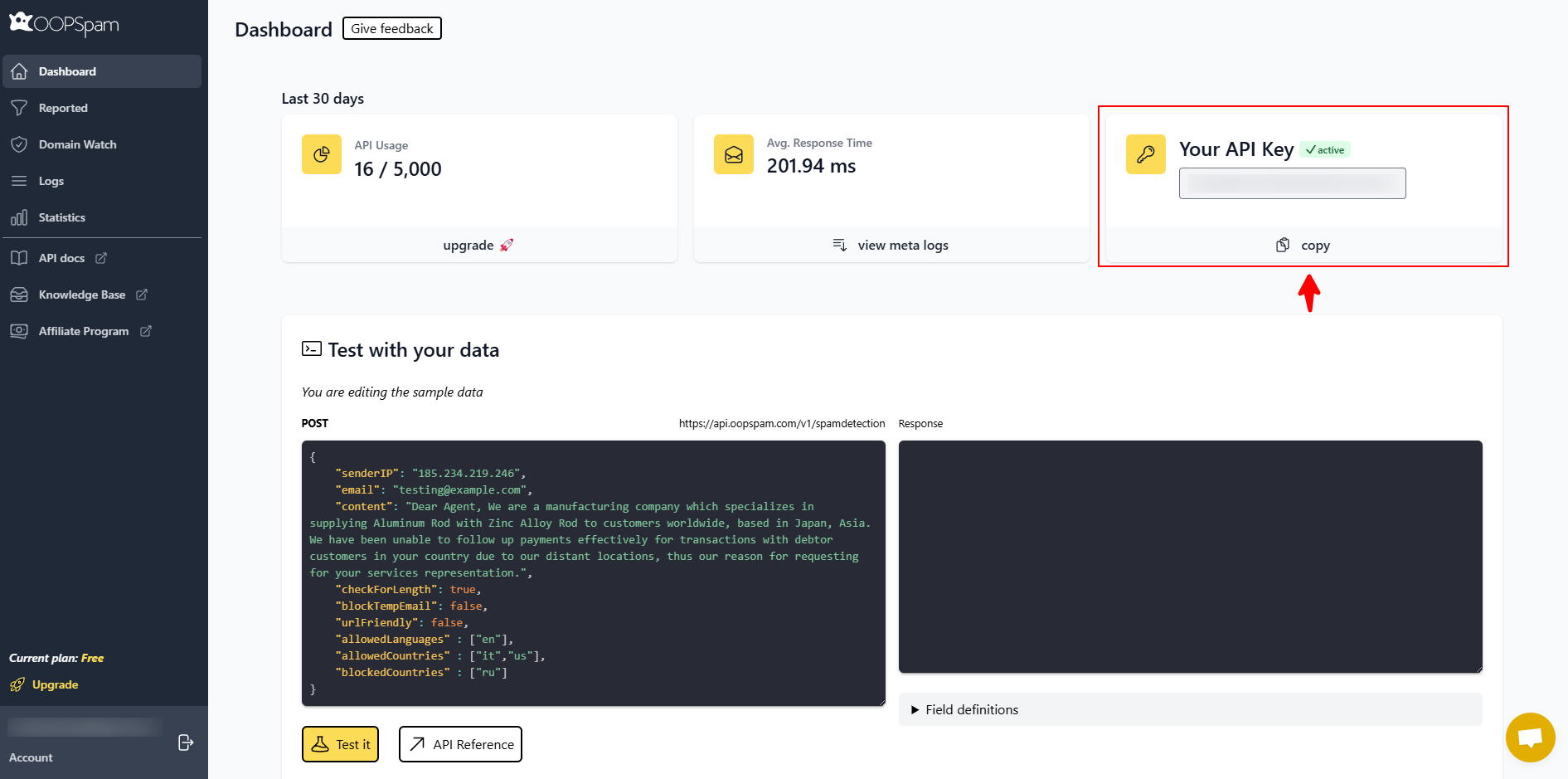
Create an account on the OOPSpam website. After logging in, go to your dashboard and copy your API key.
This key connects your website to OOPSpam’s spam detection service.
Step 3: Add the API Key in WordPress
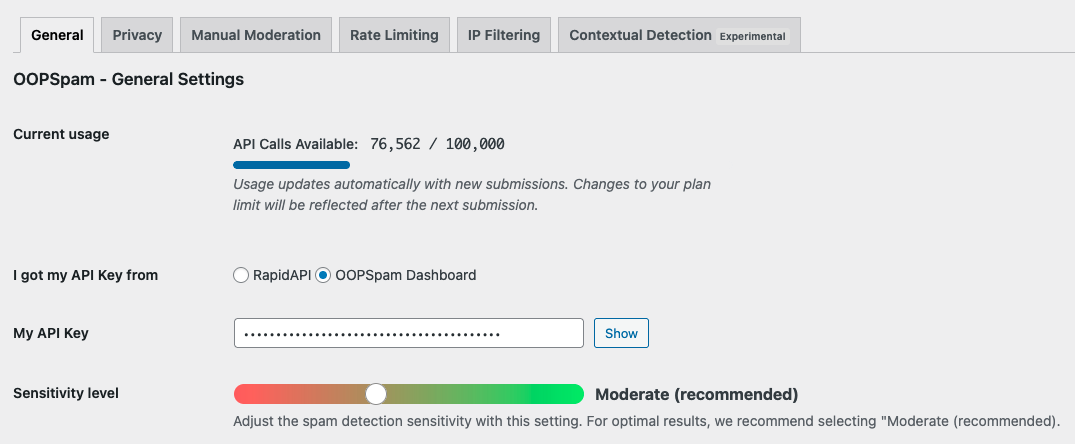
Return to your WordPress dashboard and go to Settings → OOPSpam Anti-Spam.
Paste your API key into the appropriate field, select OOPSpam Dashboard as the key source, and save your settings.
Step 4: Enable Spam Protection

In the OOPSpam settings page, turn on Activate Spam Protection forQuform. You can also customize the message shown when a submission is flagged as spam. Once saved, OOPSpam will begin monitoring form submissions automatically.
No additional configuration is required inside the Quform builder.
Optional OOPSpam Advanced Filters
For stronger protection, OOPSpam also offers additional filters such as:
- Rate limiting to restrict repeated submissions from the same IP
- VPN, proxy, and TOR blocking
- Country allow or deny lists
- Language filtering
- Disposable email blocking
- Contextual spam detection
- Logs for monitoring spam attempts
These tools help detect more advanced abuse patterns. For example, contextual detection analyzes the wording of a message to determine whether it is likely spam.
Final Thoughts
Spam prevention does not need to be complicated. Quform already provides several powerful tools to protect forms from automated submissions.
Start by enabling the built-in protections. Then control how often forms can be submitted. Finally, add a dedicated spam detection service such as OOPSpam for deeper filtering.
With these three steps in place, your Quform forms will remain clean, reliable, and easier to manage, allowing you to focus on real messages instead of spam.