How to Block Countries in FluentCart?

Technical Content Marketer

Reviewed by Onar Alili
Co-founder & Engineer
Published 7 min read
FluentCart has no dedicated country-blocking setting. You can block countries three ways. Exclude them in a shipping zone to stop physical-product orders. Use the oopspam Anti-Spam plugin to reject checkout attempts from blocked countries, including digital orders. Use a Cloudflare rule to stop traffic from those countries before it reaches your server.
This guide shows each method, step by step, and when to use it.
Does FluentCart Have Built-In Country Blocking?
No. FluentCart has no setting that blocks buyers by country or IP location. Its store settings and checkout fields have no allowed-countries list.
The closest native option is shipping zones. Know these limits before you rely on them:
- Physical products only. Shipping zones control shipping methods. Digital products, licenses, and subscriptions skip shipping, so zones do not stop those orders.
- Address, not location. Zones read the address the buyer types. A bot can type any address it wants.
- No spam check. FluentCart’s Cloudflare Turnstile and its checkout rate limit (5 Place Order requests per 60 seconds per IP) stop simple bots. Neither filters by country.
For real country blocking, add oopspam at checkout or Cloudflare at the edge.
Method 1: Exclude Countries in FluentCart Shipping Zones
Use this to stop physical-product orders to countries you do not ship to. It is free and built in.
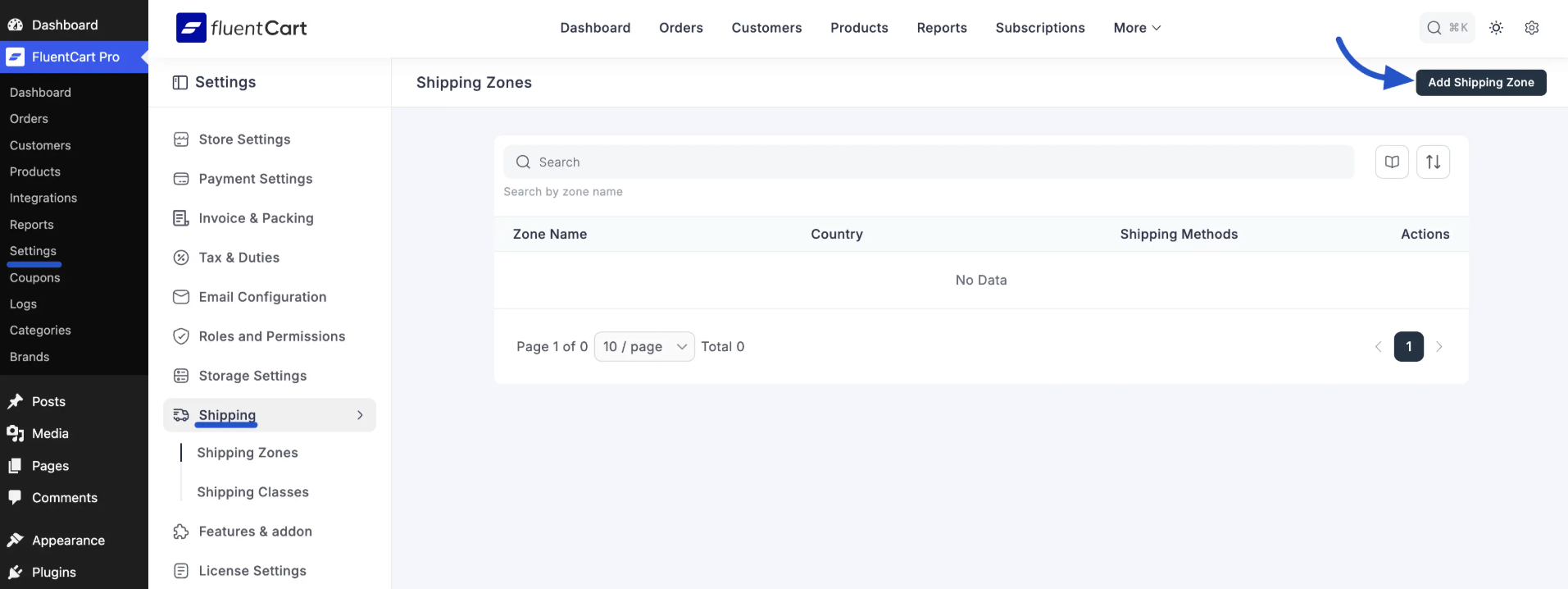
- In WordPress, go to FluentCart > Settings.
- Open the Shipping tab, then the Shipping Zones sub-tab.
- Click Add Shipping Zone, or edit an existing zone.
- Enter a Zone Name, such as “Worldwide (excluded)”.
- Under Coverage, choose All countries except.
- In the Countries dropdown, select the countries to exclude.
- Click Save, then add your shipping methods to the zone.
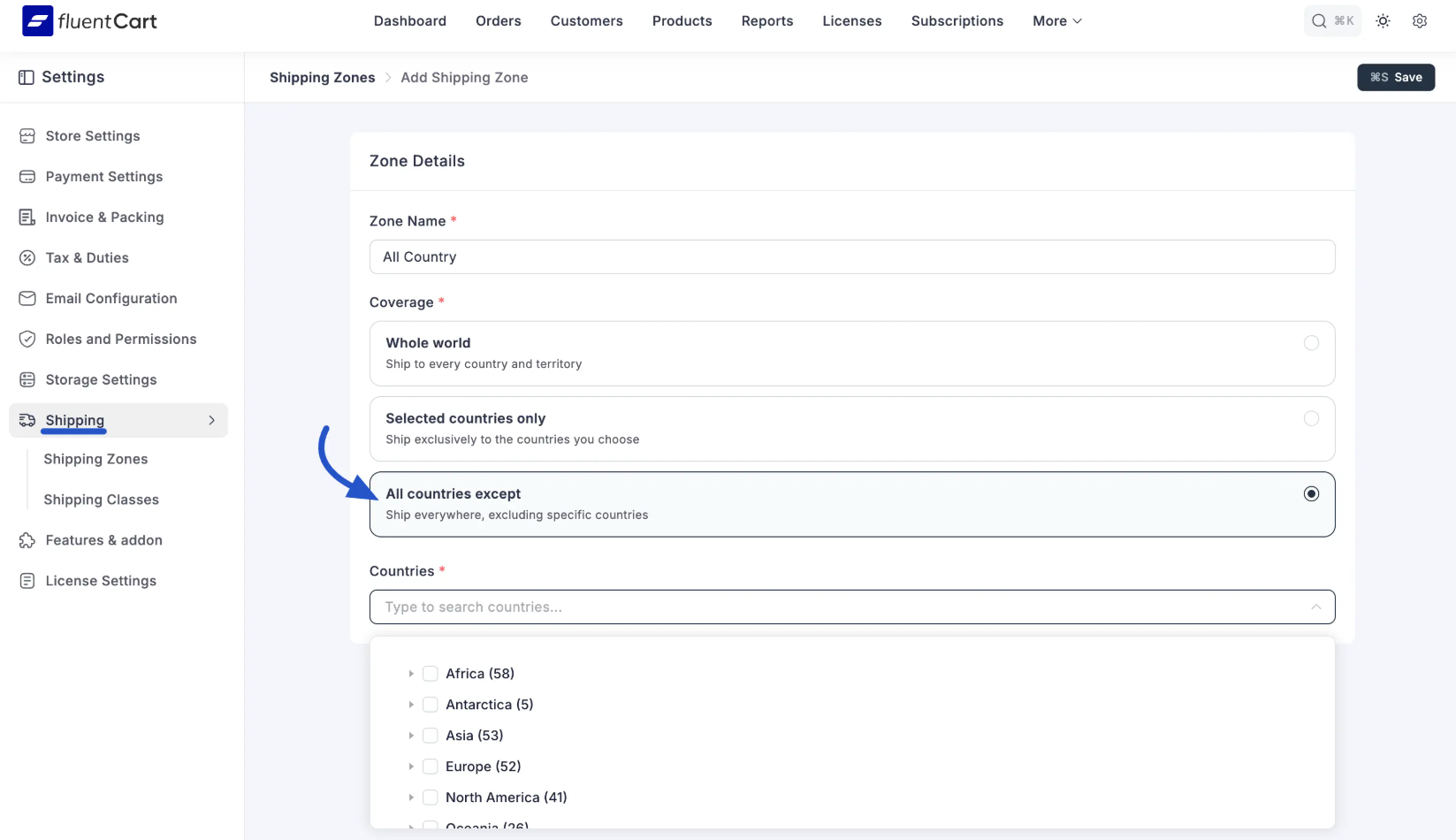
FluentCart shows buyers only the shipping methods for the zone their address falls into. Excluded countries get no shipping option.
Check two things:
- No other zone, such as a Whole world zone, can cover the excluded countries. If one does, those buyers still see shipping.
- Place a test order with an excluded address to confirm checkout stops.
To sell to only a few countries, choose Selected countries only instead.
Method 2: Block Countries at Checkout With oopspam
Use this to reject fake orders, card testing, and checkout spam from countries you do not serve. It works for physical and digital products. The rest of your site stays open.
oopspam checks each FluentCart order by the buyer’s IP before it is processed. FluentCart support was added in oopspam Anti-Spam version 1.2.85.
Go to Plugins > Add New, search for oopspam Anti-Spam, then install and activate it.
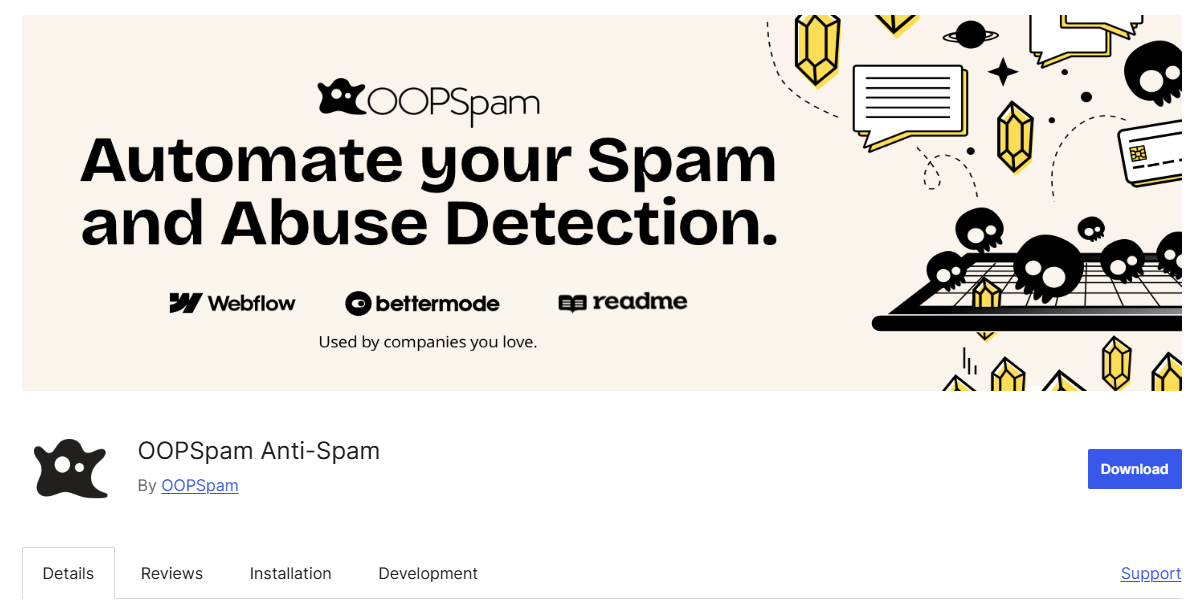
Create a free account and copy your API key.
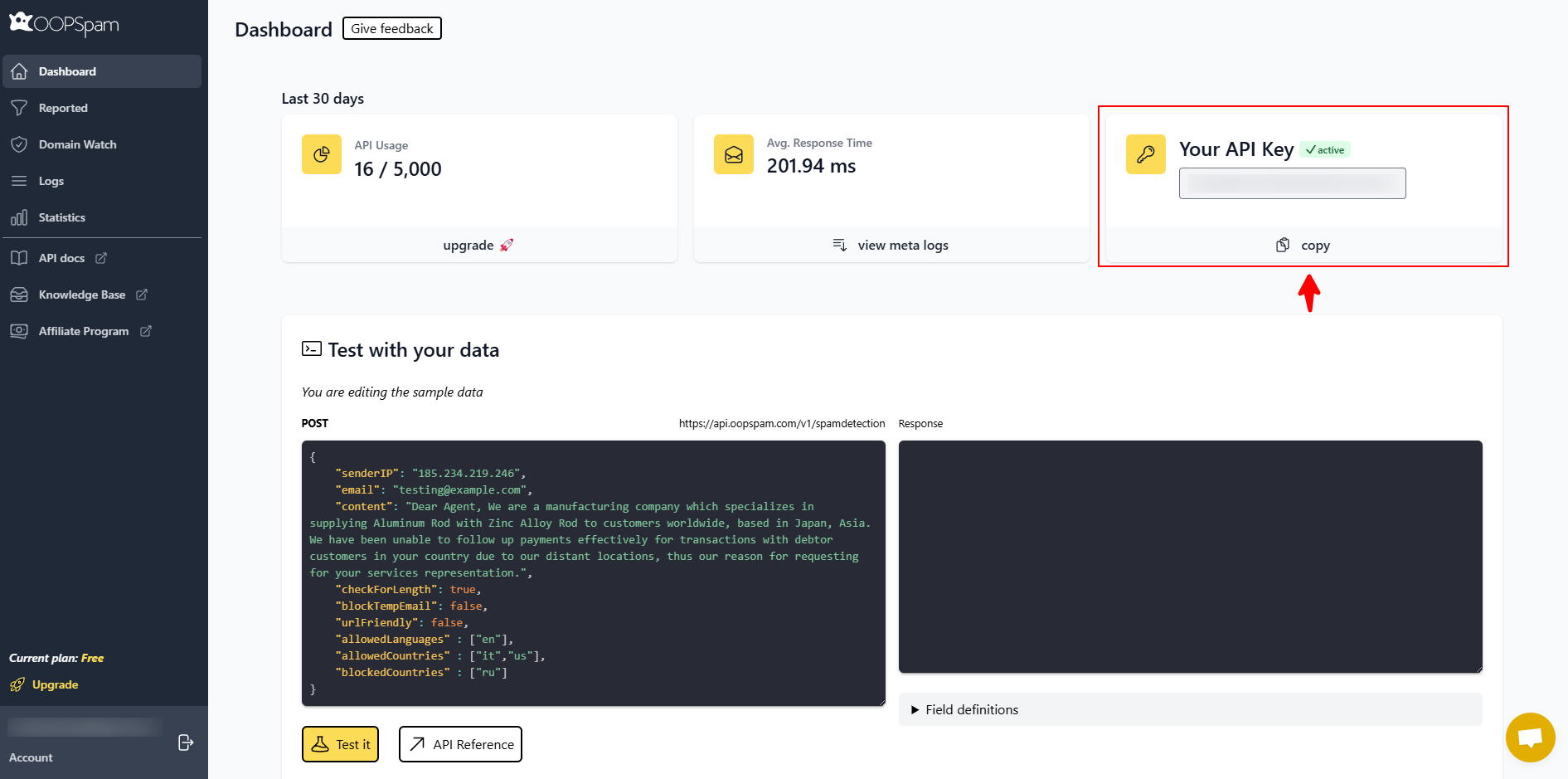
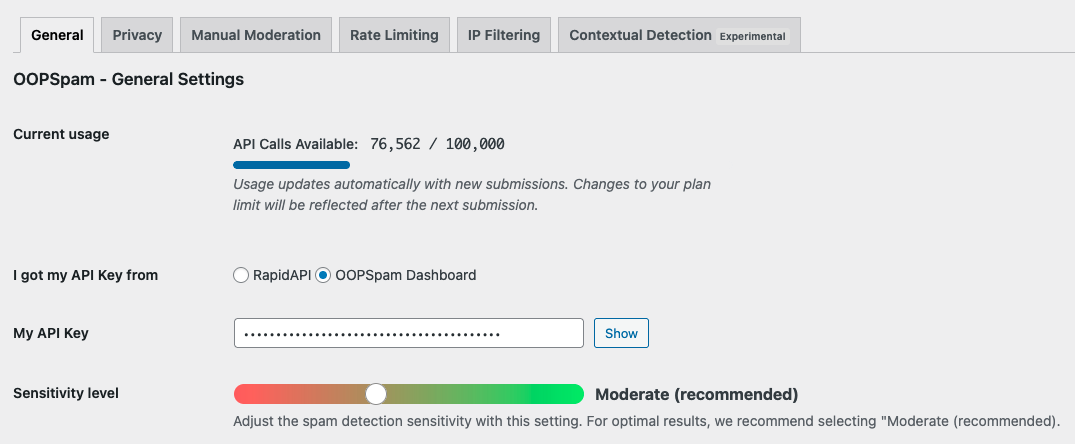
Go to Settings > oopspam Anti-Spam and paste the key.
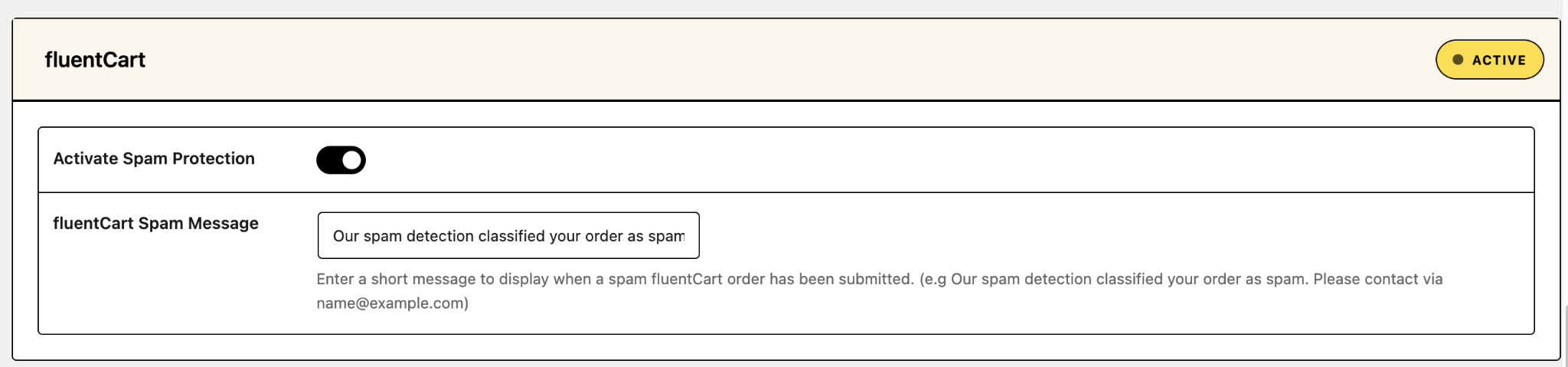
Find the FluentCart section and turn on Activate Spam Protection.
Scroll to Country Filtering and pick a mode:
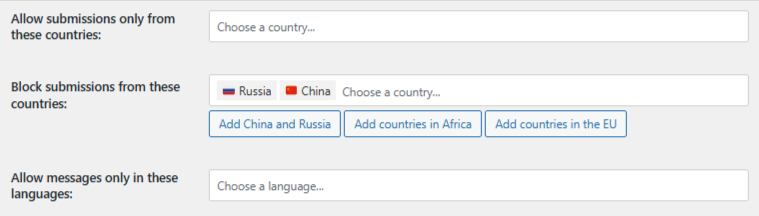
Scroll to Country Filtering and fill in the lists you need:
- Trusted Countries: orders from these countries are always allowed and skip all spam checks. Add only your core markets, such as your home country.
- Country Allowlist: when you select countries here, oopspam processes orders only from these countries. Leave it empty to accept every country not on the blocklist.
- Country Blocklist: orders from these countries are rejected, unless the country is also in Trusted Countries.
Use the quick buttons to add common sets in one click: Add China and Russia, Add countries in Africa, or Add countries in the EU.
Click Save Changes.
If your site runs behind Cloudflare or another proxy, turn on Trust proxy headers. Without it, oopspam may read the proxy’s IP instead of the buyer’s.
Add these for stronger coverage:
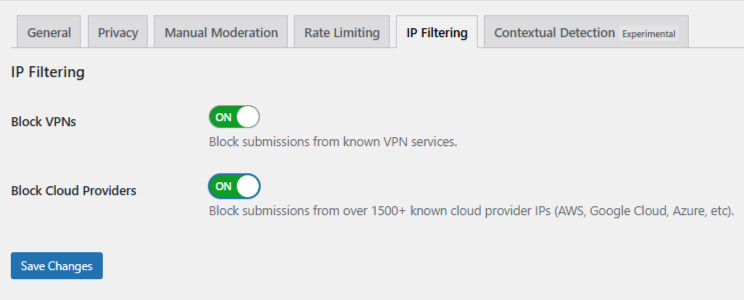
- Block VPNs and cloud providers. Fraudsters use VPNs to fake their country.
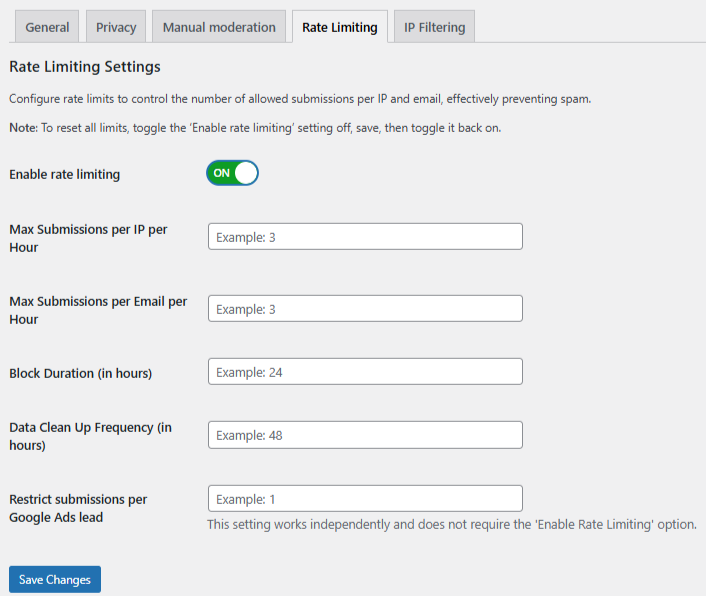
- Rate limiting. Cap orders per IP and per email per hour.
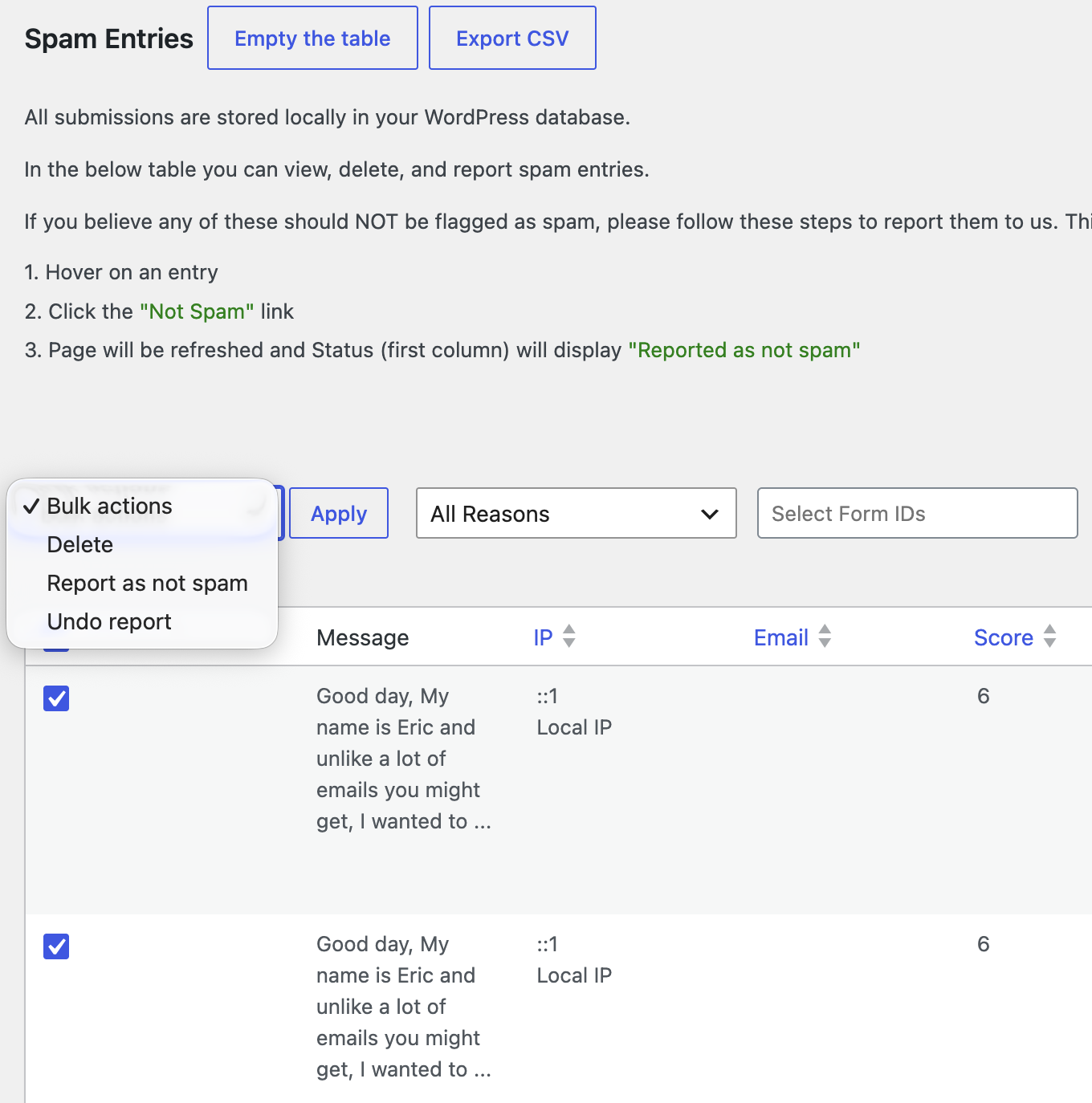
- Logs. Review blocked orders under Form Spam Entries, with the country, IP, and reason.
The free plan includes 40 spam checks per month. Each checked order uses one.
Method 3: Block Countries at the Edge With Cloudflare
Use this when bots flood your store from specific countries. A Cloudflare rule stops requests before they reach WordPress, so they cost you no server resources.
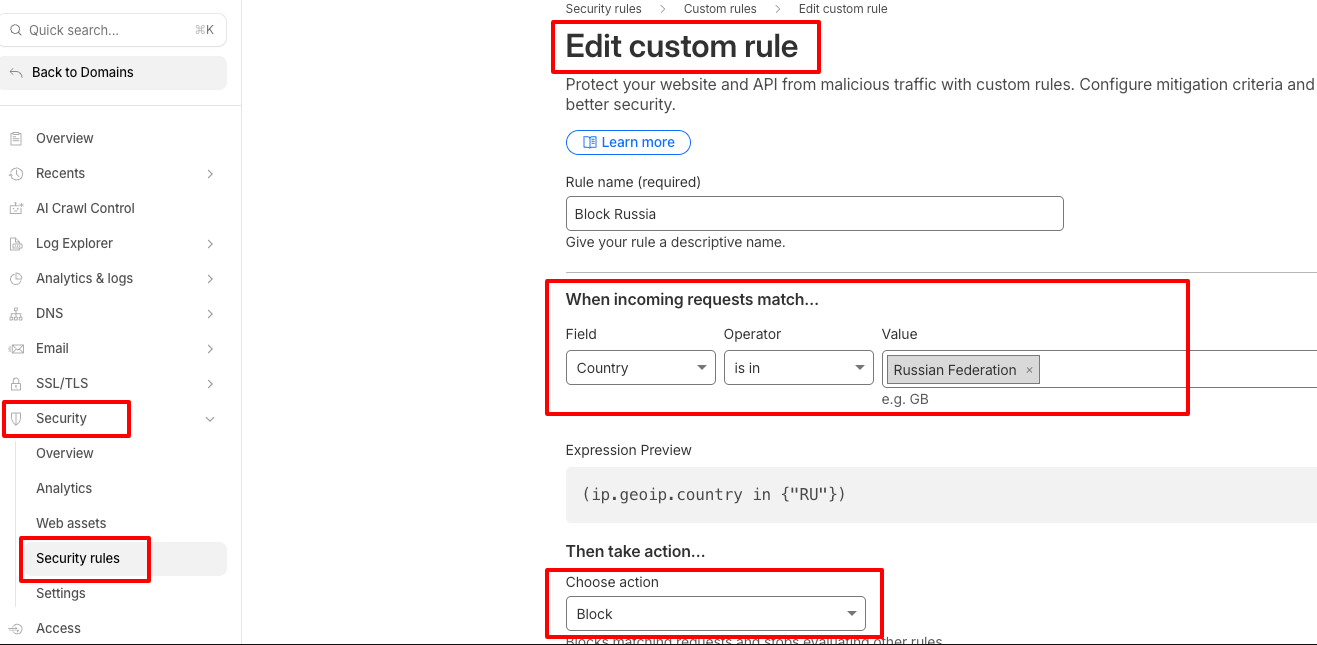
- Log in to the Cloudflare dashboard and select your store’s domain.
- Go to Security > Security rules and create a new custom rule.
- Name it, for example “Block countries at checkout”.
- Set Field to
Country, Operator tois in, and select the countries. - (Optional) To block only checkout, add And: URI Path
equals /wp-json/fluent-cart/v2/checkout/place-order. - Set Action to Block, or Managed Challenge to let real people through.
- Click Deploy.
The checkout-only rule looks like this in the expression editor. Replace the country codes with your own:
(ip.src.country in {"XX" "YY"} and http.request.uri.path eq "/wp-json/fluent-cart/v2/checkout/place-order")
Without step 5, the rule blocks your whole site for those countries. That includes product pages and your blog. Use the full-site block only for legal or security reasons.
Which Method Should You Use?
Start with oopspam for most stores. Add shipping zones for physical goods and Cloudflare for heavy bot traffic.
| Method | What it blocks | Covers digital products | Best for |
|---|---|---|---|
| FluentCart shipping zones | Shipping to excluded addresses | No | Countries you cannot ship to |
| oopspam Anti-Spam | Checkout orders by IP country | Yes | Fake orders, card testing, logs |
| Cloudflare Rules | Checkout path or the whole site | Yes | Bot floods, legal or security bans |
Final Thoughts
Country blocking is IP-range blocking, not identity checking. VPNs and proxies can make a buyer look like they are somewhere else. Pair country rules with VPN blocking and rate limiting so attackers cannot simply switch locations.
FluentCart’s shipping zones control where you ship. oopspam controls who can place an order. Cloudflare controls who can reach your server. Use the layers you need, and review your spam logs weekly.