
Chazie Baniquid
Technical Content Marketer
6 minutes to read
Updated3 Ways to Protect Your Elementor Atomic Forms From Spam
You can protect Elementor Atomic Forms from spam using three methods: blocking countries via Cloudflare before requests reach your site, leveraging the elementor_pro/atomic_forms/spam_check PHP filter for custom validation rules, or installing the oopspam Anti-Spam plugin for automated multi-layered filtering. Elementor Atomic Forms is the new form builder in Elementor Editor V4, using a modular, component-based system for greater design flexibility. However, because it is still evolving, key spam protection features available in the classic Elementor Form widget, such as honeypot fields and reCAPTCHA integration, are not yet supported.
Here are the three options that actually work right now.
Method 1: Block Countries at the Cloudflare Level
If your legitimate audience is geographically concentrated and you are getting spam traffic from specific regions, Cloudflare’s country blocking is one of the effective and lowest-effort options available. Because it acts before a request ever reaches your WordPress site, it stops spam before the form submission even happens.
How to set it up
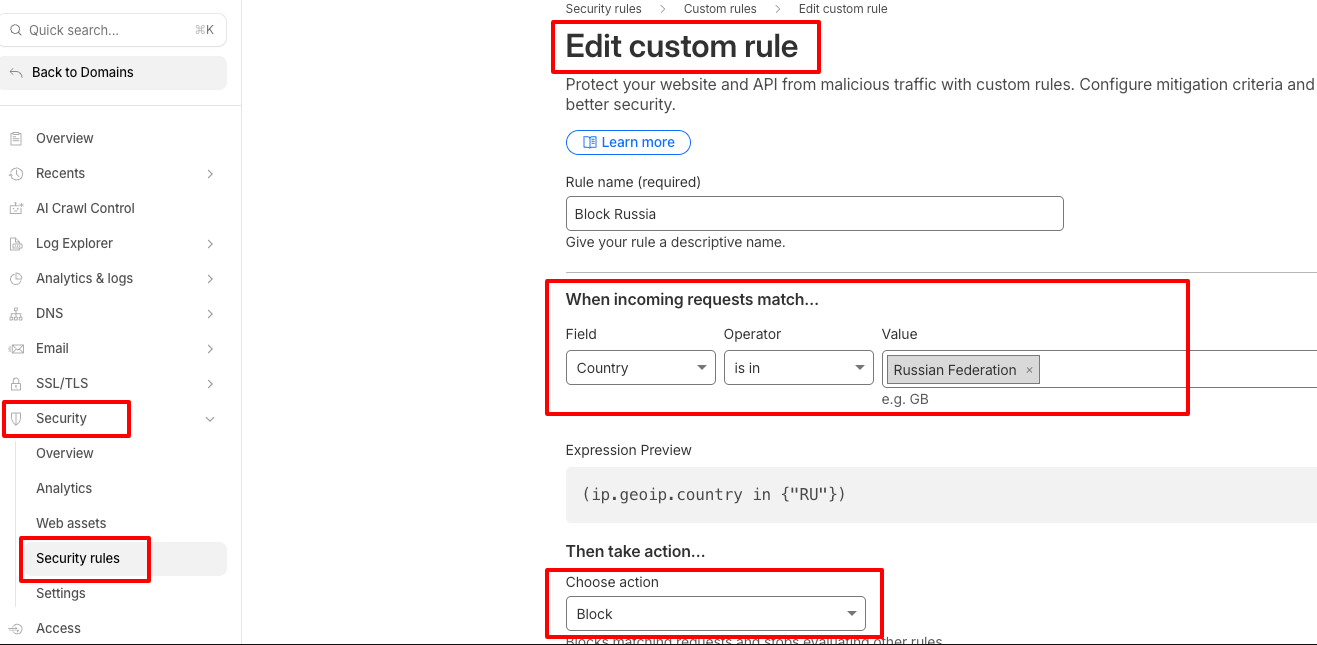
- Log into your Cloudflare dashboard and select your site.
- Go to Security > Security rules (Web Application Firewall).
- Click Create rule under Custom Rules.
- Set the field to Country, the operator to is in, and select the countries you want to block.
- Set the action to Block and deploy the rule.
This approach is blunt by design. Use it when you have a clear geographic pattern to your spam and when blocking entire countries does not risk locking out real visitors. For more targeted control, combine it with the methods below.
Method 2: Use the elementor_pro/atomic_forms/spam_check Filter
Elementor Atomic Forms exposes a PHP filter hook called elementor_pro/atomic_forms/spam_check. This hook fires during the form submission process and lets you inject custom validation logic before a submission is accepted. If your check fails, the submission is rejected.
This is the flexible option available right now. You can use it to block specific IP addresses, flag known spam email addresses, check against external APIs, or apply any custom rules your site requires.
Example: Blocking by IP address and email
Add the following code to your theme’s functions.php file or a custom plugin:
add_filter( 'elementor_pro/atomic_forms/spam_check', function( $is_spam, $form_data ) {

    // List of blocked IP addresses
    $blocked_ips = [
        '192.168.1.100',
        '203.0.113.45',
    ];

    // List of blocked email addresses or domains
    $blocked_emails = [
        '[email protected]',
        '@disposabledomain.com',
    ];

    // Get the submitter's IP address
    $submitter_ip = $_SERVER['REMOTE_ADDR'] ?? '';

    // Check if the IP is blocked
    if ( in_array( $submitter_ip, $blocked_ips, true ) ) {
        return true; // Mark as spam
    }

    // Get the submitted email from form data
    $submitted_email = $form_data['email'] ?? '';

    // Check against blocked emails and domains
    foreach ( $blocked_emails as $blocked ) {
        if ( str_contains( $submitted_email, $blocked ) ) {
            return true; // Mark as spam
        }
    }

    return $is_spam; // Return original value if no rule matched

}, 10, 2 );
What this code does:
- Defines a list of blocked IP addresses and blocked email addresses or domains.
- Retrieves the submitter’s IP from the server request.
- If the IP matches the blocklist, the submission is flagged as spam and rejected.
- If the submitted email contains a blocked address or domain string, it is also rejected.
- Any submission that passes both checks is returned without modification.
Note on error messages: When spam is detected, Atomic Forms shows a default error message, but you can customize it to provide clearer feedback to users.
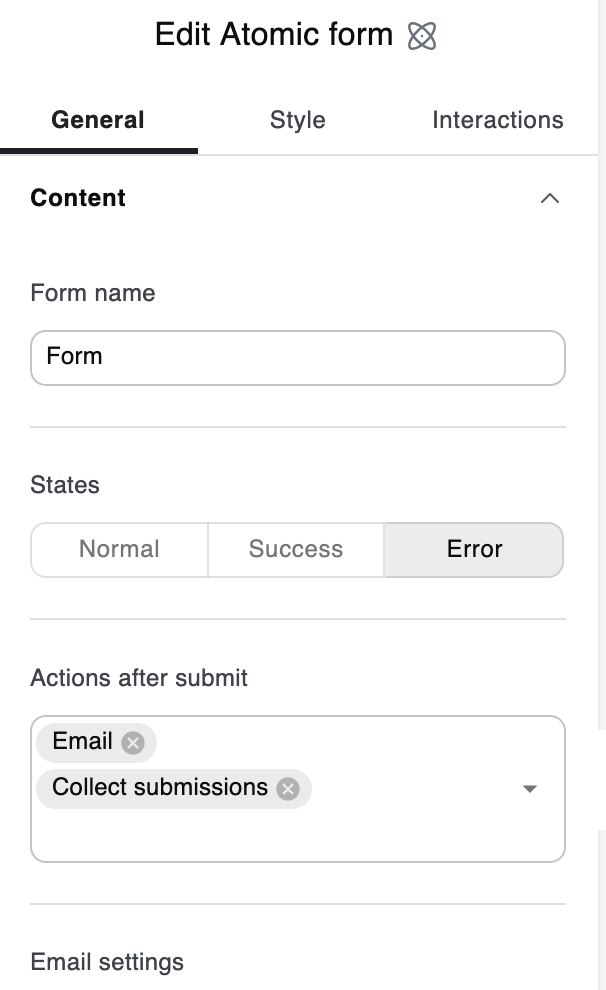
To do so:
- Select the Atomic Form in the Elementor editor.
- In the left panel, go to General > Content > States and select Error.
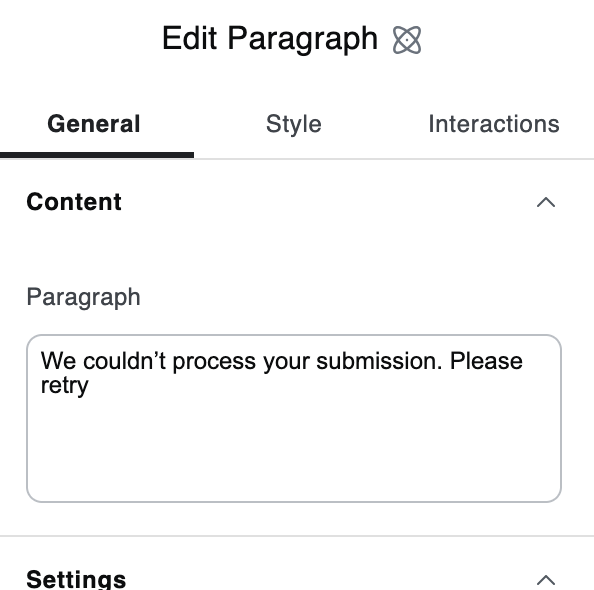
- Click on the error message text on the canvas.
- Edit the paragraph to whatever message you want the user to see.
Method 3: Install oopspam Anti-Spam Plugin
oopspam (that’s us 👋) is the most capable plug-and-play solution currently available for Elementor Atomic Forms. It hooks directly into the form submission process and applies multiple layers of intelligent filtering before anything reaches your inbox.
How to set it up
Go to Plugins > Add New in your WordPress dashboard. Search for oopspam Anti-Spam, then install and activate it.
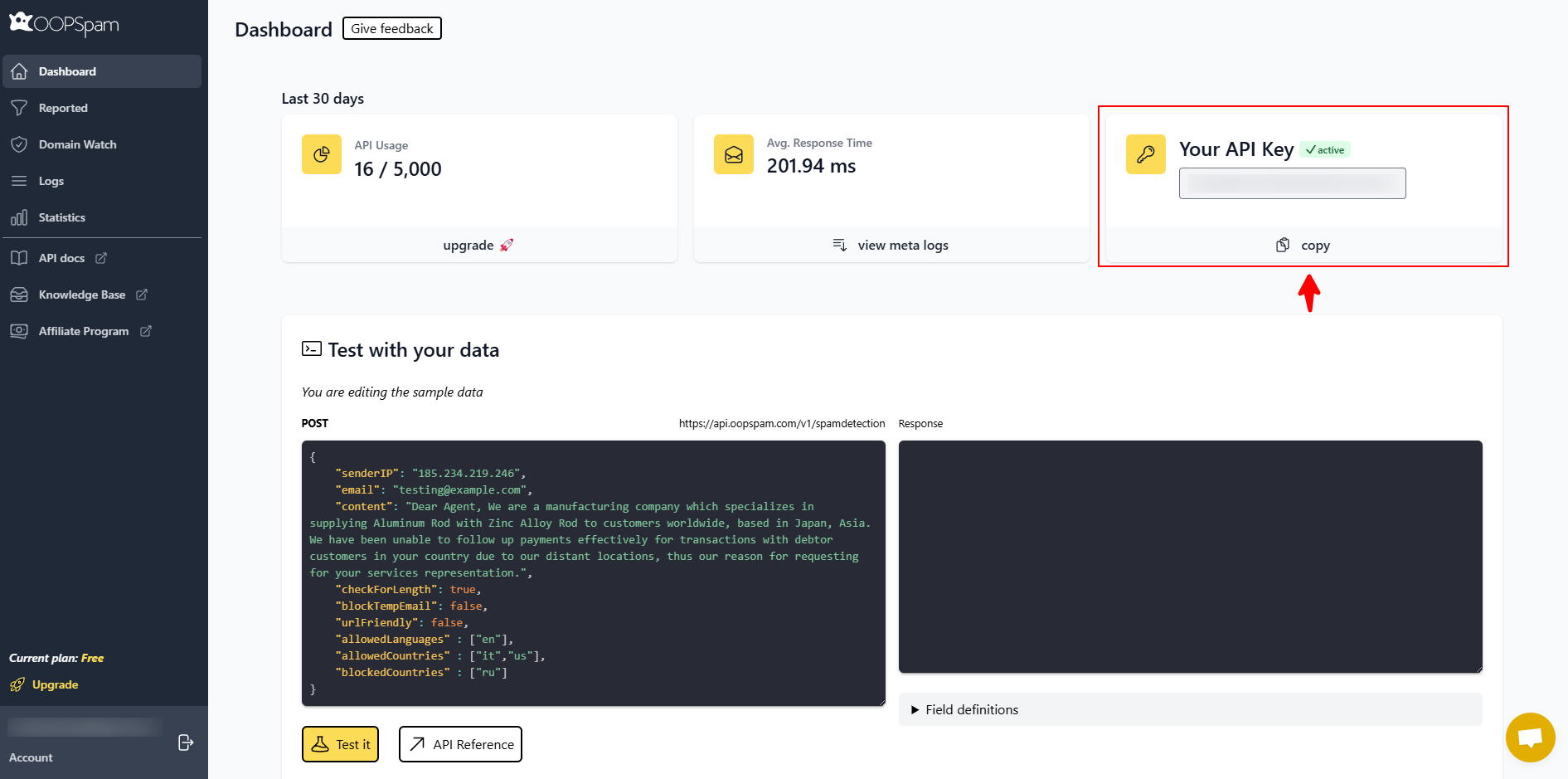
Create a free account at oopspam.com and copy your API key from the dashboard.
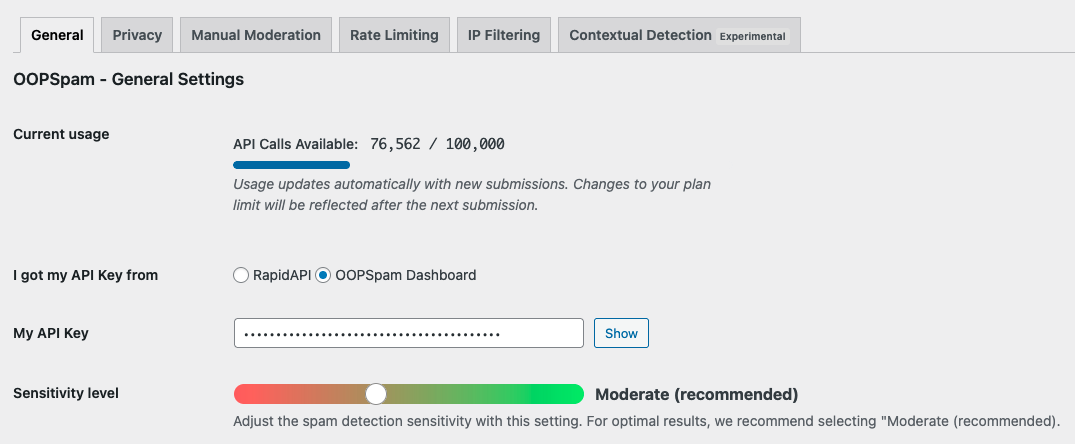
Navigate to Settings > oopspam in WordPress, paste your API key, and save.
In the oopspam settings, find Elementor Atomic Forms and toggle on Activate Spam Protection.
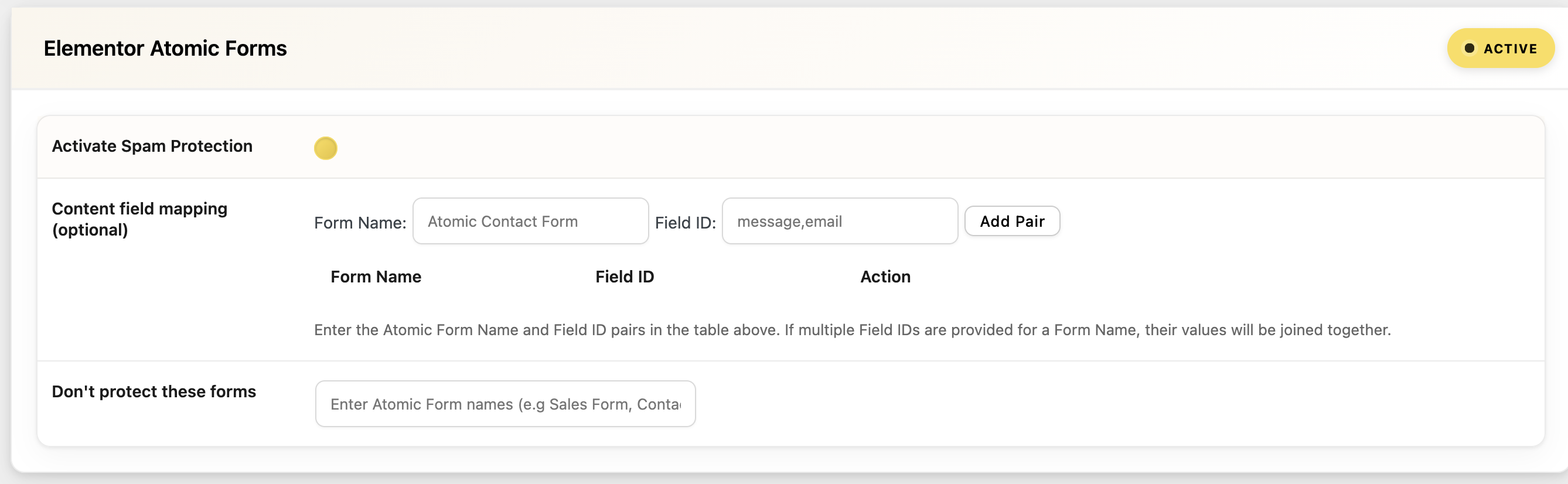
Once active, it begins filtering submissions automatically.
What oopspam can filter
- Submissions from known spam IP addresses and email domains.
- Traffic originating from VPNs, proxies, and data center IPs.
- Disposable or temporary email addresses.
- Submissions from specific countries you choose to block.
- Repeat submissions from the same IP or email within a set time window.
oopspam also includes a submission log so you can review what is being blocked and fine-tune your settings over time. This is particularly useful when legitimate submissions get caught and you need to adjust sensitivity.
Note on error messages: The same limitation applies here as with the custom filter. Because Atomic Forms does not yet support custom error messages, a blocked submission will show a generic error to the user. This is expected to be addressed in a future Elementor update.
Final thoughts
Elementor Atomic Forms offers greater flexibility than the classic Form widget, but native spam protection is still catching up. Fortunately, solutions like Cloudflare, custom PHP filters, and oopspam provide effective, production-ready protection today. As Elementor continues to develop Editor V4, native anti-spam features will likely arrive. Until then, a layered approach can keep your forms secure and your inbox free of spam.